
PriceWise Calculator Pro allows your WooCommerce store to replace static product prices with interactive, step-by-step calculators that show customers a real-time price based on exactly what they want to order.
Installation
↑ Back to topBefore installing, make sure your store meets these requirements: WordPress 5.8 or higher, WooCommerce 5.0 or higher, and PHP 7.4 or higher.
- Log into your WooCommerce account and download the PriceWise Calculator Pro .zip file
- In your WordPress admin go to Plugins > Add New and click Upload Plugin
- Select the downloaded .zip file and click Install Now
- Click Activate Plugin once it finishes
After activation you will see a new Calculators menu in your WordPress admin sidebar. Everything you need lives there.

Setup and Configuration
↑ Back to topGetting started
↑ Back to topBuilding your first calculator takes about ten minutes. Go to Calculators > Dashboard and click Add New Calculator. The editor has four tabs — work through them in order.
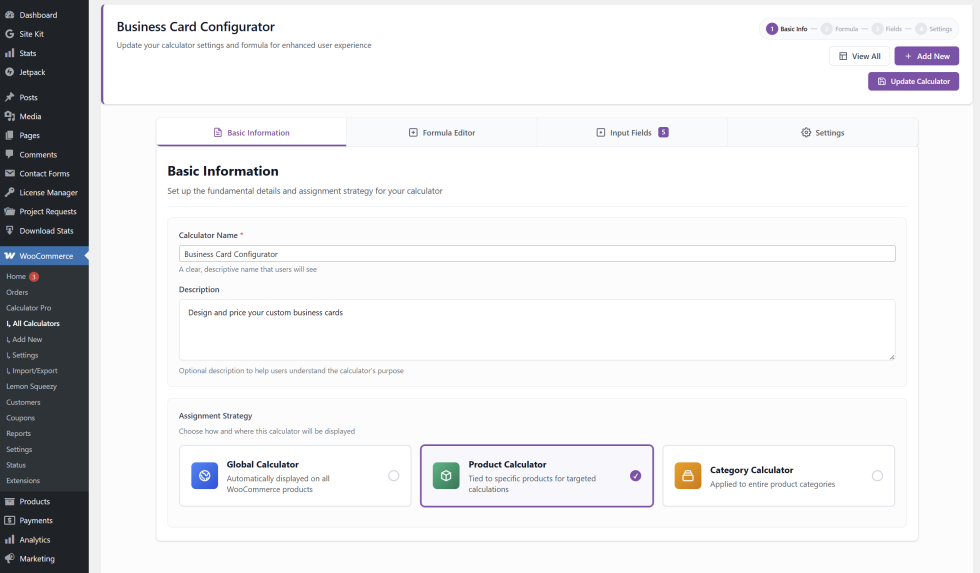
Step 1 — Basic Tab
↑ Back to topGive your calculator a name and choose your Assignment Strategy. Global applies it to all products in your store automatically. Product links it to one specific product. Category automatically applies it to every product in the categories you select — the most useful option for most stores.
Step 2 — Formula Tab
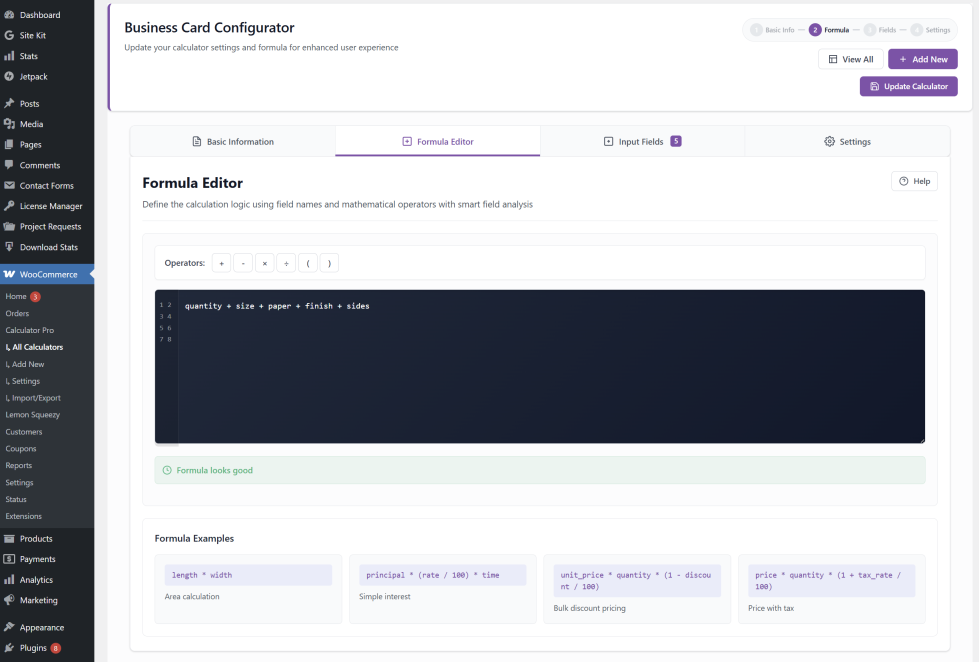
↑ Back to topSet your base price and write your pricing formula using field key names and basic maths operators. For example:
(15 + size + material) * quantity. If you leave the formula blank, the plugin automatically adds up all field values.
Step 3 — Fields Tab
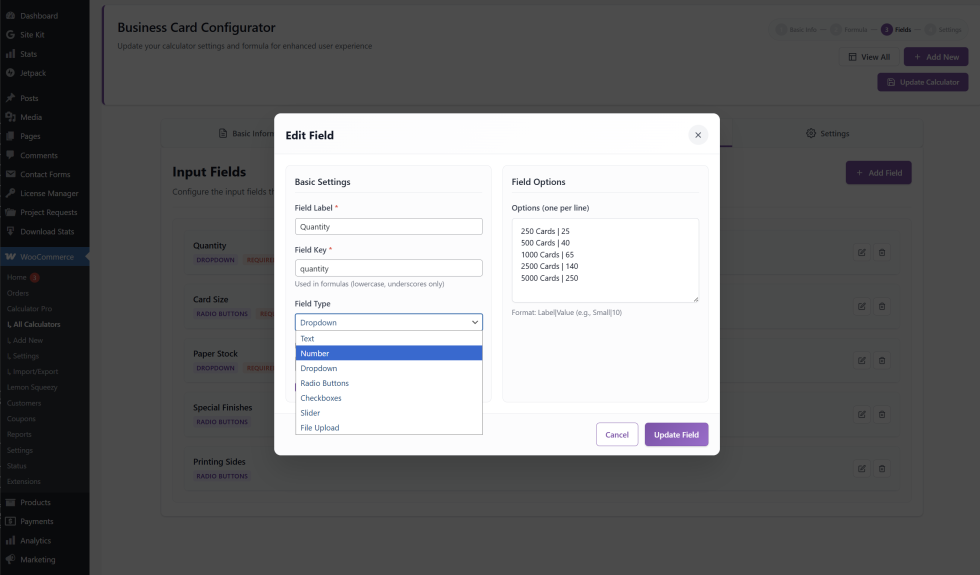
↑ Back to topClick Add Field to build the inputs customers see. Each field needs a Label and a Field Key. Eight field types are available: Text, Number, Dropdown, Radio, Checkbox, Slider, File Upload, and Textarea.
Step 4 — Settings Tab
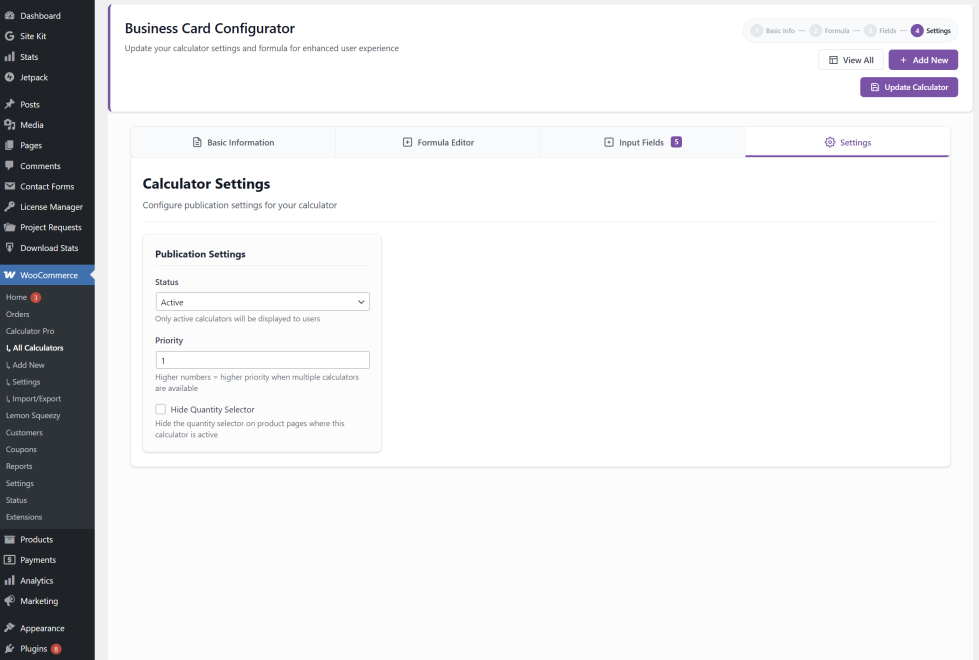
↑ Back to topSet Status to Active when ready. Use Priority if multiple calculators overlap. Tick Hide Quantity Selector if your calculator already has a quantity field.
Advanced configuration
↑ Back to topOnce your first calculator is working, here are a few more things worth setting up.
Matching your brand
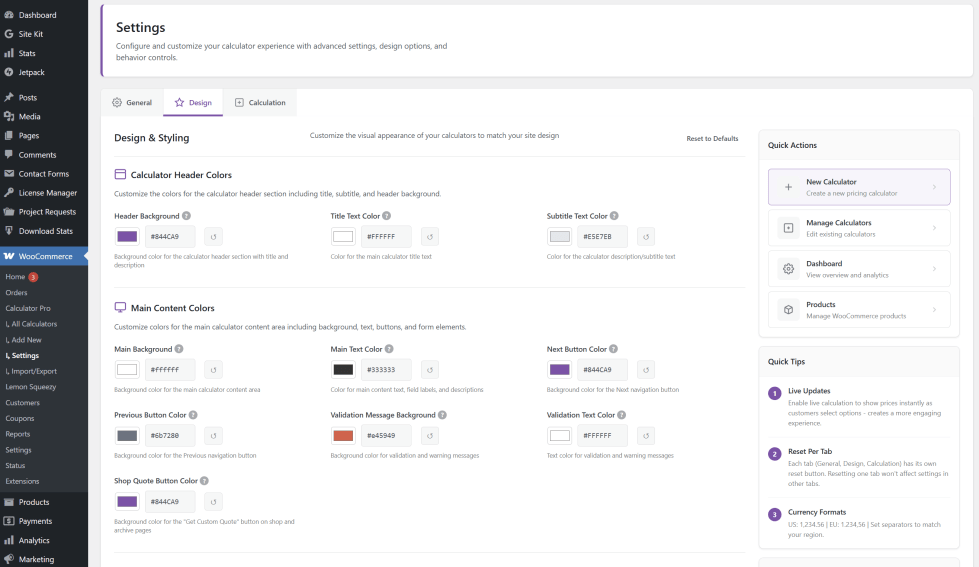
Go to Calculators > Settings > Design tab. You will find colour controls for every part of the calculator — header, buttons, progress bar, background, and text. Takes about ten minutes and makes a big difference.
Connecting to a specific product
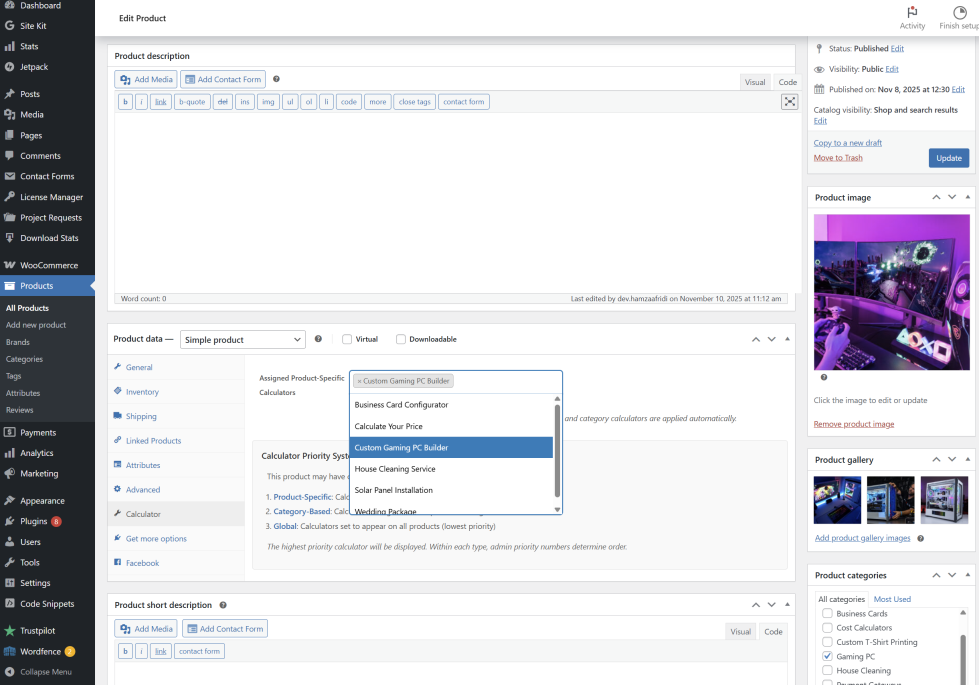
If you chose Product assignment, open the product in WooCommerce > Products, scroll to Product Data, click the Calculator tab, pick your calculator from the dropdown, and save.
Backing up your calculators
Go to Calculators > Import/Export and click Export. Keep that file safe. If you ever migrate your site or something gets deleted, re-import it and everything comes back exactly as it was.

Usage
↑ Back to topWhen a customer lands on a product page with a calculator assigned, they see the calculator instead of a fixed price. It works one step at a time with a progress bar showing how far through they are. The price updates in real-time as they make each selection.

When they click Add to Cart, the calculated price goes into the cart and a full summary of every selection is saved with the order. When you open the order in WooCommerce > Orders you can see exactly what was configured.
Important: Two things must be in place for the calculator to show on a product page:
- The calculator must have at least one field added in the Fields tab
- The WooCommerce product must have a Regular Price set — any number, even $1. WooCommerce needs this to initialise its cart system. The calculator overrides it dynamically.
Troubleshooting
↑ Back to topMy calculator is assigned but not showing on the product page
Check these first: Does the calculator have at least one field in the Fields tab? Does the product have a Regular Price set? Is the calculator Status set to Active? All three must be true.
The price does not update when customers make selections
Open your Formula tab and check the field key names in your formula match exactly what you set in the Fields tab — they are case-sensitive. Also make sure Enable Live Calculation is turned on in Calculators > Settings.
The calculator styling looks broken
Clear all caches first — your caching plugin, browser, and CDN. If that does not fix it, switch temporarily to a default WordPress theme like Twenty Twenty-Four to check if your theme is causing a CSS conflict.
Two calculators are showing on the same product
This happens when a product has both a direct Product assignment and belongs to a category with a Category calculator. Remove one assignment or use the Priority setting — higher number wins.
The file upload field is not working
This is a server setting. Ask your host to increase the upload_max_filesize limit in PHP settings.
FAQs
↑ Back to topHelp customers by answering commonly asked questions.
Do I need to set a price on the product if the calculator calculates the price?
Any business that sells custom or variable priced products. If your pricing changes based on what the customer chooses, this plugin is for you. A print shop that charges by size, quantity and finish. A furniture maker who prices by material, dimensions and colour. A cake shop charging by tier, flavour and delivery. A cleaning service quoting by room count and frequency. A sign maker pricing by size and material. Basically if you currently send manual quotes or have a pricing table on your website, this plugin replaces all of that with an interactive calculator that gives customers an instant price.
Do I need to set a price on the product if the calculator calculates the price?
Yes. WooCommerce needs a number in the Regular Price field to work correctly. The actual number does not matter, put $1 if you want. The calculator overrides it dynamically when a customer makes their selections.
Do I need to write a formula?
It depends on your pricing. If your pricing is simple and you just want to add up all the field values, you can leave the formula blank and the plugin handles it automatically. But for most real businesses you will want a formula to match your actual pricing logic. A print shop might use
(base + size + paper_type) * quantity. A fencing company might uselength * height * material_price. A cake shop might usebase_price + flavour + tiers + delivery. The formula gives you full control to match exactly how your business prices its products. Most users will want to write one.
How do I write a formula?
Use your field key names with basic maths operators. Addition, subtraction, multiplication, division and brackets are all supported. The field key names must match exactly what you typed in the Field Key box when creating each field. No curly braces or special symbols needed, just the plain field key name on its own.
Can I use one calculator across many products?
Yes. Set Assignment Strategy to Category and select your product categories. Every product in those categories gets the calculator automatically, including new products you add later.
Can I see what customers selected after they order?
Yes. Open the order in WooCommerce > Orders and you will see a full breakdown of every selection the customer made alongside the calculated price.
Will this plugin conflict with my discount or coupon plugins?
Most standard WooCommerce discount and coupon plugins work fine. If you notice the cart price is different from what the calculator showed, another plugin is likely overriding the price at checkout. Try disabling your other pricing and discount plugins one at a time to find the conflict.
Can I back up my calculators?
Yes. Go to Calculators > Import/Export and click Export. It saves a file with all your calculators and their full configuration. Re-import it any time you need to restore them.
Will this plugin slow down my site?
No. The plugin only loads its scripts on pages where a calculator is assigned. On every other page none of the plugin code loads at all.
Can a customer enter a quantity as part of the calculation?
Yes. Create a Number field with the key
quantityand include it in your formula. Also tick Hide Quantity Selector in the Settings tab so customers do not see two quantity inputs on the page.
Is the calculator mobile friendly?
Yes. The step by step interface is fully responsive and works on phones and tablets. Each field shows one at a time with clear navigation buttons which actually works better on mobile than a long form would.

