
The Print Invoice & Delivery Notes for WooCommerce extension allows both online store owners and customers to print invoices, receipts, and delivery notes directly for their WooCommerce Orders. This functionality can be particularly useful for businesses that need to maintain organized documentation for their orders.
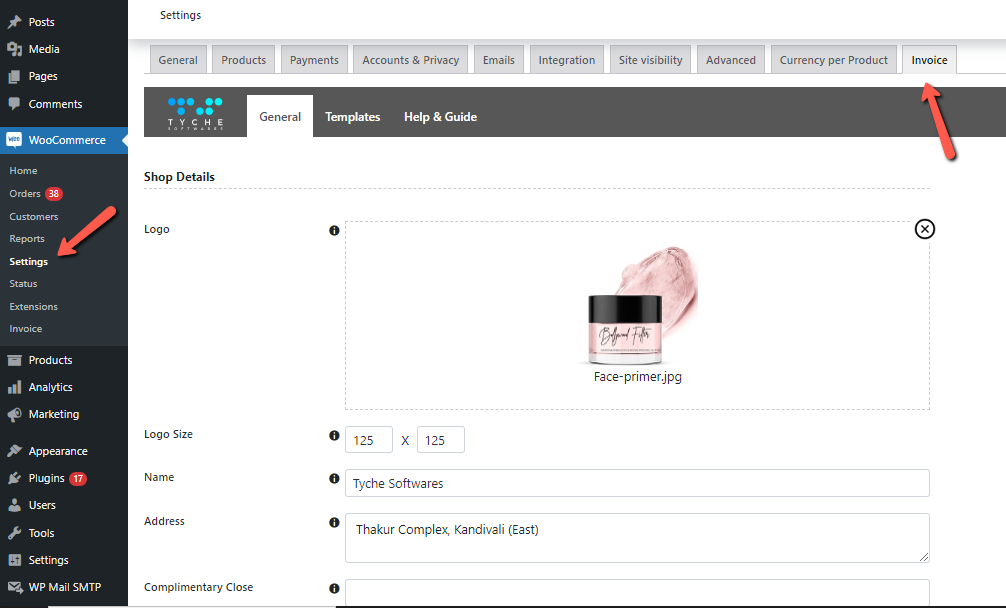
You will find the Print Invoices settings at WooCommerce -> Invoice OR you can navigate to WooCommerce > Settings > Invoice also as shown below:
Installation
↑ Back to topTo start using a product from WooCommerce.com, you can use the “Add to store” functionality on the order confirmation page or the My subscriptions section in your account.
- Navigate to My subscriptions.
- Find the Add to store button next to the product you’re planning to install.
- Follow the instructions on the screen, and the product will be automatically added to your store.
Alternative options and more information at:
Managing WooCommerce.com subscriptions.

Configure WooCommerce Invoice Plugin General Settings
↑ Back to topThe General settings page is divided into 3 sections:
Let us understand the settings under the Shop Details section in detail in this post:
Add Shop Details and Logo to WooCommerce Invoices
↑ Back to topYou can upload your business logo to be displayed on invoices and delivery notes in this option, ensuring brand consistency and professionalism.
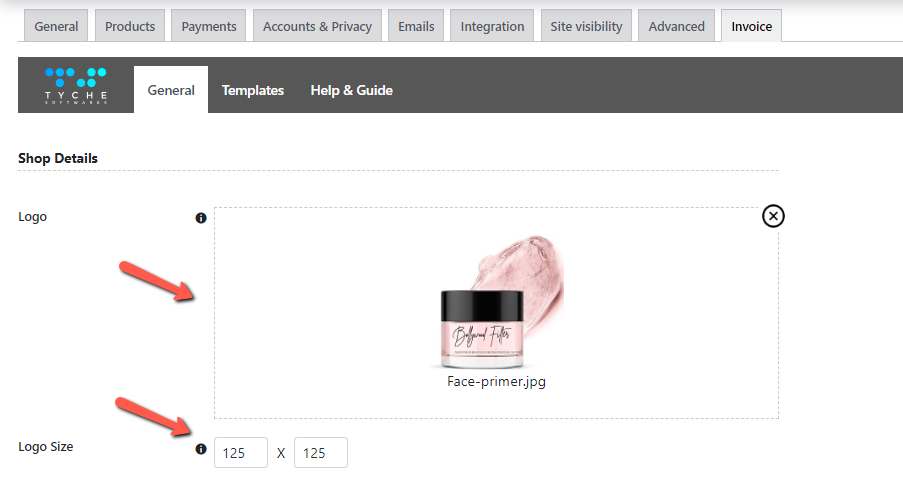
You can adjust the dimensions of the uploaded logo to fit perfectly on the documents.

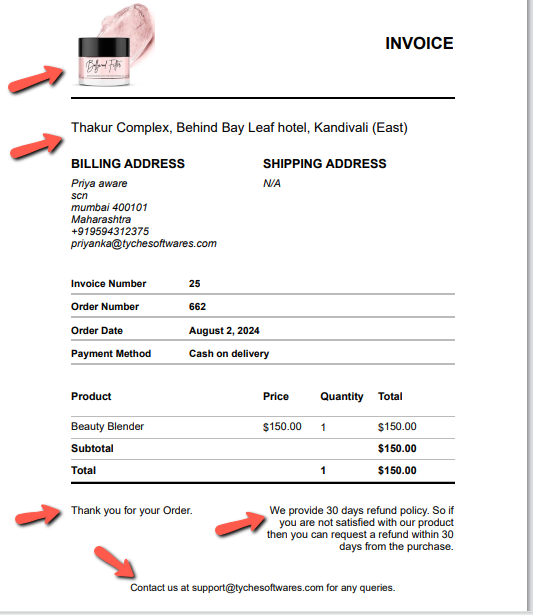
You can specify the name here that will appear on the invoice, receipt, or delivery note, typically your business name or the name of the person handling the order.

You can enter the address that will be printed on the invoice/receipt/delivery notes, providing essential company contact information for customers.

You can add a personalized closing phrase for your documents (e.g., “Sincerely,” or “Thank you for your business”) to add a personal touch.
You can include important policies e.g., the return policy or shipping policy to ensure customers are informed about their rights and responsibilities.


In the Footer option, you can add additional information such as tax numbers, website links, or links to your social media profiles, to enhance customer engagement and provide further information.
The image below illustrates how the invoice will appear with your configured shop details:
We hope this documentation has provided you with a clear understanding of how to utilize the various options available to streamline your invoicing and delivery processes.
Add Print Invoice and Delivery Note Buttons
↑ Back to topIn this article, we will explore how to configure the print options for your WooCommerce settings.
To access these settings, navigate to WooCommerce -> Invoice -> General -> Pages & Buttons.
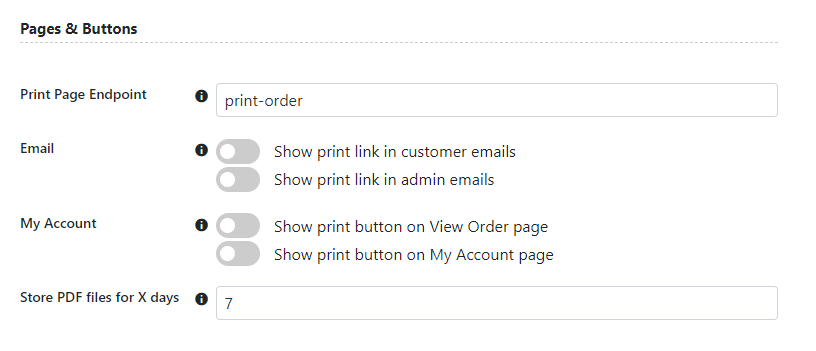
This unique endpoint is appended to the account page URL, enabling users to print their orders.

How to Add Print Links to WooCommerce Emails
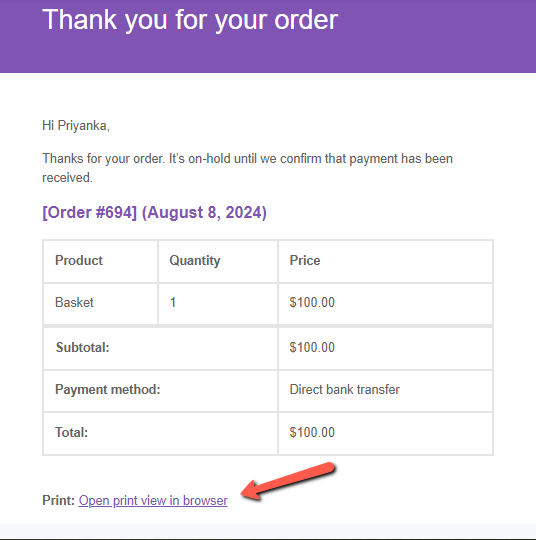
↑ Back to topThis feature allows print links to be included in WooCommerce emails sent to both customers and site administrators.

a. Show print link in customer emails
When enabled, this feature automatically includes a link in customer emails that allows them to easily print their invoices or delivery notes.
b. Show print link in admin emails
Similar to the customer emails feature, this option adds a print link in emails sent to administrators, making it easier for them to access and print order documents directly from their inbox.
Print Order Invoice from My Account Orders Page
↑ Back to topThese settings will display a print button on the customer’s My Account page for easy printing of order documents.

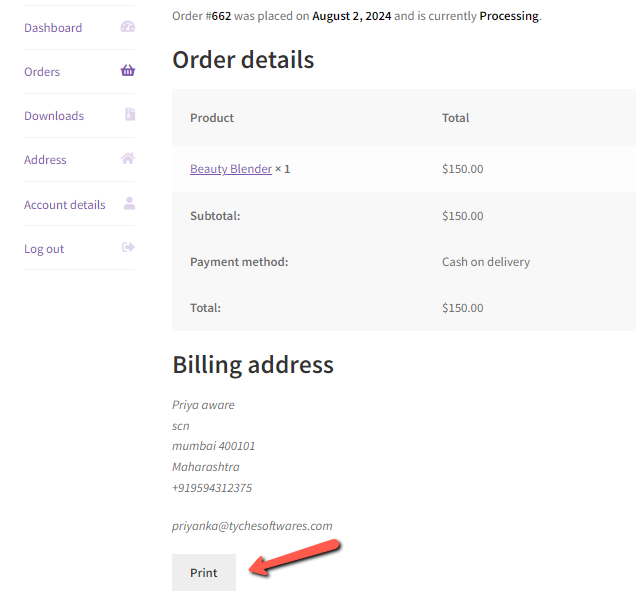
a. Show print button on View Order page
This setting adds a print button to the customer’s “View Order” page, providing a simple way for them to print their invoice or delivery note immediately after placing an order.
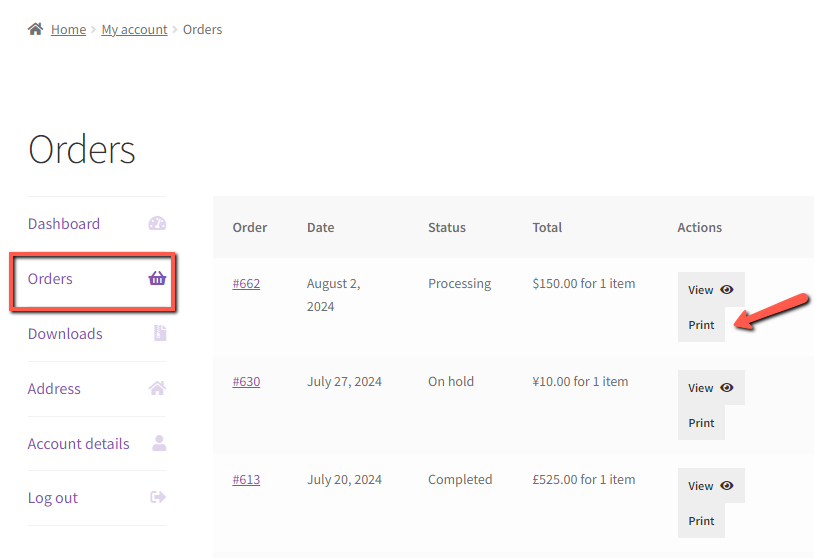
b. Show print button on My Account page
By enabling this option, a print button will appear on the user’s “My Account” page, allowing customers to quickly print documents related to their past orders without leaving the account section.
This feature lets you determine how many days to keep the PDF versions of invoices and delivery notes on the server. This helps manage storage space while ensuring that documents are accessible for a defined period. The default setting is 7 days, but you can customize it to suit your needs.

These options enhance functionality and improve the user experience for both customers and administrators managing the Print orders functionality in WooCommerce.
Choose Between Simple and Default Invoice Templates
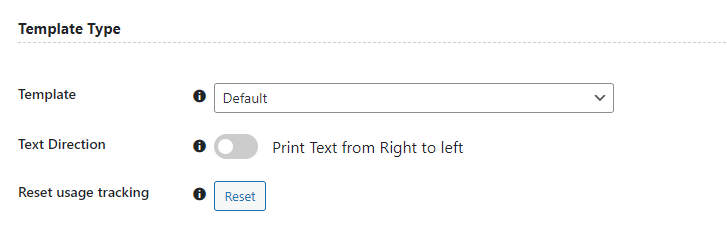
↑ Back to topIn this documentation, we will explore the settings under the Template Type section of the General Settings of the Print Invoice & Delivery Notes for WooCommerce plugin. You can access these settings by navigating to WooCommerce -> Invoice -> General Settings.
Template
In this option, you can choose between two layout styles for your printed documents. One is the default template, and the other is Simple. The Default template offers a standard design with comprehensive details, while the Simple template allows you to customize the template as per your requirements.
If you choose the Simple template, you will have the ability to personalize your invoice/receipt/delivery notes design in the “Templates” tab of the Print Invoice settings.

Text Direction

This setting allows you to print text from right to left, which is particularly useful for languages that are read in that direction, ensuring that your invoices and delivery notes are formatted correctly for your customers.
Reset usage tracking
This feature allows you to clear the historical data associated with the usage of the plugin’s features. If you press the Reset button, the opt-in banner will be displayed to you, allowing you to not share any of your plugin-related data with our company.

You can read more about our usage tracking policy here.
By selecting the appropriate template and adjusting the text direction as needed, you can enhance user experience and ensure your content effectively communicates its intended message. We encourage you to explore these options further to leverage their full potential in your projects.
Customize WooCommerce Invoice Templates
↑ Back to topThis guide explains how to use the Print Invoice & Delivery Notes for WooCommerce plugin, which helps you create customized invoices, delivery notes, and receipts for your business. You can customize document layouts, add your branding, and adjust how they look to fit your needs.
Choose Invoice, Delivery Note, or Receipt Template
To get started, go to the WooCommerce -> Invoice -> Templates section. Here, you’ll find a dropdown menu that lets you choose between Invoice, Delivery Notes, or Receipt layouts.
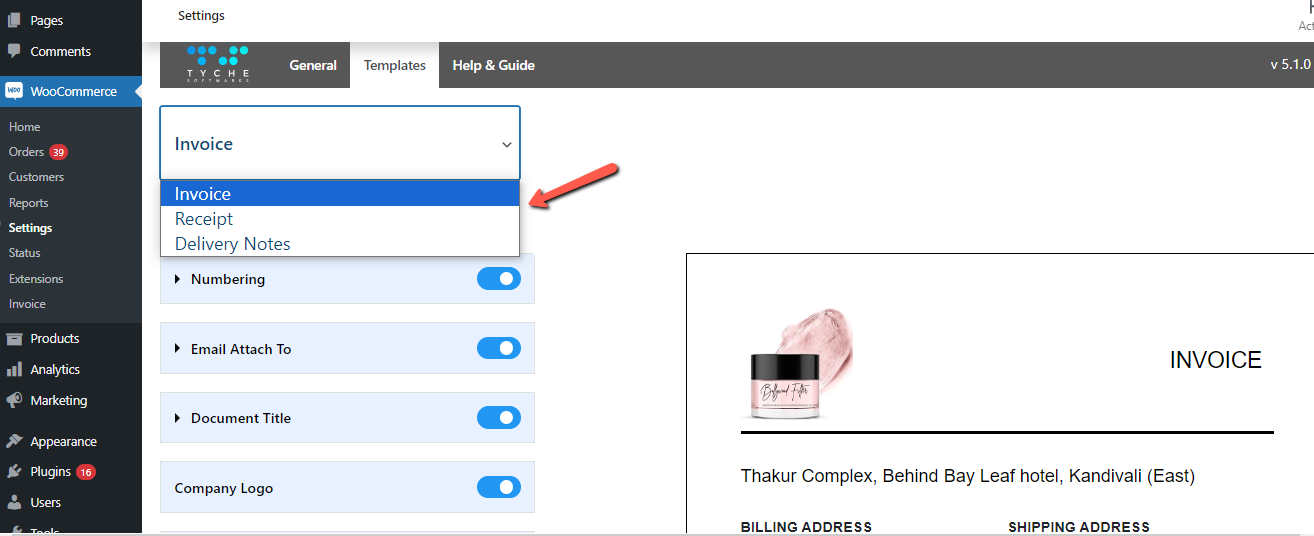
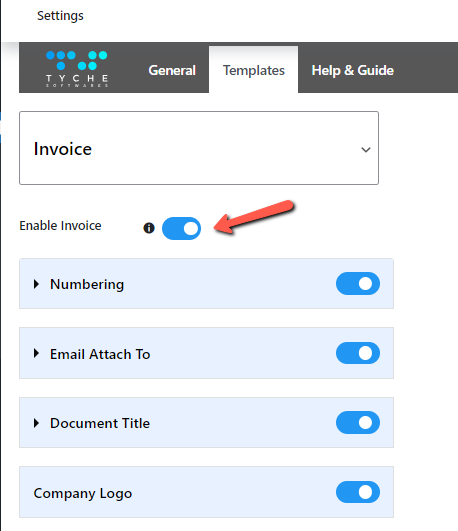
When you select an option from the dropdown, you’ll see corresponding options like “Enable Invoice“, “Enable Delivery Notes“, and “Enable Receipt.”
Print Invoices and Delivery Notes from Orders Page
↑ Back to top
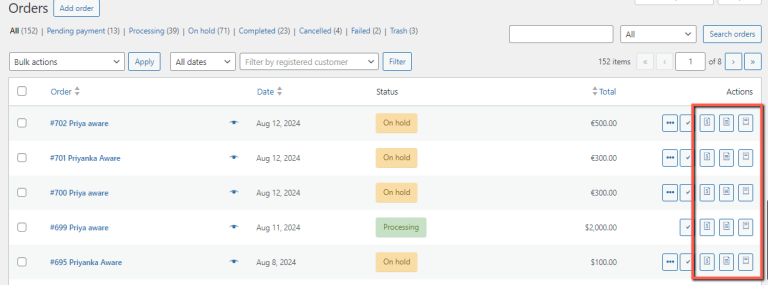
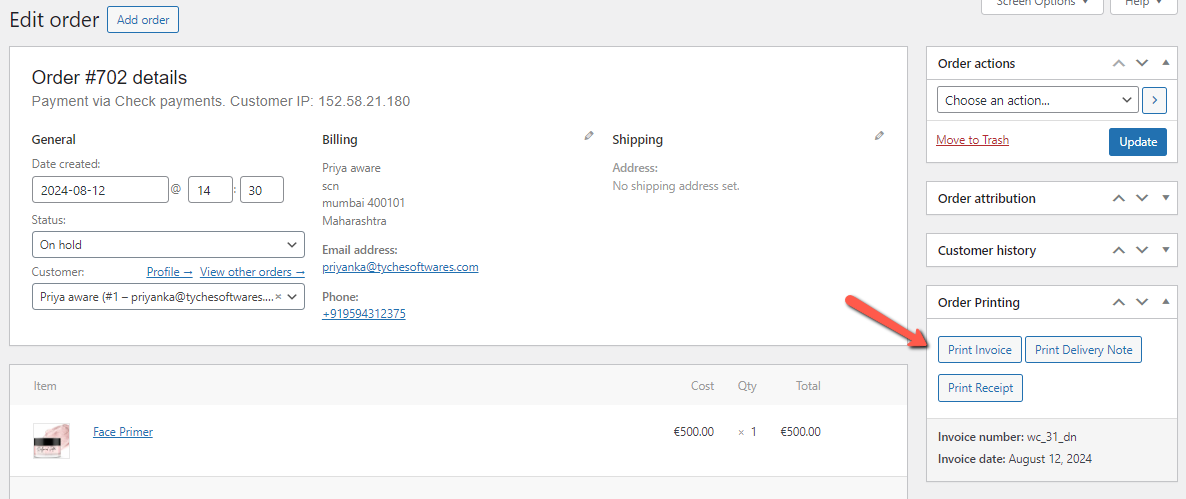
If you activate all three, you’ll find the “Print Invoice,” “Print Delivery Note,” and “Print Receipt” buttons in the Actions column on the WooCommerce Orders page and in the “Order Printing” section when editing an order.
If you choose the “Invoice” option from the dropdown, you will find the following options appear there:
How to Add a Custom Sequential Order Number to WooCommerce Invoices
↑ Back to topThis feature automatically adds sequential numbers to invoices and delivery notes for easy tracking.
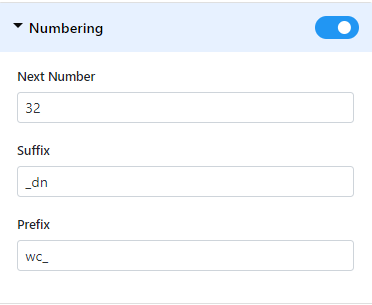
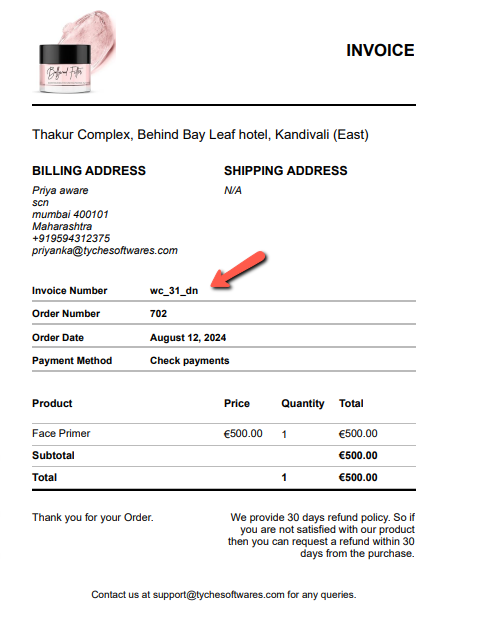
The invoice number will be shown on the invoice.
Customize Font Size, Text Alignment, and Colors in Invoices
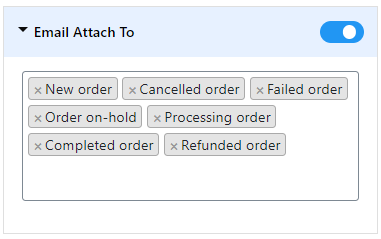
↑ Back to topSelect from different WooCommerce order emails where you want to attach the invoices and delivery notes automatically, making communication with customers smoother.
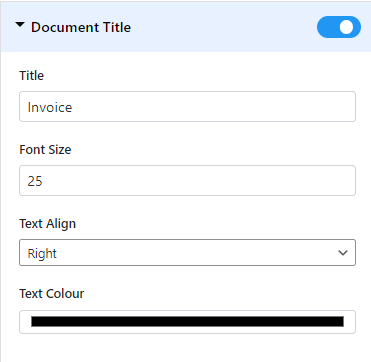
This will let you change the title of your documents (like “Invoice” or “Delivery Note”) for easy identification.

You can enable/disable this option to show or hide the logo of your company to invoices and delivery notes to enhance your brand image.
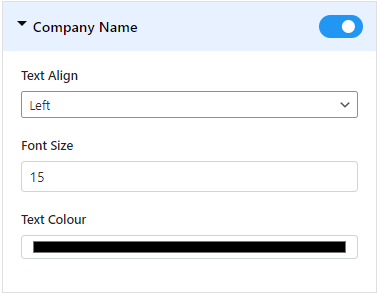
Display your official company name on documents for better identification.
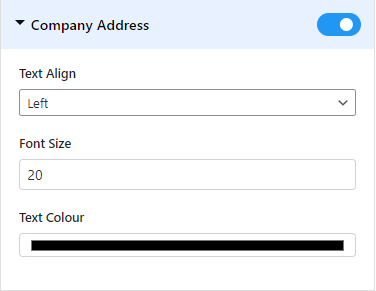
Include your physical address on invoices and delivery notes to meet legal requirements and inform customers.
Below we will see the options we provide to customize the text size, font, and color of the text on your invoice, delivery notes, or receipt according to your needs
Text Align: This option lets you choose how the text is lined up on the page. You can make it start from the left, centre it in the middle, or push it to the right side.
Font Size: This option allows you to change how big or small the text appears. You can make it larger for easier reading or smaller to fit more information on the page.
Text Color: This option helps you pick a color for the text. You can choose any color you like to make the text more attractive or to match your brand.
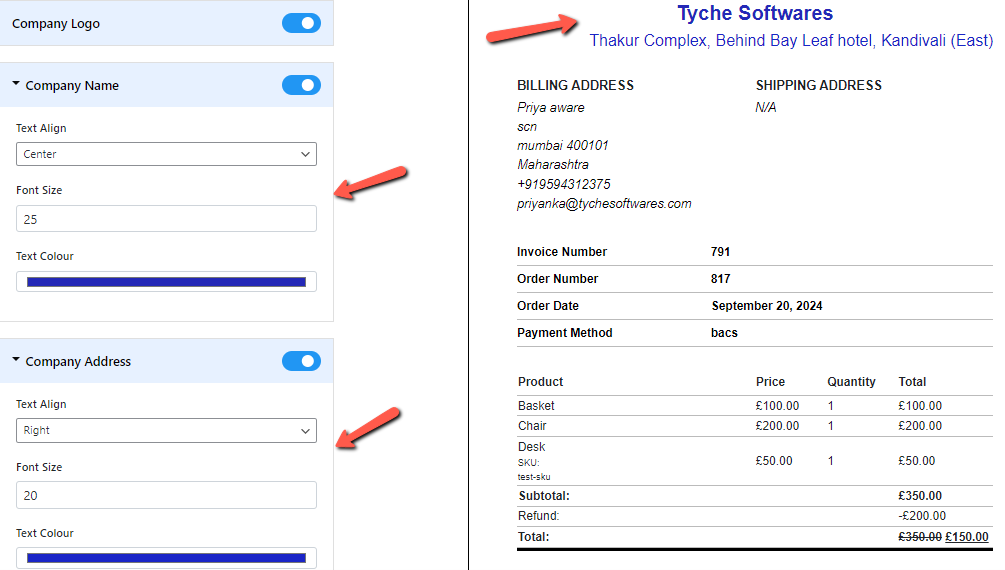
Below, you can see an example of how these customizations will look for the company name and address in the template preview under the Templates tab.
Add Invoice Number to WooCommerce Invoices
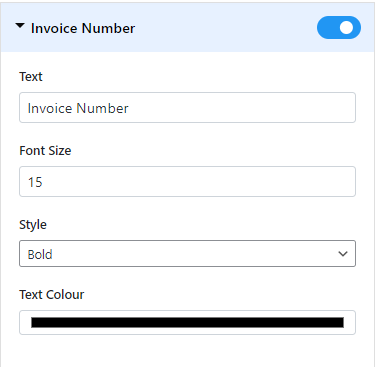
↑ Back to topEach invoice will have a unique number to help you keep your financial records organized.
Add Order Number to WooCommerce Invoices
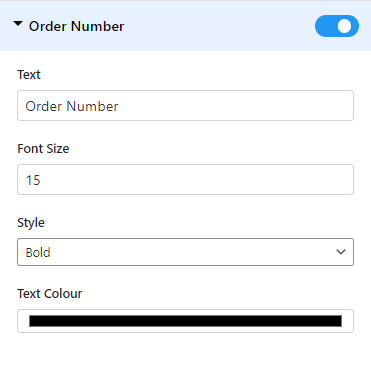
Display the specific order number on documents to help customers easily match their invoices with their purchases.
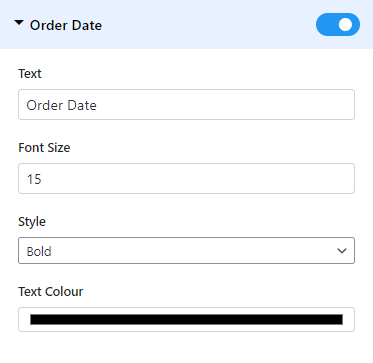
Include the date when the order was made to help customers understand when they made their purchase.
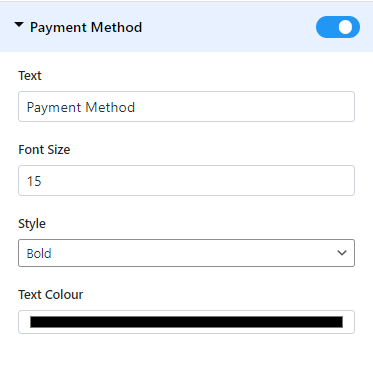
Specify how the order was paid (e.g., credit card, PayPal), offering transparency and clarity in the transaction.
Show the billing address linked to the order to ensure accuracy for invoicing purposes.
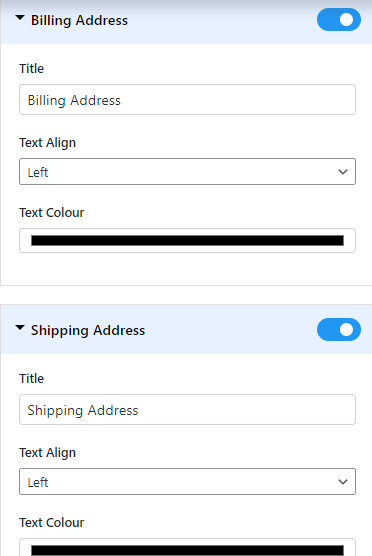
Show the shipping address on delivery notes to make sure products are delivered correctly.
This field lets you include the customer’s email on the invoice and delivery notes for easy communication.
Including the customer’s phone number makes it easier to contact them for questions or delivery updates.
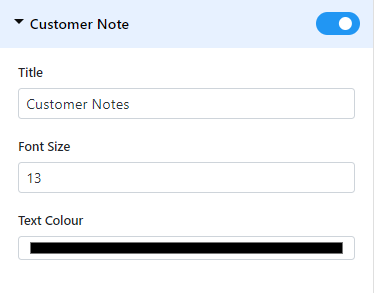
This option enables you to include a personalized message or instructions for the customer, enhancing the overall customer experience by providing relevant information or a thank-you note.
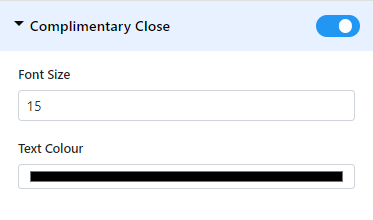
End the invoice or delivery note with a polite sign-off, like “Best regards” or “Sincerely,” to maintain professionalism.
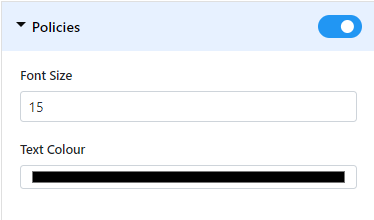
This section can highlight important information like return policies or warranties, so customers know their rights and options.
In the footer, you can add extra details such as your business contact info, social media links, or any necessary disclaimers.
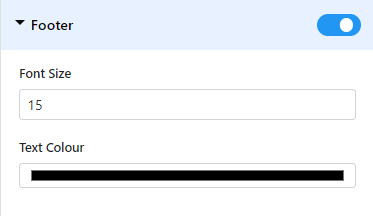
If you choose the “Delivery Notes” option from the dropdown, you will find all the same options as the above, with only 1 different option as follows:
Display Price in Product details table

This setting displays the product prices in the product details table on the invoice/delivery notes/receipt. You can enable or disable this setting if you want to show or hide the product prices in the templates.
If you choose the “Receipt” option from the dropdown, you will find all the same options as the above, with only 2 different options as follows:
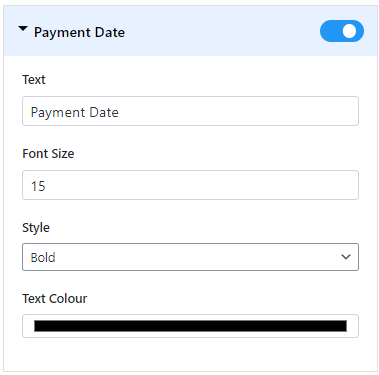
This option allows you to include the exact date when the payment was made on your invoices and delivery notes. It helps both the seller and customer keep accurate records for accounting purposes.
These options help customize your invoices and delivery notes, making them more informative, professional, and user-friendly for your customers.
Bulk Print WooCommerce Invoices and Delivery Notes
↑ Back to topThe Print Invoices & Delivery Notes for WooCommerce plugin offers a convenient solution for managing invoices, delivery notes, and receipts. One of its standout features is the ability to print these documents in bulk, allowing you to efficiently process multiple orders simultaneously.
You can easily access the bulk options – “Print Invoice“, “Print Delivery Notes“, and “Print Receipt” by selecting them from the Bulk Actions dropdown on the WooCommerce -> Orders page. This functionality not only saves your time but also enhances your workflow, ensuring that you can handle large volumes of orders with ease. With just a few clicks, you can print all the necessary documentation for your orders.
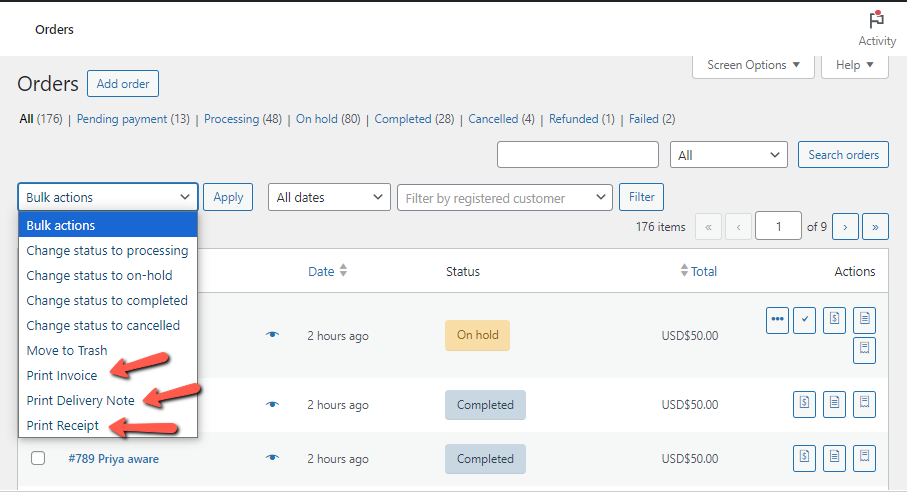
To illustrate this, you can see in the screenshot below that I have selected 5 WooCommerce orders and selected the option of “Print Invoice” from the bulk actions dropdown.
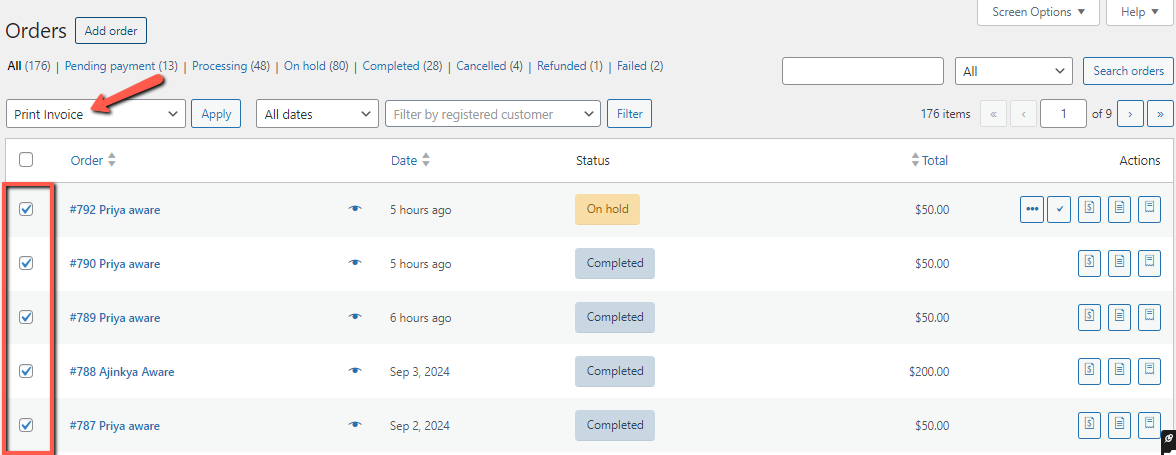
You can see that the invoices for all the selected orders are printed in bulk, as shown in the screenshot below.
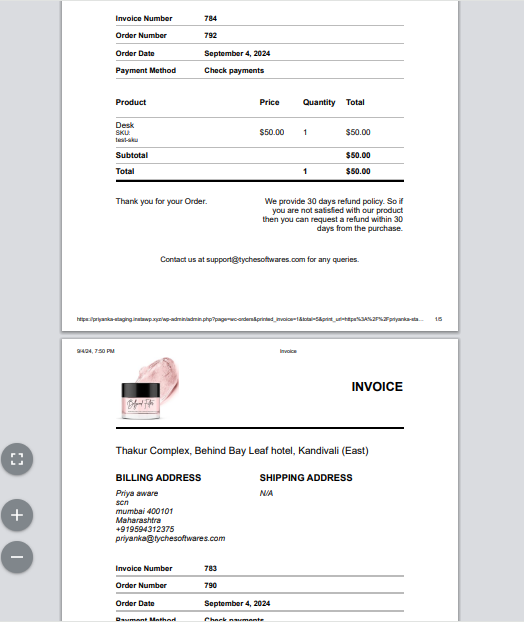
In the same way, you can print delivery notes and receipts too using the bulk order actions on the WooCommerce Orders page. These bulk actions streamline the printing process for handling multiple orders efficiently.
Support
↑ Back to topI have another question. Please fill out this pre-sales form.
Can invoices be generated and downloaded as PDFs?
Yes. When you print an invoice, delivery note, or receipt, it opens in PDF format in the browser. You can print it directly or save it as a PDF on your device.
Are invoices automatically sent to customers after an order is placed?
The plugin can automatically include a print invoice link in WooCommerce order emails sent to customers after an order is placed or when the order status changes. Customers can open the link to view and print the invoice.
Can customers download invoices from the My Account page?
Yes. Customers can access and print their invoices and receipts from My Account → Orders. You can show print buttons on both the My Account page and the individual View Order page.order is placed or when the order status changes. Customers can open the link to view and print the invoice.
Can admins print invoices directly from the WooCommerce Orders page?
Yes. Admins can print invoices, delivery notes, and receipts directly from the WooCommerce Orders page using the Print buttons or from inside the individual edit order page.
Can I bulk print invoices or delivery notes for multiple orders?
Yes. The plugin supports printing order invoices in bulk. You can select multiple orders from the WooCommerce Orders page and use Bulk Actions to print invoices, delivery notes, or receipts for all selected orders at once.
Can I customize invoice, receipt, and delivery note templates?
Yes. You can customize the design and content of your invoices, receipts, and delivery notes using the plugin settings. You can also see a live preview of your changes before saving them.
Can I customize invoice fields, labels, and layout?
Yes. You can control document titles, text alignment, font size, colors, and choose which fields appear on invoices.
Can I add my brand details, such as logo, company name, and address to invoices?
Yes. You can include your company logo, name, address, footer content, policies, and closing text on all documents to ensure they match your store’s branding and business requirements.
Can I add my brand details, such as logo, company name, and address to invoices?
Yes. You can include your company logo, name, address, footer content, policies, and closing text on all documents to ensure they match your store’s branding and business requirements.
Can I control what order and product information appears on invoices?
Yes. You can choose which details to show, including order number, invoice number, order date, payment method, billing and shipping address, customer contact details, product prices, and customer notes.all documents to ensure they match your store’s branding and business requirements.
Can I show unit price, VAT %, tax amount on invoices?
Yes. The plugin displays WooCommerce tax data on invoices, including product prices and tax amounts, based on your store’s tax configuration.
Can I display custom order numbers with prefixes and suffixes on invoices?
Yes. The plugin lets you use custom order numbers on invoices, including prefixes and suffixes, instead of default WooCommerce order IDs.
Can I translate invoices into my store’s language?
Yes. You can translate invoices into any language using a plugin like Loco Translate. Use it to translate the text strings in the Print Invoice & Delivery Notes plugin into your preferred language. Once done, your order invoices will display correctly in your chosen language for your customers.
What happens to invoices when an order is refunded?
When an order is refunded, the refunded amount is shown on the invoice, and you can still access and print it.

