WooCommerce does not generate invoices by default. To create and print invoices, receipts, delivery notes, and packing slips, you need a plugin like Print Invoice & Delivery Notes for WooCommerce. The plugin allows you to generate, customize, and manage order documents such as invoices, receipts, delivery notes, packing slips, and credit notes directly from your WooCommerce store. These documents help you maintain clear order records and streamline order processing.
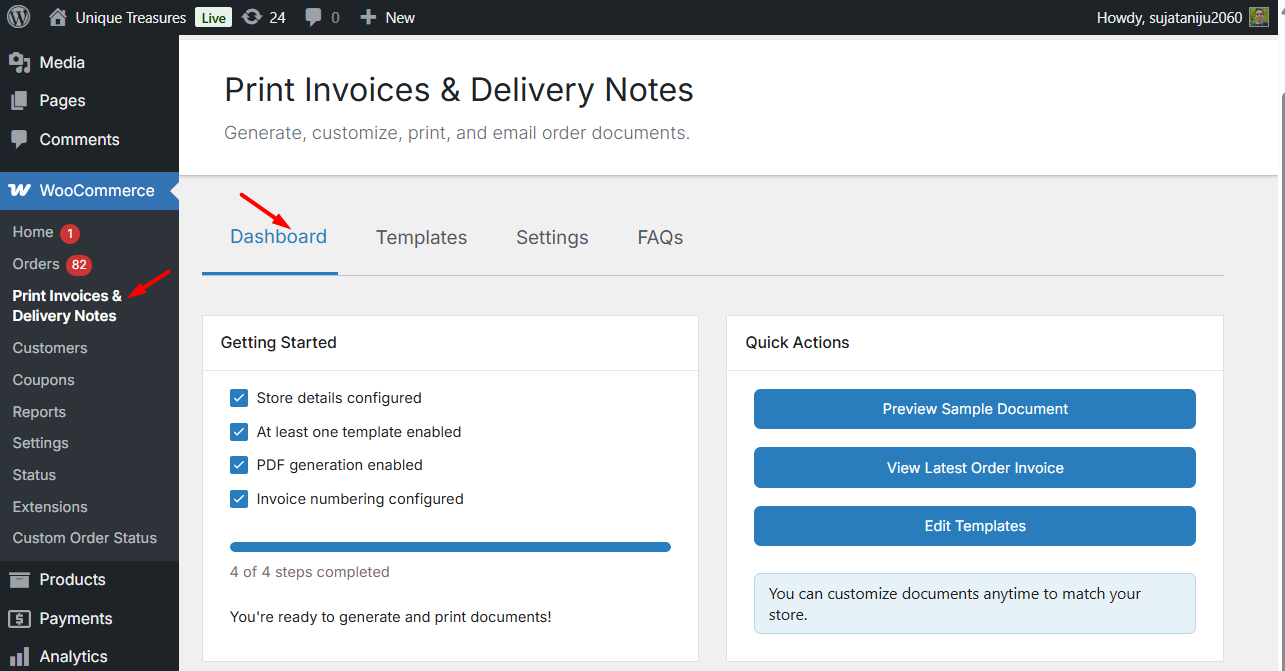
To get started, navigate to: WooCommerce → Print Invoices & Delivery Notes, where you’ll land on the Dashboard tab. The Dashboard provides a quick overview of your setup progress and easy access to commonly used actions.
Installation
↑ Back to topTo start using a product from WooCommerce.com, you can use the “Add to store” functionality on the order confirmation page or the My subscriptions section in your account.
- Navigate to My subscriptions.
- Find the Add to store button next to the product you’re planning to install.
- Follow the instructions on the screen, and the product will be automatically added to your store.
Alternative options and more information at:
Managing WooCommerce.com subscriptions.

Customize Invoice & Document Templates
↑ Back to topThe Templates tab allows you to configure and customize the layout and behavior of all order-related documents generated by the plugin.
To access these settings, navigate to:
WooCommerce → Print Invoices & Delivery Notes → Templates
You will find separate template settings for the following document types:
- Invoice
- Receipt
- Delivery Note
- Credit Note
- Packing Slip

Each document type has its own configuration options and can be customized independently.
Invoice Settings
↑ Back to topThe Invoice template is used to generate a detailed bill that includes purchased items, taxes, shipping charges, and the total amount due.
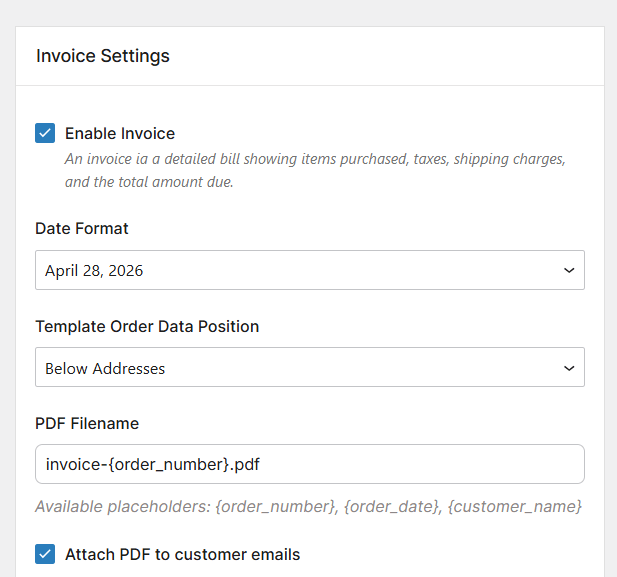
Enable Invoice
Enable this option to generate invoices for WooCommerce orders.
When disabled, invoice-related settings and actions will not be applied.
Date Format
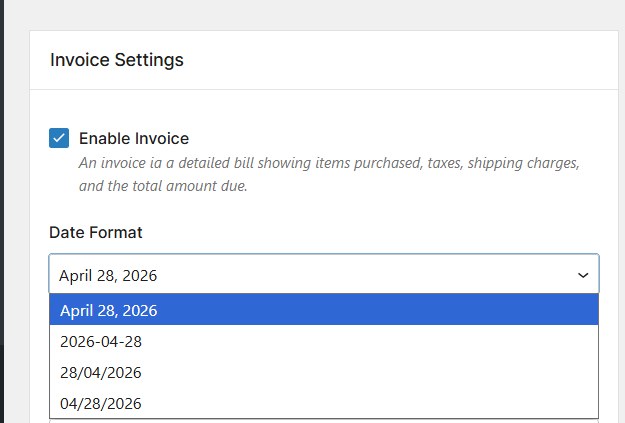
Select the format in which the invoice date will be displayed on the document.
Example:
April 28, 2026
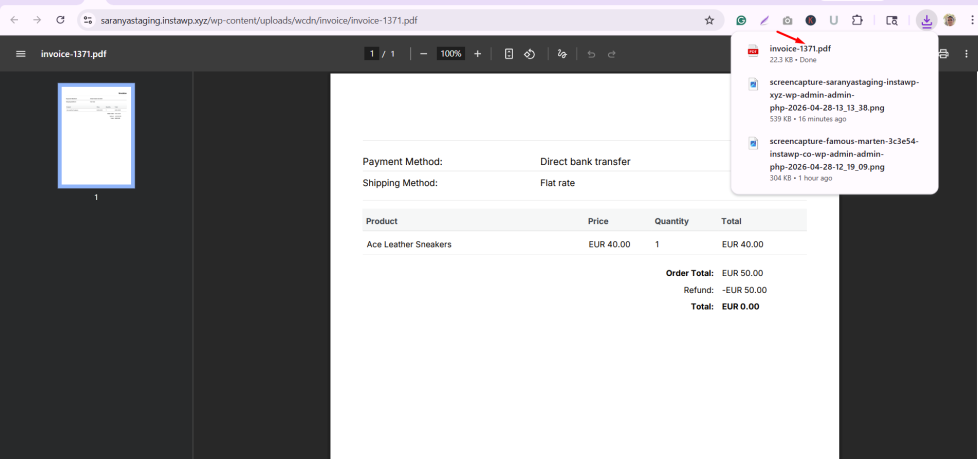
PDF Filename
Define the filename format for generated invoice PDFs.
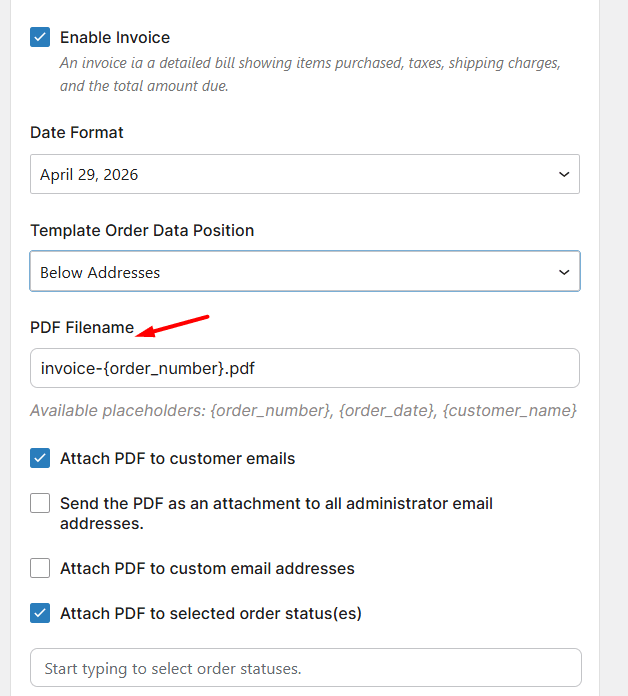
For example, you can set it as invoice-{order_number}.pdf. The plugin allows you to use placeholders such as {order_number}, {order_date}, and {customer_name} to dynamically generate meaningful and unique file names for each document.
Email Attachment Settings
↑ Back to topThese settings control how invoices are sent as PDF attachments.
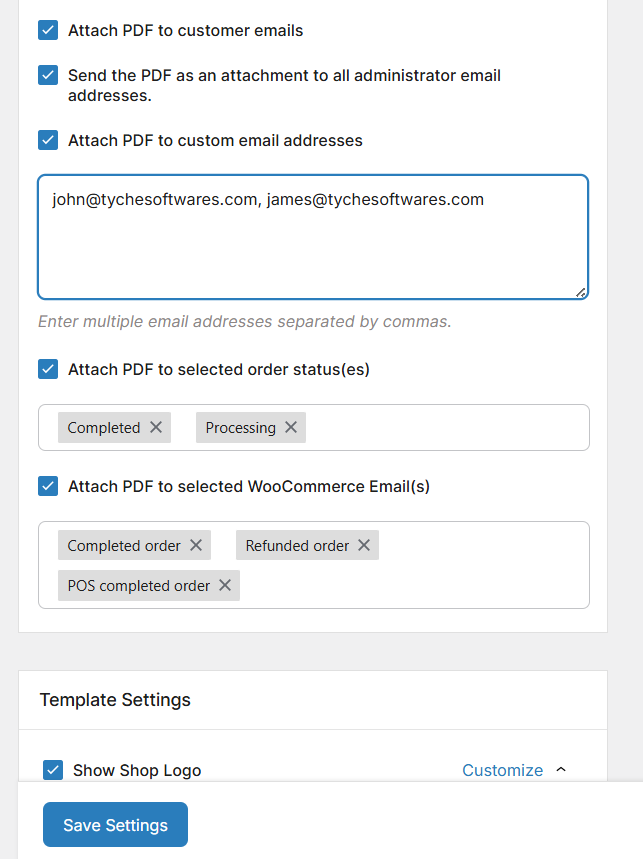
Attach PDF to customer emails
↑ Back to topEnable this option to automatically attach invoices to customer emails.
Send the PDF as an attachment to all administrator email addresses
↑ Back to topEnable this option to send invoice PDFs to admin email addresses.
Attach PDF to custom email addresses
↑ Back to topSpecify additional email addresses to receive the invoice PDF.
Attach PDF to selected order status(es)
↑ Back to topSelect the order statuses for which invoices should be generated and attached.
Attach PDF to selected WooCommerce Email(s)
↑ Back to topChoose specific WooCommerce email notifications where the invoice PDF should be included.
Template Settings
↑ Back to topThe Template Settings section allows you to control the visibility and presentation of different elements within the invoice.
Each option includes a Customize setting, allowing you to adjust how the content is displayed.
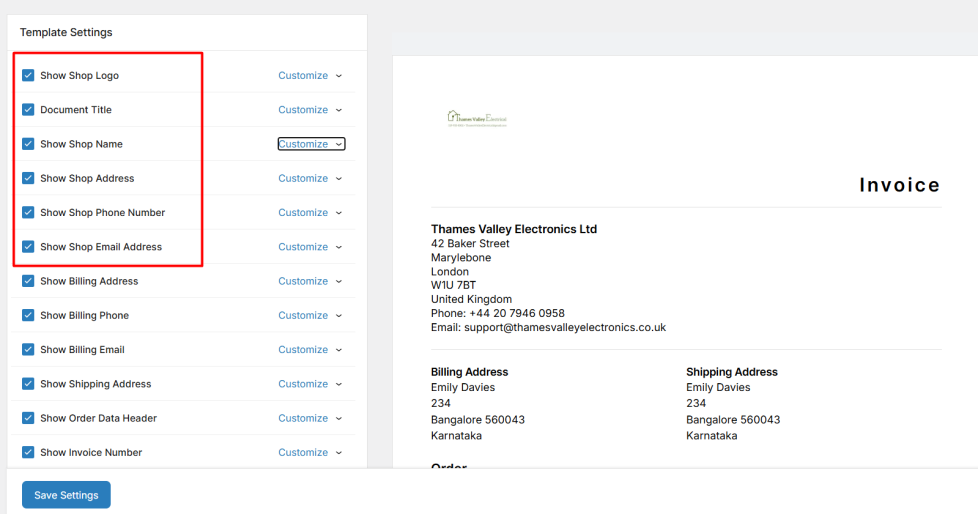
Shop & Customer Details
↑ Back to top- Show Shop Details: Toggle visibility for your Shop Logo, Name, Address, Phone, and Email to maintain brand consistency. Using the customize option, you can customize the logo and its size.
- Show Customer Details: Display essential billing and shipping information associated with the order.
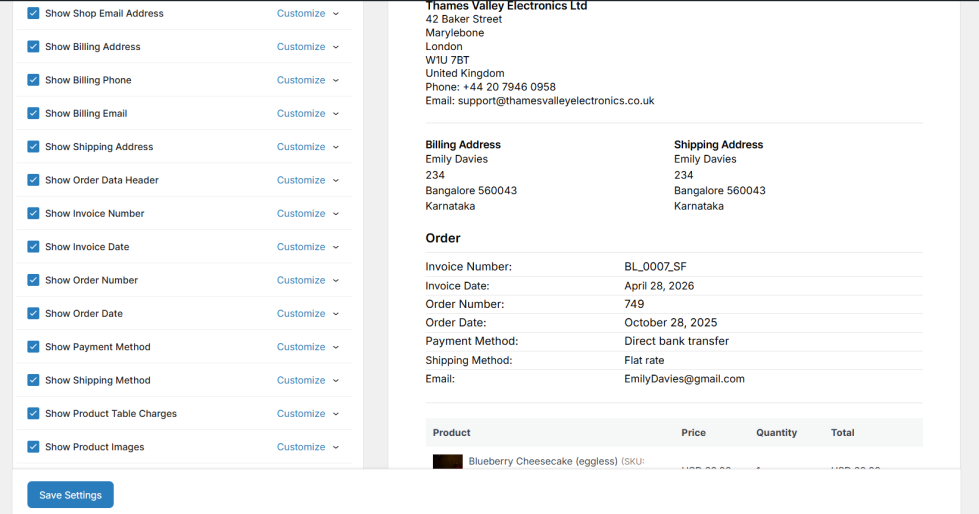
Order Information & Product Table
↑ Back to top- Order Data Header: Includes the Invoice Number, Invoice Date, and Order Details.
- Payment & Shipping Method: Specify how the order was paid and delivered for better transparency.
- Product Table: Customize the presentation of purchased items, including options to show product images and table charges.
Additional Elements
↑ Back to top- Show Pay Now Button: Adds an actionable button for customers to complete pending payments.
- Show Policies & Footer: Include important information such as return policies, tax numbers, or social media links.
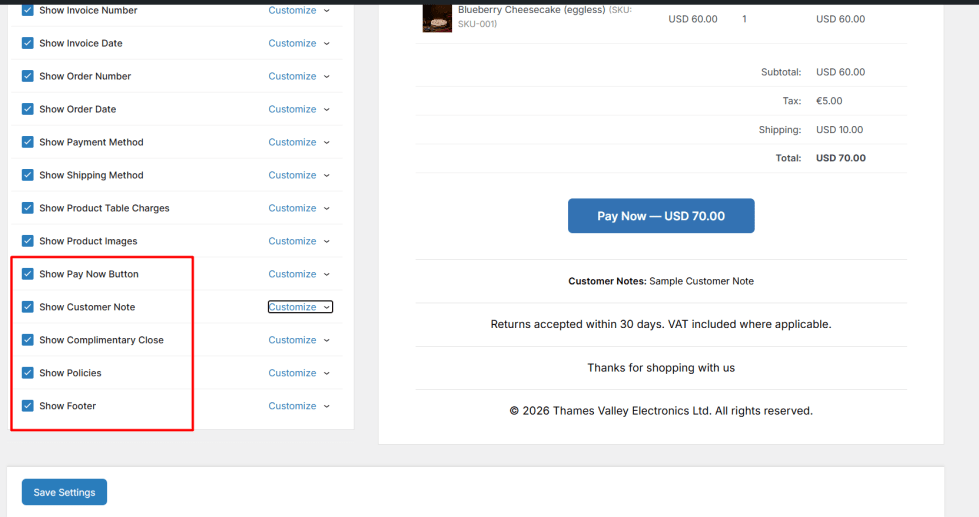
Live Preview
↑ Back to topOn the right-hand side, you will find a real-time preview of the invoice. This preview updates as you modify the settings, allowing you to visualize how the final document will appear before saving.
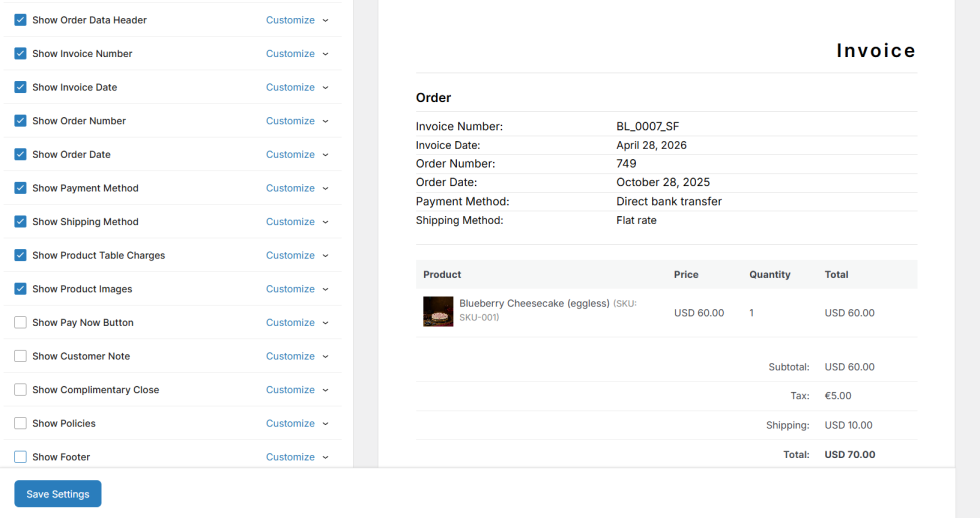
The configuration for other document templates, such as Receipt, Delivery Note, Credit Note, and Packing Slip, follows a similar structure to the Invoice settings. However, certain fields and options may vary depending on the document type. For example, a Receipt includes Payment Date, while a Credit Note includes Refund Details.
You can configure each template individually based on your business requirements.
Save Settings
↑ Back to topAfter making the required changes, click Save Settings at the bottom of the page to apply your configurations.
Configure Store Settings to WooCommerce Invoices
↑ Back to topThe Settings tab is where you define your global store identity and default content for all documents. Information entered here serves as the primary source for the “Shop Details” elements configured in your templates.
To access these settings, navigate to: WooCommerce → Print Invoices & Delivery Notes → Settings → Store Settings
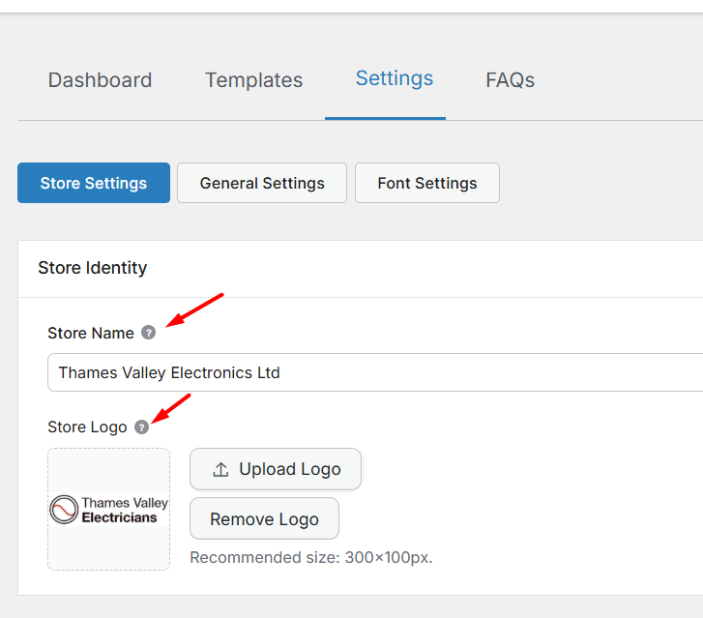
Store Identity
↑ Back to topMaintain brand consistency by defining how your shop is identified on every invoice and delivery note.
- Store Name: Enter the official name of your business as it should appear on documents.
- Store Logo: Upload your business logo here.
- Recommended size: 300×100px.
- Click Upload Logo to add a new file or Remove Logo to clear the current one.
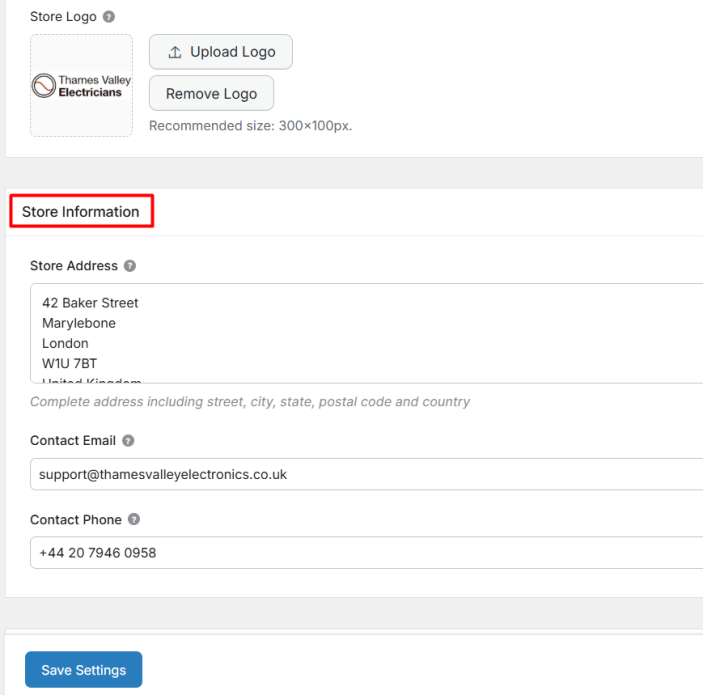
Store Information
↑ Back to topProvide essential contact details to meet legal requirements and assist customer communication.
- Store Address: Enter your complete business address, including street, city, state, postal code, and country.
- Contact Email: The primary email address for customer inquiries.
- Contact Phone: Your business phone number for support or delivery updates.
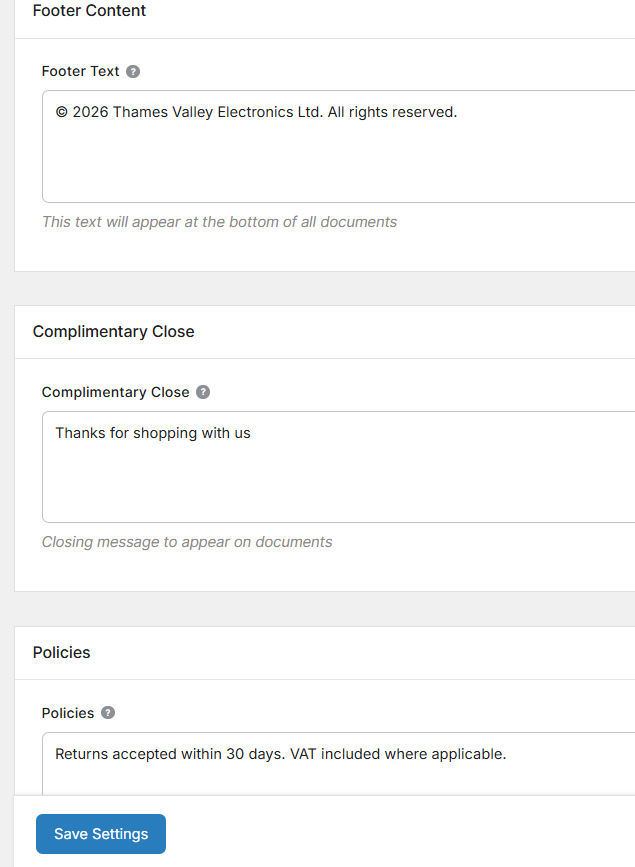
Footer Content
↑ Back to topPersonalize the bottom section of your documents with custom messaging and legal disclosures.
- Footer Text: This text will appear at the bottom of all generated documents. It is an ideal place for tax numbers, website links, or social media handles.
- Complimentary Close: Add a professional closing message (e.g., “Thank you for shopping with us!”) that appears before the footer.
- Policies: Use this area to include important information such as return policies, privacy terms, or shipping conditions to ensure customers are well-informed.
General Settings
↑ Back to topThe General Settings tab controls the technical behavior of the plugin, including URL endpoints, document numbering, and how print buttons appear to your customers.
To access these settings, navigate to: WooCommerce → Print Invoices & Delivery Notes → Settings → General Settings
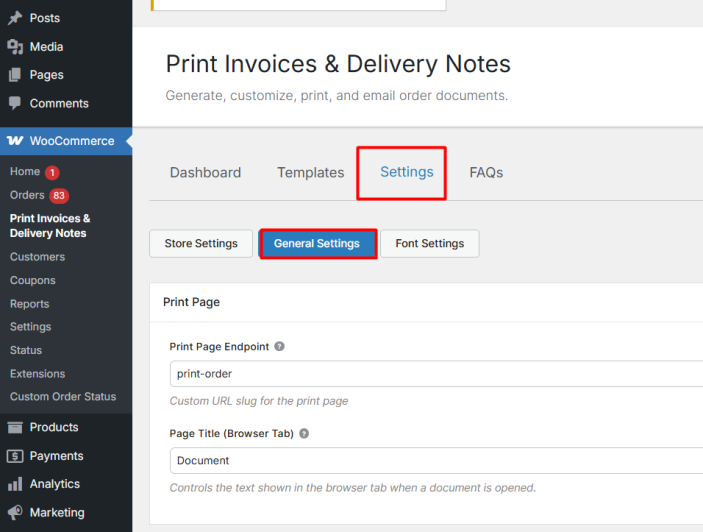
Print Page & Browser Tab
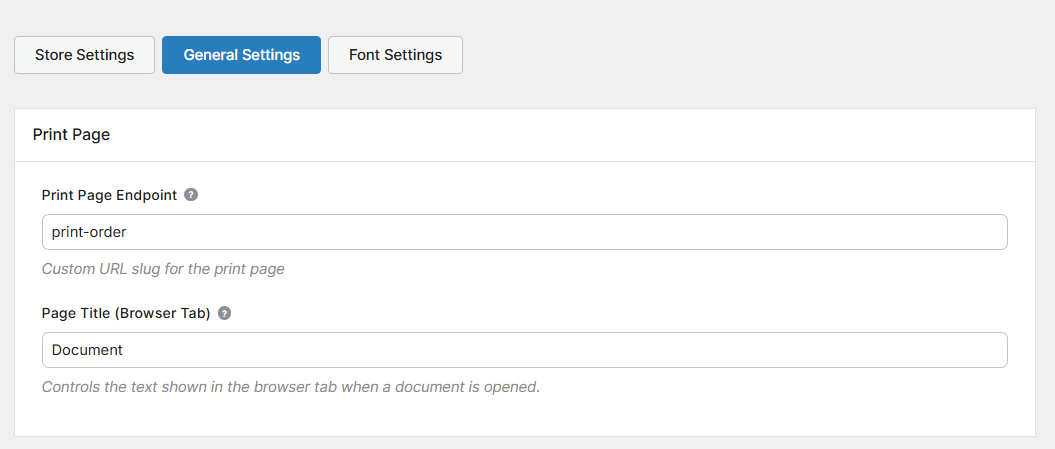
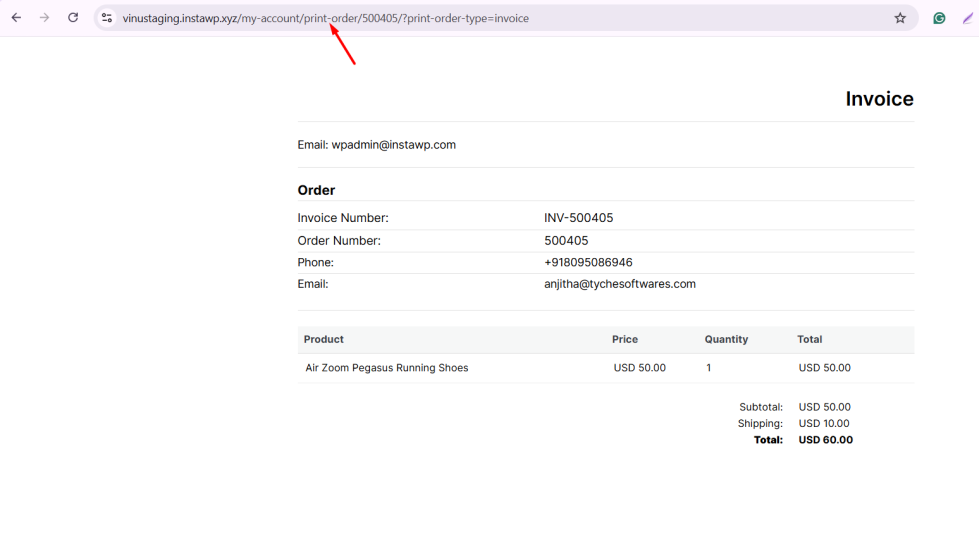
↑ Back to top- Print Page Endpoint: Set a custom URL slug for the print page. This endpoint is appended to your account page URL when a user prints their order.
When a customer or admin clicks a print option, the document opens using this link.
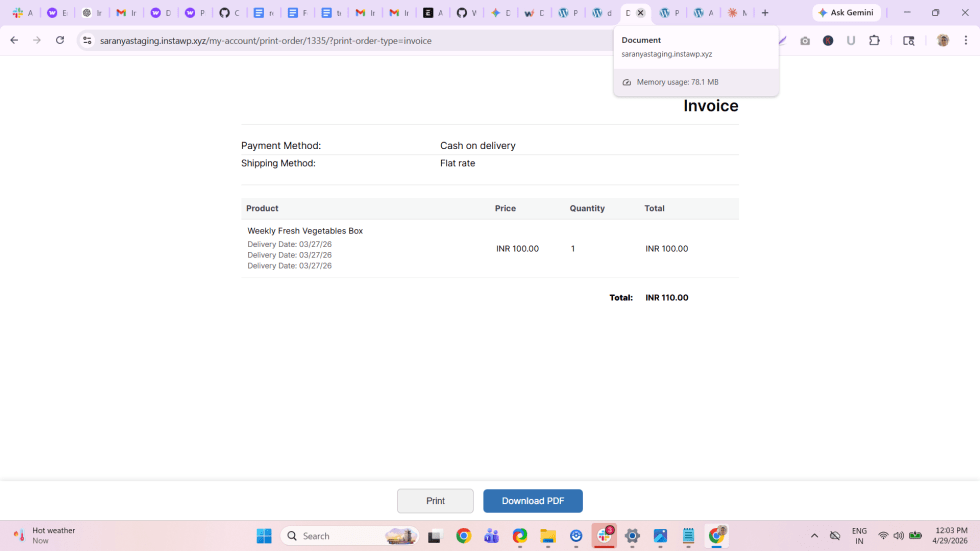
- Page Title (Browser Tab): This setting controls the text shown in the browser tab when a document is opened.
- For example, when a customer opens an invoice in a new tab, this title helps identify the document if multiple tabs are open.The image below shows how the printable document appears when opened from the My Account page.
Invoice Numbering
↑ Back to topThese settings control how invoice numbers are generated and displayed on your documents.
Invoice Number Format
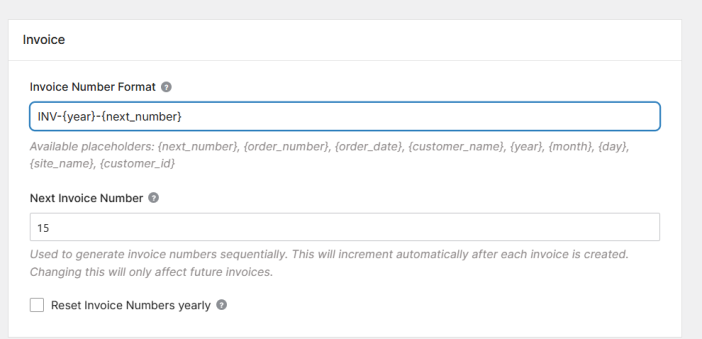
↑ Back to topThis option lets you define the structure of your invoice numbers using placeholders.
You can include:
{next_number}to generate a running sequence{order_number}to match the WooCommerce order{year}or{month}to include date details
For example:INV-{year}-{next_number}
Next Invoice Number
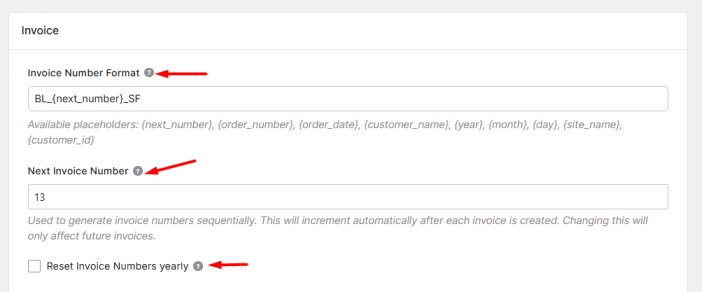
↑ Back to topThis sets the starting point for your invoice numbering sequence. Each new invoice will automatically increment from this number.
Reset Invoice Numbers Yearly
↑ Back to topEnable this option to restart the invoice numbering sequence at the beginning of each year.
Document Formatting & PDF Handling
↑ Back to top- Text Direction: Choose between Left to Right (LTR) or Right to Left (RTL) to ensure the document layout matches your store’s language.
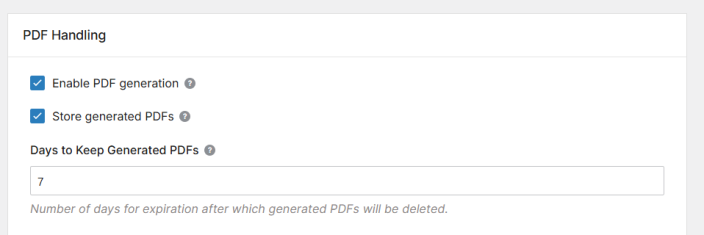
- Enable PDF generation: Toggle this on to allow the plugin to create downloadable PDF versions of your documents.
- Store PDF files for X days
This feature lets you determine how many days to keep the PDF versions of invoices and delivery notes on the server. This helps manage storage space while ensuring that documents are accessible for a defined period. The default setting is 7 days, but you can customize it to suit your needs.
Print Links & Buttons
↑ Back to topThese settings help you control where print options are available for customers and administrators.
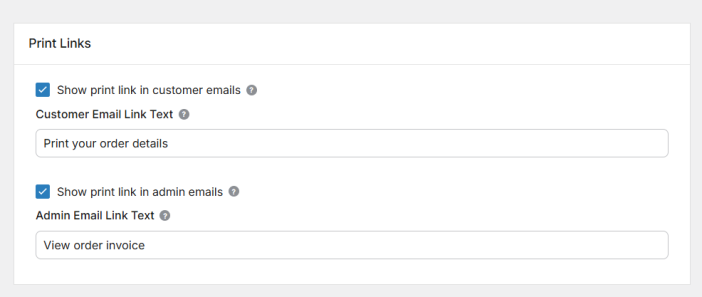
How to Add Print Links to WooCommerce Emails
↑ Back to topThis feature allows print links to be included in WooCommerce emails sent to both customers and administrators.
a. Show print link in customer emails
When enabled, this option adds a print link in customer emails, allowing them to easily print their invoices or delivery notes.
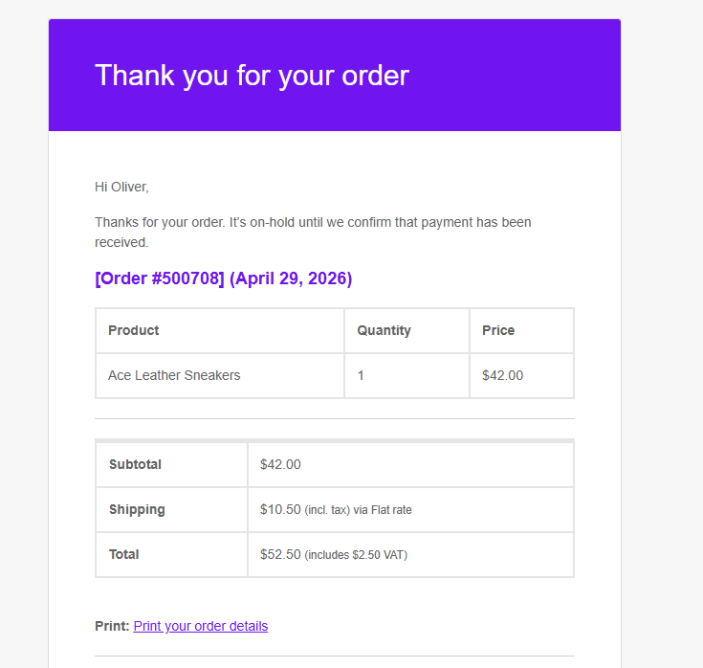
b. Show print link in admin emails
This option adds a print link in admin emails, making it easier to access and print order documents directly from the inbox.
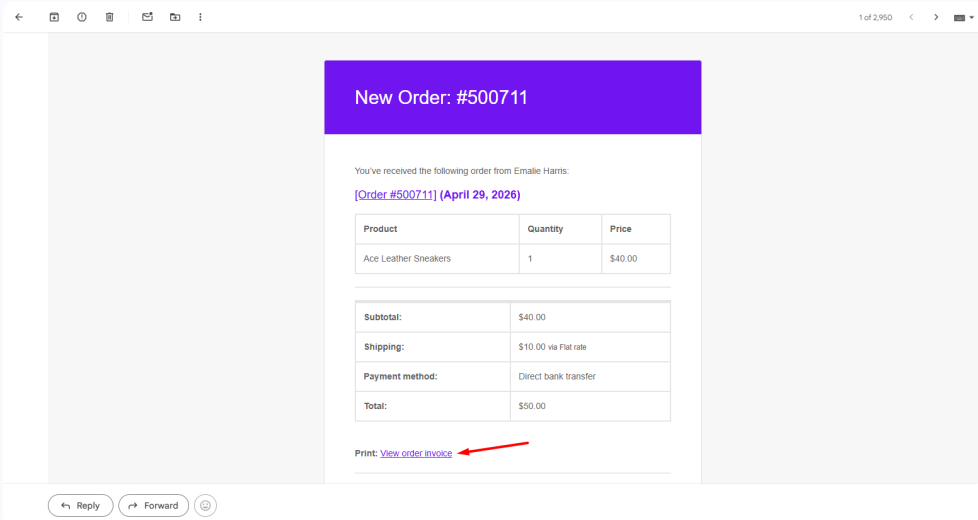
Print Order Invoice from My Account Orders Page
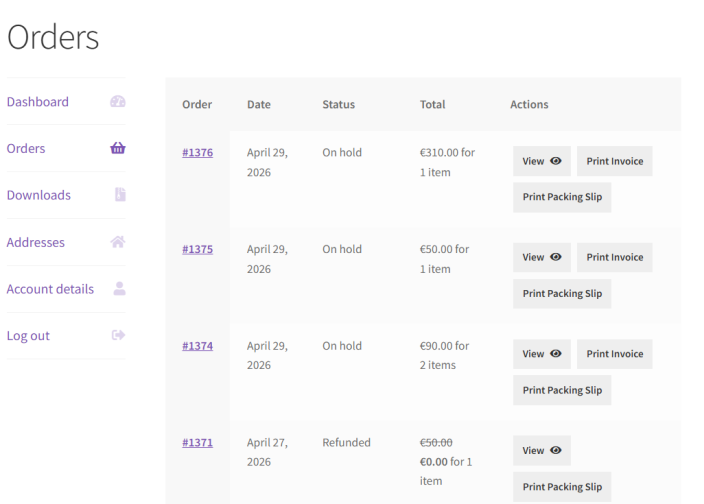
↑ Back to topThese settings display print buttons on the customer’s My Account page.
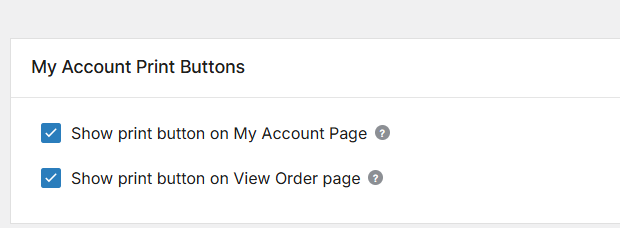
a. Show print button on My Account page
When enabled, a print button will appear on the “My Account” orders list, allowing customers to quickly access their documents.
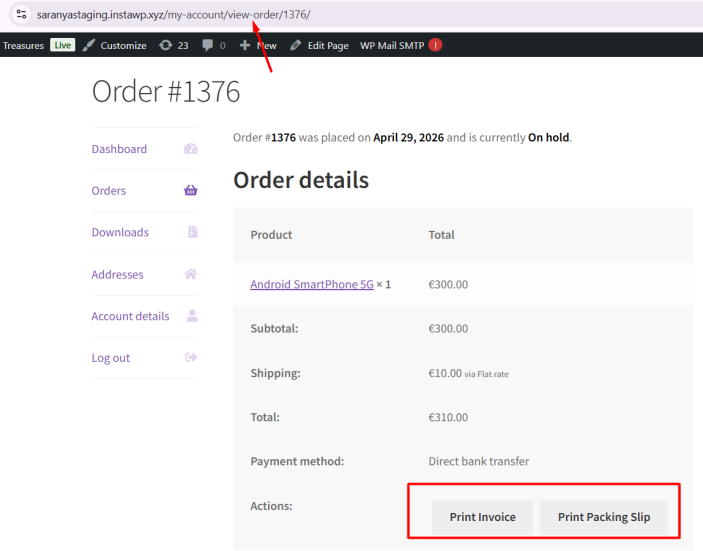
b. Show print button on View Order page
This option adds a print button on the “View Order” page, allowing customers to print documents for that order.
Button Label for Templates
↑ Back to topThese settings allow you to customize the text shown on the print buttons for each document type, such as Invoice, Delivery Note, Receipt, Credit Note, and Packing Slip.
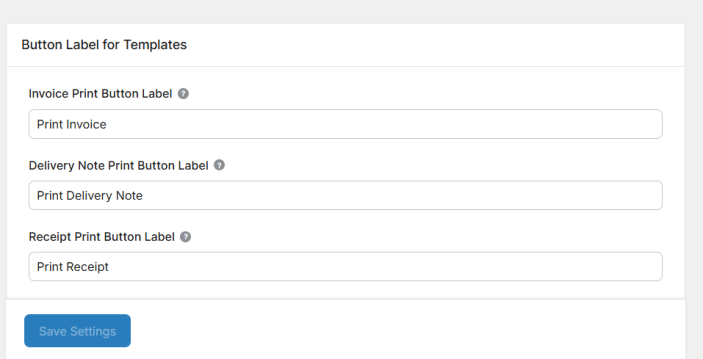
The labels configured here will appear on the customer’s My Account → Orders page and the View Order page, depending on where the print buttons are enabled.
You can update the button text for the following document types:
Invoice Print Button Label
This option lets you define the label for the invoice print button. For example, you can keep it as “Print Invoice” or change it to something like “Download Invoice” based on your preference.
Delivery Note Print Button Label
Use this setting to customize the label for delivery note printing. This helps clearly indicate the purpose of the document to the user.
Receipt Print Button Label
This option controls how the receipt print button appears to users. You can modify the label to better match your store’s terminology.
Credit Note Print Button Label
You can define the label shown for credit note documents, especially useful when handling refunds and adjustments.
Packing Slip Print Button Label
This setting allows you to customize the label for packing slips, which are typically used during order fulfillment.
Once updated, these labels will be reflected across all areas where print buttons are displayed
Plugin Usage Tracking
↑ Back to top- Reset Tracking Settings: This option allows you to clear the usage data of the plugin. Once reset, the opt-in message for usage tracking will be displayed again.
Font Settings
↑ Back to topDocument Fonts
↑ Back to topThis section ensures that your PDF documents are generated correctly based on your store’s language.
If your store uses a supported language, you will see a message like “Everything looks good!”, and no additional setup is required.
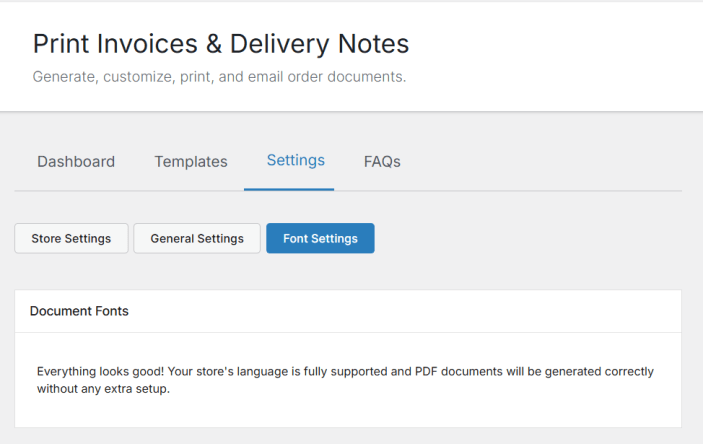
This section becomes useful only if your documents are not displaying correctly due to font or language compatibility issues.
Save Settings
↑ Back to topAfter configuring your endpoints, numbering formats, and button labels, click Save Settings to apply the changes across your store.
How to Print Invoices in WooCommerce (Bulk & Single)
↑ Back to topPrint Invoices and Delivery Notes from Orders Page
↑ Back to topThe Print Invoices & Delivery Notes for WooCommerce plugin offers a convenient way to manage and print invoices, delivery notes, receipts, and other order documents.
One of its key features is the ability to print documents in bulk, allowing you to process multiple orders at once and save time.
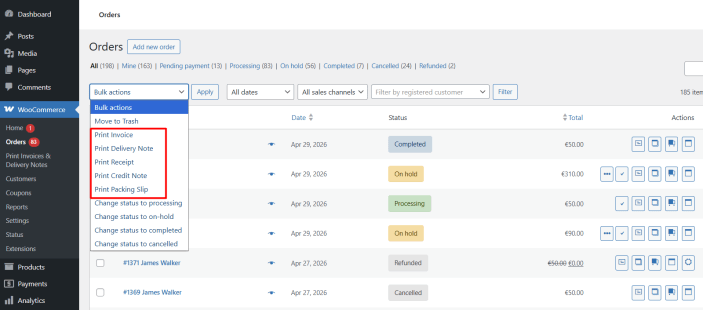
You can access the bulk print options — “Print Invoice”, “Print Delivery Notes”, “Print Receipt”, “Print Credit Note”, “Print Pay Slip” — from the Bulk Actions dropdown on the WooCommerce → Orders page.
Simply select the required orders, choose the print option, and click Apply. This helps you quickly generate documents for multiple orders without opening each order individually.
Print Options in Orders Page and Individual Order Page
↑ Back to topIn addition to bulk actions, the plugin also adds print options for individual orders.
If these options are enabled, you will notice:
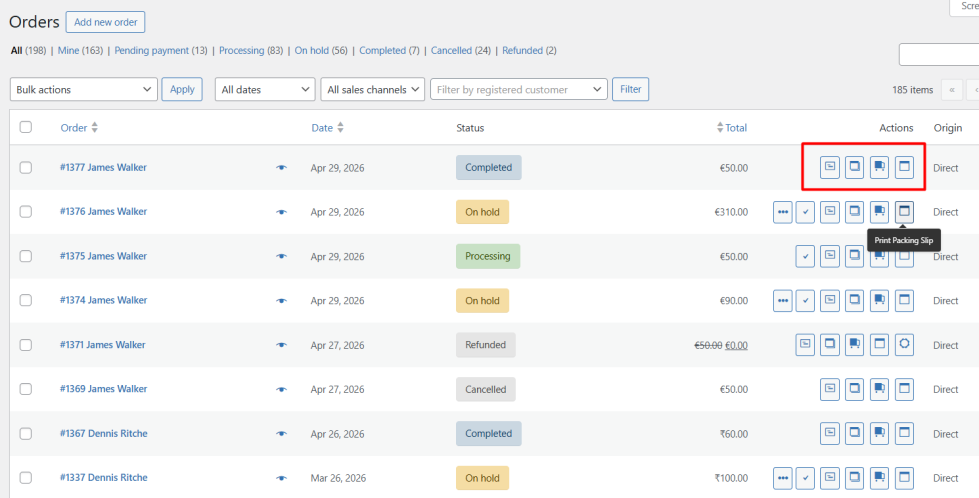
- A new Actions column on the WooCommerce → Orders page, where print buttons (Invoice, Delivery Notes, Receipt, etc.) are available for each order.
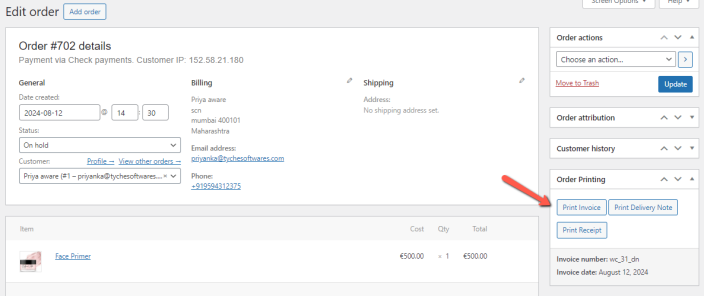
- An “Order Printing” section inside the Edit Order page, where you can print documents for that specific order.
This makes it easy to print documents both in bulk and on a per-order basis, depending on your workflow. Whether you’re processing a large number of orders or working on a single order, the plugin ensures all required documents are easily accessible and ready to print.
Print Invoice & Delivery Notes for WooCommerce Usage Tracking
Print Invoice & Delivery Notes for WooCommerce is used on more than 40000+ WooCommerce shops. But, we do not know who is using our plugin, for which type of business it is used.
As of Print Invoice & Delivery Notes for WooCommerce v4.4.3 we’ve made it possible for store owners/developers to enable usage tracking from within the WordPress admin area. This feature sends us non-sensitive data about the size of the store, how to Print Invoice & Delivery Notes for WooCommerce is installed and how it is being used.
Which is valuable for us and in turn will help us to improve the plugin.
Important
↑ Back to topThe only sensitive information we store is the admin email. We do not track or store any personal or business-critical data from you or your clients and keep track of the admin email address simply to get in touch regarding important updates or major bug fixes of the plugin. Tracking data is sent automatically to our servers once you opt-in and then every one week from there on.
What exactly is tracked?
Below is the list of the data we track:
- Site URL
- WordPress admin email
- Theme
- WordPress version
- WordPress locale
- WordPress debug mode
- WordPress memory limit
- Webserver software & version
- PHP version
- Some PHP Settings like maximum post size, maximum input vars, if suhosin is enabled, if you have cURL, SOAP and fSock enabled
- MySQL version
- WooCommerce version
- Setting of Show “Print Invoice” button
- Setting of Show “Print Delivery Note” button
- Setting of Show “Print Receipt” button
- Setting of Show print button on the “View Order” page
- Setting of Show print buttons on the “My Account” page
- Setting of Show print link in customer emails
- Plugin version
This is all done in the name of making WooCommerce Print Invoice & Delivery Note better. By seeing how our customers are using the plugin and what their setup looks like we are able to draw the kind of conclusions that lead to helpful features, better documentation, and more good things.
Opt-in and get a coupon
We send everyone willing to opt-in for the greater good a coupon of 20% off on the next purchase for any of our plugins or bundles.
How to opt-out
↑ Back to topWe have given a setting Reset usage tracking which is located under the settings tab of the plugin.
Thanks for reading this
The fact that you are reading this post means you had at the very least an active interest in helping make WooCommerce Print Invoice & Delivery Note more awesome and for that we thank you. If for some reason this user tracking isn’t for you, we understand and we say good luck.
| Hooks: Action and Filter Reference – Print Invoice & Delivery Notes |
Support
↑ Back to topI have another question. Please fill out this pre-sales form.
Can invoices be generated and downloaded as PDFs?
Yes. When you print an invoice, delivery note, or receipt, it opens in PDF format in the browser. You can print it directly or save it as a PDF on your device.
Are invoices automatically sent to customers after an order is placed?
The plugin can automatically include a print invoice link in WooCommerce order emails sent to customers after an order is placed or when the order status changes. Customers can open the link to view and print the invoice.
Can customers download invoices from the My Account page?
Yes. Customers can access and print their invoices and receipts from My Account → Orders. You can show print buttons on both the My Account page and the individual View Order page.
Can admins print invoices directly from the WooCommerce Orders page?
Yes. Admins can print invoices, delivery notes, and receipts directly from the WooCommerce Orders page using the Print buttons or from inside the individual edit order page.
Can I bulk print invoices or delivery notes for multiple orders?
Yes. The plugin supports printing order invoices in bulk. You can select multiple orders from the WooCommerce Orders page and use Bulk Actions to print invoices, delivery notes, or receipts for all selected orders at once.
Can I customize invoice, receipt, and delivery note templates?
Yes. You can customize the design and content of your invoices, receipts, and delivery notes using the plugin settings. You can also see a live preview of your changes before saving them.
Can I customize invoice fields, labels, and layout?
Yes. You can control document titles, text alignment, font size, colors, and choose which fields appear on invoices.
Can I add my brand details, such as logo, company name, and address to invoices?
Yes. You can include your company logo, name, address, footer content, policies, and closing text on all documents to ensure they match your store’s branding and business requirements.
Can I control what order and product information appears on invoices?
Yes. You can choose which details to show, including order number, invoice number, order date, payment method, billing and shipping address, customer contact details, product prices, and customer notes.
Can I show unit price, VAT %, tax amount on invoices?
Yes. The plugin displays WooCommerce tax data on invoices, including product prices and tax amounts, based on your store’s tax configuration.
Can I display custom order numbers with prefixes and suffixes on invoices?
Yes. The plugin lets you use custom order numbers on invoices, including prefixes and suffixes, instead of default WooCommerce order IDs.
Can I translate invoices into my store’s language?
Yes. You can translate invoices into any language using a plugin like Loco Translate. Use it to translate the text strings in the Print Invoice & Delivery Notes plugin into your preferred language. Once done, your order invoices will display correctly in your chosen language for your customers.
What happens to invoices when an order is refunded?
When an order is refunded, the refunded amount is shown on the invoice, and you can still access and print it.