
Print Product Guide is a WooCommerce Plugin that allows store owners to attach custom product-specific PDF guides with customer orders. These guides can include usage instructions, warranty details, safety notes, or any information the customer needs after purchase.
This plugin is ideal for products that require:
- Installation instructions
- Usage guidance
- Warranty information
- Visual step‑by‑step setup
Installation
↑ Back to topTo start using a product from WooCommerce.com, you can use the “Add to store” functionality on the order confirmation page or the My subscriptions section in your account.
- Navigate to My subscriptions.
- Find the Add to store button next to the product you’re planning to install.
- Follow the instructions on the screen, and the product will be automatically added to your store.
Alternative options and more information at:
Managing WooCommerce.com subscriptions.

How the Plugin Works
↑ Back to top- Admin creates or edits a WooCommerce product.
- Admin configures the Product Guide from the product edit page.
- Customer purchases the product.
- A custom PDF guide is generated for that product.
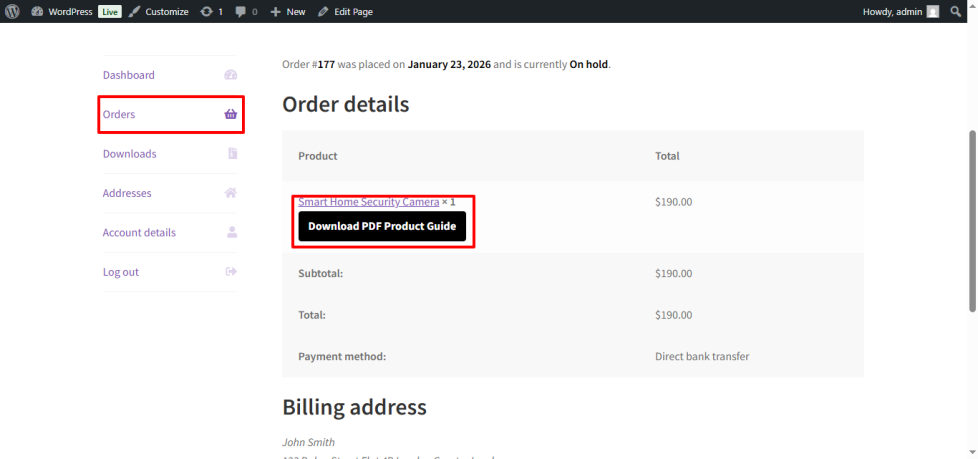
- Customer downloads the PDF from the order page.
Setup and Configuration
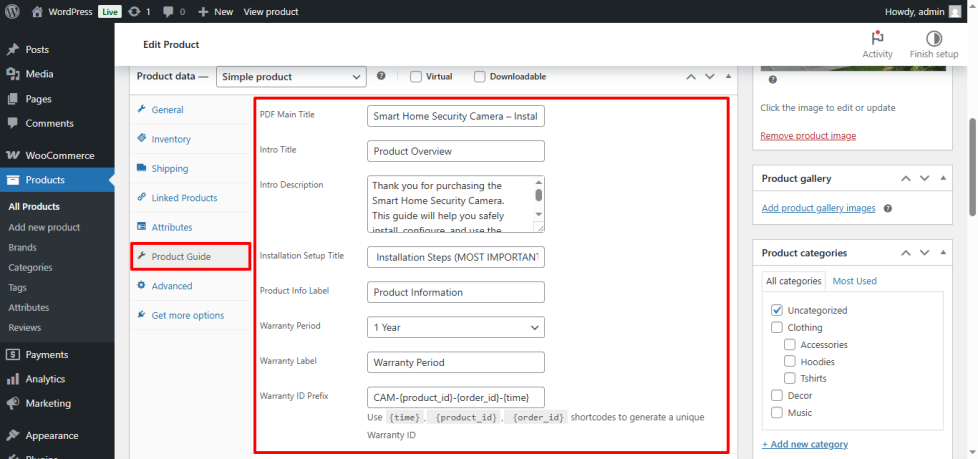
↑ Back to topNavigate to: Products → Edit Product → Product Guide tab
This tab contains all options related to the PDF guide.
PDF Main Title
↑ Back to topThis is the main heading displayed at the top of the PDF.
Intro Title & Description
↑ Back to topUsed to introduce the product guide.
Installation Setup Title
↑ Back to topThis heading appears above the installation steps section.
Product Info Label
↑ Back to topThis label is used for the product information section inside the PDF.
Warranty Settings
↑ Back to topWarranty Period
↑ Back to topSelect the warranty duration:
- 3 Months
- 6 Months
- 1 Year
- 2 Years
Warranty Label
↑ Back to topDisplayed as the section heading for warranty detail
Warranty ID Prefix
↑ Back to topYou can generate a unique warranty ID using shortcodes:
{time}– Current timestamp{product_id}– WooCommerce product ID{order_id}– Customer order ID
Example Format:
WRT-{product_id}-{order_id}
Each customer receives a unique warranty ID in their PDF.
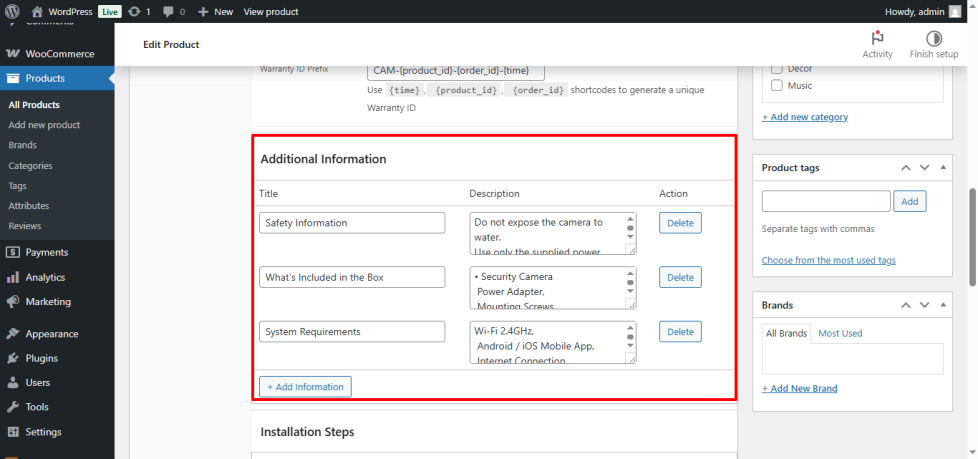
Additional Information Sections
↑ Back to topYou can add unlimited information blocks, each containing:
- Title
- Description
Common use cases:
- Safety instructions
- Usage tips
- Maintenance notes
- Legal disclaimers
Click + Add Information to add more sections.
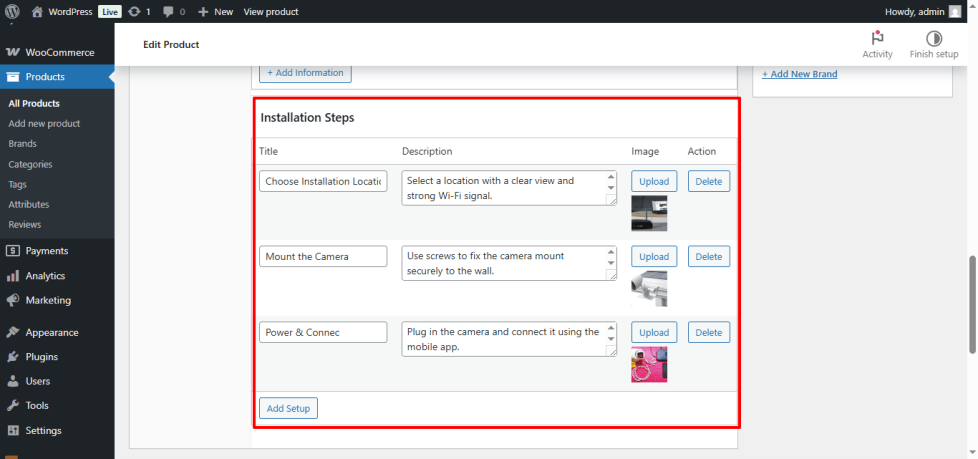
Installation Steps
↑ Back to topInstallation steps allow admins to visually explain setup.
Each step includes:
- Step title
- Description
- Optional image
You can:
- Add unlimited steps
- Reorder steps
- Delete steps
Images help reduce customer confusion and support requests.
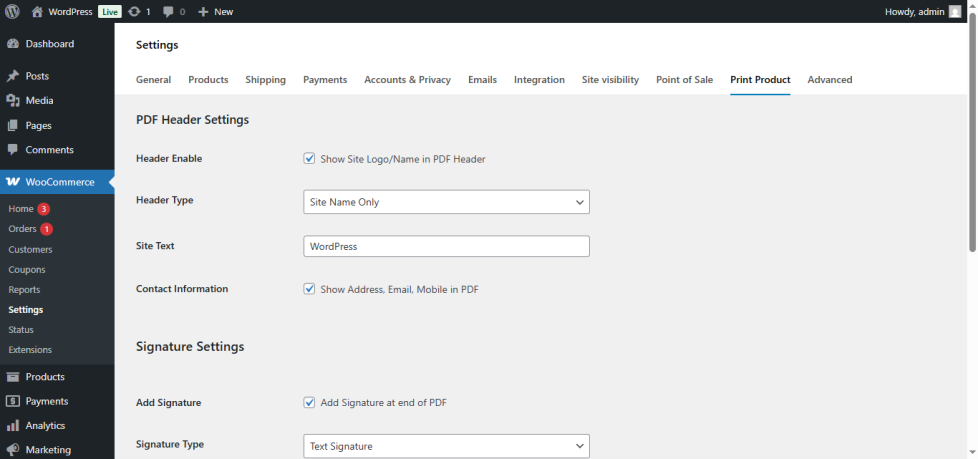
Print Product Settings
↑ Back to topGo to WooCommerce → Print Product tab in the WordPress admin panel.
PDF Header
↑ Back to top- Enable Header: Show or hide the PDF header
- Header Type:
- Site Logo
- Site Name (text)
- Site Logo: Upload logo from Media Library
- Site Text: Custom header text
Contact Information
↑ Back to top- Show store address, email, and phone number in the PDF
Signature
↑ Back to top- Enable Signature: Add signature at the end of the PDF
- Signature Type:
- Text Signature
- Image Signature
Button Settings
↑ Back to top- Download PDF button text
- Button text color
- Button background color
Customer Experience
↑ Back to topAfter purchase:
- The customer sees the Product Guide PDF in their order details
- The PDF is downloadable
- The guide is specific to the purchased product
Best Practices
↑ Back to top- Keep installation steps short and clear
- Use images wherever possible
- Write guides assuming the customer is a beginner
- Include safety or warning notes when needed
How to Use the Product Guide PDF
↑ Back to top- After purchasing a product with a guide.
- Go to your Order Details in your WooCommerce account.
- Find the purchased product and click the Download Product Guide Button.
- You can also download it to your device for offline access.
- Read the Intro Section to understand product overview and important notes.
- Follow the Installation Steps, which include step-by-step instructions with optional images.
- Check Additional Information Sections for tips, maintenance, and safety instructions.
- Review the Warranty Section for warranty details and unique Warranty ID.
Troubleshooting
↑ Back to topPDF not showing?
- Ensure the product has a guide configured
- Confirm WooCommerce is active
Images not appearing?
- Make sure images are uploaded via the Media Library
- Only PNG and JPEG/JPG image formats are supported
FAQs
↑ Back to topHelp customers by answering commonly asked questions.
What is Print Product Guide?
It is a WooCommerce plugin that lets you attach custom PDF guides to products which customers can download after purchase. These PDFs can include installation steps, usage instructions, warranty details, and more.
Where do customers find the product guide?
After purchase, customers will see a Download PDF Guide link in their Order Details page in their WooCommerce account.
How do I configure a product guide?
Go to Products → Edit Product → Product Guide tab, then add titles, instructions, warranty info, installation steps, and additional sections.

