Add custom fields and extra options to your products using WooCommerce product addons. Set up flexible field types, conditional logic, and dynamic pricing to offer personalized product customization.
Installation
↑ Back to top1. Download the Product Addons and Extra Options.zip file from your
WooCommerce account.
2. Go to WordPress Admin > Plugins > Add New and Upload Plugin.
3. Click on Choose File to upload the file you downloaded.
4. Install Now and Activate the extension.
Configuration
↑ Back to topGo to WooCommerce > Settings > Product Addons tab, there you will see Addons Rules and General settings.
After you have installed and activated the Product Addons and Extra Options Woo extension,
Note: Please read the whole documentation as different types of fields have different options.
In the Product Addons tab, you can create and manage global product options.
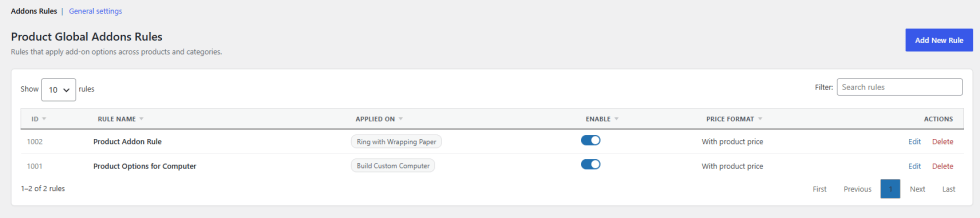
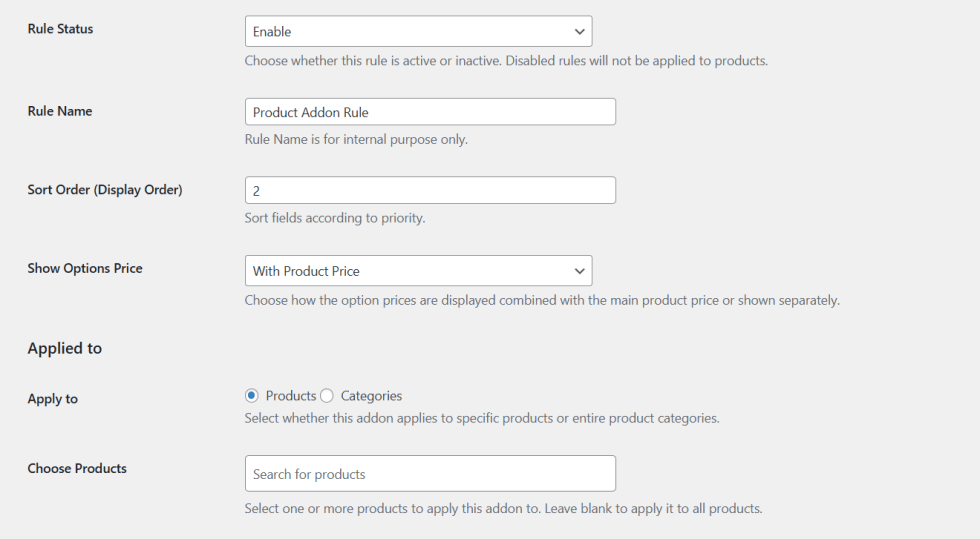
To add a new rule, click on the Add New button to configure the following:
- Rule Status: Option to enable or disable the rule.
- Rule Name: Set the name of the rule.
- Sort Order (Display Order): Set rule priority according to which fields of the rule are displayed first.
- Show Options Price: Select option price displayed with product price or separately.
- Applied to: Apply this rule for specific products or for specific categories.
- Choose Products / Categories: Choose products or categories according to the above selection.
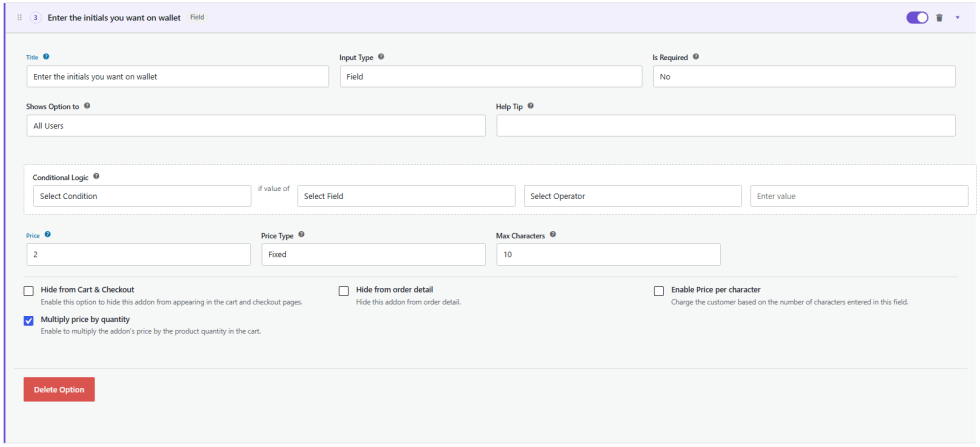
To add a field, click on the ” Add new Option button and configure the following.
Here we have selected a text field. After that, we will show you multiple options fields, which have different options.
- Title: Set the title of the field
- Input Type: Select field type from 19 types of fields available.
- Is Required: Make the field mandatory or optional.
- Display Order: Set the sort order of the field.
- Show Options to: Show field for specific user roles.
- Help Tip: Write text to display a tooltip in front of the field.
- Option View: Choose how choices are laid out, e.g., Vertical and Grid. This option is only for checkbox and radio buttons.
- Limit Total Selections(Optional): Select this option to manage the stock of product options. You can display and manage the stock for different fields, i.e., dropdown, Image radio buttons, radio buttons, checkbox, multiselect, and color button.
- Stock reminder Message: Upon enabling the limit total selection, you can display the stock quantity reminder with the help of a short code {stock}.
- Conditional Logic: Apply conditional logic for a field,d e.g., show or hide a field based on a condition.
- Price: Set the price of the field. Leave the field empty if you don’t want to charge a price.
- Price Type: Set a fixed or percentage price type.
- Max Characters: Max character limit for the field. (It is only available for text fields.)
- Hide from Cart and Checkout Page: Option to hide the field on cart and checkout pages.
- Hide From Order Detail: Checkbox option to hide the field on the order detail page.
- Enable Price per Character: Set price per character for the field. (Only for Text Field)
- Multiple Price by Quantity: Select this to multiply the price of the addon based on quantity.
- Addon Weight Mode: Set how the addon weight is applied, e.g., Add to product or override.
How To Add a Multiple Options Field?
↑ Back to topFollow the same steps as above. Click on the Add New Option button. Choose the field type as a dropdown. It will allow you to add multiple options which work as a dropdown. Here are the additional options you will get.
- Title: Set the title of the option
- Price: Choose the price of the addon.
- Price Type: Select the type of pricing for the field.
- Drag to Reorder: Drag choices to set the display order between options.
- Default Selected: Preselect the choice for customers.
- Weight: Set the weight of the choice and select the unit.
- Add Choice: Add another choice to the field.
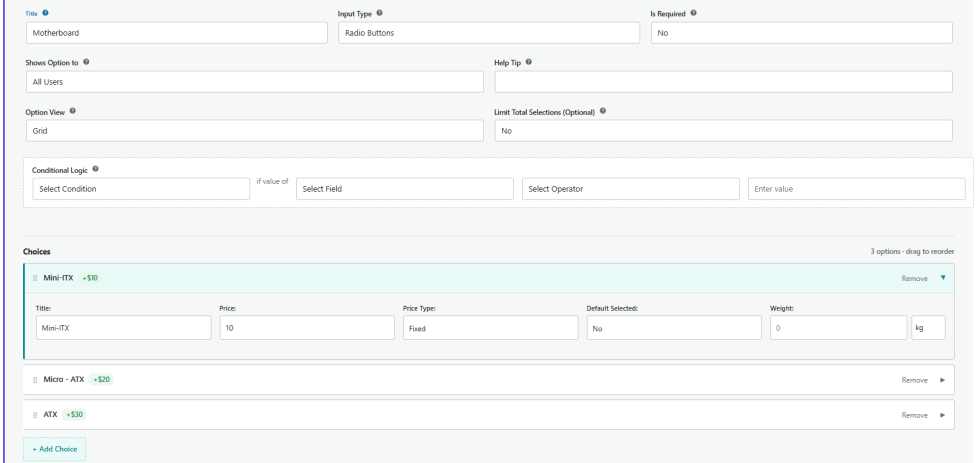
If you select the radio button, checkbox, or image radio buttons, it will show slightly different options.
By selecting the image radio button and the checkbox, you will see two additional options, i.e., radio or checkbox image and product Image.
- Radio Image: Upload the image to display radio button images swatch. You can also upload it for a checkbox.
- Product Image: Upload the same image as a radio button (recommended) to display the image as a gallery when a specific option is selected.

How to Group Fields Into Sections?
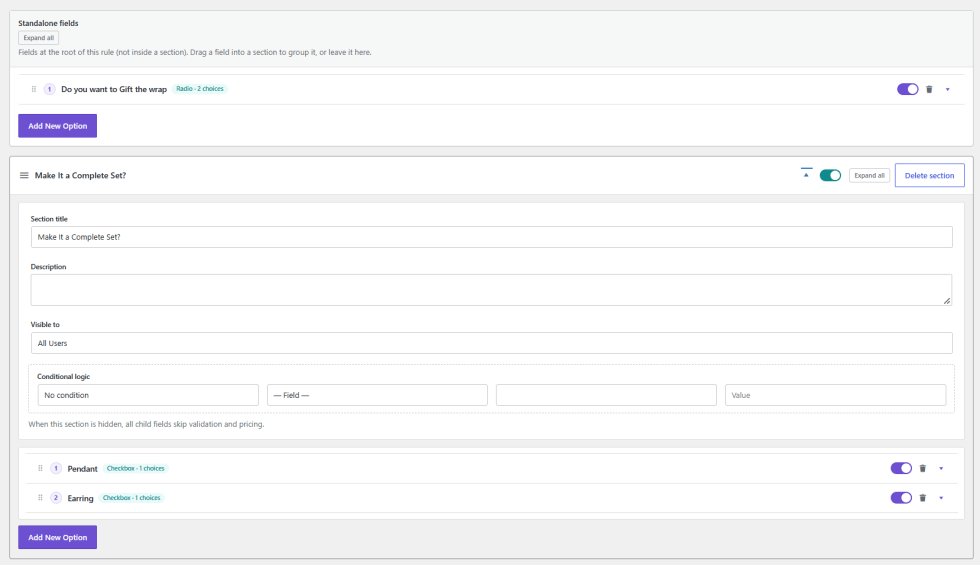
↑ Back to topSections group related fields under one heading on the product page. For example, a section named Make It a Complete Set can hold the Pendant and Earring fields. Click Add Section to create one, then drag fields into it. Sections are optional, so fields can also stay standalone.
- Section Title: Set the name of the section.
- Description: Add short text for the section.
- Visible to: Show the section to specific user roles.
- Conditional Logic: Show or hide the section based on a field value.
- Toggle: Enable or disable the section.
- Expand all: Open all fields in the section.
- Delete section: Delete the section.
When a section is hidden, all its fields skip validation and pricing.
General Settings
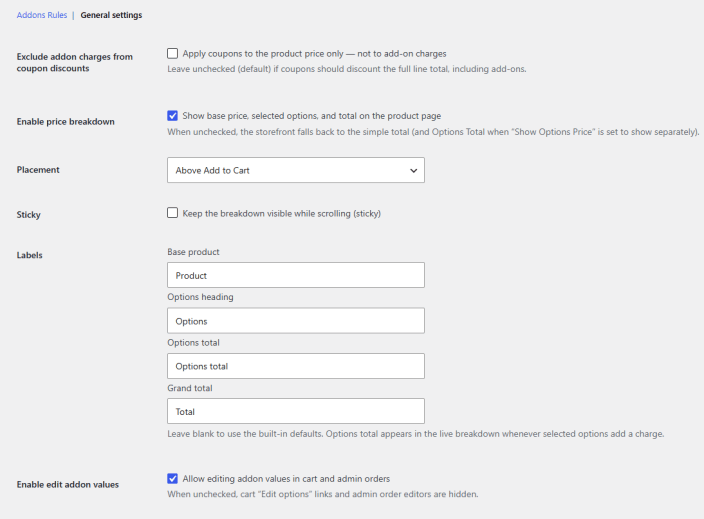
↑ Back to topGo to WooCommerce > Settings > Product Addons > General settings to configure the following.
- Exclude addon charges from coupon discounts: Apply coupons to the product price only, not addon charges. Leave unchecked to discount the full line total.
- Enable price breakdown: Show base price, selected options, and total on the product page.
- Placement: Choose where the price breakdown appears, e.g., Above Add to Cart.
- Sticky: Keep the breakdown visible while scrolling.
- Labels: Rename Base product, Options heading, Options total, and Grand total. Leave blank to use the defaults.
- Enable edit addon values: Allow editing addon values in cart and admin orders. When unchecked, cart Edit options links and admin order editors are hidden.
How to Add Product-Specific Options to an Individual Product?
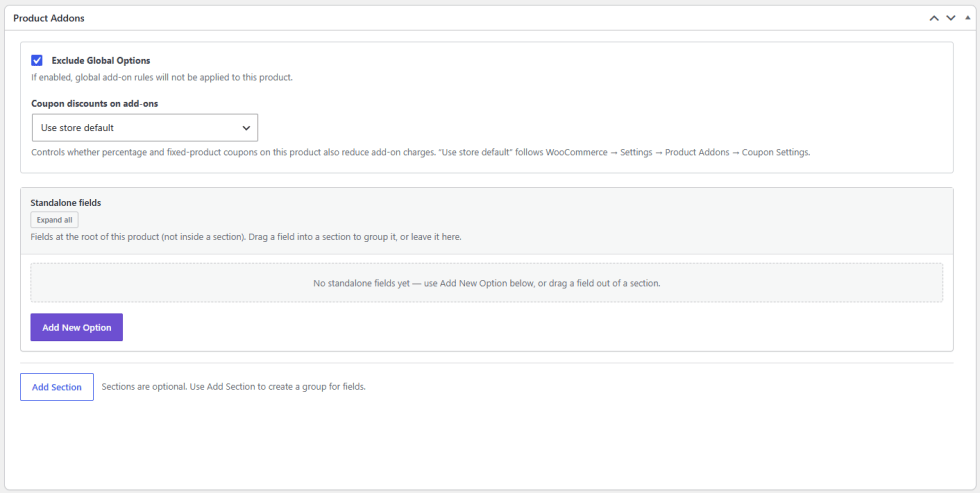
↑ Back to topGo to Products > All Products and open the product you want to configure. Once on the product edit page, scroll down to the Product Addons section.
If you do not want the global addon rules to apply to this product, check the ” Exclude Global Options”. This will prevent any store-wide addon rules from appearing on this product.
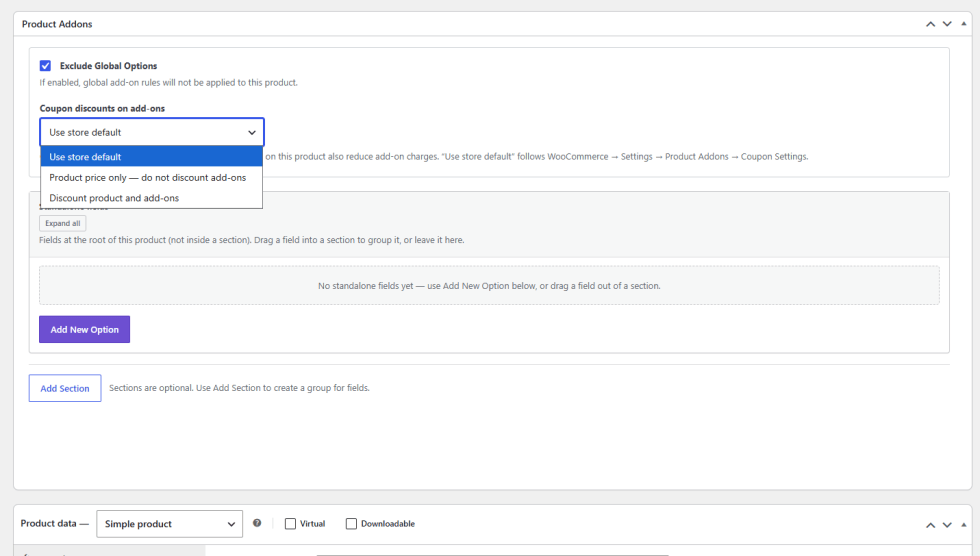
Use Coupon discounts on add-ons to control how coupons apply to addon charges on this product.
- Use store default: Follow the coupon option in General settings.
- Product price only: Coupons discount the product price, not addons.
- Discount product and add-ons: Coupons also reduce addon charges.
To add a product-specific option, click Add Option. This will create a new addon field where you can configure the option settings for this individual product.
Fields outside a section appear under Standalone fields. Click Add Section to group fields.