Add custom product fields and extra options to your products using the WooCommerce Product Addons and Custom Fields plugin. Add 22 field types, conditional logic, and assign fees to fields for complete product customization.
Installation
↑ Back to top- Download the Product Addons and Custom Fields.zip file from your WooCommerce account.
- Go to WordPress Admin > Plugins > Add New and Upload the plugin.
- Click on Choose File to upload the file you downloaded.
- Install Now and activate the extension.
Configuration
↑ Back to topTo configure the plugin, go to WooCommerce > Settings > Custom Product Fields, where you can set up the plugin to add extra options and addons to your products.
Custom Product Fields Settings – Global Rules
↑ Back to topIn this section, you can create and manage custom product addons and fields. Go to WooCommerce > Settings > Custom Product Fields > Custom Product Fields Settings and configure the following settings.
Here you can see all your rules for product addons and manage them. You can do the following:
- Export All (JSON): Export all rules in JSON format.
- Export All (CSV): Export all rules in CSV format.
- Import Rules: Import rules from a JSON or CSV file. If an imported rule already exists, choose how to handle the duplicate:
- Ignore: Skip the duplicate rule and keep the existing one unchanged.
- Override: Replace the existing rule with the imported one.
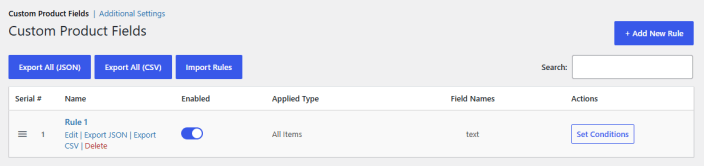
Click on the “Add New Rule” button to create rules for displaying and managing product addons and custom fields. For each rule, you can configure:
- Rule Name: Enter a name for the rule.
- Enable Rule: Check the box to enable the rule to show on the single product page.
- Promote Product as Additional Option: Convert products into addons and promote additional products as a field on the product page.
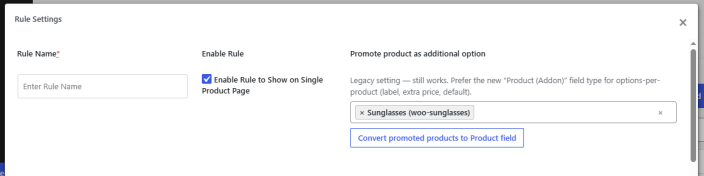
Custom Product Field Settings
↑ Back to topClick on the “+Add Field” button to add a new custom field to the product. You can choose between 22 different field types.
Sorting: Drag fields and sections to change their order on the product page. To move a field into a section, drag it there.
Available 22 Field Types
- Text
- Textarea
- Number
- Telephone
- Password
- Select
- MultiSelect
- Checkbox
- Radio Button
- Radio Image
- Radio Color
- Checkbox Image
- Checkbox Color
- Date Picker
- Time Picker
- Color Picker
- File Upload
- Heading
- Paragraph
- Google Map
- Product (Addon)
For each field, you can configure the following settings:
- Field Type: Choose a field from the 22 available field types.
- Field Name: Set a name for the product field.
- Field Label: Add a label for the field.
- Field Visibility: Control the visibility of fields based on user role. Select the user role(s) for which the field will be visible.
- Placeholder: Enter the placeholder for the custom product field.
- Price: Set a price for the field.
- Price Type: Choose the preferred price type:
- Flat Fee
- %age of Product Price
- Required: Mark the field as required.
- Replace Price with Product Price: Check the box if you want to replace the price with the product price.
- Hide On Page Load: Check if you want to hide the field on page load.
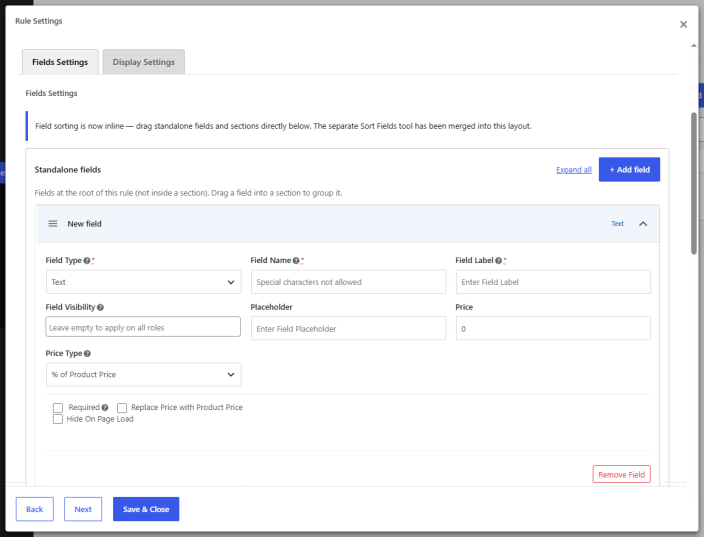
For specific field types, you can configure further settings. Based on field types, these are the following settings:
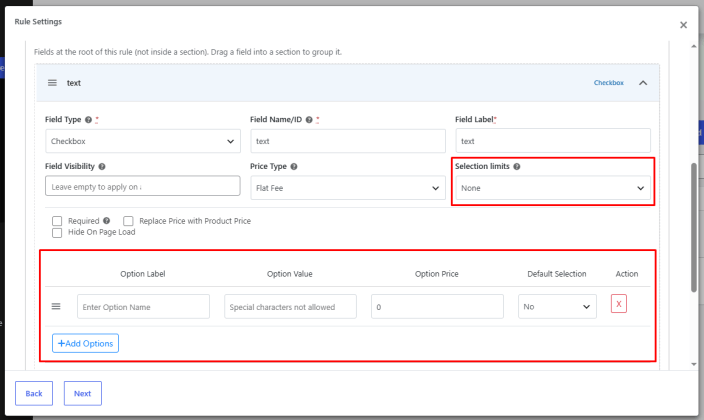
Checkbox and Multi-Select Fields
Clear Selection: Customers can clear their choices on select, multi-select, checkbox, radio, and swatch fields on the product page. This is built in and needs no setup. It lets customers undo a selection without reloading the page.
- Selection Limits: Restrict how many choices the customer can select for the checkbox and multi-select fields.
- None
- Minimum
- Maximum
- Exact
- Add Limit value (Minimum, Maximum, or Exact)
- Multiple Options: Add multiple select options and configure the following for each option:
- Option Label
- Option Value
- Option Price
- Default Selection
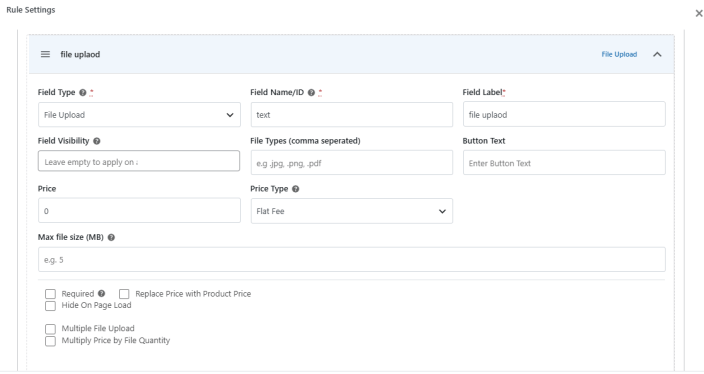
File Upload Field
- File Types (Comma Separated): Add allowed file types.
- Button Text: Add text for the file upload button.
- Max File Size (MB): Set maximum file size.
- Multiple File Upload: Allow multiple file uploads.
- Multiply Price by File Quantity: Check the box to multiply the price by the quantity of files.
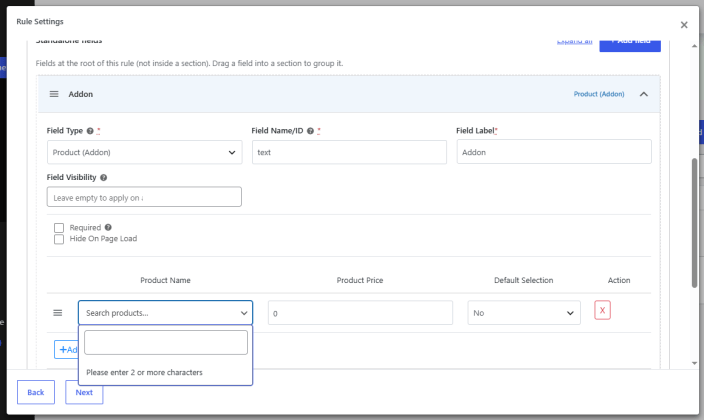
Product (Addon)
- Product Name: Choose the product that you want to display as an addon.
- Product Price: Set a price for the product (addon).
- Default Selection: Set whether the product is selected by default or not.
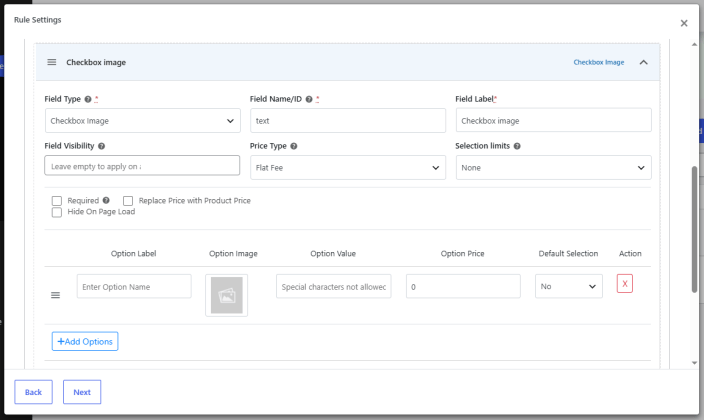
Checkbox Image and Checkbox Color
Checkbox Image and Checkbox Color fields display options as image or color swatches. Customers can select more than one swatch. Click the “+ Add Options” button to add options and configure the following for each one:
- Option Label: Enter the name of the option.
- Option Image (Checkbox Image): Upload an image for the option.
- Option Color (Checkbox Color): Pick a color for the option.
- Option Value: Enter a value for the option. Special characters are not allowed.
- Option Price: Set an extra price for the option.
- Default Selection: Choose whether the option is selected by default.
- Action: Click the “X” button to remove the option.
Drag options by the handle to change their order.
Adding Field Sections
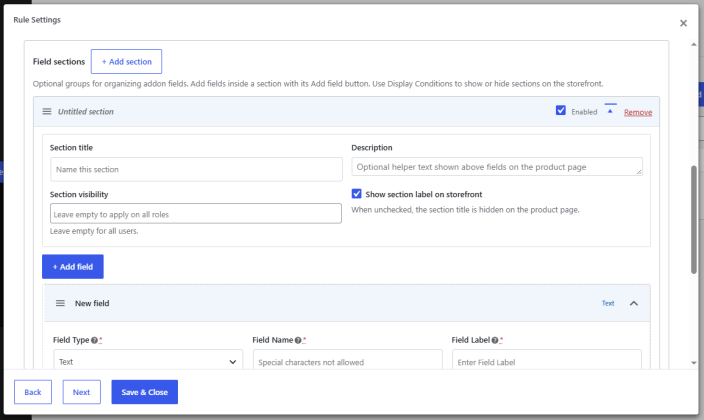
↑ Back to topCreate optional group section(s) to display fields on the product page. Add multiple fields inside a section and use conditions to show or hide sections on the storefront.
Click on the “+ Add Section” button to create a new section. For each section, you can set up:
- Section Title: Set a title for the section.
- Description: Add a description for the section.
- Section Visibility: Select the user roles for which the section will be visible.
- Show Section Label on Storefront: Check the box to display the section label on the product page.
Click on the “Add Field” button to add fields to the section.
Display Settings
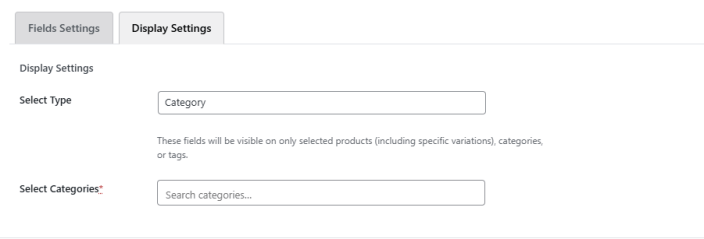
↑ Back to topApply global rules based on specific products or tags. In this tab, you can control how you want to display the fields based on products or tags:
- Select Type: Choose where the rule’s fields are visible:
- All Items
- Product
- Category
- Tags
- Select Products/Categories/Tags: Select the specific products, categories, or tags where you want the fields to show.
- When “Product” is selected, you can also search and select individual variations of variable products. Fields assigned to a variation show only when the customer picks that variation on the product page.
Set Conditions to Display Fields
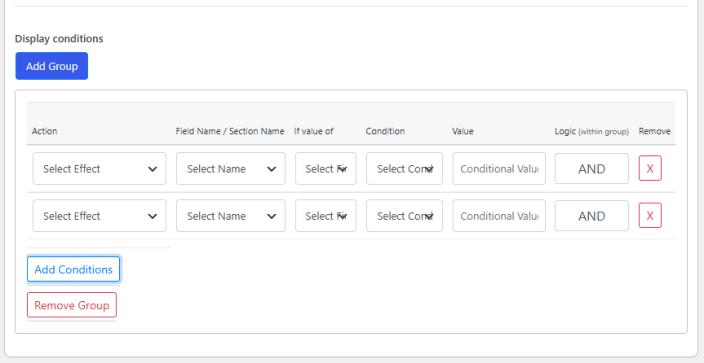
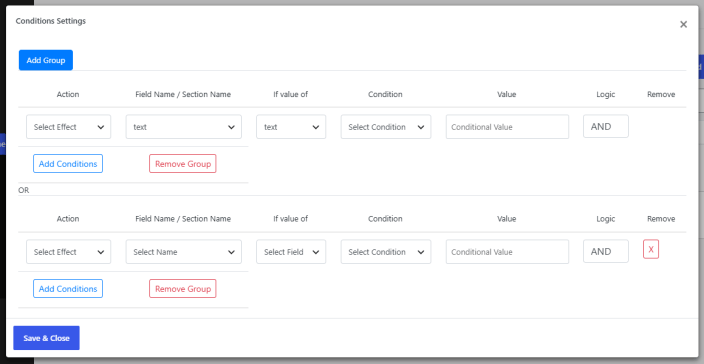
↑ Back to topUse conditions to show or hide fields and sections based on what the customer selects in other fields. Conditions are organized in groups:
- Within a Group: All conditions must be met (AND logic).
- Between Groups: If any one group is met, the condition is triggered (OR logic).
Click the “Add Group” button to create a condition group. To add more conditions to the group, click the “Add Conditions” button.
For each condition, you can configure the following settings:
- Action: Choose whether to show or hide the field or section.
- Field Name/Section Name: Select the field or section to show or hide.
- If Value Of: Select the field whose value is checked.
- Condition: Select the condition to apply, such as equal to, greater than, or empty.
- Value: Enter the value that triggers the condition.
- Logic: Conditions in the same group always use AND logic.
- Remove: Click the “X” button to remove the condition.
Click the “Remove Group” button to delete a group and all of its conditions.
Additional Settings
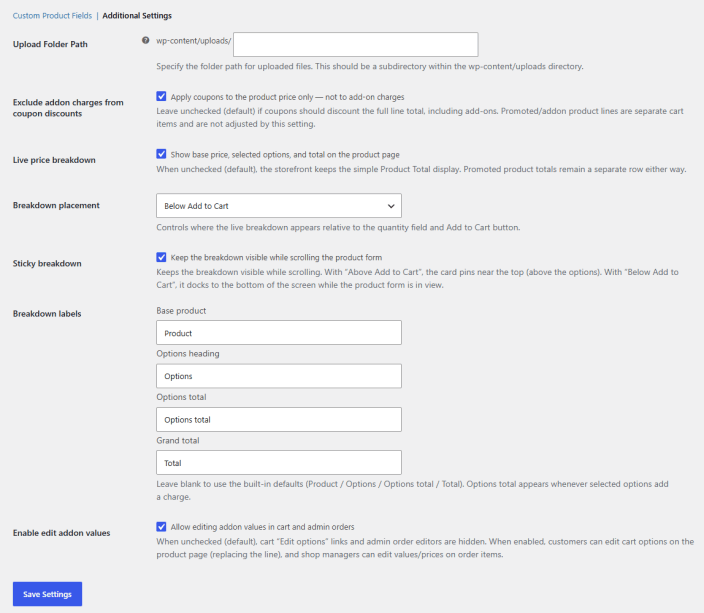
↑ Back to top- Upload Folder Path: Specify the folder path for uploading files. This should be a subdirectory within the wp-content/uploads directory.
- Exclude Addon Charges from Coupon Discounts: Check the box to apply the coupons only to the product price and not to the addons.
- Live Price Breakdown: Display a complete breakdown of price, including base price, price for selected options, and total price.
- Breakdown Placement: Controls where the live breakdown appears relative to the quantity field and Add to Cart button. You can choose:
- Above Add to Cart
- Below Add to Cart
- Sticky Breakdown: Make the breakdown sticky so that it stays visible while you scroll the product page.
- Breakdown Labels: Set up the breakdown labels for the following:
- Base product
- Options Heading
- Options Total
- Grand Total
- Enable Edit Addon Values: Check the box to allow editing addon values in cart and in admin orders.
Product-Level Custom Fields
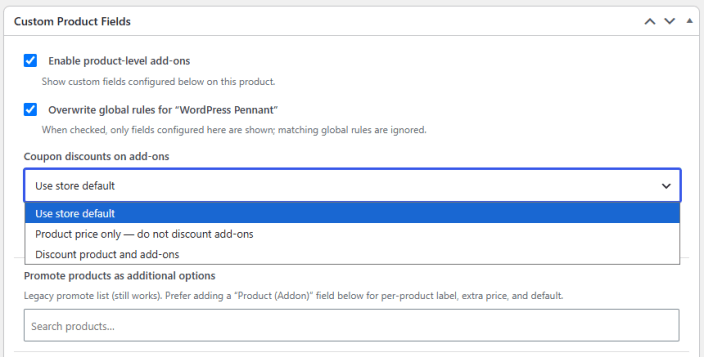
↑ Back to topYou can also add custom fields and addons to an individual product. Go to Products > Edit Product and scroll to the Custom Product Fields box.
- Enable Product-Level Addons: Check the box to show the custom fields set up here on this product.
- Overwrite Global Rules: Check the box to show only the fields set up on this product. Any global rules that match this product are ignored.
- Coupon Discounts on Addons: Choose how coupons on this product apply to addon charges:
- Use Store Default: Follows the “Exclude Addon Charges from Coupon Discounts” setting under Additional Settings.
- Product Price Only, Do Not Discount Addons: Coupons reduce only the product price. Addon charges are not discounted.
- Discount Product and Addons: Coupons reduce both the product price and the addon charges.
- Promote Products as Additional Options: Search and select products to show as additional options. This is a legacy option. To set a label, extra price, and default selection for each product, add a “Product (Addon)” field instead.
Fields Settings
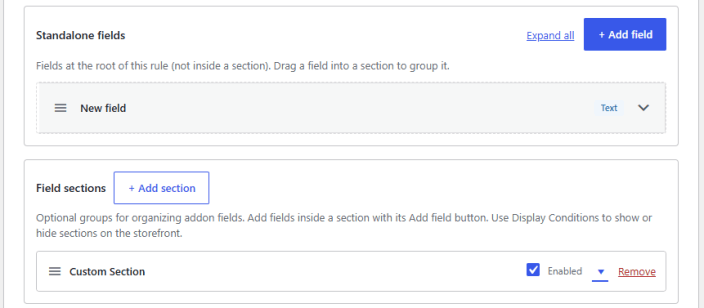
↑ Back to top- Standalone Fields: Click the “+ Add Field” button to add fields that are not part of a section. Each field has the same settings as fields in global rules.
- Field Sections: Click the “+ Add Section” button to group fields into a section. Click the section’s “Add Field” button to add fields to it.
- Sorting: Drag fields and sections to change their order on the product page. To move a field into a section, drag it there.
Set Conditions to Display Fields
↑ Back to topUse conditions to show or hide fields and sections on this product based on what the customer selects in other fields. Scroll to the Display Conditions section at the bottom of the Custom Product Fields box. Add and save at least one field before you set up conditions.
- Click the “Add Group” button to create a condition group, then click “Add Conditions” to add more conditions to it.
- All conditions in the same group must be met (AND logic). If any one group is met, the condition is triggered (OR logic).
- For each condition, set the Action, Field Name/Section Name, If Value Of, Condition, and Value.
The settings work the same way as conditions in global rules. For details on each setting, see the “Set Conditions to Display Fields” section under Global Rules.