
Product Bulk Remover adds a Product Bulk Remover screen under Products in WooCommerce. Use it to find products with filters, review exactly what will change, and then move products to Trash, restore them, or permanently delete them in background batches.
Requirements
↑ Back to top| Requirement | Minimum version |
|---|---|
| WordPress | 6.9 |
| WooCommerce | 8.2 (must be active) |
| PHP | 7.4 |
Product Bulk Remover is tested up to WordPress 7.1 and WooCommerce 11.2.2. It declares compatibility with High-Performance Order Storage (HPOS).
Installation
↑ Back to top- Install and activate WooCommerce.
- Download the Product Bulk Remover zip file from your WooCommerce.com account.
- In your WordPress dashboard, go to Plugins > Add New > Upload Plugin, choose the zip file, and select Install Now.
- Select Activate Plugin.
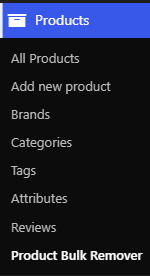
- Go to Products > Product Bulk Remover.
Only users with the Manage WooCommerce capability can open the screen, such as Administrators and Shop Managers.
Before you start
↑ Back to top- Make a current backup of your site. Permanent deletion cannot be undone.
- If you are unsure about a filter, test it on a staging site first.
- Scan and preview before you choose an action. A scan changes nothing.
- For large catalogs, set up a real server cron for Action Scheduler (see Background processing).
Find products
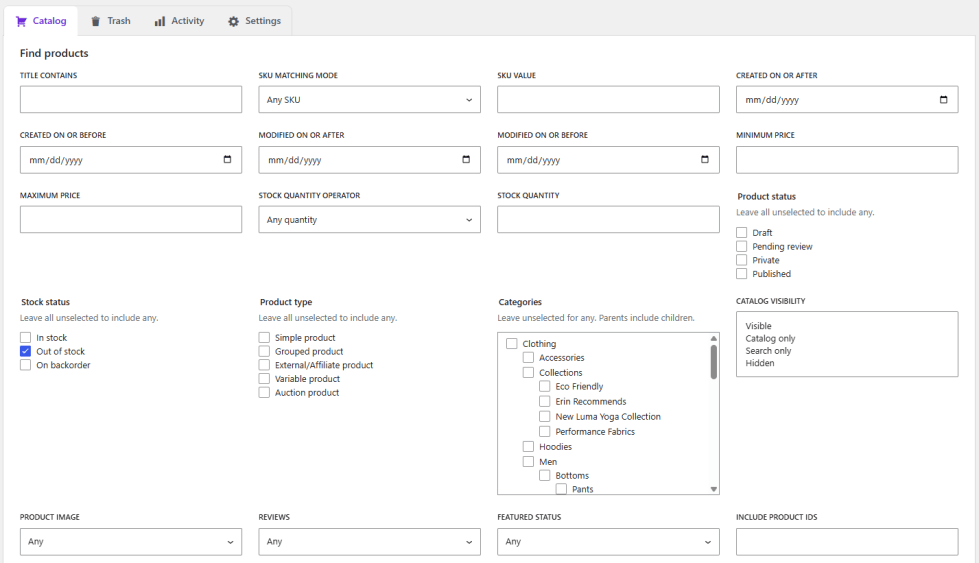
↑ Back to topThe screen has four tabs: Catalog, Trash, Activity, and Settings. The Catalog tab is read-only until you confirm an action.
Set filters
↑ Back to topOn the Catalog tab, use Find products to narrow the list. Leave a filter empty to ignore it.
| Group | Filters |
|---|---|
| Text and SKU | Title contains, SKU matching mode, SKU value |
| Dates | Created on or after, created on or before, modified on or after, modified on or before |
| Price and stock | Minimum price, maximum price, stock status, stock quantity operator, stock quantity |
| Status and type | Product status, product type, catalog visibility, featured status |
| Taxonomies | Categories (with an option to include child categories), tags and brands (shown when your store uses them). |
| Content | Product image, reviews |
| IDs | Include product IDs, exclude product IDs (comma-separated). Excluded IDs are never processed. |
Scan products
↑ Back to top- Set your filters.
- Select Scan products.
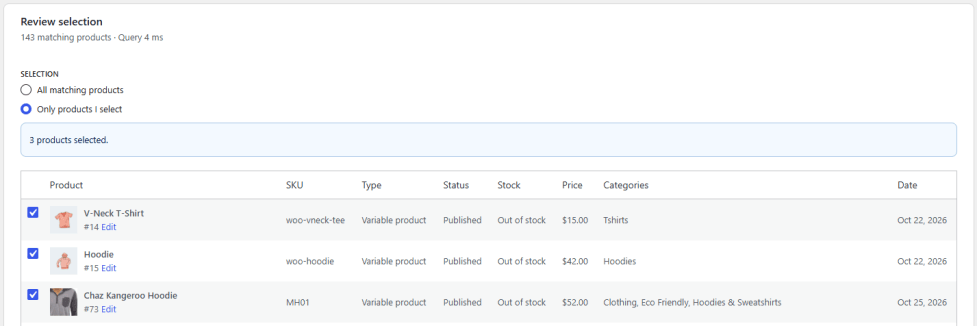
- Review the matching count and the paged table in Review selection.
Select Clear filters to reset the form. The scan is a short-lived snapshot. Just before each product is processed, the plugin checks the product and the filters again, so a product that changed after the scan can be skipped safely.
Scan notices
↑ Back to top- No filters are set. The scan includes every product that is not in Trash.
- The scan took longer than expected. Narrow the filters and scan again.
Choose what to process
↑ Back to topUnder Selection, choose one of these:
- All matching products – The action applies to every product from the scan. Untick a row to exclude it from the run.
- Only products I select – The action applies only to the rows you tick.
A summary line always states what is selected, for example “All 120 matching products are selected.” or “3 products selected.” The review table is paged, and selecting rows on one page does not select rows on other pages.
Actions
↑ Back to topUnder the review table, choose one of three actions.
| Button | What it does | Changes products? |
|---|---|---|
| Preview cleanup | Checks the selected products and reports what would happen. | No |
| Move to trash | Moves the products to the native WooCommerce Trash. Product images are not deleted. | Yes, can be restored |
| Delete permanently | Deletes the products. See Permanent deletion. | Yes, cannot be undone |
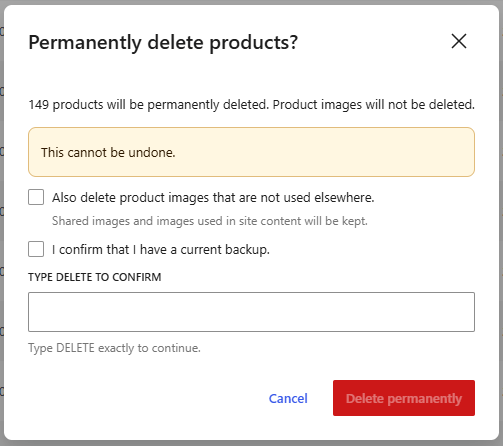
Each action opens a dialog that states how many products are affected.
Move products to Trash
↑ Back to top- Scan your products and choose the selection.
- Select Move to trash.
- Read the summary, then confirm.
The run starts in the background. You can restore the products later from the Trash tab.
Permanent deletion
↑ Back to topPermanent deletion removes products and cannot be undone.
- Scan your products and choose the selection.
- Select Delete permanently.
- Optional: tick Also delete product images that are not used elsewhere.
- Tick I confirm that I have a current backup.
- If the dialog asks for it, type
DELETE. - Select Delete permanently in the dialog.
When you must type DELETE
↑ Back to topThe backup confirmation is always required. You must also type DELETE exactly when any of these is true:
- The scope is All products.
- More than 100 products will be deleted.
- No filters are set and you choose All matching products.
- No filters are set and the rows you ticked cover the whole catalog.
- You use Empty trash.
Until the confirmation is complete, the Delete permanently button in the dialog stays disabled. This safety check is always on and cannot be turned off in Settings.
Product images
↑ Back to topImages are kept by default, and Trash never deletes images. If you choose to delete images during a permanent run, an image is deleted only after checks show that no other product, variation, post, page, or block uses it. If a check cannot be completed, the image is kept and the item result explains why. A problem while deleting an image does not undo the product deletion.
The Trash tab
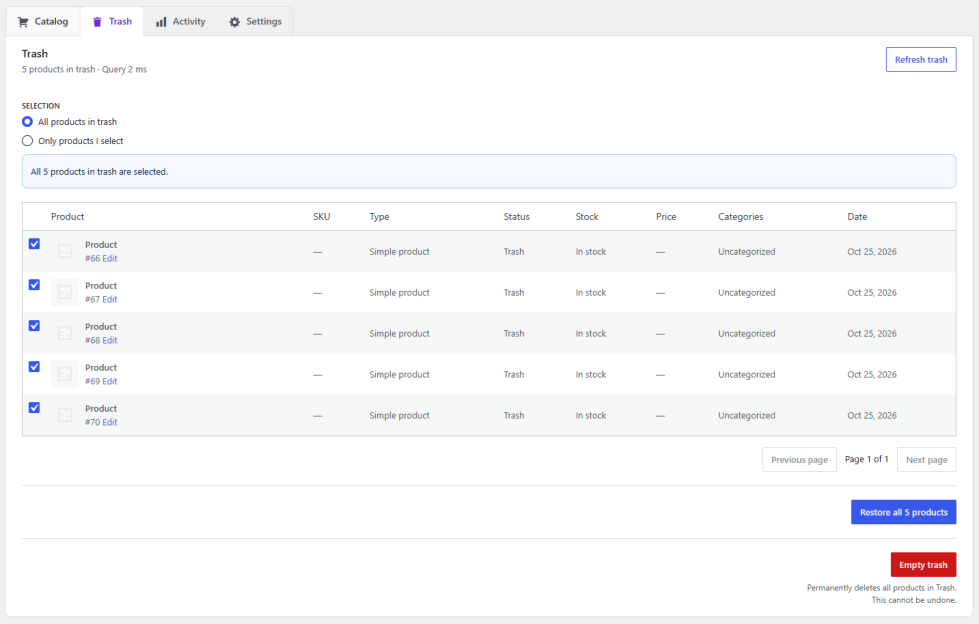
↑ Back to topThe Trash tab lists the products that are in the WooCommerce Trash. Select Refresh trash to reload the list.
Restore products
↑ Back to top- Open the Trash tab.
- Choose All products in trash, or Only products I select and tick the rows.
- Select Restore (for example, “Restore 3 selected products”).
Restore runs in the background like other actions.
Empty trash
↑ Back to topEmpty trash permanently deletes every product in Trash.
- It is available only when All products in trash is selected and no product is unticked.
- If you untick a product, or switch to Only products I select, the button is disabled and a message explains why.
- It always requires the backup confirmation and typing
DELETE.
Empty trash cannot remove only some of the products in Trash.
Progress, Pause, Resume, and Stop
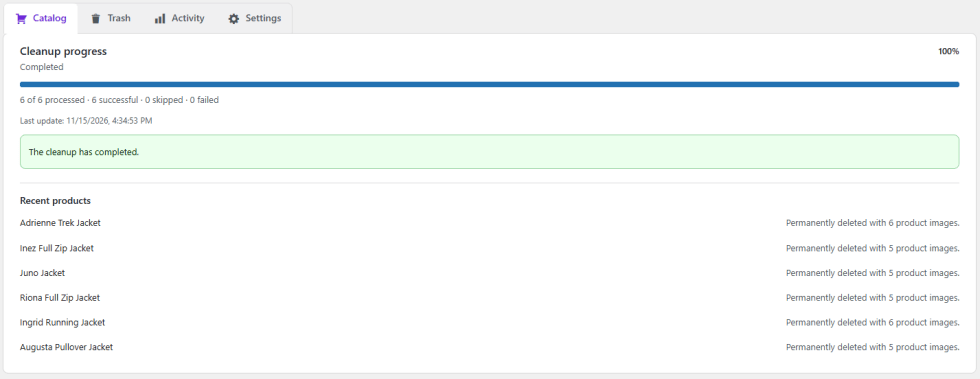
↑ Back to topAfter you confirm an action, a progress panel shows the run status, how many products are processed out of the total, and a progress bar. Screen readers are updated with the processed count.
| Control | What it does |
|---|---|
| Pause | Pauses the run at a safe point. The product being processed finishes first. |
| Resume | Continues a paused run. |
| Stop | Cancels the run at a safe point. Products already processed are not rolled back. |
You can close the browser at any time. The run continues in the background, and the progress panel shows the latest state when you return. Only one run that changes the catalog can be active on a site at a time.
Understanding results
↑ Back to topEvery product in a run gets a result:
- Moved to trash – The product was moved to Trash.
- Permanently deleted – The product was permanently deleted.
- Restored – The product was restored from Trash.
- Would be processed – Shown by a preview. No change was made.
- Skipped – The product was left alone on purpose, for example because it has an active subscription, is a bookable product, no longer matches the filters, or an integration prevented the change.
- Failed – WooCommerce could not complete the change. The message explains why.
Skipping is a safety feature, not an error.
Activity and CSV export
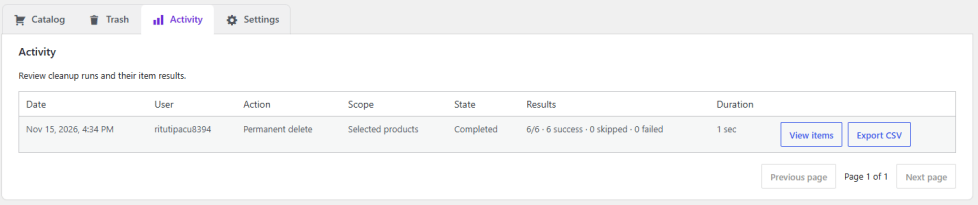
↑ Back to topThe Activity tab lists your runs with date, user, action, scope, state, results, and duration. Select a run to see each product’s result and message. The CSV export adds product ID, SKU, and product type.
Export a run to CSV
↑ Back to top- Open the Activity tab.
- Find the run.
- Select Export CSV.
The file starts with the run summary (run ID, dates, user, action, scope, state, counters, duration, and any stop reason or error), followed by one row per affected product with these columns: product_id, product_name, sku, product_type, result, reason_code, and message.
The download is available to signed-in users with the Manage WooCommerce capability only, and no export file is stored in your public uploads folder. Treat the file as operational data.
Retention
↑ Back to topCompleted, stopped, and failed runs are removed automatically after the retention period (90 days by default). Active runs are never removed. You can change the period in Settings.
Settings
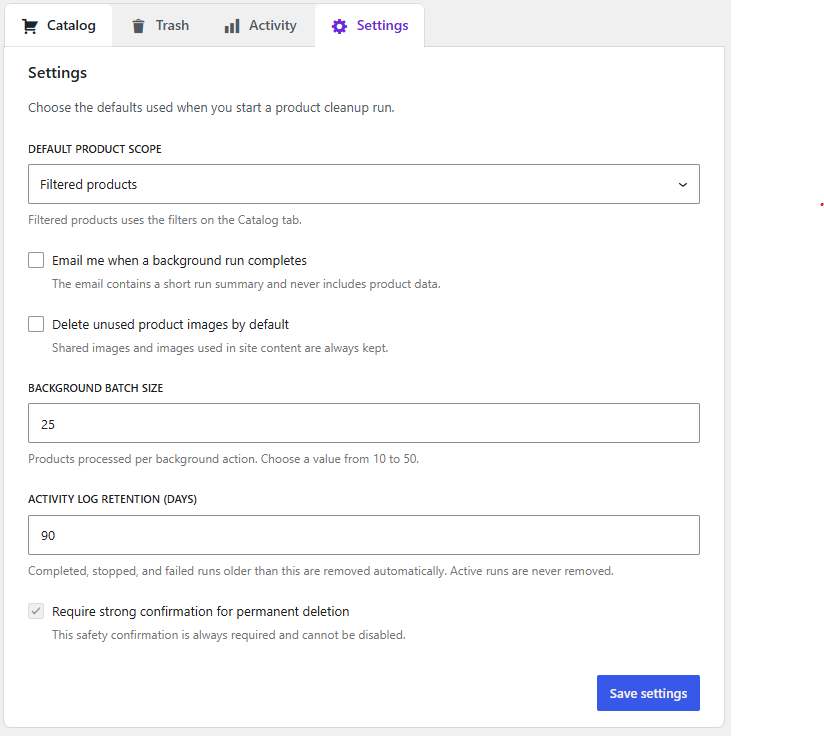
↑ Back to topOpen the Settings tab to choose defaults for new runs.
| Setting | Description |
|---|---|
| Default product scope | Choose Filtered products to use the filters on the Catalog tab, or All products. |
| Email me when a background run completes | Sends a short summary when a run finishes. The email never includes product data. |
| Delete unused product images by default | Pre-ticks the image option in the permanent deletion dialog. Shared images and images used in site content are always kept. |
| Background batch size | Number of products processed per background action, from 10 to 50. The default is 25. |
| Activity log retention (days) | How long finished runs are kept, from 1 to 3650 days. The default is 90. |
| Require strong confirmation for permanent deletion | Always on. It cannot be turned off. |
Default scope and image deletion set the starting choices for new runs. Batch size, retention, and the email apply to all runs. You can still choose the selection and images for each run.
Completion email
↑ Back to topWhen Email me when a background run completes is on, the user who started the run receives an email. It contains:
- The store name in the subject and in the message.
- The action, such as Move to trash, Permanent delete, Restore, or Preview cleanup.
- The processed, succeeded, skipped, and failed counts.
- A link to the Activity tab.
Background processing
↑ Back to topProduct Bulk Remover uses Action Scheduler, which is included with WooCommerce. Its actions are in the product-bulk-remover group. To see them, go to WooCommerce > Status > Scheduled Actions and look for actions in the product-bulk-remover group.
If your site has little traffic, or WP-Cron is disabled, run Action Scheduler from a real server cron so batches keep moving:
wp action-scheduler runAsk your host to run this every minute, or at the shortest interval they allow. If a run’s activity stops updating, the screen shows a warning with a link to Scheduled Actions.
How products are handled
↑ Back to top| Item | Behavior |
|---|---|
| Variable products | Variations are processed together with their parent product. |
| Grouped products | Child products are not deleted just because the parent is selected. A child is processed only if it matches the run itself. |
| Product images | Kept by default. Deleted only if you opt in and the image is not used elsewhere. |
| Orders | Never deleted. Order line items are never changed. |
| WooCommerce Subscriptions | Products with active or pending-cancel subscriptions are skipped. If usage cannot be verified, the product is kept. |
| WooCommerce Bookings | Bookable products are kept while WooCommerce Bookings is active. |
| Other extension product types | Processed through the normal WooCommerce product API. Developers can exclude products with a filter. |
For developers
↑ Back to topUse the product_bulk_remover_can_process_product filter to keep a product out of a cleanup run. Return an array with allowed, an optional reason_code, and an optional message. The filter receives the WooCommerce product and the ID of the user who started the run.
add_filter(
	'product_bulk_remover_can_process_product',
	function ( $result, $product, $actor_id ) {
		if ( $product->get_meta( '_keep_forever' ) ) {
			return array(
				'allowed'     => false,
				'reason_code' => 'keep_forever',
				'message'     => 'This product is marked to keep.',
			);
		}

		return $result;
	},
	10,
	3
);
A product that is not allowed is skipped and the reason is shown in Activity. Filters cannot bypass the capability check, the confirmation requirements, or the batch size limits.
Deactivation and uninstall
↑ Back to top- Deactivating pauses any active run and removes its pending queue actions. Your catalog is not changed.
- Uninstalling removes only Product Bulk Remover settings, its audit tables, and its queued actions. Products, product images, orders, and customer data are not removed.
On multisite, the plugin works on the current site only.
Troubleshooting
↑ Back to top
The progress does not change
Open WooCommerce > Status > Scheduled Actions and look at the product-bulk-remover group. If actions are pending but not running, set up a server cron as described in Background processing.
The Empty trash button is disabled
Not every product in Trash is selected. Choose All products in trash and make sure no product is unticked. Empty trash cannot remove only some of the products in Trash.
The Delete permanently button in the dialog is disabled
Tick the backup confirmation. If the dialog asks for
DELETE, type it exactly, in capital letters.
A message says another cleanup is already active
Only one run that changes the catalog can be active at a time. Wait for the active run to finish, or stop it from the progress panel.
A scan says it took longer than expected
Narrow the filters, for example by category or date range, and scan again.
A product was skipped
Open the run in Activity and read the message for that product. Common reasons are an active subscription, a bookable product, a product that no longer matches the filters, or an integration that excluded it.
I cannot see the Product Bulk Remover screen
Your user needs the Manage WooCommerce capability, and WooCommerce must be active.
Frequently asked questions
↑ Back to top
Does Move to trash delete anything?
No. It moves products to the native WooCommerce Trash, and you can restore them. Product images are not deleted.
Does the browser need to stay open?
No. Action Scheduler runs the work in the background.
What is the difference between Pause and Stop?
Pause keeps the run resumable at a safe point. Stop cancels it. Products already processed stay processed in both cases.
Are orders removed?
No. Orders and order line items are never deleted.
Can I undo a permanent deletion?
No. Restore only works for products that are in Trash. Always make a backup before you delete permanently.
How long is Activity kept?
90 days by default. You can set 1 to 3650 days in Settings.
Does uninstalling delete my catalog?
No. Only the plugin’s settings, tables, and queued actions are rem
oved.

