
Installation
↑ Back to topTo start using a product from WooCommerce.com, you can use the “Add to store” functionality on the order confirmation page or the My subscriptions section in your account.
- Navigate to My subscriptions.
- Find the Add to store button next to the product you’re planning to install.
- Follow the instructions on the screen, and the product will be automatically added to your store.
Alternative options and more information at:
Managing WooCommerce.com subscriptions.

Initial Setup & Configurations
↑ Back to topMake sure you have:
- WordPress installed and running.
- WooCommerce installed and active.
- Product Mistakes Finder & Auto Fixer installed and activated.
After successfully activating the plugin, please go to Products > Product Mistakes Finder.
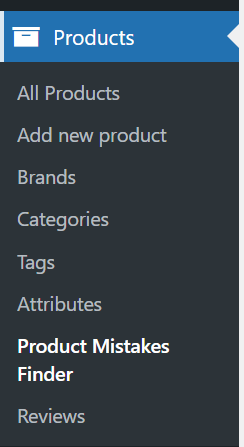
You will find the main tools in the following areas:
- Dashboard – Scan products and review issues.
- Auto-Fix – Configure automatic product fixes.
- Cron Jobs – Schedule automatic scans.
- Email Reports – Send scan results by email.
1. Run a WooCommerce Product Scan
↑ Back to topStart with a product scan to check your catalog for common product data issues.
Go to:
Products → Product Mistakes Finder → Dashboard
Click Scan All Products.
The extension checks your products and groups detected issues by type.
Depending on your product data, the scan can identify issues such as:
- Missing SKUs
- Duplicate SKUs
- Missing prices
- Empty short descriptions
- Missing product categories
- Missing product tags
- Missing brands
- Missing gallery images
If your store uses WooCommerce Product Brands, the relevant brand check requires the Product Brands functionality to be available.
Review Scan Results
↑ Back to topAfter the scan finishes, the Dashboard displays issue counts.
Click an issue type to view the products affected by that specific problem.
For example:
Missing SKU → View products with missing SKUs
This allows you to review the affected products before making changes.
Tip: Run your first scan without enabling Auto-Fix. Review the results first so you understand the condition of your product catalog.
2. Configure Auto-Fix
↑ Back to topAuto-Fix lets you automatically correct selected WooCommerce product issues.
Go to:
Products → Product Mistakes Finder → Auto-Fix
Enable the fixes you want to use and configure their settings.
Available automatic fixes include:
Missing SKUs
↑ Back to topGenerate SKUs for products that do not have one.
You can configure the SKU pattern using the available prefix and product-related options.
Product Prices
↑ Back to topSet prices for products where the required price data is missing.
Sale Prices
↑ Back to topConfigure a sale price based on a percentage of the regular price.
Product Descriptions
↑ Back to topSet a default short description or long description when the corresponding field is empty.
Product Categories
↑ Back to topAssign a default category to products that do not have the required category.
Product Tags
↑ Back to topAssign default tags to products with missing tags.
Product Brands
↑ Back to topAssign a default brand where applicable.
When your settings are ready, click:
Save Auto-Fix Settings
3. How Auto-Fix Works
↑ Back to topAuto-Fix works after a product scan.
The basic workflow is:
Scan → Find Issues → Apply Enabled Fixes → Review Results
For example:
- The extension scans your products.
- It finds products without SKUs.
- The Missing SKU Auto-Fix rule is enabled.
- The configured SKU rule is applied.
- The affected products are updated.
Auto-Fix can run after a manual scan and can also be used with scheduled scans.
Use Auto-Fix Carefully
↑ Back to topOnly enable automatic fixes for rules you are comfortable applying to your catalog.
For example, automatic SKU generation is usually suitable when your SKU format is predictable. Pricing, descriptions, categories, and brands should be configured carefully because they can directly affect your product catalog.
There is currently no one-click rollback for Auto-Fix changes, so review your settings before enabling automatic updates.
4. Schedule Automatic Product Scans
↑ Back to topYou can use scheduled scans to regularly check your WooCommerce catalog.
Go to:
Products → Product Mistakes Finder → Cron Jobs
Enable scheduled scanning and select the required interval.
Available intervals include:
- Hourly
- Twice Daily
- Daily
- Weekly
You can also enable:
Run Auto-Fix with Cron
When this option is enabled, the extension can apply your saved Auto-Fix rules after a scheduled scan.
Recommended Workflow
↑ Back to topFor most stores, start with a Daily or Weekly scan.
A practical setup is:
Scheduled Scan → Detect Product Issues → Auto-Fix Selected Issues → Email Report
This helps you monitor product data after imports, bulk updates, or regular catalog changes.
5. Get Product Scan Reports by Email
↑ Back to topYou can receive scan results automatically by email.
Go to:
Products → Product Mistakes Finder → Email Reports
Enable email reports and enter the email address where you want to receive the reports.
You can also enable the CSV attachment option.
A report can include:
- Scan source
- Total issues found
- Affected products
- Issue types
- Product IDs
- SKUs
- Product titles
- Issue details
This is especially useful when you manage a large WooCommerce product catalog and want to monitor product data without opening the WordPress dashboard every time.
6. Export Product Issues to CSV
↑ Back to topYou can export detected WooCommerce product issues for further review.
After completing a scan:
Dashboard → Export CSV
The CSV report contains the detected product issues grouped by issue type.
You can use the exported file to:
- Review products outside WordPress
- Share issues with your team
- Plan manual corrections
- Keep a record of a catalog audit
- Review products before applying changes
7. Recommended Workflow for Store Owners
↑ Back to topFor a new installation, we recommend this simple workflow:
Step 1: Run a scan
↑ Back to topGo to:
Products → Product Mistakes Finder → Dashboard → Scan All Products
Step 2: Review the results
↑ Back to topCheck which products have missing or incorrect product data.
Step 3: Configure safe Auto-Fix rules
↑ Back to topGo to:
Auto-Fix
Enable only the fixes you need.
Step 4: Save your settings
↑ Back to topClick:
Save Auto-Fix Settings
Step 5: Run another scan
↑ Back to topRun a new scan to verify the catalog after your changes.
Step 6: Export the results
↑ Back to topUse Export CSV if you need a downloadable product issue report.
Step 7: Automate future checks
↑ Back to topGo to Cron Jobs and configure a schedule.
Step 8: Enable email reports
↑ Back to topUse Email Reports if you want regular scan summaries.
8. Recommended Setup for Large WooCommerce Stores
↑ Back to topIf your store has a large product catalog or receives regular product imports, use the extension as a recurring product data checker.
A recommended setup is:
Daily/Weekly Scan
↓
Detect Missing Product Data
↓
Auto-Fix Safe Issues
↓
Email Report
↓
Review Remaining Issues
This helps catch product data problems after catalog updates instead of waiting for customers to discover them.
9. Troubleshooting
↑ Back to topThe scan does not find any issues
↑ Back to topMake sure your products contain actual data that can be checked and that the products are included in the catalog being scanned.
If your catalog is already complete, the scan may simply return no issues.
Auto-Fix is not working
↑ Back to topCheck that:
- The required Auto-Fix option is enabled.
- Your Auto-Fix settings are saved.
- The affected products actually match the selected rule.
- You run a new scan after changing the settings.
Email reports are not arriving
↑ Back to topFirst check whether WordPress/WooCommerce emails are working correctly.
If necessary, use an SMTP or WordPress mail logging solution to verify that your website is sending emails successfully.
Brand issues are not detected
↑ Back to topBrand-related checks require the compatible WooCommerce Product Brands functionality.
Make sure the required brand functionality is installed and active.
10. Best Practices
↑ Back to topFor reliable WooCommerce product data management:
- Run an initial scan before enabling Auto-Fix.
- Review detected issues before applying automatic changes.
- Use Auto-Fix primarily for predictable product data.
- Configure pricing and descriptive fields carefully.
- Use scheduled scans after regular product imports.
- Keep email reports enabled if you actively manage a large catalog.
- Export CSV reports when you need to review or share product issues.
- Periodically review your Auto-Fix settings as your catalog structure changes.
Navigate to the Auto-Fix tab to enable and customize the auto-fix rules.
Support
↑ Back to topIf you encounter any issues or have questions, please reach out through the WooCommerce Marketplace ticket system.

