
Shop Page Quantity Selector allows your WooCommerce store to create quantity field on shop page and lets customers select product quantities directly on shop and category pages without opening the product page. .
Installation
↑ Back to topTo start using a product from WooCommerce.com, you can use the “Add to store” functionality on the order confirmation page or the My subscriptions section in your account.
- Navigate to My subscriptions.
- Find the Add to store button next to the product you’re planning to install.
- Follow the instructions on the screen, and the product will be automatically added to your store.
Alternative options and more information at:
Managing WooCommerce.com subscriptions.

Setup and Configuration
↑ Back to top1. Enable Quantity Field
↑ Back to topTo set up your store with Shop Page Quantity Selector:
- Go to: WooCommerce > Settings > Shop Page Quantity Selector .
- Tick the checkbox “Enable Quantity Field” to enable it for your store
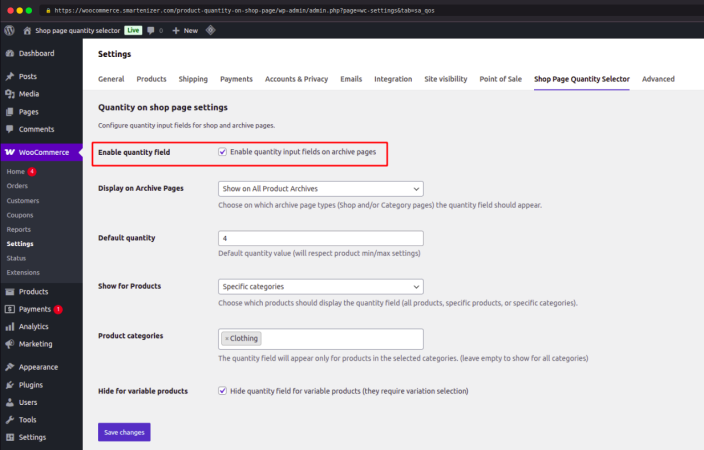
This is the master switch for the entire plugin. When this checkbox is checked, the quantity input field will appear on your selected archive pages alongside the Add to Cart button.
When unchecked, the quantity field is completely hidden across your store — no other settings will have any effect until this is enabled.
2. Display on Archive Pages
↑ Back to topThis setting controls exactly where on your WooCommerce store the quantity field will appear. You can show it on the main Shop page, on Product Category pages, or on both.
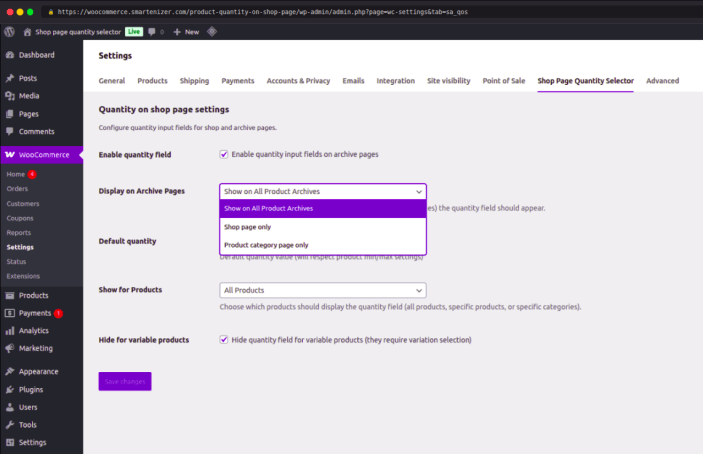
Available options:
- Show on All Product Archives – The quantity field appears on the main shop page and all product category/archive pages. This is the recommended option for most stores.
- Shop page only – The quantity field appears only on the main /shop/ page. It will not show on individual category pages like /product-category/clothing/.
- Product category page only – The quantity field appears only on category and archive pages, not on the main shop page.
3. Default Quantity
↑ Back to topThis is the number that will be pre-filled inside the quantity field when a customer sees it on the shop or archive page. For example, if you set this to 4, the quantity field will automatically show “4” when the page loads. The customer can still change it before clicking Add to Cart.
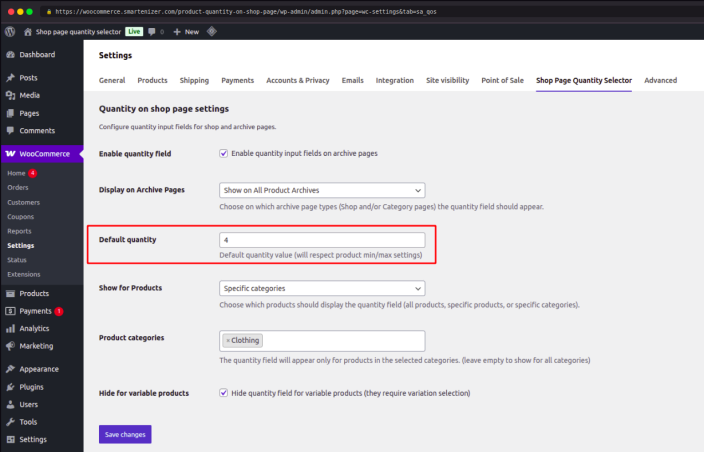
Important: This value always respects any product-level minimum or maximum quantity rules you have configured. If a product has a minimum quantity of 6 and your default here is 1, the field will show 6 for that specific product.
4. Show for Products
↑ Back to top
This setting controls which products on your archive pages will display the quantity field. You can show it for every product in your shop, or limit it to only specific handpicked products or specific product categories.
All Products
↑ Back to topWhen All Products is selected, the quantity field appears for every simple product across all your archive pages. This is the simplest configuration — no extra setup needed.
When to use: Choose this if you want the quantity selector to appear globally across your entire WooCommerce store for all customers and all products.
Specific Products
↑ Back to topWhen Specific products is selected, an additional Select products search field appears below the dropdown. You can search for and select individual products from your catalog. The quantity field will only appear for those exact products — all other products will show the regular Add to Cart button without the quantity field.
How to configure:
- Select Specific products from the dropdown.
- A Select products field will appear below.
- Type a product name to search and select it. You can add multiple products.
- Each selected product appears as a removable tag. Click × next to a product name to remove it.
- If this field is left empty, the quantity field will appear for all products by default.
When to use: Use this when you only want to enable the quantity field for a small, specific list of products — for example, only for wholesale items or bundle products in your catalog.
Specific Categories
↑ Back to topWhen Specific categories is selected, an additional Product categories multiselect field appears below. You can select one or more product categories. The quantity field will only appear for products that belong to those selected categories — products outside these categories will not show the quantity field.
How to configure:
- Select Specific categories from the dropdown.
- A Product categories field will appear below.
- Click the field and select one or more categories from the list.
- Each selected category appears as a removable tag. Click × to remove a category.
- If this field is left empty, the quantity field will appear for all categories by default.
When to use: Ideal for stores where only certain product types support bulk ordering — for example, showing the quantity field only in a “Wholesale” or “Clothing” category while keeping the standard layout for all other categories.
FAQs
↑ Back to top
Does this plugin add quantity field on the WooCommerce shop page?
Yes. You can show the quantity field on the main shop page, category pages, or all WooCommerce archive pages.
Will it work with my current WooCommerce theme?
Yes. The plugin is built to work with standard WooCommerce hooks and is compatible with most WooCommerce-compatible themes.
Will it slow down my store?
No. The plugin is lightweight and only loads its assets on archive pages where the quantity field is displayed.

