Allow customers to select product quantity with “-” & “+” buttons. Display quantity increment buttons on the shop, product, and cart pages. Set order limits and define quantity steps to increase/decrease on each click. It also supports decimal numbers.
- Download Quantity Buttons for WooCommerce and have your .zip file
- At the WordPress admin panel, go to the Plugins section, and click ‘Add New’ to upload and install the plugin you recently downloaded from WooCommerce.com.
- Upload the .zip file to proceed with the installation.
- Wait until the plugin installs. After successful installation, activate the plugin and move on to configuration settings.
More information at
Install and Activate Plugins/Extensions.
In the admin panel, go to
WooCommerce > Settings and click the
Quantity Increment tab to configure this extension. You will find the 4 tabs, including General Settings, Display Settings, Manage Rules, and Custom CSS.
Go to
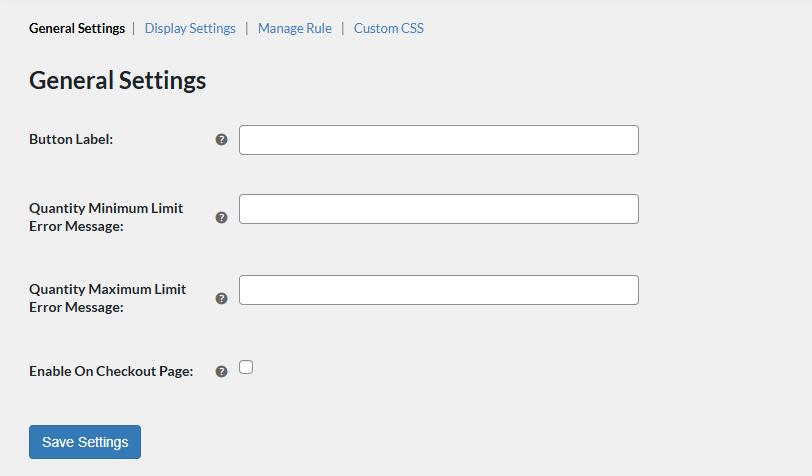
WooCommerce > Settings > Quantity Increment > General Settings and configure the following settings:
- Button Label: Set the label for the quantity input button.
- Quantity Minimum Limit Error Message: Enter the message for the minimum quantity limit error.
- Quantity Maximum Limit Error Message: Enter the message for the maximum quantity limit error.
- Enable On Checkout Page: Click the checkbox to enable the quantity button on the checkout page.
Click on the “
Save Settings” button to apply the configured settings.
Go to
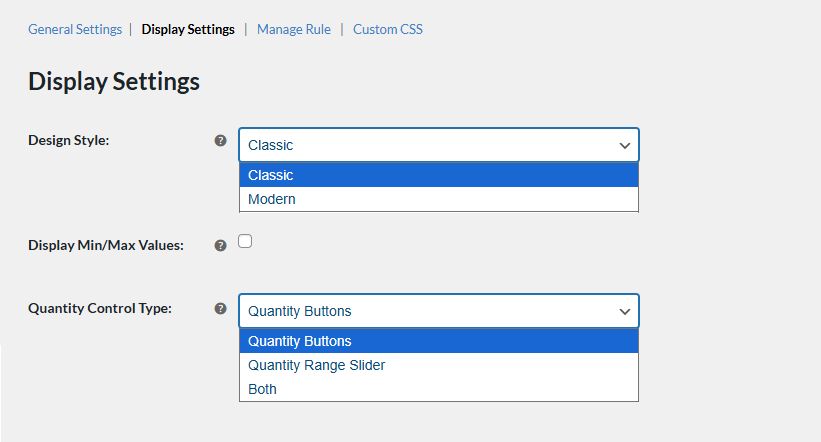
WooCommerce > Settings > Quantity Increment > Display Settings and configure the following settings:
- Design Style: Choose the design style for the quantity button. You can choose between the following:
- Display Min/Max Values: If the design style is selected as modern, you can click the checkbox to display the minimum and maximum quantity values on the shop and product pages.
- Quantity Control Type: Select the preferred type of quantity control method. You can choose between the following:
-
- Quantity Buttons
- Quantity Range Slider
- Both
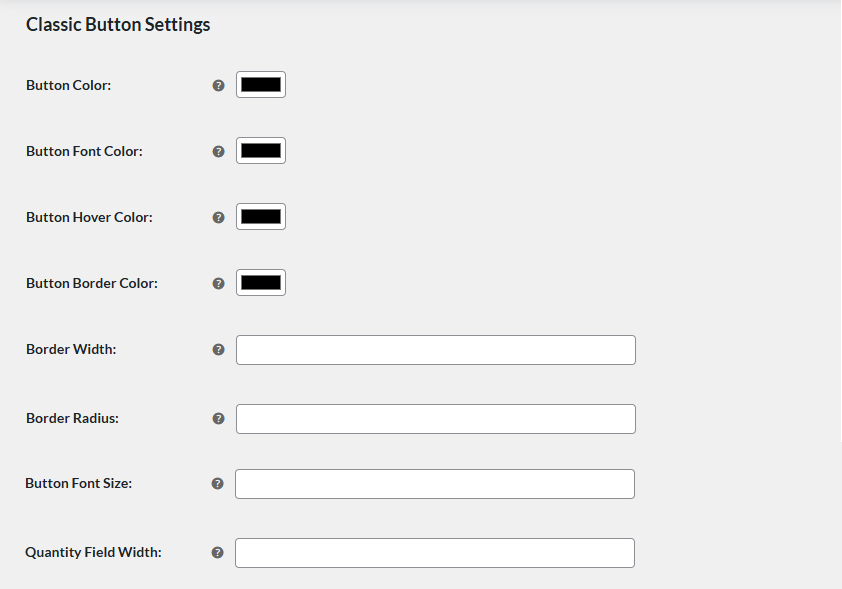
Classic Button Settings (If Design Style is Selected as “Classic”)
- Button Color: Select the color for the quantity button.
- Button Font Color: Choose the color for the font of the quantity button.
- Button Hover Color: Select the button color on hover.
- Button Border Color: Choose the color for the border of the button.
- Border Width: Set the border width of the button.
- Border Radius: Set the border radius for the quantity button.
- Button Font Size: Set the font size for the quantity button.
- Quantity Field Width: Set the width for the quantity field.
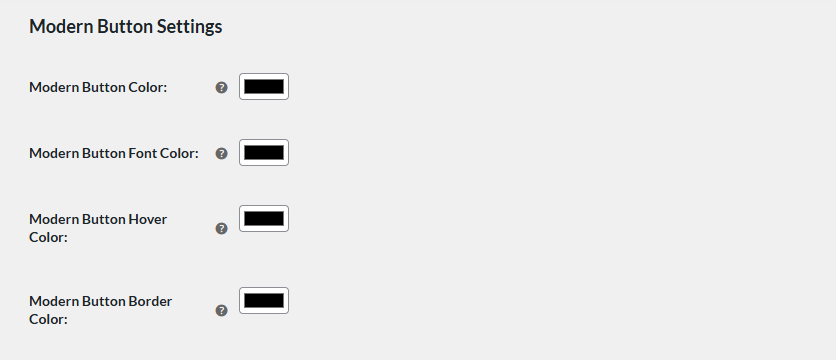
Modern Button Settings (If Design Style is Selected as “Modern”)
- Modern Button Color: Set the color for the modern style quantity button.
- Modern Button Font Color: Choose the font color for the modern style quantity button.
- Modern Button Hover Color: Set the hover color for the modern style quantity button.
- Modern Button Border Color: Select the border color for the modern style quantity button.
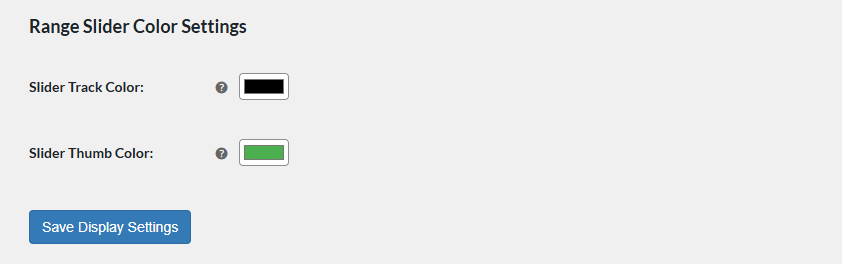
- Slider Track Color: Set the color for the quantity slider track.
- Slider Thumb Color: Set the color of the slider thumb for the range slider.
Click on the “
Save Settings” button to apply the configured settings.
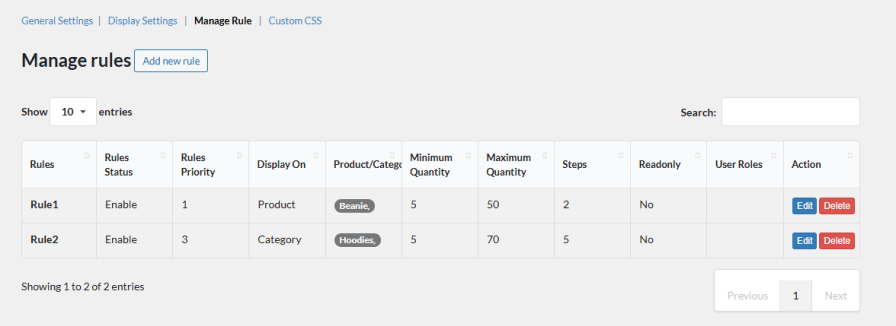
In this section, you can create and manage rules to control the quantity button. To configure, go to
WooCommerce > Settings > Quantity Increment > Manage Rule.
Manage Rules
You can manage and check all the information about the rules created, or create new rules.
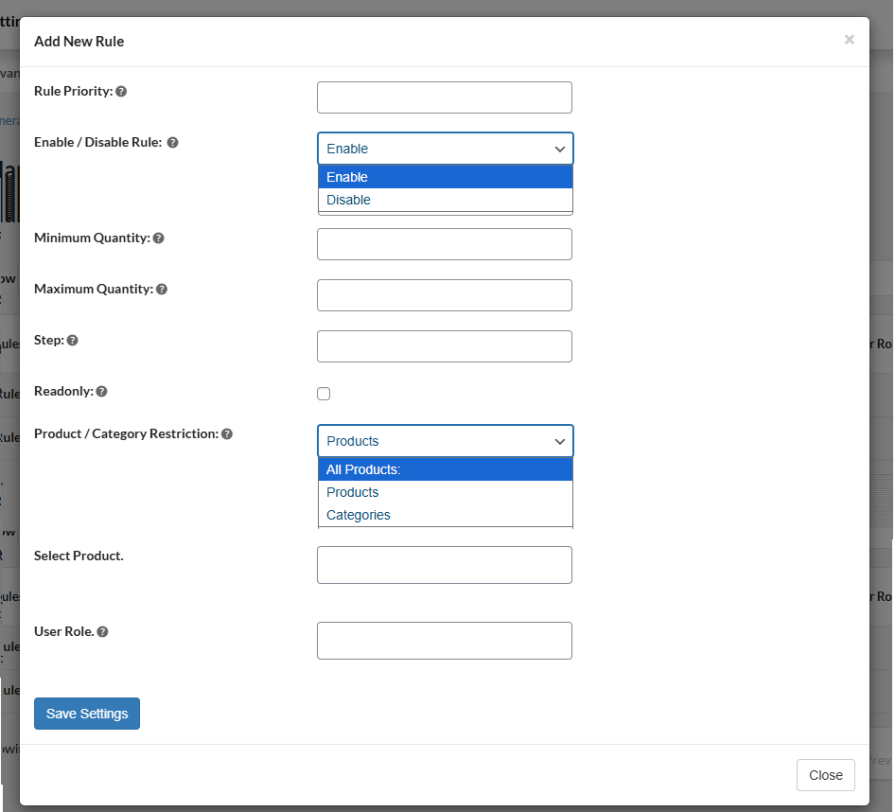
Create New Rules
To create new rules, click on the “
Add New Rule” button and configure the following:
- Rule Priority: Set the priority for the specific rule.
- Enable / Disable Rule: Enable or disable the rule.
- Minimum Quantity: Set the minimum quantity a customer has to order for this product.
- Maximum Quantity: Set the maximum quantity a customer has to order for this product.
- Step: Define the step between the allowed product quantity.
- Read-only: Click the checkbox to make the filed readonly (a read-only field cannot be modified)
- Product / Category Restriction: Select all or specific products/categories to apply the rule to.
- User Role: Select the user role(s) for which you want to apply the rule.
Click on the “
Save Settings” button to create and save the rule.
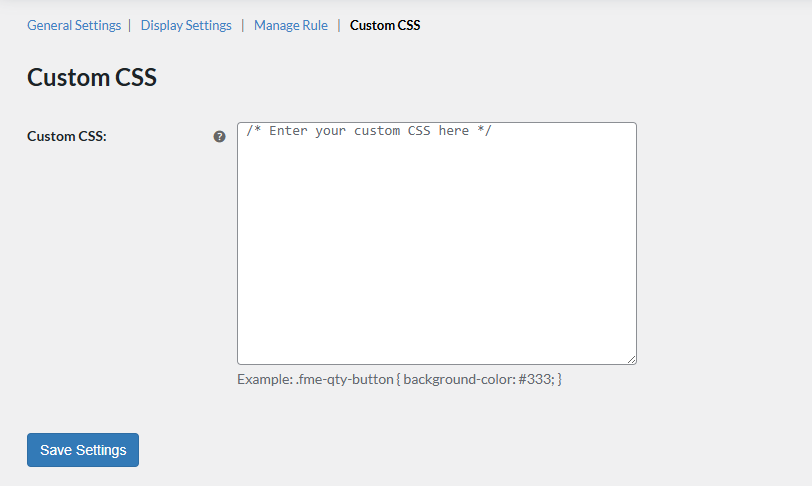
To add custom CSS, go to
WooCommerce > Settings > Quantity Increment > Custom CSS and configure:
Add your custom CSS style and click on the “
Save Settings” button to apply the custom CSS styling to the quantity buttons.
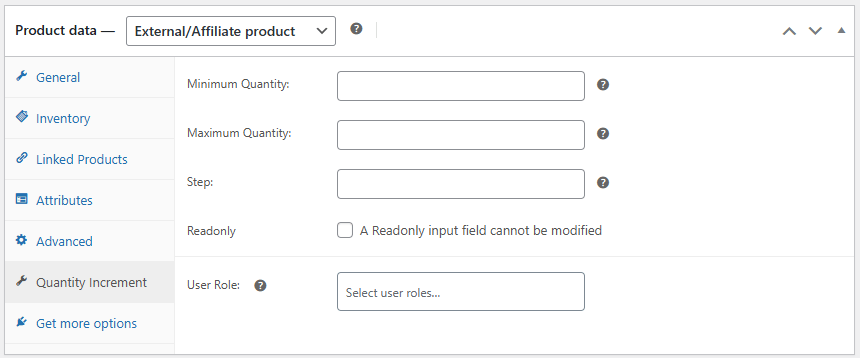
The quantity buttons plugin also allows you to configure the button on the product level. Go to the
Product Page > Product Data > Quantity Increment and configure the following:
- Minimum Quantity: Set the minimum quantity required to place the order.
- Maximum Quantity: Set the maximum quantity required to place the order.
- Step: Set the step for the product quantity.
- Read-only: Set the field as read-only by clicking on the checkbox.
- User Role: select the user roles for which you want to configure the settings.
- Does the Quantity button appear on all pages or selective pages?
With the WooCommerce quantity plus minus plugin, you can choose where you want to display the quantity button. Choose the entire store, shop page, product page, or cart page. You can configure the settings according to your requirements.
- Can I add quantity increment or decrement for the quantity buttons?
Yes, the quantity buttons for WooCommerce plugin enable you to add increments to the quantity buttons. You can predefine increment steps to communicate a specific product is available in sets.
- Can I choose only a few products to have quantity buttons?
The WooCommerce quantity buttons plugin provides you with the ability to choose specific products or categories for which you want to display quantity buttons instead of the entire store or pages. 

