Installation
↑ Back to top1. Download the Buy Now Button.zip file from your WooCommerce account.
2. Go to WordPress Admin > Plugins > Add New and Upload Plugin.
3. Click on Choose File to upload the file you downloaded.
4. Install Now and Activate the extension
Configuration
↑ Back to topAfter you have installed and activated the Plugin, Go to WooCommerce > Settings > Buy Now Button Here you can find three tabs which are General Settings, Button Settings and Shortcode Settings.
General Settings:
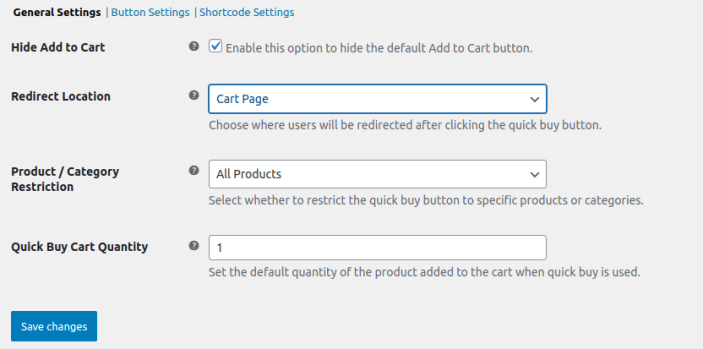
↑ Back to top- Replace Add to Cart: Enable this option to replace the default Add to Cart button with a custom button.
- Redirect Location: Choose where users will be redirected after clicking the quick buy button.
- Product / Category Restriction: Select whether to restrict the quick buy button to specific products or categories.
- Quick Buy Cart Quantity: Set the default quantity of the product added to the cart when quick buy is used.
Button Settings:
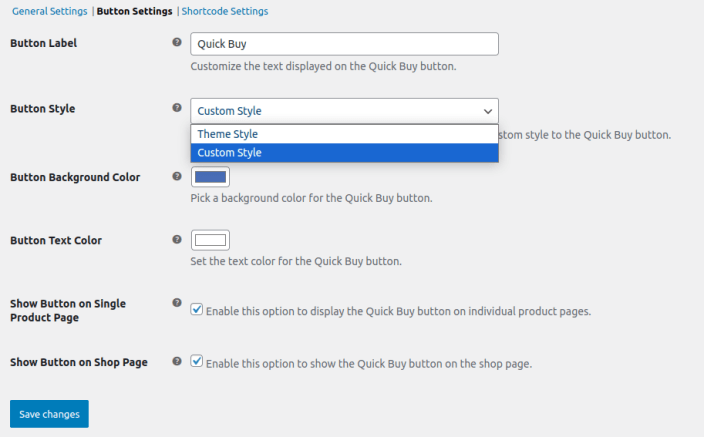
↑ Back to top- Button Label: Set the label of the button.
- Button Style: Choose between using the default theme style or applying a custom style to the Quick Buy button.
- Button Background Color: Select the background color of the button.
- Button Text Color: Set the text color of the button
- Show Button on Single Product Page: Enable this option to display the Quick Buy button on individual product pages.
- Show Button on Shop Page: Enable this option to show the Quick Buy button on the shop page.
Shortcode Settings:
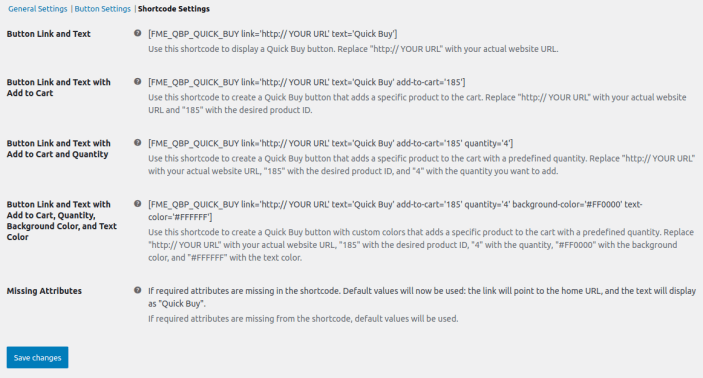
↑ Back to top- Button Link and Text: Use this shortcode to display a Quick Buy button. Replace “http:// YOUR URL” with your actual website URL.
- Button Link and Text with Add to Cart: Use this shortcode to create a Quick Buy button that adds a specific product to the cart. Replace “http:// YOUR URL” with your actual website URL and “185” with the desired product ID.
- Button Link and Text with Add to Cart and Quantity: Use this shortcode to create a Quick Buy button that adds a specific product to the cart with a predefined quantity. Replace “http:// YOUR URL” with your actual website URL, “185” with the desired product ID, and “4” with the quantity you want to add.
- Button Link and Text with Add to Cart, Quantity, Background Color and Text Color: Use this shortcode to create a Quick Buy button with custom colors that adds a specific product to the cart with a predefined quantity. Replace “http:// YOUR URL” with your actual website URL, “185” with the desired product ID, “4” with the quantity, “#FF0000” with the background color, and “#FFFFFF” with the text color.
- Missing Attributes: If required attributes are missing in the shortcode. Default values will now be used: the link will point to the home URL, and the text will display as “Quick Buy”.
Product Level Settings:
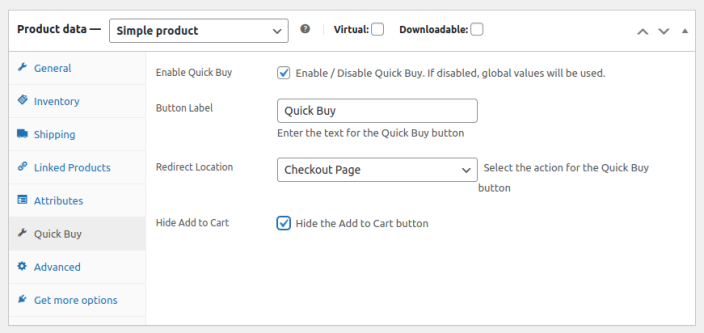
↑ Back to topFor product specific settings go to Products > Edit Product and click on a Quick Buy tab in product data section and configure the following here:
- Enable Quick Buy: Option to enable quick buy now button for product.
- Button Label: Set the label of the button.
- Redirect Location: Choose where users will be redirected after clicking the quick buy button.
- Hide Add to Cart: Hide the Add to Cart button.