
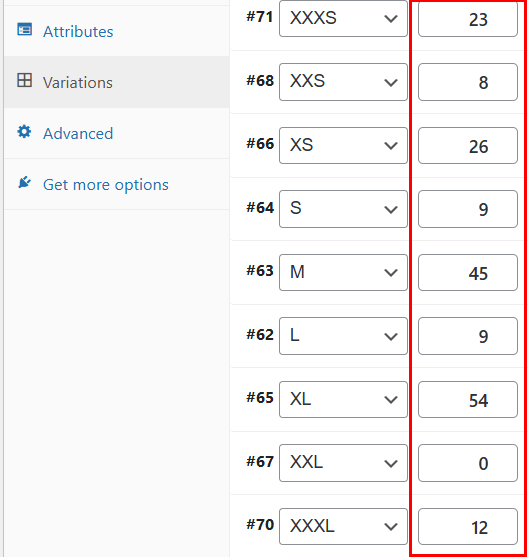
Quick Product Variations Stock Manager allows your WooCommerce store to simplify stock management by displaying variable product quantities directly from the variations list – no need to expand each variation.
Installation
↑ Back to topTo start using a product from WooCommerce.com, you can use the “Add to store” functionality on the order confirmation page or the My subscriptions section in your account.
- Navigate to My subscriptions.
- Find the Add to store button next to the product you’re planning to install.
- Follow the instructions on the screen, and the product will be automatically added to your store.
Alternative options and more information at:
Managing WooCommerce.com subscriptions.

Setup and Configuration
↑ Back to topNo configuration needed!
Usage
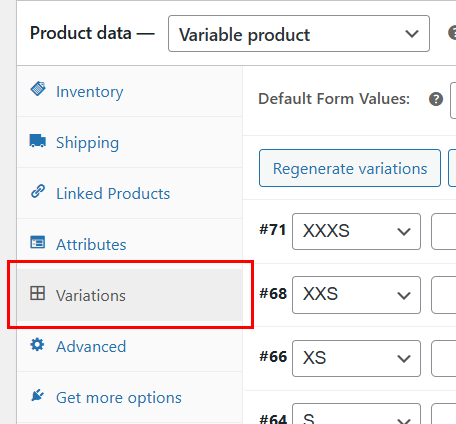
↑ Back to topNavigate to the Product Variations section:
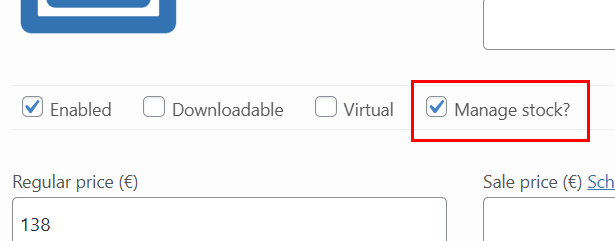
Verify that the Manage stock? checkbox is enabled:
Easily manage inventory for product variations:
Troubleshooting
↑ Back to topFor any inquiries, please feel free to reach out to us via the contact form.
Frequently Asked Questions
↑ Back to top
Why can the stock quantity inputs not be found in the Product Variations section?
Ensure the extension is activated. Go to Plugins and click the Activate button.
Verify that the product type is set to Variable product and that variations have been created.
Why is the quantity input disabled?
Please check the Manage stock option within the variation settings.

