
Recurly Integration connects WooCommerce to Recurly. Your shopper buys the subscription on your store. Recurly creates the plan, stores the card, and bills every renewal.
Start with a sandbox
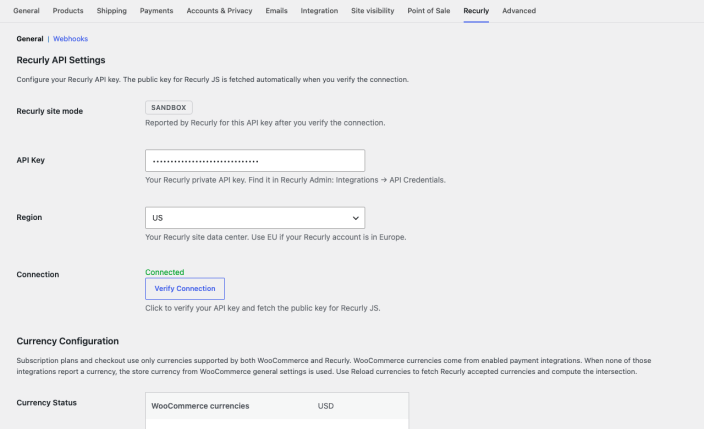
↑ Back to topSign up for a free Recurly sandbox before you connect a site that bills real customers. A new Recurly site starts in Sandbox mode. Test checkouts use Recurly test cards and do not charge a real card.
- Create the sandbox at https://info.recurly.com/signup.
- In that site, open Integrations, then API Credentials, and copy the private API key.
- Use that key in Connect your Recurly account below. After Verify Connection, the site mode badge should say Sandbox.
Use a production API key only when you are ready to bill real customers.
Before you start
↑ Back to top- WordPress 6.2 or higher
- WooCommerce 8.0 or higher
- PHP 7.4 or higher
- A Recurly sandbox to start. Sign up at info.recurly.com/signup, then copy the private API key from Integrations, then API Credentials.
Install
↑ Back to top- In WordPress, open Plugins, Add New, and install Recurly Integration. Activate it.
- Open WooCommerce, Settings, Recurly.
- If My Account, Manage Subscriptions, shows a 404, open Settings, Permalinks, and click Save once. You do not need to change the permalink style.
Connect your Recurly account
↑ Back to top- Paste the sandbox private API key into API Key. Use a production key only when you are ready to bill real customers.
- Set Region to US or EU, matching the data center of that Recurly account.
- Click Verify Connection. Connected means the key is valid. The badge shows Production, Sandbox, or Development, based on the key.
- Click Reload currencies. The viable currencies are the ones both WooCommerce and Recurly accept. If your store currency is not in that list, subscription checkout stays blocked until you change it.
- Click Save changes.
- Open WooCommerce, Settings, Payments, and enable Recurly. Shoppers only see it when the cart contains a subscription.
Create a subscription product
↑ Back to top- Open Products, Add New.
- Set the product data type to Recurly Subscription.
- Open the Subscription Plan Config tab.
- Leave the product as a draft, fill in the plan, and publish. Publishing creates the plan in Recurly. If creation fails, the product stays a draft and the tab shows the reason. Fix it, then use Retry plan creation or publish again.
- Subscription term length is how many billing periods the subscription runs, such as 12.
- Subscription price is the price for one billing period.
- Billing period can be monthly, every 3 months, every 6 months, yearly, or a custom number of days or months.
- Accounting code is optional. Use up to 20 letters, numbers, underscores, plus signs, or hyphens.
- Add a trial period adds a free trial. Trial requires billing info decides whether a zero-dollar trial still asks for a card.
- Auto renew, when checked, renews after the term. When unchecked, the subscription ends after the term.
- Tax exempt controls whether Recurly adds its own tax on the plan amount.
The Recurly plan code is wc- followed by the WooCommerce product id.
What the shopper sees
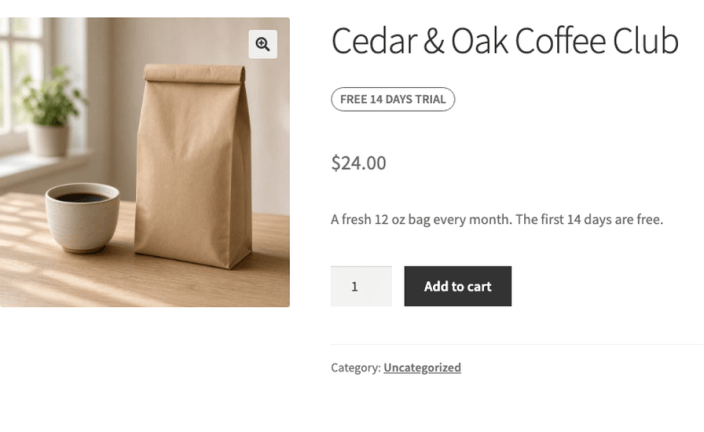
↑ Back to topOn the product and in the shop, a trial shows a badge such as Free 14 days trial. The price under the badge is what they pay after the trial.
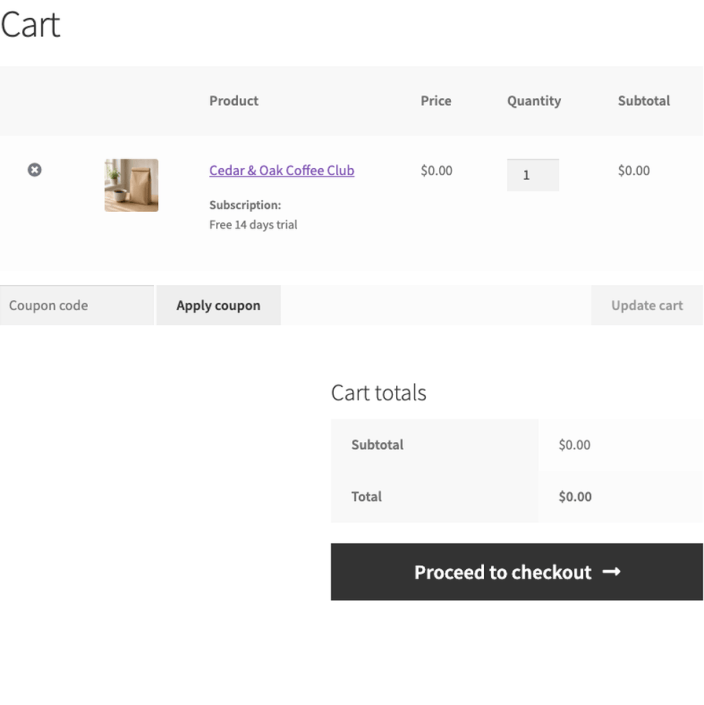
In the cart, a trial is 0.00 and the line says how long the trial is.
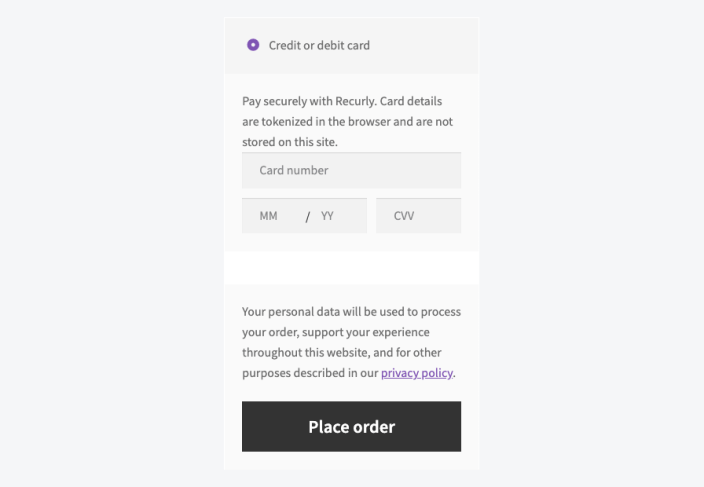
At checkout they choose the Recurly card method and type the card into Recurly fields. Recurly turns the card into a token in the browser. Your site stores the token, not the card number.
A logged-in customer is saved in Recurly as wc-user- followed by their WordPress user id, so later orders use the same Recurly account. A guest always gets a new account, wc-guest- followed by the order id, even if that email was used before.
After they subscribe
↑ Back to topThe WooCommerce order is paid and holds the subscription. From My Account, then Manage Subscriptions, the customer sees the price, the status, and the next bill date. They can update the card on the account. On an active subscription they can set a new quantity or choose another subscription product sold in the store. Both of those changes start on the next bill date. Pause skips one billing cycle, and Resume puts the subscription back. Cancel stops renewal at the end of the current period. Reactivate undoes that before the period ends.
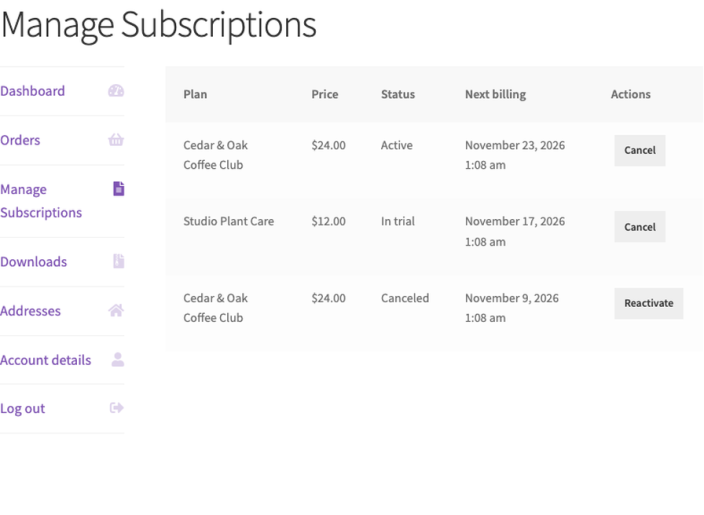
Ending a subscription immediately, and closing the Recurly account, are done in Recurly. A refund of a Recurly invoice can be started from the WooCommerce order. Enter the amount and refund the Recurly invoice. WooCommerce records that amount only after Recurly accepts it. The amount cannot be larger than the remaining order balance.
Change the price or the billing period
↑ Back to topEdit the product and save. The Recurly plan is updated, and people who already subscribe are moved to the new price and period on their next bill. The current period does not change. Someone who is already waiting to move to a new period is included. If Recurly cannot update someone, the save tells you how many succeeded and why the rest did not.
Recurly cannot change the interval of a plan that already exists. Switching from monthly to yearly creates a plan for the new interval and moves current subscribers onto it at the next bill date.
If you change the plan inside Recurly, the webhook brings that change back to the WooCommerce product. A sale price showing in the shop is left in place.
Sales
↑ Back to topSomeone who checks out while a WooCommerce sale is running renews at the sale price. Someone who already has the subscription keeps renewing at the regular subscription price. If you edit the subscription price while a sale is running, that edited price is still the price after the sale ends.
Trials, shipping, and tax
↑ Back to topWarning: Do not charge shipping or tax twice
Pick one system for shipping, and one system for tax. This plugin sends the shipping and tax WooCommerce calculated. If shipping is also turned on in Recurly, the customer pays it twice. The same is true for tax. If Recurly tax is on, including Avalara, turn tax off in WooCommerce for these products, or turn tax off in Recurly and let WooCommerce calculate it.
During a trial the plan amount is 0. Shipping that is due today is still charged, and checkout asks for a card before the subscription is created. The plan price starts when the trial ends. A virtual subscription has no shipping charge. A physical one does.
WooCommerce calculates shipping and tax. Recurly bills those amounts. It does not recalculate them. A quantity of two or more is still one subscription. The invoice shows that quantity, and the price is the unit price times the quantity. Shipping, tax on the subscription, and tax on shipping are separate lines. Each physical subscription in the same order gets its own shipping amount.
If saving the renewal shipping and tax fails after Recurly has already charged the signup, the order still completes. That subscription is kept. Placing the order again does not create a second subscription or a second charge.
Renewal orders
↑ Back to topWhen Recurly successfully bills a renewal, WooCommerce creates one order for that invoice. A physical renewal stays Processing so you can ship it. A virtual renewal is Completed. A failed renewal payment does not create an order. The same invoice is never turned into a second order.
Tell Recurly where to send renewals
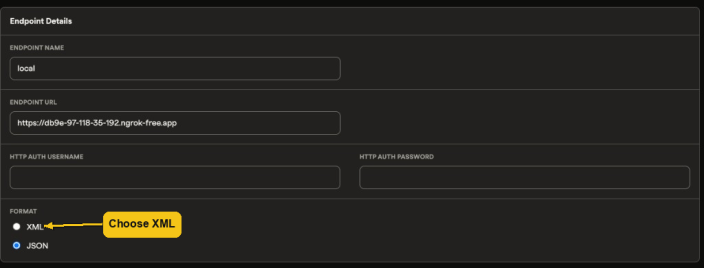
↑ Back to top- Open WooCommerce, Settings, Recurly, Webhooks, and copy the webhook URL.
- In Recurly, add an endpoint and paste that URL.
- Set the format to XML.
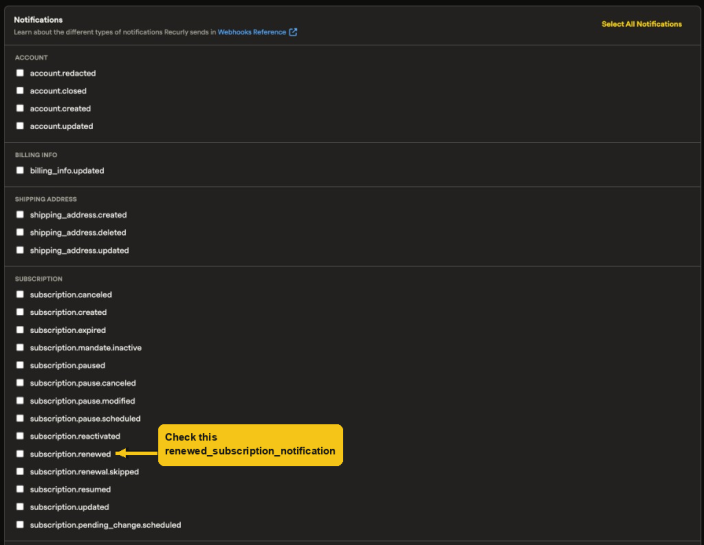
- Under notifications, enable renewed subscription notification. That is the notice that creates the WooCommerce renewal order.
- Back in WooCommerce, click Send test webhook. A test does not create an order. The result is listed under WooCommerce, Status, Logs, in the recurly-webhooks log.
If the store is only on your computer, Recurly cannot reach it. Use a public tunnel, put that public address in the endpoint URL, and keep the webhook key from the WooCommerce URL.
If something looks wrong
↑ Back to topVerify Connection fails. Use a private API key, not a public key, and match Region to the Recurly site.
No card fields at checkout. The cart needs a Recurly Subscription product, Recurly must be enabled under Payments, and Verify Connection must have succeeded.
The plan was not created. Read the notice on Subscription Plan Config. Check that the store currency is in the viable currency list, then retry.
Manage Subscriptions is a 404. Open Settings, Permalinks, and click Save.
A subscription and a one-time product
↑ Back to topThe cart can contain both. The cart says that Recurly bills the subscription and the payment method chosen at checkout bills the one-time products. Checkout stays available.
Coupons
↑ Back to topA WooCommerce coupon can reduce the amount due today. The Recurly plan price stays the renewal price. A coupon cannot be used when nothing is due today, such as a free trial with no shipping or tax. A fixed coupon larger than the amount due today is declined.
A failed renewal
↑ Back to topIf a renewal payment fails, WooCommerce does not create another order to ship. The original order gets a note, and the store email address is notified. My Account shows that subscription as past due.
Good to know
↑ Back to top- A coupon cannot be used when nothing is due today, and a fixed coupon cannot be larger than the amount due today.
- A subscription can share the cart with a one-time product. Recurly bills the subscription.
- Variable products are not supported.
- The price is the same every period. Ramp pricing is not supported.
- Ending a subscription immediately stays in Recurly. A refund can be started from the WooCommerce order.

