
Installation
↑ Back to topTo start using a product from WooCommerce.com, you can use the “Add to store” functionality on the order confirmation page or the My subscriptions section in your account.
- Navigate to My subscriptions.
- Find the Add to store button next to the product you’re planning to install.
- Follow the instructions on the screen, and the product will be automatically added to your store.
Alternative options and more information at:
Managing WooCommerce.com subscriptions.

Setup and Configuration
↑ Back to topGetting started
↑ Back to topTo set up your store with Save and Restore Cart plugin:
- Activate Save and Restore Carts plu

2. Go to: WooCommerce > Saved Carts page > Settings tab
Settings
↑ Back to topThe settings are very simple, you can check from there to enable/disable the Save Cart button and set the button title in checkout and cart pages.
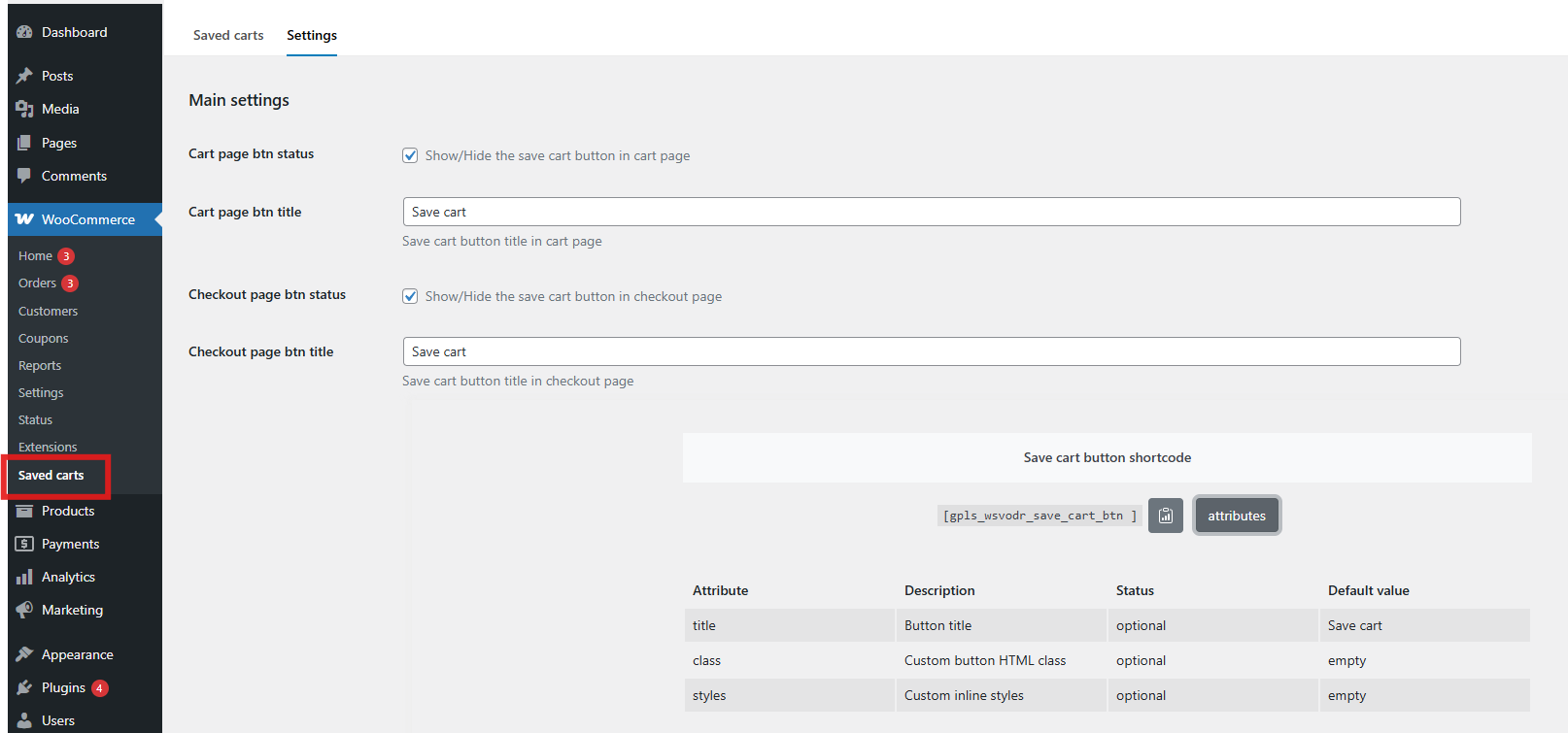
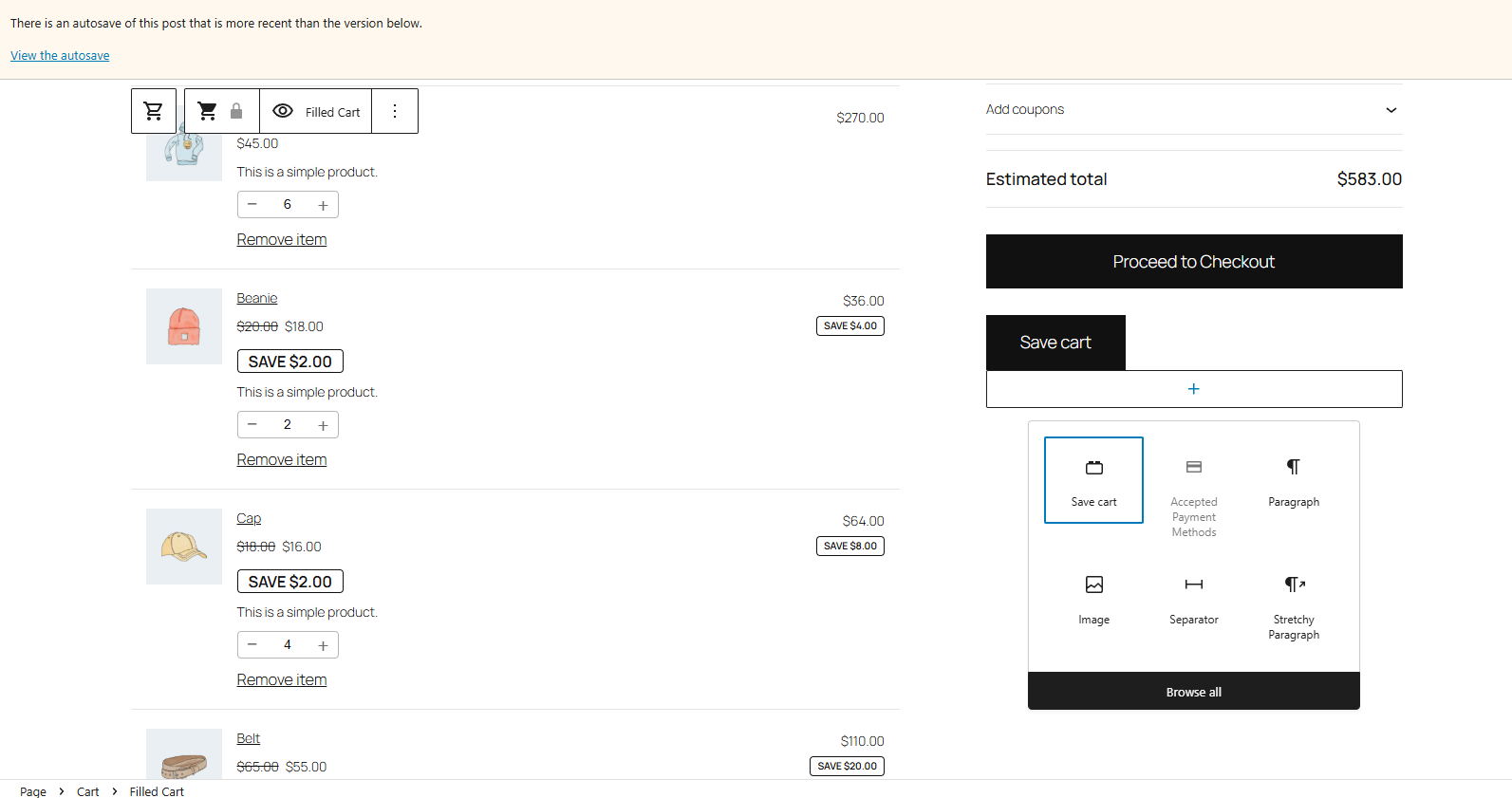
If you are using a block based theme, you can find the Save cart button block in both Cart and Checkout Block pages.
Saved Carts Table
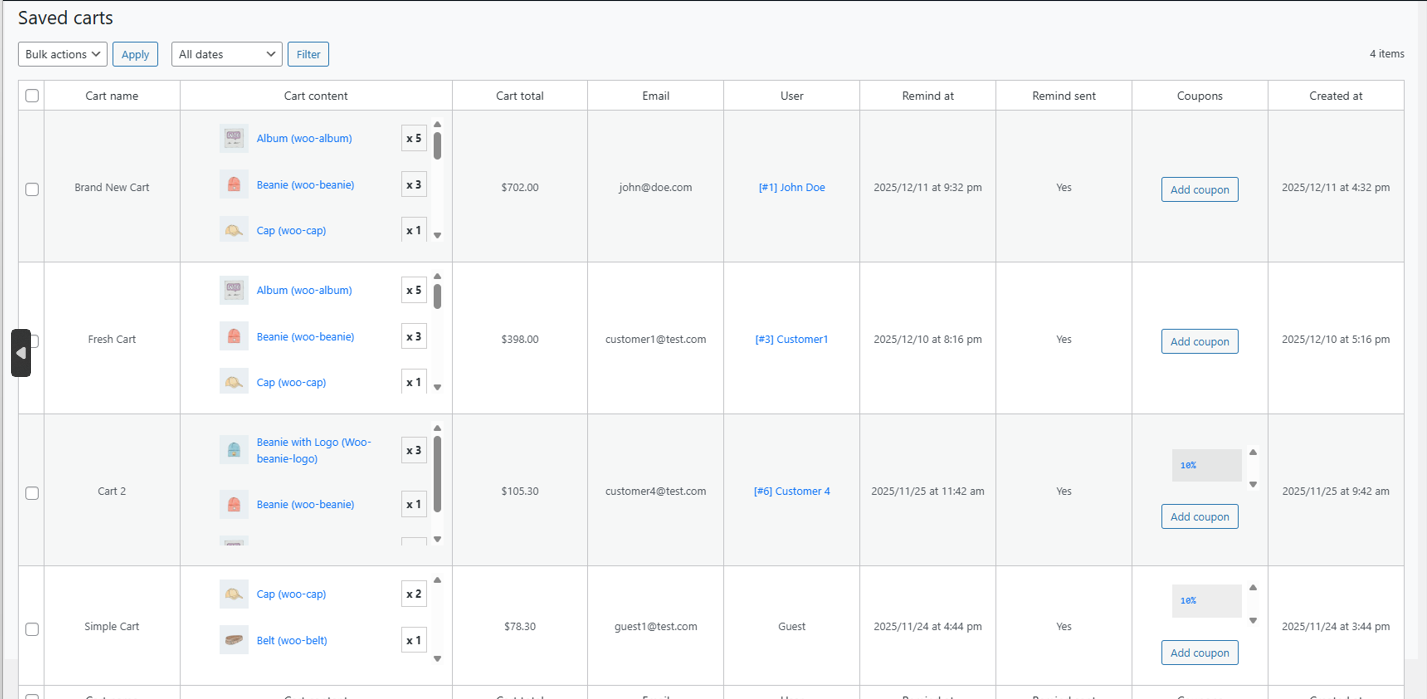
↑ Back to topIn this tab, you will find all saved carts of all customers, you can check the cart items, cart total, the cart saved date, you can also add coupon codes to the carts and send email reminder from the dashboard.
Frontend Side
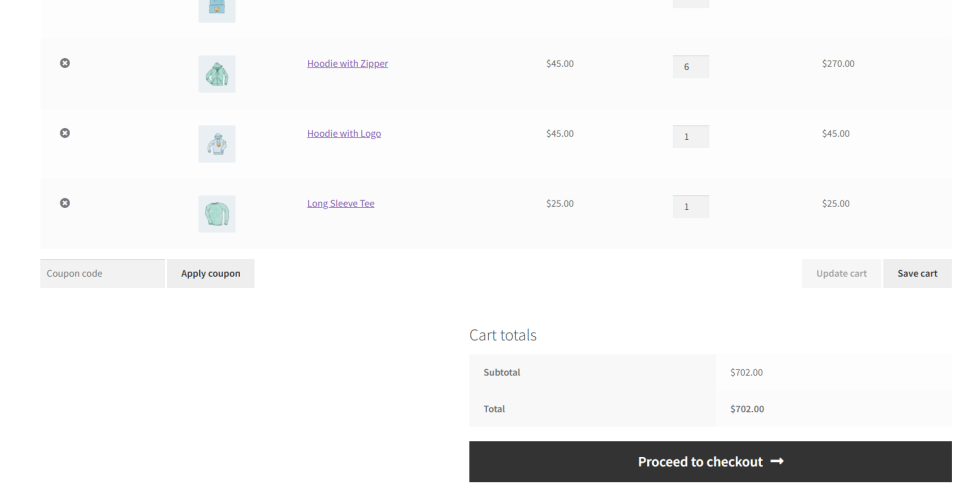
↑ Back to topThe Save Cart button will be in Cart and Checkout page if enabled from Settings page ( enabled by default ). It can be placed anywhere using the button shortcode in Settings page
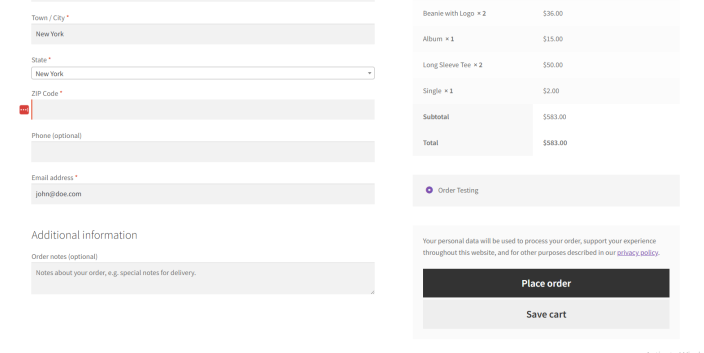
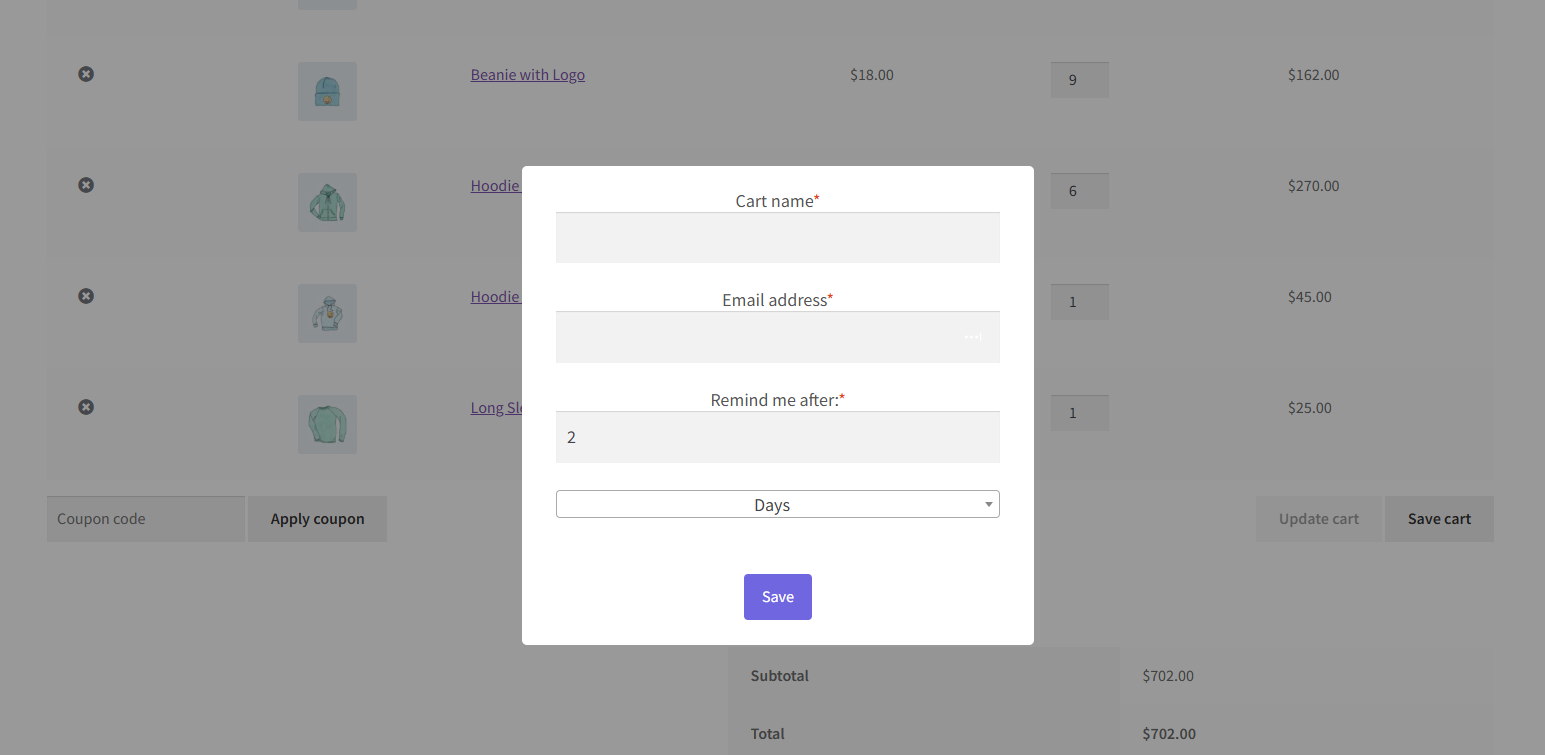
By clicking on the button, a popup will show up for the customer to set the cart name, their email addres, and when to remind them about the cart.
My Account
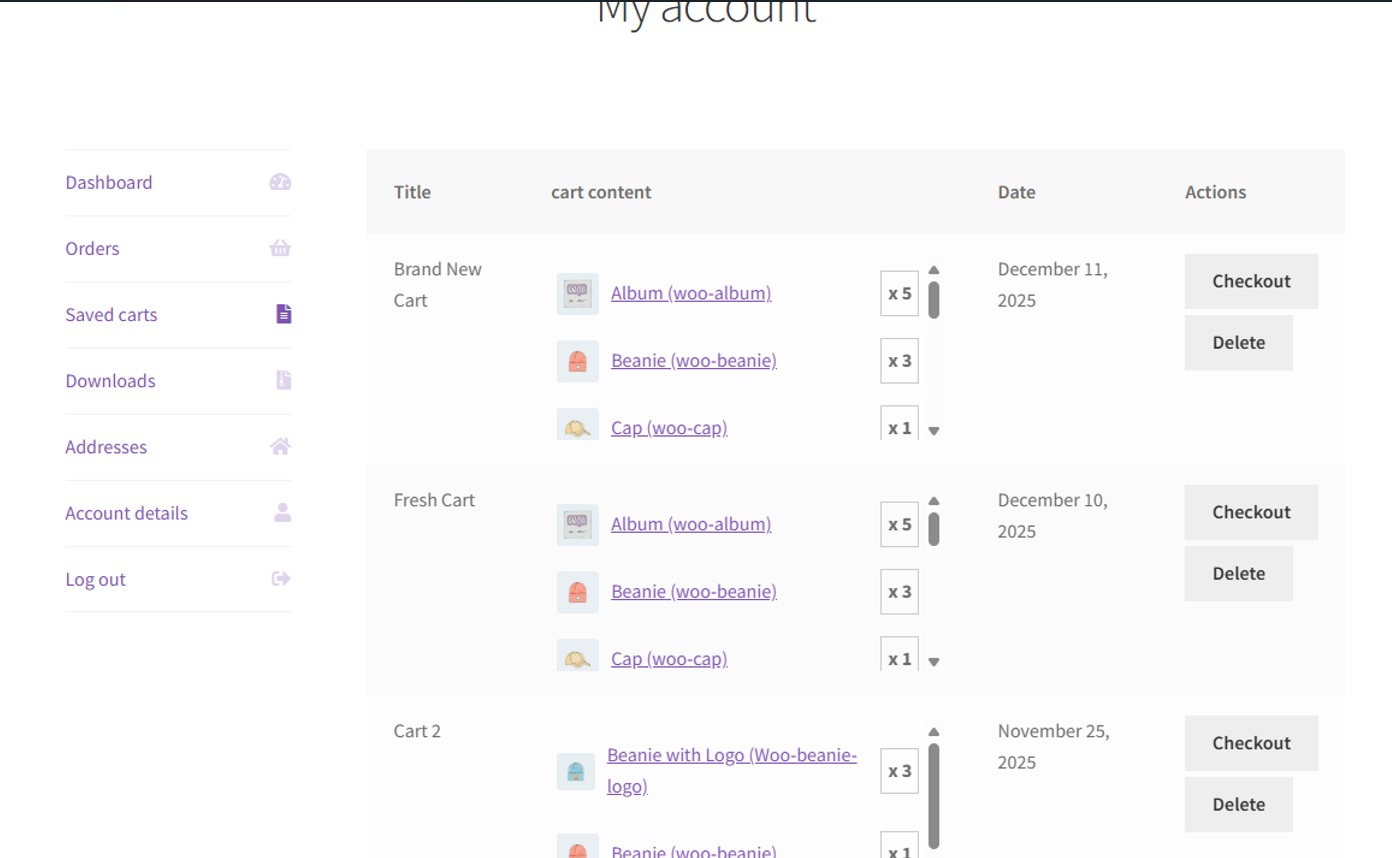
↑ Back to topCustomers can track their saved carts from their My Account -> Saved cart page.
They can delete or restore the carts from there. clicking Checkout will redirect the customer to the Checkout page with the saved cart in one click.
Emails
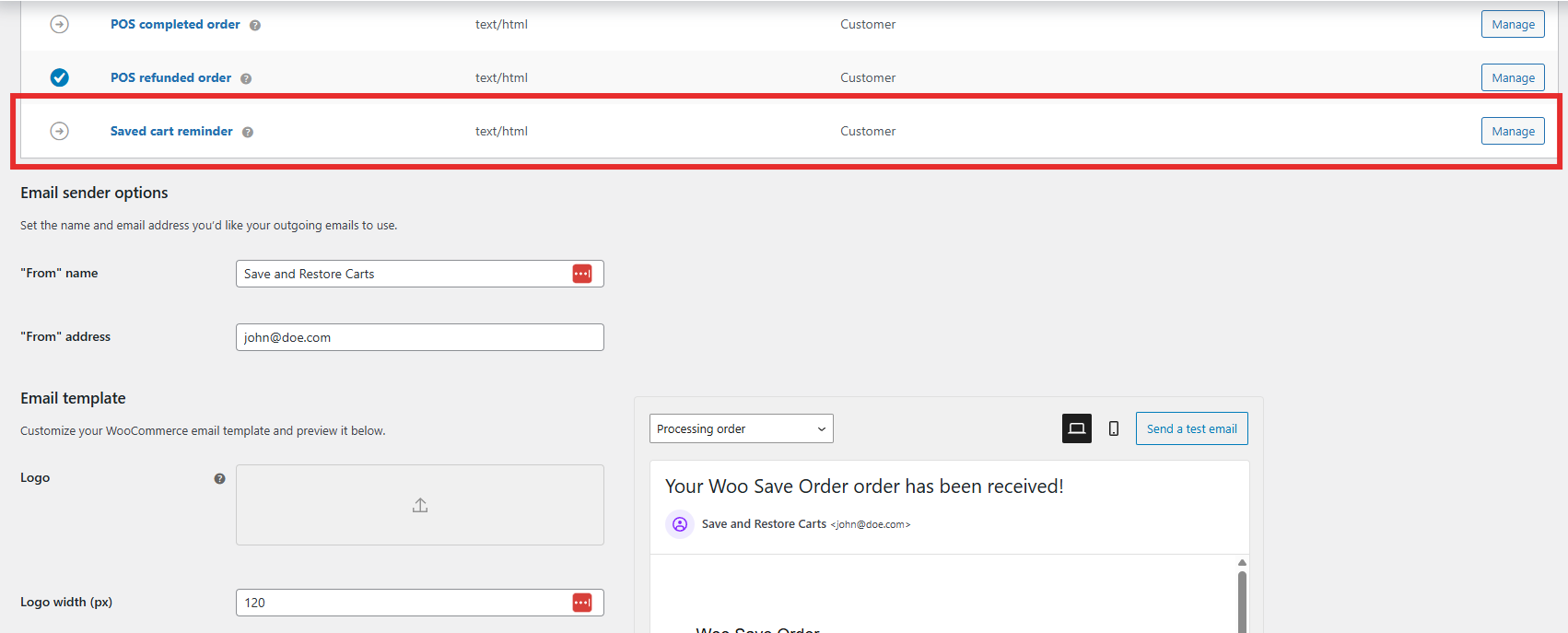
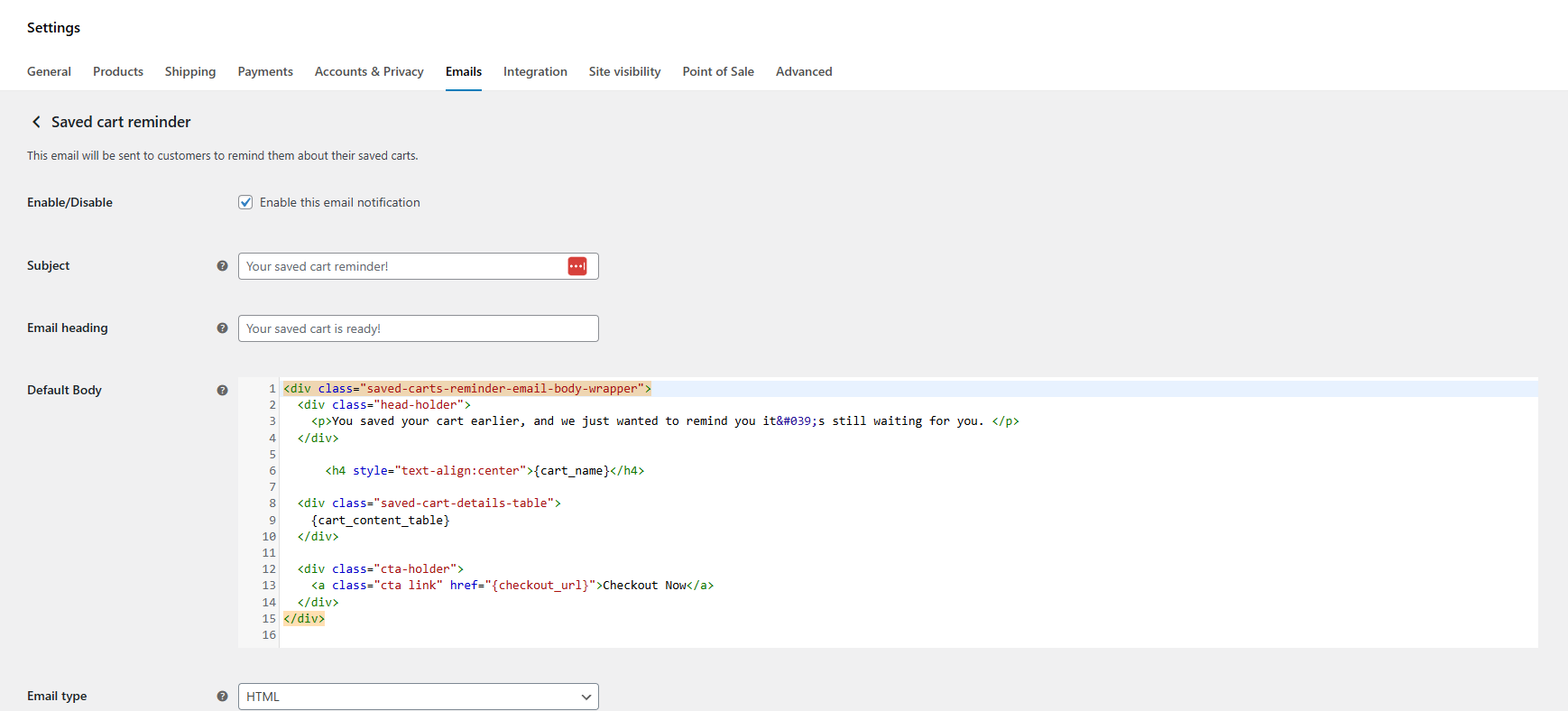
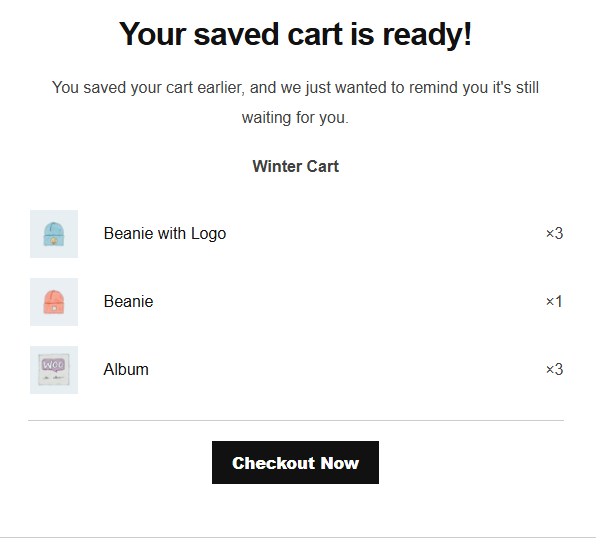
↑ Back to topSaved cart reminder email exists in WooCommerce > Settings >Emails
========================================================
Adding Custom Fields to the Save Cart Popup via Hooks
↑ Back to topIn addition to the built-in Custom Fields UI available in the plugin settings,
developers can add custom fields programmatically using two filters.
This is useful for conditional fields, fields with dynamic defaults, or
field types not available in the settings UI (e.g. select dropdowns, radio buttons).
Hook 1: gpls-wsvodr-save-popup-fields
Add or modify the fields rendered in the save cart popup.
↑ Back to topEach field is an array with the following keys:
| Key | Type | Required | Description |
|---|---|---|---|
| name | string | Yes | Unique field key (used as the input name) |
| label | string | Label shown to the customer | |
| type | string | Input type: text, email, number, tel, url, | |
| textarea, select, radio, checkbox | |||
| required | bool | Whether the field is required (default: false) | |
| default | mixed | Pre-filled value when the popup opens | |
| options | array | key => label pairs (for select / radio only) | |
| attrs | array | Extra HTML attributes (e.g. [‘min’ => 1]) |
Example — add a required “Company name” text field:
add_filter( 'gpls-wsvodr-save-popup-fields', function( $fields ) {
$fields[] = array(
'name' => 'company_name',
'label' => __( 'Company name', 'save-and-restore-cart' ),
'type' => 'text',
'required' => true,
'default' => '',
);
return $fields;
} );
Example — add a “Preferred contact” select field:
add_filter( 'gpls-wsvodr-save-popup-fields', function( $fields ) {
$fields[] = array(
'name'    => 'preferred_contact',
'label'   => ( 'Preferred contact', 'save-and-restore-cart' ),
'type'    => 'select',
'default' => 'email',
'options' => array(
    'email' => ( 'Email', 'save-and-restore-cart' ),
    'phone' => __( 'Phone', 'save-and-restore-cart' ),
  ),
);
return $fields;
} );
Note: Fields added via this filter are saved in the cart’s custom_fields storage
alongside fields defined in the plugin settings. Any field whose name matches
cart_name or email is automatically routed to its dedicated database column.
Hook 2: gpls-wsvodr-save-cart-custom-fields
When the customer submits the popup, the plugin automatically collects and sanitizes every field registered via Hook 1 and passes them to this filter. Use this filter to apply any additional sanitization or validation to those values before they are saved to the database.
For example, if you registered a company_name field via Hook 1, its submitted value will already be present in $custom_fields[‘company_name’] when this filter fires. You can inspect it, override it, or remove it before it is saved:
add_filter( 'gpls-wsvodr-save-cart-custom-fields', function( $custom_fields, $email, $cart_name, $user_id ) {
    // Ensure company_name contains only letters, numbers, and spaces.
    if ( isset( $custom_fields['company_name'] ) ) {
        $custom_fields['company_name'] = sanitize_text_field( $custom_fields['company_name'] );
    }

    // Remove the field entirely if it fails a business rule.
    if ( isset( $custom_fields['vat_number'] ) && ! preg_match( '/^[A-Z0-9]+$/', $custom_fields['vat_number'] ) ) {
        unset( $custom_fields['vat_number'] );
    }

    return $custom_fields;
}, 10, 4 );
Hook 3: gpls-wsvodr-save-popup-field-html-{field_name}
Override the HTML output of a specific popup field.
↑ Back to topUse this action to completely replace how a specific field is rendered
in the popup. The hook name includes the field’s name attribute.
Parameters:
$field array The full field definition array
Example — render a custom HTML block instead of the default “company_name” input:
add_action( 'gpls-wsvodr-save-popup-field-html-company_name', function( $field ) {
    echo '<p class="form-row form-row-wide">';
    echo '<label>' . esc_html( $field['label'] ) . '</label>';
    echo '<input type="text" name="company_name" class="input-text" placeholder="ACME Ltd.">';
    echo '</p>';
} );
Reading saved custom fields
↑ Back to topAll custom field values are stored as a JSON object in the database.
To read them for a saved cart, use:
$cart = // your saved cart row from the database
$custom_fields = ! empty( $cart['custom_fields'] )
    ? json_decode( $cart['custom_fields'], true )
    : array();

$company = $custom_fields['company_name'] ?? '';
FAQs
↑ Back to topHelp customers by answering commonly asked questions.
Can guest users save carts?
Yes. Guest users can save carts by providing an email address when saving the cart.
Can customers restore their carts later?
Yes. Customers can restore saved carts with one click from their My Account → Saved Carts page or directly from the reminder email.
Can I apply coupons to saved carts?
Yes. Admins can apply coupon codes directly to saved carts from the Saved Carts dashboard.

