
OrderFusion extends the WooCommerce Orders, Products, and Coupons admin screens with custom columns, filters, saved views, and CSV export. Add the data you need. Filter results precisely. Save your workspace. All in the familiar admin screens you use every day.
Installation
↑ Back to topTo start using a product from WooCommerce.com, you can use the “Add to store” functionality on the order confirmation page or the My subscriptions section in your account.
- Navigate to My subscriptions.
- Find the Add to store button next to the product you’re planning to install.
- Follow the instructions on the screen, and the product will be automatically added to your store.
Alternative options and more information at:
Managing WooCommerce.com subscriptions.

Setup and Configuration
↑ Back to top
Getting started
↑ Back to topOrderFusion works directly in the WooCommerce admin list screens. No separate admin page. The interface appears where you already work.
Supported Pages
| Page | Navigation | Plugin Filters | Plugin Columns | Capability |
| Orders | WooCommerce > Orders | 22 | 18 | edit_shop_orders |
| Products | Products > All Products | 9 | 5 | edit_products |
| Coupons | Marketing > Coupons | 12 | 10 | edit_shop_coupons |
Each page has independent settings, saved views, custom meta filters, and custom meta columns. Configuration on one page does not affect the others.
Screen Options Button
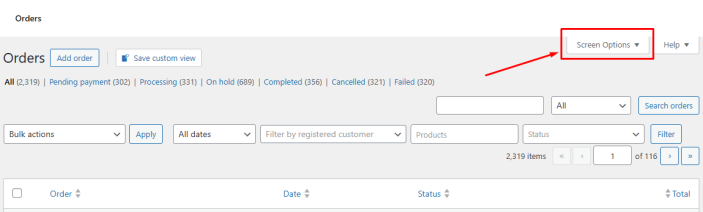
Find the Screen Options button in the top-right corner of any supported page. Click it to reveal OrderFusion’s controls:
- Columns section: Enable/disable list columns
- Filters section: Show/hide filters in the filter row
- Settings section: Configure infinite scroll and other options
Changes apply immediately. Click Screen Options again to close the panel. Each team member controls their own preferences.
Quick Workflow
- Click Screen Options
- Enable columns you need (e.g. Phone, Tracking number, Products)
- Enable filters you need (e.g. Status, Date range, Products)
- Click Screen Options again to close the panel
- Apply filters to find specific orders
- Create a custom view to preserve your setup (optional)
Screen Options remembers your preferences. Each team member controls which columns and filters they see.
Working with Columns
↑ Back to topColumns add data to your admin list. Choose from built-in columns or create custom columns from any meta field. Each page has its own set of available columns.
To add or reorder columns: Click Screen Options > Columns section > Check boxes or drag to reorder.
To create custom columns: Click the + button in the Columns section.
Working with Filters
↑ Back to topFilters find specific items. Apply multiple filters — OrderFusion combines them with AND logic to narrow results. Each page has its own set of available filters.
To enable or reorder filters: Click Screen Options > Filters section > Check boxes or drag to reorder.
To apply filters: Enter criteria in the filter fields. Filters apply automatically via AJAX.
To create custom filters: Click the + button in the Filters section.
Custom Views
↑ Back to topCustom views store your complete workspace: visible columns, active filters, filter values, and sorting. Create views for different workflows and switch instantly.
What views store: Column visibility, enabled filters, filter values, and sorting preferences.
To create a view: Configure workspace > Click + button > Name the view > Optional: Choose color and pin > Save.
To load a view: Open custom views dropdown > Select view. The dropdown shows live counts.
To manage views: Edit (pencil icon), create new (+ icon), delete (X icon), or pin (pin icon) from dropdown.
Team sharing: All users see the same views. Each user loads views independently.
Page scope: Views are page-scoped. An Orders view only appears on the Orders page. Products and Coupons each have their own separate view lists.
CSV Export
↑ Back to topExport filtered items with visible columns to CSV format. Export works on all three pages — Orders, Products, and Coupons.
What gets exported: Items matching current filters (or all items), visible columns only, CSV format compatible with Excel and Google Sheets.
To export:
- Apply filters (optional)
- Enable columns you want
- Check specific items or leave unchecked for all filtered items
- Bulk actions dropdown > Export selected to CSV or Export All to CSV > Apply
Your browser downloads the file after the progress bar completes.
Tip: Combine custom views with export – load your view, then export for consistent reporting.
Settings
↑ Back to topOrderFusion provides per-user settings in Screen Options: applied filters bar, hide filter button, and infinite scroll. Settings apply independently on each page.
Troubleshooting
↑ Back to topFind solutions for common issues:
- Columns: Column not appearing, custom column shows blank values, browser cache issues
→ [Columns Troubleshooting] - Filters: Filters showing no results, date range issues, custom filter problems
→ Filters Troubleshooting - Custom Views: View not loading, showing zero orders, permission errors, live counts not updating
→ Custom Views Troubleshooting - CSV Export: File location, program compatibility, Excel formatting, export performance
→ CSV Export Troubleshooting - Settings: Infinite scroll not triggering, applied filters bar issues, Filter button visibility
→ Settings Troubleshooting
Support
↑ Back to topNeed help? Have questions?
- Documentation: You’re reading it! Browse the linked guides for detailed instructions.
- Get Support:
– Click “Get support” on the OrderFusion product page
– Or visit WooCommerce.com Support and select OrderFusion from the dropdown
FAQs
↑ Back to topHelp customers by answering commonly asked questions.
Does OrderFusion work with HPOS (High-Performance Order Storage)?
Yes. OrderFusion automatically detects whether you use legacy order tables or HPOS. No configuration needed. Performance improves with HPOS enabled.
If you plan to enable HPOS, back up your database first. HPOS migrates order data to new tables – always backup before major changes.
Can different team members see different columns?
Yes. Each user controls in Screen Options which columns and filters they see. Your configuration doesn’t affect other users.
What do custom views store?
Custom views store your complete workspace: active columns, applied filters, filter values, and sorting preferences. Load a view to restore that exact configuration.
Are custom views personal or shared?
Views are shared across your team – everyone sees the same custom views in the dropdown. But each user can switch between views independently. One user can load “Support Queue” while another loads “Fulfillment Orders” at the same time.
How many custom columns or filters can I create?
Unlimited. Create as many custom columns and filters as you need for your meta fields on any page.
Does OrderFusion affect site performance?
OrderFusion uses optimized database queries and loads data only when needed. It does not affect your storefront – all functionality runs in the WordPress admin only.
Can I export more than 10,000 orders at once?
Yes. OrderFusion exports all items matching your filters, regardless of count. Large exports process in batches to prevent timeouts.
Do custom columns and filters work in custom views?
Yes. Custom views include both built-in and custom columns/filters. Create a custom “Delivery Date” column, add it to a view, and it saves like any built-in column.
Does OrderFusion work on WordPress Multisite?
Yes. You can activate OrderFusion network-wide or per-site. Each site maintains its own independent data – custom views, custom columns, and custom filters are not shared between sites.
Which user roles can use OrderFusion?
Access depends on the page:
Orders: Requiresedit_shop_orders— Administrator and Shop Manager by default.
Products: Requiresedit_products— Administrator and Shop Manager by default.
Coupons: Requiresedit_shop_coupons— Administrator and Shop Manager by default.
To give other roles access, use a role management plugin to grant the appropriate capability.
Do custom columns show for all users?
Yes. All users can see and use custom columns created by anyone. However, only the creator can edit or delete their custom columns.

