
Shipping Progress Bar allows your WooCommerce store to display dynamic progress indicators that motivate customers to reach free shipping thresholds, increasing average order value and reducing cart abandonment.
By showing customers exactly how much more they need to spend to unlock free shipping, this plugin creates a powerful psychological incentive that encourages additional purchases while improving the overall shopping experience.
Installation
↑ Back to topTo start using a product from WooCommerce.com, you can use the “Add to store” functionality on the order confirmation page or the My subscriptions section in your account.
- Navigate to My subscriptions.
- Find the Add to store button next to the product you’re planning to install.
- Follow the instructions on the screen, and the product will be automatically added to your store.
Alternative options and more information at:
Managing WooCommerce.com subscriptions.

Setup and Configuration
↑ Back to top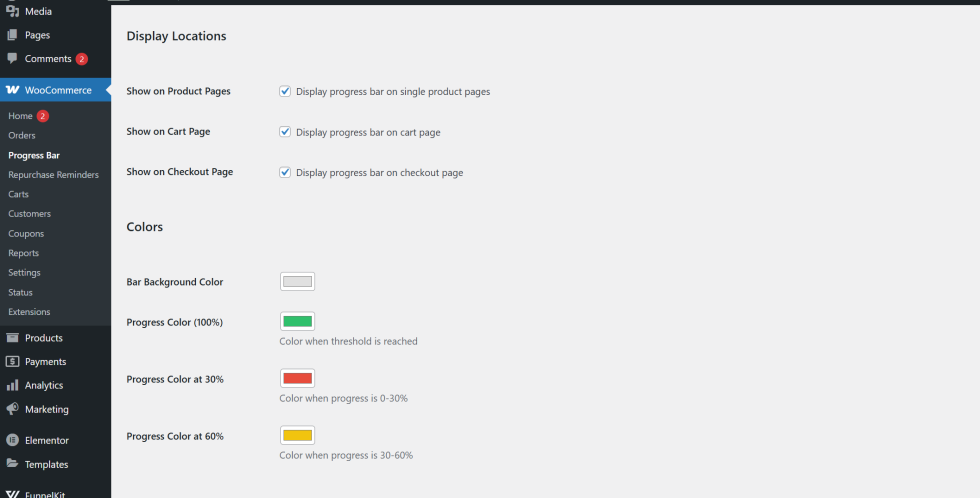
Getting started
↑ Back to topTo set up your store with Shipping Progress Bar:
- Go to: WooCommerce > Settings > Shipping Progress Bar
- Tick the checkbox to Enable Shipping Progress Bar
- configure your free shipping threshold amount (e.g., 50 for $50) in the woocommerce setting
- Customize your progress messages and design
- Save changes
Basic Settings
Display Locations
Choose where the progress bar appears:
- Custom position using shortcode
[shipping_progress_bar] - ⚠️ Important for Divi Theme Users: If you’re using the Divi theme and want to display the progress bar on product pages, you should use the shortcode method instead of automatic placement. Add a Code module to your Divi product page template and insert
[shipping_progress_bar]to ensure proper rendering.
Message Customization
- Initial Message: Text shown before threshold is reached
- Default: “Add {amount} more for free shipping!”
- Variables:
{amount},{currency},{percentage}
- Success Message: Text shown when threshold is met
- Default: “Congratulations! You’ve unlocked free shipping! 🎉”
- Close Message: Optional text when customer is very close
- Example: “Only {amount} away from free shipping!”
Advanced configuration
↑ Back to topDesign Customization
Colors
- Background Color: Choose the bar container background
- Progress Bar Color: Color that fills as threshold is approached
- Text Color: Message text color
- Border Settings: Optional border radius
Typography
- Font size (12-24px recommended)
- Font weight (normal, bold)
- Text alignment (left, center, right)
Shipping Zones Integration
If you use multiple shipping zones with different free shipping thresholds:
- The plugin will automatically detect customer’s shipping zone
- Display the appropriate threshold for their location
- Configure zone-specific messages if needed
Display Rules
↑ Back to topPage Targeting
- Show on all pages
- Cart and checkout only
- Product pages only
Mobile Optimization
- Responsive design enabled by default
Usage
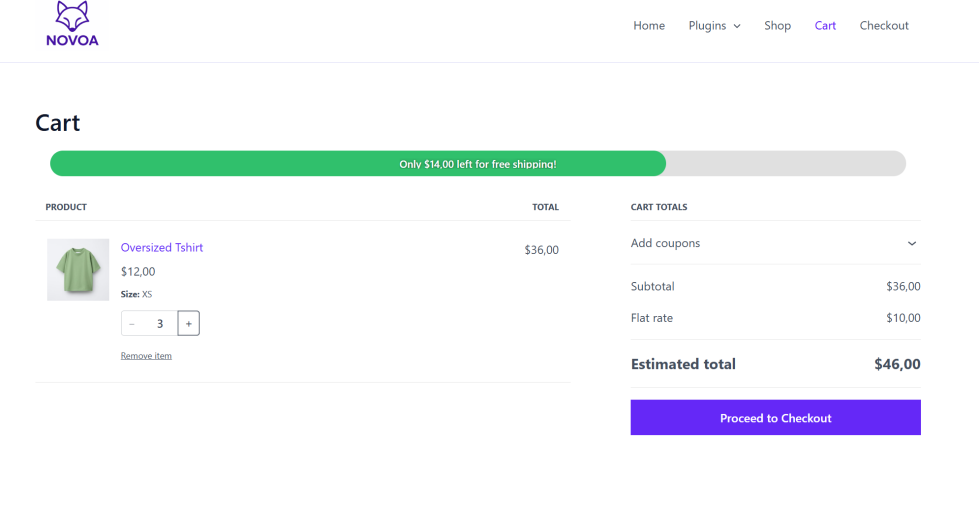
↑ Back to topWhat Customers See on the Front End
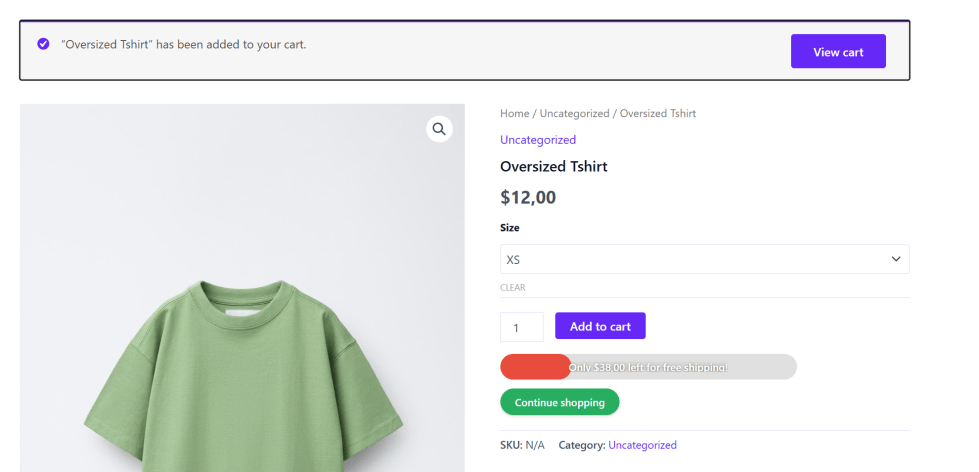
↑ Back to topBefore Reaching Threshold
When a customer browses your store or adds items to cart:
- A prominent progress bar appears in the chosen location
- Clear message shows remaining amount needed
- Visual progress indicator fills gradually
- Updates in real-time as items are added/removed
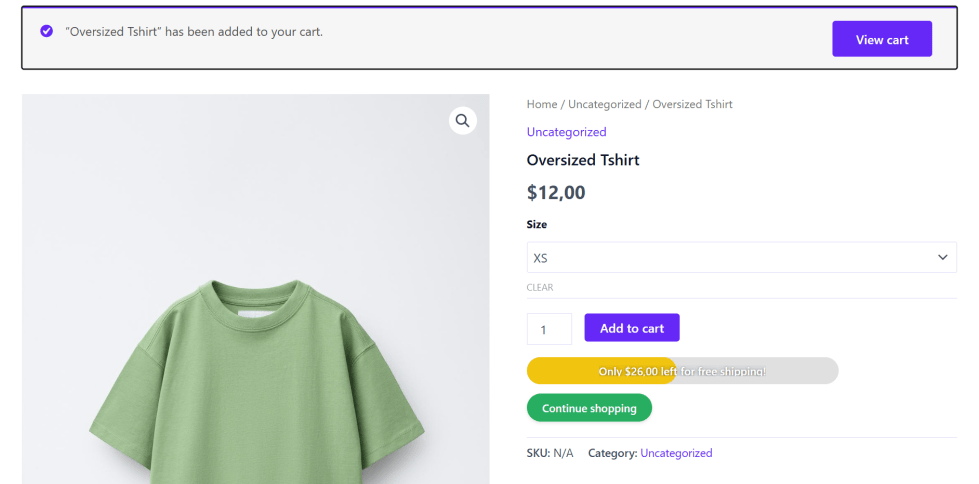
Approaching Threshold
When customer is within 20% of the goal:
- Optional “Close Message” appears
- Progress bar color may intensify (if configured)
- Additional motivation to complete the goal
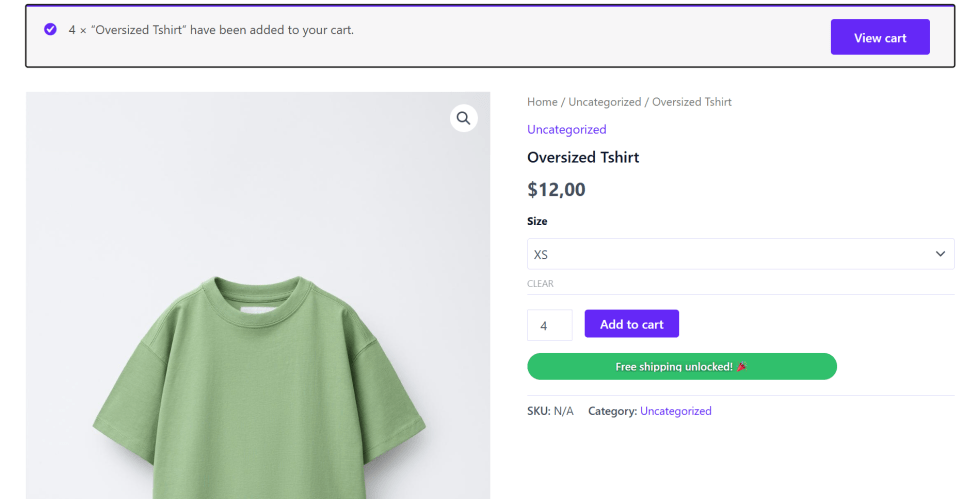
Goal Achieved
When cart total meets or exceeds the threshold:
- Success message displays
- Progress bar shows 100% complete
- Optional confetti animation plays
- Free shipping confirmed in cart totals
Cart Updates
- Progress updates automatically when:
- Products are added to cart
- Quantities are changed
- Items are removed
- Coupons are applied
- No page reload required (AJAX-powered)
Troubleshooting
↑ Back to topKnown errors or issues and how to solve them.
The Progress Bar Doesn’t Appear
↑ Back to topPossible causes:
- Plugin not activated: Go to Plugins and ensure it’s active
- Not enabled in settings: Check WooCommerce > Settings > Shipping Progress Bar
- Page exclusion rule: Verify display rules don’t exclude current page
- Theme conflict: Switch to a default theme temporarily to test
- Caching issue: Clear all caches (browser, plugin, CDN)
Solution:
- Verify plugin is activated
- Check “Enable Shipping Progress Bar” is ticked
- Review display location and page targeting settings
- Clear all caches and test in incognito mode
For Divi Theme Users: If the progress bar doesn’t appear on product pages with Divi:
- Edit your product page with Divi Builder
- Add a Code module where you want the bar to appear
- Insert the shortcode:
[shipping_progress_bar] - Save and test
Incorrect Amount Calculation
↑ Back to topPossible causes:
- Threshold doesn’t match WooCommerce shipping settings
- Tax or fees included/excluded inconsistently
- Product exclusions affecting calculation
Solution:
- Go to WooCommerce > Settings > Shipping
- Verify your free shipping method minimum amount
- Ensure Shipping Progress Bar threshold matches exactly
- Check if “Calculate based on” setting matches WooCommerce (subtotal vs total)
- Review product exclusion rules
Progress Bar Styling Issues
↑ Back to topPossible causes:
- Theme CSS conflicts
- Z-index issues with other elements
- Custom CSS overriding plugin styles
Solution:
- Try increasing z-index in Advanced Settings
- Add custom CSS to override theme conflicts:
css
.shipping-progress-bar {
    z-index: 9999 !important;
}- Contact support with theme name for compatibility patch
Divi-Specific Styling: If the progress bar looks misaligned in Divi:
- Use the Code module with shortcode instead of automatic placement
- Adjust padding/margins in the Code module settings
- Add custom CSS to the Code module if needed
Progress Not Updating in Real-Time
↑ Back to topPossible causes:
- JavaScript errors on page
- AJAX conflicts with other plugins
- Caching plugin preventing updates
Solution:
- Open browser console (F12) and check for JavaScript errors
- Temporarily disable other plugins to identify conflicts
- Exclude progress bar from AJAX caching
- Contact support if issue persists
Different Thresholds for Different Locations
↑ Back to topHow it works: The plugin automatically detects customer location and uses WooCommerce shipping zone settings. No additional configuration needed.
If threshold seems incorrect:
- Check your WooCommerce > Settings > Shipping > Zones
- Verify each shipping zone has the correct free shipping method configured
- Ensure free shipping minimum order amounts are set properly per zone
- Test by entering different shipping addresses during checkout
Mobile Display Issues
↑ Back to topPossible causes:
- Mobile-specific CSS conflicts
- Fixed positioning issues on iOS
- Font size too large for small screens
Solution:
- Adjust mobile font size setting separately
- Test on actual devices, not just browser resize
- Try different positioning options (floating vs static)
FAQs
↑ Back to topHelp customers by answering commonly asked questions.
Does this work with my existing theme?
Yes! Shipping Progress Bar is compatible with all WooCommerce themes. It uses standard WordPress hooks and doesn’t modify core files.
Will this slow down my website?
No. The plugin is lightweight and optimized for performance. It loads asynchronously and doesn’t impact page speed.
Does it work on mobile devices?
Yes, it’s fully responsive and optimized for mobile, tablet, and desktop. You can even set mobile-specific styling.
Do I need coding knowledge to use this?
Not at all. Everything is configured through an intuitive settings interface with live preview.
Does it work with multiple shipping zones?
Yes! The plugin automatically detects customer location and applies the correct free shipping threshold based on your WooCommerce shipping zone settings. No additional configuration required.
Can I set different thresholds for different countries?
Yes. Simply configure different free shipping methods with different minimum amounts in your WooCommerce shipping zones. The plugin will automatically use the appropriate threshold based on customer location.
Does it work with coupon codes?
Yes! The calculation updates automatically when coupons are applied, based on your “Calculate based on” setting (subtotal vs total).
Can I use a shortcode to place it anywhere?
Yes! Use
[shipping_progress_bar]to manually place the bar in any post, page, or widget area. This is especially recommended for Divi theme users on product pages.
Can I have different messages for different amounts?
Yes. Configure custom messages for different progress milestones (e.g., 50%, 75%, 100%).
Does it support RTL (right-to-left) languages?
Yes, the plugin is RTL-compatible and works with languages like Arabic and Hebrew.
Does it work with Divi Builder?
Yes! For product pages in Divi, use a Code module with the
[shipping_progress_bar]shortcode for optimal integration.
Can I use it with custom shipping methods?
Yes, as long as your custom shipping method integrates with standard WooCommerce shipping calculations.
Does it store any customer data?
No. The plugin only reads cart data temporarily and doesn’t store any personal information. Fully GDPR compliant.
Is it translation-ready?
Yes! All strings are translatable using standard WordPress .po/.mo files or plugins like WPML/Loco Translate.
Does it work with caching plugins?
Yes, but you may need to exclude AJAX requests from caching for real-time updates. Instructions provided in documentation.
Can I track conversions with this plugin?
The plugin itself doesn’t track analytics, but threshold completions can be tracked using Google Analytics events (documentation included).
For additional assistance:
- Documentation: Full guides available in your vendor dashboard
- Support Tickets: Submit via WooCommerce.com account
- Community Forum: Connect with other users
Before contacting support, please:
- Check this documentation thoroughly
- Clear all caches and test in incognito mode
- Temporarily disable other plugins to isolate conflicts
- Provide WordPress, WooCommerce, and plugin version numbers
- If using Divi, mention this in your support request
Last updated: January 2026

