
Shop Page Quantity Manager allows store owners to display a quantity input field on WooCommerce shop and category pages, enabling customers to select quantities before adding products to the cart.
Installation
↑ Back to topTo start using a product from WooCommerce.com, you can use the “Add to store” functionality on the order confirmation page or the My subscriptions section in your account.
- Navigate to My subscriptions.
- Find the Add to store button next to the product you’re planning to install.
- Follow the instructions on the screen, and the product will be automatically added to your store.
Alternative options and more information at:
Managing WooCommerce.com subscriptions.

Setup and Configuration
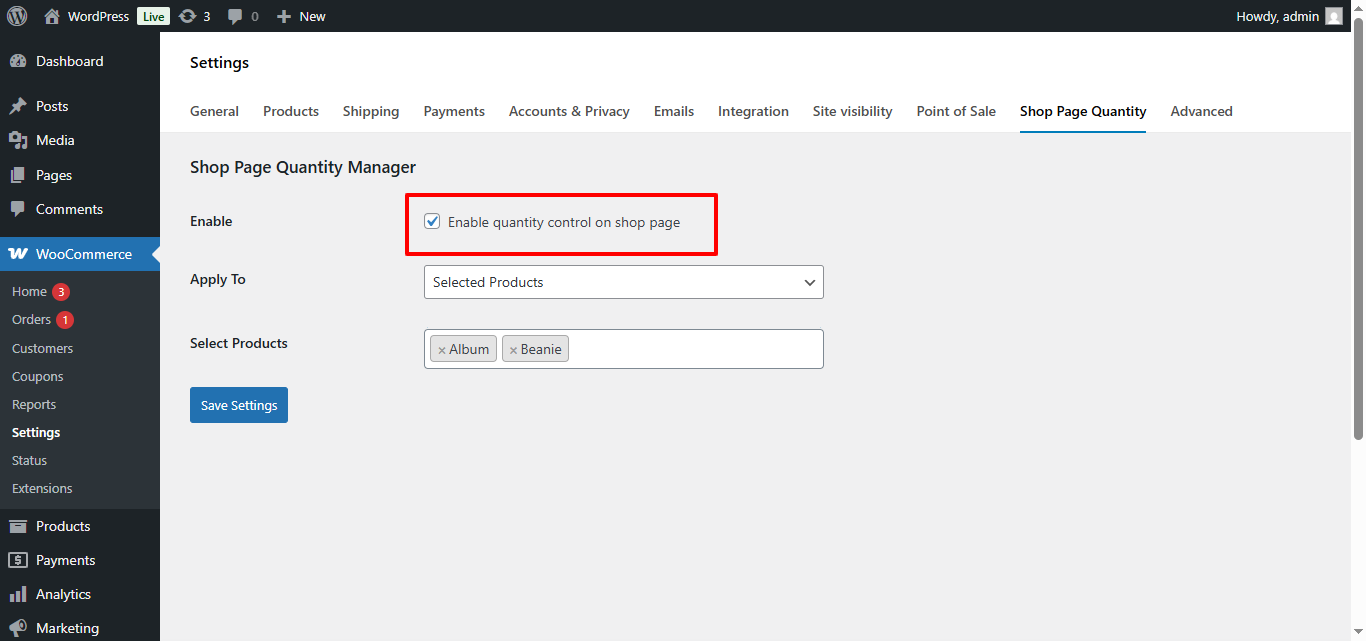
↑ Back to topTurn ON to activate quantity field on shop pages
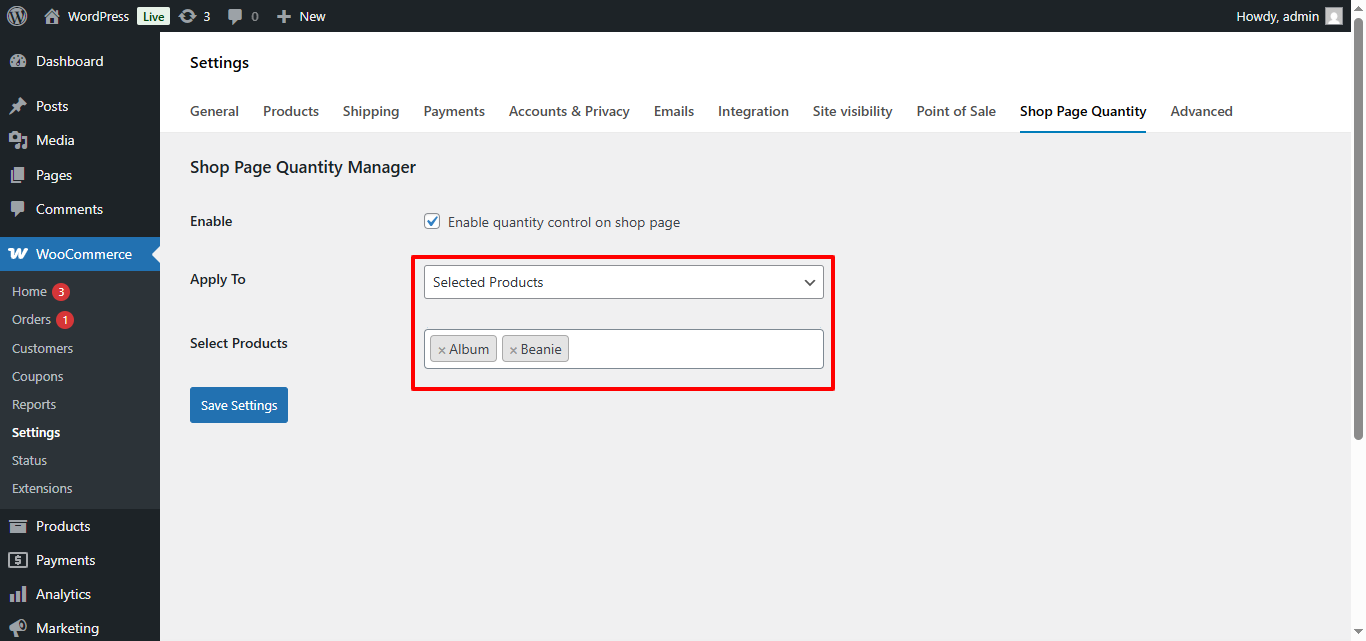
Apply Quantity Field To
↑ Back to topChoose where the quantity field should appear:
- All Products
- Selected Products
- Selected Categories
Quantity Field Behavior
↑ Back to top- Default quantity value
- Minimum quantity support
- Seamless sync with Add to Cart button

Block Theme Compatibility
↑ Back to topFor WooCommerce block themes:
- Quantity field is automatically positioned after the price and before the Add to Cart button
- Placement is handled dynamically to ensure correct UX
- No manual block editing required
FAQs
↑ Back to topHelp customers by answering commonly asked questions.
Does this work with block themes?
Yes. The plugin is fully optimized for WooCommerce block themes and classic themes.
Will it affect single product pages?<br>
No. The plugin only affects shop, category, and archive pages.
Does it support Ajax Add to Cart?
Yes. Ajax Add to Cart works as expected.

