
WooCommerce variation as a single product plugin allows you to display each product variation as a separate product on the shop, category, and search result pages.
Plugin Overview
↑ Back to topBy default, WooCommerce displays product variations in a dropdown menu on the single product page, requiring customers to select a variation before adding it to the cart. For stores with multiple variations, displaying each variation as a separate product simplifies the shopping process. This feature lets customers quickly add multiple variations to their cart, saving time and enhancing their browsing experience.
Installation
↑ Back to topTo start using a product from WooCommerce.com, you can use the “Add to store” functionality on the order confirmation page or the My subscriptions section in your account.
- Navigate to My subscriptions.
- Find the Add to store button next to the product you’re planning to install.
- Follow the instructions on the screen, and the product will be automatically added to your store.
Alternative options and more information at:
Managing WooCommerce.com subscriptions.

Show Single Variations Plugin Configuration
↑ Back to topAfter activating the Variation as Single Product plugin, you can see the “Variation as Single Product” in the WordPress admin under the WooCommerce settings menu. In this area, you can configure the General Settings for the plugin.
To configure, go to WooCommerce > Settings > Variation as Single Product and configure as follows:
- Hide Parent Products: Enable the checkbox if you want to hide the parent product on the shop and category pages.
- Applied on Products: Select the product on which you want to apply the variation as a single product feature.
- Apply on Categories: Choose the categories on which you want to implement the variation as single product settings.
- Hide Attributes: Select the attributes that you want to hide.
- Hide Out of Stock Variations: Enable the checkbox to hide out of stock variations from the product listing page.
- Variation Name Template: Customize the template for the name of the variation. Use different placeholders, such as {parent_name}, {attribute_values}, or Attribute Name like {pa_color}.
Once you have configured these settings, click on Save Changes to apply the settings.

Product Level Settings for Configuring the Plugin
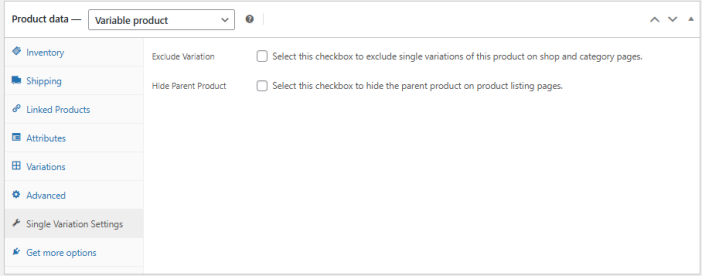
↑ Back to topYou can configure the settings for each product on the product level as well. Go to Products > All Products and choose the variable product you want to configure. In the Product Data section, go to Single Variation Settings. Here you can configure the following:
- Exclude Variation: Select this checkbox to exclude single variations of this product on shop and category pages.
- Hide Parent Product: Enable this checkbox to hide the parent product on product listing pages.
Next, go to Products > Product Data > Variations, and here you can set up the following:
- Custom Variation Name: Enter your desired custom product name for the variation.
- Variation Order: Set the order of this specific variation on the shop page.
Frequently Asked Questions
↑ Back to topHow can I hide parent products when displaying variations as single products?
↑ Back to topYou can hide parent products by enabling the “Hide Parent Products” checkbox under WooCommerce > Settings > Variation as Single Product > General Settings. This ensures only the child variations appear on the shop and category pages.
Can I apply the variation as a single product feature to specific products or categories only?
↑ Back to topYes. In the plugin settings, use the “Applied on Products” and “Apply on Categories” options to target specific products or categories where you want the feature to be active.
How do I hide specific variation attributes from being displayed in product listings?
↑ Back to topIn the plugin configuration, go to Hide Attributes and select the attributes you want to exclude (e.g., color, size). These attributes will not be shown in the product title or description on listing pages.
Can I exclude specific variations from appearing as single products?
↑ Back to topYes. Open the desired variable product in Products > All Products, then go to Product Data > Single Variation Settings and enable the “Exclude Variation” checkbox. This will prevent that variation from showing individually on shop and category pages.

