
Smart Cost Calculator is a WooCommerce extension that enables measurement-based pricing instead of fixed quantities. It allows store owners to sell products by length, area, volume, weight, surface coverage, or box coverage with automatic price calculation.
Customers simply enter measurements on the product page and see the final price instantly.
Setup and Configuration
↑ Back to top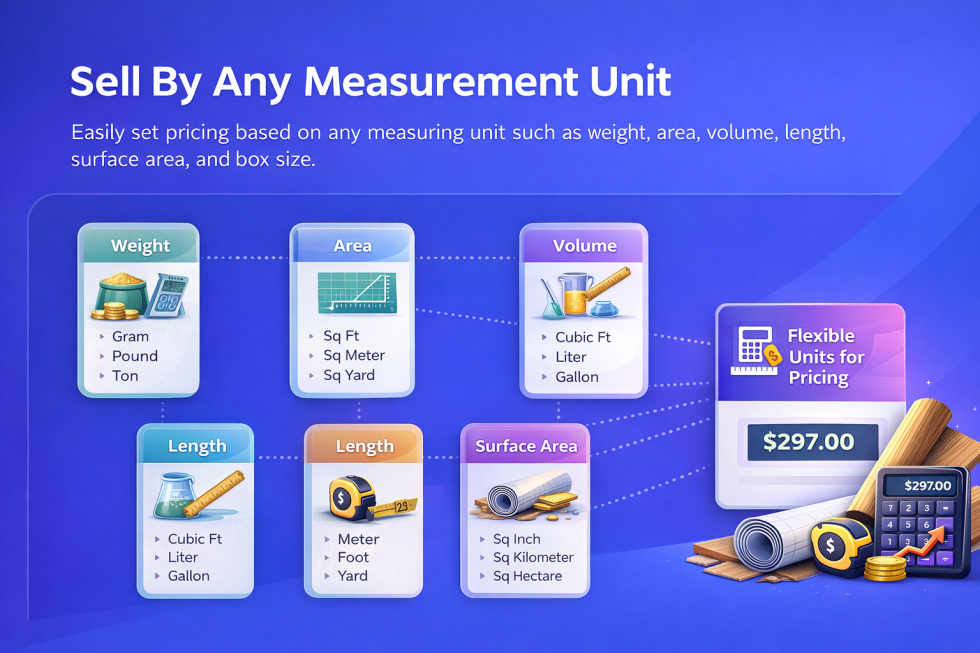
Step 1: Install & Activate the Plugin
↑ Back to top- Log in to your WordPress Admin Dashboard
- Go to Plugins → Add New
- Upload or install Smart Cost Calculator
- Click Activate
- Ensure WooCommerce is installed and active
After activation, Smart Cost Calculator adds a dedicated settings panel under WooCommerce → Settings → Cost Calculator, where you can manage templates, layout options, and general calculator behavior.
Step 2: Create or Edit a WooCommerce Product
↑ Back to topSelect Simple Product or Variable Product
Go to Products → Add New (or edit an existing product)
Enter product title, description, and featured image
Scroll down to the Product Data section
Step 3: Enable Smart Cost Calculator for the Product
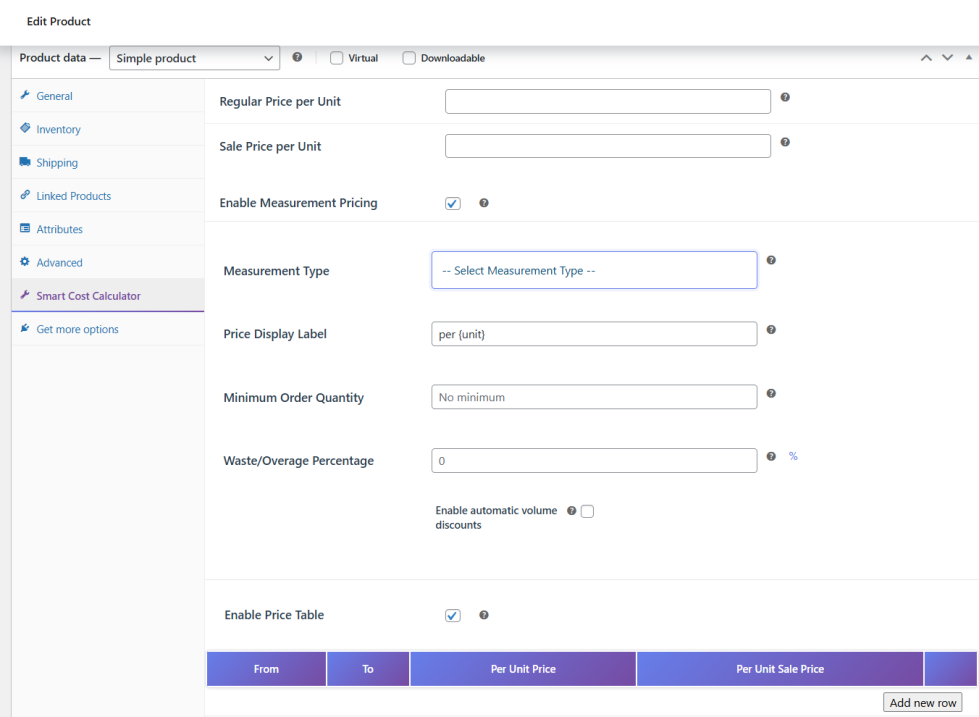
↑ Back to top- Inside Product Data, open the Smart Cost Calculator tab
- Enable the calculator for this product
- Choose the Measurement Type based on your product
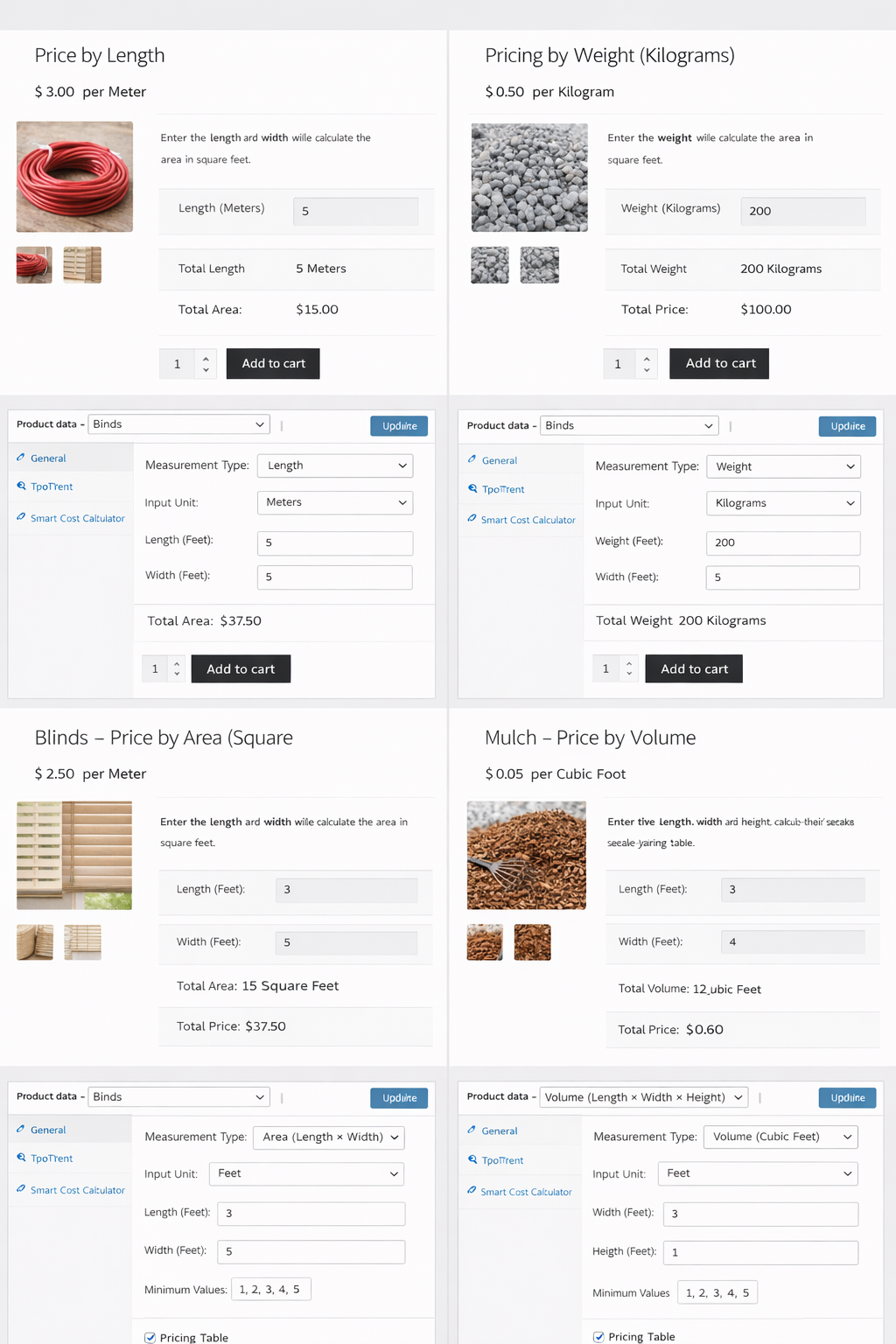
Available measurement types include:
- Length
- Area (Length × Width)
- Area (Single Square Input)
- Volume (Length × Width × Height)
- Surface Area
- Weight
- Box Coverage
Step 4: Configure Measurement Settings
↑ Back to topChoose Measurement Type
↑ Back to topSelect the calculation method that matches how your product is sold.
Examples:
- Ropes → Length
- Tiles → Area or Box Coverage
- Liquids → Volume
- Food items → Weight
Select Input Unit
↑ Back to topChoose how customers will enter measurements:
- Meters, feet, inches
- Kilograms, pounds
- Square feet, square meters
- Cubic units
Select Output Unit
↑ Back to topChoose the unit used for pricing and stock calculation.
Step 5: Set Price per Measurement Unit
↑ Back to top- Enter price per unit
- This becomes the base price for calculations
- Price updates automatically based on customer input
Example:
- $2.50 per square foot
- Customer enters 10 sq ft
- Final price becomes $25.00
Step 6: Add Measurement Limits (Optional)
↑ Back to topYou can control allowed measurement values to avoid incorrect orders.
Options include:
- Minimum value
- Maximum value
- Predefined values (dropdown)
Examples:
- Minimum length: 1 meter
- Maximum area: 500 sq ft
- Width dropdown: 2, 3, 4, 5 feet
Customers receive instant validation messages if values are outside limits.
Step 7: Enable Pricing Table (Bulk Pricing)
↑ Back to topPricing tables allow different rates based on size ranges.
How to Set Pricing Table
↑ Back to top- Enable Pricing Table
- Add rows with:
- From value
- To value
- Price per unit
Example:
↑ Back to top- 1–50 sq ft → $2.50
- 51–200 sq ft → $2.00
- Above 200 sq ft → $1.75
The plugin automatically applies the correct rate.
Step 8: Enable Waste / Overage Percentage (Optional)
↑ Back to topUseful for products requiring extra material.
- Enable Waste / Overage
- Enter percentage value
Example:
- Customer enters 100 sq ft
- Waste set to 10%
- Charged measurement becomes 110 sq ft
Ideal for flooring, tiles, fabric, and construction materials.
Step 9: Set Minimum Order Requirement
↑ Back to top- Enable Minimum Order
- Enter minimum measurement value
Example:
- Minimum order: 10 sq ft
- Customer cannot add lower values to cart
This prevents low-value or unprofitable orders.
Step 10: Enable Measurement-Based Stock Management (Optional)
↑ Back to topInstead of counting items, stock is tracked by measurement.
Example:
- Stock set: 500 sq ft
- Customer buys 25 sq ft
- Remaining stock: 475 sq ft
Stock updates automatically after each purchase.
Step 11: Configure Variable Products (If Applicable)
↑ Back to topFor variable products:
- Create variations (size, material, thickness, etc.)
- Open each variation
- Configure Smart Cost Calculator separately
- Set different prices, limits, or units per variation
Perfect for products with multiple grades or materials.
Step 12: Frontend Customer Experience
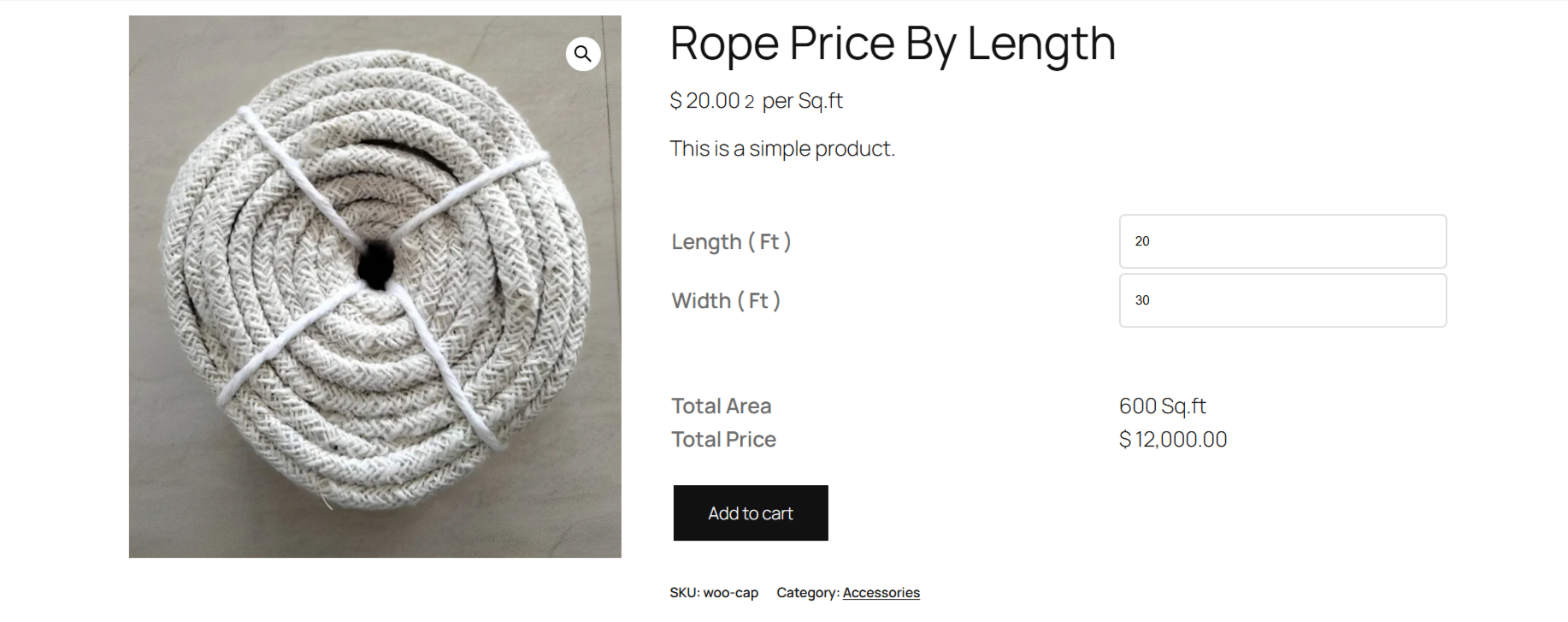
↑ Back to topOn the product page, customers will see:
- Measurement input fields
- Unit labels
- Live price calculation
- Total measurement summary
- Final price before adding to cart
Price updates instantly as values change.
Step 13: Cart & Checkout Behavior
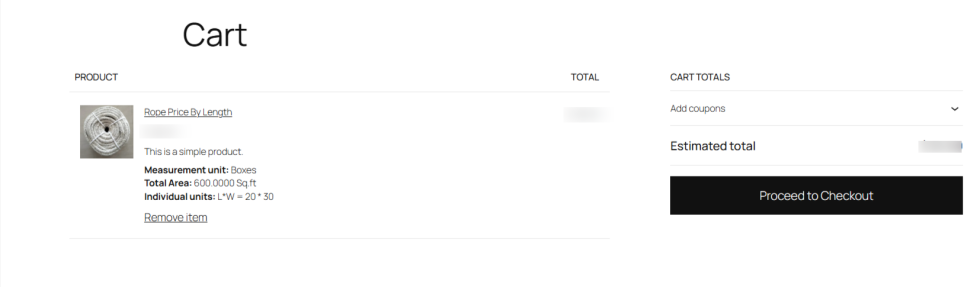
↑ Back to top- Calculated price is added to cart
- Measurement details are visible in cart & order
- Checkout works like standard WooCommerce products
- Admin can view measurements in order details
Global Pricing Rules
↑ Back to topGlobal rules let you apply measurement-based pricing to multiple products or entire categories at once. This avoids repetitive setup on individual product pages and keeps pricing consistent.
How to Create a Global Rule
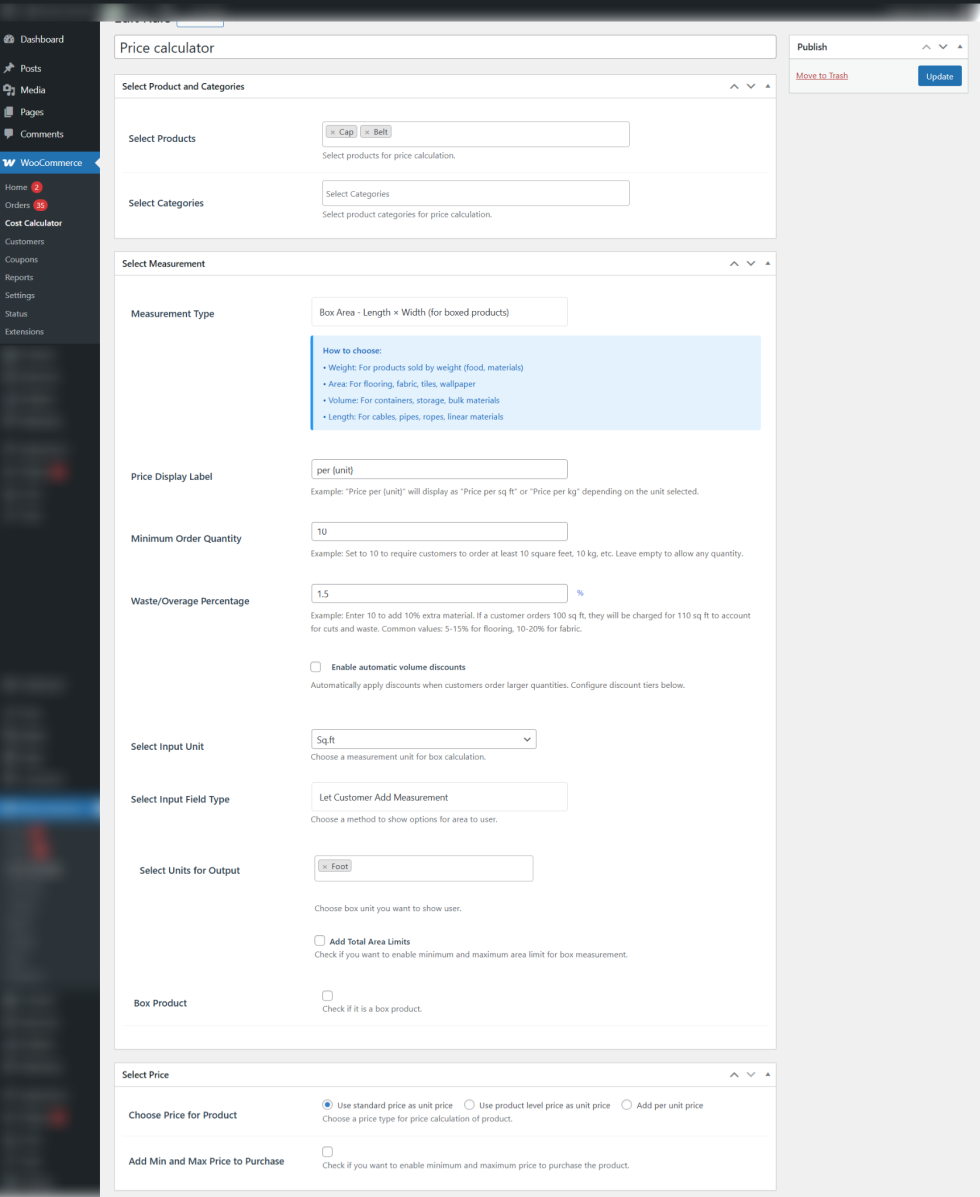
↑ Back to topGo to WooCommerce → Cost Calculator → Add Rule
Basic Setup
- Select products or categories
- Add a label for the measurement field (use {unit} if needed)
- Choose the measurement method (length, weight, area, volume, box, or surface)
- Select the pricing unit
Customer Input Options
- Allow free value entry with limits
- Show predefined sizes in a dropdown
- Use the pricing unit or let customers choose a unit
Limits & Controls
- Set minimum and maximum measurement values
- Define allowed purchase size range
Pricing Options
- Set a fixed price inside the rule
- Use the product’s base price as unit price
- Apply prices already defined on products
Why Use Global Rules
↑ Back to top- Faster bulk configuration
- Consistent pricing across products
- Easy updates from one place
Common Use Cases
↑ Back to top- Flooring & tiles
- Fabric & textiles
- Construction materials
- Food & bulk goods
- Liquids & chemicals
- Ropes, cables, wires
- Printing & custom services
Benefits for Store Owners
↑ Back to top- Eliminates manual calculations
- Reduces pricing errors
- Improves customer confidence
- Increases average order value
- Supports complex pricing logic
- No custom coding required
Final Notes
↑ Back to topSmart Cost Calculator integrates seamlessly with WooCommerce and works with most themes. It is translation-ready, responsive, and designed for professional stores selling measurement-based products.

