
ٍSmart Email Recipients allows your WooCommerce store to automatically route emails to specific recipients based on products or categories in an order.
Installation
↑ Back to topTo start using a product from WooCommerce.com, you can use the “Add to store” functionality on the order confirmation page or the My subscriptions section in your account.
- Navigate to My subscriptions.
- Find the Add to store button next to the product you’re planning to install.
- Follow the instructions on the screen, and the product will be automatically added to your store.
Alternative options and more information at:
Managing WooCommerce.com subscriptions.

Setup and Configuration
↑ Back to topGetting started
↑ Back to topTo set up your store with Smart Email Recipients:
- Go to: WooCommerce > Settings > Smart Email Recipients
- Tick the checkbox to Enable custom email recipients
- Add your first recipient rule under the Recipients / Bulk Recipients section
- Configure products or categories, recipients, and target emails
- Click Save changes
Advanced configuration
↑ Back to topSmart Email Recipients provides flexible rule-based configuration to match your store’s needs.
Creating Recipient Rules
Each rule allows you to:
- Select products directly or by categories
- Assign recipients for To, CC, and BCC fields
- Apply the rule to specific WooCommerce emails
You can create multiple rules to handle different scenarios.
Product Selection Options
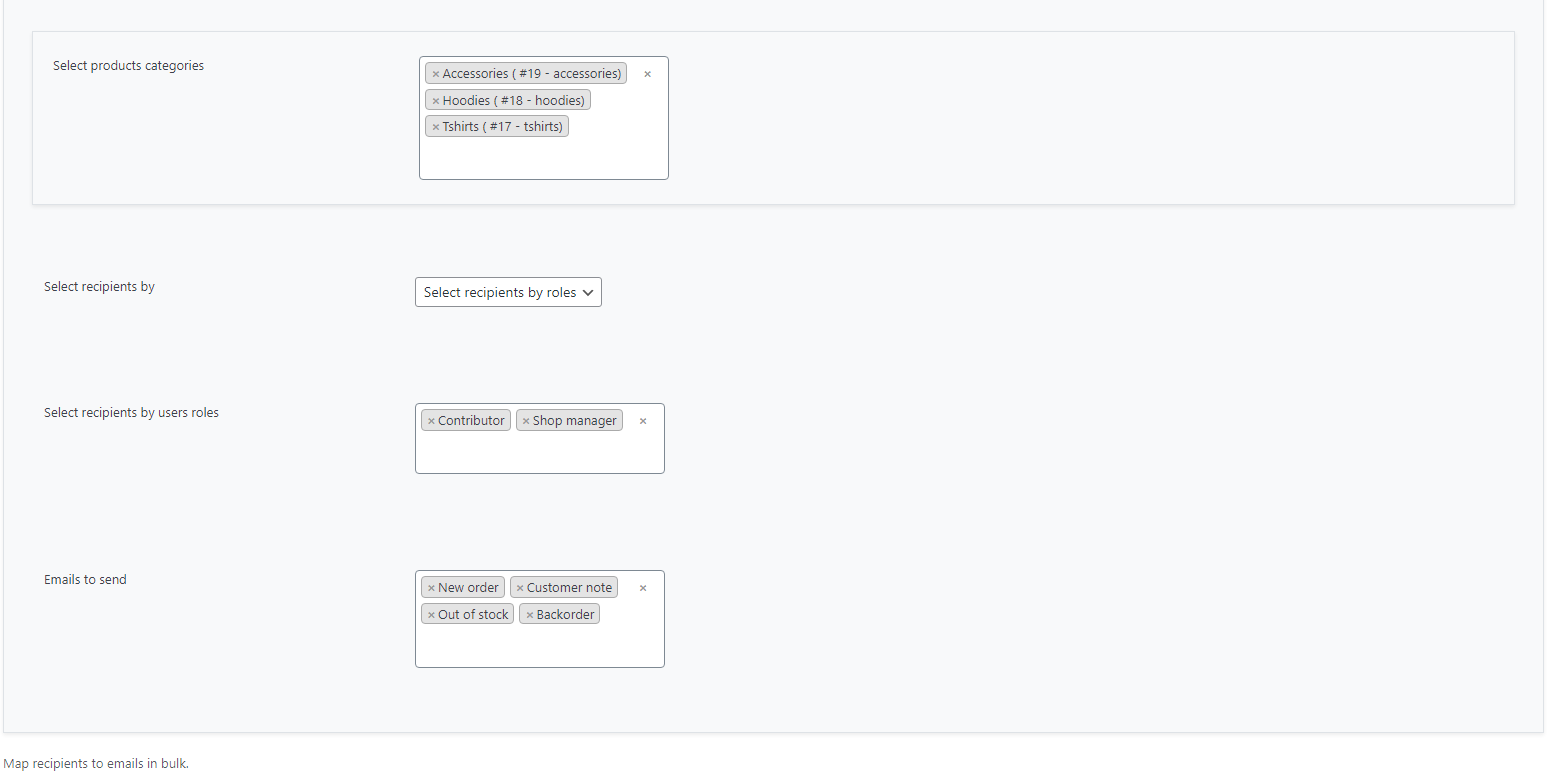
- Search Products: Select specific products manually
- Categories: Apply rules to all products within selected categories
This helps you scale rules easily for large catalogs.
Recipient Selection Options
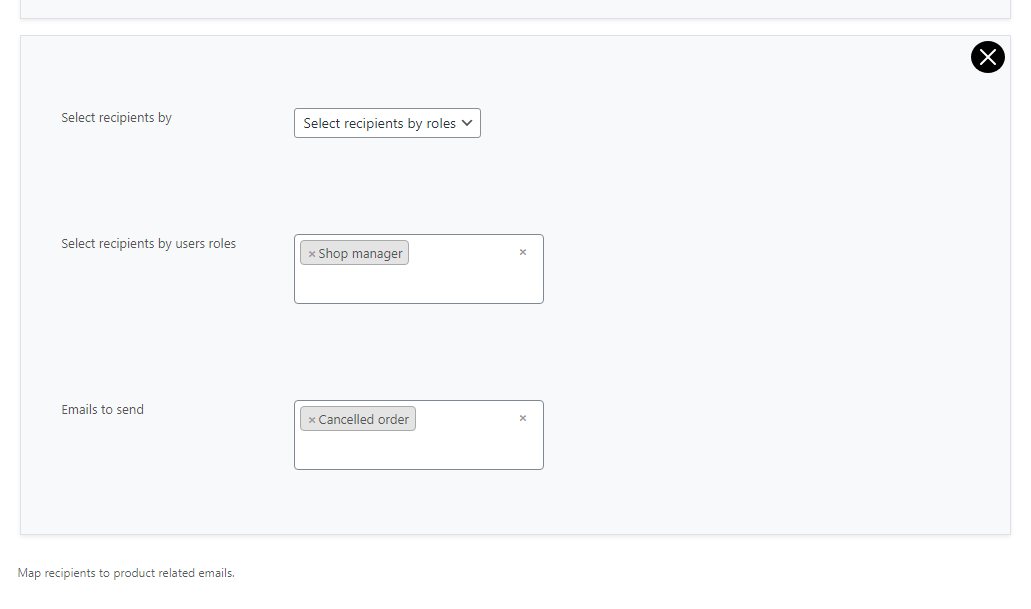
You can assign recipients in multiple ways:
- Search Users: Select individual users by name or email
- User Roles: Automatically include all users with selected roles
- Custom Emails: Add external or additional email addresses
All selected recipients will be included in the chosen email fields.
Email Fields (To, CC, BCC)
Each rule supports:
- To – Main recipients
- CC – Additional visible recipients
- BCC – Hidden recipients
You can configure each field independently.
Target WooCommerce Emails
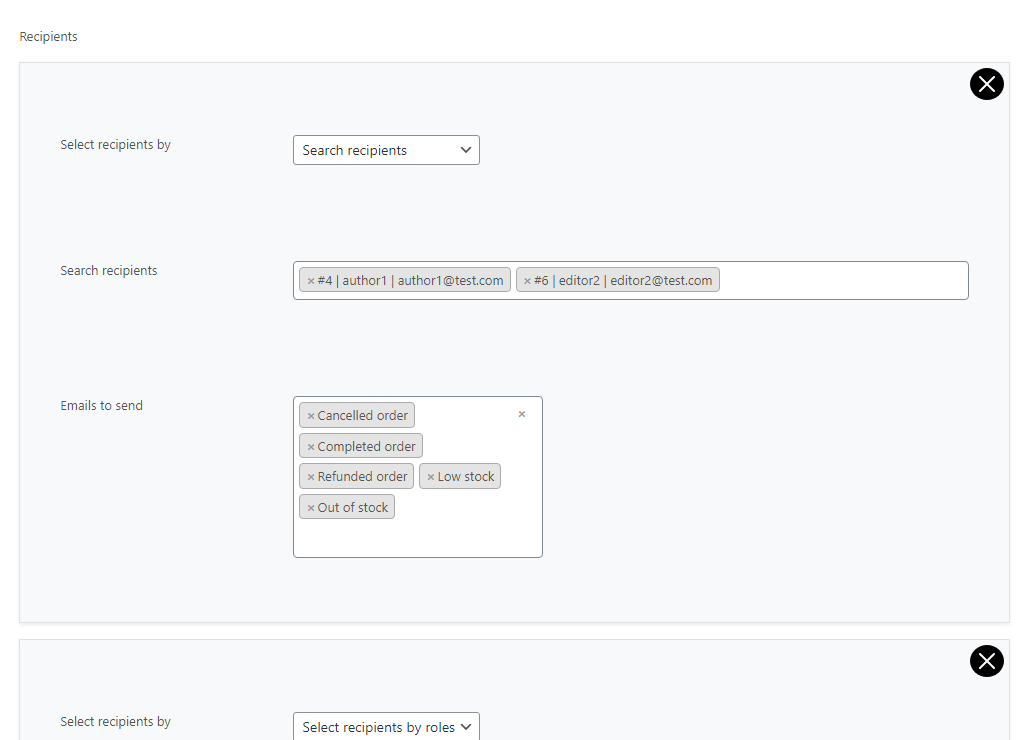
Choose which emails the rule applies to, such as:
- New Order
- Processing Order
- Completed Order
- Customer emails
This ensures recipients only receive relevant notifications.
Usage
↑ Back to topOnce configured, the plugin works automatically in the background.
When an order is placed:
- The plugin checks the products in the order
- Matches them against your defined rules
- Adds the configured recipients to the selected WooCommerce emails
No changes are visible on the frontend for customers.
All functionality is handled internally within WooCommerce email notifications.
FAQs
↑ Back to topHelp customers by answering commonly asked questions.
Can I assign multiple recipients to the same rule?
Yes, you can add multiple recipients across To, CC, and BCC fields within a single rule.
Can I use both products and categories in rules?
Each rule uses either products or categories, but you can create multiple rules to combine both approaches.
Can I add external email addresses?
Can I add external email addresses?

