Smart Inventory Alerts is a WooCommerce plugin designed to automate stock monitoring. It sends notifications when products reach custom stock thresholds via Email, SMS, or Slack. The plugin is ideal for store owners, marketplaces, and inventory teams who want to:
- Prevent stockouts and lost sales
- Automate notifications to their team
- Monitor product variations and backorders
Setup and Configuration
↑ Back to top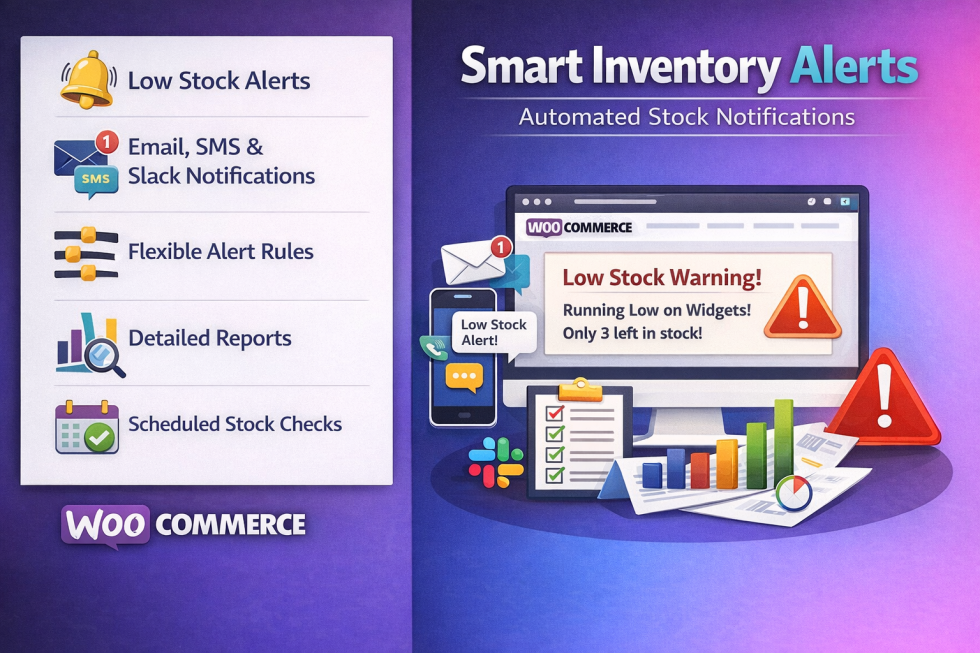
Installation
↑ Back to topStep 1: Upload the Plugin
- Upload the plugin folder to:
/wp-content/plugins/smart-inventory-alertsOr use the WordPress dashboard:- Go to Plugins → Add New → Upload Plugin
- Select the plugin ZIP file and click Install Now
Step 2: Activate the Plugin
- Navigate to Plugins → Installed Plugins
- Click Activate for Smart Inventory Alerts
Step 3: Access Plugin Settings
- Go to: WooCommerce → Settings → Stock Alerts
Setup & Configuration
↑ Back to top1. General Settings
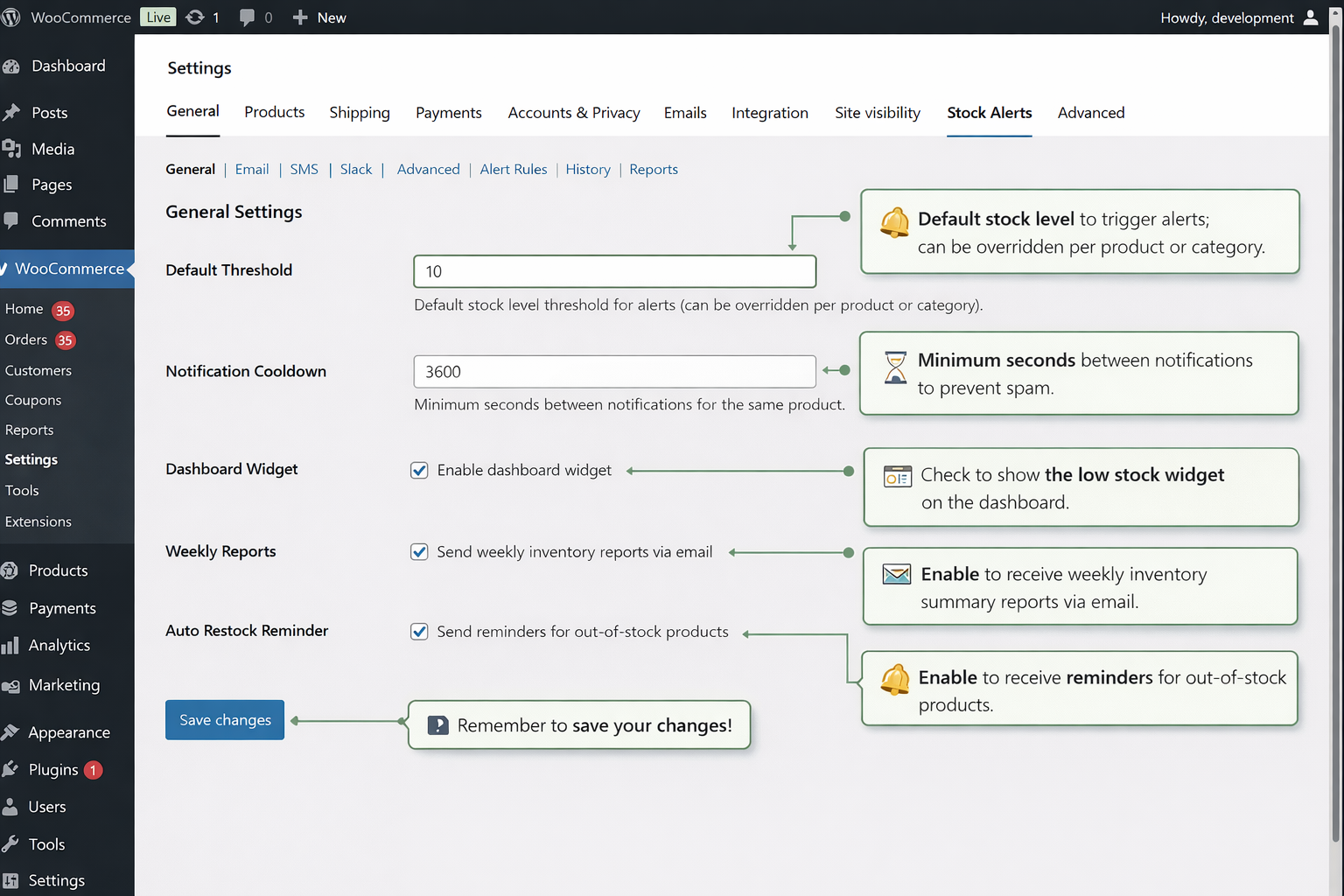
↑ Back to topWeekly Reports: Enable or disable automated summary emails.
Default Threshold: Set the minimum stock level to trigger alerts.
Cooldown Period: Prevent duplicate notifications within a set time (in seconds).
Dashboard Widget: Show low stock products on WordPress dashboard.
Email Notifications
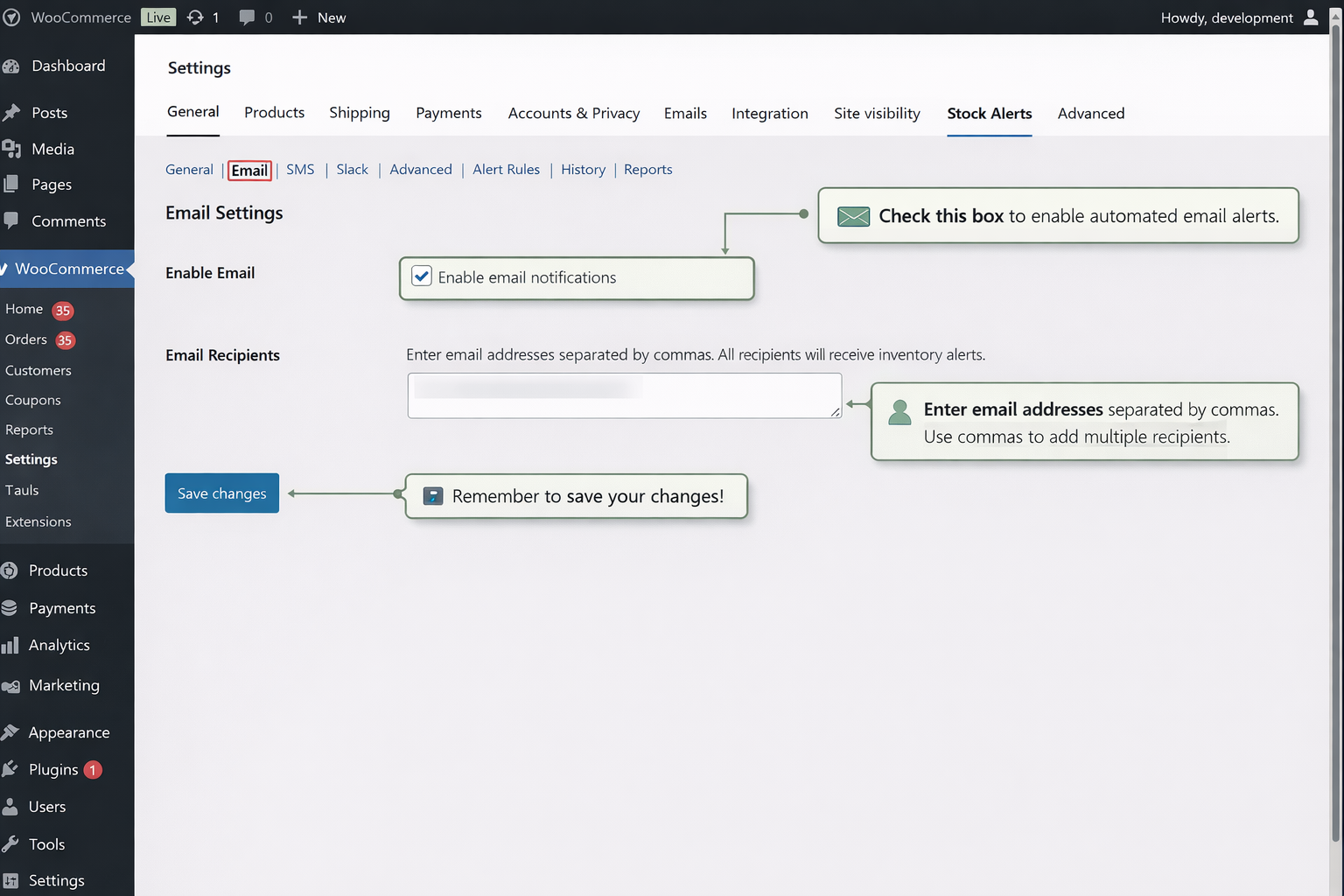
↑ Back to topClick Send Test Email to verify settings.
Add multiple recipients separated by commas.
Use your WordPress email system or SMTP plugin for reliability.
SMS Notifications
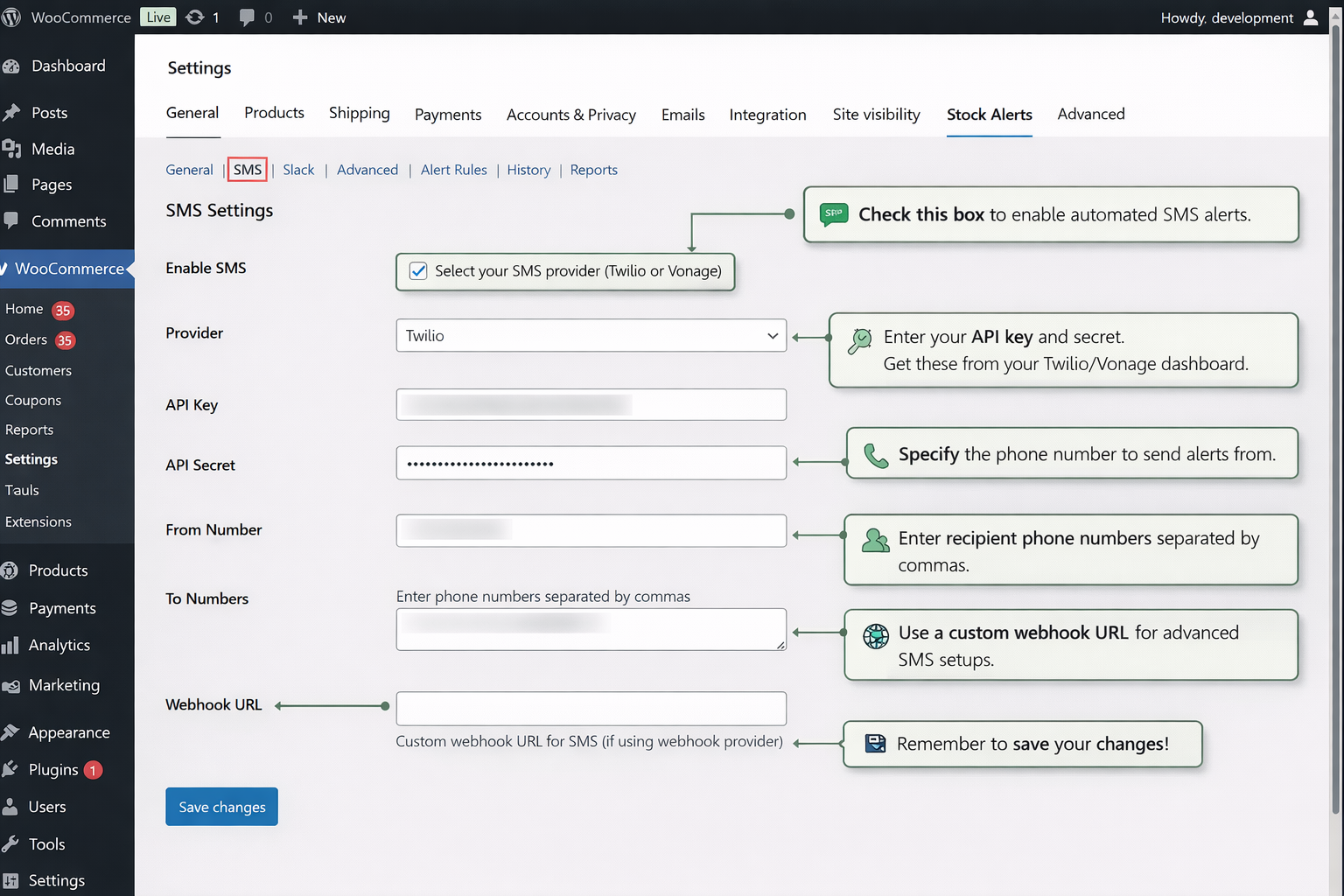
↑ Back to topRequires a Twilio or Vonage (Nexmo) account.
Click Send Test SMS to verify configuration.
Enter API credentials in the SMS settings tab.
For Twilio: you’ll need your Account SID, Auth Token, and a phone number you’ve purchased/verified.
➤ Official Twilio SMS quickstart & setup docs:
🔗 Twilio SMS Quickstart & Docs – https://www.twilio.com/docs/sms/quickstart
For Vonage (Nexmo): you’ll need your API Key and API Secret (from the Vonage Dashboard).
➤ Vonage guide for getting started sending SMS:
🔗 Vonage SMS Setup Guide – https://api.support.vonage.com/hc/en-us/articles/204014803-Getting-Started-Sending-SMS
Choose which alert rules trigger SMS.
Slack Notifications
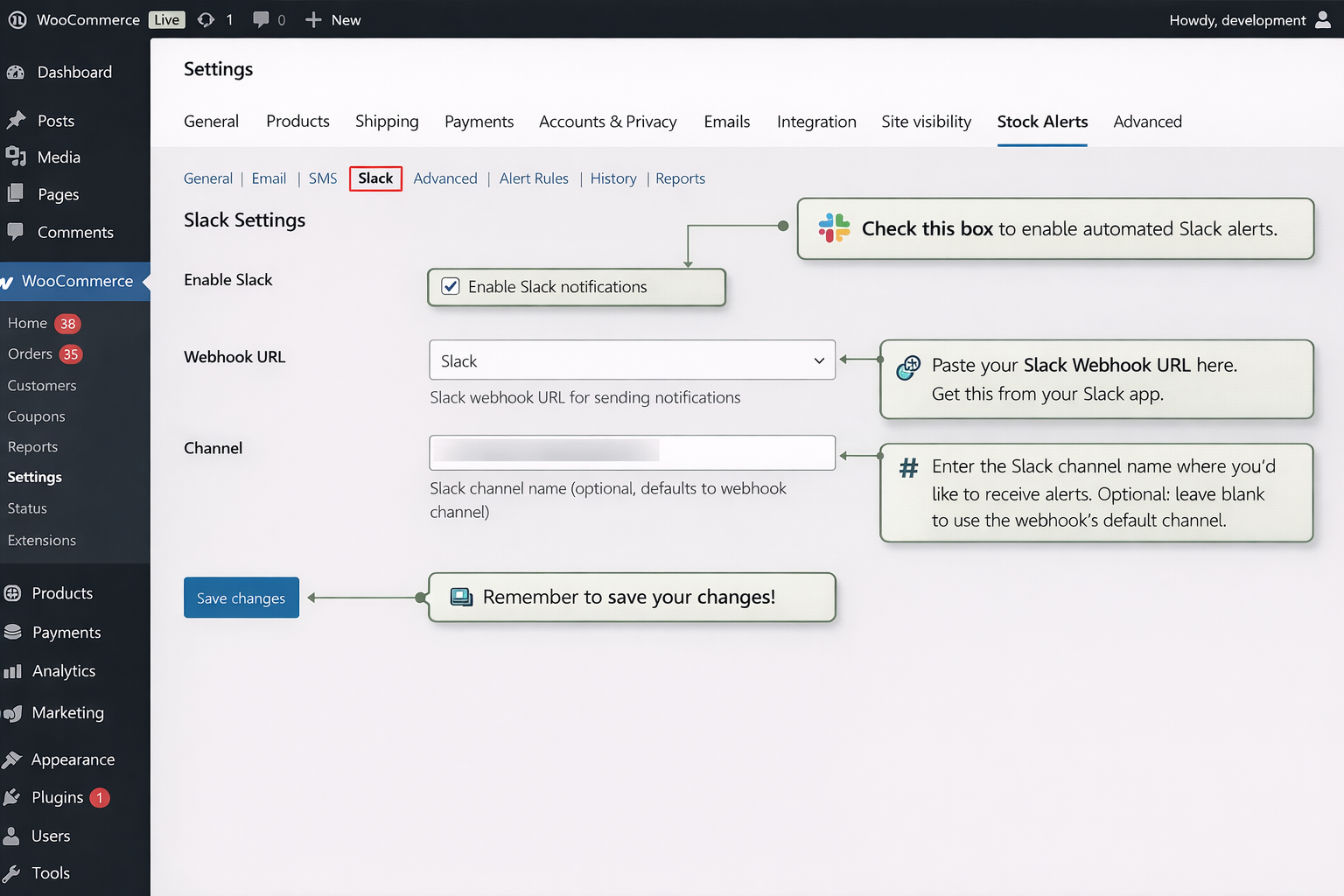
↑ Back to topClick Send Test Message to confirm delivery.
Go to Slack Incoming Webhooks
Create a webhook for your channel
Copy the webhook URL into the Slack settings tab
Advanced Settings
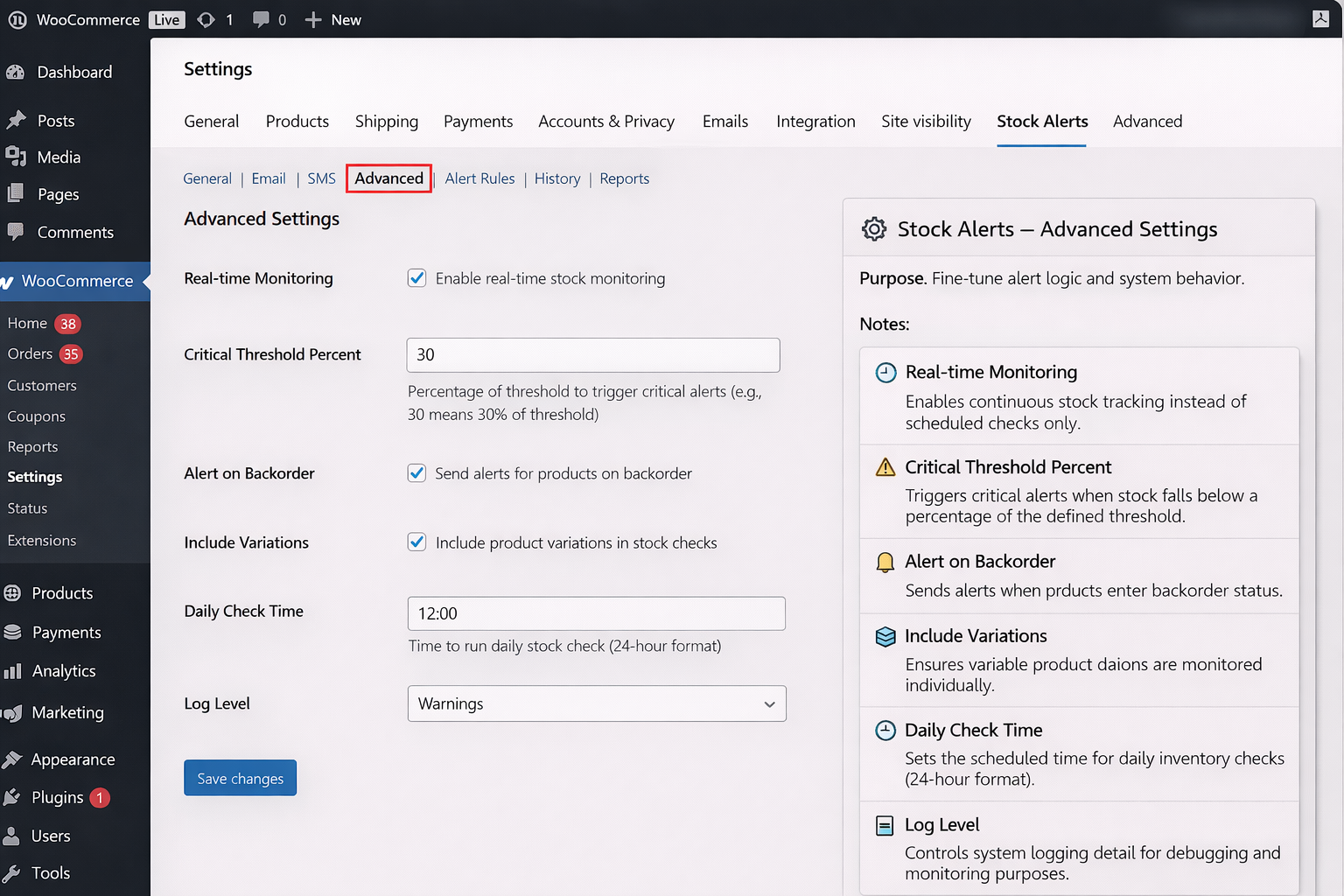
↑ Back to top- Real-Time Monitoring: Enable instant stock tracking
- Critical Thresholds: Set additional thresholds for urgent alerts
- Include Variations: Track variable products individually
- Backorder Alerts: Get notified when products are on backorder
- Daily Check Time: Schedule automatic daily stock checks
- Logging: Track all notifications for debugging
Creating Alert Rules
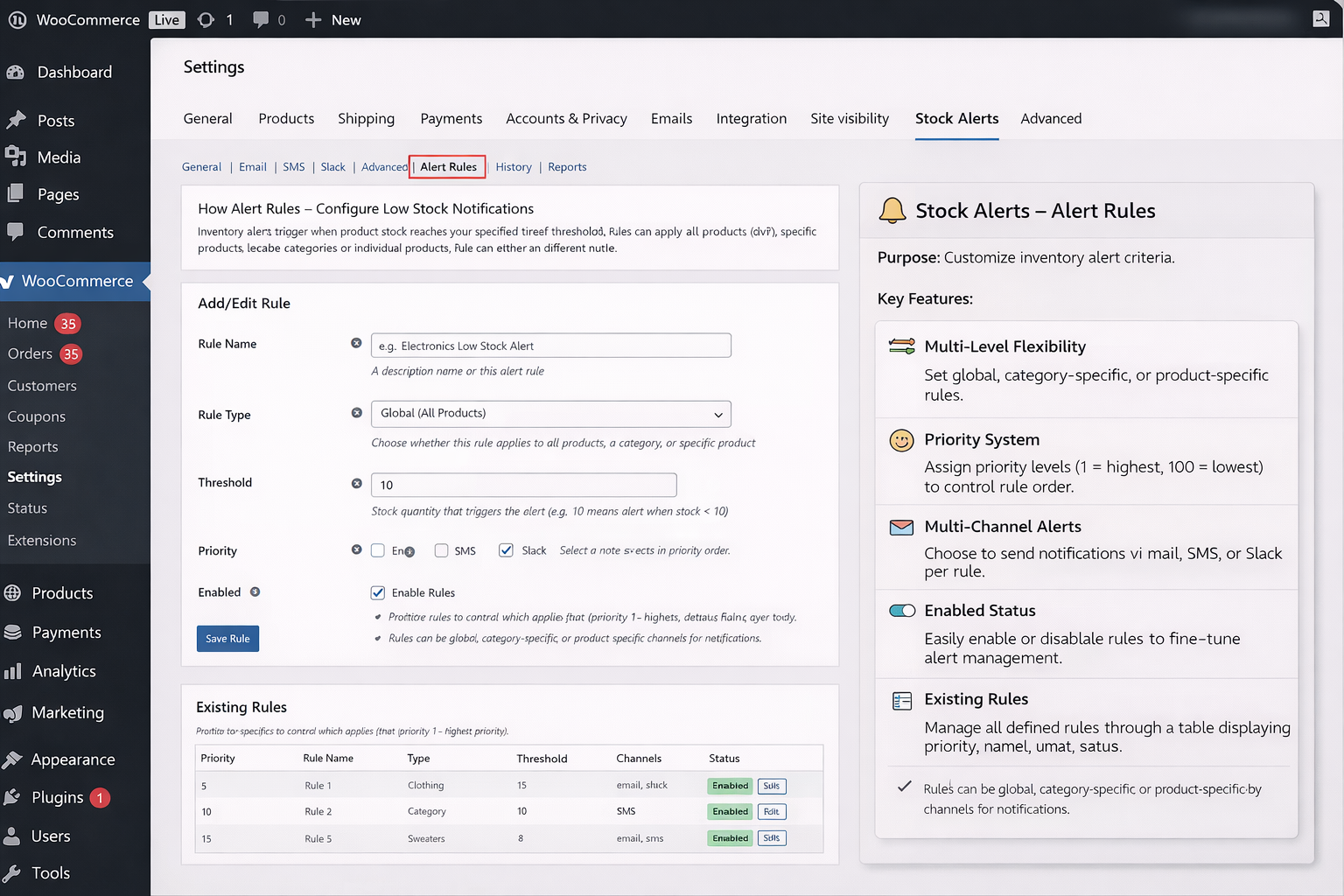
↑ Back to top- Navigate to WooCommerce → Settings → Stock Alerts → Alert Rules
- Options include:
- Global Rules: Apply to all products
- Category Rules: Apply to selected categories
- Product Rules: Apply to specific products
- Rule Settings:
- Multi-select categories/products
- Set custom thresholds
- Choose notification channels
- Set priority (lower number = higher priority)
- Click Save Rule
Tip: Rules are applied based on priority. Higher priority rules override lower ones.
Notification History
↑ Back to top- Navigate to WooCommerce → Settings → Stock Alerts → History
- Track all notifications sent via Email, SMS, or Slack
- View status, date/time, and product details
- Useful for auditing and monitoring system reliability
Reports & Analytics
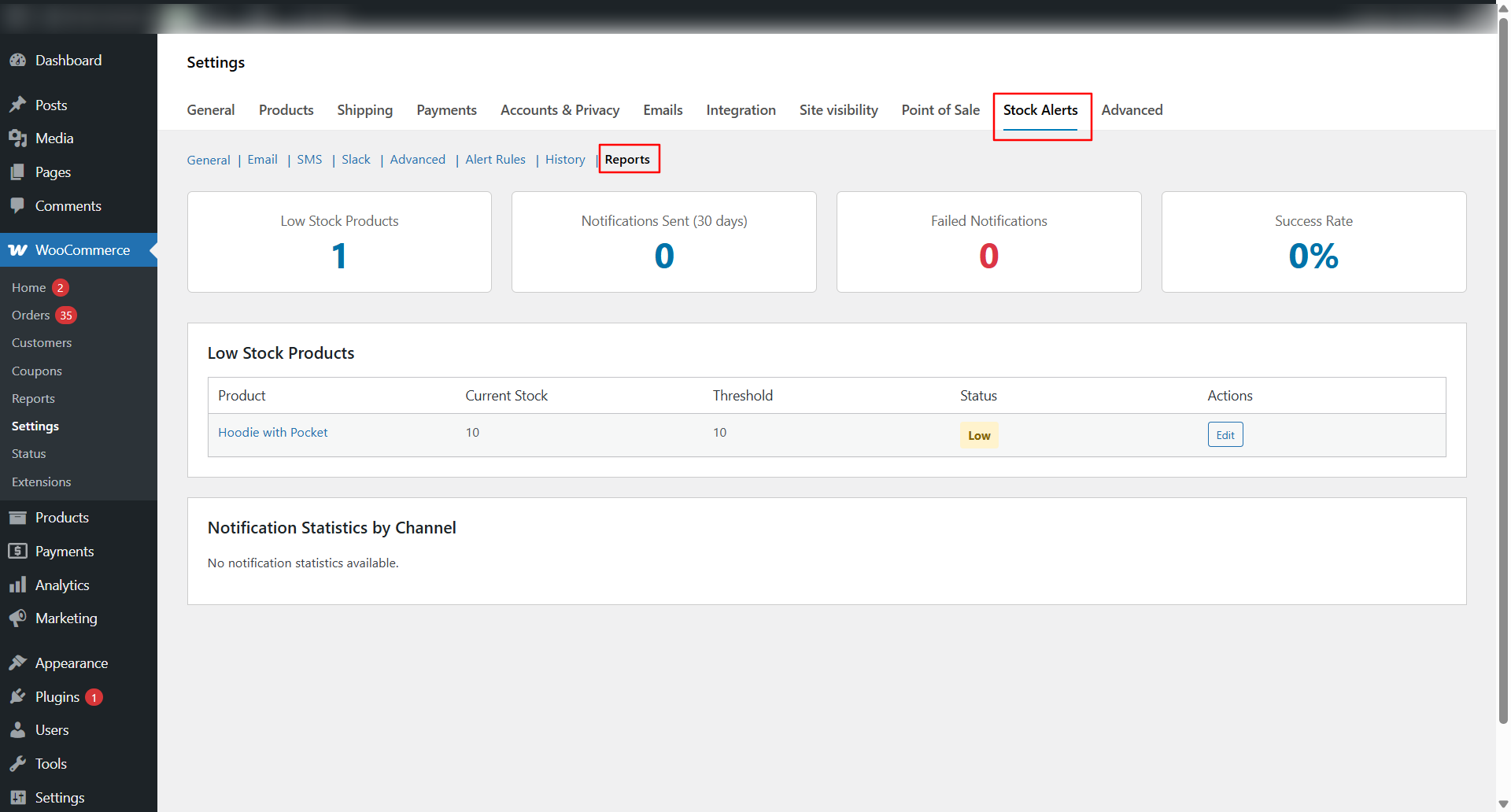
↑ Back to top- Navigate to WooCommerce → Settings → Stock Alerts → Reports
- Provides Low Stock Products, Notifications Sent, Failed Notifications, Success Rate
- Low Stock Products Table: Shows product, current stock, threshold, and status
- Notification Statistics by Channel: Email, SMS, Slack metrics
- Quick insights help managers take action before stockouts occur