
Overview
↑ Back to topSmart PDF Watermarking adds text and image watermarks to PDF files. Assign a watermarks template to a downloadable product, and every customer download is watermarked with the buyer’s details. You can also watermark the PDFs in your Media Library, one at a time, in bulk, or automatically on upload.
Requirements
↑ Back to top- WordPress 5.9+, WooCommerce 5.5.3+ and PHP 7.0+.
- Ghostscript installed on the server, with the PHP
proc_open()function enabled. Required to watermark PDF files newer than version 1.4, which covers most PDFs created by modern tools. - The Imagick PHP extension, for the PDF previews in the template editor.
Go to PDF Watermarks Templates > Settings to check what your server has installed. The page shows the install command for anything missing. If you’re on shared hosting, ask your host to install Ghostscript.
Installation
↑ Back to top- Download the .zip file from your WooCommerce account.
- Go to WordPress Admin > Plugins > Add New and click Upload Plugin.
- Choose the .zip file, then click Install Now and Activate.
More information at: Install and Activate Plugins/Extensions.
Setup and configuration
↑ Back to topGetting started
↑ Back to top- Go to PDF Watermarks Templates > Settings and make sure Ghostscript and Imagick are installed.
- Go to PDF Watermarks Templates > Add watermarks template and design your watermarks. A demo template is created on activation to help you start.
- Edit a downloadable product and select the template under Watermark Downloadable PDFs.
That’s it: from now on, every PDF downloaded from that product is watermarked for the customer who downloads it.
Usage
↑ Back to topCreating a watermark template
↑ Back to topA watermarks template holds one or more text and image watermarks, and can be reused on any number of products.
- Go to PDF Watermarks Templates > Add watermarks template and enter a title.
- Click Select Preview PDF to pick a PDF from the Media Gallery to design on. The preview PDF itself is never watermarked.
- Click Add Watermark, then Text Watermark or Image Watermark.
- Drag the watermark on the preview, and adjust its settings in the side panel.
- Click Preview Watermarks to see the result on a temporary copy of the PDF.
- Click Publish.
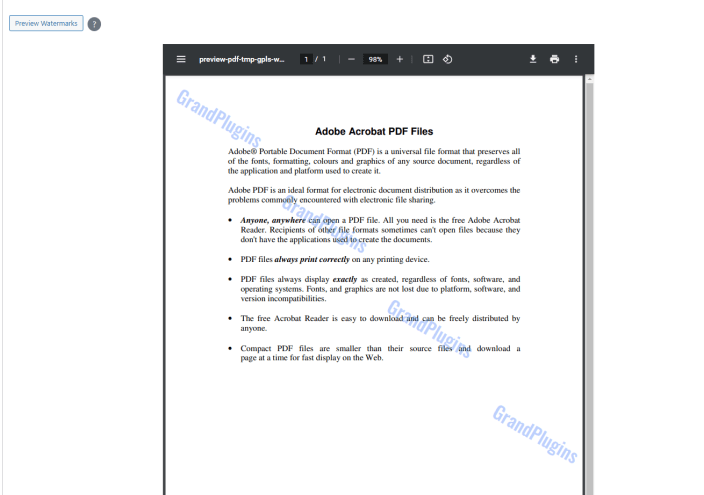
Watermark settings:
- Text, Color, Font Size, Font Family: the text watermark appearance.
- Width and Height: the image watermark size.
- Opacity and Rotation: transparency and angle.
- Position: one of nine spots on the page, with an Offset in Pixels or percentage from the selected Offset corner.
- Repeat: repeats the watermark across the page: X axis, Y axis, Diagonal Axis, X and Y Axis, or Full Repeat, with the spacing set in Repeat Axis Offset.
- Pages target: All pages, Odd pages, Even pages, or Specific pages ( e.g.
1,3,10), with a Start page to begin from.
Dynamic watermarks
↑ Back to topText watermarks can include the buyer’s details. Each placeholder is replaced with the real value when the PDF is downloaded.
- In a text watermark, go to the Dynamic section.
- Choose the Data field type: User data, Customer data, or Order data.
- Choose a Data Field. Its placeholder is inserted in the Text at the cursor position.
You can mix your own text and several placeholders, for example: Licensed to {{o_billing_name}} – Order #{{o_number}}.
Common placeholders:
| Placeholder | Prints |
|---|---|
{{o_billing_name}} | Billing first and last name |
{{o_shipping_name}} | Shipping first and last name |
{{o_billing_email}} | Billing email |
{{o_billing_phone}}, {{o_billing_company}}, {{o_billing_city}}, {{o_billing_country}} | Billing details |
{{o_number}} | Order number |
{{o_date_created}}, {{o_date_paid}} | Order dates, e.g. Oct 21, 2026 |
{{o_total}}, {{o_currency}} | Order total and currency symbol |
{{c_full_name}}, {{c_email}} | Customer account name and email |
{{u_full_name}}, {{u_user_email}}, {{u_display_name}} | WordPress username and email |
Tips:
- For WooCommerce downloads, prefer the Order data fields (
{{o_...}}): they also work for guest orders, which have no customer account. - For MasterStudy LMS course materials, use the User data fields (
{{u_...}}): there is no order. - Preview Watermarks fills the placeholders with your latest order data.
- Only the fields offered in the Data Field list can be printed. Any other placeholder prints nothing, so sensitive data such as passwords, order keys, payment links, or IP addresses never ends up on a PDF.
Watermarking WooCommerce downloads
↑ Back to top- Go to Products and edit a downloadable product.
- In Product data > General, under the Downloadable files, find Watermark Downloadable PDFs.
- Select the watermark template and click Update.
When a customer downloads a PDF from this product:
- A watermarked copy is created for that download, with the customer’s and order’s data.
- The customer receives it with the original file name.
- Your original PDF is never modified. The watermarked copies are deleted automatically after about 30 minutes.
- Non-PDF files of the product are delivered as usual.
Only PDFs stored on your site can be watermarked. Files hosted elsewhere ( external URL, cloud storage ) are delivered without watermarks.
Single PDF watermarker
↑ Back to topWatermark one PDF from your Media Library.
- Go to PDF Watermarks Templates > Single PDF Watermarker.
- Click Select PDF and pick the PDF from the Media Gallery.
- Add text and image watermarks, as in a template.
- Under How to apply the watermarks, choose Create new ( a separate watermarked PDF ) or Overwrite ( with Original Backup to keep a backup ).
- Click Apply Watermarks.
Bulk PDF watermarker
↑ Back to topApply a watermark template to many PDFs at once.
- Go to PDF Watermarks Templates > Bulk PDF Watermarker.
- Select a Watermarks Template.
- Select the PDFs: Select PDFs directly from the media, or Select PDFs by posts to find the PDFs attached to posts, pages, or products.
- Choose Create new or Overwrite ( with Original Backup ), then click Apply.
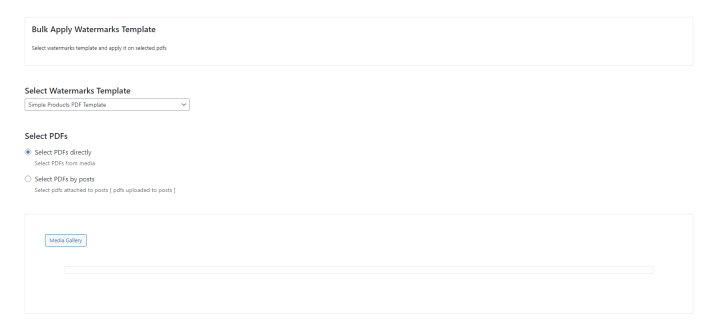
Large PDFs are processed in steps; keep the page open until it finishes.
Auto apply on upload
↑ Back to topWatermark PDFs automatically when they’re uploaded.
- Edit a watermark template and check Enable auto apply.
- Optionally, apply it only to PDFs whose file name starts with a prefix.
- Select the Upload Location: Media ( PDFs uploaded to the Media Library ) and/or Post Type ( PDFs uploaded to posts matching your rule groups ).
- Select the Apply Type: Overwrite ( with Create Backup ) or Create New.
- Click Update.

Backups
↑ Back to topOverwritten PDFs with a backup can be restored at any time from PDF Watermarks Templates > Backups, or from the PDF edit screen in the Media Library.

MasterStudy LMS
↑ Back to topPDF course materials can be watermarked with the logged-in student’s details each time they’re downloaded.
- Go to Media, open the PDF, and click Edit more details.
- In the PDF Masterstudy LMS Watermark template, select the watermark template and click Update.
- Add the PDF to the course or lesson Materials.
Only PDFs in the Materials section are watermarked, and the student must be logged in.
Custom fonts
↑ Back to topGo to PDF Watermarks Templates > Settings and upload your font in Custom Font files. Only TrueType fonts ( .ttf ) are allowed. The font is then available in the Font Family list of text watermarks.
Downloads delivered without watermarks
↑ Back to topIf a PDF can’t be watermarked, the customer still receives the file, so the download never fails, and shop managers see a notice in the admin listing the product, the file, and the reason. Common reasons:
- Ghostscript is missing: install it ( see Requirements ).
- The watermarks template was deleted or has no watermarks: select another template on the product.
- The PDF isn’t stored on the site: upload it to your site.
- The PDF needs more PHP memory: watermarking needs about twice the PDF size in memory; increase the PHP
memory_limit.
Click Dismiss on the notice to clear the list.
Troubleshooting
↑ Back to top“PDF file uses an advanced compression technique, and it seems Ghostscript is not installed”
↑ Back to topThe PDF is newer than version 1.4, and Ghostscript isn’t available. Install Ghostscript, and make sure proc_open() is enabled in PHP. Check PDF Watermarks Templates > Settings.
The template editor shows no PDF preview
↑ Back to topThe Imagick PHP extension or Ghostscript is missing. Check PDF Watermarks Templates > Settings.
A placeholder prints nothing
↑ Back to topThe field is empty for that order or customer, or the placeholder isn’t one of the fields in the Data Field list. For guest orders, use the Order data fields.
FAQs
↑ Back to topAre links, bookmarks, and comments kept?
↑ Back to topYes. Links, bookmarks, and comments (notes, highlights, shapes, stamps) are kept in the watermarked PDF. Form fields aren’t kept, and comment replies are kept as separate comments.
Does it work with protected PDFs?
↑ Back to topYes. PDFs with print, copy, or edit restrictions are watermarked and keep their restrictions. PDFs that require a password to open aren’t supported.
Can I use different watermarks for different products?
↑ Back to topYes. Create as many templates as you need and select one per product.
Does it slow down downloads?
↑ Back to topEach download is watermarked when it’s requested, which usually takes a second or two, and longer for large PDFs.

