
Installation
↑ Back to topTo start using a product from WooCommerce.com, you can use the “Add to store” functionality on the order confirmation page or the My subscriptions section in your account.
- Navigate to My subscriptions.
- Find the Add to store button next to the product you’re planning to install.
- Follow the instructions on the screen, and the product will be automatically added to your store.
Alternative options and more information at:
Managing WooCommerce.com subscriptions.

Telegram notification setting
↑ Back to top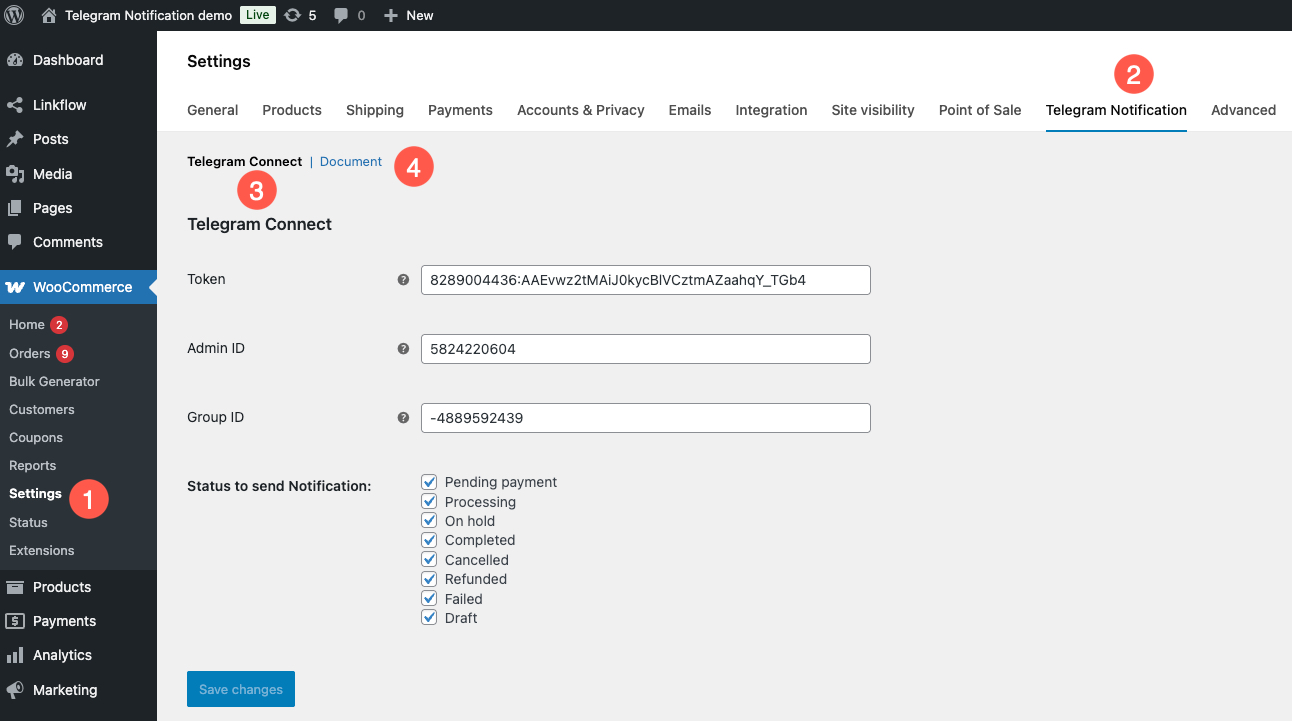
Requesting a Telegram Token
↑ Back to top1. First, create a Telegram bot by adding @BotFather as a friend using this link: https://telegram.me/BotFather
2. Send the command /newbot

3. Then, set a name and username for your bot. Such as ”yourname_bot” you can open the bot by clicking the link t.me/xxxx provided.
4. Copy the token provided and paste it into the settings.

5. Save the settings.
How to get Telegram Admin ID
↑ Back to top
1. Go to (https://web.telegram.org)

Follow instruction to login telegram in your browser
1.1) Open Telegram on your phone
1.2) Go to Settings > Devices > Link Desktop Device

1.3) Point your phone at this screen to confirm login
2. Click hamburger menu on left top corner (☰)
3. Click on Saved Messages
4. Your admin ID will be the number after the # sharp sign on URL (like this 7996175680)

5. After filling in the admin ID, you can click “Test message to the admin”.

How to get Telegram Group ID
↑ Back to top1. Go to (https://web.telegram.org)
2. Click on your Group and Find your link of Group
3. Your group ID will be the number with – dash sign (like this -1002283715492)

4. Add bot to your group
4.1 Copy bot user name

5. After filling in the group ID, you can click “Test message to the group”.

How to Create a Group in Telegram
↑ Back to topOn Mobile (Android / iOS):
↑ Back to top- Open Telegram on your phone
- Tap the pencil icon (✏️)
- Select “New Group”
- Choose contacts to add, then tap Next
- Enter a Group Name (and optional photo)
- Tap Create
On Desktop / Telegram Web:
↑ Back to top- Open Telegram Web or Desktop app
- Click the menu (☰) in the top-left corner
- Select “New Group”
- Pick contacts to add
- Enter a Group Name (and optional photo)
- Click Create
Tips:
↑ Back to top- You must add at least one contact besides yourself
- Groups can be private (invite-only) or public (anyone with the link)
- You can promote members to Admin and manage permissions