
Starting in WooCommerce Subscriptions 9.0.0, the functionality of the standalone All Products for Subscriptions extension is built directly into Subscriptions. Stores that previously used the standalone plugin with global subscription plans need their existing products converted to the new, core storage format. Subscriptions handles this automatically with a one-time product migration that runs in the background.
For most stores this completes on its own with no action required. This article explains how the migration works, how to check its progress, and how to resolve a migration that appears to be stuck — which is almost always an Action Scheduler issue rather than a problem with the migration itself.
Before you troubleshoot: make sure the store is on Subscriptions 9.0.1 or later. 9.0.1 adds an on-screen progress notice and several stability fixes for the 9.0.0 migration, and makes everything below much easier to diagnose.
When the migration runs
↑ Back to topThe migration is not triggered by the 9.0.0 update itself. It starts when both of the following are true:
- The store had storewide subscription plans configured under the standalone APFS plugin, and
- The standalone All Products for Subscriptions plugin is deactivated.
Deactivating the standalone plugin is what kicks off the migration, because the plan/category configuration is read at that moment to reflect the merchant’s final settings. Once the migration has started, the standalone plugin cannot be reactivated — its features now live in Subscriptions.
How it works
↑ Back to topThe migration processes products in batches using Action Scheduler, WooCommerce’s background task queue.
While the migration is in progress, products that haven’t been converted yet continue to display exactly as they did under the standalone plugin, so the storefront stays consistent throughout.
What to expect
↑ Back to top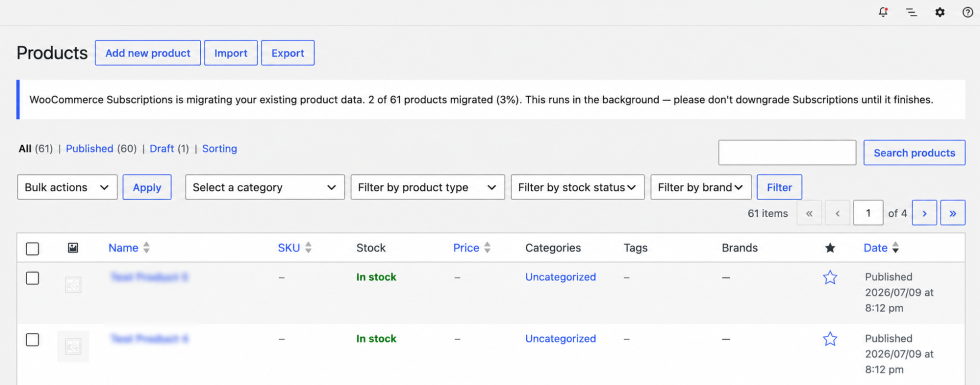
Since 9.0.1 version of WooCommerce Subscriptions show a notice at the top of your WordPress admin while the migration is running.It shows how many of your products have been migrated so far, the total number, and the percentage complete — for example, “120 of 480 products migrated (25%).” Once every product has been migrated, the notice is replaced with a confirmation that the migration has finished, which you can then dismiss. The count doesn’t update on its own — reload the admin page to see the latest progress.
Please don’t downgrade Subscriptions while the migration is running. Wait until you see it has finished. Downgrading part-way through can leave your product data in an incomplete state.
Once the migration is done, you can safely uninstall the standalone All Products for Subscriptions plugin.
Troubleshooting the migration
↑ Back to topIf the migration doesn’t seem to be progressing, a few quick checks resolve most cases before you need to contact us.
- Refresh and give it a moment.
The progress notice only updates when you reload your WordPress admin, so refresh the page first — the migration is often further along than it looks. On larger catalogs, products are processed in batches, so progress moves in steps rather than continuously. - Check your scheduled actions.
The migration runs as a background task, which WooCommerce manages under WooCommerce → Status → Scheduled Actions. Check both of these tabs:- Pending – look for a task with a scheduled date in the past. That’s a task that should have run but hasn’t, which means the migration has stalled (if overdue tasks exist, you may also see a Past-due filter listing them separately).
- Failed – this lists any task that started but hit an error. Each row has a Log column showing what went wrong, usually a technical message such as a timeout or memory limit. This tab matters because a failed batch is the one case where nothing shows under Pending — the migration simply stopped — so it’s the only place you’d see that something went wrong. You don’t need to interpret the error yourself; note it or take a screenshot and include it when you contact support.
- Try running a stalled task.
On a pending task with a past date, hover over it and select Run to process it immediately. This runs a single batch, and the migration then schedules its next one automatically. If the task keeps returning as pending with a past date, your site isn’t running background tasks on its own, and running each batch by hand isn’t practical — especially on larger stores. At that point, contact support (below). - Still stuck? Contact support.
If a batch has failed, or the migration won’t keep progressing on its own, reach out to our support team (see below). We can look into your site’s background-task setup — the part that runs these actions automatically — and get the migration completed from where it left off.
Questions and support
↑ Back to topSomething missing from this documentation? Still have questions and need assistance?
- If you have a question about a specific extension or theme you’d like to purchase, contact us to get answers.
- If you already purchased this product and need some assistance, get in touch with a Happiness Engineer via our support page and select this product’s name from the Product dropdown.