
Visibility Vault gives WooCommerce store administrators control over product visibility, pricing, and purchase options. With this plugin, you can:
- Hide products, prices, or “Add to Cart” buttons for specific users, user roles, countries, or time periods
- Replace prices with custom text
- Modify Add to Cart button (remove completely or replace with custom button/link)
- Control payment method availability with advanced rules
Perfect for geo-targeted promotions, B2B pricing strategies, and exclusive product launches.
Installation
↑ Back to topTo start using a product from WooCommerce.com, you can use the “Add to store” functionality on the order confirmation page or the My subscriptions section in your account.
- Navigate to My subscriptions.
- Find the Add to store button next to the product you’re planning to install.
- Follow the instructions on the screen, and the product will be automatically added to your store.
Alternative options and more information at:
Managing WooCommerce.com subscriptions.

Setup and Configuration
↑ Back to topAfter activating the plugin, follow these steps to configure your rules:
Step 1: Access the Settings
↑ Back to top- After activating Visibility Vault for WooCommerce, you can see “Visibility Vault” under the WooCommerce admin menu. Click to view settings and get started.
- Three tabs will appear:
- General Settings: Global fallback options
- Visibility Rules: Control products, pricing and add to cart button
- Payment Restrictions: Manage payment methods
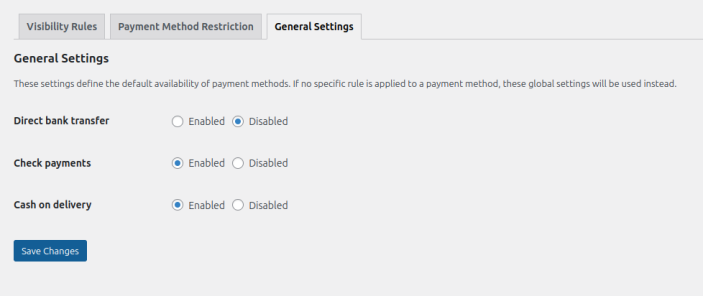
Step 2: Configure General Settings (Fallback Options)
- Enable/Disable Payment Methods:
- Toggle payment gateways (e.g., Bank Transfer, COD) globally.
- These settings apply only if no specific rules exist for a payment method.
- Example:
- Disable “Bank Transfer” here if you want it hidden unless a rule explicitly enables it for certain users.
Step 3: Set Up Visibility Rules
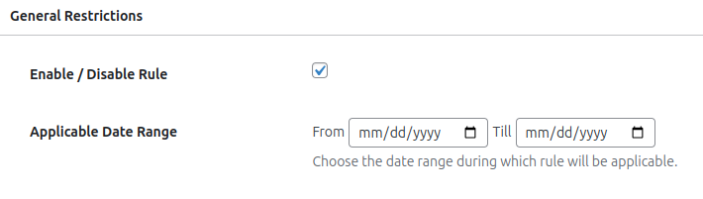
↑ Back to topA. General Restrictions
- Enable/Disable Rule: Turn rules on/off without deleting them.
- Date Range:
- Set
Start DateandEnd Datefor temporary rules (e.g., holiday sales). - Leave blank for permanent rules.
- Set
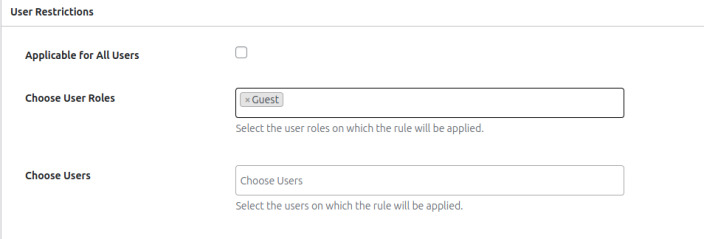
B. User Restrictions (Who is affected?)
- Apply to All Users: Affects every visitor.
- OR Target Specific Users:
- User Roles: Restrict by role (e.g., hide prices from “Guests”).
- Specific Users: Handpick customers from a dropdown.
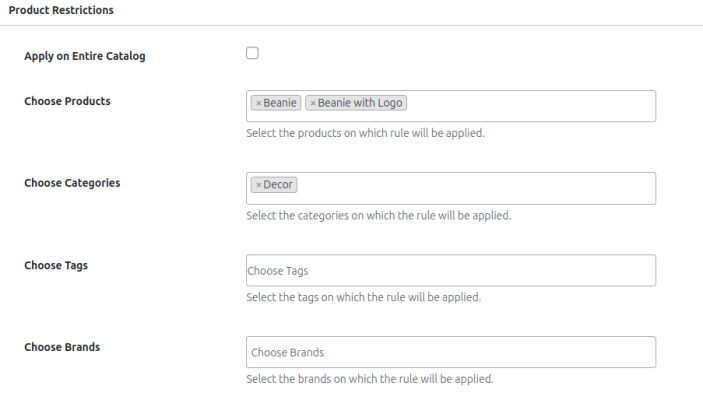
C. Product Restrictions (What is hidden?)
- Entire Catalog: Hide/show all products at once.
- OR Target Specific Items:
- Products: Individual products (e.g., Product X).
- Categories: Whole categories (e.g., “Premium”).
- Tags: Group by tags (e.g., “Summer Collection”).
- Brands: Filter by manufacturer (e.g., “Our Premium Brand”, “Elite Electronics”)
D. Rule Logic (How it works)
1. Country Restrictions
- Select Countries: Choose specific countries (leave empty to apply globally).
- Pro Tip: For country selections, use “Select All” → then remove the few exceptions. This is faster than manually picking many countries (e.g., select all → remove just 2-3 banned countries).

2. Restriction Type
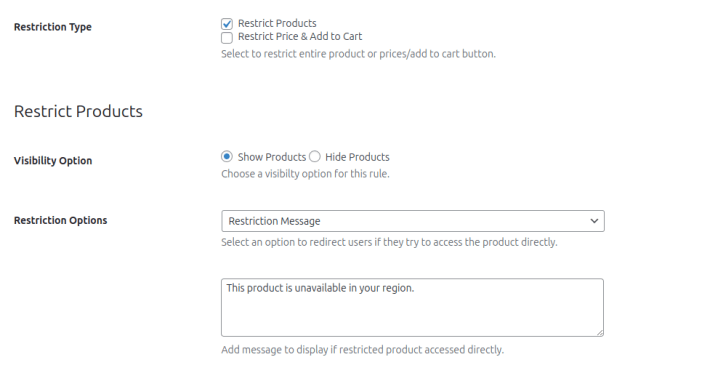
a) Restrict Products
- Show/Hide:
- Show Mode (Whitelist Approach)
- “Only show THESE products to certain users”
- Example: You select 10 premium products and choose “Show”
- Result:
✅ Selected 10 products will appear
❌ All other products will be hidden
- Hide Mode (Blacklist Approach)
- “Only hide THESE products from certain users”
- Example: You select 5 clearance items and choose “Hide”
- Result:
❌ Selected 5 products will disappear
✅ All other products remain visible
- Key Difference
Show= Only what you pick is visible (strict filtering)Hide= Only what you pick disappears (gentle filtering)
- Show Mode (Whitelist Approach)
- If Accessed: Customize what restricted users see:
- Message: “This product is unavailable in your region.”
- Redirect: Send users to a shop page or custom URL.
b) Restrict Price & Add to Cart
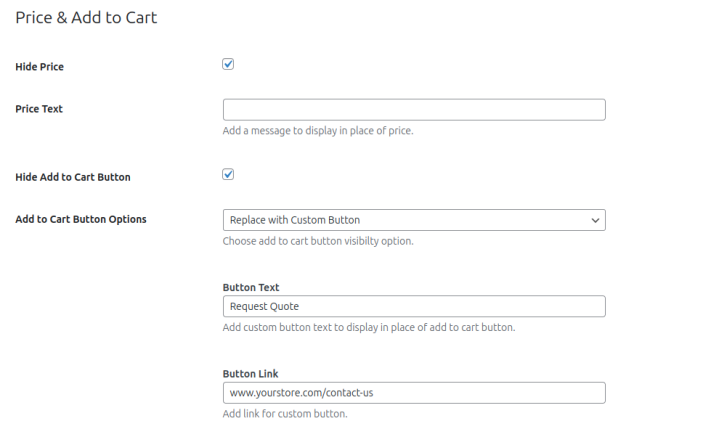
- Hide Price:
- When enabled, the product price will be hidden from view.
- Optional: Replace the price with custom text (e.g., “Contact for price”).
- Leave the text field blank to simply hide the price without replacement.
- Hide Add to Cart Button:
You have three options to control the button behavior:
- Remove Button
- The Add to Cart button will be completely removed.
- No replacement will be shown.
- Custom Button
- Replace the Add to Cart button with your own button.
- Enter button text (e.g., “Request Quote”).
- Add a destination URL (e.g., “https://www.yourstore.com/contact-us“).
- Message Only
- Display custom text instead of the button.
- Example: “Call 1-800-1234 to purchase.”
- No button will appear, only your text message.
E. Rule Priority (Tie-Breaker System)
When multiple rules affect the same product:
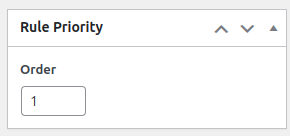
- Rules execute in ascending order (1 = highest priority, 10 = lowest).
- The rule with the smallest priority number wins.
- Think of it as a “first come, first served” system where lower numbers go first.
Example:
- Rule A (Priority 1): Hide product for Guests.
- Rule B (Priority 5): Show product for USA.
- Result: Rule A applies because 1 < 5.
Key Notes:
- No need to prioritize unless rules conflict.
- Only competing rules trigger priority checks.
- Set important rules to 1-3, general ones to 5+.
Step 4: Set Up Payment Method Restrictions
↑ Back to topControl payment gateway availability using advanced rules.
A. General Settings
- Enable/Disable Rule: Toggle rules on/off.
- Date Range: Set active period (leave blank for permanent rules).
B. Payment Method
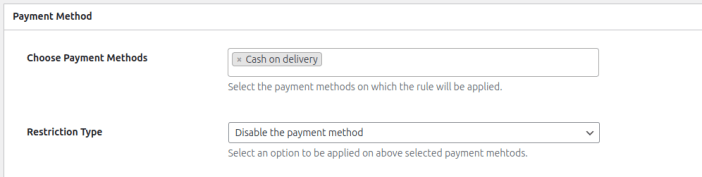
- Choose Payment Methods: Pick the payment options (like PayPal or Cash on Delivery) you want to control from your store’s available methods.
- Restriction Type:
- Enable: Selected payment methods will only appear when your conditions are met (whitelist approach).
→ Example: “Enable COD only for local customers”. - Disable: Selected payment methods will be hidden when your conditions are met (blacklist approach).
→ Example: “Hide credit cards for high-risk countries”.
- Enable: Selected payment methods will only appear when your conditions are met (whitelist approach).
C. User Restrictions
- Apply to All Users: Affects every visitor.
- OR Target Specific Users:
- User Roles: Restrict by role (e.g. “Wholesale”).
- Specific Users: Handpick customers from a dropdown.
D. Cart & Product Conditions
- Cart Amount Range
- Sets minimum/maximum order value requirements
- Example: “$100-500” = only applies to orders between $100 and $500
- Leave both fields blank to ignore order amount
- Cart Quantity Range
- Sets minimum/maximum item count requirements
- Example: “5-20” = only applies to carts with 5-20 items
- Leave both fields blank to ignore item count
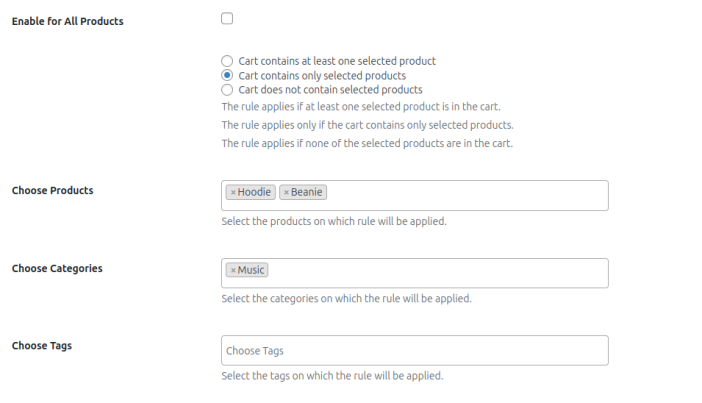
- Enable for All Products
- When checked: Rule affects every product in your store
- When unchecked: Shows additional product targeting options
- Product Targeting Options (appears when “Enable for All Products” is off)
- What to Target?
- Choose Products: Pick exact products (e.g., “Blue T-Shirt XL”)
- Choose Categories: Select full categories (e.g., “Summer Collection”)
- Choose Tags: Filter by tags (e.g., “Sale”, “New Arrival”)
- When to Apply?
- Cart contains at least one selected product
- Example: Apply rule if cart contains ANY item from “Premium” category
- Cart contains only selected products
- Example: Apply ONLY if EVERY item is from “Clearance” section
- Cart does not contain selected products
- Example: Apply if NO “Pre-Order” items are in cart
- Example: Apply if NO “Pre-Order” items are in cart
- Cart contains at least one selected product
- What to Target?
E. Rule Priority
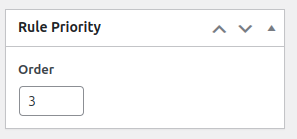
- Rules execute in ascending order by priority number (1 = highest priority).
- When multiple rules affect the same payment method, the rule with the lowest priority number takes precedence.
- Example: If Priority 1 restricts PayPal for international orders while Priority 3 enables PayPal for VIP members, international VIP customers will not have PayPal available (Priority 1 prevails).
- Priority settings only require adjustment when rules conflict for the same payment method.
Step 5: Set Up Shipping Method Restrictions
↑ Back to topA. General Settings
- Enable/Disable Rule: Toggle rules on/off.
- Date Range: Set active period (leave blank for permanent rules).
B. Shipping Method
Choose Shipping Methods:
Select the shipping options (e.g., Free Shipping, Flat Rate, Local Pickup) you want to control.
Disable:
The selected shipping methods will be hidden whenever your rule conditions are met.
→ Example: “Disable Standard Shipping when a bulky or fragile product is in the cart.”

C. User Restrictions
- Apply to All Users: Affects every visitor.
- OR Target Specific Users:
- User Roles: Restrict by role (e.g. “Wholesale”).
- Specific Users: Handpick customers from a dropdown.
D. Cart & Product Conditions
See the Payment Method Restrictions section above — these rules apply the same way for shipping methods.
Common Use Case Walkthroughs
↑ Back to topScenario 1: VIP-Only Product Launch
Goal: Show a new product only to “Gold Member” users.
- Create a visibility rule.
- Under User Restrictions, select all user roles except “Gold Member”
- In Product Restrictions, choose your new product.
- Set Restriction Type to “Hide Products”. Set restriction message “Join our Gold Club” to buy this product.
- Save rule → Only Gold Members will see this product.
Scenario 2: Geo-Based Pricing
Goal: Hide prices for non-logged-in users outside your domestic market.
- Create a new visibility rule.
- In User Restrictions, select “Guest”.
- In Countries, select all except your domestic market.
- Under Restriction Type:
- Check “Hide Price”.
- Enter replacement text: “Create account to view prices”.
- Save rule → International guests see masked prices.
Scenario 3: Cart-Based Payment Control
Goal: Only offer COD for orders containing fragile items.
- In Payment Restrictions, create new rule.
- Choose “Cash on Delivery” as payment method.
- Under Product Rules:
- Uncheck “Enable for All Products”.
- Select “Cart Contains At Least One”.
- Choose “Fragile Items” category.
- Save rule → COD only appears when fragile items are in cart.
FAQs
↑ Back to top
Can I hide prices for guests but show them for logged-in users?
Yes, you can hide prices from guest visitors while showing them to logged-in users. Simply create a visibility rule that targets the ‘Guest’ user role and enables the ‘Hide Price’ option. When saved, this will automatically display prices to all registered users while hiding them from non-logged-in visitors. For better UX, you can optionally add replacement text like ‘Sign in to view pricing’ where prices would normally appear.
Why does my country-based rule conflict with my user role rule?
Adjust Priority numbers. Lower numbers win (e.g., set country rule to *1* and user role rule to *2* if country should override).
Can I show different custom messages for price restrictions by country?
Yes. Create separate rules per country group with unique “Replace price with custom message” text in each.

