Gravity Forms Product Add-ons, also called WooCommerce Gravity Forms Product Add-ons, is a WooCommerce product configurator built on Gravity Forms. It attaches a Gravity Forms form to a WooCommerce product page, updates pricing in real time as customers select options, and records every detail on the cart item, the order, the order emails and a linked Gravity Forms entry.
Stores use Gravity Forms Product Add-ons for engraving and personalization, made-to-order and configure-to-order products, custom-priced products, deposits and donations.
Can Gravity Forms Product Add-ons do this?
↑ Back to top| Question | Answer |
|---|---|
| Product options that change the price | Yes. Gravity Forms Product Add-ons adds the form’s Product and Option field prices to the WooCommerce product price, and the product page shows the product price, the options total and the grand total as the customer selects options. |
| Conditional logic, calculations and multi-page forms | Yes. Gravity Forms Product Add-ons runs the form on the product page with its conditional logic, calculated prices, validation and multi-page navigation. |
| Repeater fields | Yes. Gravity Forms Product Add-ons supports the Gravity Forms Repeater field in Gravity Forms 3.2 and later. Product and Option fields in each row add to the price, the cart and order show one line per row, and the cart’s Edit link restores every row. |
| One form for many products | Yes. Gravity Forms Product Add-ons attaches a form to product categories and tags from the form’s WooCommerce tab, and every product in them uses that form. |
| Settings shared by every product that uses a form | Yes. Gravity Forms Product Add-ons keeps the WooCommerce settings on the form, and each product follows them or uses its own settings section by section. |
| Cart editing | Yes. Gravity Forms Product Add-ons adds an Edit link to the cart item, which opens the product with the customer’s selections filled in. Cart editing is a setting, on or off per form or product. |
| Custom cart item and order descriptions | Yes. Gravity Forms Product Add-ons shows every selection, a chosen set of fields, or one block of text built from Gravity Forms merge tags under the item in the cart, at checkout, on the order and in emails. |
| Shipping weight, dimensions and quantity from form fields | Yes. The Gravity Forms Product Add-ons field map sets the cart item’s weight, length, width, height and quantity from form fields, so shipping rates and shipping labels use the customer’s numbers. |
| Block themes | Yes. Gravity Forms Product Add-ons works with block themes such as Purple and Twenty Twenty-Five. The form, the live totals and cart editing work in single-product templates built with the Add to Cart with Options block or the Add to Cart Form block. |
| WooCommerce Cart and Checkout blocks | Yes. Gravity Forms Product Add-ons shows each selection on its own line in the Cart, Mini-Cart and Checkout blocks, with the Edit link in the Cart block. |
| Headless stores and AI shopping assistants | Yes. Gravity Forms Product Add-ons publishes each product’s form on the WooCommerce Store API and adds items with their form values, validated and priced the same way as on the product page. |
| Gravity Forms entries linked to orders | Yes. Gravity Forms Product Add-ons creates one Gravity Forms entry per ordered item, linked both ways to the order, with the order’s payment status and transaction on the entry. |
| Gravity Forms notifications | Yes. Gravity Forms Product Add-ons sends the form’s notifications when the customer places the order. Notifications are a setting, on or off per form or product. |
| Variable products, subscriptions and bookings | Yes. Gravity Forms Product Add-ons works on simple and variable products, WooCommerce Subscriptions products, including entries for renewal orders, and WooCommerce Bookings products. |
| WooCommerce Quick View Pro | Yes. Gravity Forms Product Add-ons shows the product’s form, with its prices and totals, in the WooCommerce Quick View Pro modal, and customers add the configured product to the cart from it. |
| Gravity Perks | Yes. Gravity Forms Product Add-ons works with Populate Anything, Conditional Pricing, Limit Choices, Nested Forms and many other Gravity Perks. To check a perk on your store, add it to the form and test the form on a product. |
| Hooks and filters for developers | Yes. Gravity Forms Product Add-ons provides filters and actions for cart item data, order item meta, pricing, field visibility, notifications and cart editing. The developer section lists the common ones. |
Requirements
↑ Back to top- WordPress 6.9 or later
- WooCommerce 11.0 or later
- Gravity Forms 2.9 or later, any license
- PHP 7.4 or later
Quick start 1: Add a form to a product
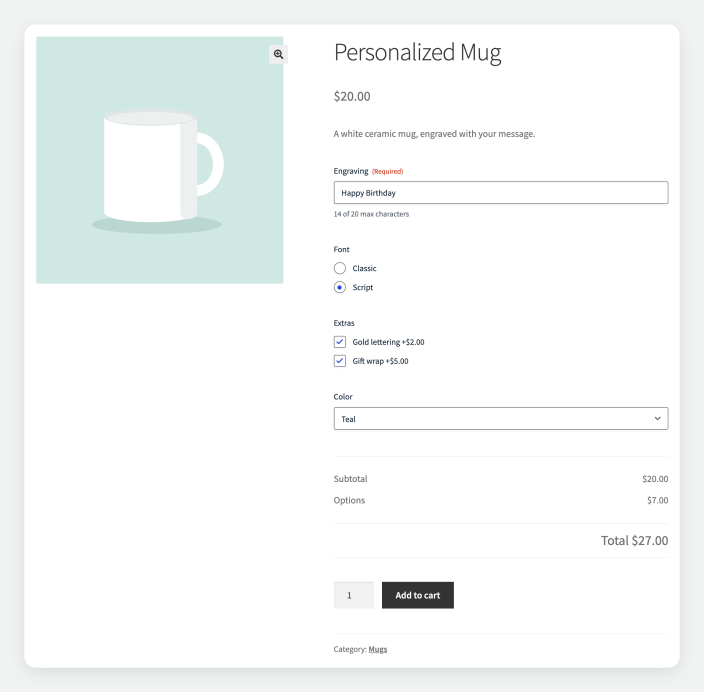
↑ Back to topThis example configures a Personalized Mug priced at $20, with an engraving, a font choice and two priced extras: gold lettering at $2 and gift wrap at $5.
- In Gravity Forms, build the form: a Single Line Text field for the engraving, a Radio Buttons field for the font, a hidden Product field at $0 for the mug, and an Option field with checkboxes for Gold lettering at $2 and Gift wrap at $5. Prices that change the item’s price belong in Product and Option fields.
- Edit the product and give it a Regular Price of $20. Use $0 when the form sets the whole price.
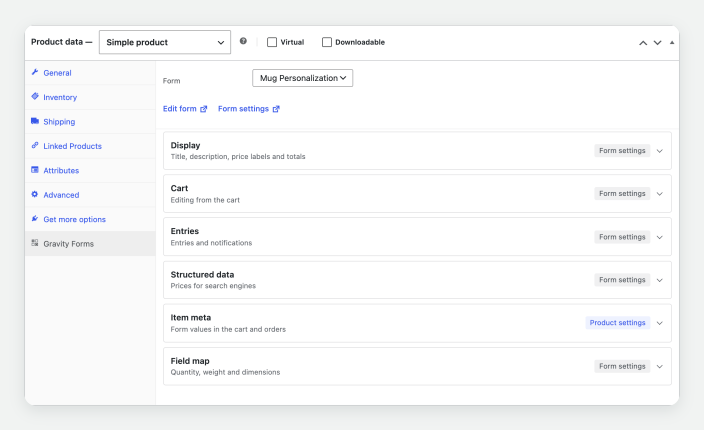
- Open Product data > Gravity Forms, choose the form under Form, and update the product.
The product page displays the form with its totals. With gold lettering and gift wrap selected, the totals show a subtotal of $20, options of $7 and a total of $27.
Quick start 2: Assign a form to a category or tag
↑ Back to top- Open Forms > your form > Settings > WooCommerce.
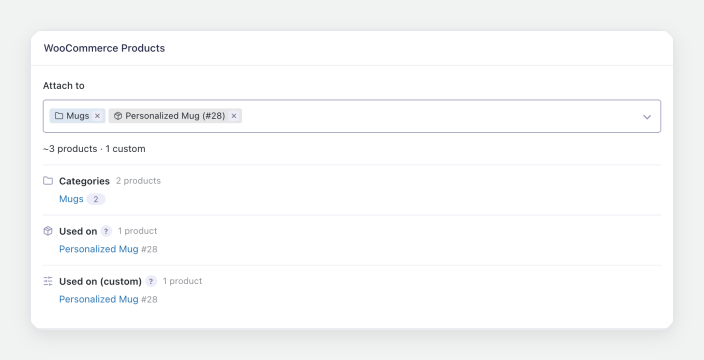
- In Products, type the category or tag name and choose it. Products can be added one by one in the same box.
- Save the settings.
Every product in the category uses the form. The tab lists the categories, the tags and the products that use the form. A product with its own form chosen keeps that form.
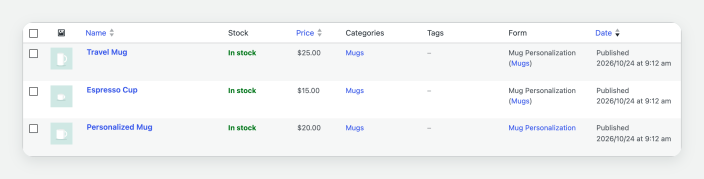
To see which form each product uses, turn on the Form column under Screen Options on Products > All Products. The column filters the list by form.
Form settings and product settings
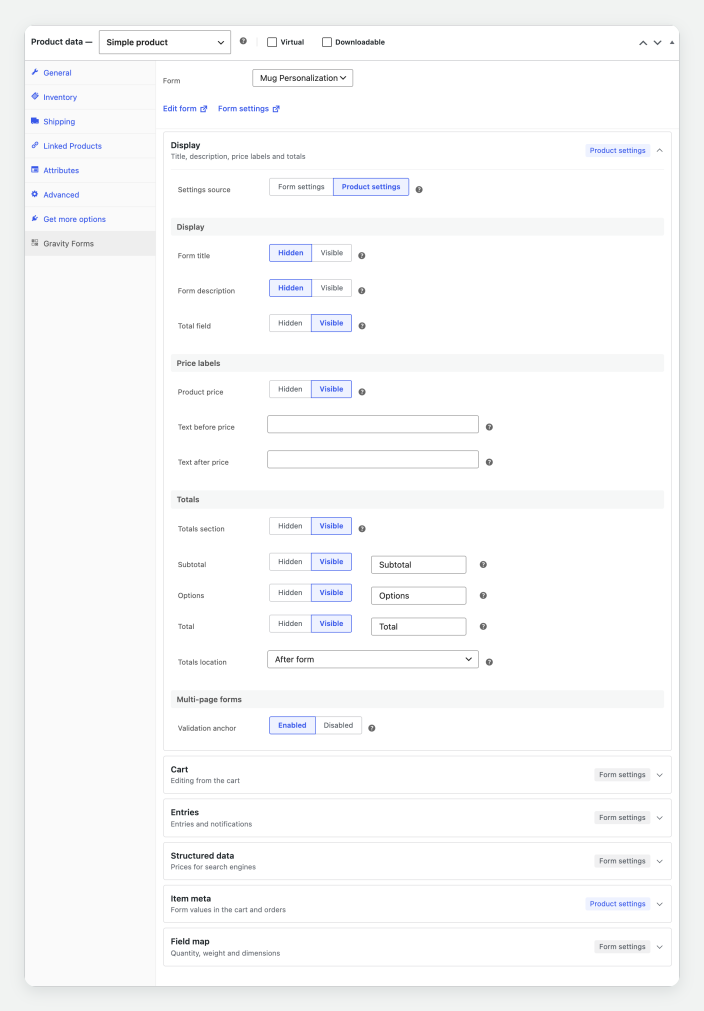
↑ Back to topThe WooCommerce tab on a form holds the settings every product using that form follows. The product’s Gravity Forms tab holds the same settings in six sections. Each section has a Settings source:
- Form settings: the section follows the form, and shows a link to the form’s settings.
- Product settings: the section uses the product’s own settings.
The badge on each section’s heading shows its source while the section is closed. Products set up before form settings existed use Product settings in every section, so their behavior stays as configured.
Reference: settings
↑ Back to topThe same settings appear on the form’s WooCommerce tab and on the product’s Gravity Forms tab.
Display
↑ Back to top| Setting | Choices | What it does |
|---|---|---|
| Form title | Hidden | Visible | Shows the form’s title above the form. |
| Form description | Hidden | Visible | Shows the form’s description above the form. |
| Total field | Hidden | Visible | Shows the form’s own Gravity Forms Total field on the product page. Hidden keeps the field working, so the entry still records its total. |
| Product price | Hidden | Visible | Shows the product’s price in the store. Choose Hidden when the form sets the whole price; the text before and after the price still shows. |
| Text before price | Text | Shown before the product’s price, such as From. |
| Text after price | Text | Shown after the product’s price, such as per mug. |
| Totals section | Hidden | Visible | Shows the subtotal, options and total lines with the form. Choose Hidden when no field adds to the price. |
| Subtotal, Options, Total | Hidden | Visible, and a label | Shows each line, with its own label. Defaults: Subtotal, Options, Total. |
| Totals location | After form | Before form | Places the totals after or before the form. |
| Validation anchor | Enabled | Disabled | Scrolls to the form when a multi-page form has an error. |
| Dynamic Pricing | Enabled | Disabled | Applies Dynamic Pricing to the totals as the customer selects options. Shown while Dynamic Pricing is active. |
Cart
↑ Back to top| Setting | Choices | What it does |
|---|---|---|
| Cart editing | Enabled | Disabled | Adds an Edit link to the item in the cart. The link opens the product with the form filled in, and saving returns the customer to the cart. |
| Original cart item | Replace it | Keep both | Replaces the edited item, or keeps it and adds the new one. |
Entries
↑ Back to top| Setting | Choices | What it does |
|---|---|---|
| Abandoned cart entries | Keep | Delete | Keeps the entry made when the item is added to the cart, even when the order is never placed. With Keep, Gravity Forms add-ons that run on form submission run when the item is added to the cart. |
| Entry payment updates | Enabled | Disabled | Copies the order’s payment status and transaction to the entry as the order changes. |
| Notifications | Enabled | Disabled | Sends the form’s notifications when the item is ordered. |
Structured data
↑ Back to topSearch engines read product prices from structured data. For products priced by their forms, these settings publish a price that includes the form’s options.
| Setting | Choices | What it does |
|---|---|---|
| Override structured data | Yes | No | Replaces the product’s price in the structured data. |
| Price type | Flat price | Price range | One price, or a range from lowest to highest. |
| Price | Amount | The price for a flat price. |
| Minimum price, Maximum price | Amounts | The range for a price range. |
| Product price | Add to it | Replace it | Adds these amounts to the product’s price, or uses them in its place. |
Item meta
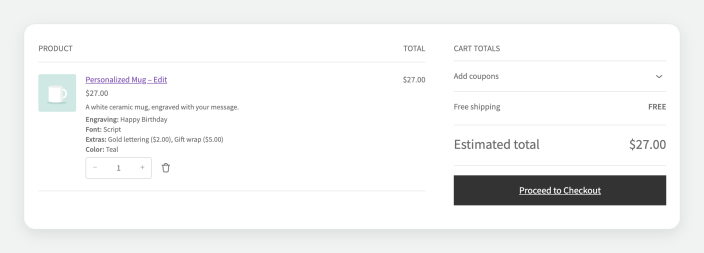
↑ Back to topItem meta is the list of the customer’s selections under the item in the cart, at checkout, on the order and in order emails.
| Setting | Choices | What it does |
|---|---|---|
| Item meta | Default | Custom | Default lists the form’s fields. Custom shows one block of text built from a template. |
| Item meta fields | Include all fields | Include all fields except | Exclude all fields except | Which fields the customer sees. Fields left out still show on the order screen, and stay out of emails. |
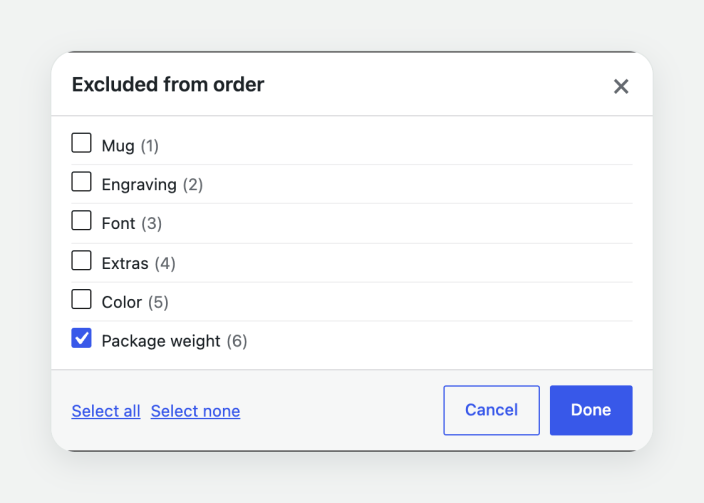
| Excluded from order | Fields | Fields left off the item for everyone. Their values stay on the Gravity Forms entry. |
| Item meta template | Text with merge tags | The Custom text, labeled Options. Use Gravity Forms merge tags, one value per line. |
| Block cart layout | One per line | WooCommerce default | How the selections show in the Cart, Mini-Cart and Checkout blocks. |
On the product’s tab, Choose fields opens a list of the form’s fields with their field IDs.
Example template:
Engraving: {Engraving:2}
Extras: {Extras:4}
Field map
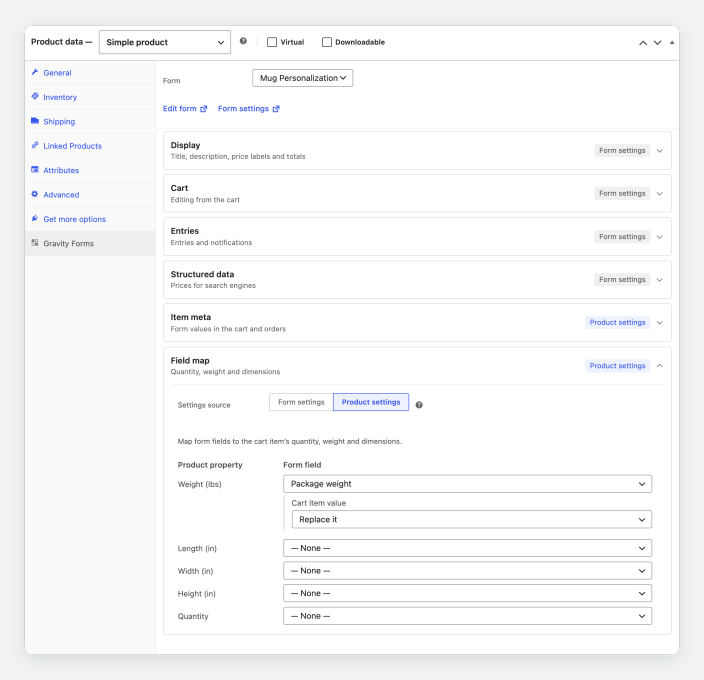
↑ Back to topThe Field map sets the cart item’s weight, length, width and height from the form’s Number fields, and its quantity from a Number, Quantity or Single Product field. Shipping rates, the order and shipping labels use the mapped values.
| Row | Choices | What it does |
|---|---|---|
| Weight, Length, Width, Height | A form field, then Replace it | Add to it | Replaces the product’s own value with the field’s value, or adds the field’s value to it. |
| Quantity | A form field, then Map to Cart Item | Map to Stock Only | Map to Cart Item sets the cart item’s quantity. Map to Stock Only keeps the cart quantity and reduces stock by the field’s value when the order is placed. |
Cart, checkout and order details
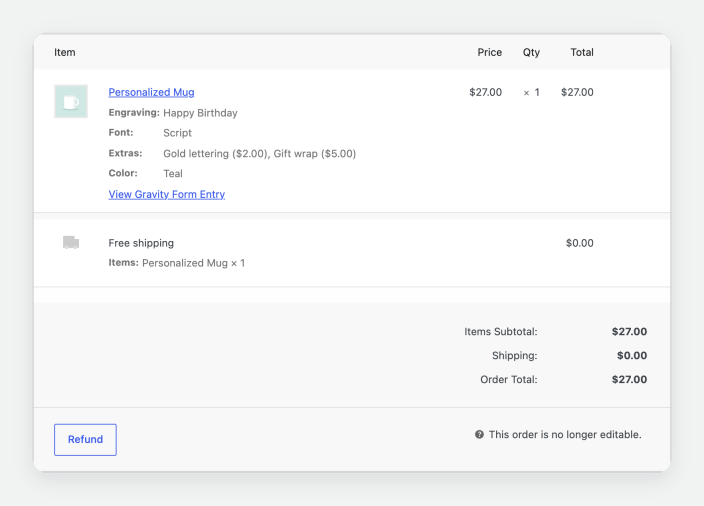
↑ Back to topThe customer’s selections show under the item in the cart, at checkout, on the order and in order emails. Two items with different selections are separate cart items; the same selections add to the quantity.
When the order is placed, each item gets its own Gravity Forms entry. The order item links to its entry, and the entry links to its order. With Entry payment updates enabled, the entry also carries the order’s payment status and transaction.
Form setup
↑ Back to top- Prices belong in Gravity Forms Product and Option fields. The product’s Regular Price is the starting price, and it needs a value, $0 when the form sets the whole price.
- A Total field is optional. The product page shows its own totals, and the Total field setting hides the form’s Total field.
- Gravity Forms Total fields stay off cart items and orders. The item’s price already includes every option, and the entry still saves the total. To list Total fields on items, add
add_filter( 'woocommerce_gforms_hide_total_field', '__return_false' ); - Product forms are submitted with the add to cart, so the form’s AJAX setting and confirmation are bypassed on the product page.
- Gravity Forms’ honeypot, link detection and reCAPTCHA v3 are disabled for forms on products. A CAPTCHA field prevents the item from being added to the cart, so use CAPTCHA fields only on forms outside product pages.
- On variable products, with Bulk Variation Forms active, Choose Bulk Form on the product’s Gravity Forms tab sets the form shown with the bulk variations grid. Without one, the grid uses the product’s form.
- Test a new form on a page first. A form that submits correctly there works the same way on a product.
Supported fields
↑ Back to top| Group | Fields |
|---|---|
| Standard | Single Line Text, Paragraph Text, Drop Down, Multi Select, Number, Checkboxes, Radio Buttons, Hidden, HTML, Section |
| Advanced | Name, Date, Time, Phone, Address, Website, Email, File Upload, List (stored on the order as text), Repeater (Gravity Forms 3.2 and later; one line per row), Page |
| Pricing | Product, Option, Quantity, Shipping, Total |
For developers
↑ Back to topStore API
↑ Back to topA product’s form is published on the Store API product response under extensions["gravityforms-product-addons"]: the form ID and, for each field the customer fills in, its ID, type, label, whether it is required, the inputs to send and, for choice fields, the exact value to send for each choice.
GET /wp-json/wc/store/v1/products/123Add the item with the form’s values in gravity_form_values, keyed the way Gravity Forms names its inputs:
POST /wp-json/wc/store/v1/cart/add-item
{
  "id": 123,
  "quantity": 1,
  "gravity_form_values": {
    "input_1": "Happy Birthday",
    "input_2": "Script|2"
  }
}
The values go through the product page’s own validation and pricing. A missing or invalid value returns a 400 response that names each input. File Upload fields take their files on the product page.
Filters
↑ Back to top| Filter | Use |
|---|---|
woocommerce_gforms_hide_total_field | Return false to list Total fields on cart items and orders. |
woocommerce_gforms_strip_meta_html | Return false to keep a field’s HTML on the order, such as a List field’s table. |
woocommerce_gforms_field_display_text | Change a field’s text under the item in the cart and on the order. |
woocommerce_gforms_item_meta_rows | Change the item’s selection rows in the cart and on the order. The fifth argument, $context, is 'cart' or 'order'. |
woocommerce_gforms_cart_edit_redirect | Change where the customer goes after saving an edited cart item. |
woocommerce_gforms_disable_form_antispam | Return false to keep Gravity Forms’ anti-spam checks on product forms. |
woocommerce_gforms_form_output_hook | Move the form on variable products to another WooCommerce hook. |
A form field with the CSS class wc-gforms-hide-from-email stays off emails, and wc-gforms-hide-from-email-and-admin stays off the order as well.
FAQ
↑ Back to topHow is the final price calculated?
↑ Back to topGravity Forms Product Add-ons prices the cart item as the WooCommerce product price plus the total of the form’s Product and Option fields. A $20 product with options totaling $7 is added to the cart at $27. A Regular Price of $0 lets the form set the whole price.
Can one Gravity Form be used on many WooCommerce products?
↑ Back to topYes. Gravity Forms Product Add-ons attaches a form to product categories and tags on the form’s WooCommerce tab, and a form can also be chosen on any number of products one by one. Settings made on the form apply to every product that uses it.
Can customers edit a configured product from the cart?
↑ Back to topYes. With Cart editing enabled, Gravity Forms Product Add-ons adds an Edit link to the cart item. The link opens the product with the customer’s selections filled in, and saving returns the customer to the cart with the item updated.
Does Gravity Forms Product Add-ons support the Gravity Forms Repeater field?
↑ Back to topYes. Gravity Forms Product Add-ons supports the Repeater field in Gravity Forms 3.2 and later. Customers add a row for each person or item, product fields inside each row add to the price, and the cart, the order and emails show one line per row.
Does it work with the WooCommerce Cart and Checkout blocks?
↑ Back to topYes. Gravity Forms Product Add-ons works with the Cart, Mini-Cart and Checkout blocks and with the classic cart and checkout. The blocks show each selection on its own line.
Does Gravity Forms Product Add-ons work with block themes?
↑ Back to topYes. Gravity Forms Product Add-ons works with block themes, including Purple and Twenty Twenty-Five. The form, the live totals and cart editing work in single-product templates that use the Add to Cart with Options block or the Add to Cart Form block.
What shows under the item in the cart and on the order?
↑ Back to topGravity Forms Product Add-ons shows the customer’s selections under the item in the cart, at checkout, on the order, on the customer’s account and in order emails. The Item meta settings choose every field, a set of fields, or one block of text built from merge tags.
Can form fields set the shipping weight, dimensions or quantity?
↑ Back to topYes. The Gravity Forms Product Add-ons field map sets the cart item’s weight, length, width and height from Number fields, and its quantity from a Number, Quantity or Single Product field. Shipping rates and labels use the mapped values.
Which Gravity Forms add-ons and Gravity Perks work with it?
↑ Back to topGravity Forms Product Add-ons runs the form with Gravity Forms’ own conditional logic, calculations, validation, multi-page forms and notifications. Gravity Forms Product Add-ons works with Populate Anything, Conditional Pricing, Limit Choices, Nested Forms and many other Gravity Perks. To check an add-on or perk on your store, add it to the form and test the form on a product.
Does it send Gravity Forms notifications?
↑ Back to topYes. With Notifications enabled in the Entries section, Gravity Forms Product Add-ons sends the form’s notifications when the customer places the order.
Does it work with WooCommerce Subscriptions and Bookings?
↑ Back to topYes. Gravity Forms Product Add-ons works with WooCommerce Subscriptions products, including entries for renewal orders, and with WooCommerce Bookings products.
Why doesn’t the form show on the product?
↑ Back to topGravity Forms Product Add-ons shows the form on purchasable products, so the product needs a Regular Price, $0 when the form sets the whole price. A JavaScript error from the theme or another plugin also prevents Gravity Forms from rendering the form; the browser console identifies the script.
Are Gravity Forms entries duplicated?
↑ Back to topGravity Forms Product Add-ons deletes the entry made when the item is added to the cart, and the order makes one entry per item. With Abandoned cart entries set to Keep, the cart entry stays as well.
How do I keep a large form fast?
↑ Back to topSplit the form into pages with Page fields, and use conditional logic to show each customer only the fields their choices need.
Why don’t the options add to the price?
↑ Back to topEach Option field must be assigned to a Product field. On a Product field whose quantity the customer doesn’t choose, check Disable quantity field.
Can a choice change the product image?
↑ Back to topForm fields leave the product image unchanged. Variations change the image, and a variable product can use a form as well.
Does it work with the Partial Entries add-on?
↑ Back to topPartial Entries saves forms that are started but not submitted. Gravity Forms Product Add-ons creates its entries when the item is ordered, so product forms fall outside what Partial Entries records.
Questions and support
↑ Back to topHave a question before you buy? Please fill out this pre-sales form.
Already purchased and need some assistance? Get in touch with the developer via the Help Desk.