
Use this setup when you deliver only within a fixed service area and want Distance Rate Shipping to stop returning rates beyond a maximum distance.
Before you begin
↑ Back to top- Add Distance Rate Shipping to the shipping zone that covers the delivery area.
- Configure the store origin and distance calculation settings for Distance Rate Shipping.
- Use the same distance unit in the rule that you use for the delivery range.
Set a maximum distance
↑ Back to top- Go to WooCommerce > Settings > Shipping > Shipping zones.
- Select the shipping zone that contains the Distance Rate Shipping method.
- Select Edit for the Distance Rate Shipping method.
- In Distance Rate Rules, add or edit a rule.
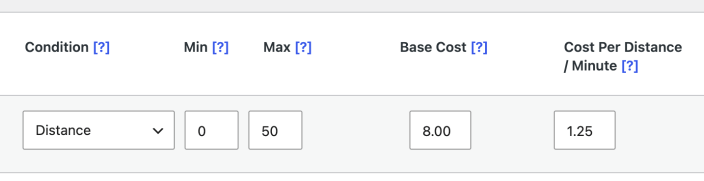
- Set Condition to Distance.
- Leave Min blank or set it to 0.
- Set Max to the largest distance you deliver to. For example, enter 50 to offer Distance Rate Shipping only within 50 miles or kilometers, depending on your unit setting.
- Set the rule’s cost fields for in-range delivery.
- Select Save changes.
The finished rule looks like this:
Expected result
↑ Back to topWhen the calculated distance is within the rule’s maximum, Distance Rate Shipping can return the matching rate at checkout. When the calculated distance is beyond the maximum, that rule does not match. If no other shipping methods or Distance Rate rules match the package and address, checkout shows the store’s no-shipping-method message.
Test the rule
↑ Back to top- Test one customer address inside the maximum distance.
- Test one customer address outside the maximum distance.
- If you use other shipping methods in the same zone, confirm which method appears when Distance Rate Shipping does not return a rate.

