
Introduction
↑ Back to topOrder Limit for WooCommerce is a WooCommerce extension by Xfinity Soft that sets minimum and maximum order limits in your store. You can limit how many items, or how much money, shoppers can buy of a product, a variation, a category, a vendor’s products or the whole cart. You can limit how many orders each customer places, or how much they spend, per day, week, month or year. And you can limit how many orders your whole store takes.
Shoppers see the limit before they buy: on the product page, in the shop, in the cart and at checkout, in words you choose. An order that breaks a limit is stopped at checkout, with the Cart and Checkout blocks and with the classic cart and checkout.
Store owners use Order Limit to:
- Stop one shopper from buying all of a sale item or a product with low stock.
- Set a minimum order amount, like $25, or a wholesale minimum of 20 items.
- Limit orders per customer, like one order a day.
- Take only as many orders as they can make or ship each day.
- Restrict orders by payment method, like Cash on delivery up to $200 a day.
- Run a limited release: 100 in total, then it is sold out.
What you can limit
↑ Back to top| Kind of limit | What it limits | Example |
|---|---|---|
| Products | Items or money spent on one or more products or variations, in each order or over time. | Canvas Tote Bag: 2 to 5 per order. |
| Categories | Items or money spent in one or more categories, sub-categories included. | Up to 3 hats a week for each shopper. |
| Cart total | The whole cart, by money spent or by number of items. | Orders of at least $25. |
| Customers | How many orders a shopper places, or how much they spend, over a time you choose. | One order a day per customer. |
| Vendors | What shoppers buy from each vendor shop on a WC Vendors marketplace. | 2 to 6 items from Northwind Studio. |
| The whole store | How many orders, or how much in sales, your store takes. Set under Settings. | 200 orders a day, then stop. |
Requirements
↑ Back to top- WordPress 6.2 or later.
- WooCommerce 8.0 or later.
- PHP 7.4 or later.
Order Limit works with the Cart and Checkout blocks, the classic cart and checkout, and High-Performance Order Storage (HPOS). Vendor limits need WC Vendors. Limits for members need WooCommerce Memberships.
Installation
↑ Back to top- Download the .zip file from your WooCommerce.com account: My Account > Downloads.
- In your WordPress admin, go to Plugins > Add New Plugin > Upload Plugin and choose the file.
- Click Install Now, then Activate Plugin.
- Go to Order Limit in the WordPress menu.
Updating from version 5
↑ Back to topUpdate as usual. The first time you open Order Limit, your rules, settings, messages and exclusions move to the new screen. Nothing is deleted, and messages you wrote stay exactly as you wrote them.
If you use the free version
↑ Back to topWhen you turn on Order Limit for WooCommerce, it turns the free version off, because it does everything the free version does. Your limits, settings and messages are kept.
Getting started
↑ Back to topThe Order Limit screen
↑ Back to topGo to Order Limit in the WordPress menu. Everything is on one screen, in four tabs:
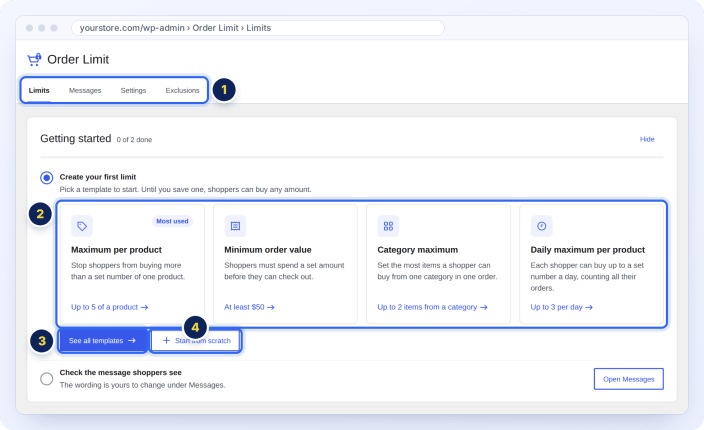
- The tabs: Limits (all your limits), Messages (the words shoppers see), Settings (what shoppers see, store limits and how orders are counted) and Exclusions (products left out of limits).
- The first time, a short Getting started checklist offers the most used templates. Click one to start.
- See all templates opens every template.
- Start from scratch opens an empty limit.
You can hide the checklist any time.
Start from a template
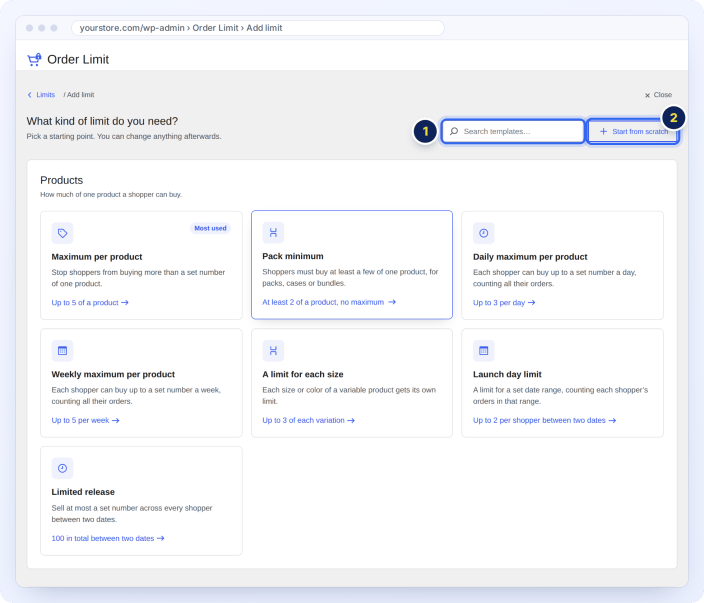
↑ Back to topClick Add limit on the Limits tab. Templates are ready-made limits for what most stores need. Pick one, change anything you like, and save. Search the templates (1), or click Start from scratch (2) for an empty limit.
| Group | Templates |
|---|---|
| Products | Maximum per product, Pack minimum, Daily maximum per product, Weekly maximum per product, A limit for each size, Launch day limit, Limited release |
| Categories | Category maximum, Category minimum, One category per order |
| The whole cart | Minimum order value, Most items in a cart, Wholesale minimum, Wholesale buyers minimum, Cash on delivery limit |
| Customers | One order a day per customer, Monthly spending limit, Limit for guests |
| The whole store | Daily order limit for the store, Close the store for a while |
Take the guided tour
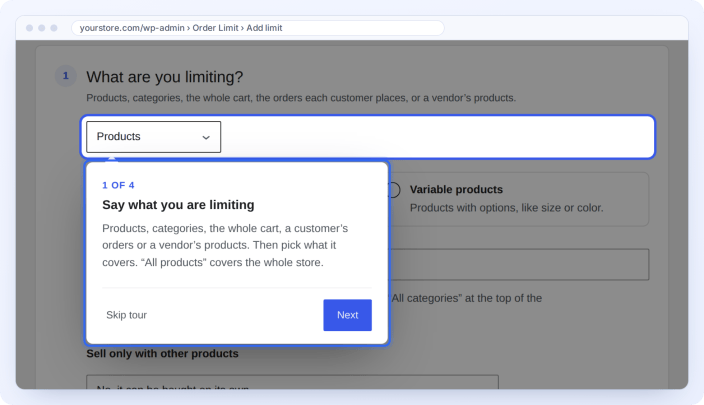
↑ Back to topThe first time you open the limit builder, a four-step tour shows what each part does. Click Next to go on, or Skip tour to close it.
Create an order limit
↑ Back to topEvery limit is made in the same steps, from top to bottom. At the end, the limit reads back as one plain sentence, so you can check it before you save. The example below is a product limit: shoppers must buy 2 to 5 Canvas Tote Bags in each order.
Step 1: Choose what you are limiting
↑ Back to top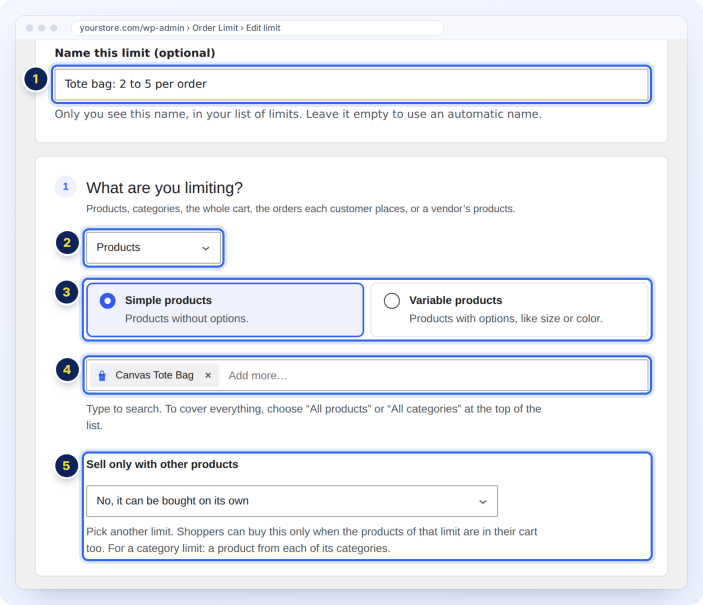
- Name this limit. Optional. Only you see this name, in your list of limits. Leave it empty to use an automatic name.
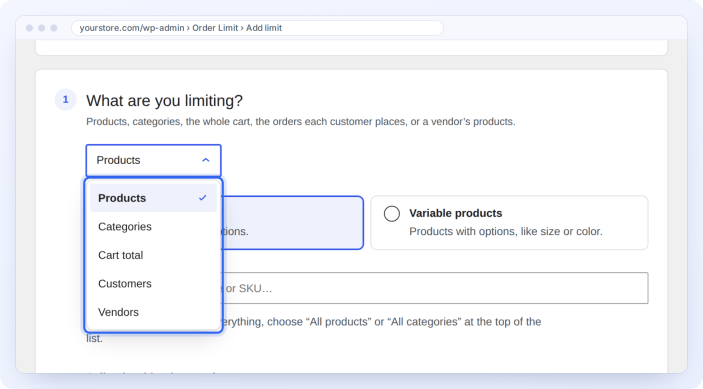
- What are you limiting? Choose Products, Categories, Cart total, Customers or Vendors.
- Kind of product. For products, choose Simple products, or Variable products for products with options like size or color.
- Pick the products. Type a name or SKU to search. To cover your whole store, choose All products or All categories at the top of the list.
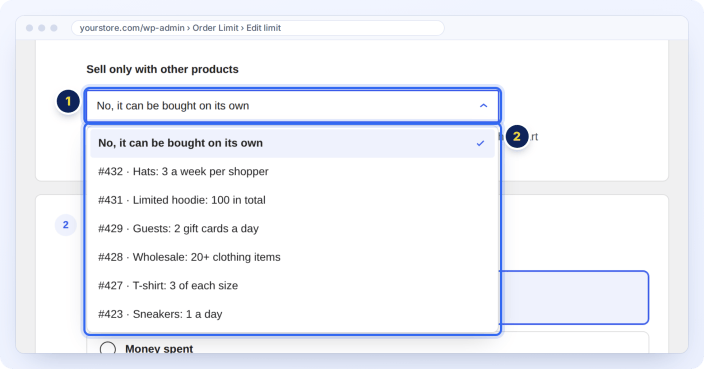
- Sell only with other products. Optional. Pick another limit, and shoppers can buy these products only when the products of that limit are in their cart too.
Step 2: Set the minimum and maximum
↑ Back to top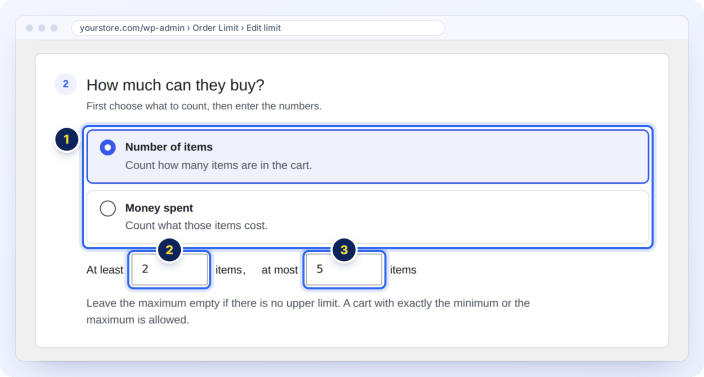
- Choose what to count: Number of items or Money spent.
- Enter the minimum in At least.
- Enter the maximum in At most. Leave it empty if there is no upper limit.
A cart with exactly the minimum or the maximum is allowed. With at least 2 and at most 5, shoppers can buy 2, 3, 4 or 5.
Step 3: Count products together or separately
↑ Back to top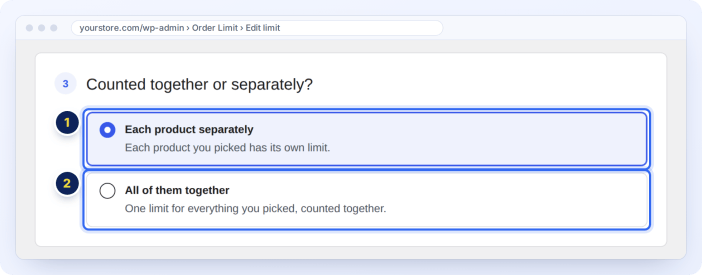
- Each product separately. Each product you picked has its own limit. With two products picked, shoppers can buy 2 to 5 of each.
- All of them together. One limit for everything you picked. Shoppers can buy 2 to 5 items in total from those products.
Step 4: Choose who the limit applies to
↑ Back to top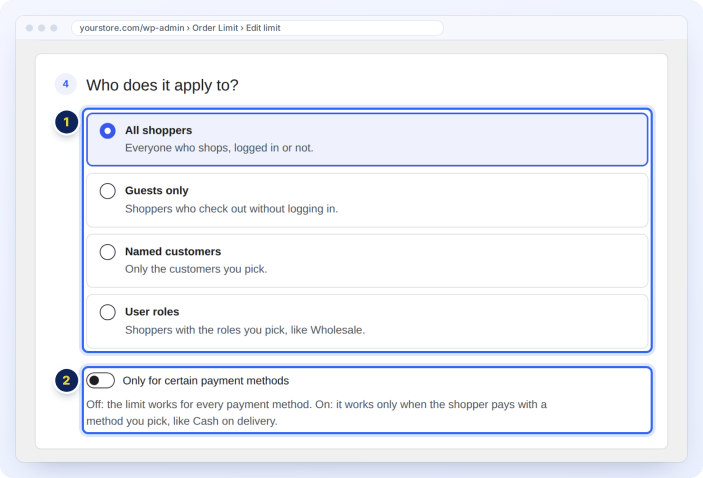
- Choose who is limited: All shoppers, Guests only, Named customers (the customers you pick), User roles (like Wholesale buyer), or Members of WooCommerce Memberships plans.
- Turn on Only for certain payment methods to apply the limit only when the shopper pays with a method you pick, like Cash on delivery. This is checked at checkout, after the shopper picks how to pay.
Step 5: Count what shoppers bought before
↑ Back to topChoose whether only the cart counts, or also what the shopper bought earlier:
- Only this cart. Each order is checked on its own.
- This cart plus what the shopper bought earlier. What the shopper already bought in the period counts toward the limit. This is how you make a daily, weekly, monthly or yearly purchase limit.
- All shoppers share one limit. Everyone’s orders count together, like 100 sold in total. Good for limited stock.
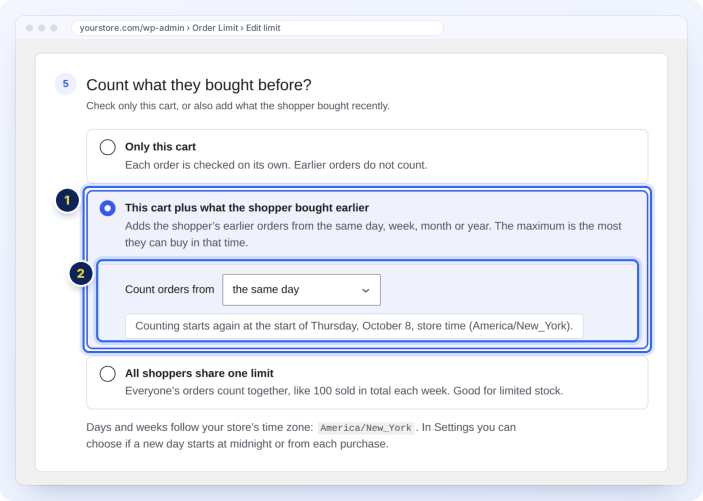
In Count orders from, choose the period: the same day, the same week (and the day it starts), the same month, the same year, the last few days, or two dates you choose. The line under it tells you when counting starts again, in your store’s time zone. Each period follows the settings under When daily, weekly, monthly and yearly limits reset.
For a limit checked in each order, you can still run it between two dates only: turn on Only between two dates under Only this cart. This is how the Launch day limit template works.
Step 6: Check the message
↑ Back to top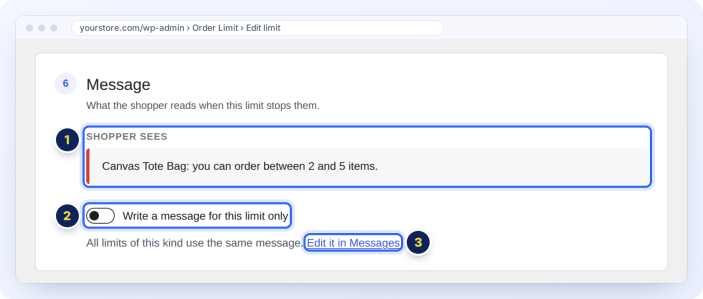
- Shopper sees shows the exact message a shopper gets when this limit stops them.
- Turn on Write a message for this limit only to write a message just for this limit.
- Or click Edit it in Messages to change the shared message for every limit of this kind.
Check the sentence and save
↑ Back to top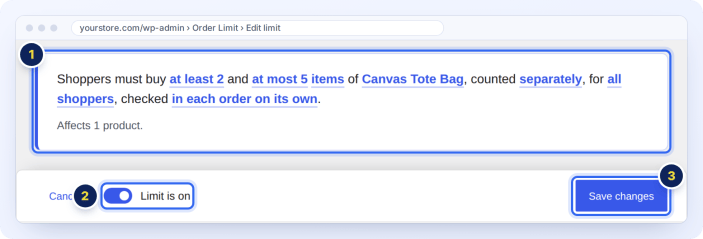
- The limit reads back as a sentence, like “Shoppers must buy at least 2 and at most 5 items of Canvas Tote Bag, counted separately, for all shoppers, checked in each order on its own.” Click an underlined part to change it.
- Limit is on is on by default. Turn it off to save the limit now and start it later.
- Click Save limit. The limit works straight away.
Order limit examples
↑ Back to topThese examples cover the most common limits. Each lists the settings to choose in the builder.
Minimum and maximum quantity per product
↑ Back to topShoppers must buy 2 to 5 Canvas Tote Bags in each order.
- What are you limiting: Products, Simple products, Canvas Tote Bag.
- How much: Number of items, at least 2, at most 5.
- Counted: Each product separately. Who: All shoppers. Count: Only this cart.
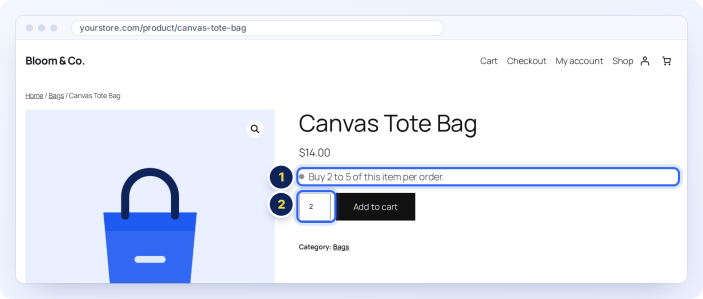
Shoppers see “Buy 2 to 5 of this item per order.” on the product page, and the quantity box starts at 2 and stops at 5. See What shoppers see.
A limit for each size or color (variable products)
↑ Back to topShoppers can buy up to 3 Plain T-Shirts of each size in an order.
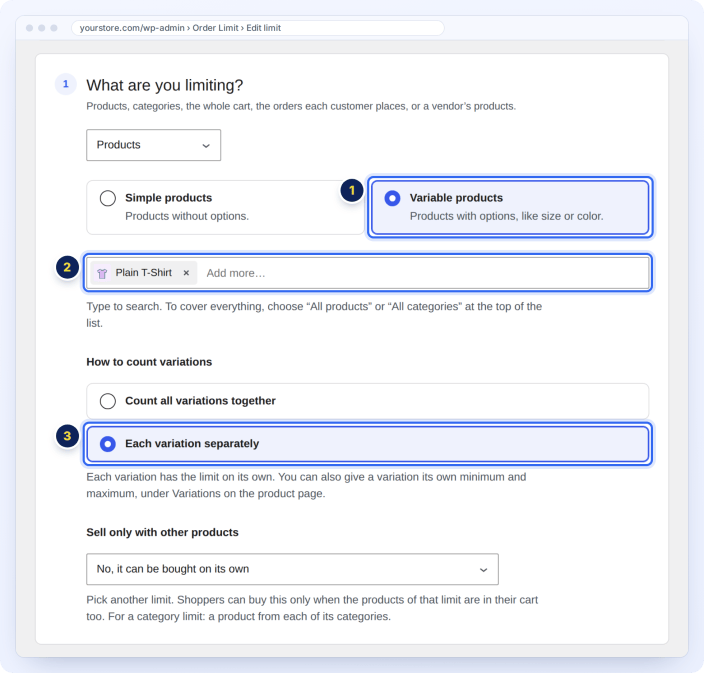
- Choose Products and Variable products.
- Pick the variable product, Plain T-Shirt.
- In How to count variations, choose Each variation separately: each variation has the limit on its own. Choose Count all variations together to count all sizes as one.
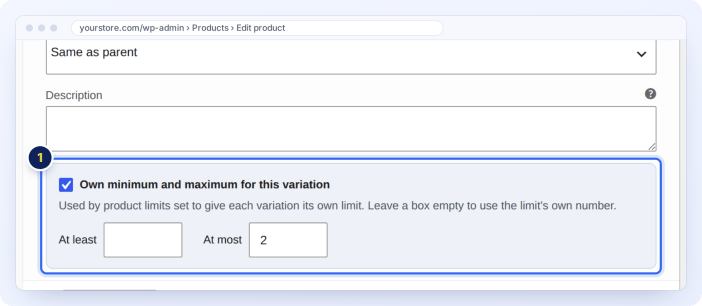
A variation can also have its own minimum and maximum. Go to Products, edit the product, open Variations and open the variation. Tick Own minimum and maximum for this variation and enter the numbers. Leave a box empty to use the limit’s own number.
Category limit per week
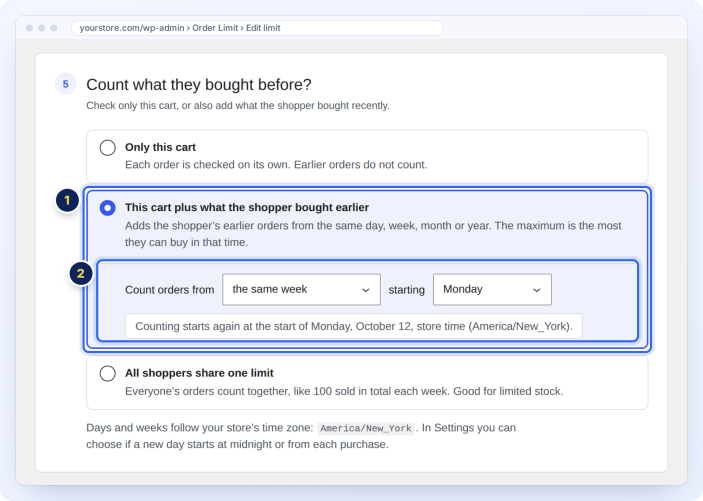
↑ Back to topEach shopper can buy up to 3 items from the Hats category each week, counting what they bought earlier that week.
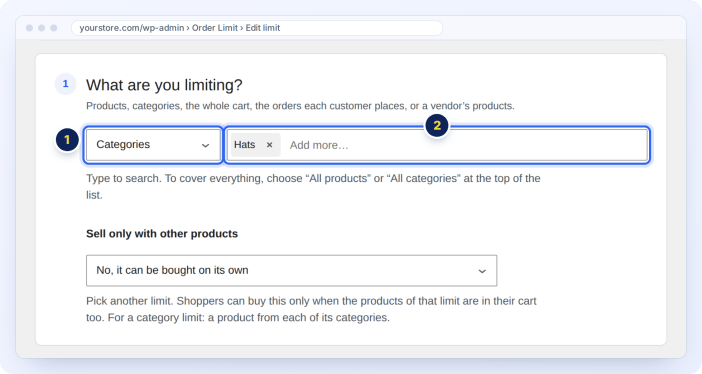
- What are you limiting: Categories, Hats.
- How much: Number of items, at most 3.
- Count: This cart plus what the shopper bought earlier, from the same week, starting Monday.
Products in sub-categories of Hats count too, at any depth.
Sell a product only with other products
↑ Back to topIn step 1, Sell only with other products lets you sell products only together with others. Pick another limit: shoppers can buy these products only when the products of that limit are in their cart. For a category limit, a product from each of its categories must be in the cart. For example, sell gift wrap only with a bag.
Minimum order amount (cart total limit)
↑ Back to topOrders must be at least $25.
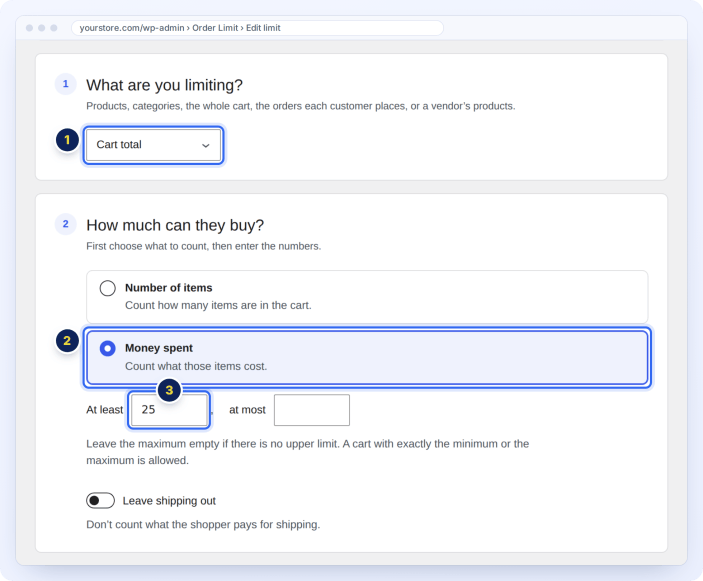
- What are you limiting: Cart total.
- How much: Money spent, at least 25. Add a maximum if you also want one, like 500.
- Optional: turn on Leave shipping out so shipping does not count toward the total.
A cart total limit can also count items, apply to chosen shoppers or payment methods, and run between two dates.
One category per order
↑ Back to topTo stop shoppers mixing products from two categories in one order, turn on Allow products from only one category per order under Settings > When a limit is not met. It works while cart total limits are turned on.
Limit orders per customer
↑ Back to topEach shopper can place one order a day.
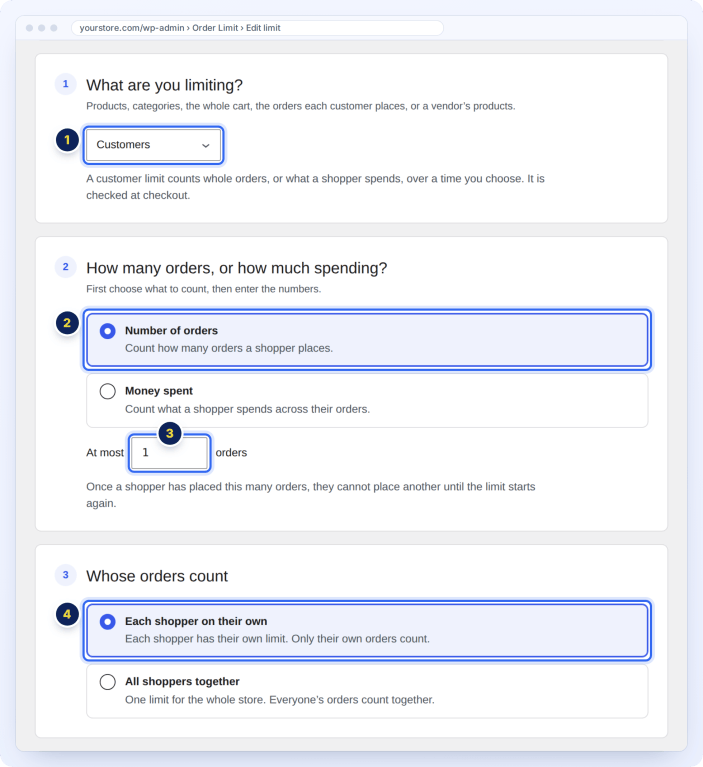
- What are you limiting: Customers.
- How many orders, or how much spending: Number of orders, at most 1.
- Whose orders count: Each shopper on their own. Choose All shoppers together for one count for the whole store.
Then choose the time the limit covers in Over what time?:
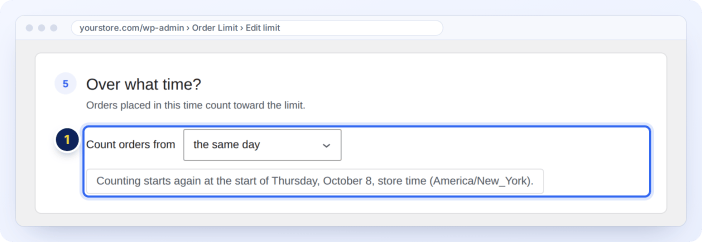
Choose Money spent instead to limit how much each customer spends, like $1,000 a month. A shopper who reaches the limit is stopped at checkout and told when they can order again.
Limit orders by payment method
↑ Back to topCash on delivery orders can be up to $200 a day for each shopper. Orders paid another way are not limited.
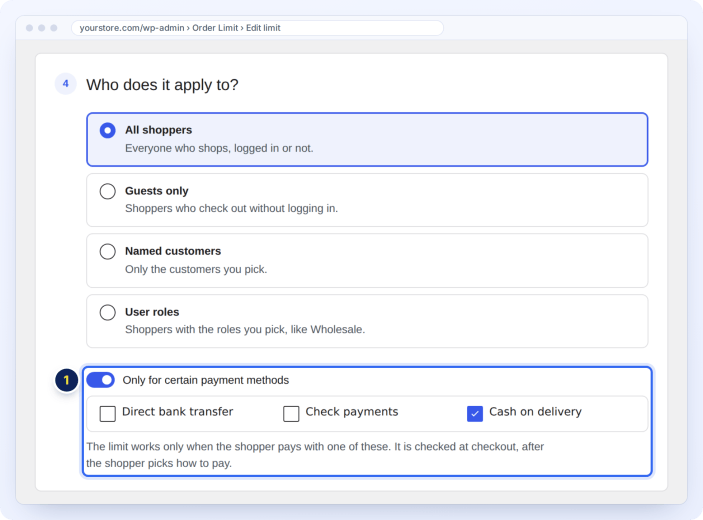
Turn on Only for certain payment methods and tick Cash on delivery. To apply this to every limit at once, use Settings > Payment methods.
Limit guest orders
↑ Back to topGuests can buy up to 2 gift cards a day.
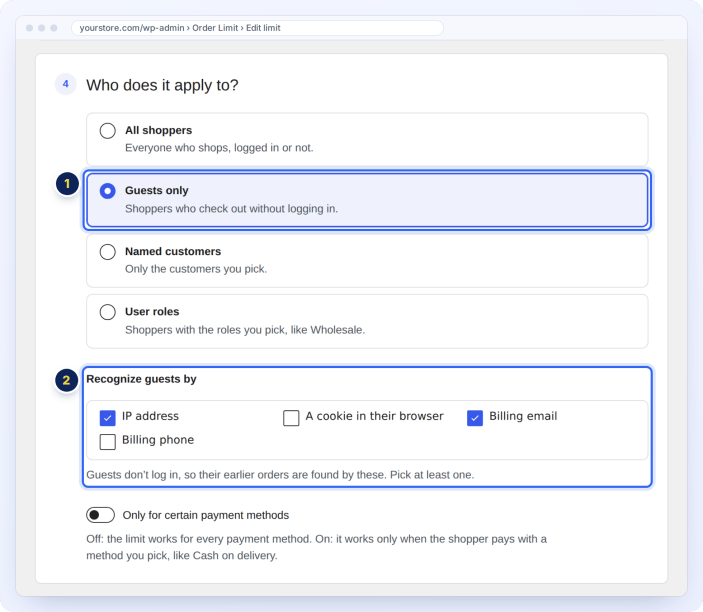
- Choose Guests only.
- In Recognize guests by, tick how to find a guest’s earlier orders: IP address, a cookie in their browser, billing email or billing phone. Pick at least one.
Wholesale minimum by user role
↑ Back to topWholesale buyers must order at least 20 clothing items. Other shoppers buy as usual.
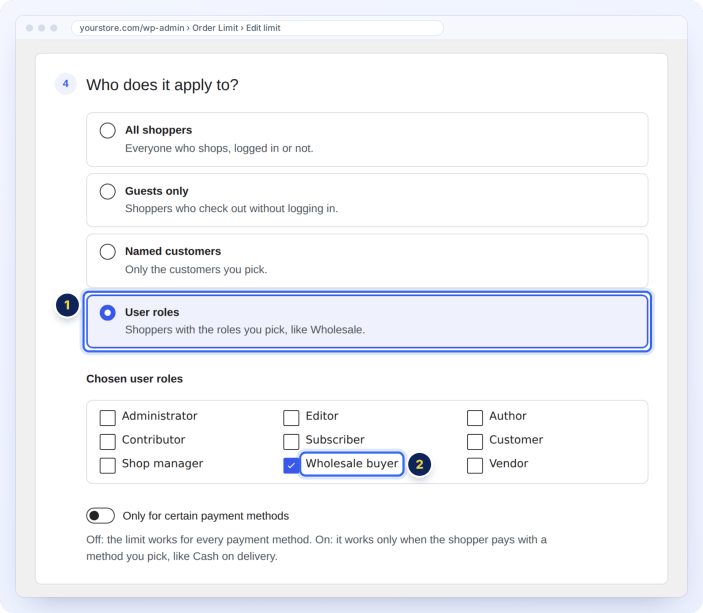
- What are you limiting: Categories, Clothing, All of them together.
- How much: Number of items, at least 20.
- Who: User roles, then tick Wholesale buyer.
Limits for members
↑ Back to topWith WooCommerce Memberships active, choose Members in step 4 and pick the membership plans. Members on a free trial or a complimentary plan are included.
Limited release for all shoppers
↑ Back to topSell 100 Limited Edition Hoodies in total, across every shopper, in October.
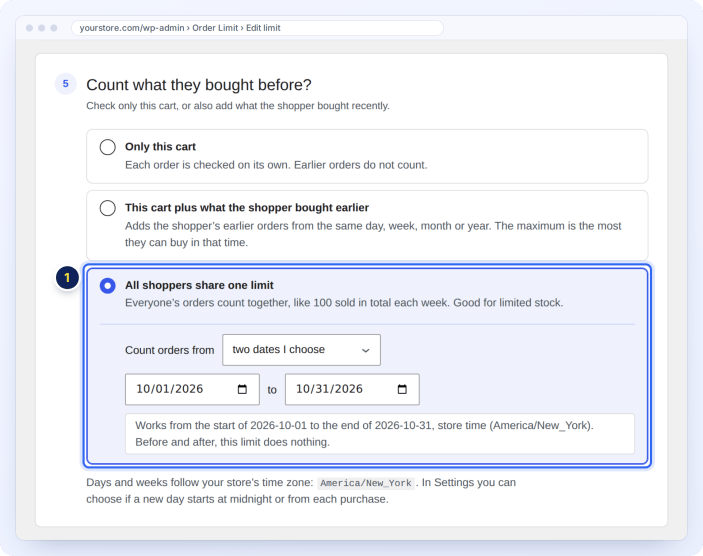
- How much: Number of items, at most 100.
- Count: All shoppers share one limit, from two dates I choose, October 1 to October 31.
Before and after those dates, the limit does nothing. The message tells shoppers how many are left.
Vendor limits for WC Vendors
↑ Back to topShoppers must buy 2 to 6 items from the vendor shop Northwind Studio.
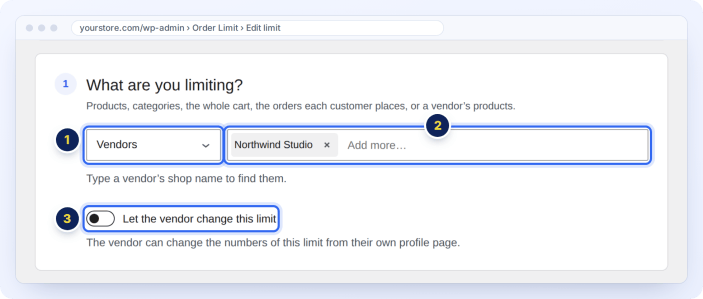
- What are you limiting: Vendors.
- Type a vendor’s shop name to find it.
- Turn on Let the vendor change this limit to let the vendor change the numbers from their own profile page.
Manage your limits
↑ Back to topThe limits list
↑ Back to topThe Limits tab lists every limit, with what it limits, the limit, when it applies, where it was added and whether it is on.
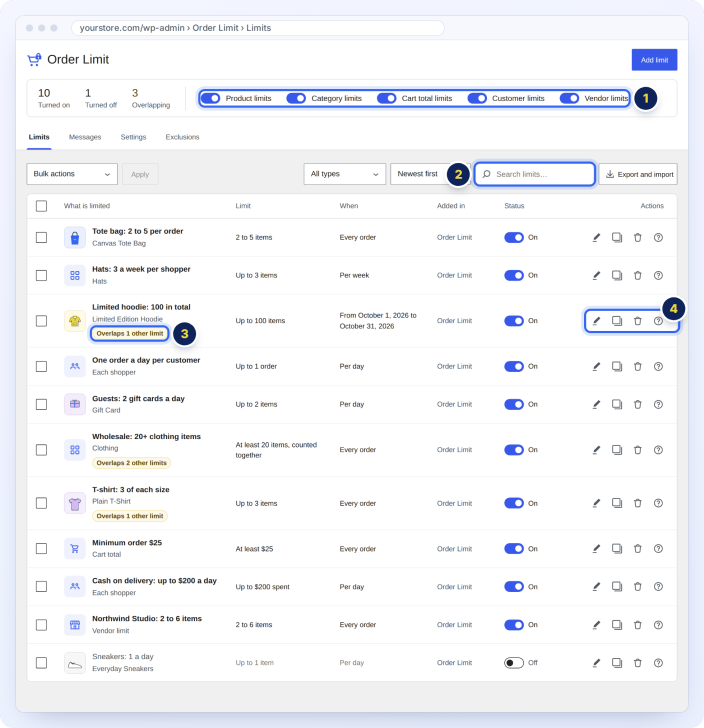
- Turn a whole kind of limit off or on at once: product, category, cart total, customer and vendor limits. The counts beside them show how many limits are on, off and overlapping.
- Search by name, product, SKU or ID, filter by kind, and sort.
- Overlaps means another limit covers the same products. Both apply, and the tightest number wins.
- Each row has buttons to edit, copy, delete and see why the limit is or is not working.
The Status switch on each row turns one limit on or off. A limit that is off stays saved. When you delete a limit, click Undo in the notice to bring it back exactly as it was.
Find out why a limit is not working
↑ Back to topClick the ? button on a row (Why isn’t it working?). The Why panel shows what stops the limit, and lets you fix it right there.
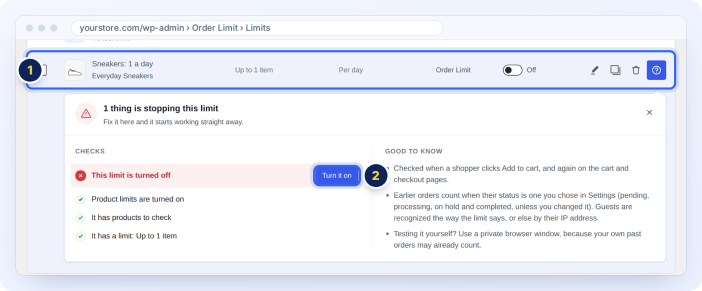
- The limit you are checking.
- What stops it, with a button to fix it, like Turn it on.
Bulk actions
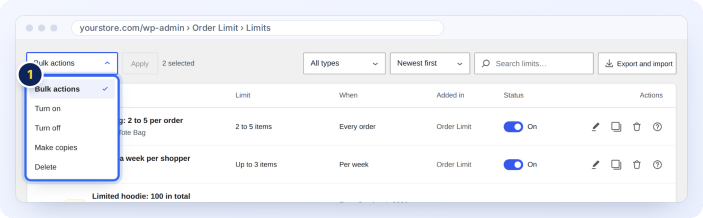
↑ Back to topTick the limits, choose Turn on, Turn off, Make copies or Delete, and click Apply.
Export and import limits
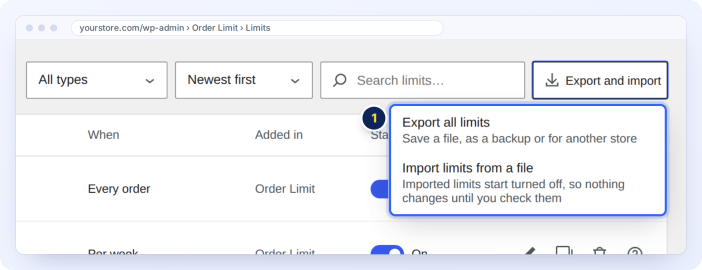
↑ Back to topClick Export and import. Export all limits saves a file, as a backup or for another store. Import limits from a file adds limits from a file. Imported limits start turned off, so nothing changes until you check them.
Store limits: limit orders for the whole store
↑ Back to topTake a set number of orders or sales
↑ Back to topGo to Order Limit > Settings > Limits for the whole store. Store limits count every order the store takes.
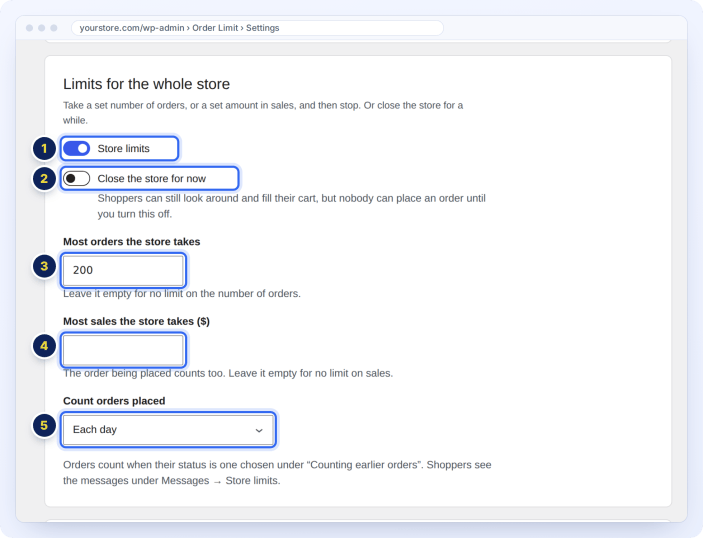
- Turn on Store limits.
- Close the store for now closes the store for a while (see below).
- Most orders the store takes: the number of orders, like 200. Leave it empty for no limit.
- Most sales the store takes: the sales amount. The order being placed counts too. Leave it empty for no limit.
- Count orders placed: each day, week, month or year, or between two dates.
Orders count when their status is one you chose under Counting earlier orders. Store limits apply whatever the payment method.
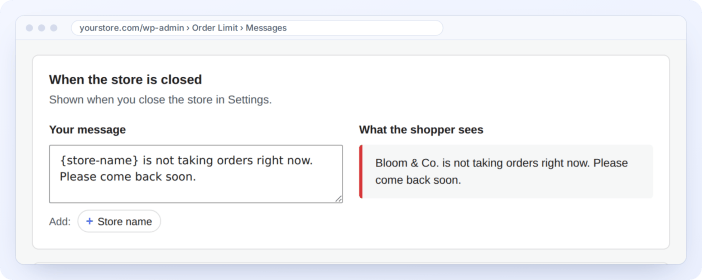
Close the store for a while
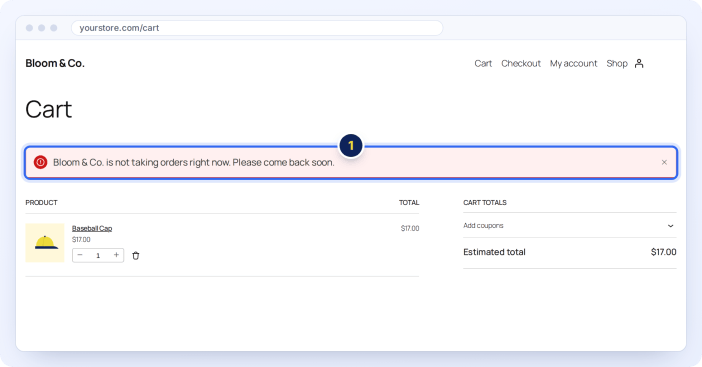
↑ Back to topTurn on Close the store for now. Shoppers can still look around and fill their cart, but nobody can place an order until you turn it off. They see this message:
Exclusions: leave products out of limits
↑ Back to topSome products need different rules. On the Exclusions tab, add a row for them and choose what happens:
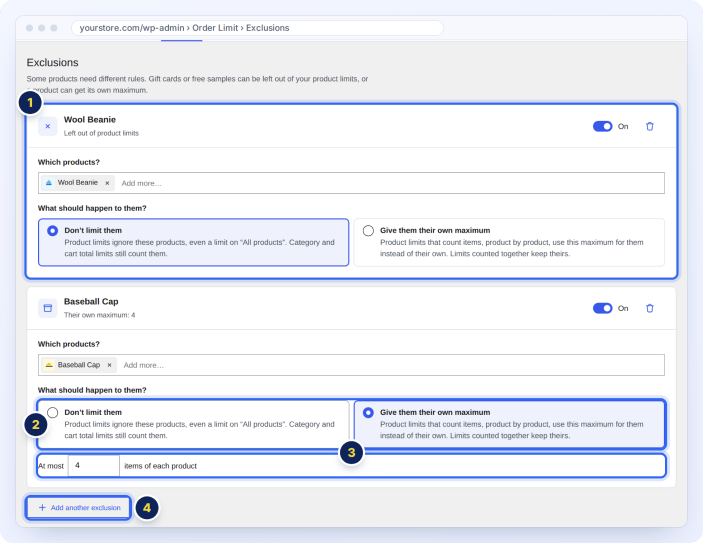
- Each row lists the products and has its own on/off switch.
- Don’t limit them. Product limits ignore these products, even a limit on “All products”. Category and cart total limits still count them. Good for gift cards and free samples.
- Give them their own maximum. Product limits that count items use this maximum for these products, product by product. Limits counted together keep theirs.
- Click Add another exclusion for another row, then save.
Messages shoppers see
↑ Back to topThe Messages tab holds every message a shopper can see, grouped by kind of limit. All limits of one kind share one message, so you change it once.
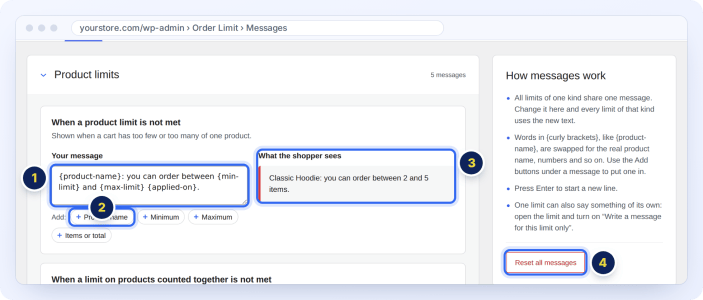
- Write your message.
- Click a fill-in word button to add a name or number, like the product name or the maximum.
- What the shopper sees shows it with real-looking values, as you type.
- Reset all messages puts back the default wording.
Press Enter to start a new line. A message that still uses the wording of an older version shows an Old wording badge. Click Use the new wording to switch it to the shorter, clearer wording, or keep yours.
Fill-in words
↑ Back to topWords in curly brackets are swapped for the real values when the shopper sees the message.
| Fill-in word | Becomes |
|---|---|
{product-name} | The product name |
{product-names} | All product names in the limit |
{category-name} | The category name |
{category-names} | All category names in the limit |
{min-limit} | The minimum |
{max-limit} | The maximum |
{applied-on} | A word for what is counted, like “items” or “in total” |
{remaining} | How much the shopper can still buy |
{time-span} | The time span, like “each day” or “each week” |
{limit-reset-day} | The date the limit next resets |
{rule-limit} | The limit, in customer messages |
{parent-product-names} | The products that must be in the cart |
{parent-category-names} | The categories a product must come from, in the cart |
{vendor-shop-name} | The vendor’s shop name |
{store-name} | Your store’s name |
{max-order-limit} | The most orders the store takes |
{max-amount-limit} | The most sales the store takes |
{endline} | A line break |
Customer, store and shortcode messages
↑ Back to topCustomer limits have a message for the order limit and one for the spending limit:
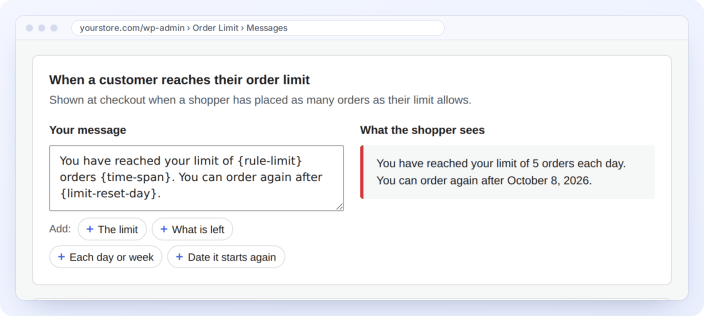
Store limits have a message for a closed store and one for a store that reached its order or sales limit:
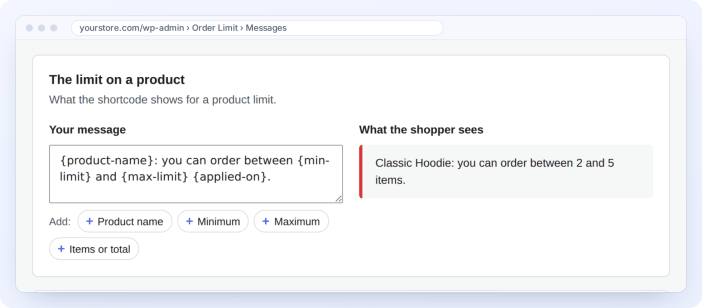
Shortcodes have their own wording, so a page can say “you can buy 3 more” instead of an error:
A message for one limit only
↑ Back to topTo give one limit its own words, open it and turn on Write a message for this limit only in the last step. The shared message stays as it is for every other limit.
Settings
↑ Back to topGo to Order Limit > Settings. A live picture of your store shows what shoppers will see as you change the options.
Showing limits to shoppers
↑ Back to top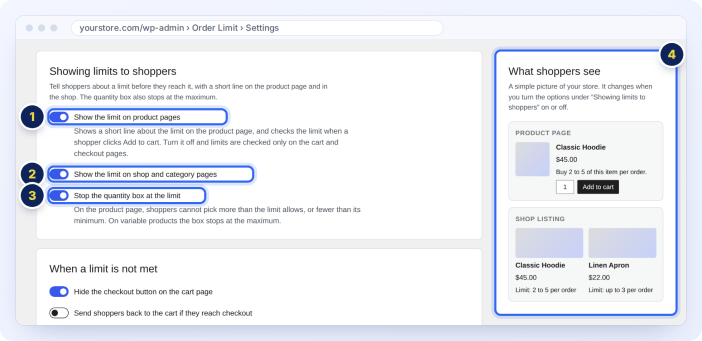
- Show the limit on product pages. A short line about the limit on the product page. Turn it off and limits are still checked in the cart and at checkout.
- Show the limit on shop and category pages. A short line under each product in the shop and category pages.
- Stop the quantity box at the limit. On the product page, shoppers cannot pick more than the limit allows, or fewer than its minimum. On variable products, the box stops at the chosen variation’s maximum.
- The live picture of your store.
When a limit is not met
↑ Back to top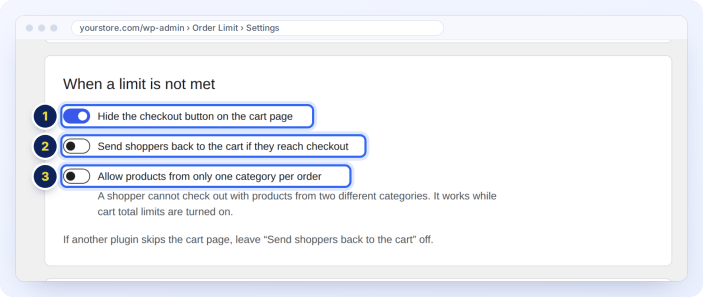
- Hide the checkout button on the cart page. The button comes back when the cart meets every limit.
- Send shoppers back to the cart if they reach checkout. If another plugin skips the cart page, leave this off.
- Allow products from only one category per order. A shopper cannot check out with products from two different categories. It works while cart total limits are turned on.
When daily, weekly, monthly and yearly limits reset
↑ Back to top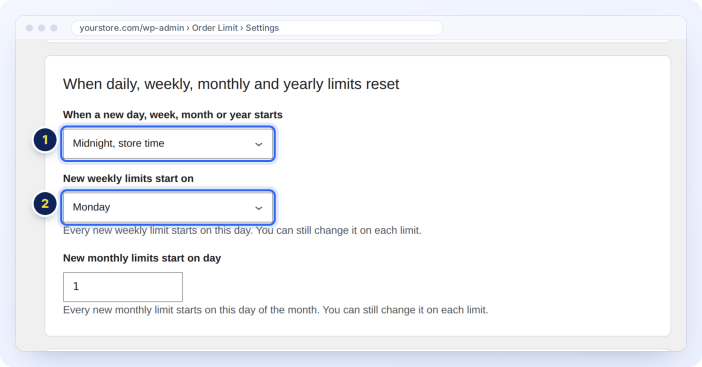
- When a new day, week, month or year starts: Midnight, store time, or When the shopper buys, so each shopper’s period starts from their own order.
- New weekly limits start on: the day new weekly limits start on. New monthly limits start on day: the day of the month. You can still change both on each limit.
Days and weeks follow your store’s time zone, from Settings > General in WordPress.
Counting earlier orders
↑ Back to top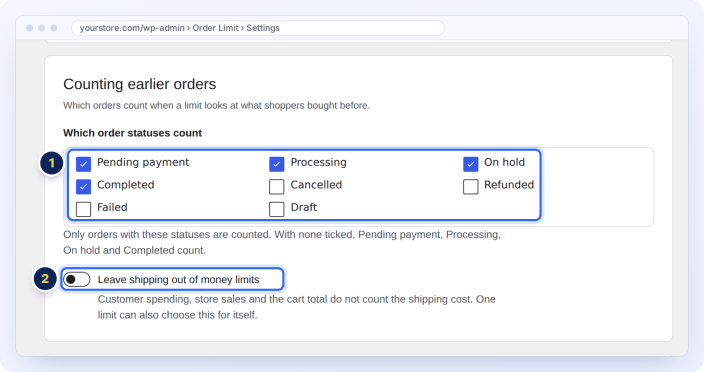
- Which order statuses count: only orders with these statuses count as earlier orders. By default: Pending payment, Processing, On hold and Completed. With none ticked, those four count.
- Leave shipping out of money limits: customer spending, store sales and the cart total do not count the shipping cost. One limit can also choose this for itself.
Payment methods
↑ Back to top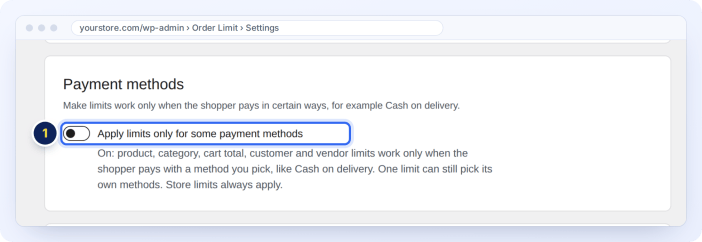
Turn on Apply limits only for some payment methods and pick the methods. Product, category, cart total, customer and vendor limits then work only when the shopper pays with one of them. One limit can still pick its own methods. Store limits always apply.
Shortcodes
↑ Back to top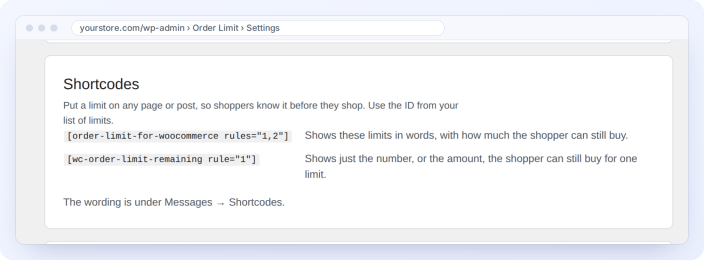
This card lists the shortcodes, with the ID of each limit in your list of limits. See Shortcodes.
Your data
↑ Back to top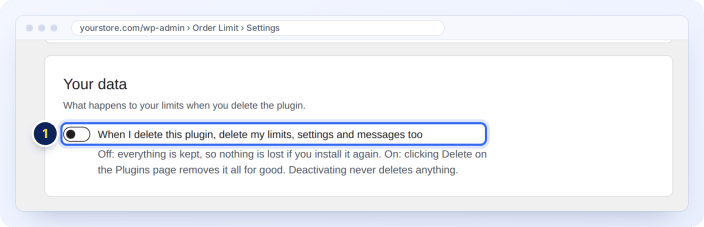
Turn on When I delete this plugin, delete my limits, settings and messages too if you want everything removed when you delete the plugin. Off by default: everything is kept, so nothing is lost if you install it again. Deactivating never deletes anything, and your orders are never touched.
What shoppers see
↑ Back to topProduct page
↑ Back to topThe limit shows above Add to cart (1), and the quantity box starts at the minimum (2).
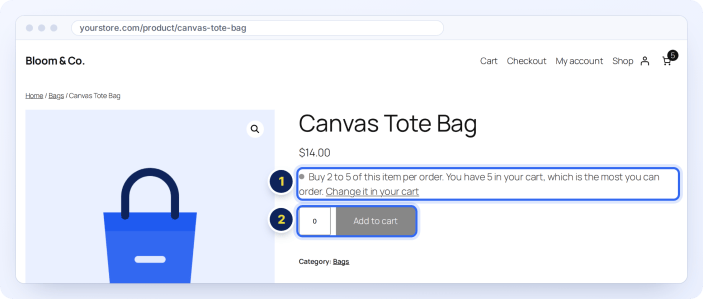
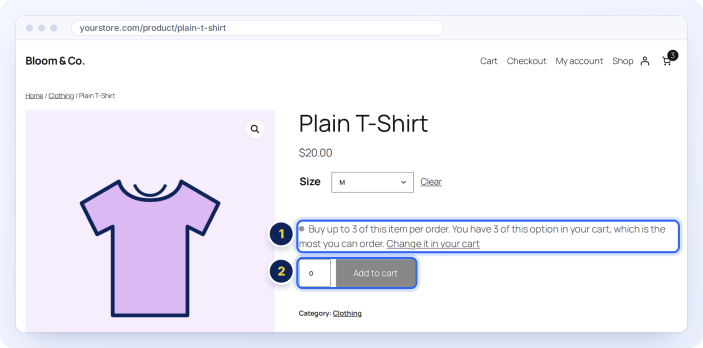
When the cart already holds the most allowed, the line says so and links to the cart (1). The quantity box shows 0 and Add to cart is switched off (2).
Variable products
↑ Back to topThe line and the quantity box follow the chosen variation. Here, size M has reached its limit of 3:
Shop and category pages
↑ Back to top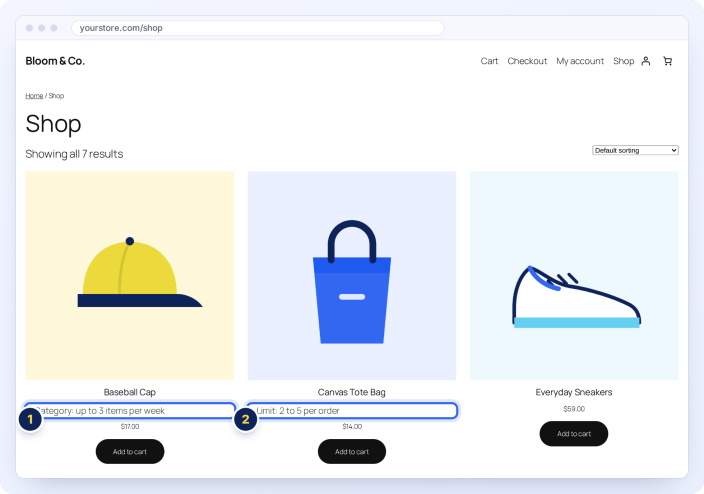
A short line under each limited product, like “Category: up to 3 items per week” (1) or “Limit: 2 to 5 per order” (2).
Add to cart
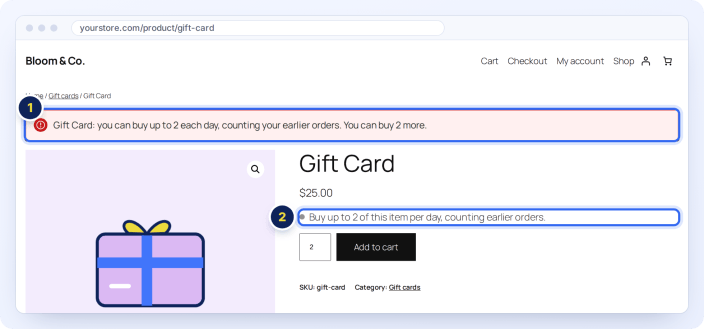
↑ Back to topWhen a shopper tries to add more than a limit allows, the item is not added and the message explains why (1). The line on the page shows the limit (2).
Cart
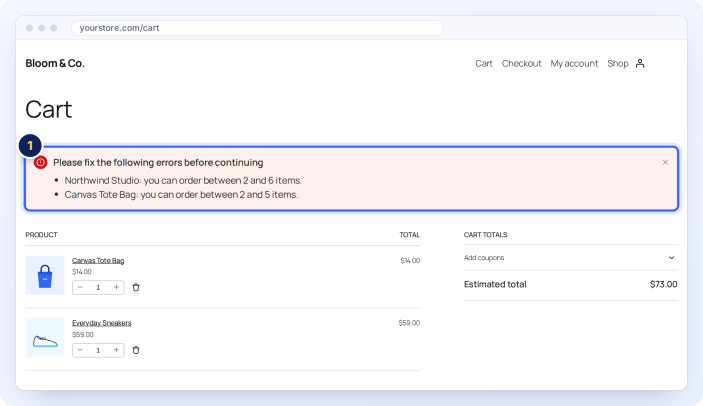
↑ Back to topEvery limit the cart does not meet is listed at the top of the cart. With Hide the checkout button on, the checkout button comes back once the cart meets every limit.
Checkout
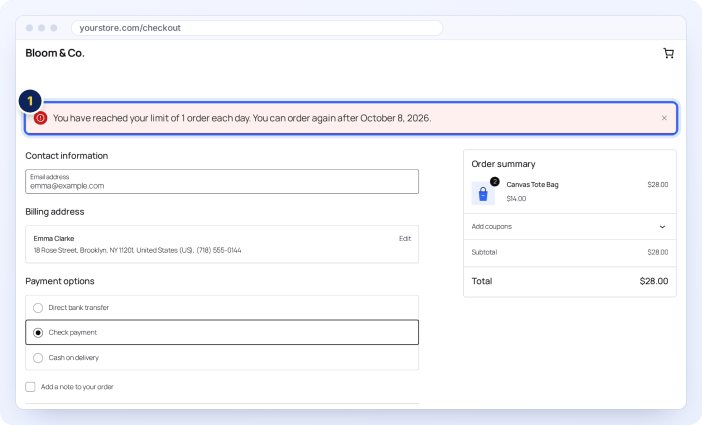
↑ Back to topLimits are checked again when the order is placed, including customer, guest, payment method and store limits. Here, a customer who already ordered today is told when she can order again:
Shortcodes: show limits on any page
↑ Back to topPut your limits in words on any page or post, so shoppers know them before they shop. Use the ID shown for each limit in your list of limits.
| Shortcode | Shows |
|---|---|
[order-limit-for-woocommerce rules="1,2"] | These limits in words, with how much the shopper can still buy. |
[wc-order-limit-remaining rule="1"] | Just the number, or the amount, the shopper can still buy for one limit. |
[wc-order-limit rules="1,2"] | The same as the first shortcode. Kept so pages made with earlier versions keep working. |
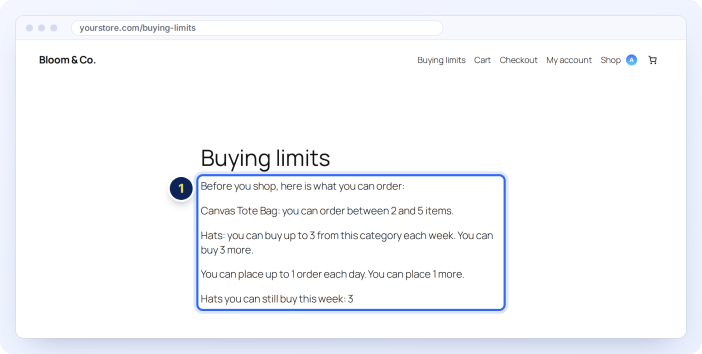
Shortcodes show product, category and customer limits. The wording comes from Messages > Shortcodes. A limit that is turned off, outside its dates, or not for the shopper viewing the page is not shown.
Limits in the product and category editor
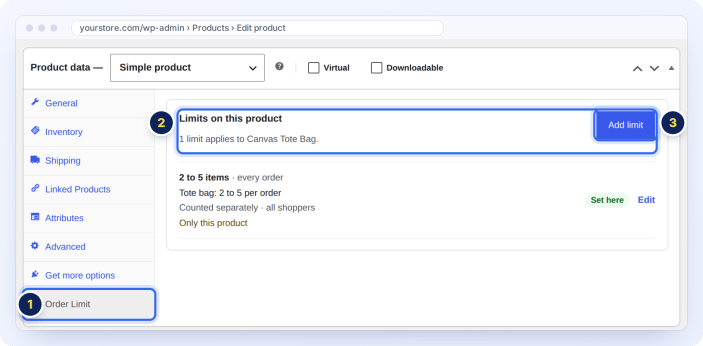
↑ Back to topEdit a product and open the Order Limit tab in Product data (1). It lists every limit on the product (2), including limits set on its categories. Click Add limit (3) to make a limit for this product. Your new limit opens with the product already picked.
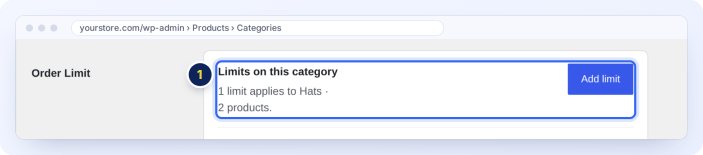
Product categories have the same panel. Go to Products > Categories and edit a category:
Deactivate or delete the plugin
↑ Back to topWhen you deactivate Order Limit, a short window asks why. Answering is optional. Here you can also tick When I delete this plugin, delete my limits, settings and messages too.
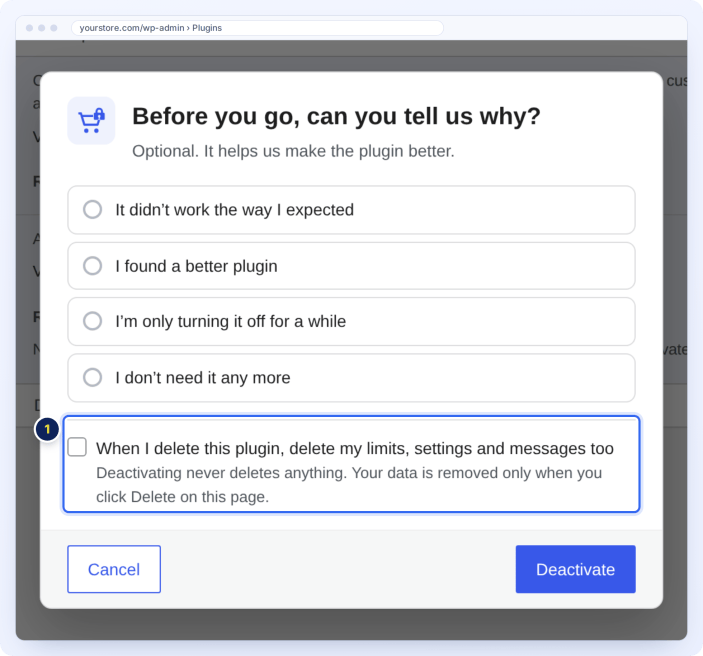
Deactivating never deletes anything. Your limits, settings and messages are removed only if you ticked the box and then click Delete on the Plugins page. Your orders are never touched.
Troubleshooting
↑ Back to topA limit does not stop an order
↑ Back to top- Click the ? button on the limit’s row (Why isn’t it working?). The Why panel shows what stops it, like a limit that is off or a kind of limit that is turned off at the top of the list.
- Check Exclusions: the product may be left out of product limits.
- Check who the limit applies to and its payment methods. A limit for guests does not apply to a logged-in customer.
- Check the dates. A limit with two dates does nothing before or after them.
Earlier orders are not counted
↑ Back to top- Only orders with the statuses ticked under Settings > Counting earlier orders count.
- For guests, tick a way to recognize them in the limit. A guest recognized by email is found once they enter it at checkout.
- Test in a private browser window, so your own orders and cookies do not get in the way.
A daily limit resets at the wrong time
↑ Back to topCheck your time zone in Settings > General, and When a new day, week, month or year starts under Order Limit settings.
The checkout button is missing
↑ Back to topIt is hidden while the cart does not meet a limit. The messages at the top of the cart say what to change. To always show it, turn off Hide the checkout button on the cart page in Settings.
Shoppers can reach checkout with a cart that breaks a limit
↑ Back to topThe order is still stopped when they place it. To send them back to the cart first, turn on Send shoppers back to the cart if they reach checkout.
For developers
↑ Back to topOrder Limit has filters and actions to change its behavior from code. A few of the most useful:
| Hook | Type | What it does |
|---|---|---|
wcol_storefront_line | Filter | The limit line on product and shop pages. Arguments: the text, the product, whether it is the shop listing, and the limits it was built from. |
wcol_product_order_limit_notice | Filter | The message for a product limit. Arguments: the message, the product ID, the limit. |
wcol_customer_rule_limit_notice | Filter | The message for a customer limit. Arguments: the message, the limit. |
wcol_store_limit_notice | Filter | The message for store limits. Arguments: the message, the settings. |
wcol_cart_total_amount | Filter | The cart total checked by cart total limits. Arguments: the amount, the settings, the cart. |
wcol_edit_capability | Filter | Who can manage limits. Default: manage_woocommerce, so Shop Managers can. |
wcol_limit_saved | Action | Runs after a limit is saved. Arguments: the limit ID, the saved values. |
Frequently asked questions
↑ Back to topHow do I set a minimum and maximum order quantity for a product in WooCommerce?
↑ Back to topGo to Order Limit, click Add limit, choose Products and pick the product. Choose Number of items and enter the minimum in At least and the maximum in At most. Save. Shoppers can then buy only between those numbers in each order.
How do I set a minimum order amount in WooCommerce?
↑ Back to topAdd a Cart total limit, choose Money spent and enter the amount in At least, like 25. Shoppers cannot check out until the cart reaches it.
Can I limit how many orders each customer places?
↑ Back to topYes. Add a Customers limit, choose Number of orders, enter the maximum, and choose the time, like the same day. Choose Money spent instead to cap how much each customer spends.
Can I limit guest orders?
↑ Back to topYes. Choose Guests only in the limit and pick how guests are recognized: IP address, a cookie, billing email or billing phone.
Can I restrict WooCommerce orders by payment method?
↑ Back to topYes. Turn on Only for certain payment methods in a limit and pick the methods, like Cash on delivery. To do it for every limit, use Settings > Payment methods.
Can I limit the number of orders my whole store takes?
↑ Back to topYes. Turn on Store limits under Settings and enter the most orders, or the most sales, each day, week, month, year or between two dates. You can also close the store for a while.
Can I set both a minimum and a maximum on the same product or category?
↑ Back to topYes. Enter both numbers in the same limit. A cart with exactly the minimum or the maximum is allowed.
Can I set a different limit for each variation?
↑ Back to topYes. Choose Variable products and Each variation separately. A variation can also have its own minimum and maximum, set under Variations on the product page.
Do limits reset daily, weekly or monthly?
↑ Back to topYes. Choose This cart plus what the shopper bought earlier in a limit and pick the same day, week, month or year, the last few days, or two dates. You choose the day weeks and months start on.
How do I leave a product out of all limits?
↑ Back to topAdd it on the Exclusions tab and choose Don’t limit them. Category and cart total limits still count it.
How do I show limits on my store pages?
↑ Back to topLimits show on product and shop pages by default. To show them on any page, use the [order-limit-for-woocommerce rules="1,2"] shortcode with the IDs of your limits.
Does it work with the Cart and Checkout blocks?
↑ Back to topYes. It works with the Cart and Checkout blocks, the classic cart and checkout, and High-Performance Order Storage (HPOS).
Will my limits from version 5 still work after updating?
↑ Back to topYes. Your rules, settings, messages and exclusions move across by themselves the first time you open Order Limit. Nothing is deleted.
Does Order Limit slow down my store?
↑ Back to topOrder Limit checks limits only where they matter: product and shop pages, the cart and checkout. Earlier orders are looked up only for limits that count them.
Questions and support
↑ Back to topDo you have a question before you buy?
Please use the pre-sales question form on the product page.
Already purchased and need assistance? Get in touch with us through the Help Desk.

