WooCommerce Hide Price extension lets store owners restrict product pricing visibility and purchasing options using flexible, rule-based controls. Use it to manage wholesale access, country-specific pricing, or lead-generation flows through custom rule sets.
Installation
↑ Back to top- Download the plugin
.zipfile from your WooCommerce account. - Log in to your WordPress Admin dashboard.
- Navigate to Plugins → Add New → Upload Plugin.
- Choose the downloaded
.zipfile and click Install Now. - Once installation is complete, click Activate to enable the plugin.
For detailed guidance, refer to the official WooCommerce documentation on Installing and Activating Plugins and Extensions.
Setup & Configuration
↑ Back to topOnce the extension is activated, you can access its settings from the WordPress Admin dashboard under WooCommerce → Hide Price Rules.
Custom Rules
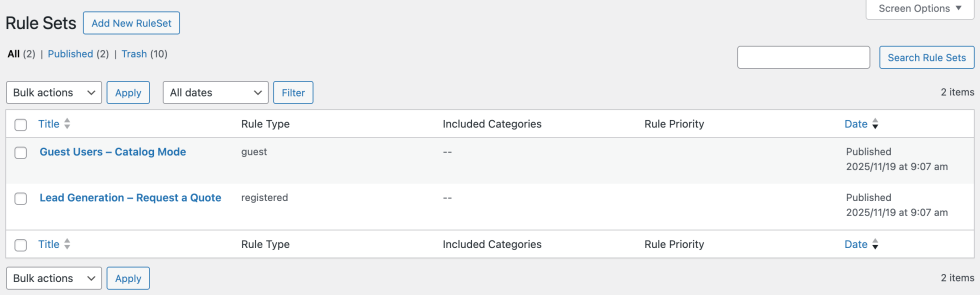
↑ Back to topThe WooCommerce Hide Price plugin lets you create multiple rule sets to control who can see product prices and purchase options. Each rule can hide prices, remove the Add to Cart button, or display a custom button, message, popup, or redirect link for guests, logged-in users, or specific user roles. This gives you full flexibility to manage pricing visibility and user interactions across products, categories, or user segments.
General Settings
↑ Back to topConfigure basic visibility options for your products:
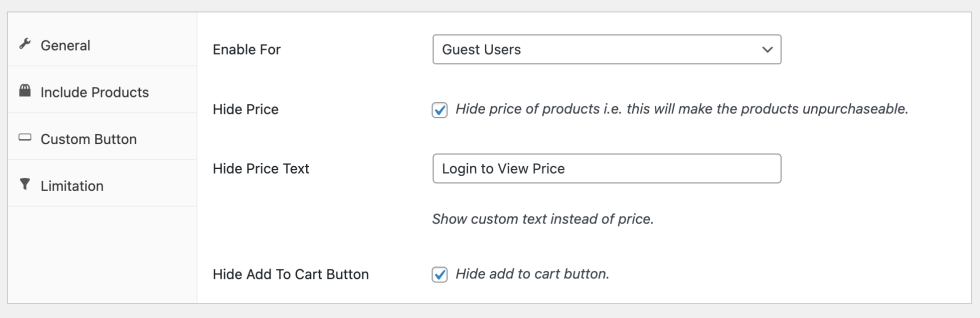
- Hide Price for Guests or Registered Users: Choose whether to hide product prices for guest users, logged-in users, or both.
- Hide Prices for All Products: Enable or disable hiding prices globally across your store.
- Custom Price Text: Replace hidden prices with a message like “Login to View Price” or any custom text.
- Hide Add to Cart Button: Remove the Add to Cart button entirely to prevent purchases when needed.
Include/Exclude Products
↑ Back to topFine-tune which products the rules apply to:
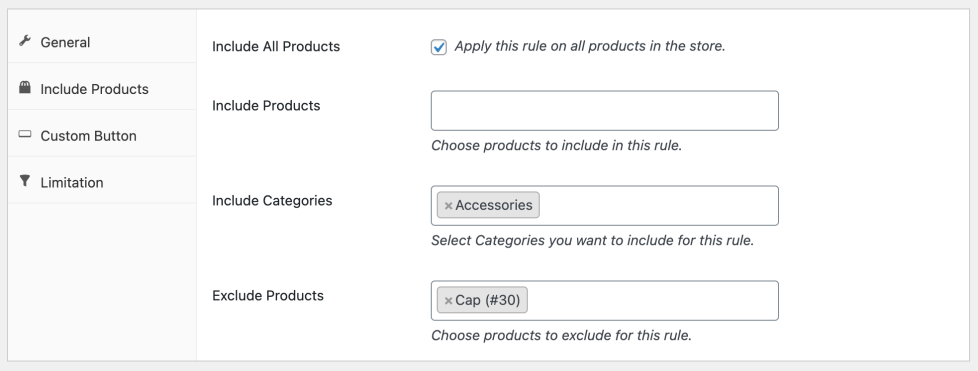
- Apply to All Products: Enable or disable hiding prices for all products in your store.
- Include Specific Products: Select individual products to target with the rule.
- Include Categories: Apply the rule to entire product categories at once.
- Exclude Products: When hiding prices globally, exclude specific products to keep them visible.
Custom Button
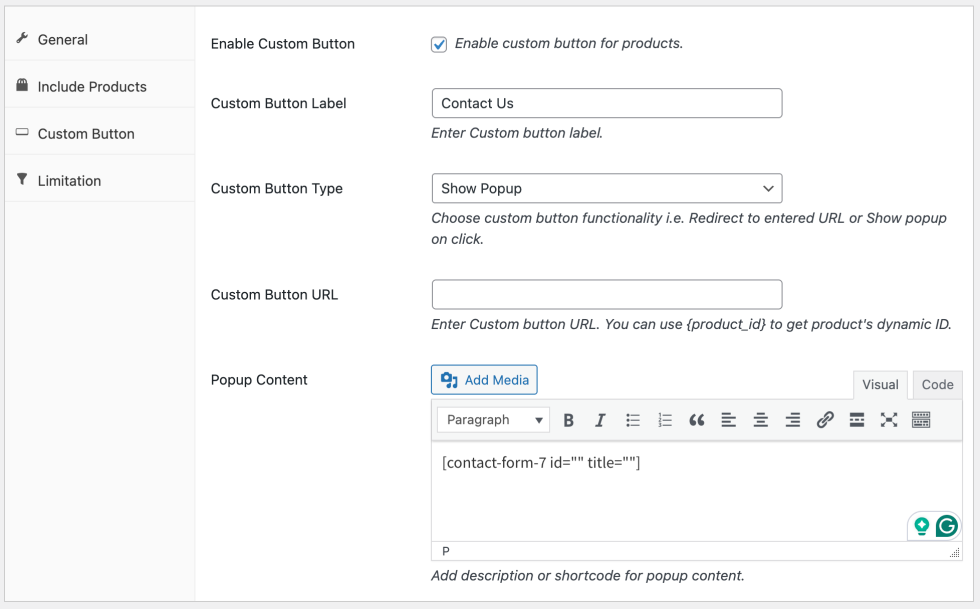
↑ Back to topReplace the standard Add to Cart button with a custom action to guide user interactions:
- Enable Custom Button: Turn on a custom button for products instead of the default Add to Cart.
- Set Button Label: Define the text displayed on the button (e.g., “Request a Quote” or “Contact Us”).
- Choose Button Type: Select either URL to redirect users to a page, or Show Popup to display a modal window.
- Provide URL or Popup Content: If using a URL, enter the link. For popups, add custom content or media. You can also use shortcodes to include forms, dynamic data, or embedded content.
Limitation Rules
↑ Back to topControl exactly who the rule applies to:
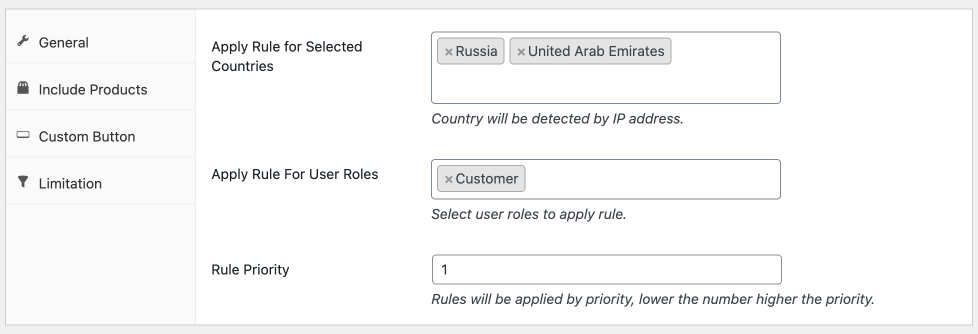
- Country Restrictions: Apply the rule only to users from selected countries.
- User Role Restrictions: Target specific user roles (e.g., Customer, Wholesale, Shop Manager). Note: this works only for rules applied to registered users.
- Rule Priority: Set the priority of each rule to determine which one takes effect when multiple rules overlap. Lower numbers have higher priority.