Easily sort your products with multiple options, including name, ID, date, price, rating, reviews, sales, and stock. You can also use a custom drag-and-drop interface to quickly rearrange products for any category, subcategory, or tag.
Installation
↑ Back to topTo start using a product from WooCommerce.com, you can use the “Add to store” functionality on the order confirmation page or the My subscriptions section in your account.
- Navigate to My subscriptions.
- Find the Add to store button next to the product you’re planning to install.
- Follow the instructions on the screen, and the product will be automatically added to your store.
Alternative options and more information at:
Managing WooCommerce.com subscriptions.

Setup and Configuration:
↑ Back to topAfter activating the plugin, go to WooCommerce > Settings > Product Reorder, and here you can configure product sorting and rearrange manually.
General Settings Configuration:
↑ Back to topIn this section, you can manage the general configuration of the plugin:
- Hide Sorting Dropdown: Hide the “Sort By” dropdown from your shop and archive pages to simplify the product display.
- Manage Default WooCommerce Ordering: Override WooCommerce’s default sorting and control how products are displayed.
- Products Per Page: Set the number of products displayed per page on shop, category, or tag pages for a better user experience.
Globally Sort Products on Shop Page (Whole Catalog):
↑ Back to topSet up custom sorting rules for your entire shop to apply a universal product order across all products. Manage your catalog’s display without having to configure each category or tag individually.
To Apply Sorting on the Shop page (All Products):
↑ Back to topGo to WooCommerce > Settings > Product Reorder > Shop Level Sorting and configure the following:
- Enable Sorting: Check the box to enable sorting on the shop page for all products
- Sorting Criteria: Select the criteria for sorting the products. You can choose the following:
- Name
- Price
- Sales
- Stock Quantity
- Date
- Rating
- Reviews count
- Product ID
- Sort Direction: Select sort direction as ascending or descending.
Configure Sorting for Product Categories:
↑ Back to topGo to WooCommerce > Settings > Product Reorder > Category-Level Sorting and configure the following:
- Click or search the category for which you want to configure sorting.
- Enable sorting for the specific category
- Sorting Criteria: Select the criteria for sorting products. You can choose from the following options:
- Name
- Price
- Sales
- Stock Quantity
- Date
- Rating
- Reviews Count
- Product ID
- Sort Direction: Choose the sorting direction — ascending or descending.
Sort Products Based on Tags:
↑ Back to topGo to WooCommerce > Settings > Product Reorder > Tag-Based Sorting and configure the following:
- Click or search the product tag for which you want to configure sorting.
- Enable sorting for the specific tag(s).
- Sorting Criteria: Select the criteria for sorting products. You can choose from the following options:
- Name
- Price
- Sales
- Stock Quantity
- Date
- Rating
- Reviews Count
- Product ID
- Sort Direction: Select sort direction as ascending or descending.
Manual Reordering of Products with Drag and Drop Option:
↑ Back to topGo to WooCommerce > Settings > Product Reorder > Tag-Based Sorting and rearrange the products manually in your preferred sorting order.
- Select the sorting scope based on the Shop (Global), Category, and Tags.
- Display products in Grid or Tabular view based on your requirement.
- Manually drag and drop any product to rearrange the sorting order.
Sort Products by Attributes
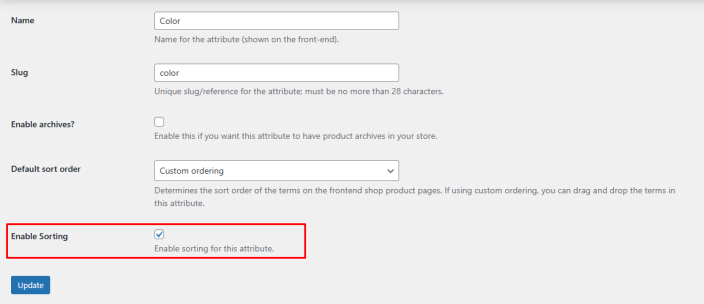
↑ Back to topGo to WooCommerce > Products > Attributes, and here you will find all the available product attributes. You can enable the option to add attributes as a sorting option on the frontend of your store. To do so, follow these steps:
- In the attributes section, you will find all the attributes available.
- Click on “Edit” to enable sorting for the attributes you want.
- Once you click “edit”, you will see the “Enable Sorting” option. Click on the checkbox to enable the sorting option for this particular attribute.
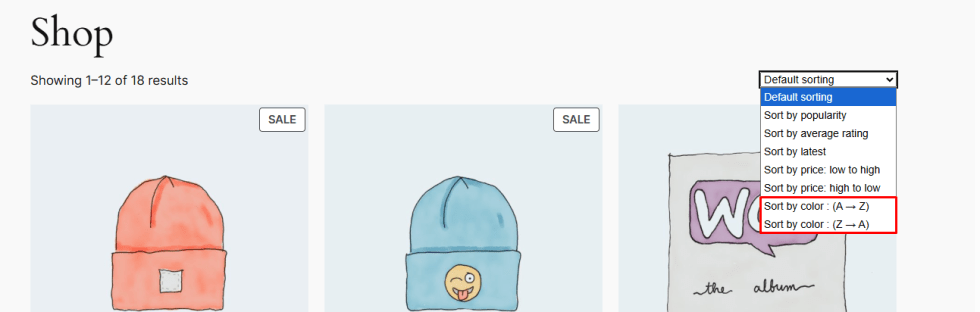
- Once enabled, go to the shop page, and you will find the attribute-based sorting option in the sorting dropdown menu.