
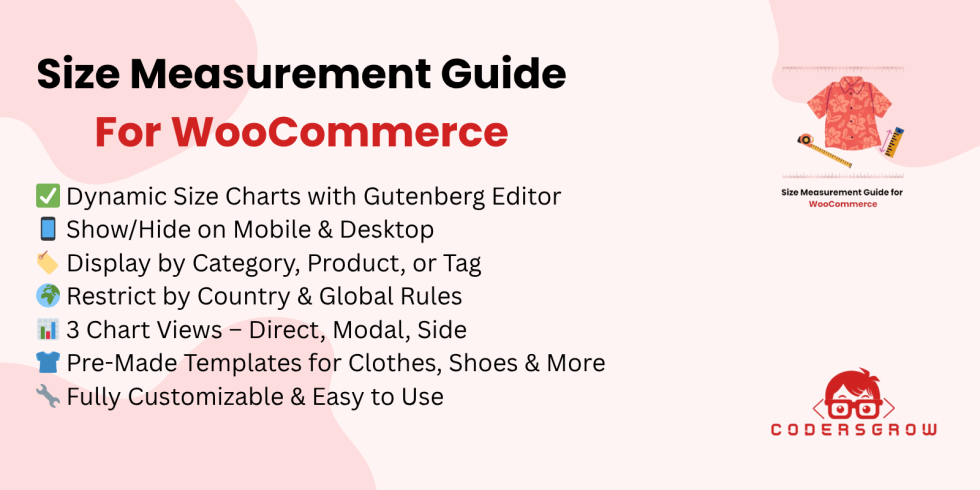
Size Measurement Pro allows your WooCommerce store to designed, make size Pick simple, exact, and completely modified. Whether you sell clothes, shoes, caps, or accessories, this module ensures your customers always find the right fit.
When running an online store, one of the biggest challenges is helping customers find the right size. Incorrect sizing often leads to high return rates, poor customer satisfaction, and a drop in overall sales. That’s where a Size Measurement Pro for WooCommerce comes in.
Installation
↑ Back to topTo start using a product from WooCommerce.com, you can use the “Add to store” functionality on the order confirmation page or the My subscriptions section in your account.
- Navigate to My subscriptions.
- Find the Add to store button next to the product you’re planning to install.
- Follow the instructions on the screen, and the product will be automatically added to your store.
Alternative options and more information at:
Managing WooCommerce.com subscriptions.

Setup and Configuration
↑ Back to top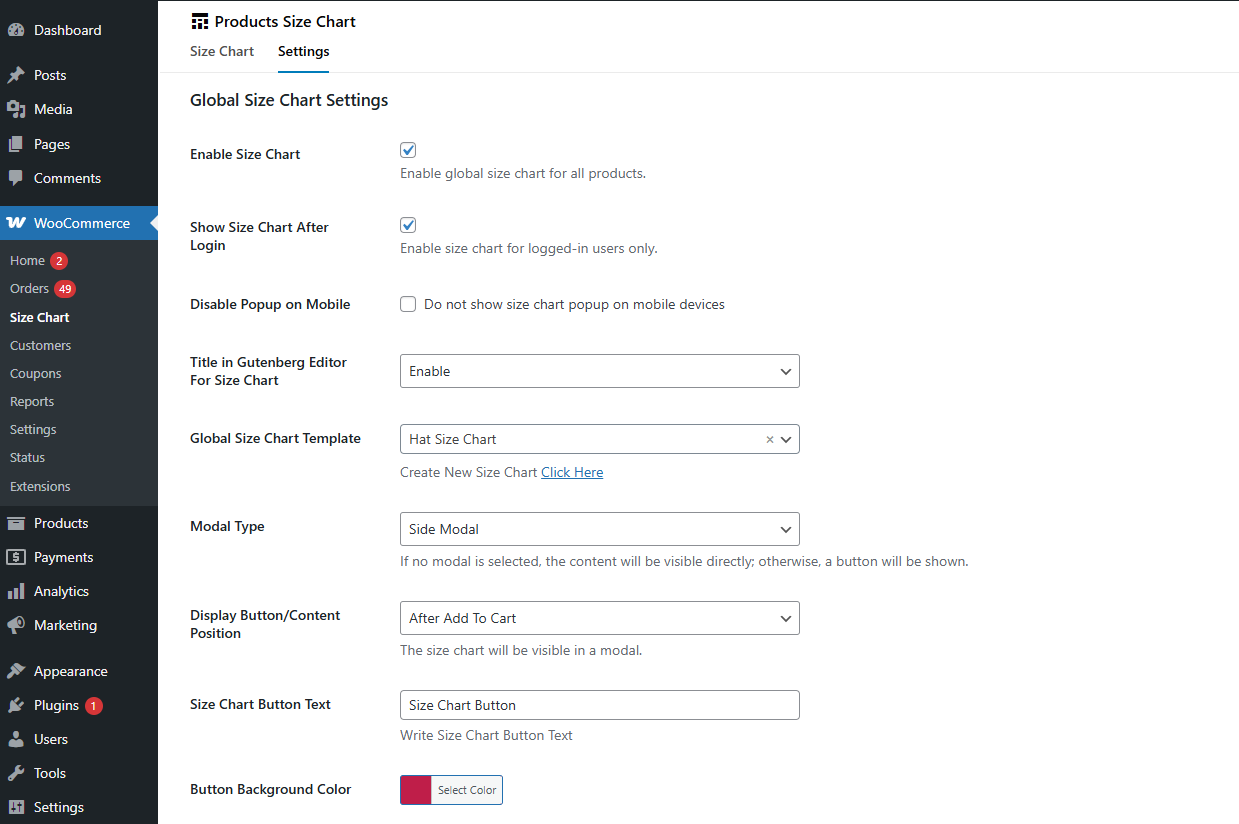
Getting started
↑ Back to topTo set up your store with Size Measurement Pro for WooCommerce:
- Go to: WooCommerce > Size Chart > Settings.
- Tick the checkbox to Show Size Chart
- Set the Default Global Size Chart Template.
- Save changes.
Setting up Size Measurement Pro for WooCommerce is simple and takes only a few minutes. Once configured, you can control how size charts show across your store using flexible global settings.
Step 1: Install and Activate the Plugin
↑ Back to topAfter activation, navigate to:
WooCommerce → Size Chart
You will see two tabs:
- Size Chart
- Settings
Open the Settings tab to set up global behavior.
Global Size Chart Settings
↑ Back to topThe global settings allow you to control how size charts behave across your WooCommerce store.
Active Size Chart
↑ Back to topTurn this section on to active size charts globally for all products in your store. Disabling it will hide size charts everywhere without removing templates.
Show Size Chart After Login
↑ Back to topThis section restricts size chart visibility to logged-in users only. It is useful for wholesale stores or member-based shops.
Turn off Pop-up on Mobile
↑ Back to topAllow this functionality if you want to prevent modal or pop-up size charts from appearing on mobile devices. This helps keep a cleaner mobile shopping experience.
Title in Gutenberg Editor for Size Chart
↑ Back to topYou can allow or turn off the title field when creating size charts using the Gutenberg editor. This gives you better control over template structure.
Global Size Chart Template
↑ Back to topSelect a default size chart template that will automatically apply to products without a specific chart assigned.
You can also create a new template by clicking:
Create New Size Chart
This ensures consistency across your store.
Modal Type
↑ Back to topChoose how the size chart will show on product pages:
- Direct Size Chart (no modal)
- Center modal Size Chart Popup
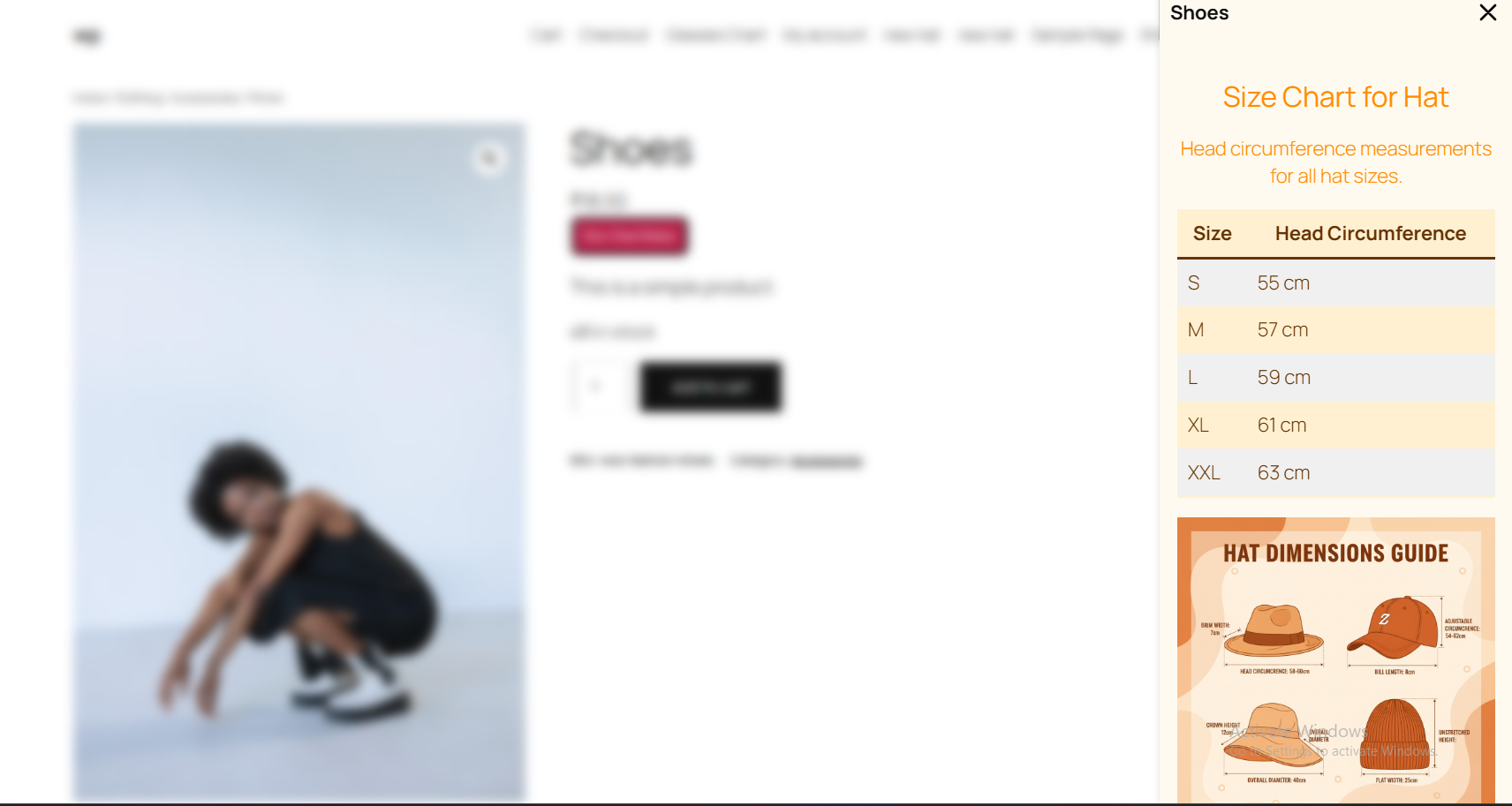
- Side Size Chart modal panel
If no modal type is selected, the size chart content will show directly on the product page.
Size Measurement Pro Button / Content Position
↑ Back to topControl where the size chart button or content appears on the product page.
For example:
- Before Add to Cart
- After Add to Cart
- Product summary area
This shows you how to align the size chart with your product page layout.
Size Measurement Button Text
↑ Back to topEnhance the size chart button label to match your store’s tone.
Examples:
- View Size Chart
- Check Size Guide
- Find Your Size
Button Background Color
↑ Back to topYou can enhance the size chart button color to match your brand identity and theme styling.
Button Styling Settings
↑ Back to topSize Measurement Pro for WooCommerce let you to enhance the appearance of the size chart button. so it matches your store’s branding and design.
Button Background Color
↑ Back to topChoose the background color for the size chart button using the color picker. This helps enhance visual consistency with your theme and brand identity.
Button Text Color
↑ Back to topSet the text color of the size chart button to proper contrast and readability.
Button Border Radius
↑ Back to topControl how rounded the button corners shows by setting the border radius value in pixels.
Example:
0px→ Square corners5px→ Slightly rounded20px→ Fully rounded button
Button Padding
↑ Back to topAdjust the internal spacing inside the button using padding values. Increasing padding makes the button larger and easier to click.
Button Margin
↑ Back to topSet the outer spacing around the button to control how it aligns with nearby product page elements.
Visibility Control Settings
↑ Back to topThese settings allow you to control exactly where size charts should not shows in your store.
This ensures the size chart is only shown where it is relevant to customers.
Turn off for Specific Categories
↑ Back to topYou can turn off the size chart for selected product categories.
For example:
If categories like Clothing or Jackets use a different sizing system charts, you can exclude them here.
This prevents unnecessary size chart visibility.
Turn off for Specific Tags
↑ Back to topturn off size charts for products with specific tags.
Example:
If products tagged with “Size” already include sizing details in descriptions, you can hide the chart automatically.
Turn off for Specific Countries
↑ Back to topYou can restrict size chart visibility based on customer location.
Example use cases:
- Region-specific products
- Digital goods
- Products without size variations
- Markets where sizing standards differ
This ensures customers only see size charts when they are relevant.
Advanced configuration
↑ Back to topSize Measurement Pro for WooCommerce lets you to control size charts at the individual product level. This gives store owners full flexibility to assign the most relevant size chart to each product.
You can setup these settings by editing any product in WooCommerce.
Navigate to:
Products → Edit Product → Product Data → Size Chart Settings
Size Chart Status
↑ Back to topThis section lets you to Manage the size chart for a specific product.
Options include:
Show
Displays the size chart for the selected product, overriding global exclusions if applicable.
Hide
Prevents the size chart from appearing on that product page, even if global settings are enabled.
Select Size Chart Template
↑ Back to topThe Size Chart Template Section lets you to assign a specific size chart template to the product.
For example:
- Ring Size Chart
- Clothing Size Chart
- Shoes Size Chart
- Custom size chart templates
Assigning a product-specific chart ensures customers see the most correct sizing information for that item.
If no template is selected, the plugin will use the Global Size Chart Template (if configured).
Category-Specific Size Chart Settings
↑ Back to topSize Measurement Pro for WooCommerce also lets you to assign size charts at the product category level. making it easier to manage sizing information for groups of similar products.
Instead of assigning size charts individually to every product. you can apply a size chart to an entire category in just a few clicks.
To manage this, navigate to:
Products → Categories → Edit Category
Scroll down to the Size Chart Settings section.
Active Size Chart for Category
↑ Back to topCheck the Active Size Chart checkbox to allow size charts for all products within the selected category.
Once enabled, all products in that category will automatically show the assigned size chart unless overridden at the product level.
This helps Manage consistency across similar products.
Select Size Chart Template
↑ Back to topUse the section menu to choose which size chart template should be displayed for this category.
For example:
- Clothing Size Chart for apparel categories
- Shoes Size Chart for footwear categories
- Ring Size Chart for jewelry categories
This ensures customers always see the correct sizing information when browsing products from a specific category.
Tag-Specific Size Chart Settings
↑ Back to topSize Measurement Pro for WooCommerce also supports assigning size charts using product tags. providing another flexible way to manage sizing information across your store.
Tag-based size charts are especially useful when products from different categories share the same sizing system.
To manage this, navigate to:
Products → Tags → Edit Tag
Scroll to the Size Chart Settings section.
Active Size Chart for Tag
↑ Back to topActive this section to show a size chart for all products that use the selected tag.
This lets you to apply size charts dynamically without editing individual products.
Choose Size Chart Template
↑ Back to topUse the section menu to select the size chart template that should be displayed for products with this tag.
For example:
- Ring Size Chart for products tagged “Ring”
- Hat Size Chart for products tagged “Cap”
- Dimension Chart for products tagged “Furniture”
This ensures customers see consistent sizing information across related products.
Product Attribute–Specific Size Chart Settings
↑ Back to topSize Measurement Pro for WooCommerce also allows to assign size charts based on product attributes. giving you even more control over how sizing information is displayed.
Attribute-based size charts are ideal when multiple products share the same attribute-driven sizing system. like size, material dimensions, or fit types.
To manage this, navigate to:
Products → Attributes → Edit Attribute
Then scroll to the Size Chart Settings section.
Active Size Chart for Attribute
↑ Back to topActive this section to show a size chart for products linked with the selected attribute.
This helps automate size chart assignment for products that share the same attribute configuration.
Select Size Chart Template
↑ Back to topUse the section menu to select the size chart template that should be displayed for products using this attribute.
For example:
- Clothing Size Chart for the “Size” attribute
- Shoe Size Chart for the “Foot Size” attribute
- Dimension Chart for the “Dimensions” attribute
This ensures customers see relevant measurement information based on product attributes.
Why You Need a Size Chart in WooCommerce
↑ Back to topAdding a size chart to your WooCommerce store improves both customer experience and business performance.
Reduce Returns and Exchanges
Help customers choose the correct size the first time, minimizing return requests.
Boost Customer Trust
Clear and correct size charts increase confidence during purchasing decisions.
Increase Conversions
Customers are more interested to fulfill purchases when sizing information is easily available.
Better User Experience
Gives a smooth and responsive shopping experience across all devices.
Multiple Size Chart Options
↑ Back to topThe plugin provides flexible UI modes so the size chart integrates naturally with your product pages.
Direct Chart on Product Page
Show the size chart directly under product details for immediate visibility.
Modal View
Show the size chart in a popup modal for a clean and distraction-free interface.
Side Chart View
Slide the size chart from the side for a modern, app-like user experience.
This options will allow you to match the size chart interface with your store’s design and user experience strategy.
Advanced Rules
↑ Back to topSize Measurement Pro for WooCommerce includes powerful targeting controls that analyze where and when size charts show.
Global Show or Hide
Show or hide size charts across the entire store.
Category and Product Specific Rules
Show size charts only on selected products, categories, or tags.
Device-Based Visibility
Show size charts only on mobile devices or desktop screens.
Country Restrictions
Hide size charts for specific countries where sizing will not be relevant.
Global Exclusions
Exclude selected categories from displaying size charts.
These intelligent rules lets size charts shows only where they are needed, improving usability without cluttering product pages.
Dynamic Size Chart Templates with Gutenberg Editor
↑ Back to topA key feature of Size Measurement Pro for WooCommerce is full compatibility with the Gutenberg Editor. allowing you to create dynamic and reusable size chart templates.
You can:
- Build custom layouts using Gutenberg blocks
- Add tables, images, text, and videos
- Create reusable size chart templates
- Apply templates to multiple products, categories, or tags
- Design size charts without writing code
This flexibility makes it easy to have consistent branding and gives detailed sizing guidance across your store.
Size Chart Templates
↑ Back to topTo help you get started quickly, the plugin includes ready-to-use templates for common product types:
- Clothing size chart
- Shoes size chart
- Glasses size chart
- Product dimensions size chart
- Caps and hats size chart
- Ring size chart
- Bag and luggage size chart
These templates can be used as-is or customized to match your store’s requirements.
Usage
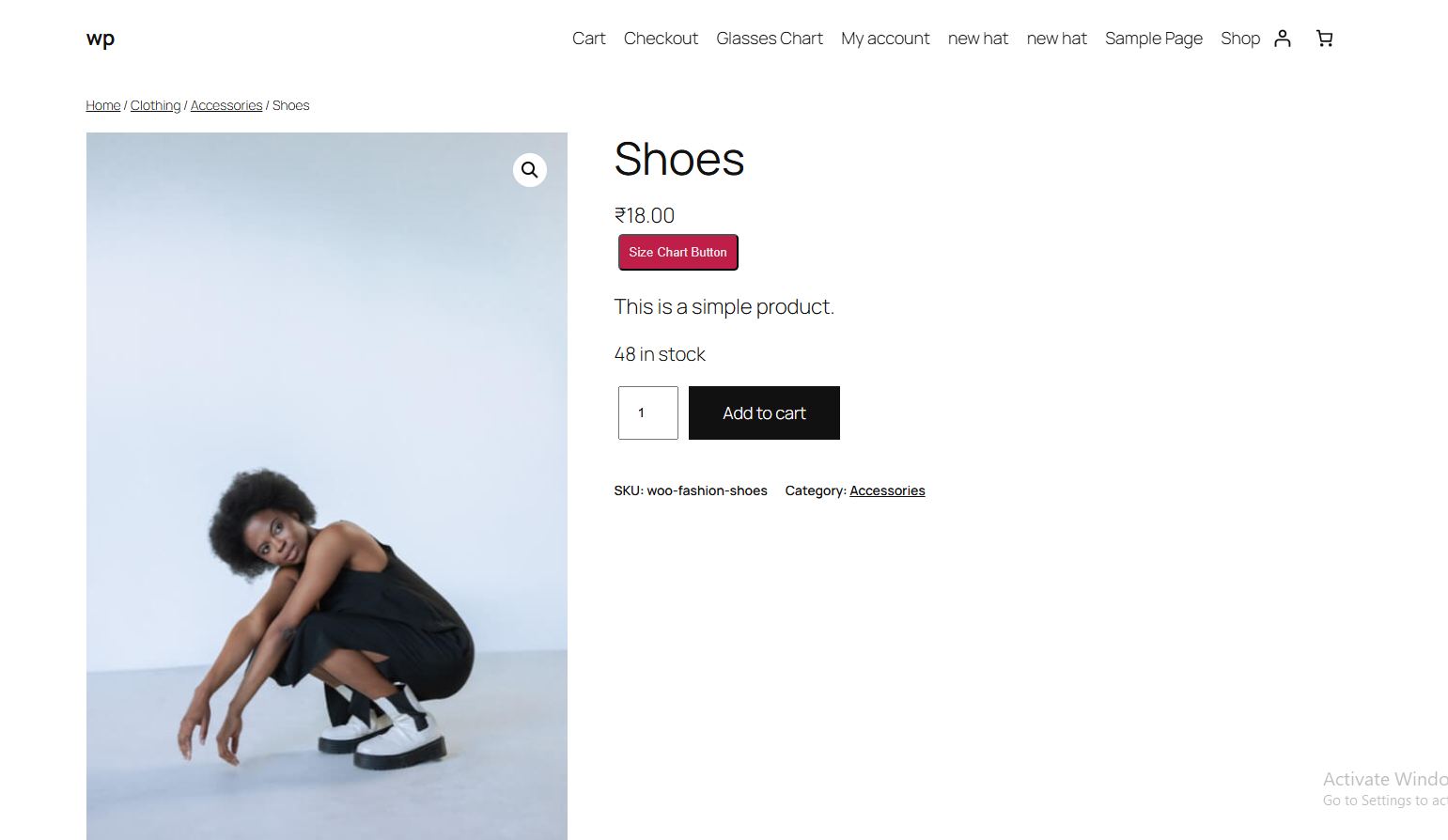
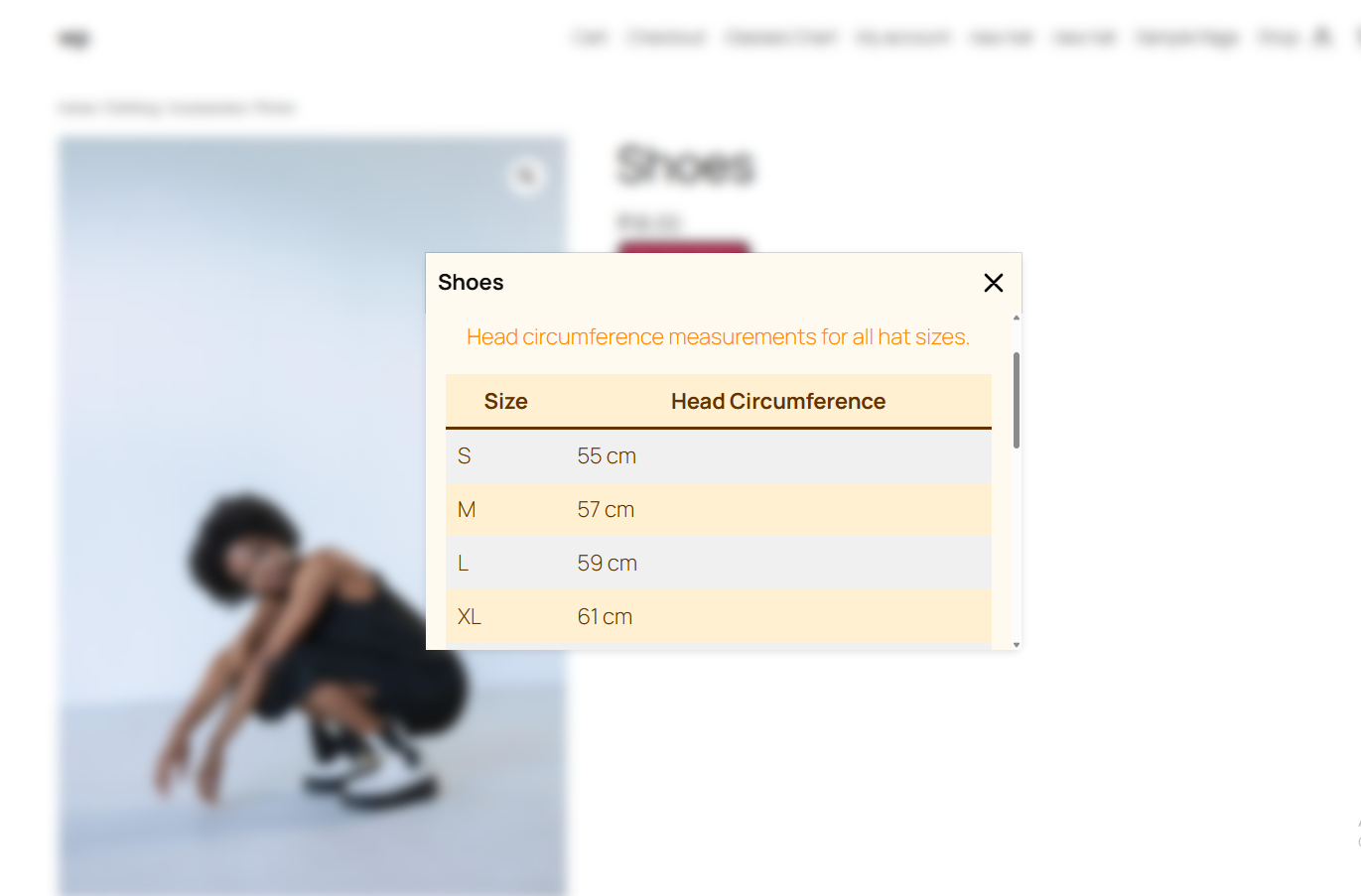
↑ Back to topWhat customers see on the front end.
FAQs
↑ Back to topHelp customers by answering commonly asked questions.
What is Size Measurement Pro for WooCommerce?
Size Measurement Pro for WooCommerce is a plugin that allows store owners to create and show modified size charts for products. It helps customers choose the correct size before purchasing, reducing returns and improving the shopping experience.
How does a size chart help reduce product returns?
Size charts gives clear measurement guidance so customers can select the correct size confidently. When customers choose the right size the first time, the number of returns and exchanges decreases significantly.
Can I create custom-sized charts using Gutenberg?
Yes. The plugin fully supports the Gutenberg Editor. Allowing you to create dynamic size chart templates using blocks like tables, images, text, and videos without writing any code.
Can I assign different size charts to different products?
Yes. You can assign size charts to Individual products, Product categories, Product tags. This ensures each product displays the most relevant size information.
Can I show size charts only on mobile or desktop devices?
Yes. The plugin includes device-based rules. Allowing you to show or hide size charts depending on whether customers are browsing from mobile or desktop devices.

