
Taxually connects your WooCommerce store to automated global tax compliance — calculate VAT, GST, and US sales tax at checkout, and let Taxually’s tax experts handle registration, filing, and remittance across 150+ countries.
Installation
↑ Back to topTo start using a product from WooCommerce.com, you can use the “Add to store” functionality on the order confirmation page or the My subscriptions section in your account.
- Navigate to My subscriptions.
- Find the Add to store button next to the product you’re planning to install.
- Follow the instructions on the screen, and the product will be automatically added to your store.
Alternative options and more information at:
Managing WooCommerce.com subscriptions.

Setup and Configuration
↑ Back to top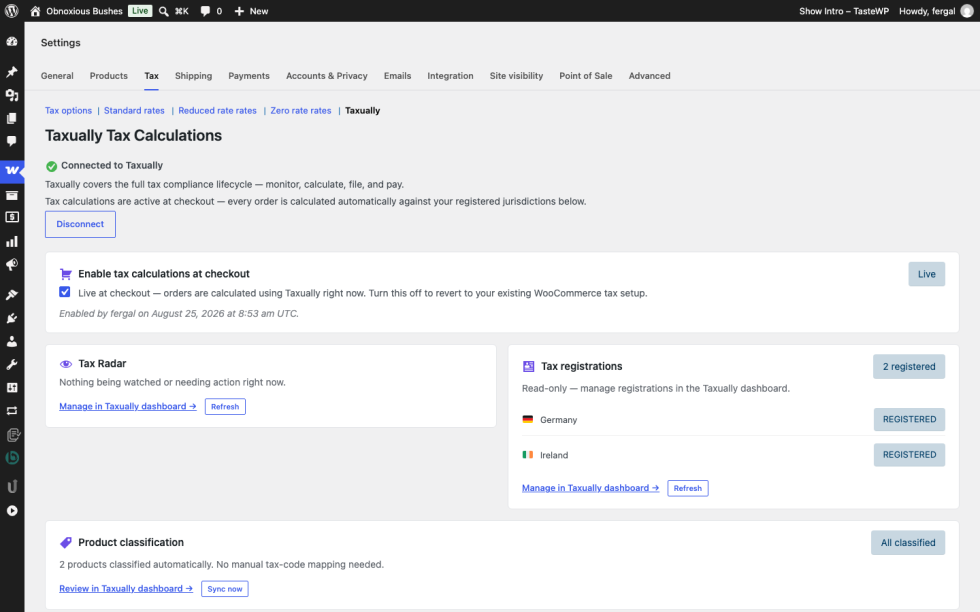
Getting started
↑ Back to topTo connect your store with Taxually:
- Go to: WooCommerce > Settings > Tax > Taxually.
- Click Connect to Taxually and sign in (or create an account).
- You’re connected. Taxually pulls your transaction data automatically and starts monitoring your compliance obligations right away.
- When you’re ready, turn on Enable tax calculations at checkout. It’s off by default after connecting, so nothing changes at checkout until you explicitly enable it.
Advanced configuration
↑ Back to top- Enable tax calculations at checkout: off by default after connecting. Turn this on in Settings once you’re ready for Taxually to calculate and apply tax live — until then, checkout uses your existing WooCommerce tax setup unchanged.
- Already using another tax calculation tool? Keep it, and use Taxually only for registration, filing, and remittance — leave “Enable tax calculations at checkout” off. If you’d rather have Taxually handle checkout tax too, disable your other tool’s calculation first to avoid double taxation (WooCommerce doesn’t prevent two tax plugins running at once).
- Product classification happens automatically in the background — there’s no manual tax-code mapping step to complete first.
- Business tax ID at checkout: Taxually adds a tax ID field to checkout for B2B buyers. If you already collect this via EU VAT Number, EU VAT for WooCommerce, or Germanized, Taxually detects and imports it automatically.
Usage
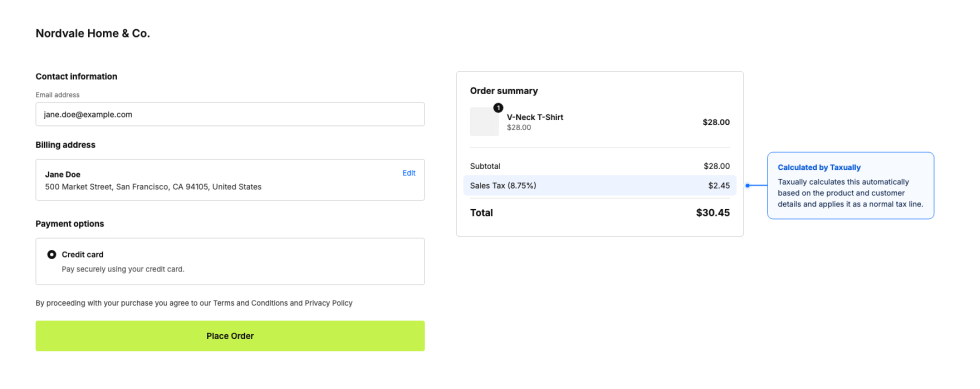
↑ Back to topWhat customers see on the front end.
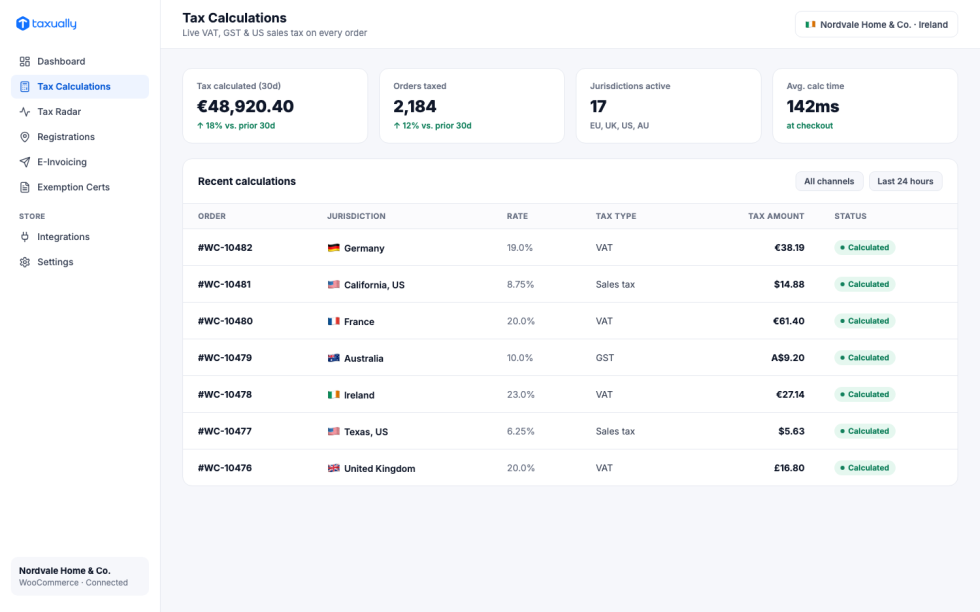
What merchants see on the Taxually platform.
External services
↑ Back to topThis plugin connects to the Taxually API for two purposes:
- Tax compliance sync — after you connect your store, your WooCommerce transaction data (orders, line items, and customer billing details) is transmitted to Taxually on an ongoing basis for VAT/sales tax registration, filing, and remittance.
- Checkout tax calculation — only if you turn on “Enable tax calculations at checkout” in Settings. When enabled, the customer’s billing/shipping address and cart contents are sent to Taxually in real time on every checkout so the correct tax rate can be calculated. This does not happen unless you explicitly enable this setting.
By installing this plugin, data from your store is transmitted to Taxually as described above.
Troubleshooting
↑ Back to top- Tax isn’t calculating at checkout — confirm the store is connected (Settings → Tax → Taxually) and that “Enable tax calculations at checkout” is switched on.
- Settings show “Action needed: Reconnect” — your connection needs re-authorizing; click Reconnect and sign in again. This doesn’t affect any tax already calculated.
- Getting double tax at checkout — you likely have another tax plugin also calculating tax. Only one calculation source should be active at a time; disable the other.
- Tax Radar or Registrations look out of date — data refreshes automatically but can take a few minutes; use the Refresh button on the settings page to force an update.
- Still stuck? See the FAQ below, or get in touch with a Happiness Engineer via our Help Desk.
FAQs
↑ Back to topHelp customers by answering commonly asked questions.
Will this plugin affect my checkout or break anything?
Checkout behavior doesn’t change until you explicitly turn on “Enable tax calculations at checkout” in Settings — pricing and tax stay exactly as they are today. What does start immediately on connect is background data sync: your order data (amounts, shipping addresses, product details) begins flowing to Taxually right away, so compliance monitoring (Tax Radar, registrations) can start working.
How quickly does data start syncing?
Immediately after connecting — Taxually begins pulling your transaction data (order amounts, shipping addresses, product details) right away, independent of whether checkout tax calculation is turned on.
Do I need to be a tax expert to use this?
No — Taxually’s tax professionals handle registration, filing, and representation for you.

