
Smart Gift Cards allow your WooCommerce store to sell, send, and manage digital Gift Cards using regular products, with flexible values and automated creation options.
Installation
↑ Back to topTo start using a product from WooCommerce.com, you can use the “Add to store” functionality on the order confirmation page or the My subscriptions section in your account.
- Navigate to My subscriptions.
- Find the Add to store button next to the product you’re planning to install.
- Follow the instructions on the screen, and the product will be automatically added to your store.
Alternative options and more information at:
Managing WooCommerce.com subscriptions.

Setup and Configuration
↑ Back to topYou can access the Gift Cards table, Auto Gift Cards, and Manual Gift Cards under WooCommerce → Gift Cards.
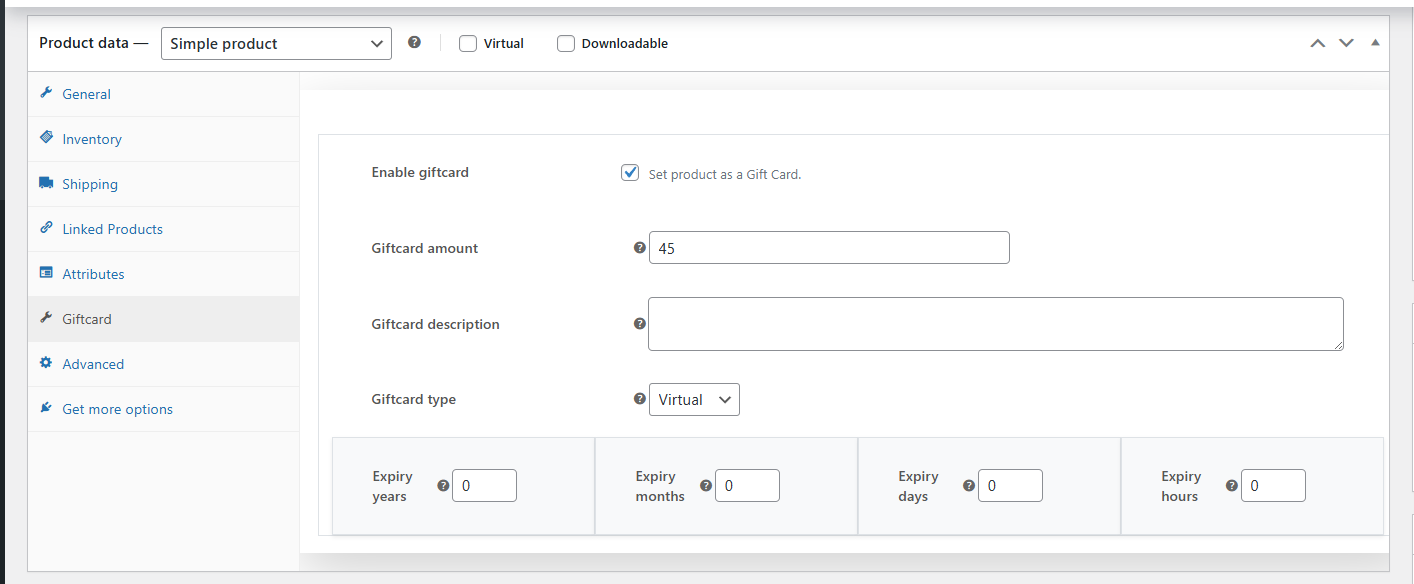
Set up products as Gift Cards by visiting any product’s edit page and checking the Gift Card checkbox.
Usage
↑ Back to topGift Card products
↑ Back to top- You can turn any WooCommerce product into a Gift Card.
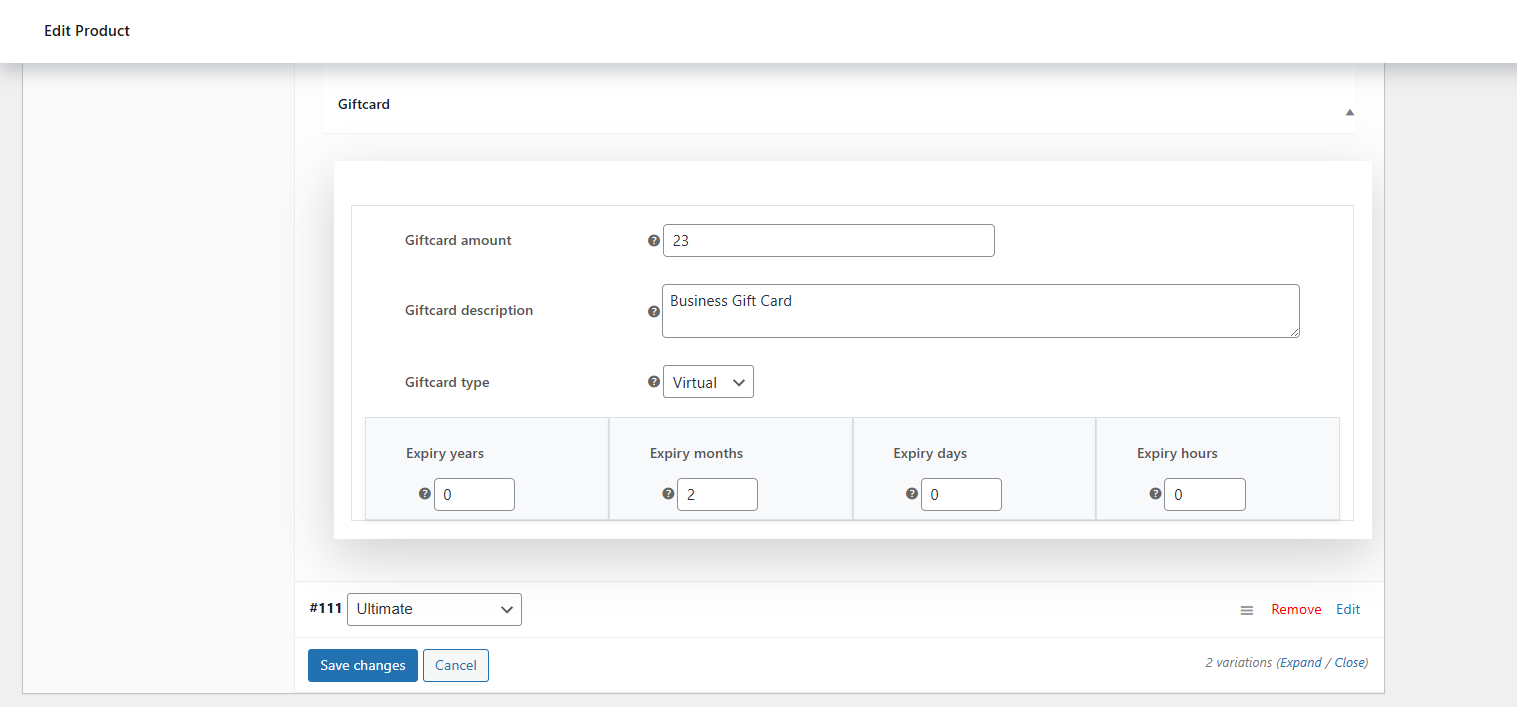
- Use variations to define multiple Gift Card values (e.g., 10, 25, 50).
- Enable the Gift Card option in the product settings.
- Works with both simple and variable products.
Automatic Gift Cards
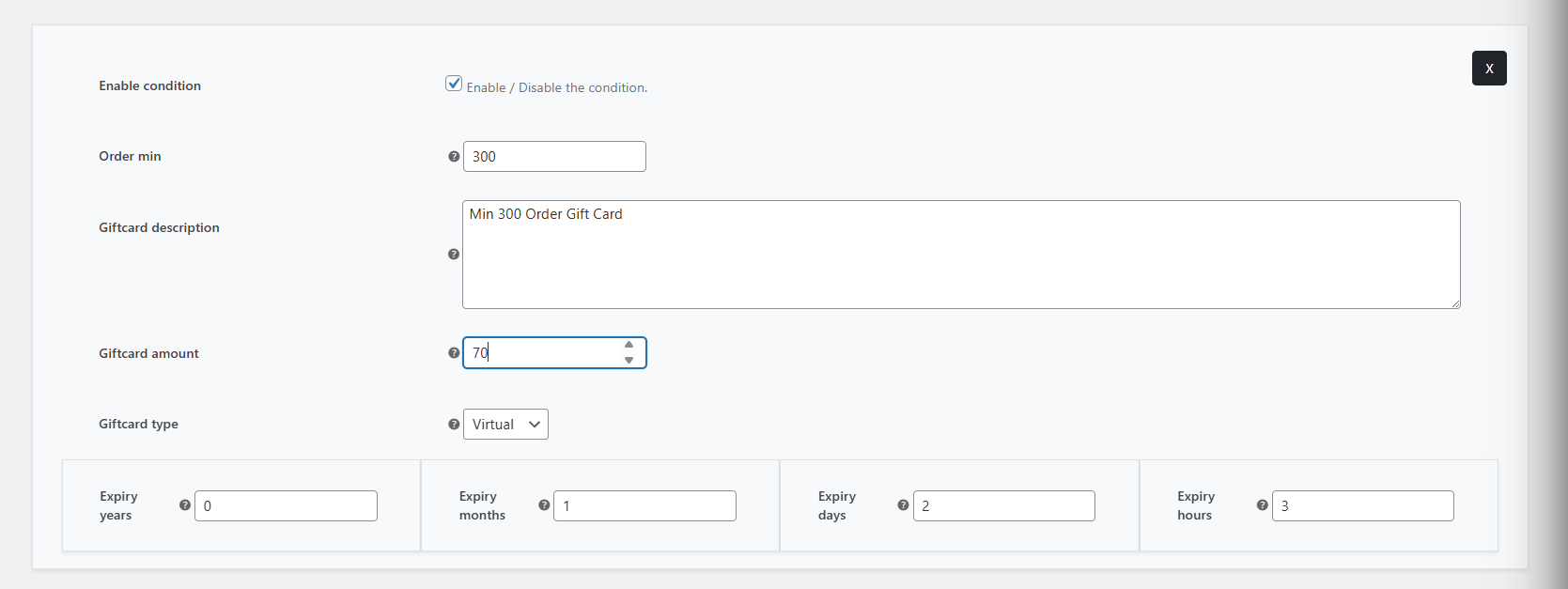
↑ Back to topYou can automatically generate Gift Cards based on order totals.
- Useful for promotions like “Spend X, get a Gift Card”.
- Set a minimum order amount.
- When the condition is met, a Gift Card is created automatically.
Manual Gift Card Creation
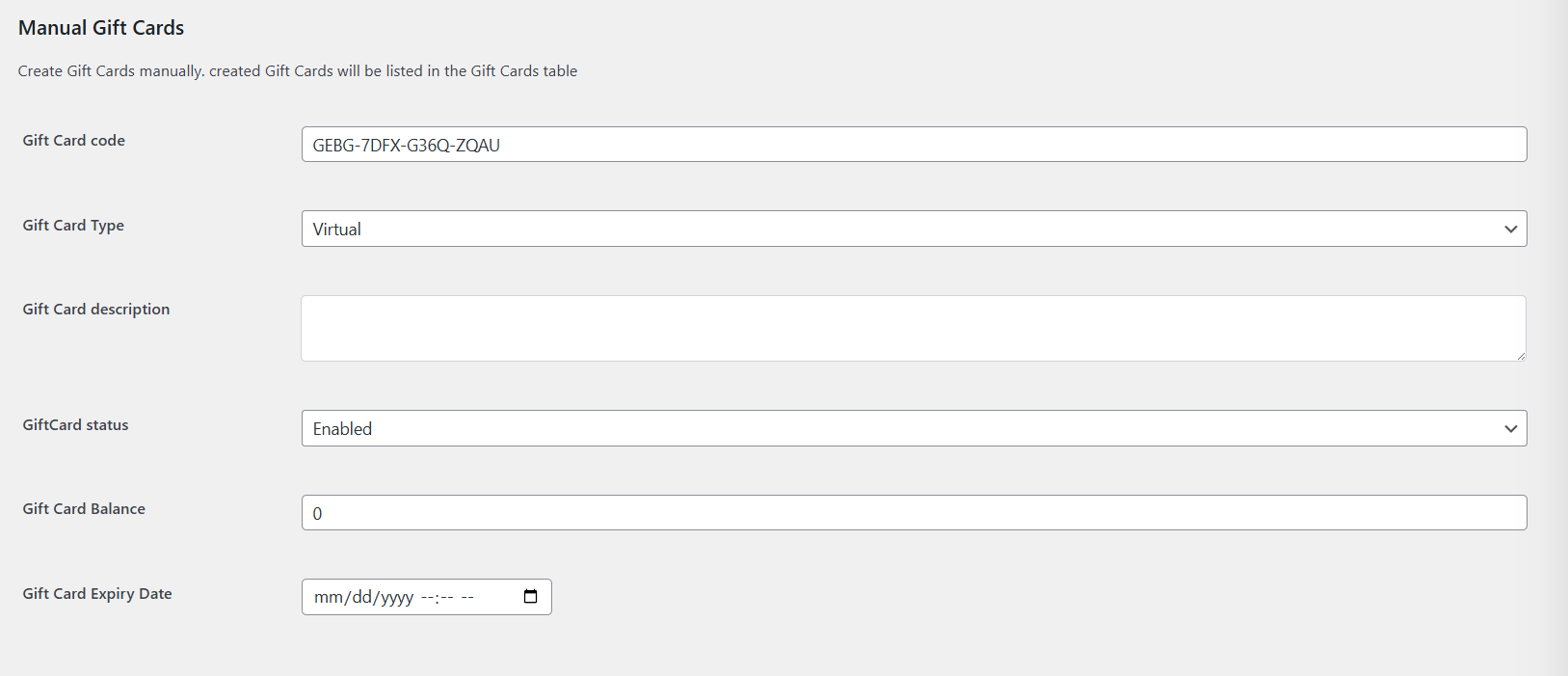
↑ Back to topYou can create Gift Cards manually from the admin panel.
Use cases include:
- Custom-issued Gift Cards.
- Store credit or refunds
- Customer rewards
Track Gift Cards
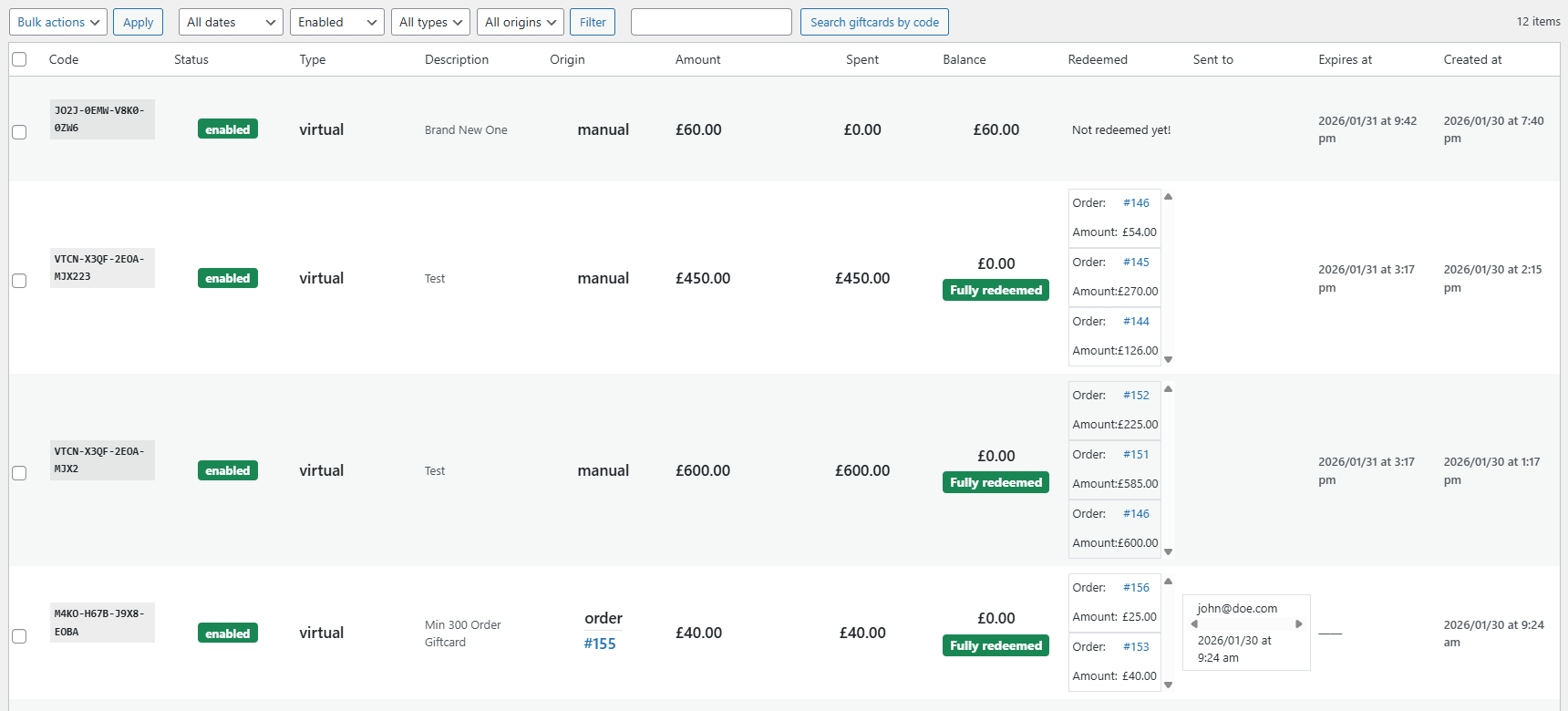
↑ Back to topYou can track, edit, and delete all Gift Cards from the Gift Cards table. It contains all details about each Gift Card.
Sending Gift Cards
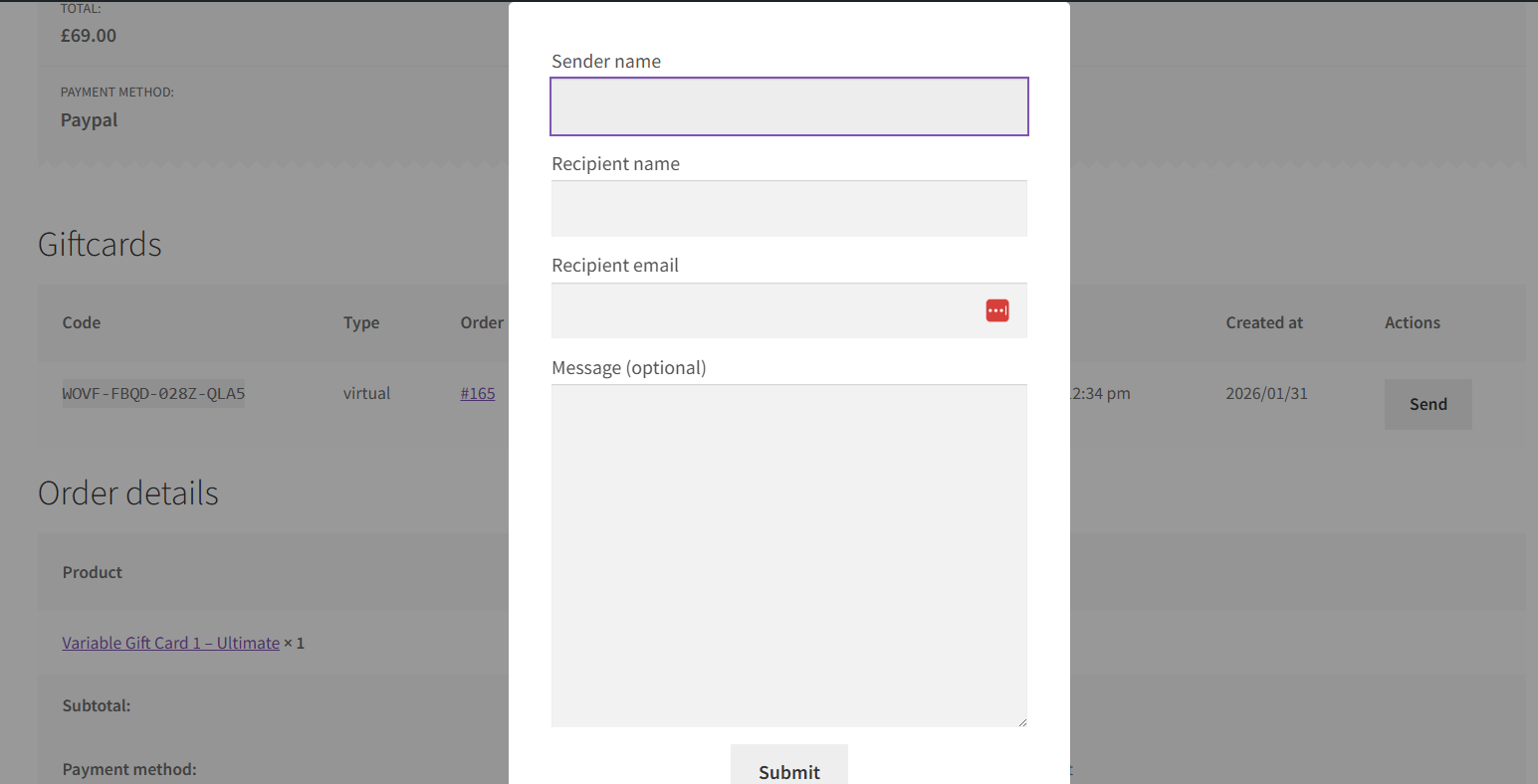
↑ Back to top- Customers can send Gift Cards directly to a recipient.
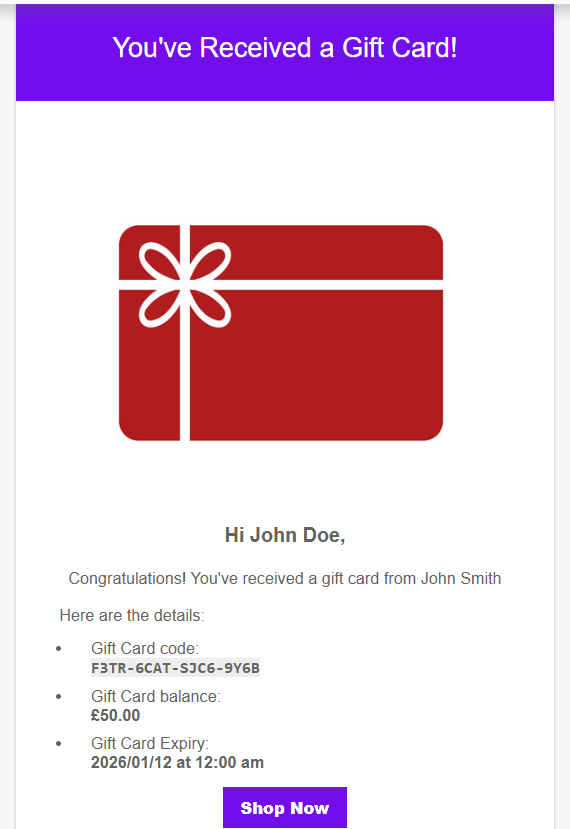
- The Gift Card is delivered via email after purchase.
- Optionally include a message.
What Customers See on the Front End
↑ Back to top- Customers can purchase Gift Card products like any other product.
- They can choose a value (for variable products).
- They can enter the recipient’s email details.
- The recipient receives the Gift Card via email.
Gift Cards can then be used during checkout like coupons.
FAQs
↑ Back to top
Can I use variable products for Gift Cards?
Yes, you can create variations to offer multiple Gift Card values.
Can customers send Gift Cards to someone else?
Yes, customers can enter a recipient’s email address, and the Gift Card will be sent directly to them.
Can I create Gift Cards manually?
Yes, you can create and manage Gift Cards from the admin panel.

