The WooCommerce Raffle and Giveaway Plugin lets you easily create and manage raffles and giveaways directly on your store. Boost customer engagement and sales by offering exciting prize draws. Simple to set up, fully customizable, and designed to work seamlessly with WooCommerce.
Installation
↑ Back to top- Download the .zip file from your WooCommerce Account.
- Go to: WordPress Admin > Plugins > Add New and upload the plugin file you have downloaded.
- Install Now and Activate.
More information at Install and Activate Plugins/Extensions.
Setup and Configuration of Raffle and Giveaway Plugin
↑ Back to topAfter activating the Raffle and Giveaway plugin, you can see the “Raffle and Giveaway” in the WordPress admin under the WooCommerce menu. Under the Raffle and Giveaway menu, you can see the following 5 sections:
- Settings
- Email Settings
- Raffle Winners
- Sold Raffle Tickets
- Raffle Products
General Settings
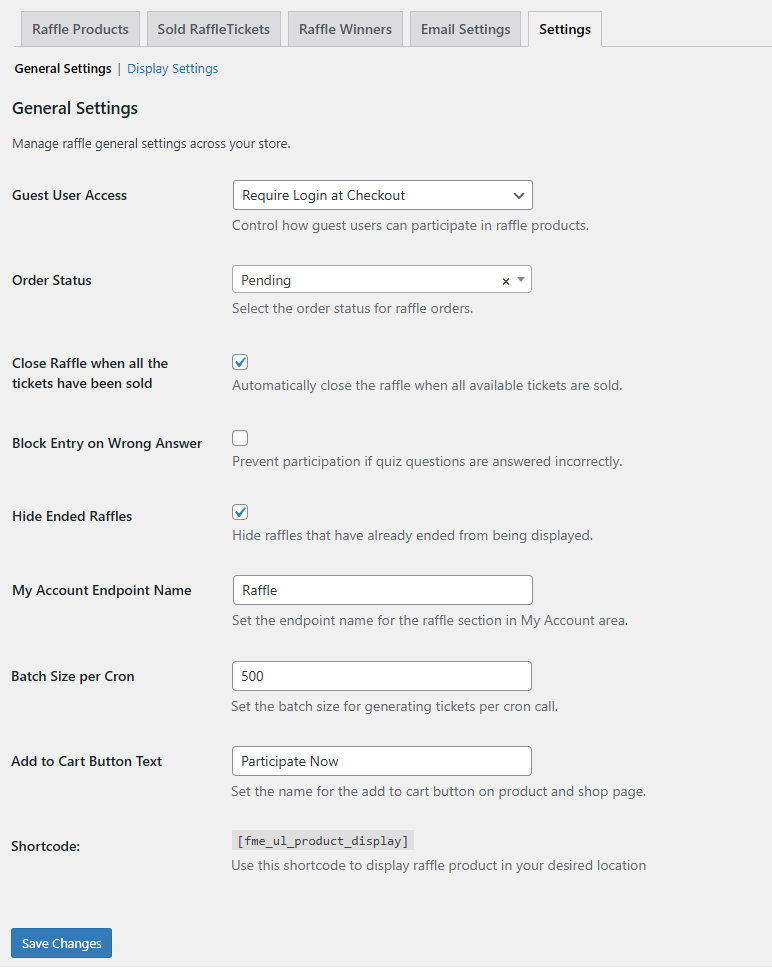
↑ Back to topManage and configure the general settings of your raffle and giveaway plugin. Go to WooCommerce > Raffle and Giveaway > Settings > General Settings and configure the following.
- Guest User Access: Control how guest users can participate in the raffle. You can choose between the following:
- Require Login at Checkout
- Restrict Guest Access
- Enable Guest Access
- Order Status: Select the order status for the raffle products. You choose the order status as:
- Pending
- Processing
- On Hold
- Completed
- Cancelled
- Refunded
- Failed
- Close Raffle when all the Tickets have been Sold: Enable the checkbox to close the raffle once all the tickets have been sold.
- Block Entry on Wrong Answer: Click the checkbox to prevent participation in the raffle if quiz questions are answered incorrectly.
- Hide Ended Raffles: Enable the checkbox if you do not want to hide raffles that have already been ended.
- My Account Endpoint Name: Set the endpoint name for the Raffle section in the My Account section.
- Batch Size per Cron: Set the batch size for generating tickets per cron call.
- Add to Cart Button Text: Customize the “Add to Cart” button text on the product and shop pages.
Display Settings
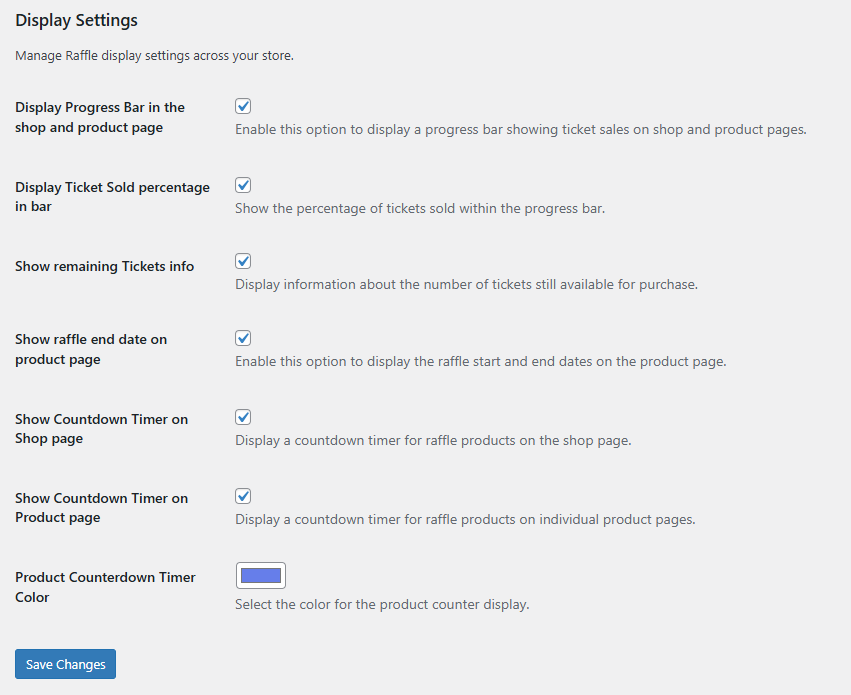
↑ Back to topManage and configure the general settings of your raffle and giveaway plugin. Go to WooCommerce > Raffle and Giveaway > Settings > Display Settings and configure the following.
- Display Progress Bar In The Shop And Product Page: Enable this option to show a progress bar that displays ticket sales on the shop and product pages.
- Display Ticket Sold Percentage In Bar: Show the percentage of tickets sold inside the progress bar.
- Show Remaining Tickets Info: Display the number of tickets still available for purchase.
- Show Raffle End Date On Product Page: Enable this option to display the raffle start and end dates on the product page.
- Show Countdown Timer On Shop Page: Display a countdown timer for raffle products on the shop page.
- Show Countdown Timer On Product Page: Display a countdown timer for raffle products on individual product pages.
- Product Counterdown Timer Color: Select the color for the countdown timer display on product pages.
Click on “Save Changes” to save the configured settings.
Raffle Products – Configuration
↑ Back to topManage and configure the raffle products. Go to WooCommerce > Raffle and Giveaway > Raffle Products and configure the following.
In this section, you can see all the raffle products or add new raffle products. The raffle product table includes product name, price, status, start/end date, total tickets, tickets sold, and number of winners.
To add a New Raffle Product, click on the “Add New Raffle Product” button and configure the raffle product. Go to the product data section, and you will find five new tabs:
- Raffle Settings
- Raffle Tickets
- Instant Win
- Q&A Configuration
- Winner Settings
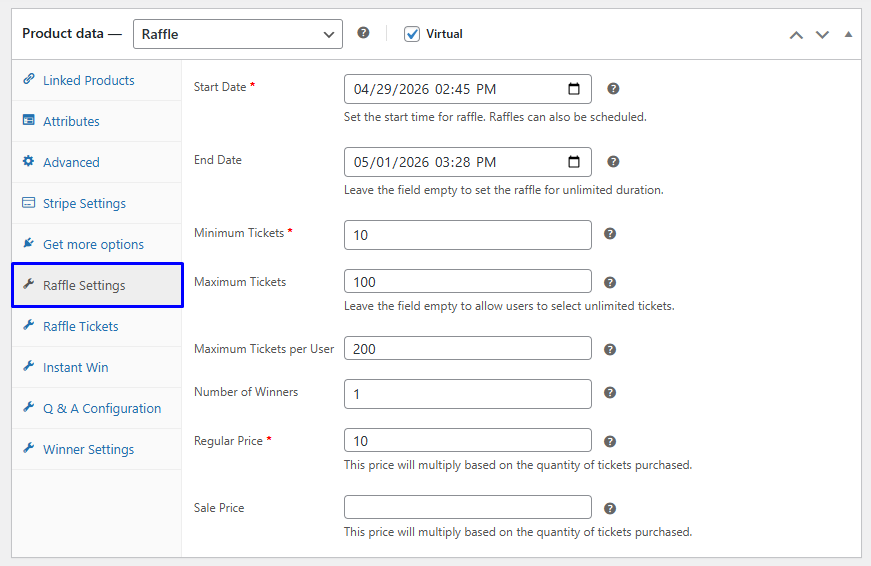
Raffle Settings
↑ Back to top- Start Date: Set the raffle’s start date. You can also schedule the raffle for later.
- End Date: Set the raffle’s end date. Leave the field empty to set the raffle for an unlimited duration.
- Minimum Tickets: Enter the minimum number of tickets that a user can add to their cart.
- Maximum Tickets: Set the maximum number of tickets. Leave empty to allow users to select unlimited tickets.
- Maximum Tickets per User: Set the maximum number of tickets a user can purchase across multiple orders.
- Number of Winners: Set the number of winners for this raffle.
- Regular Price: Enter the regular price for the raffle ticket. Price will be multiplied by the number of tickets.
- Sale Price: Set the sale price for the raffle ticket.
Raffle Tickets
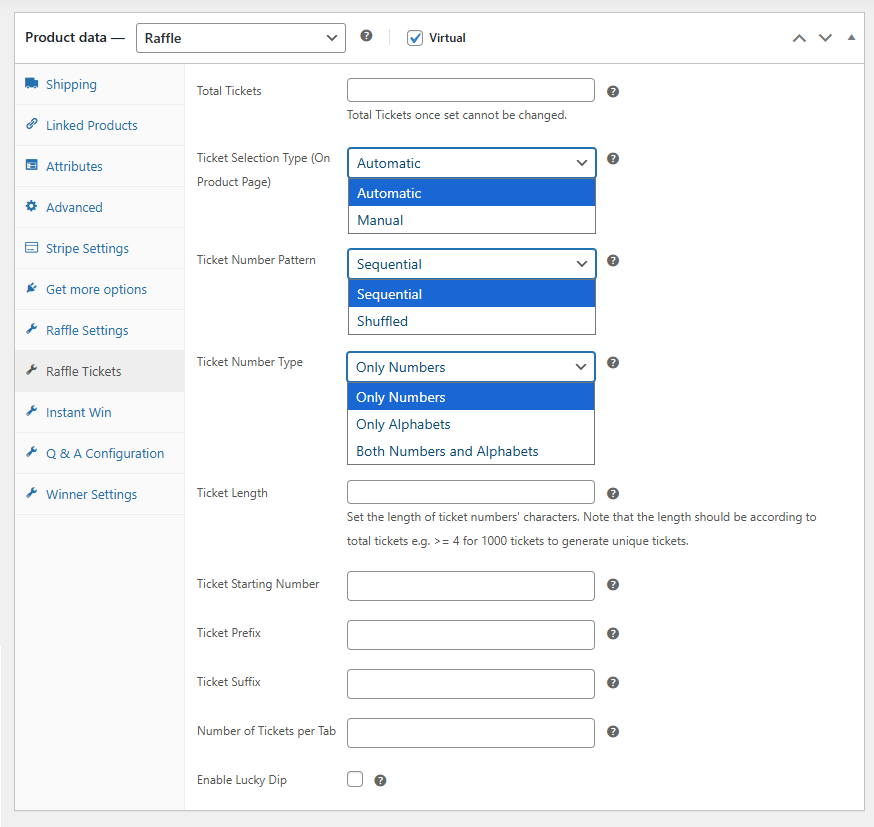
↑ Back to top- Total Tickets: Set the total number of tickets to be generated for this raffle.
- Ticket Selection Type (On Product Page): Choose how users select tickets. You will have two options:
- Automatic: Tickets will be automatically added when the customer clicks the add to cart button.
- Manual: With manual selection, customers can select their tickets themselves.
- Ticket Number Pattern: Select the pattern for generating ticket numbers. You will have the following two options:
- Sequential
- Shuffled
- Ticket Number Type: Choose the type of characters that will be used in the ticket number. You can choose between the following:
- Only Numbers
- Only Alphabets
- Both Numbers and Alphabets
- Ticket Length: Set the length of your raffle ticket numbers to ensure uniqueness. The number of characters should match the number of total tickets available — for example, use 4 or more characters if you’re generating 1,000 tickets.
- Ticket Starting Number: Set the starting number for the raffle ticket sequence.
- Ticket Prefix: Add a prefix to the ticket numbers.
- Ticket Suffix: Add a suffix to ticket numbers.
- Number of Tickets per Tab: Set how many tickets are to be displayed per tab on the product page popup.
- Enable Lucky Dip: Click the checkbox to enable the lucky dip feature. (This feature only works when the ticket selection type is configured as “Manual”)
Instant Win
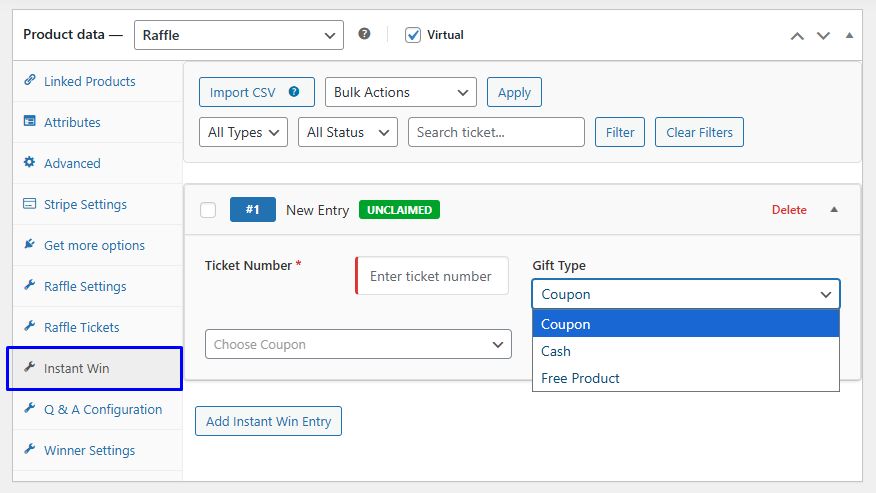
↑ Back to topIn this tab, you can create instant winners for the raffle. Here you can configure the following:
- Ticket Number: Enter the ticket number for which you want to create instat win.
- Gift Type: Choose the type of gift that you want to offer. You can choose the following:
- Coupon (Select the coupon you want to offer)
- Cash (Enter the amount that is to be awarded to the winner)
- Free Product (Choose the product that you want to offer to the winner for free)
Q&A Configuration
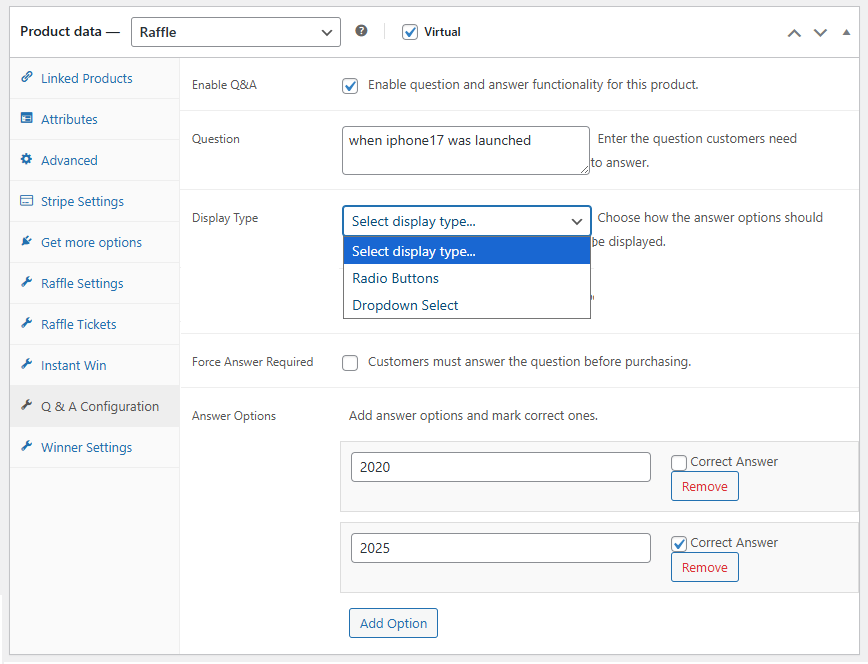
↑ Back to topIn this tab, you can add the question that customers need to answer to participate in the raffle.
- Enable Q&A: Click the checkbox to enable the Question and Answer feature for this product.
- Question: Enter the question that customers need to answer to participate in the raffle.
- Display Type: Choose how the answer options should be displayed. You will have the following two options:
- Radio Buttons
- Dropdown Select
- Force Answer Required: Enable the checkbox if you want to make it mandatory for the customer to answer the question.
- Answer Options: Click on the “Add Option” to add answer options for the question. You can add multiple options and select the correct answer as well.
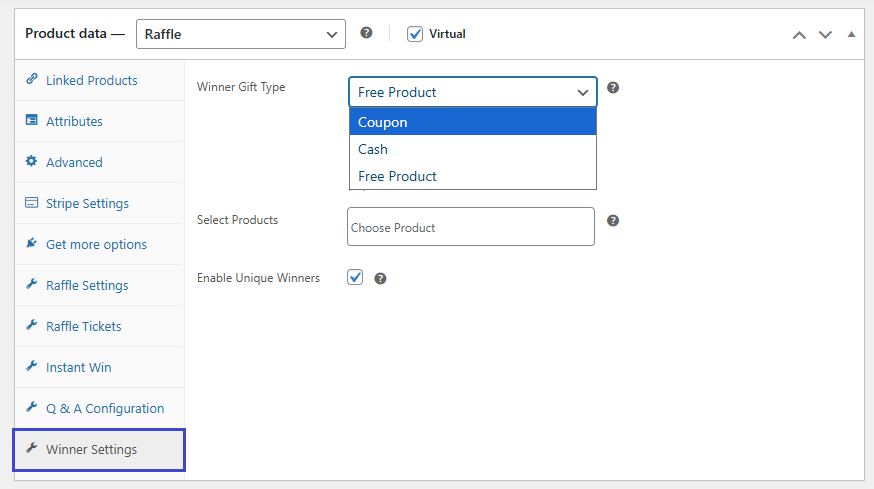
Winner Settings
↑ Back to top- Winner Gift Type: Choose the gift type that the winner will receive. You can choose the following three from the dropdown menu:
- Coupon
- Cash
- Free Product
- Gift Selection: Depending on the gift type, you can select the respective gift for the product. You will have three options:
- Gift Type Coupon: If the gift type is a coupon, select the coupon for the winner.
- Cash as Gift: Enter the cash amount that the customer will receive upon winning.
- Free Product: If the gift type is “Free Product”, select the product(s) that you want to give as a reward to winners.
- Enable Unique Winners: Click the checkbox to ensure that each raffle winner is unique.
Sold Raffle Tickets
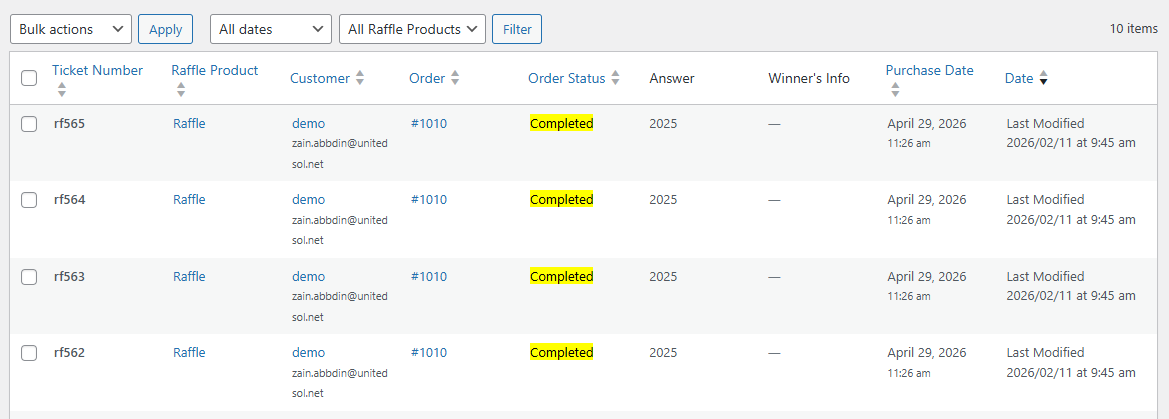
↑ Back to topThis section provides you with complete information on every raffle ticket sold. Go to WooCommerce > Raffle and Giveaway > Sold Raffle Tickets, and you can check the table for raffle ticket details. You can filter raffle tickets based on date and raffle product. The table shows you teh following information:
- Ticket Number
- Raffle Product
- Customer
- Order
- Order Status
- Answer
- Winner’s Information
- Purchase Date
- Date
Raffle Winners
↑ Back to topThis section provides you with information regarding raffle winners, and you can also select the raffle winners. Go to WooCommerce > Raffle and Giveaway > Raffle Winners and configure the following settings.
Select Winners
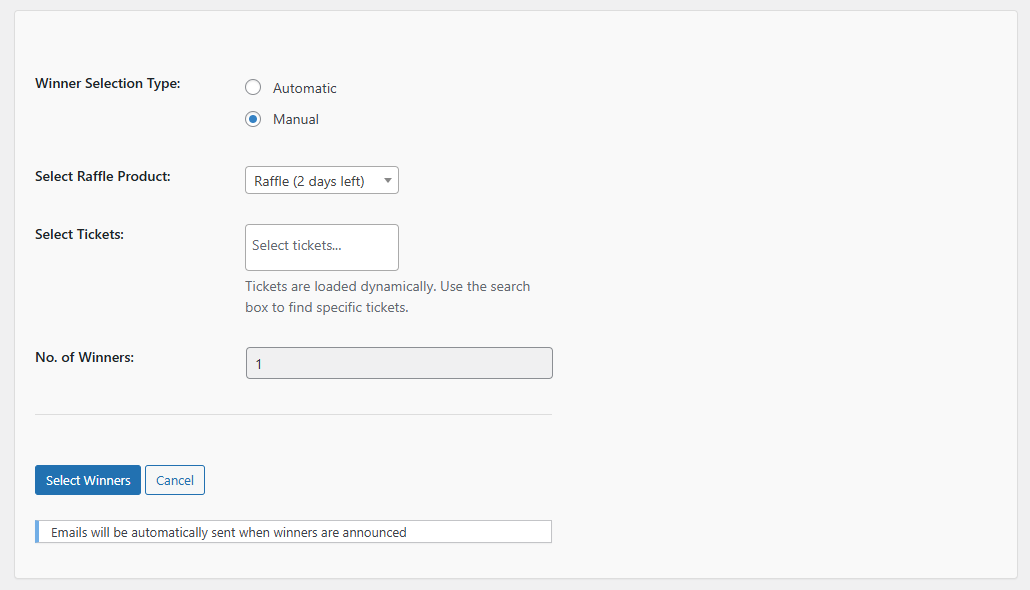
↑ Back to topClick on the “Select Winners” button and configure how you want to select the raffle winners.
- Winner Selection Type: Choose how you want to select the winners. You will have two options:
- Automatic
- Manual
- Select Raffle Product: Choose the raffle products for which you want to select the raffle winners.
Click on the “Select Winners” button, and the winners of the raffle will be selected and announced. Email notifications will be automatically sent when raffle winners are announced.
Raffle Winners
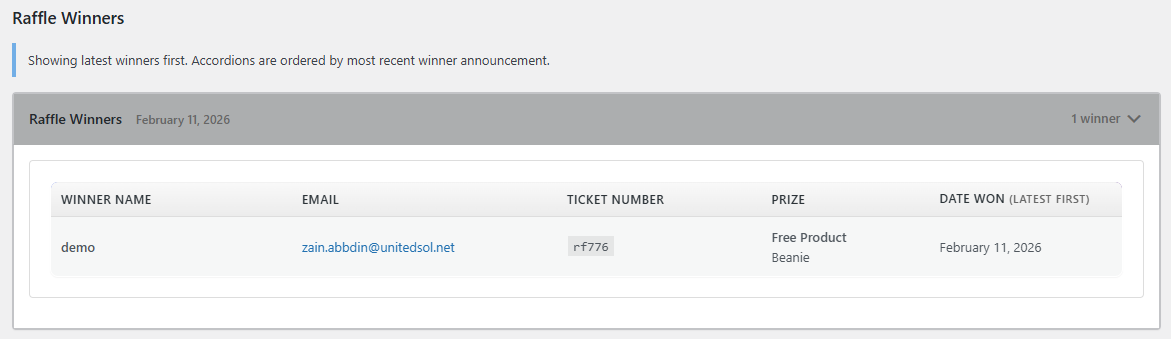
↑ Back to topThis section displays all the information about raffle winners. You can check all the information about raffle winners, which includes:
- Winner Name
- Ticket Number
- Prize
- Date Won (Latest First)
Email Settings
↑ Back to topThis section lets you configure notification emails for different scenarios. Go to WooCommerce > Raffle and Giveaway > Email Settings and configure the following:
- Admin Email Address: Add the admin email address.
Email Templates
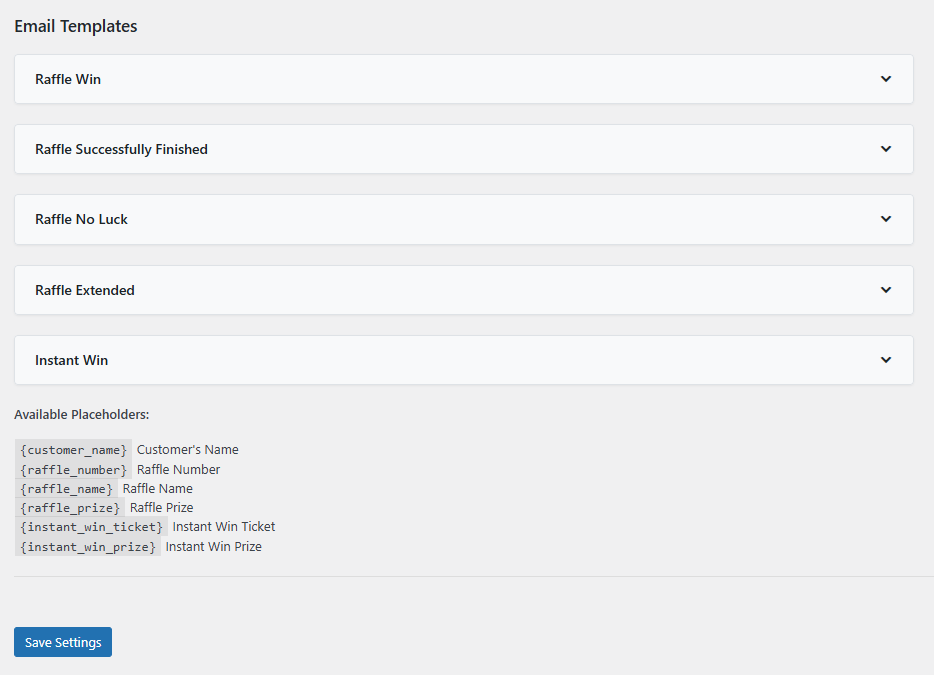
↑ Back to topConfigure the email templates for different scenarios. You can customize the email templates for the following:
- Raffle Win
- Raffle Successfully Finished
- Raffle No Luck
- Raffle Extended
- Instant Win
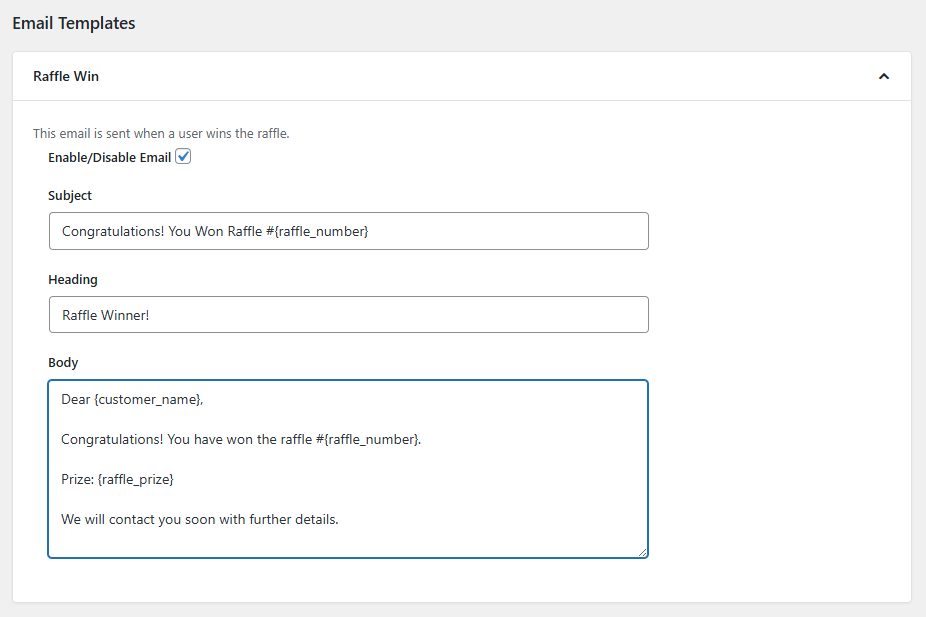
For each email, you can configure and customize the email template that includes the following:
- Enable/Disable Email: Click the checkbox to enable or disable the specific email.
- Subject: Add the subject for the email.
- Heading: Enter the email heading.
- Body: Add the text for the body of the email.
You can customize the email templates using different placeholders. You will have multiple placeholders available, including:
- {customer_name} Customer’s Name
- {raffle_number} Raffle Number
- {raffle_name} Raffle Name
- {raffle_prize} Raffle Prize
- {instant_win_ticket} Instant Win Ticket
- {instant_win_prize} Instant Win Prize