AI Product Image Enhancer allows your WooCommerce store to enhance your catalog images using AI.
Installation
↑ Back to topTo start using a product from WooCommerce.com, you can use the “Add to store” functionality on the order confirmation page or the My subscriptions section in your account.
- Navigate to My subscriptions.
- Find the Add to store button next to the product you’re planning to install.
- Follow the instructions on the screen, and the product will be automatically added to your store.
Alternative options and more information at:
Managing WooCommerce.com subscriptions.
Initial AI Setup and Settings
↑ Back to topGeneral Settings of AI Image Enhancer can be accessed through the WordPress side panel.
WooCommerce > AI image enhancer > General Settings.
From General Settings, the following settings appear:
Settings
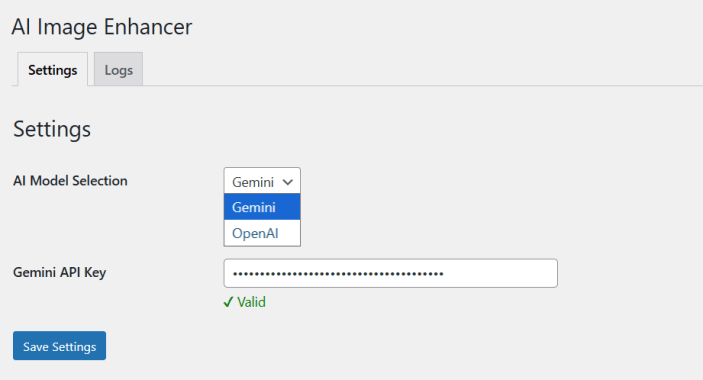
- AI Model Selection: Choose the AI provider used for image enhancement.
- Gemini: Optimized for high-quality image processing with fast performance.
- OpenAI: Reliable and advanced AI model for consistent enhancement results.
Select the model that best fits your performance and quality needs.
- API Key: Enter your API key based on the selected AI model. Click Here to generate a new API KEY.
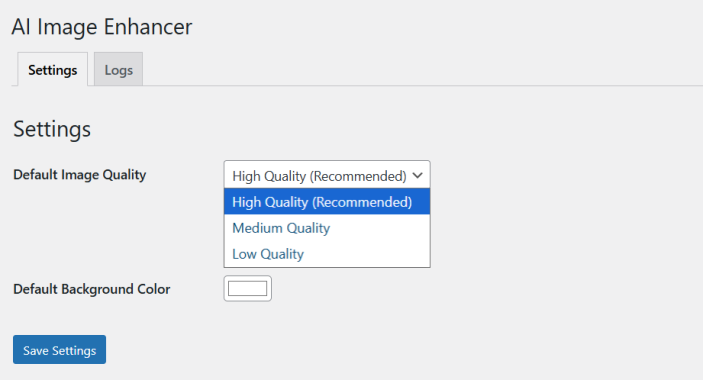
- Default Image Quality: Set the default quality level for enhanced images.
- High Quality (Recommended): Best results with maximum clarity
- Medium Quality: Balanced performance and quality
- Low Quality: Faster processing with lower image enhancement
- Default Background Color: Select a default background color to apply during image enhancement.
- Save Settings: Click ” Save Settings ” to apply and store the configuration.
How to Enhance the Image
↑ Back to topNavigate to a product edit page in WooCommerce: WordPress Admin > Products > All Products > Edit one of your products.
On the left side, the product image is displayed. Click the image to edit or update if needed, then click the enhance button to initiate the image enhancement process.
- Add Background: Modify or replace the image background.
- Background Image: Upload or select an image to use as background.
- Background Color: Choose a solid color as the background.
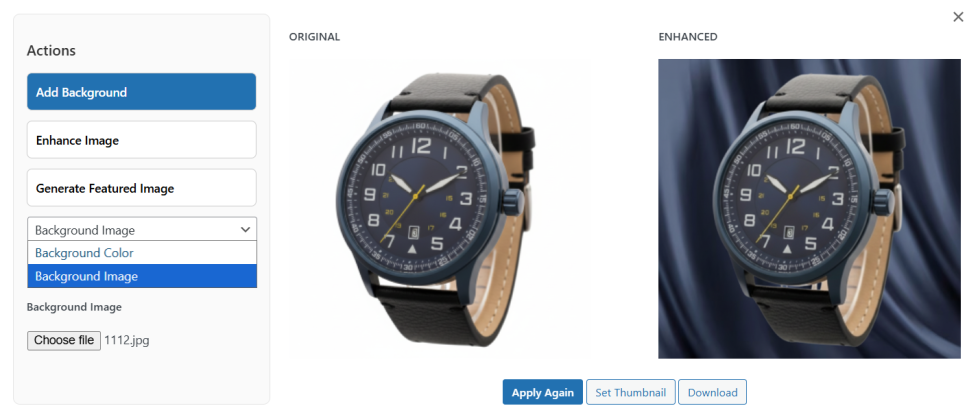
- Remove Background: The option is only available when using the OpenAI model and allows you to remove the current background entirely.
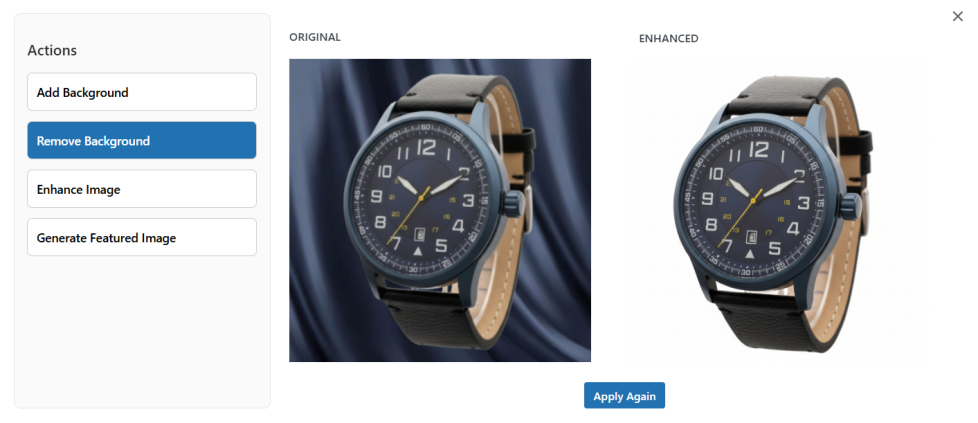
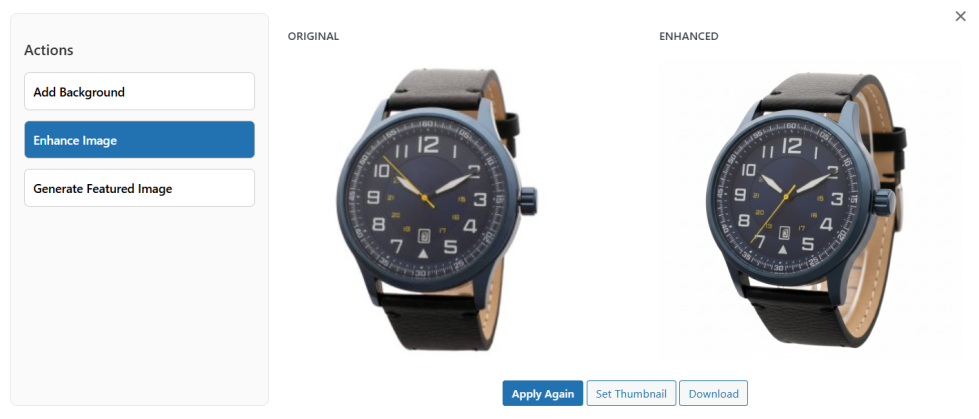
- Enhance Image: Use the option to improve or modify the product image.
- Generate Featured Image: Generate a new product image.
- Prompt: Enter a description of the image you want the AI to generate.
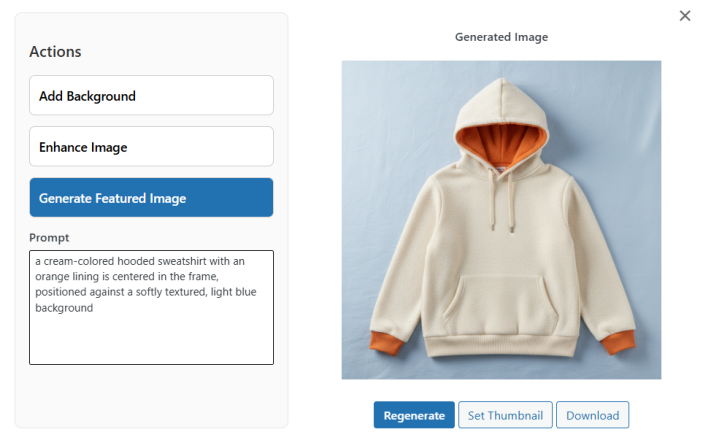
After configuring the required options, click Apply Changes to execute the enhancement process. Once processing is complete, the following options appear.
- Set Thumbnail: Assigns the processed image as the product’s featured image.
- Download: Exports the processed image to your local system.
NOTE: In addition to existing product images, images from the media gallery can also be selected and processed for enhancement.
Logs
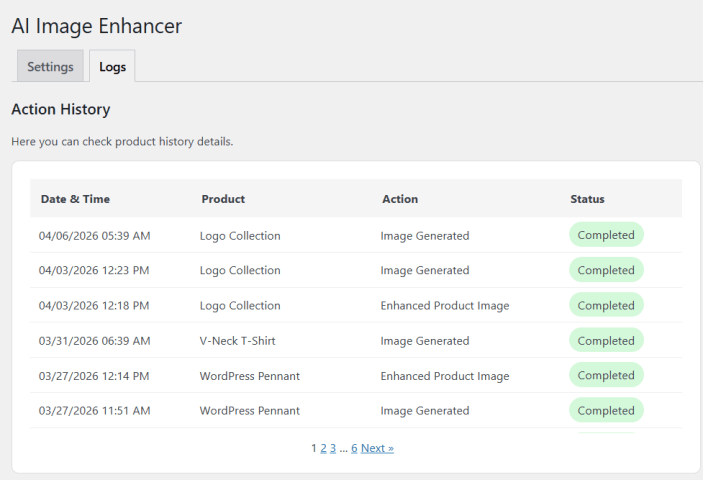
↑ Back to topTo monitor all the image enhancement activities, navigate to WooCommerce > AI image enhancer > Logs.
Within the logs section, the following information is available.
- Action History: Displays a record of all operations performed on product pages.
- Date & Time: Indicates the exact time when the image was enhanced, replaced, or generated.
- Product: Identifies the product associated with the operation.
- Action: Specifies the operation executed by the AI (e.g., background color change, image enhancement, background removal)
- Status: Indicates whether the operation was successfully completed or failed.