
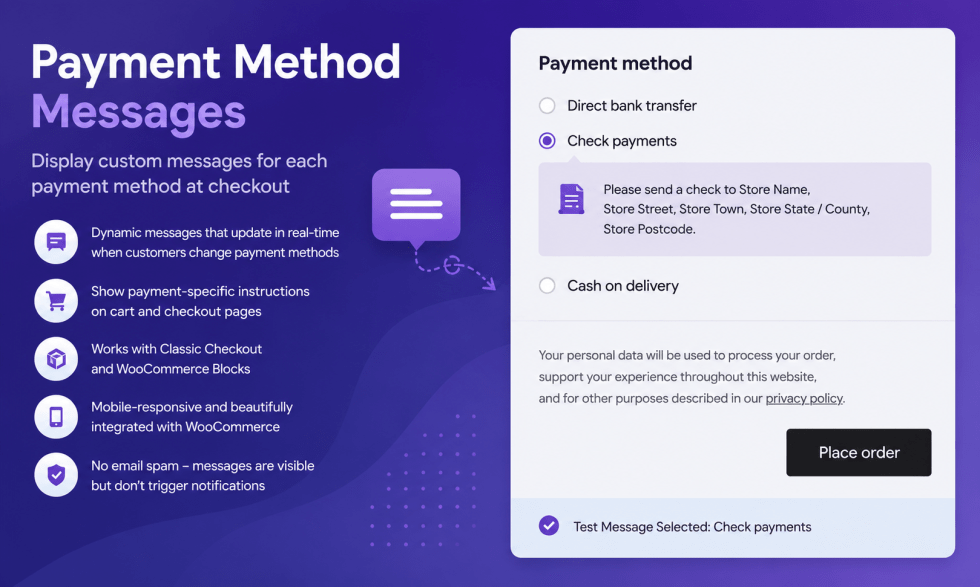
Payment Method Messages allows your WooCommerce store to display dynamic payment-specific messages during checkout.
Installation
↑ Back to topTo start using a product from WooCommerce.com, you can use the “Add to store” functionality on the order confirmation page or the My subscriptions section in your account.
- Navigate to My subscriptions.
- Find the Add to store button next to the product you’re planning to install.
- Follow the instructions on the screen, and the product will be automatically added to your store.
Alternative options and more information at:
Managing WooCommerce.com subscriptions.

Configuration
Getting started
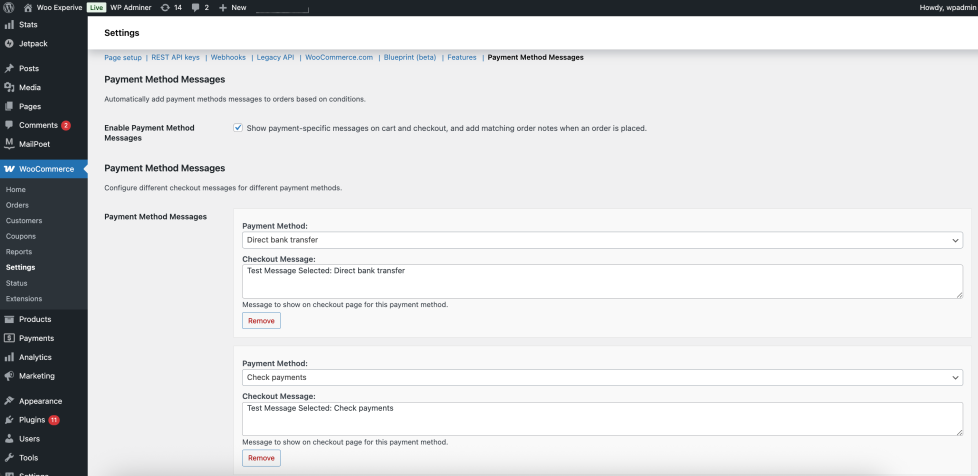
↑ Back to topTo set up your store with Payment Method Messages:
- Go to: WooCommerce > Settings > Payment Method Messages .
- Tick the checkbox to Enable Payment Method Messages
- Enter a description for Checkout Message
- Save changes.
Usage
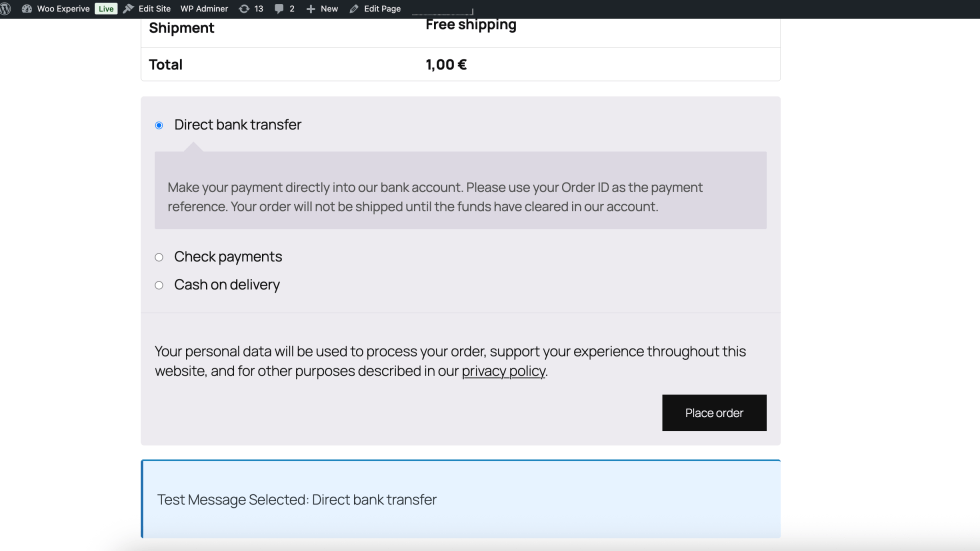
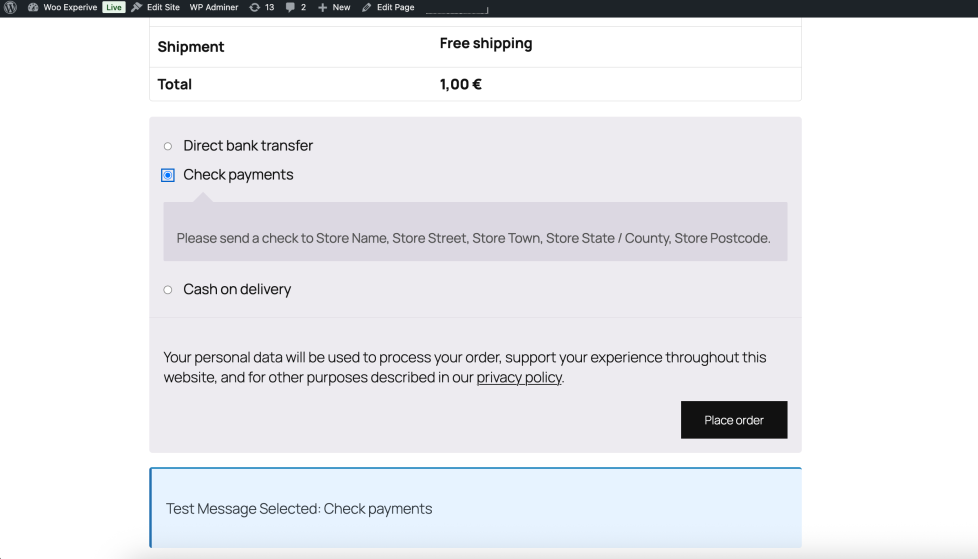
↑ Back to topWhat customers see on the front end.
Troubleshooting
↑ Back to topHere are some common issues and how to fix them:
1. Messages are not showing on checkout page
Make sure the plugin is enabled in WooCommerce → Settings → Payment Method Messages. Also check if you have saved your changes correctly.
2. Changes are not updating on the frontend
Clear your cache (browser cache or any caching plugin like WP Rocket / LiteSpeed Cache) and refresh the page.
3. Payment methods are missing from settings
Ensure that the payment method is active under WooCommerce → Settings → Payments. Inactive gateways will not appear in the plugin settings.
FAQs
↑ Back to topFrequently asked questions
Can I write separate messages for each payment method?
Yes, you can assign different messages for each payment method individually.
Where can I edit the messages?
You can edit them in WooCommerce → Settings → Payment Method Messages.
Do changes take effect immediately?
Yes, once you save the changes, they are applied immediately on your store.

