
Nextcloud Provisioning automatically creates Nextcloud user accounts when WooCommerce orders are successfully processed. The plugin is designed for hosting providers, cloud storage providers, educational organizations, and businesses offering Nextcloud-based services.
Installation
↑ Back to topTo start using a product from WooCommerce.com, you can use the “Add to store” functionality on the order confirmation page or the My subscriptions section in your account.
- Navigate to My subscriptions.
- Find the Add to store button next to the product you’re planning to install.
- Follow the instructions on the screen, and the product will be automatically added to your store.
Alternative options and more information at:
Managing WooCommerce.com subscriptions.

Setup and Configuration
↑ Back to topGetting started
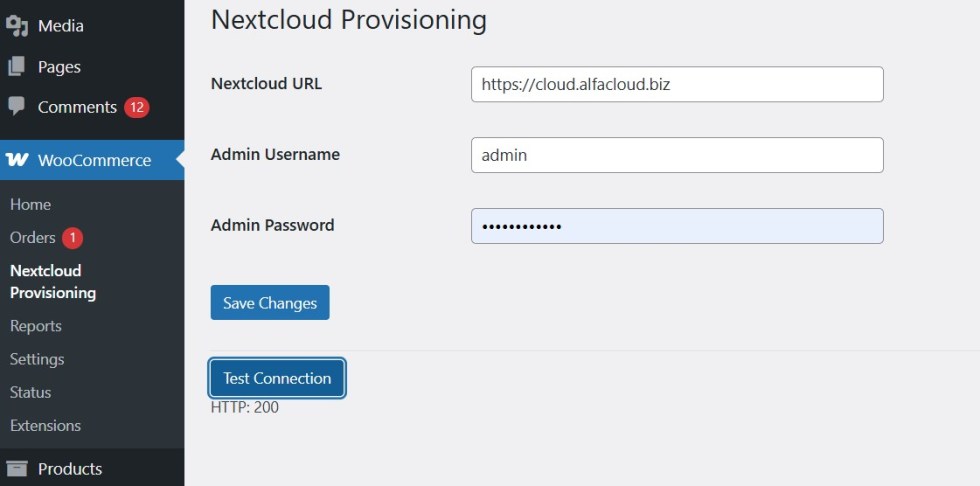
↑ Back to top- Navigate to WooCommerce → Nextcloud Provisioning.
- Enter your Nextcloud connection details.
- Save the settings.
- Click Test Connection to verify communication with your Nextcloud server.
Advanced configuration
↑ Back to topCreating Cloud Products
↑ Back to topStep 1: Create Product Category
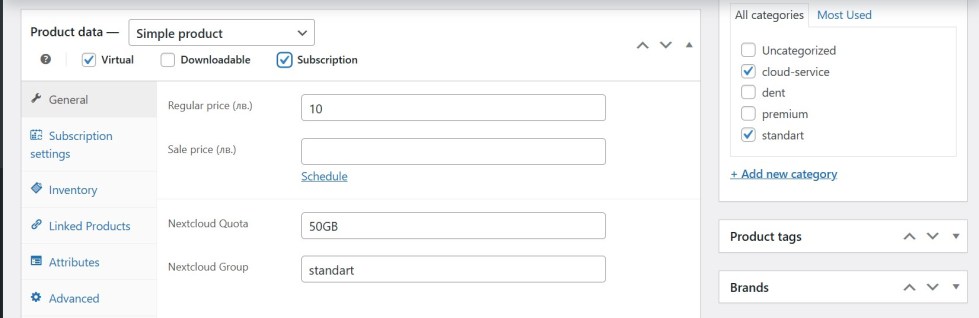
↑ Back to topCreate a WooCommerce product category named:
cloud-service
Products assigned to this category will trigger automatic Nextcloud provisioning.
Step 2: Configure Product Settings
↑ Back to top- Nextcloud Quota (Example: 10GB)
- Nextcloud Group (Example: customers)
Save or update the product.
Usage
↑ Back to topProvisioning Workflow
↑ Back to top- Customer places an order.
- WooCommerce marks the order as Processing.
- The plugin connects to Nextcloud.
- A new user account is created automatically.
- Quota and group settings are assigned.
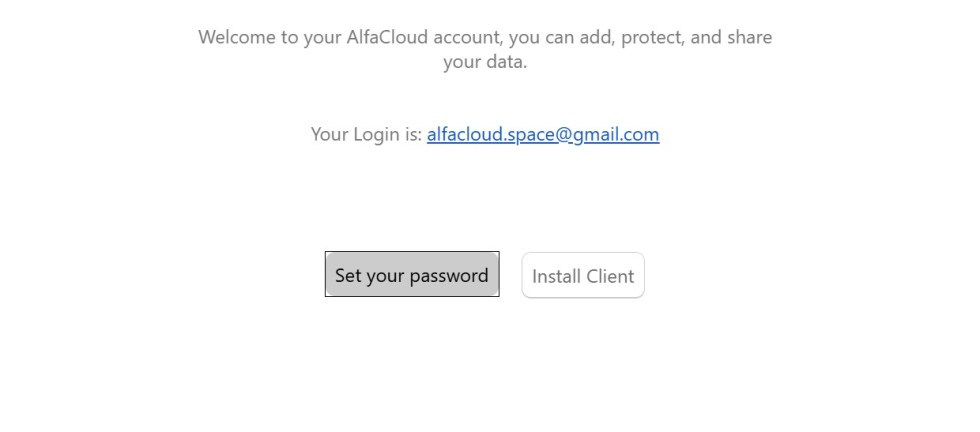
- Nextcloud sends a password setup email to the customer.
Subscriptions
↑ Back to top- Active → User is enabled
- On-hold / Cancelled / Expired → User is disabled
Each user is created only once. Duplicate provisioning is automatically prevented.
The plugin does not delete accounts when payments fail. Account lifecycle management remains under the control of the Nextcloud administrator.
Troubleshooting
↑ Back to topConnection Test Returns 401
↑ Back to top- Verify the username.
- Verify the App Password.
- Verify provisioning permissions.
Connection Test Returns 404
↑ Back to top- Verify the Nextcloud URL.
- Verify the OCS Provisioning API is available.
- Verify server accessibility.
User Is Not Created
↑ Back to top- Verify the order status is Processing.
- Verify the product belongs to the cloud-service category.
- Verify quota and group configuration.
- Review the plugin log file.
FAQs
↑ Back to topHelp customers by answering commonly asked questions.
Does the plugin host Nextcloud?
No. It connects WooCommerce to an existing Nextcloud installation.
Can I use subscription products?
Yes. Duplicate accounts are prevented automatically.
Can I assign different quotas to different products?
Yes.
Can I assign different groups to different products?
Yes.
Does the plugin support HPOS?
Yes.
Can I use App Passwords?
Yes. App Passwords are recommended.

