
Stamp Card Rewards allows your WooCommerce store to reward repeat customers and encourage account creation with customizable digital stamp cards
Installation
↑ Back to topTo start using a product from WooCommerce.com, you can use the “Add to store” functionality on the order confirmation page or the My subscriptions section in your account.
- Navigate to My subscriptions.
- Find the Add to store button next to the product you’re planning to install.
- Follow the instructions on the screen, and the product will be automatically added to your store.
Alternative options and more information at:
Managing WooCommerce.com subscriptions.

Setup and Configuration
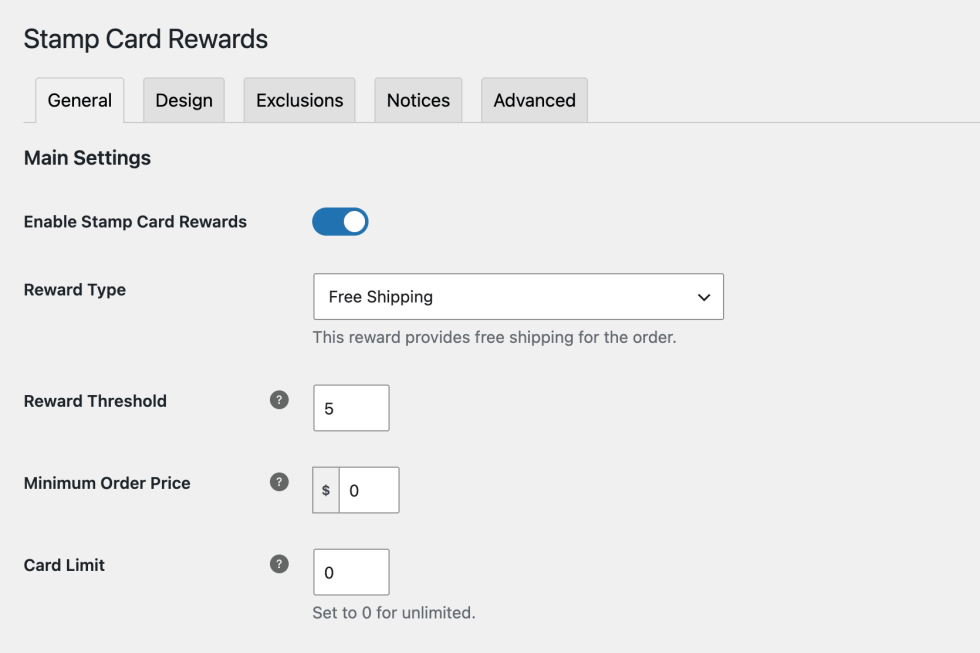
↑ Back to topTo enable the Stamp Card go to Marketing -> Stamp Card Rewards.
Then you may toggle on the “Enable Stamp Card Rewards” setting and click “Save Changes”
Set the discount type
↑ Back to topThe Stamp Card Rewards plugin comes with 5 different discount types, each with it’s own configuration settings.
1. Coupon Discount
When completing a Stamp Card it will automatically apply a coupon as set by you. If the coupon is invalid for the user’s current order the Stamp Card will not be redeemed and the user can use it on their next purchase.
The settings for this discount type are as follows:
- Coupon Code
- Search for a currently defined coupon
2. Free Shipping
When completing a Stamp Card it will apply a free shipping method. If none exist then one will be temporarily created for this order. If other shipping options are visible, the card won’t be redeemed if free shipping is not selected.
- Shipping Label
- This is the shipping label shown in the cart/checkout
- Default: Free Shipping
- Disable Other Shipping Options
- When the card is due to be redeemed, remove all the other shipping options and only show free shipping forcing the card to be redeemed
3. Cart Discount
When completing a Stamp Card it will apply a discount to the total cart price. You are able to choose between two types of discount. A Fixed discount (e.g. $10) or a percentage discount (e.g. 10%). In either case the discount will not reduce the total below $0
The settings for this discount type are as follows:
- Type
- Fixed
- Percentage
- Amount
- Fixed: The total discount for the cart
- Percentage: The percentage discount you wish to apply
- Limit
- The maximum discount applied.
- For example if it’s a 50% discount and the cart total is $100 but you set a limit of $20 the discount will only be 20$. However if the cart total is $20, the discount will be $10 (50% of the total)
- Include Shipping
- Whether to include the shipping cost in the discount.
- For example if the discount is $20 and the cart total is $15. The remaining $5 of the discount will apply to the shipping cost.
- Discount Label
- This is the label applied to the discount in the cart breakdown
4. Free Product Addition
When completing a Stamp Card this discount type will add a free product to the customers basket.
The settings for this discount type are as follows:
- Product
- Search for the product that will be applied for free
- Label
- This is shown next to the product in the cart
- Default: Reward Product
- Description
- The description of the reward product, shown next to the label
- Default: Free with your order
5. Product Discount
When completing a Stamp Card this discount type will apply a discount to a product in the card based on the rules set out in the settings. You are able to choose between two types of discount. A Fixed discount (e.g. $10) or a percentage discount. In either case the discount will not reduce the total below $0.
The settings for this discount type are as follows:
- Type
- Fixed
- Percentage
- Method
- How to choose what product to apply the discount to
- Highest priced product
- This method will apply the discount to the product in the cart with the highest price
- Lowest priced product
- This method will apply the discount to the product in the cart with the lowest price
- Amount
- Fixed: The maximum total discount to apply to a product
- Percentage: The total percentage discount to apply
- Limit
- The absolute maximum discount to apply to a product.
- Exclude Sale Products
- When looking for the product to discount based on the chosen method exclude any sale products
- Apply to all products
- If more than one of the selected product is in the basket, apply the discount to all of them
- For example if the discount method is “lowest price product” and the product with the lowest individual price is $10 but there are 5 of them the discount will apply to all of them. If it is a discount of 50% the discount will be $25
- Discount Label
- This is the label applied to the discount in the cart breakdown
Advanced configuration
↑ Back to top- Reward threshold
- Set how many stamps exist on the reward card. If set to 5 that would mean that it would require 4 valid orders and the reward is applied on the 5th order
- Minimum of 2
- Minimum Order price
- Set a price threshold to be eligible to receive a stamp on an order
- Card Limit
- Set a per customer limit on how many cards they may complete. On completing a card if a user is eligible the stamps will be reset and a new card may be completed.
- Set 0 for unlimited cards.
Design the stamp card
↑ Back to topIn the design tab you are able to control various aspects of how the card will look. We have provided a few default themes for you to get started with. You are also provided with a preview of how your design will look like. This will show the notices that have been set in the notices section as well.
Theme selection
↑ Back to topSelect between 3 default themes or choose to customize your own to get you started with designing your own stamp card!
Preview window
↑ Back to top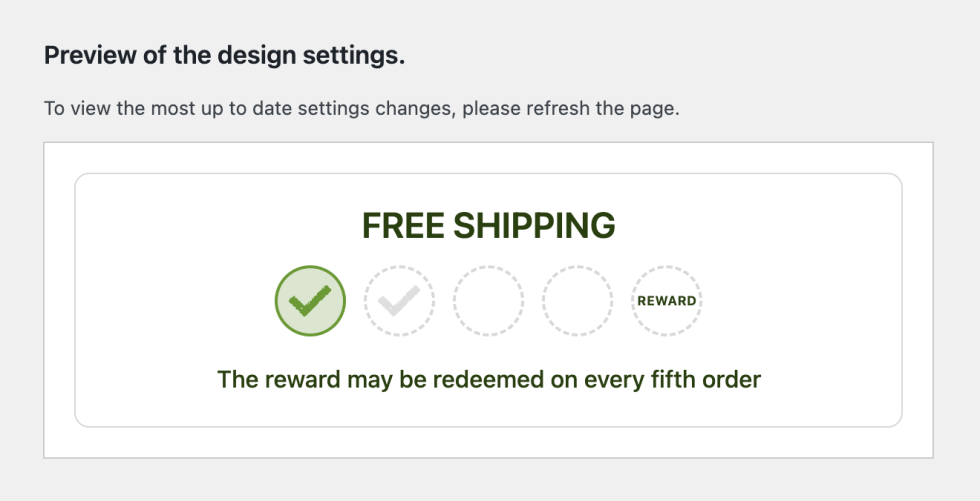
To more easily see what your card will look like to your customers we have provided a preview so you can see what impact individual changes make. This will show you one completed stamp, one next stamp and a reward stamp so you may design for all stamp states.
NOTE: To show up-to-date notices please make sure you save and refresh the page to show them in the preview
General Design
↑ Back to topHere you can define the base design for the card including the text and background colours and setting a background image. You can also set all the default text sizes,weights, alignments as well as the border, padding and vertical spacing between items
Title Design
↑ Back to topHere you can set a different colour for the text as well size, weight and the style.
Stamp Design
↑ Back to topThis is where you design the stamps that show on the card. Here you can set the size of the stamps, how they are aligned, the spacing, background colour and border. Then you can choose what kind of image you would like. The plugin comes with a few icons built in where you can define your own colours but you are free to upload your own by toggling “use image”. Finally you can set an opacity for the stamp icon.
Next Stamp Design
↑ Back to topIf you would like the next stamp on the card to be highlighted then you may add some settings for that here. You can choose a different icon or image in the same way as when setting a stamp and apply a different border/background and opacity. This will only be applied on the next stamp to be stamped. For example if you have 2 stamps already the next stamp styles will be applied to the 3rd stamp.
NOTE: These styles will also be applied to the final reward stamp however the imagery will not change and will maintain whatever image settings are used in the Reward Stamp Design settings
Completed Stamp Design
↑ Back to topThis design is created the same way as the Next Stamp Design. The only difference here is that this is applied to a completed stamp.
Reward Stamp Design
↑ Back to topThe reward stamp is the final stamp on a card. This has some slight differences to the other stamp designs in that you can set some text instead of an image. The Stamp Type setting will still allow you to choose an icon or an image, the same as the other designs however. If you are using the text Stamp Type, you can set the font size which by default is a scale of the overall stamp size as well as colour and opacity.
NOTE: When this stamp is the next stamp it will use the colour/border/opacity from the next stamp design settings
Set Stamp Card Exclusions
↑ Back to topIn order to be able to fully customise your Stamp Card Reward you may want to set exclusions on how the stamps and rewards can be applied and redeemed. For this we have introduced Exclusions which can be set in the exclusions tab.
NOTE: Where applicable a notice will be shown in the cart breakdown on the products that are invalid from receiving stamps and rewards.
- Excluded products
- Set a list of products that if they appear in the cart no stamps or rewards may be redeemed
- Excluded Categories
- If a product from any of the excluded product categories exists in the cart the order is unable to redeem rewards or gain stamps
- Excluded Tags
- If a product from any of the excluded product tags exists in the cart the order is unable to redeem rewards or gain stamps
- Excluded Brands
- If a product from any of the excluded product brands exists in the cart the order is unable to redeem rewards or gain stamps
- Excluded Shipping methods
- If an order is using one of these shipping methods it will be considered invalid and unable to redeem rewards or gain stamps
- Excluded User Roles
- If a user belongs to one of these roles then they are unable to redeem rewards or gain stamps
Customise Notices
↑ Back to topWe provide default notices for certain actions and states when using a reward card. However these default notices may not match your use case or you may wish to personalise them. You can do this from the notices tab.
NOTE: in any of the notices you are able to use a subset of HTML tags to provide limited styles and add links. You may only use p, a, span, strong and em tags. Anything else will be escaped and output as plain text
- Title
- This is the title for your stamp card.
- The default here depends on what you have chosen as the reward type
- Message
- The message shown on your stamp card.
- Default
- The reward may be redeemed on every nth order
- “Nth” will be replaced with an ordinal for whatever your threshold is. I.e. 5 is 5th, 3 is 3rd etc
- Guest Message
- If the stamp card is visible to logged out users a custom message is displayed reminding them to log in or sign up to receive rewards
- Default
- Please log in or create an account to receive rewards
- Log in and create account are links to the my account page
- Please log in or create an account to receive rewards
- Eligible message
- This message is shown when the user is on their last stamp and they will receive the reward on this order
- Eligible Exclusion Message
- This message will show when the order is otherwise eligible for the final stamp reward but they are being prevented by an exclusion
- Not Eligible Message
- This message will apply when the order will not receive any stamps due to an exclusion or minimum cart total
- Next Order Eligible Message
- This message will show on the thank you page to alert users that their next order is eligible for a reward
- Invalid Shipping Method Message
- This message will show if the shipping method that has been selected is excluded from receiving stamps
As an addition to notices we have also provided a list of placeholders that you can use in your notices. These will only take effect for certain discount types, if they are used for the wrong discount type they will not be replaced
- Coupon Discount
{coupon_code}– The coupon code applied for the discount.
- Cart Discount
{discount_amount}– The amount discounted from the cart total.{discount_limit}– The maximum discount amount for the cart.
- Free Product Addition
{product}– The name of the product addition.{product:link}– The name of the product with a link.{product:price}– The name of the product with a link.
- Product Discount
{discount_amount}– The amount discounted from the cart{discount_limit}– The maximum discount amount for the cart.
Advanced Settings
↑ Back to topAdditionally there are some advanced settings that will provide some extra functionality but aren’t essential for most reward card applications.
- Show to logged out users
- Default: on
- This will make sure the logged out users see the stamp card
- Show stamps to logged out users
- Default: off
- Determines if logged out users can see how many stamps are required for a reward
- Show on Invalid Shipping Methods
- Default: on
- With this off if a use selected a shipping method that has been excluded then the stamp card will be hidden
- Show stamps on cart page
- Default: on
- With this off the stamps will only be visible on the checkout/thank you pages
- Show Login on Stamp Card
- Default: on
- Whether to show the login/register forms on the stamp card on the thank you page. Using this to login/register form after placing the order will assign the order to that user and make sure the stamp is applied
- Allow User to Disable Stamp Card
- Default: off
- This will allow a user to disable the stamp card for an order. This will let them defer a reward to a later time if they do not wish to use it for an order that is eligible. It would also allow them to prevent themselves gaining a stamp if they do not wish to
- Allow Stamp Card on Email
- Default: off
- This will show the stamp card on all the order emails so a customer can keep track of how many stamps they have.
- Where to show the stamp on the checkout
- Default: Before place order button
- Shows the stamp card before place order button or before the payment methods

