
Country Based Restrictions Pro allows your WooCommerce store to restrict products, variations, and payment gateways based on the customer’s country. Restrictions are applied automatically using WooCommerce’s built-in geolocation, so customers in restricted countries never see products they cannot purchase.
Requirements
↑ Back to top- WordPress 5.3 or higher
- WooCommerce 6.0 or higher
- PHP 7.4 or higher
- WooCommerce Geolocation enabled (on by default in all WooCommerce installations)
Installation
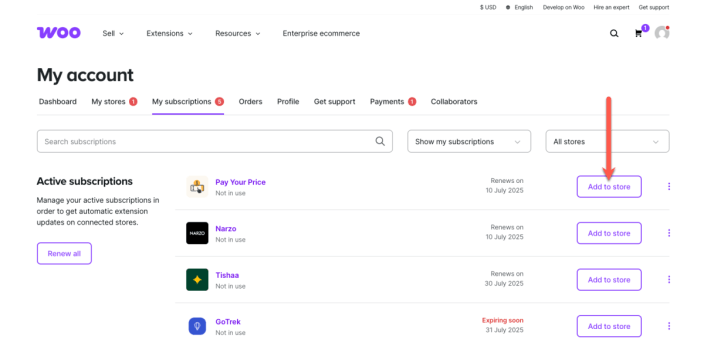
↑ Back to topTo start using a product from WooCommerce.com, you can use the “Add to store” functionality on the order confirmation page or the My subscriptions section in your account.
- Navigate to My subscriptions.
- Find the Add to store button next to the product you’re planning to install.
- Follow the instructions on the screen, and the product will be automatically added to your store.
Alternative options and more information at: Managing WooCommerce.com subscriptions.
Getting Started
↑ Back to topAfter installing the plugin from your WooCommerce.com account, all settings are available under WooCommerce → Country Restrictions in your WordPress admin.
Before configuring your first restriction, confirm that WooCommerce Geolocation is enabled:
- Go to WooCommerce → Settings → General.
- Under Default customer location, select Geolocate or Geolocate (with page caching support).
- Save changes.
WooCommerce uses the MaxMind GeoIP2 database for country detection. No API keys or third-party services are required.
Settings Overview
↑ Back to topThe plugin adds three tabs under WooCommerce → Country Restrictions:
- Settings — global options including catalog visibility mode, geolocation source, and debug mode.
- Catalog Restrictions — bulk restriction rules by category, tag, attribute, or shipping class.
- Payment Restrictions — country-based rules for payment gateways.

Catalog Visibility Modes
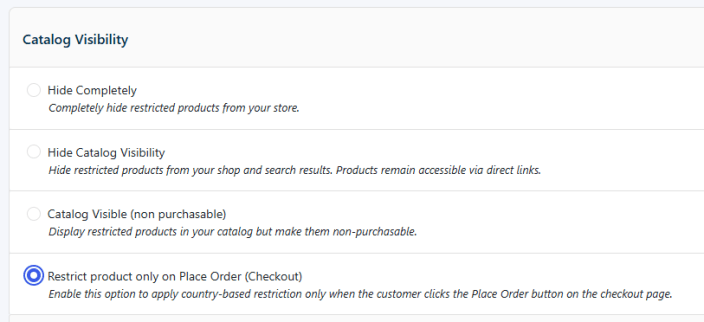
↑ Back to topThe Catalog Visibility setting controls how restricted products behave for customers in restricted countries:
- Hide Completely — restricted products are hidden from the shop, category pages, search results, and direct URLs. Optionally redirect direct visits to a 404 page.
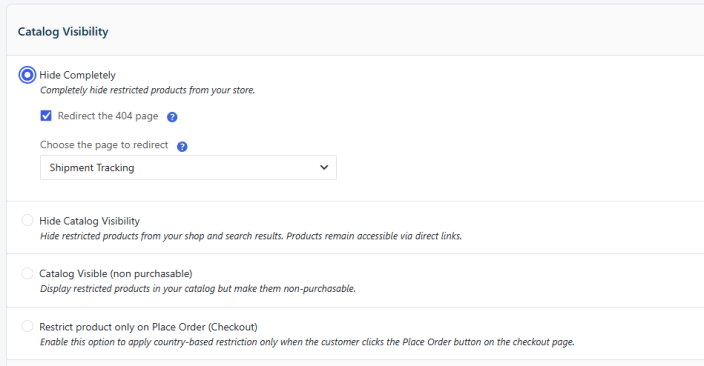
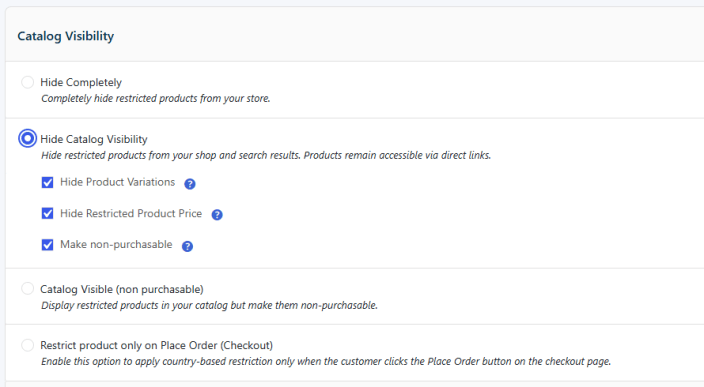
- Hide Catalog Visibility — restricted products are hidden from shop pages and search but remain accessible via direct product links.
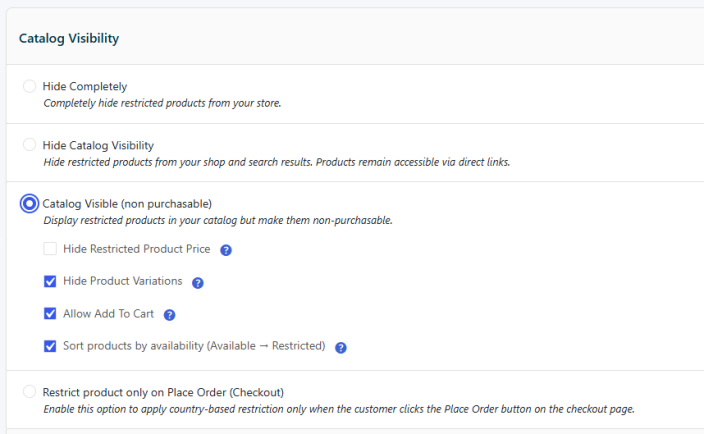
- Catalog Visible (non-purchasable) — restricted products are displayed with the Add to Cart button removed.
- Restrict at Checkout only — restricted products remain fully browsable and can be added to the cart. The restriction is enforced only when the customer clicks Place Order.
Country Detection Source
↑ Back to topBy default, the plugin uses WooCommerce’s IP-based geolocation to detect the customer’s country. Under Settings → Restriction by country, you can change this to:
- Restriction by Shipping Country — uses the customer’s shipping country (falls back to geolocation for guests).
- Restriction by Billing Country — uses the customer’s billing country (falls back to geolocation for guests).
Restriction Settings
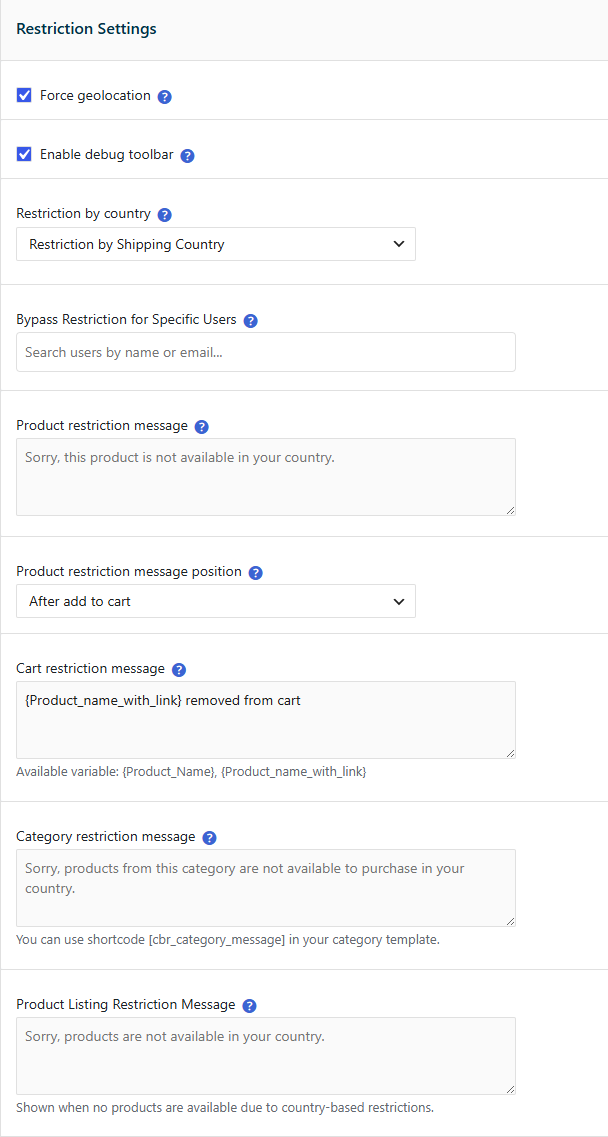
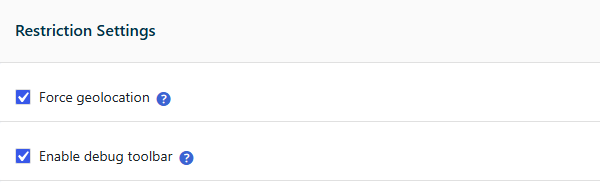
↑ Back to top- Force Geolocation – This will set the restrictions only by the Geo-location country and will ignore the shipping country from the customer account (in case the customers is logged-in).
- Enable Debug Toolbar – enable this option when you test your restrictions rules, this will display in the WordPress toolbar. The detection widget will show the detected shipping country and will allow you to change the country and check how the restricted products will display to your customers.
- Restriction by country – This feature allows you to restrict orders based on the customer’s shipping or billing country. The plugin automatically blocks purchases from selected countries according to your configured rules.
- Bypass Restriction for Specific Users – This option allows you to exclude specific users (based on their email address) from all country restriction rules. Any user added here can place orders without being affected by the configured restrictions.
- Product restriction message – This message will show on the product page when it’s non-purchasable. (i.e Sorry, this product is not available to purchase in your country.)
- Product restriction message position – choose the position of the restriction message on the product page. you can choose Custom Shortcode – [cbr_message_position] in custom product template file, in the short description or with page builders such as Elevator or UX Builder.
- Cart restriction message – This message will show on the cart page when the customer changes the shipping country on the cart page, the restricted products for the selected country will be removed from the cart and a message will display.
- Product Listing Restriction Message – Enter a custom message to display on product listing pages (shop, category, tag, or search results) when all products are restricted for the customer’s country. This message appears instead of an empty product list.
How to Set Product Restrictions
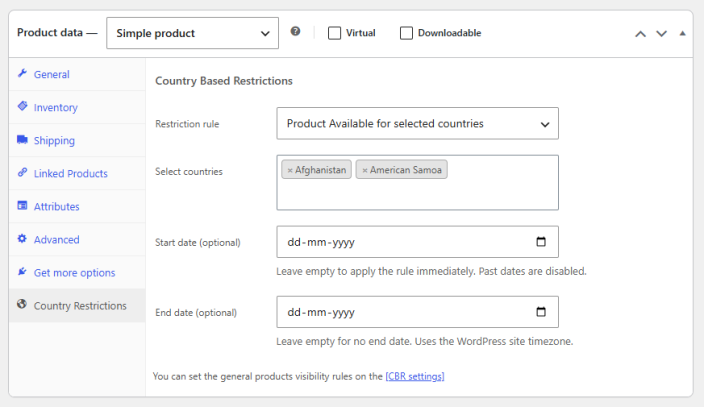
↑ Back to topIndividual product restrictions are configured on the product edit screen.
- Go to Products → All Products and open the product you want to restrict.
- Scroll to the Product Data panel.
- Click the Country Restrictions tab.
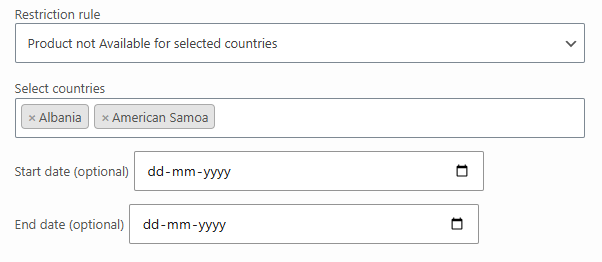
- Select the restriction mode:
- Include countries — the product is available only in the countries you select.
- Exclude countries — the product is available everywhere except the countries you select.
- Choose the countries from the dropdown.
- Optionally set a custom restriction message or redirect URL for this product.
- Update the product to save.
Restricting Product Variations
↑ Back to topFor variable products, restrictions can be applied per-variation:
- Open the product and go to Product Data → Variations.
- Expand the variation you want to restrict.
- Under Country Restrictions, select the include or exclude countries for that variation.
- Save changes.
Restricted variations are hidden from the variation dropdown for customers in restricted countries. If all variations are restricted, the product is treated as fully restricted.
How to Set Up Bulk Catalog Restrictions
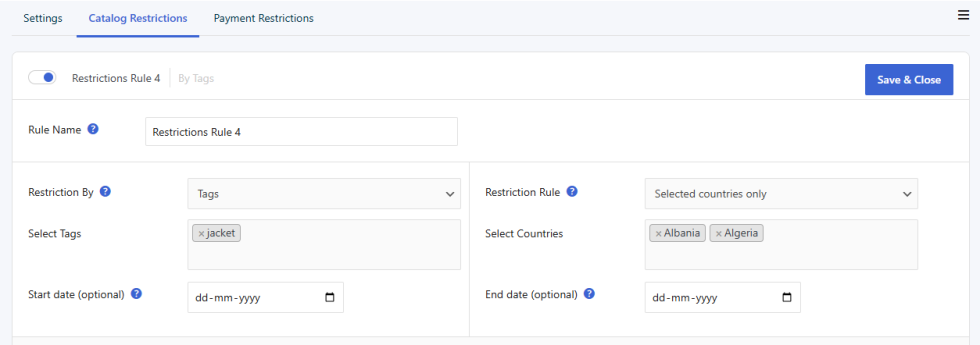
↑ Back to topBulk catalog rules restrict groups of products in one action, without editing them individually. Rules can target categories, tags, attributes, or shipping classes.
- Go to WooCommerce → Country Restrictions → Catalog Restrictions.
- Click Add New Rule.
- Give the rule a name for internal reference.
- Under Apply to, choose one or more of:
- Product categories
- Product tags
- Product attributes (for example, a “Region” attribute)
- Shipping classes
- Under Restriction mode, choose Include or Exclude.
- Select the countries.
- Optionally add a custom message.
- Save the rule.
Bulk rules apply on top of individual product rules. If a product is covered by both, the more restrictive rule takes precedence.
Payment Gateway Restrictions
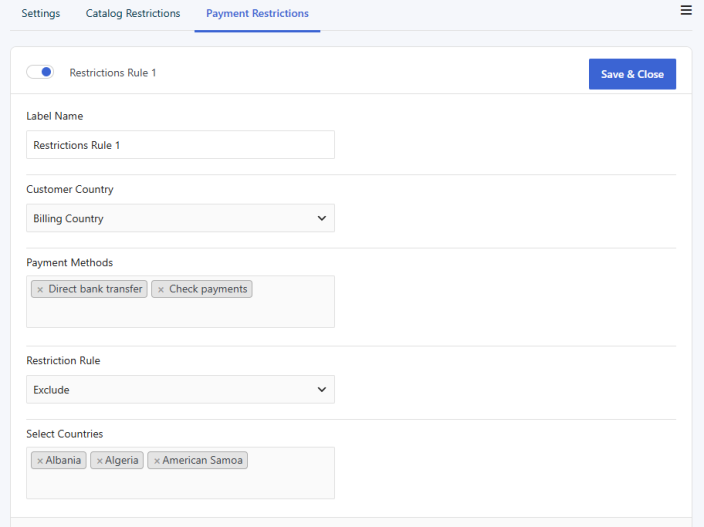
↑ Back to topPayment gateway rules hide specific payment methods based on the customer’s country, regardless of the products in their cart.
- Go to WooCommerce → Country Restrictions → Payment Restrictions.
- Click Add New Rule.
- Select the payment gateway to restrict (for example, Stripe, PayPal, a regional processor).
- Choose Include or Exclude countries.
- Select whether the rule uses Billing country or Shipping country.
- Save the rule.
Restricted gateways do not appear on the checkout page for customers matching the rule. Multiple rules can be applied per gateway.
Country Detection Widget
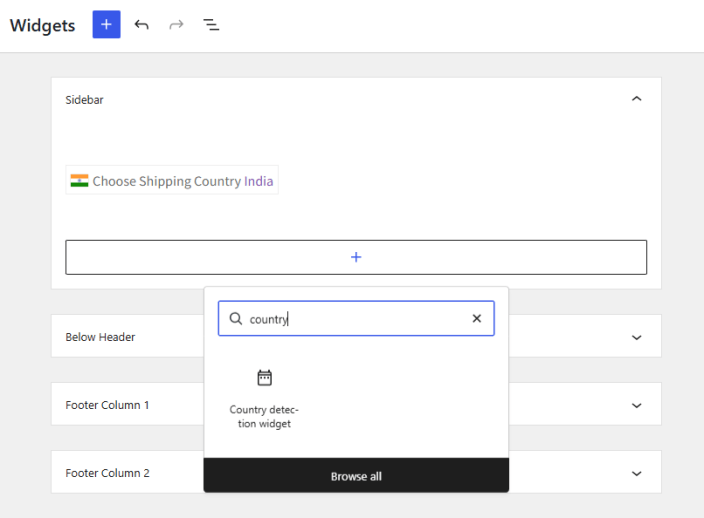
↑ Back to topThe Country Detection Widget shows the customer’s detected country and lets them change it if the detection is inaccurate.
- Go to Appearance → Widgets (or use the Site Editor for block themes).
- Add the Country Detection widget to a widget area or template.
- Save.
The widget displays the detected country name and flag by default. Customers can click to open a country selector and change their location. Once changed, all restrictions on the site are re-evaluated based on the new country.
Country Detection Shortcode
↑ Back to topUse the shortcode to display the customer’s detected country anywhere on your site.
[cbr_country_detection]Available attributes:
show_flag—yesorno. Default:yes.show_switcher—yesorno. Enables the country switcher. Default:no.text_before— text to display before the country name.
Example:
[cbr_country_detection show_flag="yes" show_switcher="yes" text_before="Shipping to:"]CSV Import for Bulk Restrictions
↑ Back to topBulk product restrictions can be imported from a CSV file. This is useful for stores with hundreds or thousands of products that need country rules applied at scale.
- Go to WooCommerce → Country Restrictions → Settings.
- Scroll to Import Restrictions.
- Download the sample CSV file to see the expected column structure.
- Prepare your CSV with columns:
product_id,restriction_type(include or exclude),countries(comma-separated country codes), andmessage. - Click Choose File and select your CSV.
- Click Import.
Existing restrictions on imported products are overwritten. Products not listed in the CSV are unaffected.
Debug Mode
↑ Back to topDebug Mode is a testing tool that helps you verify restriction rules without changing your real IP address.
- Go to WooCommerce → Country Restrictions → Settings.
- Enable Debug toolbar.
- Save changes.
Once enabled, a toolbar appears at the top of the front end (visible only to logged-in administrators) showing:
- The currently detected country
- The country source (geolocation, billing, or shipping)
- A dropdown to override the country for testing
Changing the country in the toolbar re-evaluates all restrictions for the current session. Debug Mode has no effect on non-admin visitors.
Manual Order Behavior
↑ Back to topCountry restrictions apply on the front end only. When creating a manual order from WooCommerce → Orders → Add Order, administrators can add any product regardless of the customer’s billing or shipping country. This is intentional, so that support staff can process orders for special cases, B2B exceptions, or internal use.
Compatibility
↑ Back to topHigh-Performance Order Storage (HPOS)
↑ Back to topCountry Based Restrictions Pro is fully compatible with HPOS. No additional configuration is required.
Cart and Checkout Blocks
↑ Back to topThe plugin supports both the block-based Cart and Checkout and the traditional shortcode-based checkout. Restrictions are enforced identically in both.
Page Caching
↑ Back to topBecause country detection depends on the customer’s IP, cached pages can cause incorrect content to be served. If your store uses full-page caching (WP Rocket, LiteSpeed Cache, W3 Total Cache, SiteGround Speed Optimizer, or a CDN edge cache):
- Enable WooCommerce’s Geolocate (with page caching support) option under WooCommerce → Settings → General → Default customer location. This appends the country to the URL, allowing the cache to serve country-specific versions.
- Ensure your cache plugin does not cache pages containing the restriction message or country widget.
WPML and Polylang
↑ Back to topRestriction rules apply across all languages. Custom restriction messages can be translated using WPML String Translation or Loco Translate.
Cloudflare and Other CDNs
↑ Back to topWooCommerce Geolocation reads the visitor’s real IP correctly behind Cloudflare, AWS CloudFront, Fastly, and most major CDNs. No additional configuration is needed.
Troubleshooting
↑ Back to topRestrictions are not being applied
↑ Back to topCheck the following:
- WooCommerce Geolocation is enabled under WooCommerce → Settings → General → Default customer location.
- Enable Debug Mode and confirm the correct country is being detected for your test visits.
- If you use page caching, ensure geolocation with caching support is enabled.
All customers see the same country
↑ Back to topThis is usually caused by full-page caching serving one cached version to all visitors. Switch WooCommerce to Geolocate (with page caching support), or exclude WooCommerce pages from your cache.
The country widget shows the wrong country
↑ Back to topGeolocation is accurate at the country level about 99.5% of the time. If a customer is behind a VPN or a corporate proxy in a different country, detection may return the VPN’s country. The country switcher in the widget allows customers to correct this manually.
Restricted products still appear in search results
↑ Back to topIf Catalog Visibility is set to Restrict at Checkout only, restricted products remain visible everywhere and are only blocked at checkout. Change the visibility mode to Hide Completely or Hide Catalog Visibility to remove them from search and shop pages.
Getting Support
↑ Back to topSupport is available through your WooCommerce.com account. Open a support ticket from the My Account → Support area of WooCommerce.com and our team will respond directly.

