
Bulk Cleanup helps WooCommerce store owners remove unnecessary data and keep the database lean. Filter and delete orders, users, products, coupons, and reviews in bulk or let automated schedules and hygiene presets handle recurring maintenance.
Requirements:
- WordPress 6.5+
- WooCommerce 7.2+
- PHP 7.4+
- HPOS compatible
Installation
↑ Back to topTo start using a product from WooCommerce.com, you can use the “Add to store” functionality on the order confirmation page or the My subscriptions section in your account.
- Navigate to My subscriptions.
- Find the Add to store button next to the product you’re planning to install.
- Follow the instructions on the screen, and the product will be automatically added to your store.
Alternative options and more information at:
Managing WooCommerce.com subscriptions.

Setup and Configuration
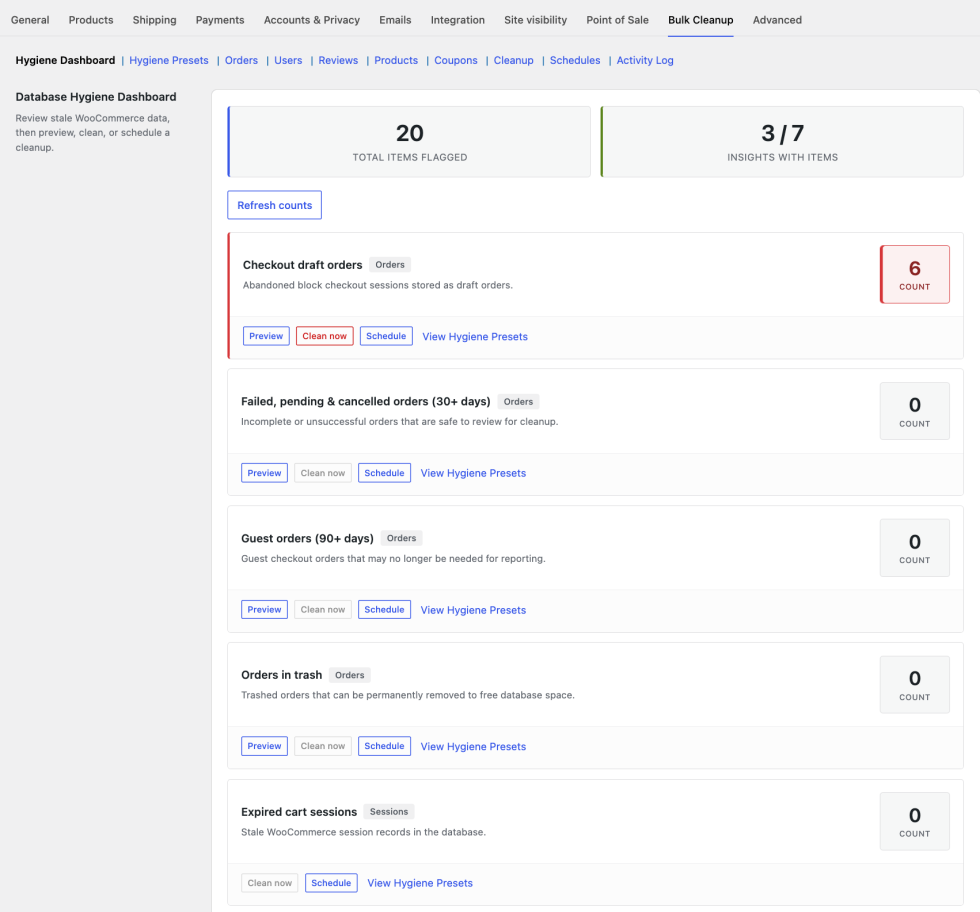
↑ Back to topAfter install and activation, open the Bulk Cleanup tab. The interface has 10 sub-tabs across the top. Start with the Hygiene Dashboard to see what’s bloating the database before deleting anything.
- Install and activate the plugin (WooCommerce must be active).
- Go to WooCommerce → Settings → Bulk Cleanup.
- Click Refresh counts on the Hygiene Dashboard.
- Use Preview on any insight with a high count before running a cleanup.
Hygiene Dashboard
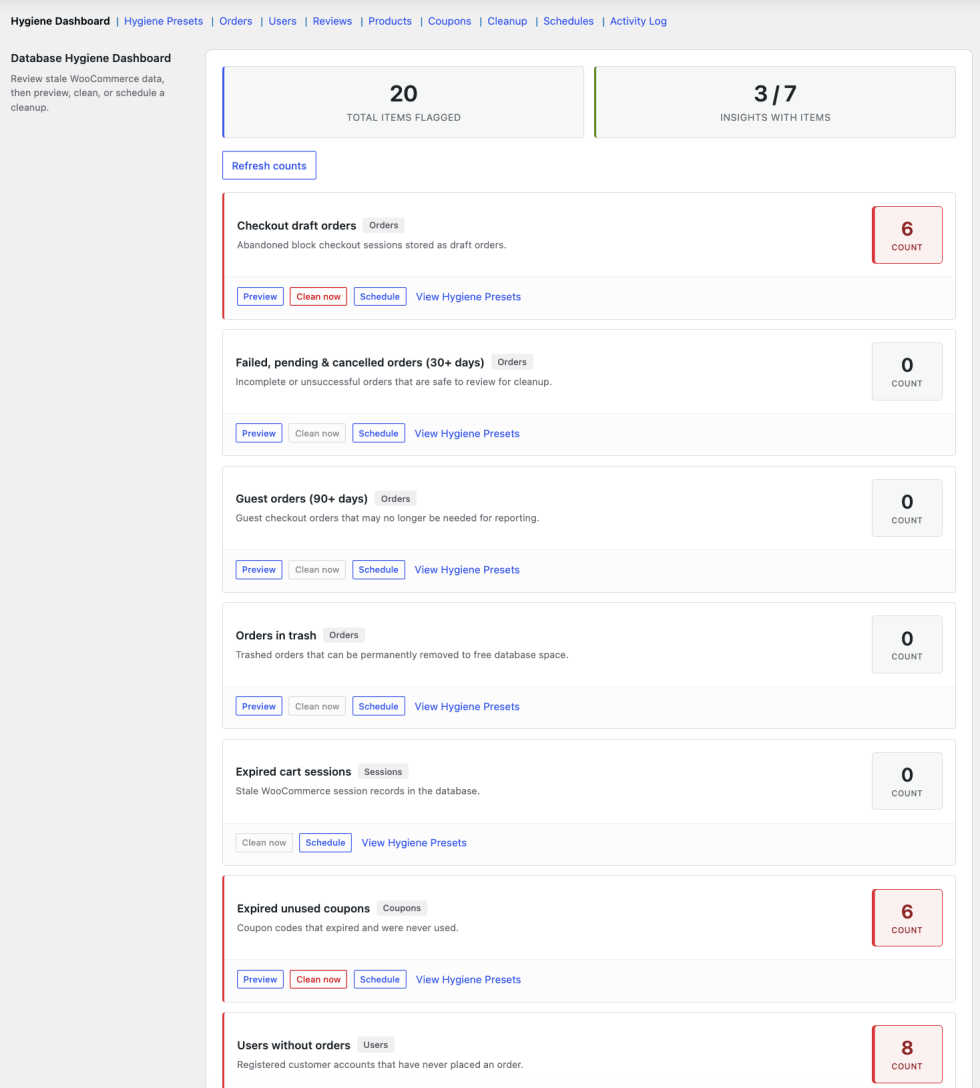
↑ Back to topThe Hygiene Dashboard shows live counts of data that commonly bloats WooCommerce databases. Each row includes Preview, Clean now, and Schedule actions. Summary stats at the top show total flagged items and how many insights have matches.
Insights explained
↑ Back to top| Insight | What it flags | Default threshold |
|---|---|---|
| Checkout-draft orders | Abandoned block checkout sessions | All drafts |
| Failed / pending / cancelled orders | Stale unpaid orders | 30+ days old |
| Guest orders | Orders from guest checkout | 90+ days old |
| Orders in trash | Orders already in trash | 30+ days in trash |
| Expired cart sessions | Stale WooCommerce session data | 2+ days expired |
| Expired unused coupons | Coupons past expiry, never used | Expired + unused |
| Users without orders | Registered users with zero orders | All matching |
Dashboard actions
↑ Back to top| Action | What it does |
|---|---|
| Refresh counts | Reloads all insight counts from the database |
| Preview | Opens a modal listing matching items (not available for session cleanup) |
| Clean now | Runs the cleanup immediately after confirmation |
| Schedule | Opens a modal to create a recurring job for that insight |
Hygiene Presets
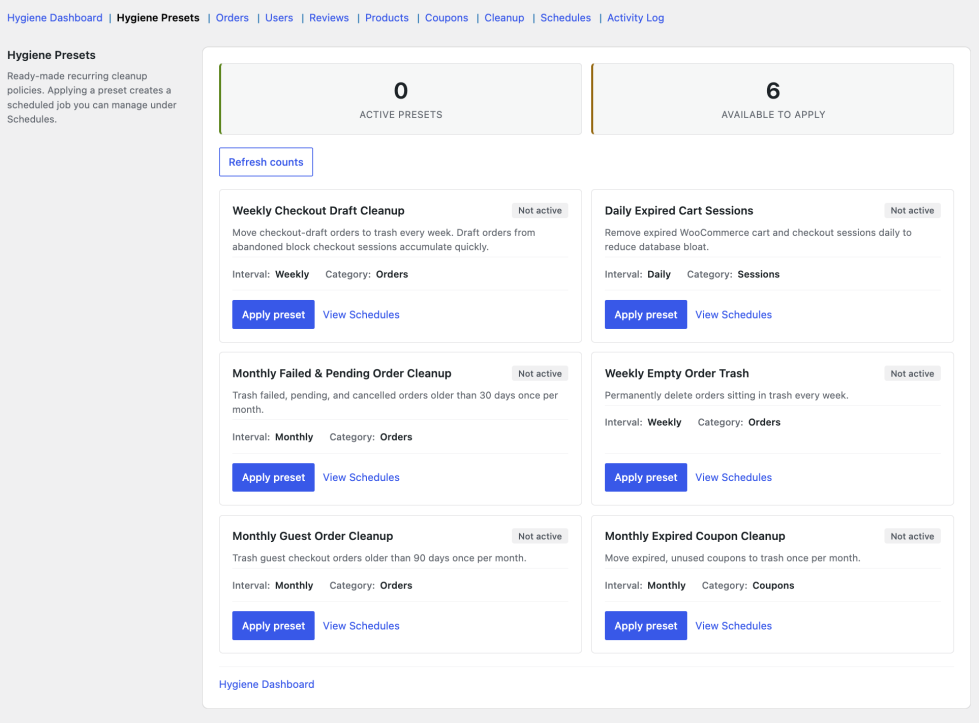
↑ Back to topPresets are one-click recurring cleanup policies. Applying a preset creates a scheduled job you can pause, run, or remove under Schedules. Removing a preset deletes its linked schedule.
Available presets
↑ Back to top| Preset | Interval | Action |
|---|---|---|
| Weekly Checkout Draft Cleanup | Weekly | Move checkout-draft orders to trash |
| Daily Expired Cart Sessions | Daily | Remove expired sessions (2+ days) |
| Monthly Failed & Pending Order Cleanup | Monthly | Trash failed, pending, cancelled orders 30+ days old |
| Weekly Empty Order Trash | Weekly | Permanently delete trashed orders 30+ days old |
| Monthly Guest Order Cleanup | Monthly | Trash guest orders 90+ days old |
| Monthly Expired Coupon Cleanup | Monthly | Trash expired, unused coupons |
Workflow steps:
- Review preset descriptions and intervals.
- Click Apply preset on the policies you want.
- Open Schedules to confirm the job was created.
- Use Remove preset to delete the linked schedule.
Orders
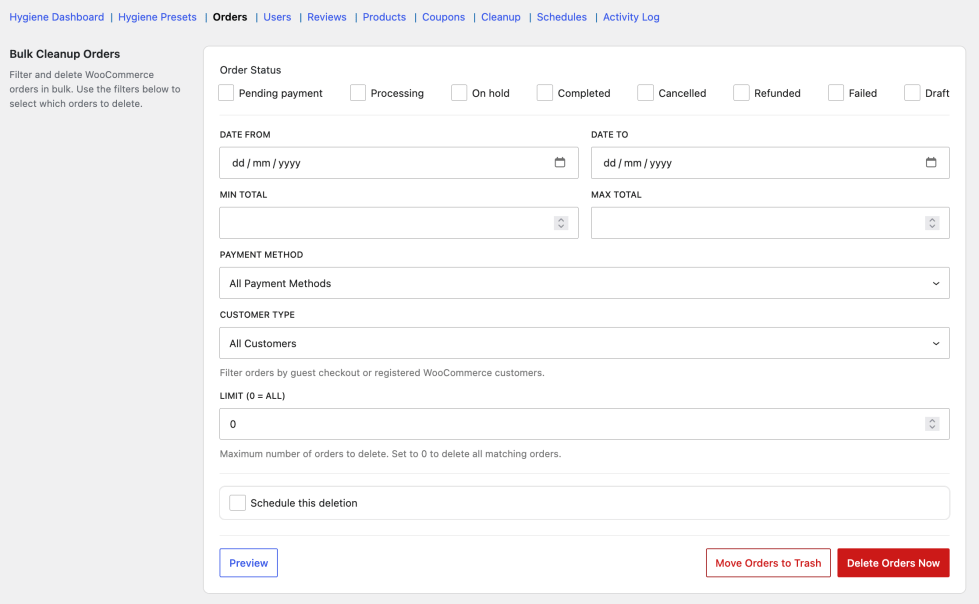
↑ Back to topFilter WooCommerce orders and delete or trash them in bulk. Leave status checkboxes unchecked to include all statuses. Always preview matches before deleting.
Filters
↑ Back to top| Setting | Description |
|---|---|
| Order Status | Check specific statuses, or leave all unchecked for every status (including checkout-draft when available) |
| Date From / Date To | Limit by order date |
| Min Total / Max Total | Filter by order amount |
| Payment Method | Filter by gateway (e.g. PayPal, Stripe) |
| Customer Type | Guest checkout vs registered customers |
| Limit (0 = All) | Cap how many orders to process per run; 0 means all matches |
Actions
↑ Back to top| Button | Description |
|---|---|
| Preview | Shows matching orders in a modal |
| Move Orders to Trash | Reversible — restore from WooCommerce order trash |
| Delete Orders Now | Permanent — cannot be undone |
| Export CSV (in preview) | Download up to 5,000 matching rows as backup |
Schedule this deletion
↑ Back to topExpand this panel to create a one-time or recurring job from the current filters. Fields: Schedule Name, Repeat (one-time, hourly, twice daily, daily, weekly, monthly), Start Date & Time, Batch Size, and optional email notification.
Users
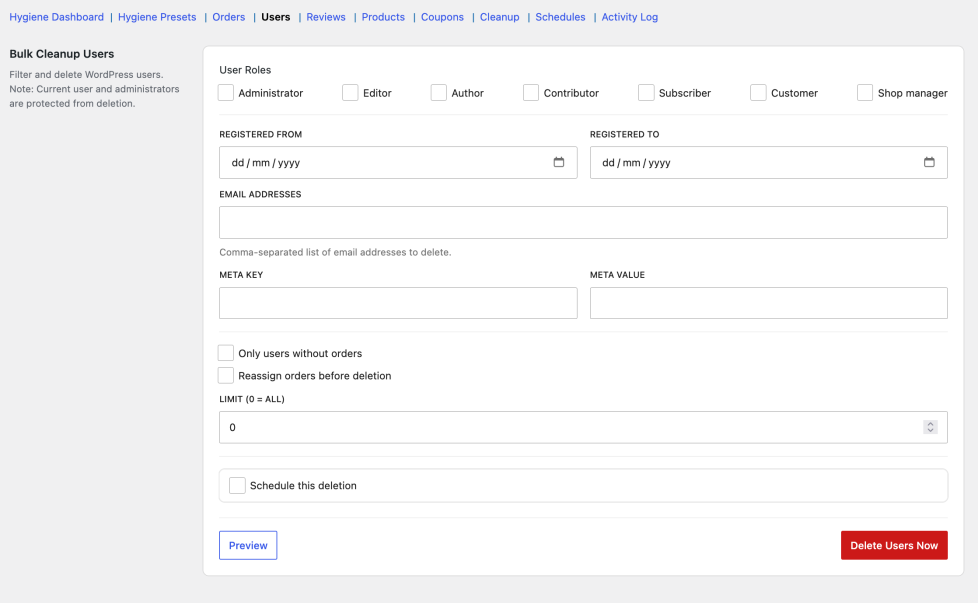
↑ Back to topBulk-delete WordPress users with advanced filters. The current logged-in user and all administrators are always protected from deletion.
Filters and options
↑ Back to top| Setting | Description |
|---|---|
| User Roles | Check specific roles, or leave all unchecked for every role |
| Registered From / Registered To | Filter by registration date |
| Email Addresses | Comma-separated list of emails to target |
| Meta Key / Meta Value | Filter by custom user meta |
| Only users without orders | Limit to users with zero WooCommerce orders |
| Reassign orders before deletion | Move a user’s orders to another user ID before deleting |
| Limit (0 = All) | Cap users processed per run |
Note: User deletion is permanent only — there is no move-to-trash option.
Reviews
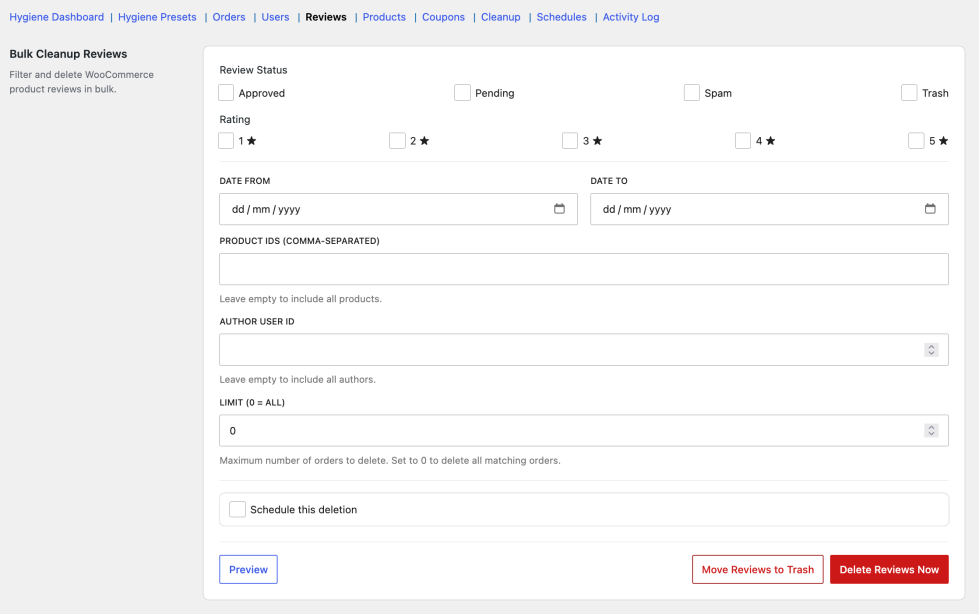
↑ Back to topDelete product reviews in bulk by status, rating, product, author, or date.
Filters
↑ Back to top| Setting | Description |
|---|---|
| Review Status | Approved, Pending, Spam, Trash — leave all unchecked for all statuses |
| Rating | Filter by 1–5 stars |
| Date From / Date To | Filter by review date |
| Product IDs | Comma-separated product IDs |
| Author User ID | Filter by reviewer’s WordPress user ID |
| Limit (0 = All) | Cap reviews per run |
Products
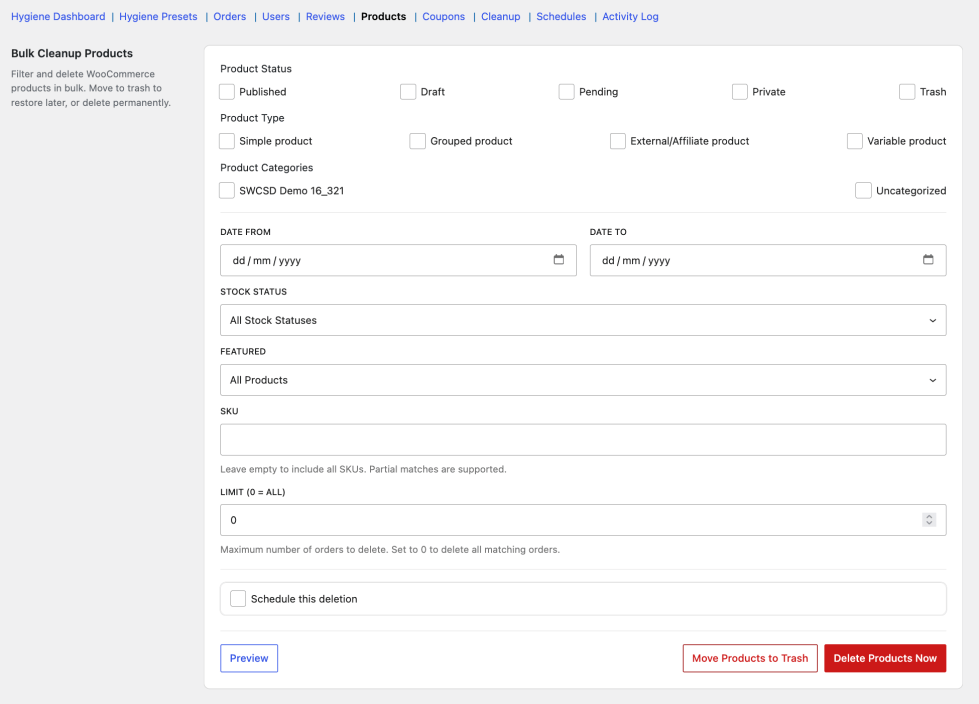
↑ Back to topBulk-delete or trash WooCommerce products. Trash is reversible from the Products admin screen.
Filters
↑ Back to top| Setting | Description |
|---|---|
| Product Status | Published, Draft, Pending, Private, etc. |
| Product Type | Simple, Variable, Grouped, External, etc. |
| Product Categories | One or more categories |
| Stock Status | In stock, Out of stock, On backorder |
| Featured | Featured products only, or non-featured only |
| SKU | Partial match supported; leave empty for all |
| Date From / Date To | Filter by product date |
| Limit (0 = All) | Cap products per run |
Coupons
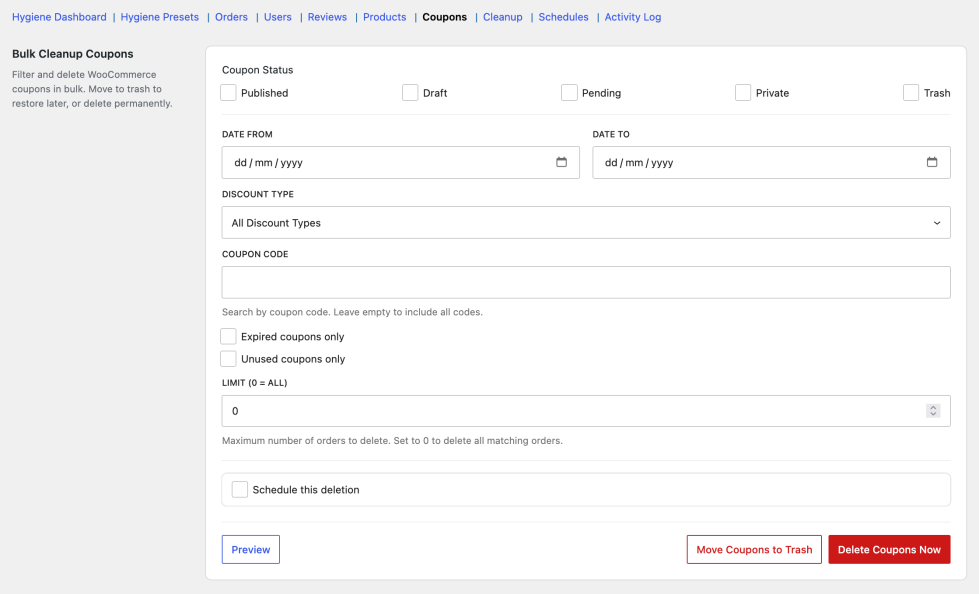
↑ Back to topClean up expired or unused coupon codes in bulk.
Filters
↑ Back to top| Setting | Description |
|---|---|
| Coupon Status | Published, Draft, etc. |
| Discount Type | Percent, fixed cart, fixed product, etc. |
| Coupon Code | Search by code; leave empty for all |
| Expired coupons only | Limit to past-expiry coupons |
| Unused coupons only | Limit to coupons never redeemed |
| Date From / Date To | Filter by coupon date |
| Limit (0 = All) | Cap coupons per run |
Cleanup tools
↑ Back to topQuick, predefined cleanup operations for common maintenance tasks — inactive users, guest orders, failed orders, trashed orders, and expired sessions. Each operation shows context-specific options when selected.
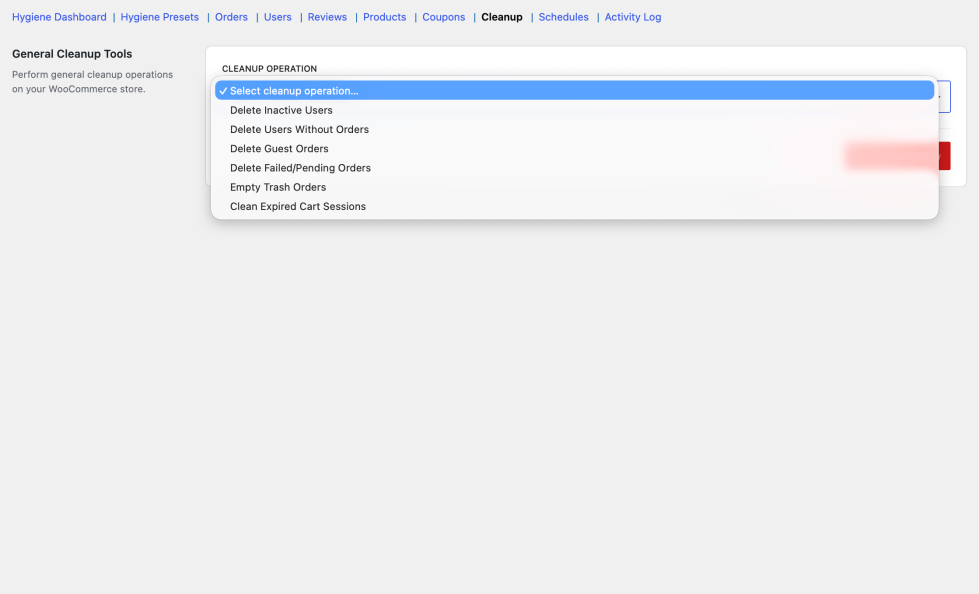
Operations
↑ Back to top| Operation | Options | Delete mode |
|---|---|---|
| Delete Inactive Users | Inactive for (days); optional “only users with no orders” | Permanent |
| Delete Users Without Orders | Exclude Roles (protected roles) | Permanent |
| Delete Guest Orders | Older than (days); leave empty for all guest orders | Trash or permanent |
| Delete Failed/Pending Orders | Older than (days) | Trash or permanent |
| Empty Trash Orders | Older than (days); leave empty for all trashed orders | Permanent |
| Clean Expired Cart Sessions | Older than (days) | Permanent (safe to run regularly) |
All operations support Schedule this deletion with the same fields as the entity tabs.
Schedules
↑ Back to topManage one-time and recurring cleanup jobs created from entity tabs, Cleanup tools, or Hygiene Presets. Large stores process items in background batches to avoid timeouts.
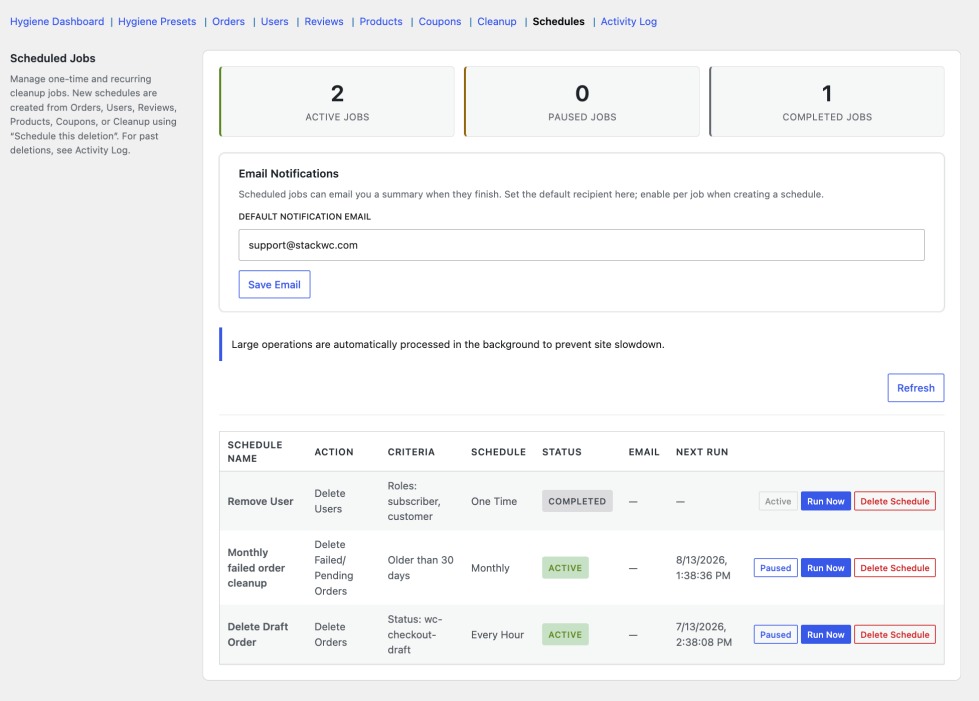
Job dashboard
↑ Back to top| Column / stat | Description |
|---|---|
| Active / Paused / Completed | Summary counts at the top |
| Schedule Name | Job label you set when creating it |
| Action / Criteria | What the job deletes and which filters apply |
| Status | Active, Paused, or Completed |
| Next Run / Last Run | Scheduled and previous execution times |
| Last Deleted | Items removed in the last run |
Job actions
↑ Back to top| Action | Description |
|---|---|
| Pause / Resume | Temporarily stop or restart a recurring job |
| Run Now | Execute immediately |
| Delete | Remove the schedule entirely |
Email notifications
↑ Back to top| Setting | Description |
|---|---|
| Default notification email | Store-wide recipient for job completion emails |
| Email me when this job completes | Per-job toggle when creating a schedule |
| Override email (optional) | Send a specific job’s notification to a different address |
Activity log
↑ Back to topPermanent audit trail of every deletion — manual runs from other tabs and completed scheduled jobs. Does not list upcoming jobs (see Schedules for those).
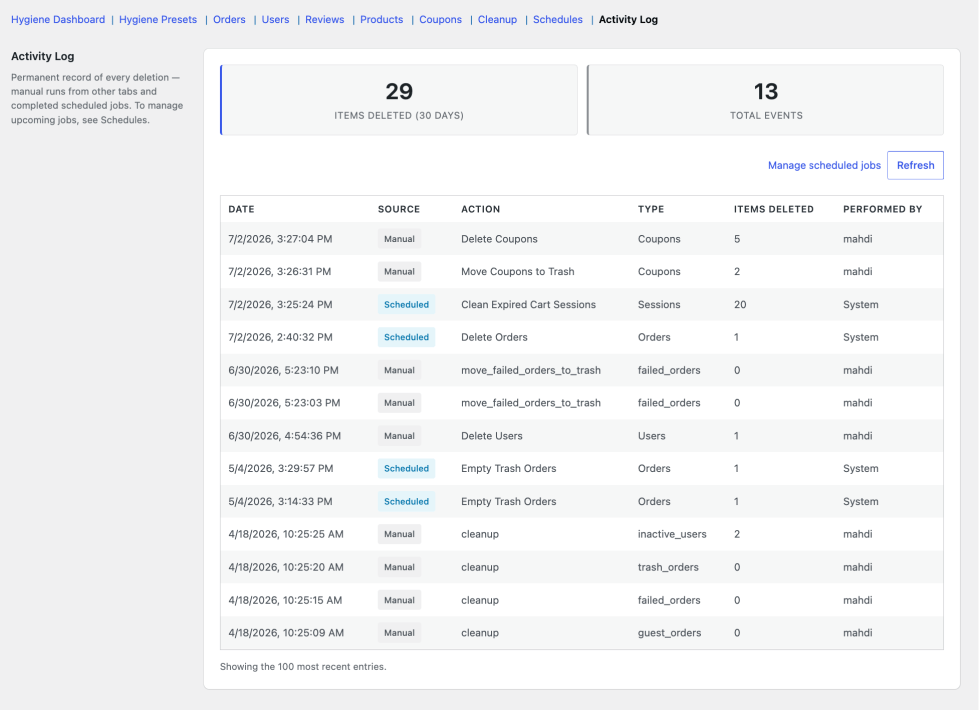
Log columns
↑ Back to top| Column | Description |
|---|---|
| Date | When the deletion ran |
| Source | Manual or Scheduled |
| Action | What was done (e.g. trash orders, delete users) |
| Type / Details | Entity type and filter summary |
| Items Deleted | Count removed |
| Performed By | Admin username, or “System” for scheduled runs |
Shows the 100 most recent entries. Use Refresh to reload.
Preview and CSV export
↑ Back to topEvery entity tab (and most hygiene insights) supports Preview before deletion. The preview modal lists matching items and offers CSV export.
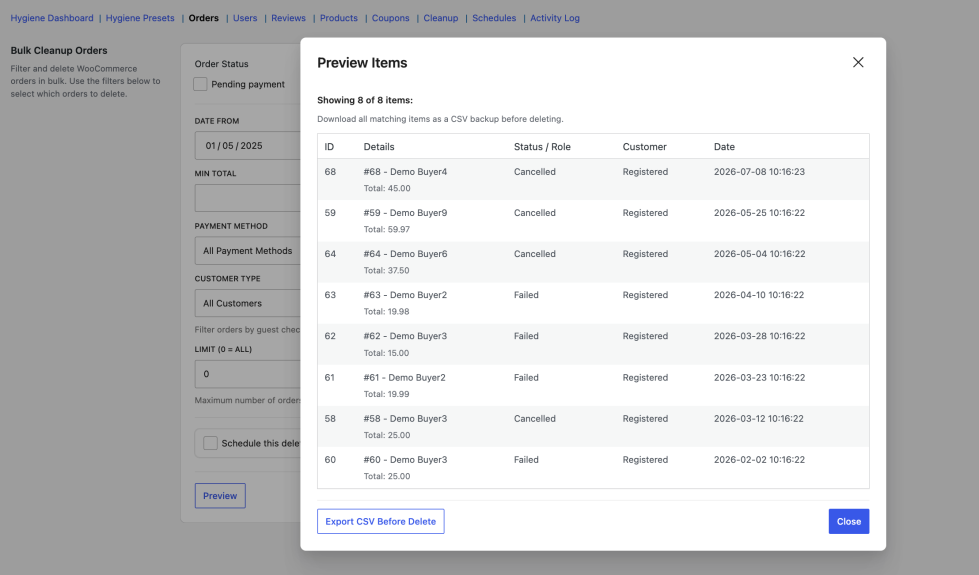
| Feature | Detail |
|---|---|
| Preview | Shows a sample of matches with total count |
| Export CSV | Downloads up to 5,000 rows as backup |
| Truncation notice | Shown if more than 5,000 items match |
Safety and permissions
↑ Back to top- Preview and confirmation prompts before every destructive action
- Move to trash option on orders, products, coupons, and reviews
- CSV export before permanent delete
- Batch processing with progress indicator for large operations
- Custom capability
stackwc_bcfw_manage(granted to administrators on activation) - Current user and administrators cannot be deleted from the Users tab
- Full action logging in Activity Log
- HPOS (High-Performance Order Storage) compatible
Recommended workflows
↑ Back to topFirst-time store cleanup
↑ Back to top- Open Hygiene Dashboard → Refresh counts
- Preview insights with high counts
- Export CSV from preview if you want a backup
- Run Clean now or apply Hygiene Presets for ongoing maintenance
- Check Activity Log after completion
Targeted bulk delete
↑ Back to top- Open the relevant tab (Orders, Users, etc.)
- Set filters
- Preview → Export CSV (optional)
- Move to Trash first if you want a recovery window
- Permanently delete from trash later via Cleanup tools or Orders tab
Automated maintenance
↑ Back to top- Apply presets under Hygiene Presets, or create custom schedules from any tab
- Set Batch Size (lower = less server load)
- Enable email notifications on the Schedules tab
- Review Activity Log monthly
FAQs
↑ Back to top
Does this plugin support scheduled deletions?
Yes. You can schedule one-time or recurring cleanup jobs from any entity tab (Orders, Users, Reviews, Products, Coupons, Cleanup tools) using Schedule this deletion. Intervals include hourly, twice daily, daily, weekly, and monthly. Hygiene Presets also create recurring jobs automatically — for example, weekly checkout-draft cleanup or daily expired session removal. Manage, pause, resume, or run jobs anytime under WooCommerce → Settings → Bulk Cleanup → Schedules.
Can I restore deleted data?
It depends on how you deleted the items.
1. Move to Trash (available for orders, products, coupons, and reviews): Items can be restored individually from the WordPress or WooCommerce trash screens. Bulk Cleanup does not include a one-click “undo” or bulk restore button.
Delete permanently or Delete Now: These cannot be undone. There is no rollback.
2. Users: Deletion is always permanent. Administrators and your own logged-in account are protected.
Before any permanent delete, use Preview and Export CSV (up to 5,000 rows) to keep a backup. When in doubt, trash first and permanently delete later.
Can I delete WooCommerce customers without orders?
Yes — in several ways:
1. Users tab — enable Only users without orders, then preview and delete.
2. Cleanup tools — choose Delete Users Without Orders, with optional role exclusions.
3. Hygiene Dashboard — the “Users without orders” insight shows a live count with Preview, Clean now, or Schedule actions.
4. Schedules — automate the cleanup to run daily, weekly, or monthly.
Administrators and the currently logged-in user are always excluded from deletion. You can also reassign a customer’s orders to another user ID before removing their account.
Does it work with large databases?
Yes, operations run in configurable batches with a progress bar.

