
Installation
↑ Back to top- Download the .zip file from your WooCommerce account
- Head to: WordPress Admin > Plugins > Add New > Upload Plugin ad use the downloaded .zip package
- Click on Install Now and Activate. A new menu item will appear in the WordPress admin panel.
If you need further help about this section, please check the related WooCommerce article.
Settings Overview
↑ Back to topThe very first thing to do when plugin is installed for the first time is to check settings.
Each field has got its related legend, then you shouldn’t need any specific guide.
However there are few notes that have to be done to avoid troubles:
- FAQs search page
-
This option defines which page you are gonna use to place the main FAQ search system (check shortcode section to know more).
Deeplinks will be set and read only on this page. - “no result”, “solution”, “user action” texts
-
These fields can also contain complex data (iframes, HTML & Javascript) as well as execute shortcodes
- Rating system
-
Votes are stored in browser cookies to avoid multiple votes on the same FAQ. However changing browser visitors can inevitably bypass this limit.
- Permalinks
-
Obviously you must not have another URL correspondance connected with chosen values.
By default your site permalink are flushed each time plugin settings are saved.
If you are facing troubles just go in WP settings > Permalinks and just save again. - Use only first-level subjects?
-
This option will change the deeplink structure.
Then be careful to not use a deeplinked URL as direct link and then change this option
The AI Assistant
↑ Back to topThis system is based on Cohere systems. They have been chosen among many for their price and simplicity in handling the task the plugin systems need.
This assistant will generate answers exclusively on the contents you create throgh FAQ Revolution, to give the best result possible while avoiding hallucinations.
Settings
↑ Back to topIn order to create the Cohere-elaborated contents cache, the server must allow direct files management in the wp-content/uploads folder
- Create a Cohere account and get a Cohere API Key
- Go in the plugin settings > AI Settings block and paste the API Key. Test the connection to be sure your server is able to connect to Cohere and save settings
- As the page refreshes the block will show the cache file location with the additional options
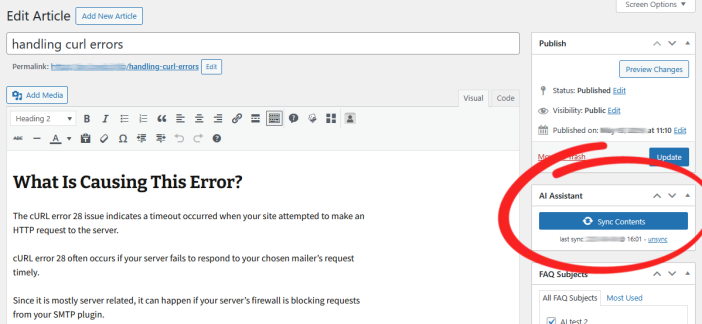
Contents are taken from Knowledge-base and “basic” FAQs and also stored to be retrieved matching FAQ Subjects. In the settings page you can bulk-sync all contents, otherwise one-by-one in the editor’s page sidebar. The process is manual to reduce Cohere tokens usage at the maximum (then save money).
Shortcode
↑ Back to topFAQ Revolution is also natively integrated with WordPress Block Editor (Gutenberg), Elementor and Visual Composer.
Using them you can skip the standard shortcode wizard and use the related plugin’s tool.
For any other builder or using the old WordPress editor:
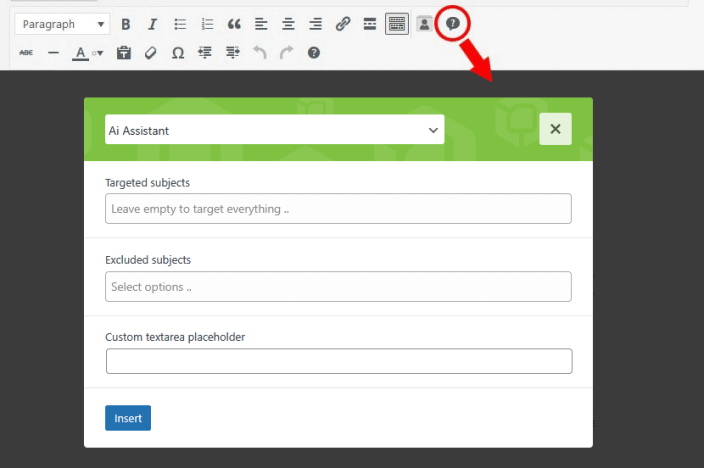
In any WordPress editor you can see the plugin’s icon triggering the shortcode wizard.
Here’s fields explaination:
- Targeted subjects
-
Only contents belonging to these FAQ Subjects will be taken into consideration
- Excluded subjects
-
Among targeted FAQ Subjects, these selected ones will be discarded
- Custom textarea placeholder
-
Enabling this option no FAQ will be listed until user will fill the search bar
Shortcode demo with all possible parameters:
[fr-ai-assistant target_subj="5" excl_subj="1" placeh_txt="Ask me something"]The AI assistant can also be integrated in Knowledge-base articles and in the FAQ Searchbox
Knowledge-base
↑ Back to topThis system is detached from FAQ’s one, but articles can be attached to each FAQ’s answer to give a better user experience and ideally teach visitors about a specific subject.
- Articles could also be a great way to increase website’s SEO score since they should have highly targeted contents
- Article tags can be shown at the end of article contents, giving access to archives
- Automated sidebar navigation menu
-
In the Knowledge-base settings block is possible to enable an automated sidebar menu navigation, useful to increase the SEO score and to help users quickly navigating through your contents. Articles are merged basing on the linked article’s FAQ Subjects, if related articles count is less than 2, the sidebar is not shown.
- AI Assistant integration
-
In the Knowledge-base settings block is possible to enable the automatic AI Assistant integration. The widget will be displayed before textual contents and tuned to give answers basing on the linked article’s FAQ Subjects
External Links
↑ Back to top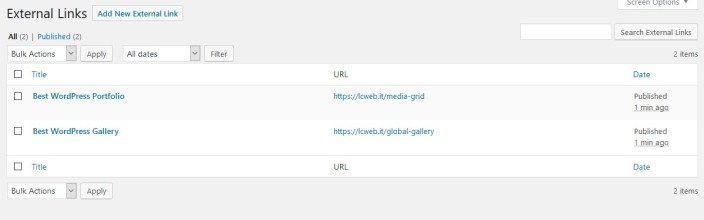
This system borns to let you add specific links to external websites in the easiest and cleanest way possible.
Links be attached to each FAQ’s answer.
It’s a very basic system: just add new links by writing a name (the one shown in list) and the external URL
FAQ Subjects
↑ Back to top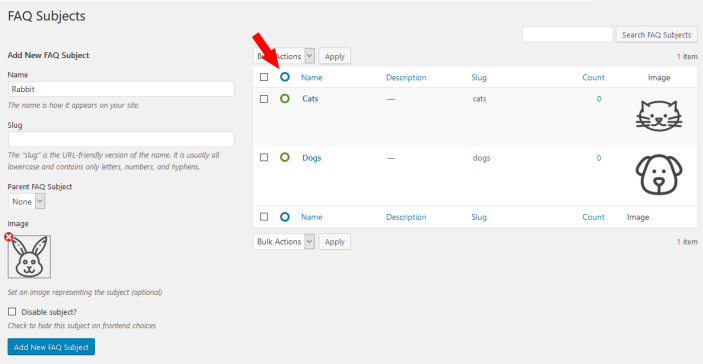
Before creating FAQs you have to define their subjects:
- First-level subjects can have an image attached
- Child subjects are optional and are meant to refine FAQs search
- Subjects can be also temporary disabled: in subjects list the first column (red arrow in the above image) represents the status.
Green circle means subject is enabled, while red circle is for disabled ones. - Subject slugs are used in deeplinks
FAQ Builder
↑ Back to topClicking on “Manage FAQs” you can create your first FAQ.
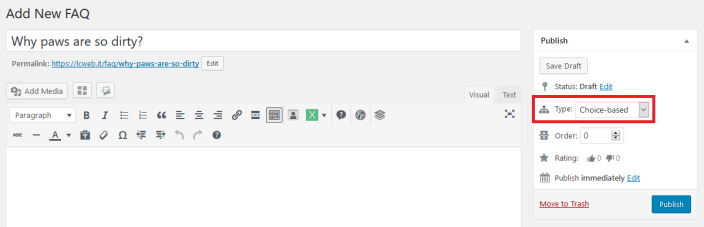
The very first thing to do is decide whether FAQ has to be basic or choice-based.
Basic (text-only)
↑ Back to top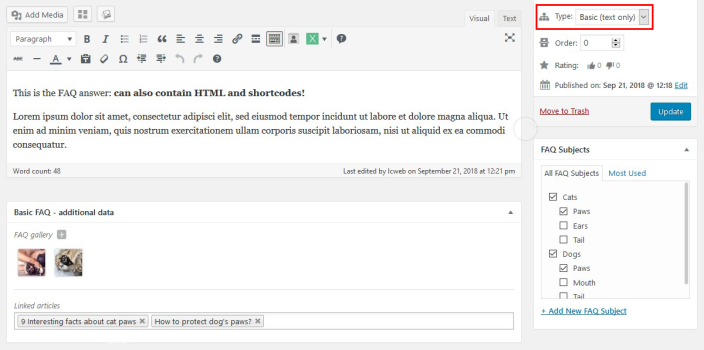
It’s the standard FAQ format: question and answer.
Contens can also contain complex elements such as HTML and shortcodes.
Is possible to have a photogallery as well as a “related articles” section containing knowledge-base and external links.
Choice-based
↑ Back to topHere you can define a true choices tree helping users step-by-step.
Ideally you have to shape the tree basing on the question-to-multi-option principle.
Everything starts with an initial question: while prior FAQ text is optional, you must have at least two answers.
Each answer has also got a consequence when selected:
- Text as end
-
Uses choice’s text to end FAQ’s flow
- Default solution
-
Uses the “default solution” text to end the FAQ flow (it is defined in settings).
It’s ideally meant to show a positive answer to the user (eg. you problem should be solved) - Default user action
-
Uses the “default user action” text to end the FAQ flow (it is defined in settings).
It’s ideally meant to query user to make a custom action in order to solvea problem (eg. your case needs to be inspected, open a ticket) - New Question
-
You’ve got to pose a new question to the user, in order to better understand the situation
Each answer may have associated knowledge-base articles, external links and images.
You can use HTML as well as shortcodes within choices description.
Common Systems
↑ Back to top- FAQ Order
-
Normally FAQs are sorted by title (A to Z), however you can set a custom order by using numbers.
Is suggested to use pretty big increases (10/20/30) to avoid troubles if you want to place a new FAQ between two existing ones. - Search Helper
-
This is probably the most important parameter after the title: is used in the search algorithm and helps users finding the right FAQ.
Use frequently-used and semantic words. Use anything you prefer to split words: any extra character will be removed on frontend.
WooCommerce Products integration
↑ Back to topThe plugin hooks directly in the products page by adding a “FAQs” tab, showing the searchbox and/or the AI assistant.
It is important to mention that AI assistant will give answers not only basing on the Section FAQs, but in order to give the best answer possible, takes also the product description and name into consideration.
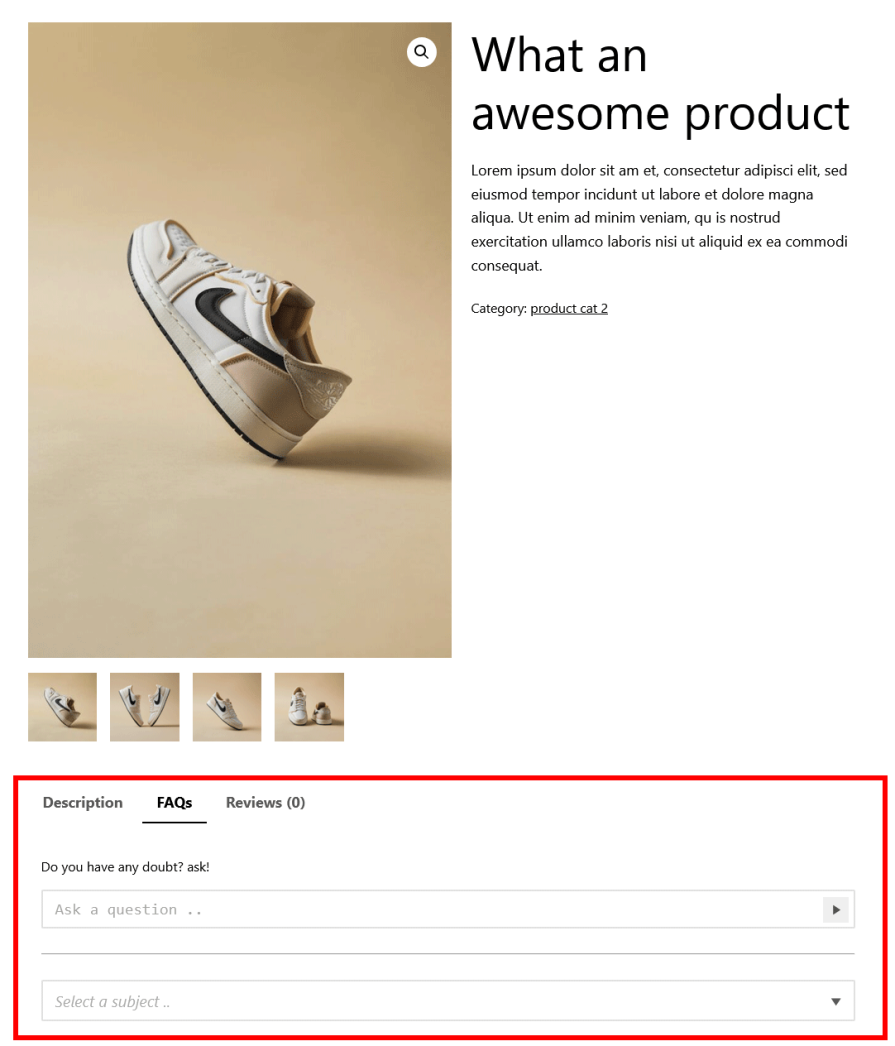
In the plugin settings there is a dedicated section named “WooCommerce Product Tabs Integration”: through that you will be able to defined a global integration scheme for your products.
However it is also possible to granularly control the integration while editing WooCommerce product categories or also products themselves.
Category settings will override global settings and individual produduct settings will override both.
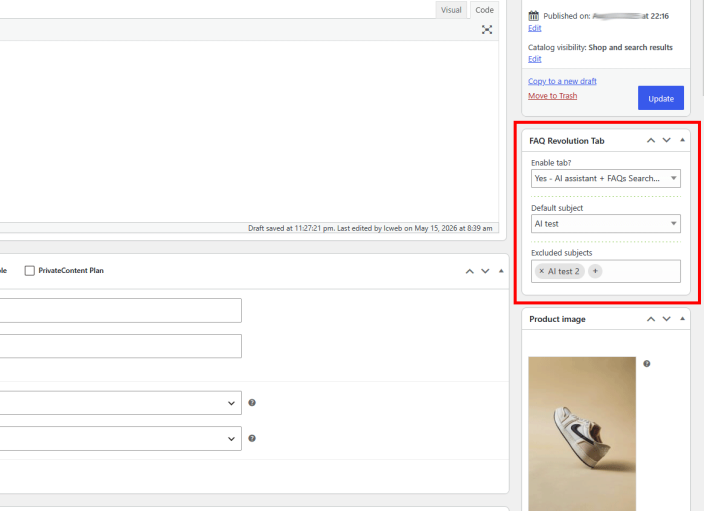
FAQ Search Shortcode
↑ Back to topFAQ Revolution is also natively integrated with WordPress Block Editor (Gutenberg), Elementor and Visual Composer.
Using them you can skip the standard shortcode wizard and use the related plugin’s tool.
For any other builder or using the old WordPress editor:
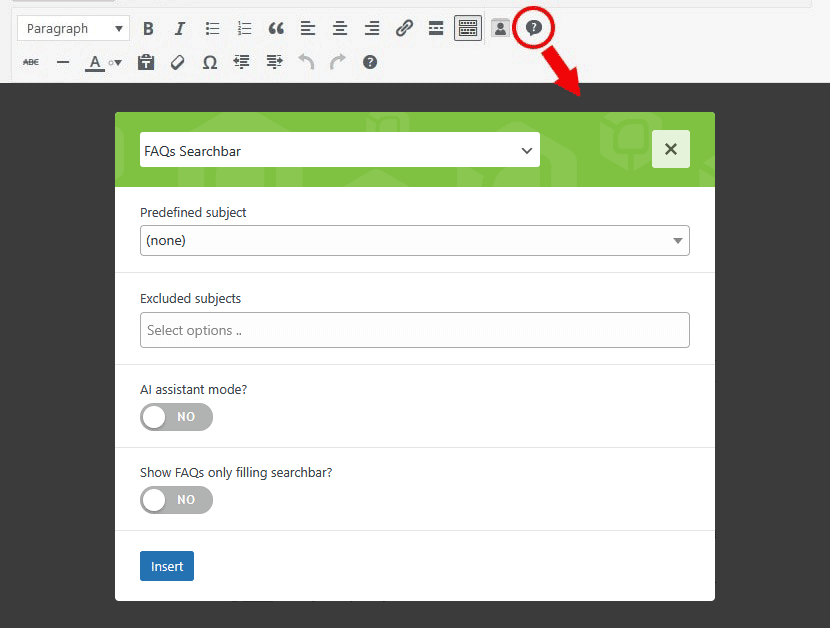
In any WordPress editor you can see the plugin’s icon triggering the shortcode wizard.
Here’s fields explaination:
- Predefined subject
-
Forces a default subject for the search system. User will still be able to choose eventual child subjects
- Predefined child subject
-
Forces a default child subject for the search system
- Excluded subjects
-
Among targeted FAQ Subjects, these selected ones will be discarded
- Show FAQs only filling searchbar?
-
Enabling this option no FAQ will be listed until user will fill the search bar
- AI Assistant mode
-
Enabling the option, this tool becomes an AI Assistant tuner. No FAQs will be shown and the assistant will give answers exclusively basing on the chosen FAQ Subject and sub-subject
Shortcode demo with all possible parameters:
[faq-revo-searchbar subj="5" sub_subj="1" excl_subj="" req_src="1" ai_assist_mode="0"]Multilanguage
↑ Back to topThe plugin is 100% multilanguage for both front and back ends. If a translation of your language has been created, WordPress will automatically switch between languages.
Plus it is compatible with WPML and Polylang!
How to create a translation
If you have WPML + String Translation add-on or Polylang, you can simply scan the plugin and translate strings via its UI.
Otherwise: go in the plugin folder, then open the one named “languages”.
Inside you’ll find the default.pot file. It contains English strings to be translated.
If you want to create or customize one your language translation, follow these steps:
- Open the default.pot file with POedit
- Edit the catalog by inserting your data and setting translation’s language
- Save the file with your language’s i18n identifier and “fr_ml-” prefix (the italian example is fr_ml-it_IT)
- Go to plugins folder “.. wp-content/plugins/faq_revo/languages” and paste resulting .PO and .MO files
To translate dynamic strings set in settings you must pass through the WPML string translation add-on or Polylang.
If you create new translations, please get in touch sending your .PO and .MO files. Otherwise they will be lost in next updates.
Thanks!

