The Bulk Edit Products plugin lets you edit prices, stock, descriptions, and taxonomy across multiple WooCommerce products at once, instead of updating each one individually. It combines an inline editable table with a full set of bulk actions, including price adjustment, stock management, sale scheduling, AI description generation, and scheduled edits, all with batch history and rollback support.
Configuration & Installation
↑ Back to top- Download the .zip file from your WooCommerce account.
- Go to: WordPress Admin > Plugins > Add New and upload the file you have downloaded.
- Install Now and Activate.
Bulk Editor
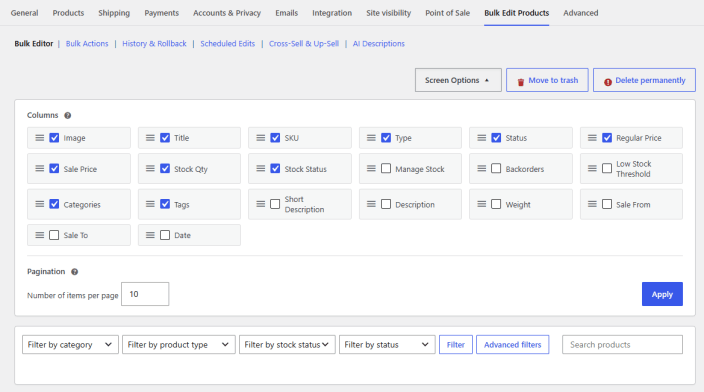
↑ Back to topEdit products in bulk in an advanced table layout. Choose which options to include in the table columns. Go to WooCommerce > Settings > Bulk Edit Products > Bulk Editor and configure the following settings for bulk editing.
- Choose what to include in the table columns. You can choose between the following:
- Image
- Title
- SKU
- Type
- Status
- Regular Price
- Sale Price
- Stock Qty
- Stock Status
- Manage Stock
- Backorders
- Low Stock Threshold
- Categories
- Tags
- Short Description
- Description
- Weight
- Sale From
- Sale To
- Date
- Move products to trash or delete permanently in bulk.
- Use different filters to view selected products. You can choose between the following filters:
- Filter by Category
- Filter by Product Type
- Filter by Stock Status
- Filter by Product Status
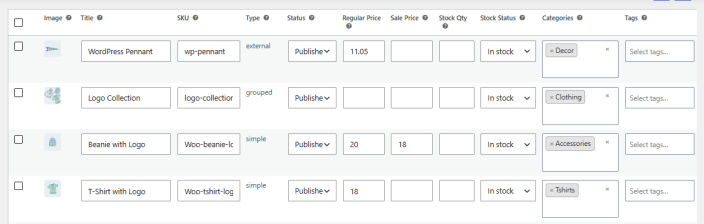
- You can also edit the selected options for each product from the table.
Bulk Actions
↑ Back to topConfigure the bulk actions for each action panel. You can configure the action for products or categories. The following are the available actions:
Mass Price Adjustment
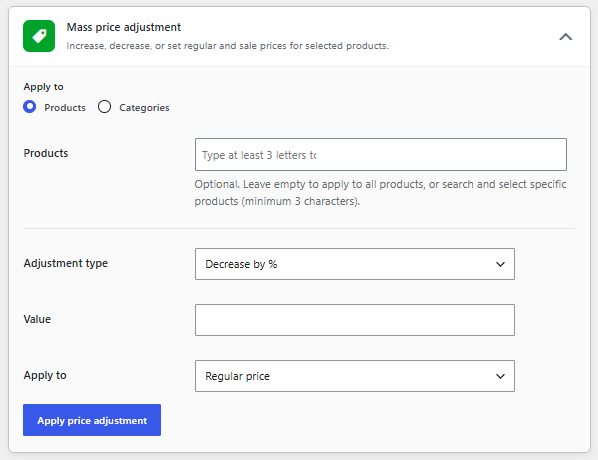
↑ Back to top- Apply To: Apply the action to products or categories.
- Products/Categories: Select the specific products or categories.
- Adjustment Type: Choose the mass price adjustment type:
- Increase by fixed amount
- Decrease by fixed amount
- Increase by %age
- Decrease by %age
- Set to fixed value
- Clear sale price
- Value: Enter a value for the adjustment.
- Apply To: Choose how you want to apply the adjustment:
- Regular price
- Sales price
- Both
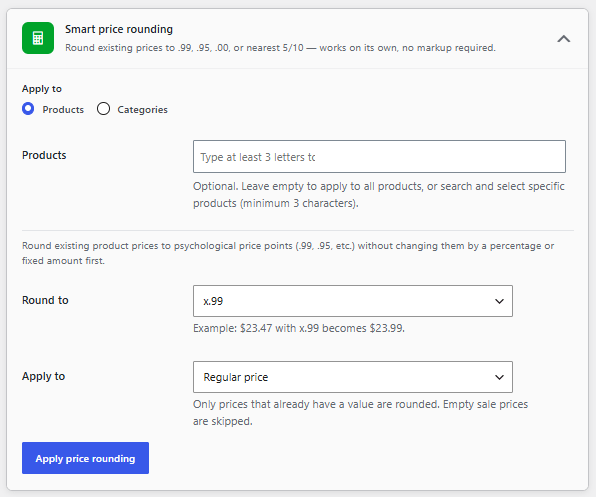
Smart Price Rounding
↑ Back to top- Apply To: Apply the action to products or categories.
- Products/Categories: Select the specific products or categories.
- Round To: Round existing product prices to psychological price points (.99, .95, etc.) without changing them by a percentage or fixed amount first. You can choose the following options:
- x.99
- x.95
- x.00 (Whole Number)
- Nearest 5
- Nearest 10
- Apply To: Choose how you want to apply the rounding:
- Regular price
- Sales price
- Both
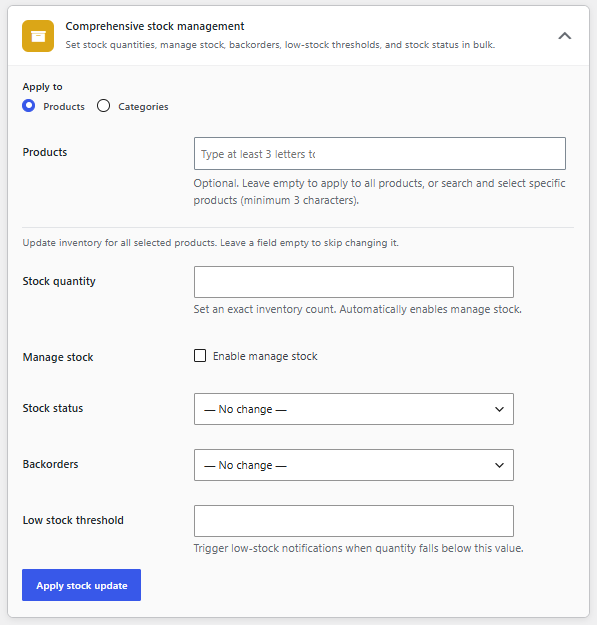
Comprehensive Stock Management
↑ Back to top- Apply To: Apply the action to products or categories.
- Products/Categories: Select the specific products or categories.
- Stock Quantity: Set an exact inventory count. Automatically enables managing stock.
- Manage Stock: Enable managing stock.
- Stock Status: Choose the stock status:
- No change
- In stock
- Out of stock
- In backorder
- Backorders: Select the behaviour for backorders:
- Do not allow
- Allow – Notify customers
- Allow
- Low Stock Threshold: Set a low stock threshold limit. Trigger low-stock notifications when quantity falls below this value.
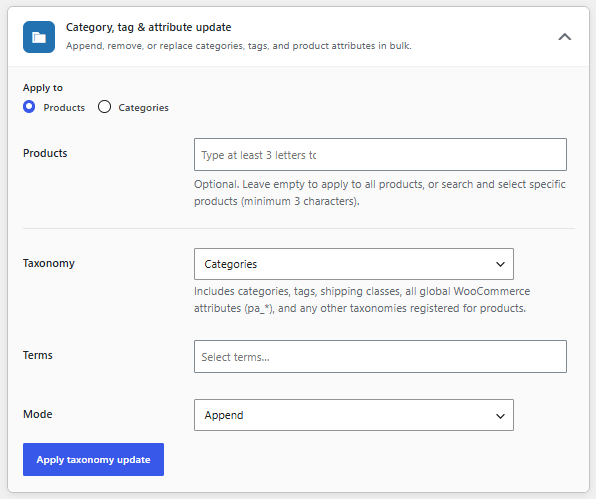
Category, Tag, and Attribute Update
↑ Back to top- Apply To: Apply the action to products or categories.
- Products/Categories: Select the specific products or categories.
- Taxonomy: Choose the desired taxonomy from the dropdown. Includes categories, tags, shipping classes, all global WooCommerce attributes (pa_*), and any other taxonomies registered for products.
- Terms: Select the terms.
- Mode: Choose the mode to be applied:
- Append
- Remove
- Replace
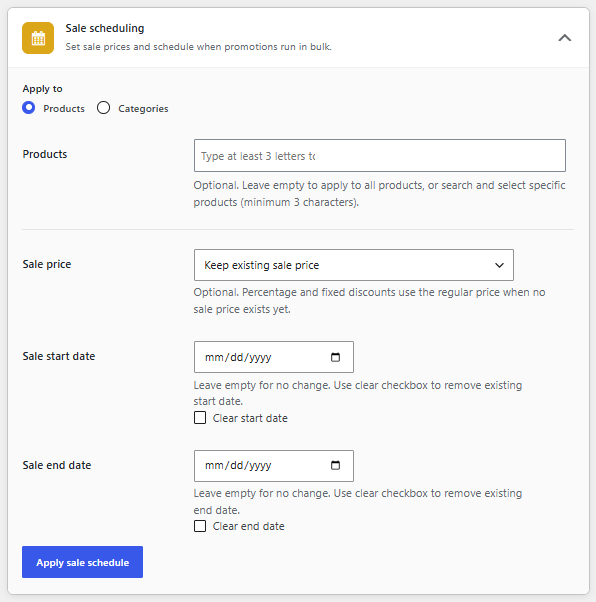
Sale Scheduling
↑ Back to top- Apply To: Apply the action to products or categories.
- Products/Categories: Select the specific products or categories.
- Sale Price: Choose how to manage the sale price. (Percentage and fixed discounts use the regular price when no sale price exists)
- Keep the existing sale price
- Decrease by %age
- Decrease by fixed amount
- Set to fixed value
- Clear sale price
- Sale Start Date: Select the start date for the sale price. Leave empty for no change. Use the clear checkbox to remove the existing start date.
- Sale End Date: Select the end date for the sale price. Leave empty for no change. Use the clear checkbox to remove the existing end date.
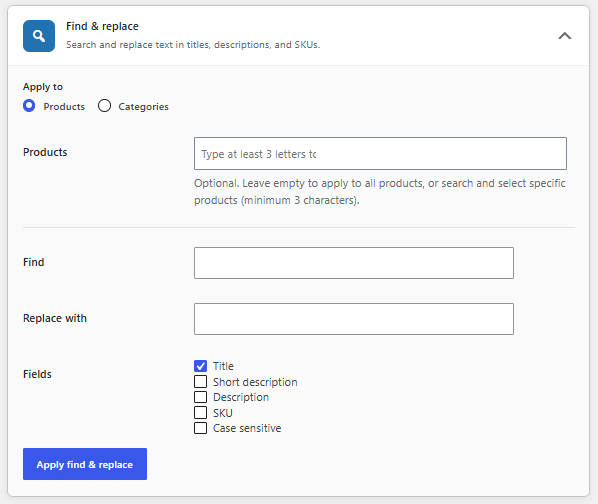
Find and Replace
↑ Back to top- Apply To: Apply the action to products or categories.
- Products/Categories: Select the specific products or categories.
- Find: Select which product or category to find.
- Replace with: Select the category or product to be replaced with.
- Fields: Select which fields to be replaced. You have the following options:
- Title
- Short description
- Description
- SKU
- Case sensitive
Append/Prepend Text
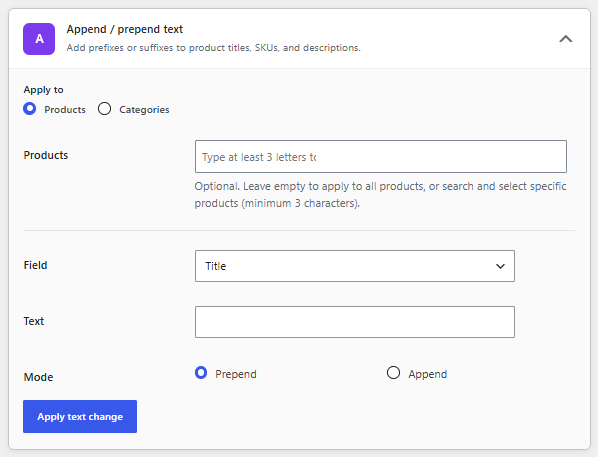
↑ Back to top- Apply To: Apply the action to products or categories.
- Products/Categories: Select the specific products or categories.
- Field: Select the field that you want to append or prepend:
- Title
- SKU
- Short description
- Description
- Text: Enter the text that will be used.
- Mode: Select if you want to append or prepend.
Create Products
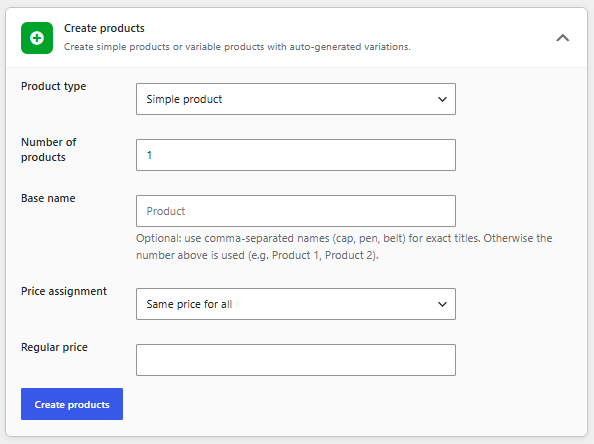
↑ Back to top- Product Type: Choose the product type that you want to create:
- Simple product
- Variable product (with variations)
- Number of Products: Set the number of products to be created.
- Base Name: Use comma-separated names (cap, pen, belt) for exact titles. Otherwise, the number above is used (e.g., Product 1, Product 2).
- Price Assignment: Choose the preferred method to assign a price to new products. You can choose between the following options:
- Same price for all
- Regular Price: Enter the regular price.
- Increase by fixed amount
- Starting price: Set the starting price.
- Increase by: Added per product (simple) or per variation (variable). Resets for each new parent product.
- Comma-separated prices
- Price list: Add a price list for each product. One price per product (simple) or per variation (variable), in order. If fewer prices than items, the last price is repeated.
- Same price for all
- Variation Attributes: Add one or more attributes with comma-separated terms. Every combination becomes a variation (e.g., Color × Size).
- Attribute name
- Terms
AI Descriptions
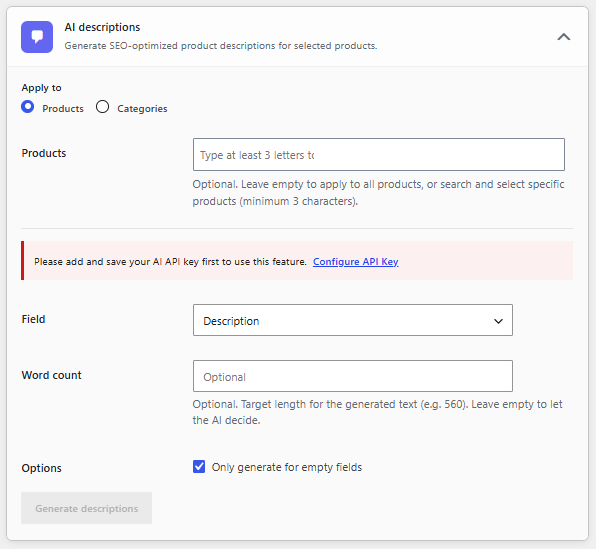
↑ Back to top- Apply To: Apply the action to products or categories.
- Products/Categories: Select the specific products or categories.
- Field: Choose the field for which you want to generate descriptions.
- Description
- Short description
- Word Count: Add a specific word count for each description. This is optional, so you can leave it empty to let the AI decide.
- Options: Click the checkbox to generate content for empty fields only.
History and RollBack
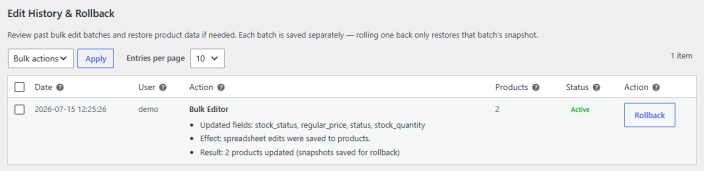
↑ Back to topReview past bulk edit batches and restore product data if needed. Each batch is saved separately – rolling one back only restores that batch’s snapshot. You can see the previous bulk edit patches in the form of a table that includes:
- Date
- User
- Action
- Products
- Status
- Action
Scheduled Edits
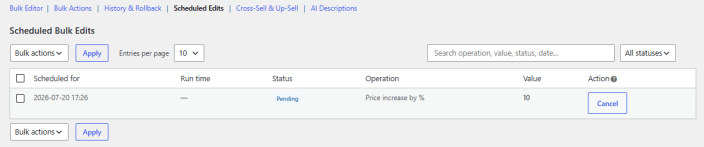
↑ Back to topSchedule bulk edits for convenience. All scheduled edits will be available in a table with the following information:
- Scheduled for
- Run time
- Status
- Operation
- Value
- Action
Schedule New Edit
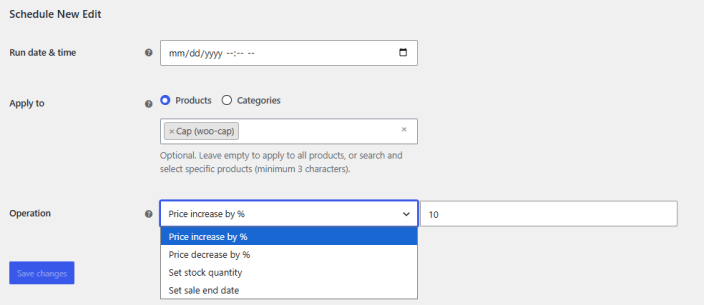
↑ Back to top- Run Date & Time: Choose the date and time to run the bulk edit.
- Apply To: Choose if you want to apply the bulk edit to products or categories. Leave empty to apply to all products.
- Operation: Choose the bulk action to be performed on the selected products or categories.
- Price increase by %age
- Price decrease by %age
- Set stock quantity
- Set sale end date
Cross-Sell & Up-Sell Bulk Mapping
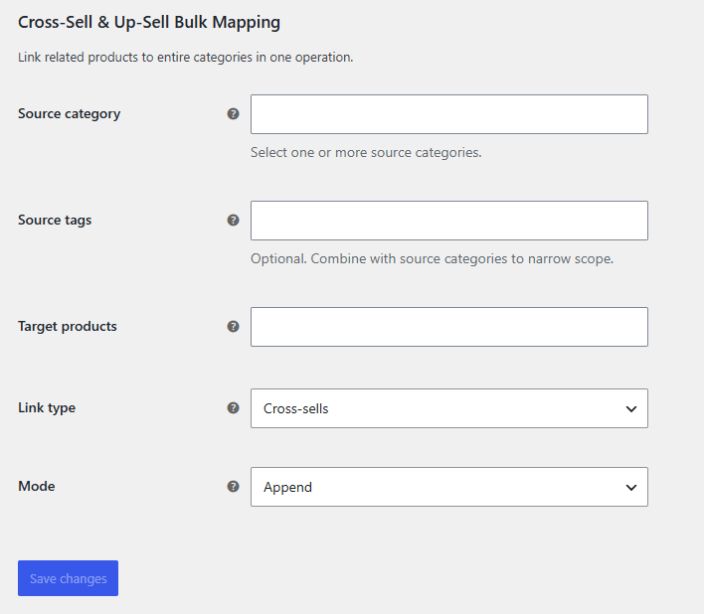
↑ Back to topLink related products to entire categories in one operation with cross-sell & up-sell bulk mapping.
- Source Category: Choose the product category for which you want to apply cross-sell or upsell.
- Source Tags: Choose the tags to apply mapping. This is optional and will be used in combination with source categories to narrow the scope.
- Target Products: Choose the products to target for cross-sell or upsell for all matching source products.
- Link Type: Choose the linking type:
- Upsell
- Cross-sell
- Mode: Choose if you want to append or prepend the selected products.
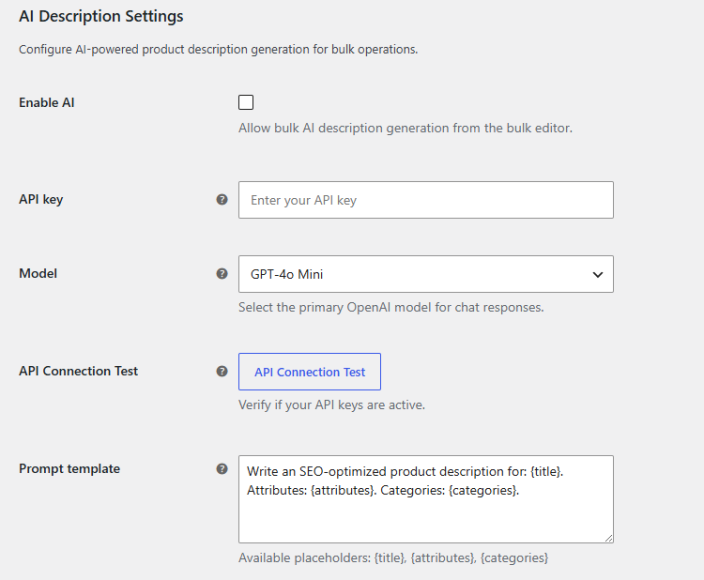
AI Description Settings
↑ Back to topConfigure AI-powered product description generation for bulk operations.
- Enable AI: Enable to allow bulk AI description generation from the bulk editor.
- API Endpoint: Add the API endpoint.
- API Key: Enter your API key.
- Model: Select the primary OpenAI model for chat responses.
- GPT-4o
- GPT-4o Mini
- GPT-4 Turbo
- GPT-4
- GPT-3.5 Turbo
- o1
- o1 Mini
- o3 Mini
- API Connection Test: Test your API connection.
- Prompt Template: Add a template for the prompt using placeholders: {title}, {attributes}, {categories}.