
Smart Reorder Email allows your WooCommerce store to automatically remind customers to reorder products they’ve already purchased, at just the right time, with an optional discount coupon to boost conversion.
Installation
↑ Back to topTo start using a product from WooCommerce.com, you can use the “Add to store” functionality on the order confirmation page or the My subscriptions section in your account.
- Navigate to My subscriptions.
- Find the Add to store button next to the product you’re planning to install.
- Follow the instructions on the screen, and the product will be automatically added to your store.
Alternative options and more information at:
Managing WooCommerce.com subscriptions.

Overview
↑ Back to topSmart Reorder Email automatically sends repurchase reminder emails to customers after a configurable delay per product, optionally including a unique discount coupon to encourage the reorder. It’s built directly on top of WooCommerce’s own email system, so it looks and behaves like a native WooCommerce email rather than a separate add-on.
Setup
↑ Back to top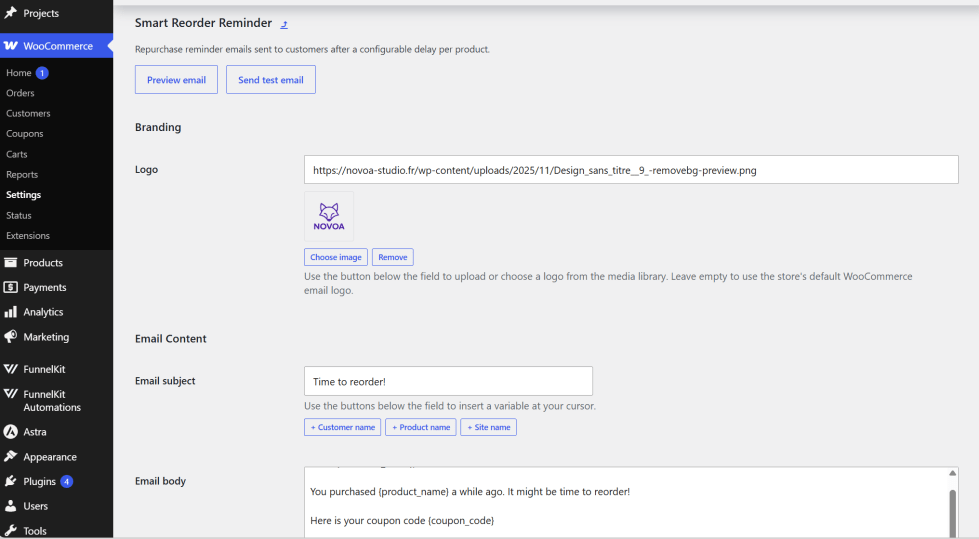
Getting started
↑ Back to topTo set up your store with Smart Reorder Email:
- Go to: WooCommerce > Settings > Emails > Smart Reorder Reminder.
- Tick the checkbox to Enable the email.
- Enter a description for the reminder in the Email subject and Email body fields, use the buttons below each field to insert variables like
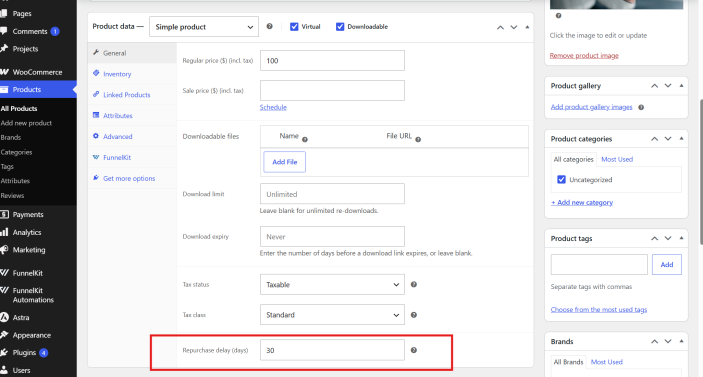
{customer_name}and{product_name}at your cursor. - Edit each product you want reminders for, go to the General tab, and set a Repurchase delay (days) value.
- Save changes.
Advanced configuration
↑ Back to topBranding : Upload a custom logo (via the media library) under the Branding section to override your store’s default WooCommerce email logo for this reminder specifically. Leave it empty to keep your store’s default logo.
Call-to-Action Button : Customize the button label and color under Call-to-Action Button.
Coupon Code : Enable “Enable coupon codes” to generate a unique, single-use discount code with each reminder, restricted to the customer’s email and the specific product. Configure the discount type (percentage or fixed), amount, code validity period, and code prefix.
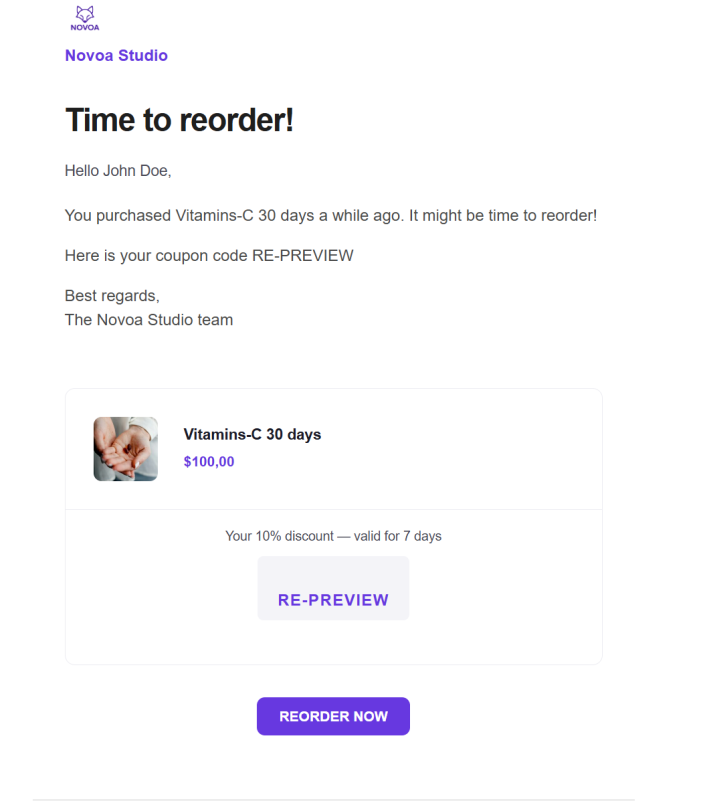
Preview & test : Use the Preview email button (top of the settings page) to see a live rendered preview using your first published product, or Send test email to send a real test copy to any address before going live.
Usage
↑ Back to topWhat customers see on the front end.
Once configured, the process runs automatically:
Clicking the button adds the exact product (and variation, if applicable) straight to their cart, with the coupon automatically applied if one was included, a single click to reorder.
When a customer’s order is marked Completed, Smart Reorder Email checks each purchased product for its repurchase delay.
A reminder is scheduled for the order completion date plus that delay.
On the scheduled date, the customer receives an email styled with your store’s WooCommerce branding, showing the product, its price, and a reorder button.
Troubleshooting
↑ Back to topTest email says “sent” but never arrives
This is almost always a site email-delivery issue, not the plugin. wp_mail() reporting success only means the message was handed to the server, not that it was delivered. Check spam first, then try resending a native WooCommerce order email (Orders > an order > Resend). If that doesn’t arrive either, install an SMTP plugin (e.g. WP Mail SMTP) connected to a real mail provider, required for reliable delivery on most hosting, independent of this plugin.
No reminder was scheduled after a purchase
Confirm the product has a “Repurchase delay (days)” value set, and that the order reached Completed status (reminders are scheduled on completion, not on payment or processing).
Coupon codes aren’t showing in the email
Make sure “Enable coupon codes” is checked and saved, and that {coupon_code} has been inserted into the email body text.
FAQs
↑ Back to topHelp customers by answering commonly asked questions.
<strong>How do I set up repurchase reminders for a product?</strong>
Edit the product, go to the General tab, and set “Repurchase delay (days)” (e.g. 30) to remind the customer 30 days after purchase. Leave it empty to disable reminders for that product.
<strong>Will this match the look of my other WooCommerce emails?</strong>
Yes. Smart Reorder Email is built on WooCommerce’s own email template system, so it automatically inherits your store’s email logo, colors, and typography.
<strong>How do the discount coupon codes work?</strong>
Each reminder can include a unique, single-use coupon restricted to that customer’s email and the specific product. You control the discount type, amount, code prefix, and validity period.
<strong>Can I customize the email content and preview it before sending?</strong>
Yes, customize subject, body, button label/color, and variables from the settings page, then use “Preview email” or “Send test email” to check it before it goes live.
<strong>Does this track customers or send data anywhere?</strong>
No. It doesn’t track opens, clicks, or conversions, and doesn’t send data to external servers, everything stays in your WordPress database.

