
Trendyol Integration for WooCommerce allows your WooCommerce store to seamlessly connect with the Trendyol International Marketplace — exporting products, importing orders, syncing stock and prices in real time, and managing invoices, returns, and shipping directly from your WordPress dashboard.
Installation
↑ Back to topTo start using a product from WooCommerce.com, you can use the “Add to store” functionality on the order confirmation page or the My subscriptions section in your account.
- Navigate to My subscriptions.
- Find the Add to store button next to the product you’re planning to install.
- Follow the instructions on the screen, and the product will be automatically added to your store.
Alternative options and more information at:
Managing WooCommerce.com subscriptions.

Requirements
↑ Back to top- WordPress 6.5 or higher
- WooCommerce 7.0 or higher
- PHP 7.4 or higher
- An active Trendyol International seller account with API credentials
- A publicly accessible HTTPS website (required for webhook delivery)
Setup and Configuration
↑ Back to topGetting started
↑ Back to topTo connect your store with Trendyol:
- Go to: WooCommerce > Trendyol.
- Under the API tab, enter your Seller ID, API Key, and API Secret. You can find these in your Trendyol Seller Panel under Account Details → Integration Details.
- Select your Storefront Code (e.g. RO, GR, AE, SA) corresponding to the Trendyol marketplace you sell on.
- Click Test Connection to verify your credentials are correct.
- Save changes.
Once connected, the plugin will automatically register a webhook with Trendyol to receive orders in real time.
Sync settings
↑ Back to topNavigate to WooCommerce > Trendyol > Sync tab to configure synchronization behavior:
- Order Sync — Enable or disable automatic order import from Trendyol.
- Stock & Price Sync — Automatically push stock and price changes from WooCommerce to Trendyol whenever a product is updated.
- Product Export — Enable the ability to export WooCommerce products to Trendyol.
- Auto-generate SKU — Automatically create SKUs for products that don’t have one.
- Default VAT Rate — Set the default VAT rate applied to exported products (0%, 6%, 11%, 13%, 21%, or 24%).
Webhook configuration
↑ Back to topNavigate to WooCommerce > Trendyol > Webhook tab to manage webhook settings:
- Authentication Type — Choose between API Key (x-api-key header) or Basic Authentication.
- Subscribed Statuses — Select which Trendyol order statuses should trigger webhook notifications.
- Webhook URL Override — Optionally specify a custom public HTTPS URL if your site is behind a proxy or uses a non-standard setup.
Use the Register Webhook button to create the webhook with Trendyol, or Delete Webhook to remove it.
Invoice settings
↑ Back to topNavigate to WooCommerce > Trendyol > Invoice tab. The plugin can automatically send invoice URLs or PDF files to Trendyol. Supported invoice plugins:
- WooCommerce PDF Invoices & Packing Slips
- WPO WooCommerce PDF Invoices
- Billingo
- Germanized for WooCommerce
- Custom meta key (for any other invoice plugin)
Enable Auto-send Invoice to have invoices pushed to Trendyol automatically when they become available.
Product Sync
↑ Back to top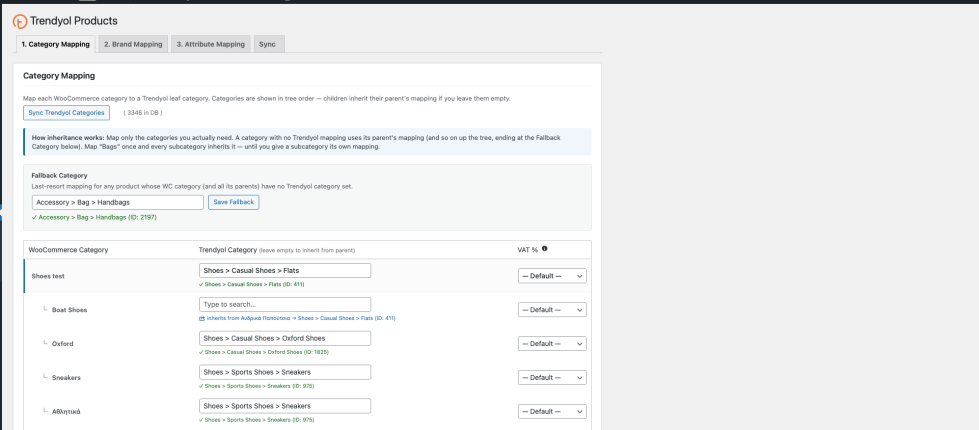
Category mapping
↑ Back to topNavigate to WooCommerce > Trendyol Product Sync > Category Mapping tab:
- Click Sync Categories to download the Trendyol category tree into your database.
- Map each of your WooCommerce product categories to the corresponding Trendyol category.
- Optionally set a Default Trendyol Category for any unmapped WooCommerce categories.
- Optionally override the VAT rate per category.
Categories are automatically refreshed daily via a scheduled task.
Brand mapping
↑ Back to topNavigate to WooCommerce > Trendyol Product Sync > Brand Mapping tab:
- Select which WooCommerce taxonomy represents your brands (e.g. a product attribute or custom taxonomy).
- Map each WooCommerce brand term to a Trendyol brand using the live search field.
- Set a Default Brand for products without an explicit brand mapping.
Attribute mapping
↑ Back to topNavigate to WooCommerce > Trendyol Product Sync > Attribute Mapping tab:
- Select a Trendyol category to configure its required and optional attributes.
- For each Trendyol attribute, choose a mapping mode: Auto (match by name), Fixed Value, Term Map (map individual terms), or Skip.
- Map your WooCommerce attribute values to the corresponding Trendyol attribute values.
- Required attributes must be mapped before products in that category can be exported.
Exporting products
↑ Back to topNavigate to WooCommerce > Trendyol Product Sync > Export tab:
- Configure Sync Filters to select which products to export (by category, brand, stock status, or limit).
- Click Export Products to push your WooCommerce products to Trendyol. Products are sent in batches with a progress indicator.
- Use Check Batch Status to verify the processing status of recently exported products on Trendyol.
- Use Update Stock & Price to push only stock and price changes without re-exporting full product data.
Usage
↑ Back to topOrder management
↑ Back to topWhen orders arrive from Trendyol, they appear in your WooCommerce > Orders list with a “TY” badge for easy identification. Each Trendyol order includes additional meta boxes on the order edit screen:
- Trendyol Actions — Update order status (Picking, Invoiced, Shipped), add tracking information, cancel individual items, and print shipping vouchers.
- Trendyol Returns / Claims — View, approve, or reject return and claim requests from customers.
- Trendyol Invoice — Upload a PDF invoice or paste an invoice URL to send to Trendyol.
Manual order import
↑ Back to topNavigate to WooCommerce > Trendyol > Order Import tab for manual order management tools:
- Manual Sync — Import orders from the last 1–30 days.
- Refetch Order — Re-import a specific order by its Trendyol order number.
- Reset Sync Cursor — Reset the synchronization pointer to re-import orders from a specific point in time.
Real-time stock and price sync
↑ Back to topWhen enabled, any stock or price change in WooCommerce is automatically pushed to Trendyol. This works for both simple and variable products. Changes are debounced and batched to avoid excessive API calls.
Troubleshooting
↑ Back to topConnection issues
↑ Back to topIf the connection test fails:
- Verify your Seller ID, API Key, and API Secret are correct and match your Trendyol Seller Panel.
- Ensure the correct Storefront Code is selected for your marketplace.
- If using the Stage environment, confirm your server’s IP is whitelisted with Trendyol.
Orders not arriving
↑ Back to topIf orders are not being imported:
- Navigate to WooCommerce > Trendyol > Webhook tab and verify the webhook is registered and active.
- Ensure your site is publicly accessible via HTTPS. Trendyol validates the webhook URL before sending notifications.
- Check the webhook authentication credentials match on both sides.
- As a fallback, the plugin polls for orders every 30 minutes via WP-Cron. Verify WP-Cron is functioning (check WooCommerce > Status > System Status).
- Use the Manual Sync tool under the Order Import tab to import missed orders.
Product export failures
↑ Back to topIf products fail to export:
- Ensure category mapping is complete — each product must belong to a WooCommerce category that is mapped to a Trendyol category.
- Verify brand mapping is configured for your products.
- Check that all required Trendyol attributes for the target category are mapped.
- Ensure products have a SKU (or enable Auto-generate SKU in Sync settings).
- Use Check Batch Status on the Export tab to see Trendyol’s error messages for rejected products.
- Review logs at WooCommerce > Status > Logs (source:
trendyol-woocommerce).
Viewing logs
↑ Back to topAll plugin activity is logged via the WooCommerce logger. Navigate to WooCommerce > Status > Logs and filter by source trendyol-woocommerce. Logs are retained for 30 days and cleaned up automatically.
FAQs
↑ Back to topAnswers to commonly asked questions about the Trendyol Integration for WooCommerce.
Which Trendyol marketplaces are supported?
The plugin supports all Trendyol International storefronts including Romania (RO), Greece (GR), United Arab Emirates (AE), and Saudi Arabia (SA). Select your storefront code in the API settings.
Does the plugin import products from Trendyol into WooCommerce?
No. The product flow is one-directional: WooCommerce → Trendyol. You create and manage products in WooCommerce, then export them to Trendyol. Orders flow in the opposite direction: Trendyol → WooCommerce.
Is the plugin compatible with WooCommerce HPOS (High-Performance Order Storage)?
Yes. The plugin fully supports WooCommerce custom order tables (HPOS) and declares compatibility on activation.
How are orders delivered from Trendyol?
Orders are delivered primarily via webhooks for real-time processing. As a fallback, the plugin also polls the Trendyol API every 30 minutes via WP-Cron to catch any missed orders.
Can I sync only certain products to Trendyol?
Yes. On the Export tab you can configure sync filters by WooCommerce category, brand, stock status, or set a product limit. Only products matching your filter criteria will be exported.
What happens when I update a product's price or stock in WooCommerce?
If Stock & Price Sync is enabled in the Sync settings, the plugin automatically pushes the updated values to Trendyol in real time. Changes are debounced to avoid excessive API calls.
Do I need to manually send invoices for each order?
Not necessarily. If you use a supported invoice plugin and enable Auto-send Invoice, invoices are pushed to Trendyol automatically. You can also manually upload a PDF or paste a URL from the order edit screen.
How do I handle returns and claims?
Trendyol return and claim requests appear in the Trendyol Returns / Claims meta box on the WooCommerce order edit screen. From there you can view details and approve or reject each request.
Where can I find error details for failed product exports?
Use the Check Batch Status tool on the Export tab to see Trendyol’s error messages for each batch. Additionally, review detailed logs at WooCommerce → Status → Logs (source: trendyol-woocommerce).

