
Data Cleaner helps you keep your WooCommerce store lean and clutter-free by finding and removing data you no longer need, from customers with no orders and out-of-stock products to expired coupons, stale transients, old revisions, and more.
Installation
↑ Back to topTo start using a product from WooCommerce.com, you can use the “Add to store” functionality on the order confirmation page or the My subscriptions section in your account.
- Navigate to My subscriptions.
- Find the Add to store button next to the product you’re planning to install.
- Follow the instructions on the screen, and the product will be automatically added to your store.
Alternative options and more information at:
Managing WooCommerce.com subscriptions.

Setup and Configuration
↑ Back to topOption 1:

Once the plugin is activated, you will see a Go to Dashboard link on the plugins page (as shown in the image above). Click the link to quickly access the dashboard and other options.
Option 2:
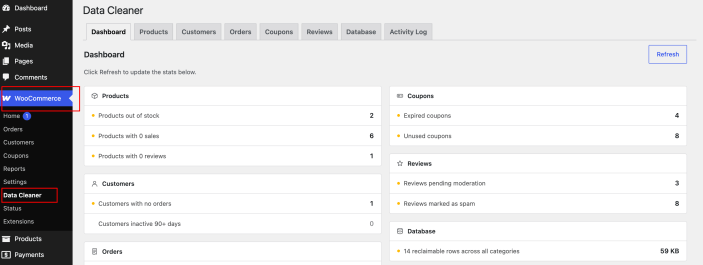
- Go to your WordPress dashboard sidebar.
- Navigate to WooCommerce → Data Cleaner (as shown in the image above).
- This opens the dashboard and other pages, where you can find the data cleaning options.
Dashboard
↑ Back to top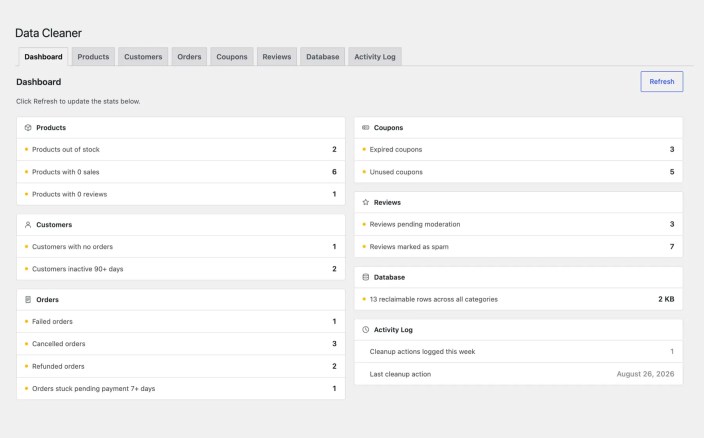
Your at-a-glance summary. A card for each action that might need attention — customers with no orders, failed or refunded orders, out-of-stock products, expired coupons, pending reviews, reclaimable database space, and more.
- Click any card to jump straight to that item’s list, already filtered for you.
Products Cleanup
↑ Back to top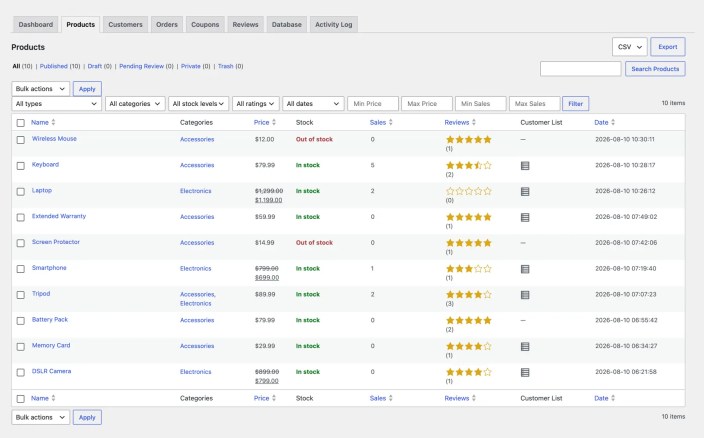
Find and clean up products that are no longer needed.
- Filter by Types (Simple product, Grouped product, Variable product, etc), Stock Status (In stock, Out of stock, and On backorder), Ratings, Price (Min and Max price), Sales Count (Min sales and Max sales), Category, and more.
- Click on the list icon to see the list of customers who bought a given product.
- Select multiple products and bulk trash, restore, or delete them permanently.
Customers Cleanup
↑ Back to top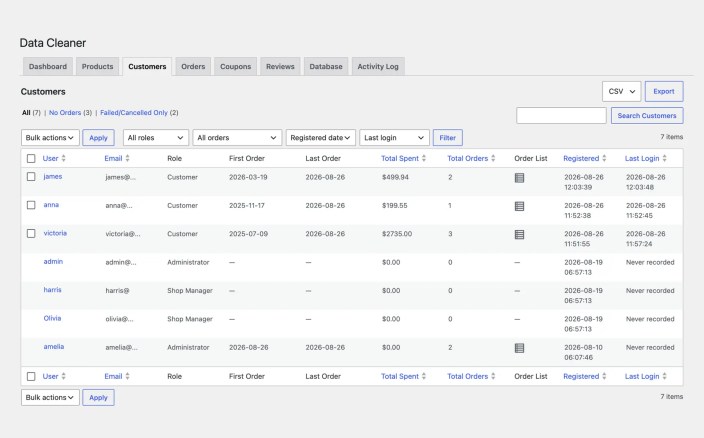
Identify and clean up accounts that are inactive, have no purchase history, or have never logged in.
- Filter by Roles (Customer, Editor, Shop manager, Administrator, etc), Order Status (No orders, Failed, or Cancelled), Registered date, Last login (7+ days ago to 90+ days ago and Never logged in), and more.
- Search by name or email.
- Click the list icon to view all orders for that customer.
- Bulk-delete selected accounts. The confirmation dialog tells you, separately, how many of the selected users have order history versus none — since deleting those is more consequential.
Administrator accounts are always protected. Even if one is accidentally selected, it can never be deleted through this plugin — this cannot be turned off.
Orders Cleanup
↑ Back to top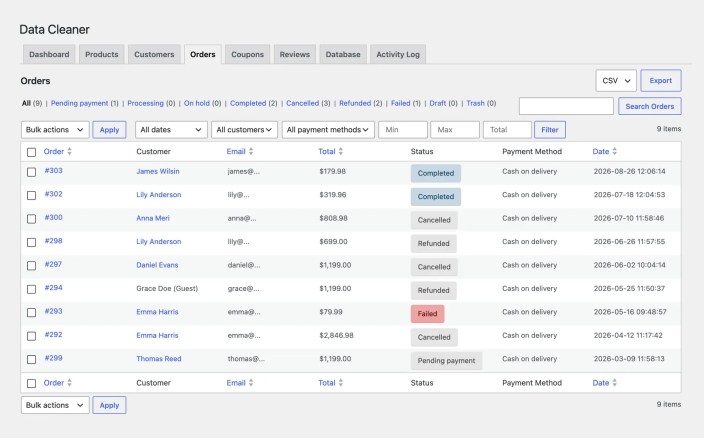
Find and clean up old or unwanted orders.
- One-click order status filters (Pending Payment, Processing, On Hold, Completed, Cancelled, Refunded, Failed, Draft, and Trash) with real-time item counts.
- Preview an order’s contents before taking any action on it.
- Bulk trash, restore, or permanently delete.
Coupons Cleanup
↑ Back to top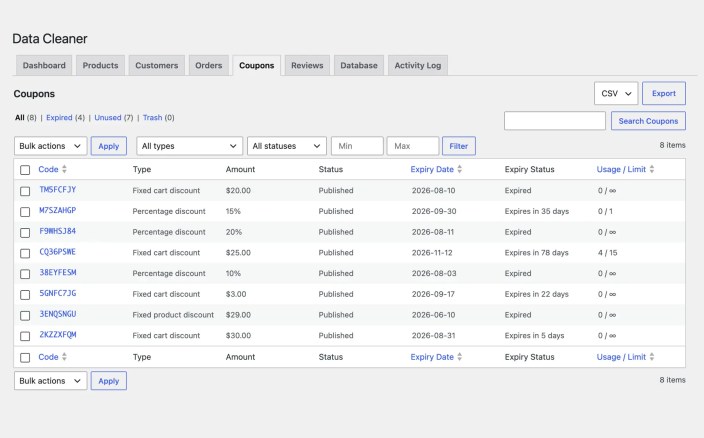
Find and clean up coupons that are no longer worth keeping around.
- Filter Expired and Unused coupons with one click.
- Additional filter options like Status (Published, Draft, Pending Review, and Scheduled), Min and Max usage, Types (Percentage, Fixed Amount, etc), and more.
- Bulk trash, restore, or permanently delete.
Reviews Cleanup
↑ Back to top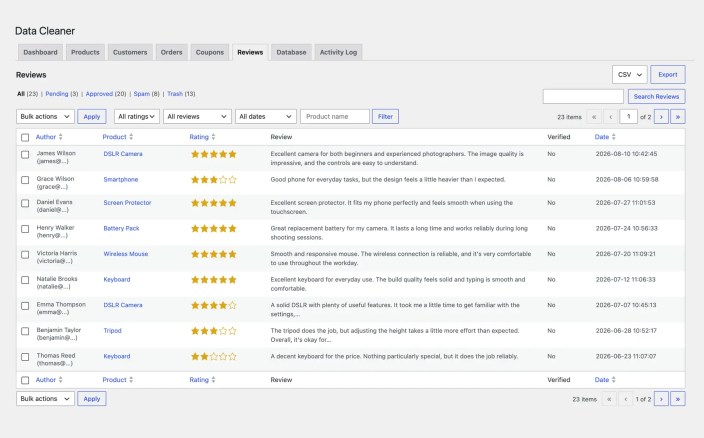
Manage product reviews in bulk.
- Filter Pending, Approved, and Spam reviews with one click.
- Additional filter options like Ratings (Star counts and No rating), Verified and Not verified purchases, Dates, and more.
- Approve, unapprove, mark as spam, or trash in bulk.
Database Cleanup
↑ Back to top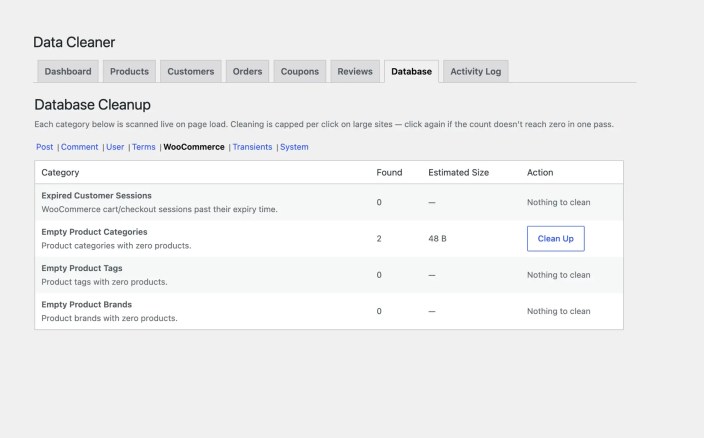
General WordPress and WooCommerce housekeeping, grouped by area so related categories are easy to scan. Each row shows a live count and estimated space freed, with its own Clean Up button — nothing is removed until you click it.
- Orphaned meta – Post/comment/user/term meta left behind after its parent was deleted.
- Empty terms – Categories, tags, and WooCommerce product categories/tags/brands with nothing attached.
- Transients – Cached data past its expiration time.
- WooCommerce – Stale WooCommerce customer sessions, empty product categories, tags, brands, etc.
- Action Scheduler logs – Old completed/failed/canceled background-task log entries and more.
Activity Log
↑ Back to top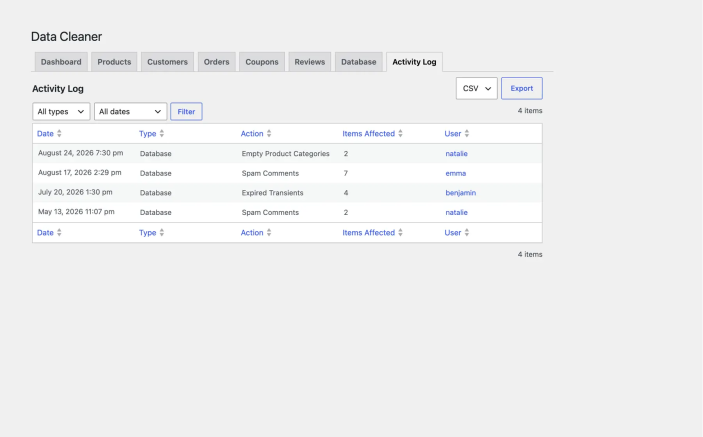
Every cleanup action taken anywhere in the plugin — every trash, restore, delete, approve, or clean-up — is recorded here automatically.
- See who did what, and when.
- Filter and sort the log.
- Export it for your records.
This gives you a complete, transparent audit trail of everything Data Cleaner has changed on your site.
Exporting data
↑ Back to top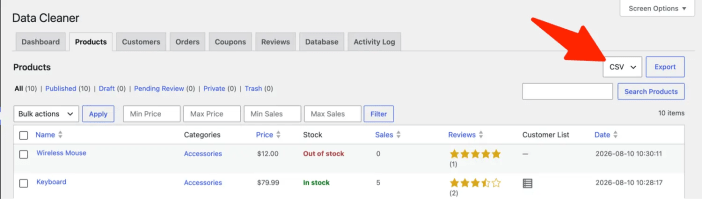
Every list in the plugin — Products, Customers, Orders, Coupons, Reviews, Activity Log — can be exported. Pick a format (CSV, JSON, and XML) from the dropdown next to the export button on that screen.
Uninstalling
↑ Back to topRemoving the plugin (Plugins → Deactivate → Delete) cleans up the settings it created and removes the Activity Log table. It does not touch your products, customers, orders, coupons, or reviews — Data Cleaner only removes those when you explicitly use its cleanup tools.
FAQs
↑ Back to top
Does Data Cleaner delete anything on its own, or do I have to trigger every action?
Every deletion, trash, or clean-up runs only when you click the matching button yourself. Nothing runs automatically or on a schedule.
If I delete something by mistake, can I get it back?
Trashing — products, orders, coupons, reviews — works like WordPress’s own trash: items can be restored from the same list before you permanently delete them. Permanent deletion and customer-account deletion cannot be undone, which is why both always sit behind a confirmation dialog first.
Where can I check exactly what the plugin has changed on my site?
The Activity Log tab. Every trash, restore, delete, approval, and database clean-up performed anywhere in the plugin is recorded there and can be filtered, sorted, and exported.
Who on my team can access Data Cleaner?
Anyone with the manage_options capability — the same permission required for the core WordPress Settings pages — which, by default, means Administrators only.
If I uninstall the plugin, will I lose my products, orders, or customers?
No. Uninstalling removes only what Data Cleaner itself created — its settings and the Activity Log table. Store data is removed only when you explicitly use the plugin’s cleanup tools while it’s active.

