Orders Manager lets you split, merge, and clone WooCommerce orders with configurable rules, customer self-service options, and full notification control.
Installation
↑ Back to top- Download the plugin zip file from your WooCommerce Marketplace account.
- Go to Plugins > Add New > Upload Plugin in your WordPress admin.
- Choose the downloaded zip file and click Install Now.
- Click Activate once installation completes.
- Go to WooCommerce > Settings > Orders Manager to begin configuration.
Configuration
↑ Back to topOnce activated, Orders Manager adds an Orders Manager tab under WooCommerce Settings, with four sub-tabs: General, Split Orders, Merge Orders, and Notifications. Each sub-tab controls a specific part of the order lifecycle.
How to enable split, merge, and clone orders?
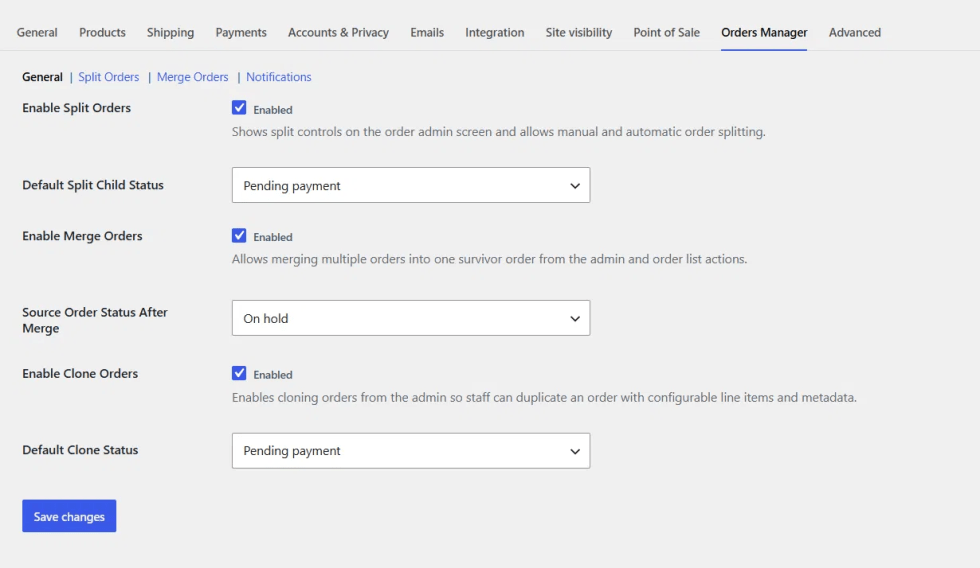
The General tab controls the core toggles for the plugin.
- Enable Split Orders: shows split controls on the order admin screen and allows manual and automatic splitting
- Default Split Child Status: order status assigned to child orders created by a split
- Enable Merge Orders: allows merging multiple orders into one survivor order from the admin and order list actions
- Source Order Status After Merge: status applied to source orders once a merge completes
- Enable Clone Orders: enables cloning orders from the admin so staff can duplicate an order with its line items and metadata
- Default Clone Status: order status assigned to cloned orders
How to split orders manually?
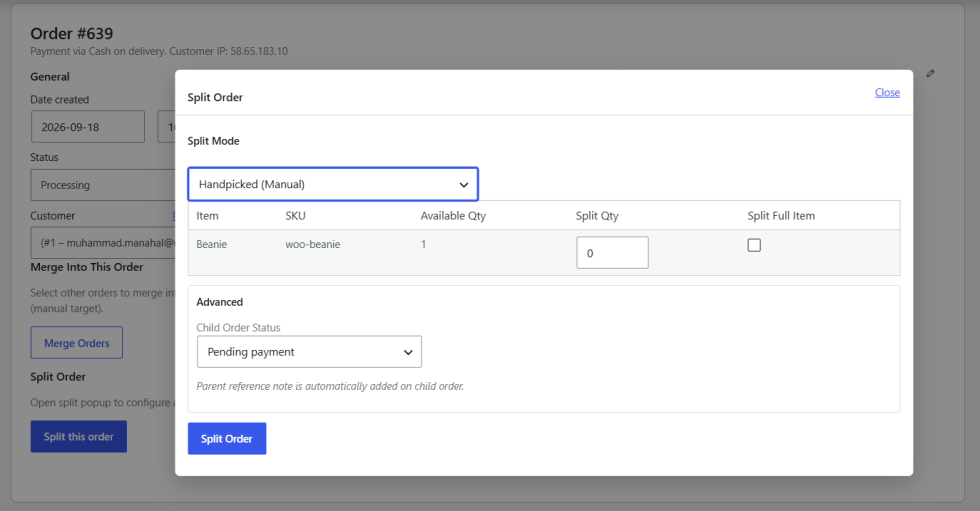
With Split Orders enabled, split controls appear directly on the order admin screen, letting you divide an order’s line items into child orders by hand.
How to set up auto split rules?
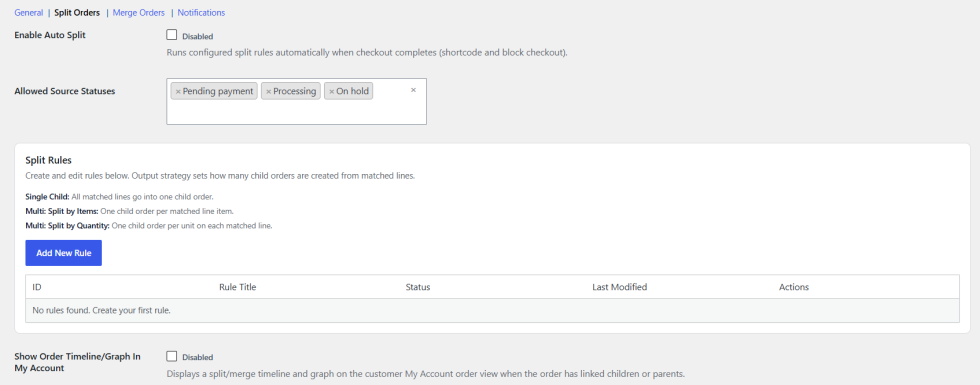
The Split Orders tab lets you automate splitting at checkout.
- Enable Auto Split: runs configured split rules automatically when checkout completes, on both shortcode and block checkout
- Allowed Source Statuses: order statuses eligible for auto splitting
- Show Order Timeline/Graph In My Account: Displays a split/merge timeline and graph on the customer My Account order view when the order has linked children or parents
How to create a split rule?
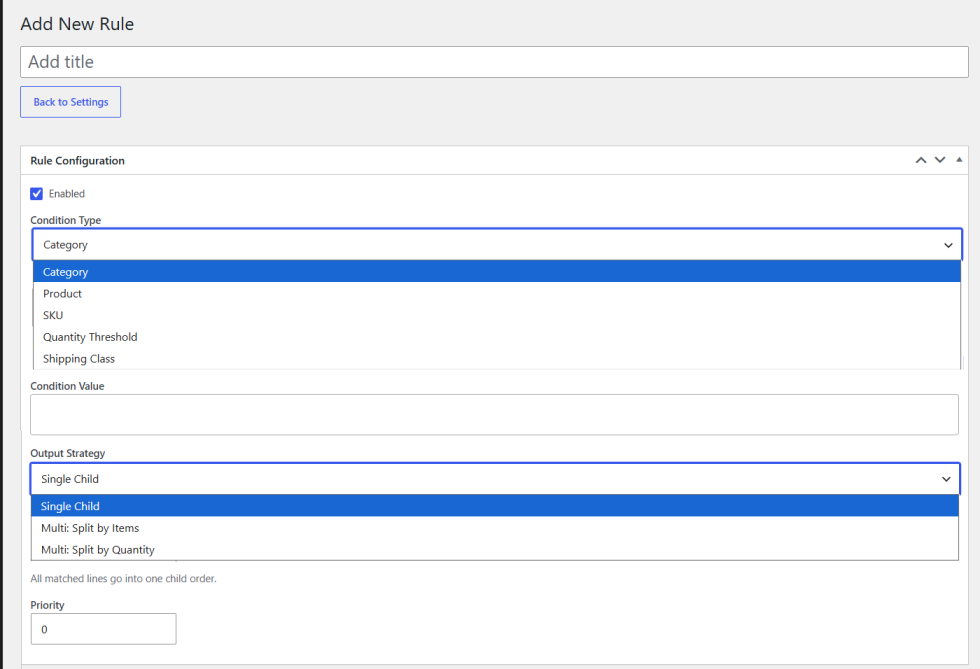
Click Add New Rule under Split Rules to open the rule builder.
- Title: name for the rule
- Enabled: turns the rule on or off
- Condition Type: category, product, SKU, quantity threshold, or shipping class
- Condition Value: the specific value to match against the condition type
- Output Strategy: Single Child, Multi Split by Items, or Multi Split by Quantity
- Priority: controls the order in which rules apply
How to merge orders?
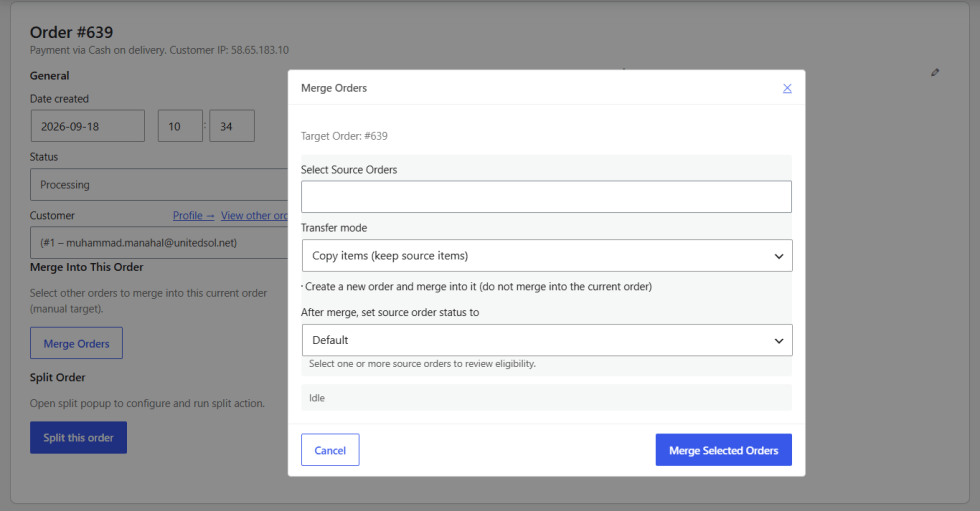
The Merge Orders tab controls how orders combine into a single survivor order.
- Allowed Source Statuses: order statuses eligible to be merged
- Enable Thank You Page Customer Merge: lets customers merge recent eligible orders into the current order from the order received page
- Customer Merge Window (Minutes): time window in which customer-initiated merges are allowed
How to notify customers and admins of order changes?
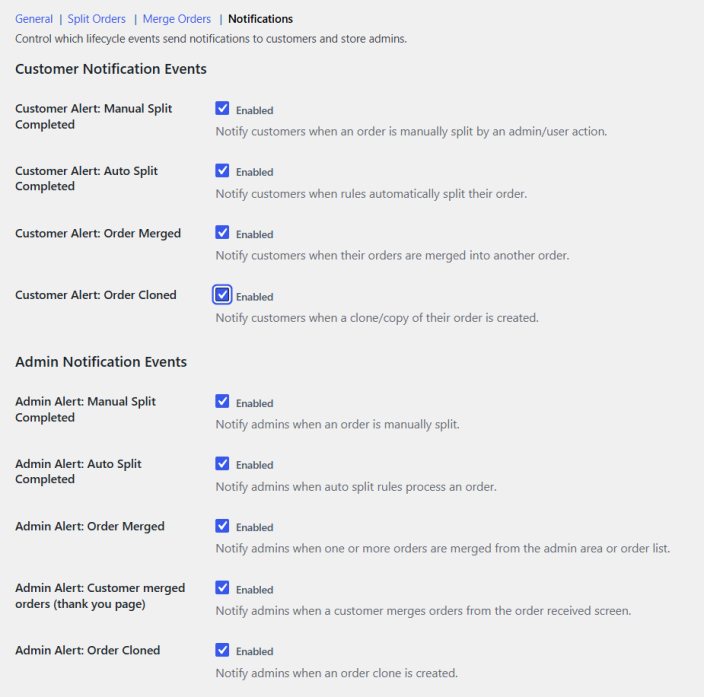
The Notifications tab controls which lifecycle events send alerts.
Customer Notification Events
- Manual Split Completed: notifies customers when an order is manually split
- Auto Split Completed: notifies customers when rules automatically split their order
- Order Merged: notifies customers when their orders are merged into another order
- Order Cloned: notifies customers when a clone/copy of their order is created
Admin Notification Events
- Manual Split Completed: notifies admins when an order is manually split
- Auto Split Completed: notifies admins when auto split rules process an order
- Order Merged: notifies admins when one or more orders are merged from the admin area or order list
- Customer Merged Orders (Thank You Page): notifies admins when a customer merges orders from the order received screen
- Order Cloned: notifies admins when an order clone is created
How to customize notification colors?
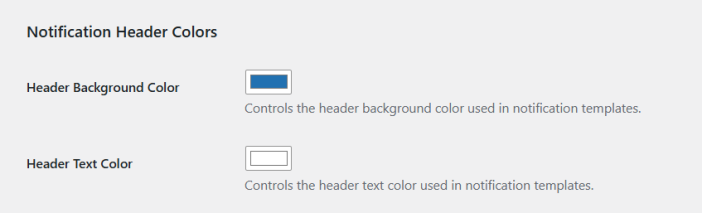
Under Notification Header Colors, you can match notification emails to your store branding.
- Header Background Color: controls the header background color used in notification templates
- Header Text Color: controls the header text color used in notification templates
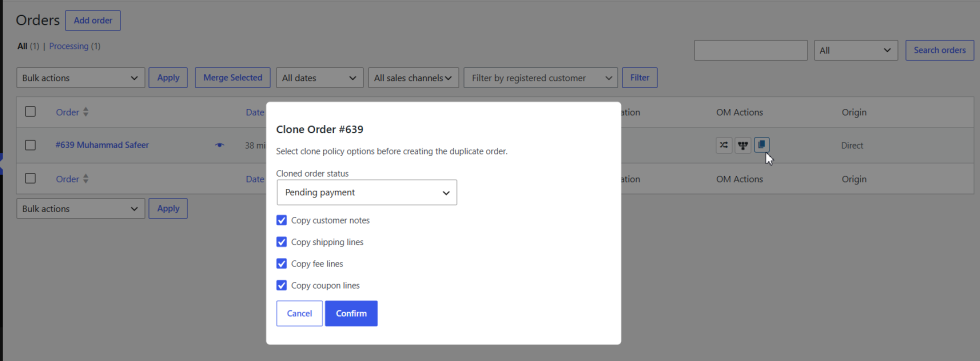
Cloning an Order
↑ Back to topOpen any order and click the Clone button, or use the clone action from the orders list row. A new order is created immediately with all items and metadata copied from the original. The new order receives the configured default clone status. The clone relationship appears in the OM Relation column and is recorded in the Order Timeline of both orders.