
Wix Data Migrator helps you migrate Wix to WooCommerce directly from the WordPress admin. You can migrate Wix products, customers, orders, and reviews to WooCommerce without manually exporting and importing CSV files.
The migration runs in background batches using WP-Cron, allowing your Wix store to remain online while your data is transferred to WooCommerce.
Installation
↑ Back to top- Download Wix Data Migrator and keep the
.zipfile. - In WordPress, go to Plugins → Add New → Upload Plugin.
- Upload the ZIP file, wait for the installation to finish, and activate the plugin.
- WooCommerce must already be installed and active.
After activation, go to WooCommerce → Settings → Wix Data Migrator.
The plugin includes seven tabs:
- Connect
- Rules
- Run
- Progress
- SEO
- Sync
- Tools
Requirements
↑ Back to topBefore starting your Wix to WooCommerce migration, make sure your website meets the following requirements:
- WordPress 6.0 or higher
- WooCommerce 7.0 or higher
- PHP 7.4 or higher
- WP-Cron enabled, or an external cron configured to run
wp-cron.php - Wix Site ID
- Wix Account ID
- Wix API key with access to the data you want to migrate
Connect — Wix API Settings
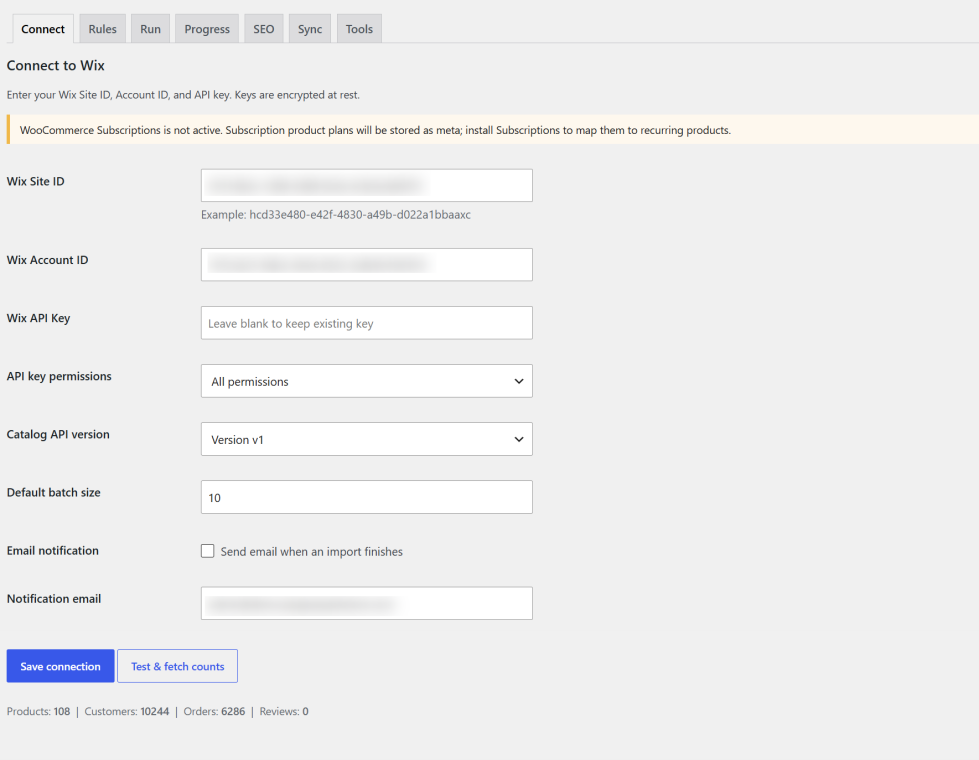
↑ Back to topThe Connect tab lets you connect your Wix store to WooCommerce using the Wix REST API.
Enter your Wix API credentials, save the connection, and test the connection before starting your migration.
Wix Site ID
↑ Back to topEnter your Wix Site ID.
Example:
hcd33e480-e42f-4830-a49b-d022a1bbaaxc
Wix Account ID
↑ Back to topEnter your Wix Account ID.
Wix API Key
↑ Back to topEnter your Wix API key.
The API key is encrypted at rest when OpenSSL is available and is not displayed again after it has been saved.
Leave the field blank when editing the connection to keep the existing API key.
API Key Permissions
↑ Back to topChoose the permissions available to your Wix API key:
- All permissions
- Products
- Orders
- Customers
For a complete Wix to WooCommerce migration, use an API key with all required permissions.
Catalog API Version
↑ Back to topSelect the Wix Catalog API version:
- v3
- v1
Catalog API v3 is required for importing brands and detecting digital products whose type is DIGITAL.
Default Batch Size
↑ Back to topSet the number of items processed during each WP-Cron batch.
The supported range is 1–100 items per batch.
Import Completion Email
↑ Back to topEnable Send email when an import finishes if you want the shop manager to receive an email when a migration job is completed.
The notification email defaults to the WordPress administrator email when no custom email address is entered.
Test the Wix Connection
↑ Back to topClick Save connection, then click Test & fetch counts.
A successful connection test displays the number of products, customers, orders, and reviews available through the Wix API.
If WooCommerce Subscriptions is not active, the plugin displays a notice explaining that Wix subscription plans will be stored as product metadata instead of recurring WooCommerce subscriptions.
.
Rules — Wix to WooCommerce Migration Settings
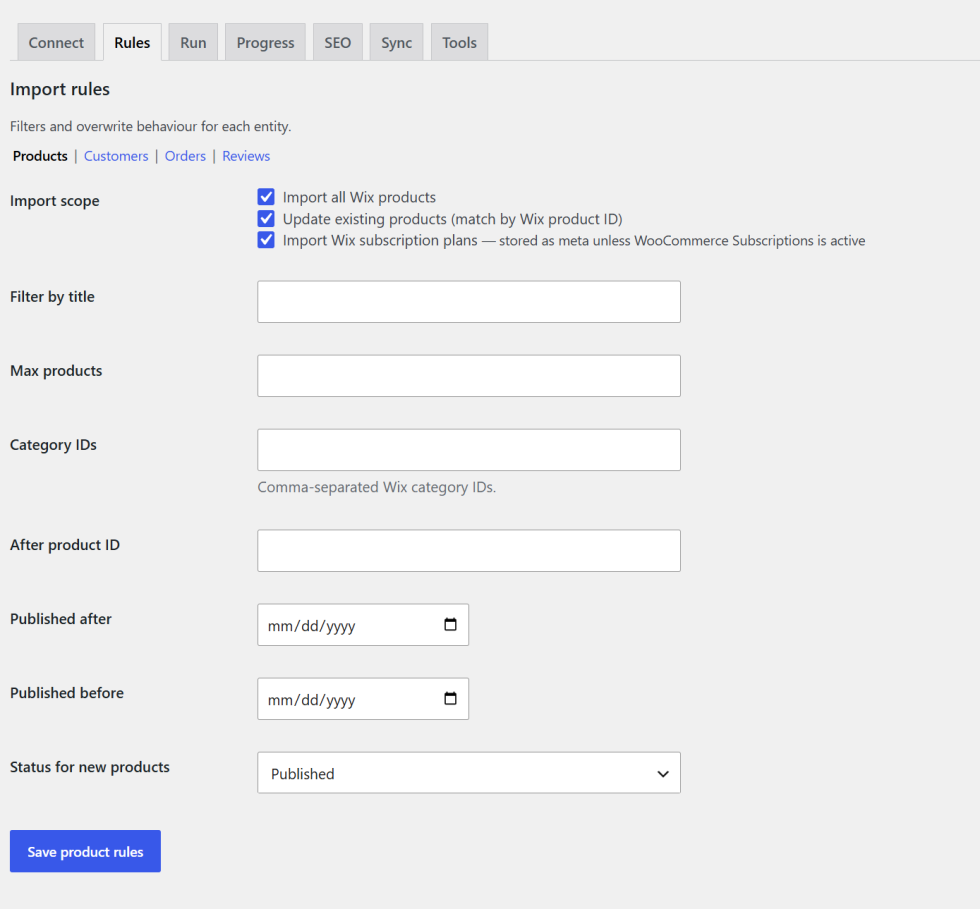
↑ Back to topThe Rules tab lets you control what data is migrated from Wix to WooCommerce.
The Rules tab contains four sections:
- Products
- Customers
- Orders
- Reviews
Save each section before starting an import.
You can import all available records or disable the Import all option to apply specific filters.
Product Migration Settings
↑ Back to topUse the Products section to migrate Wix products to WooCommerce.
Import All Wix Products
↑ Back to topImport the complete Wix product catalog.
The Max products setting can still be used to limit the number of products imported.
Update Existing Products
↑ Back to topMatch existing WooCommerce products using their Wix product ID and update the corresponding WooCommerce product.
Import Wix Subscription Plans
↑ Back to topIf WooCommerce Subscriptions is active, Wix subscription plans can be mapped to WooCommerce Subscription products.
If WooCommerce Subscriptions is not active, the subscription plan information is stored as product metadata.
Billing contracts and payment tokens are not transferred.
Filter Products by Title
↑ Back to topEnter a title to import Wix products whose titles match the specified text.
Maximum Products
↑ Back to topSet the maximum number of Wix products to import.
Use 0 or leave the field empty for no limit.
Category IDs
↑ Back to topEnter comma-separated Wix category IDs to migrate products belonging to specific categories.
After Product ID
↑ Back to topEnter a Wix product ID to start the migration after that product.
Published After / Published Before
↑ Back to topUse date filters to migrate products published within a specific date range.
Product Status
↑ Back to topChoose the status for newly imported WooCommerce products:
- Published
- Draft
- Same as Wix
Product Data Imported
↑ Back to topWix Data Migrator can transfer supported product information including:
- Product details
- Product images
- Stock
- Categories
- Variations
- Brands when supported by Catalog API v3
- Yoast SEO title and meta description when available
- Digital files
Digital files are stored in WooCommerce’s protected woocommerce_uploads folder with a random filename suffix.
When the same Wix file is imported again, the existing download ID is reused so previously granted customer access is preserved.
Customer Migration Settings
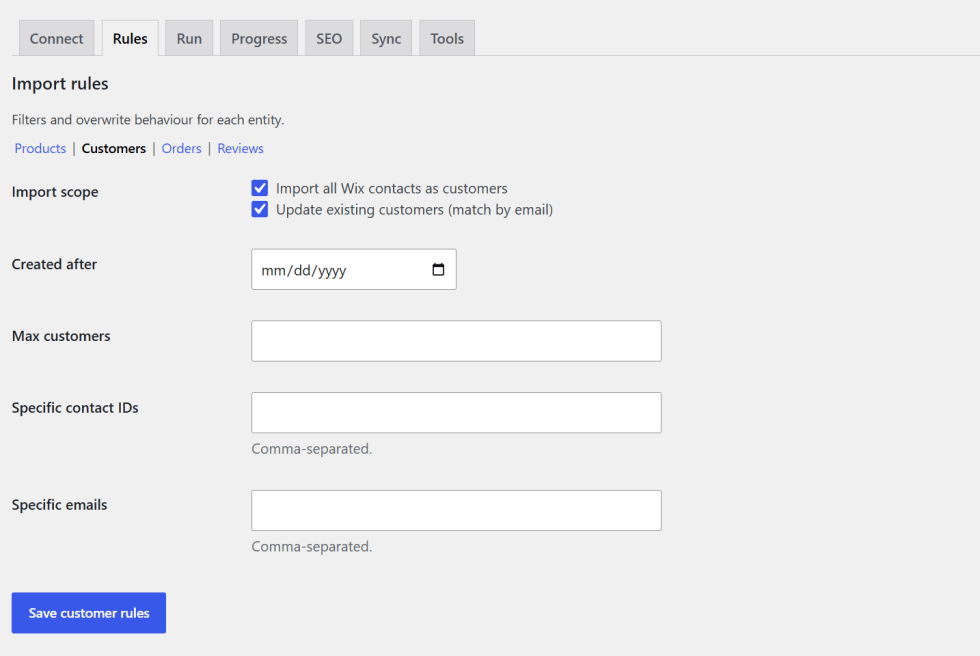
↑ Back to topUse the Customers section to migrate Wix contacts to WooCommerce customer accounts.
Import All Wix Contacts as Customers
↑ Back to topImport available Wix contacts as WooCommerce customers.
Update Existing Customers
↑ Back to topExisting WordPress users can be matched by email address.
Only WordPress users whose sole role is customer are updated.
The existing WordPress login email address is never changed.
This prevents a Wix contact from accidentally modifying an administrator account.
Created After
↑ Back to topImport Wix contacts created after the selected date.
Maximum Customers
↑ Back to topSet the maximum number of customers to import.
Specific Contact IDs
↑ Back to topEnter comma-separated Wix contact IDs to import specific contacts.
Specific Emails
↑ Back to topEnter comma-separated email addresses to import specific Wix contacts.
Customer Address Migration
↑ Back to topBilling and shipping addresses are imported into WooCommerce.
Full country names are converted to ISO country codes.
For example:
United States → US
Region values such as:
US-IL
are stored as:
IL
Order Migration Settings
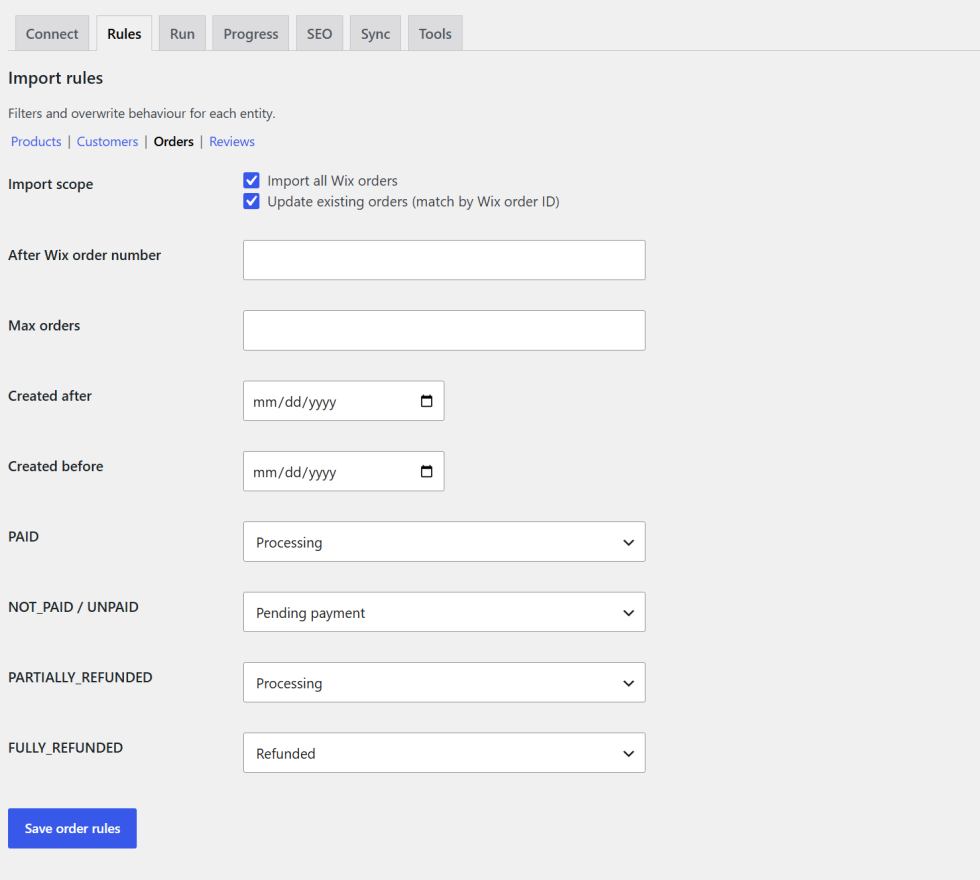
↑ Back to topUse the Orders section to migrate Wix order history to WooCommerce.
Import All Wix Orders
↑ Back to topImport all available Wix orders.
Update Existing Orders
↑ Back to topMatch existing WooCommerce orders using the Wix order ID and update the corresponding order.
After Wix Order Number
↑ Back to topImport orders after a specified Wix order number.
Maximum Orders
↑ Back to topSet the maximum number of Wix orders to migrate.
Created After / Created Before
↑ Back to topUse date filters to migrate orders created within a specific date range.
Wix Order Status Mapping
↑ Back to topMap Wix payment statuses to WooCommerce order statuses.
Supported Wix payment statuses include:
PAIDNOT_PAIDUNPAIDPARTIALLY_REFUNDEDFULLY_REFUNDED
Each status can be mapped to:
- Pending payment
- Processing
- On hold
- Completed
- Cancelled
- Refunded
- Failed
Wix Order Number
↑ Back to topA Wix Order No column is added to the WooCommerce orders screen.
This works with both the classic WooCommerce order storage system and High-Performance Order Storage (HPOS).
Historical Wix orders do not reduce current WooCommerce stock and do not send customer emails.
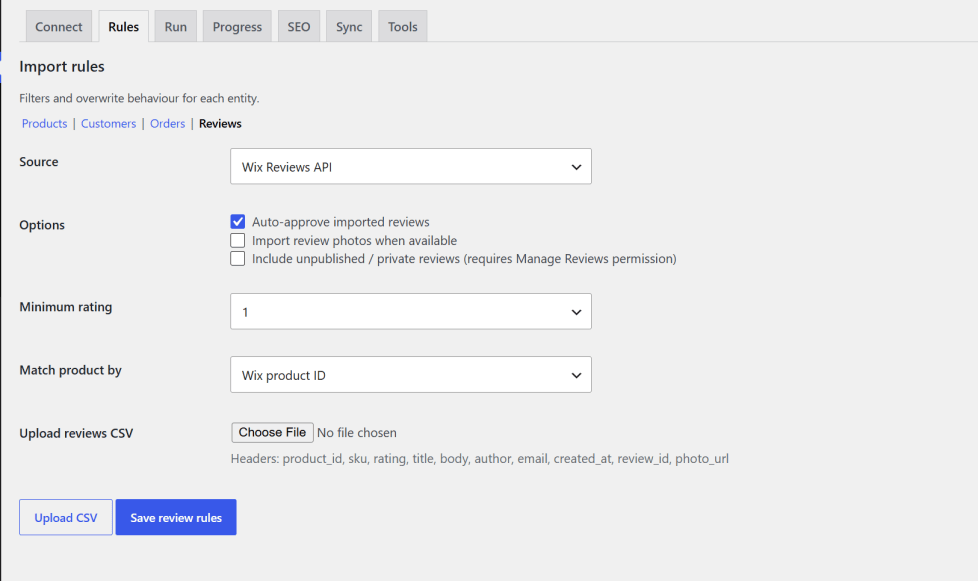
Review Migration Settings
↑ Back to topUse the Reviews section to migrate Wix product reviews to WooCommerce.
Reviews can be imported from the Wix Reviews API or from a CSV file.
Review Source
↑ Back to topChoose one of the following sources:
- Wix Reviews API
- CSV upload
CSV imports support Yotpo, Judge.me, and generic review headers.
Auto-Approve Imported Reviews
↑ Back to topEnable this option to automatically approve reviews that Wix marks as approved.
Reviews with the status IN_MODERATION remain unapproved.
Rejected Wix reviews are skipped.
Import Review Photos
↑ Back to topEnable this option to import available review photos.
Include Unpublished / Private Reviews
↑ Back to topEnable this option to include unpublished or private reviews.
This requires the Manage Reviews permission on the Wix API key.
Minimum Rating
↑ Back to topSet a minimum review rating from 1 to 5.
Reviews below the selected rating are skipped.
Match Product By
↑ Back to topChoose how imported reviews are matched to WooCommerce products:
- Wix product ID
- SKU
- Slug
Upload Reviews CSV
↑ Back to topCSV uploads must use the .csv file format.
Expected headers:
product_id, sku, rating, title, body, author, email, created_at, review_id, photo_url
The uploaded CSV file is stored outside the public uploads folder and deleted after the review import finishes.
Review bodies and store replies are sanitized before they are saved as WooCommerce comments.
Run — Start Wix to WooCommerce Migration
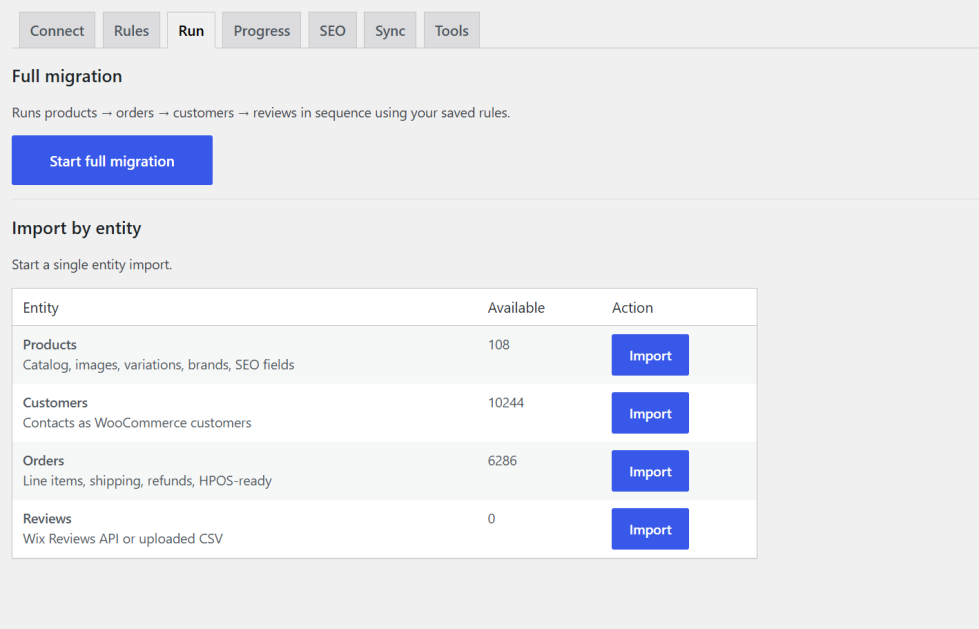
↑ Back to topThe Run tab lets you start a complete migration or migrate individual types of Wix data.
Start Full Migration
↑ Back to topStart full migration processes the following entities in sequence:
- Products
- Orders
- Customers
- Reviews
The migration uses the rules saved in the Rules tab.
Import by Entity
↑ Back to topYou can migrate individual data types without running a complete Wix to WooCommerce migration.
Available entities include:
- Products
- Customers
- Orders
- Reviews
The Available column displays counts from the last successful Wix API connection test.
Background Migration
↑ Back to topMigration jobs run in WP-Cron batches.
Keep your WordPress website reachable and make sure WP-Cron is running so background migration jobs can continue processing.
Progress — Monitor Migration Status
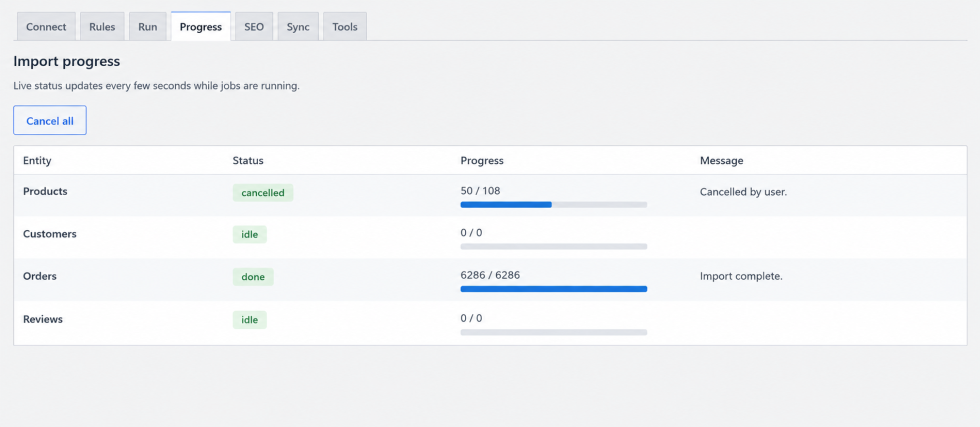
↑ Back to topThe Progress tab lets you monitor Wix to WooCommerce migration jobs.
For each entity, you can view:
- Current status
- Imported records
- Total records
- Latest migration message
Supported status values include:
- Idle
- Running
- Done
- Cancelled
- Failed
Cancel Migration
↑ Back to topClick Cancel all to stop all currently running migration jobs.
SEO — Wix SEO Migration and 301 Redirects
↑ Back to topMoving from Wix to WooCommerce can change your product and category URLs.
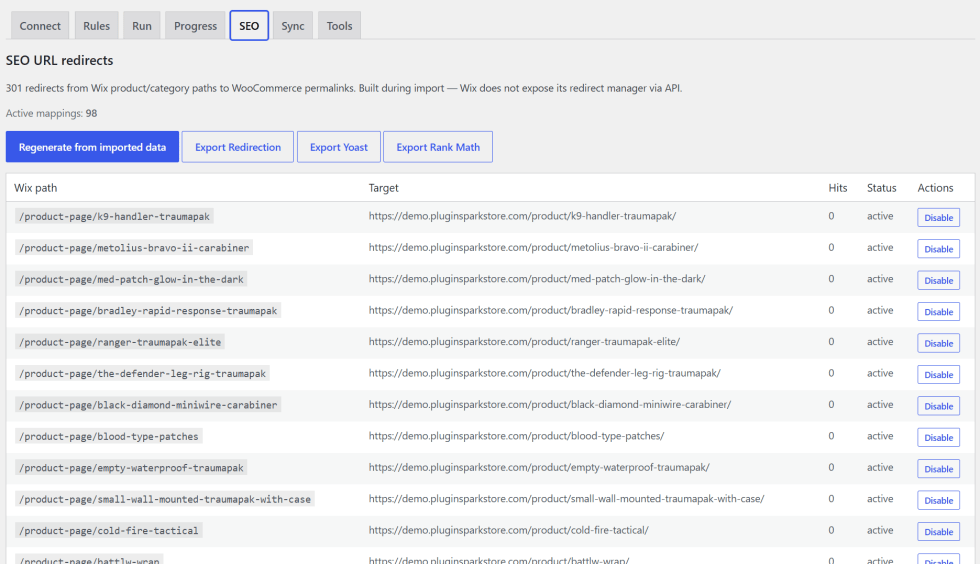
Wix Data Migrator records supported Wix storefront paths during product and category migration and maps them to the corresponding WooCommerce permalinks.
This allows you to create 301 redirects from Wix URLs to WooCommerce URLs after migration.
Regenerate Redirects
↑ Back to topUse Regenerate from imported data to rebuild redirect rules using stored Wix path metadata.
Export Redirects
↑ Back to topRedirect mappings can be exported as CSV for use with:
- Redirection
- Yoast SEO
- Rank Math
Manage Redirects
↑ Back to topYou can enable or disable individual redirect rules from the SEO table.
Front-end redirects skip:
- Cart
- Checkout
- Account
This prevents migration redirects from interfering with WooCommerce customer and checkout pages.
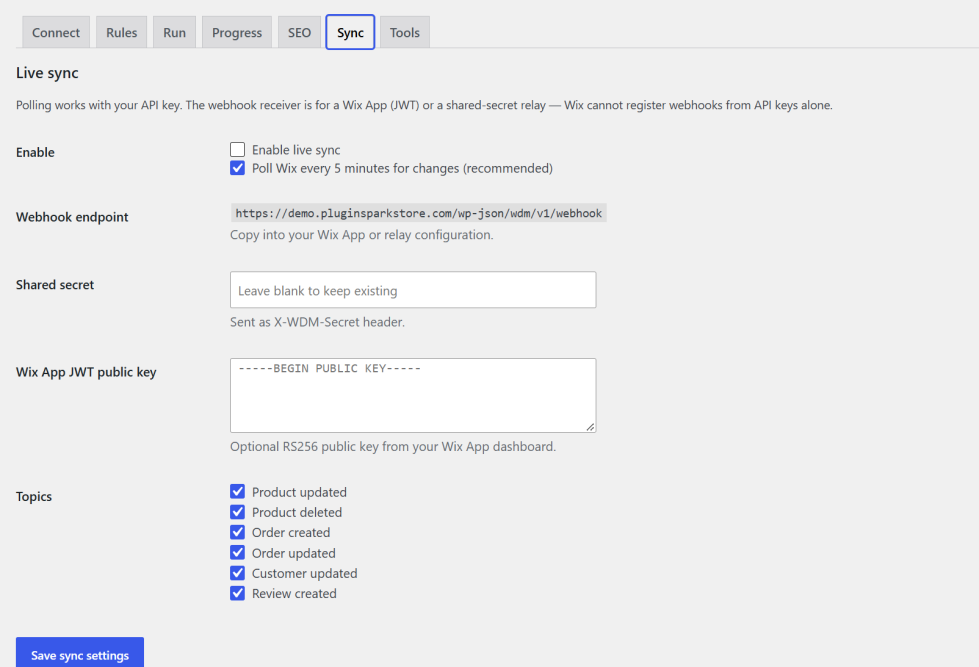
Sync — Wix to WooCommerce Live Sync
↑ Back to topLive Sync lets you continue updating WooCommerce after the initial Wix migration.
This can be useful when your Wix store remains active during the transition to WooCommerce.
Enable Live Sync
↑ Back to topEnable live synchronization from the Sync tab.
Poll Wix Every 5 Minutes
↑ Back to topPolling is the recommended synchronization method.
The plugin checks Wix every five minutes for supported changes to:
- Products
- Orders
- Contacts
Polling uses your Wix API key and does not require a Wix App.
Webhook Endpoint
↑ Back to topThe webhook endpoint is:
POST /wp-json/wdm/v1/webhook
Copy this endpoint into your Wix App or supported external relay.
Wix cannot register webhooks using API keys alone.
Shared Secret
↑ Back to topA shared secret can be used to authenticate webhook requests.
The secret must be sent using:
X-WDM-Secret
Query-string and JSON-body secrets are ignored.
Wix App JWT Public Key
↑ Back to topYou can authenticate Wix webhook requests using a Wix App JWT public key.
JWT requirements:
- RS256 signature verification
- Valid
expclaim - Valid signature
The webhook topic and ID are taken from the verified JWT payload rather than an unsigned request body.
Supported Sync Topics
↑ Back to topSupported synchronization topics include:
- Product updated
- Product deleted
- Order created
- Order updated
- Customer updated
- Review created
Webhook Authentication
↑ Back to topIf Live Sync is enabled but neither a shared secret nor a Wix App JWT public key is configured, webhook requests are rejected with a 401 response.
Tools — Migration Utilities
↑ Back to topThe Tools tab provides utilities for troubleshooting and recovering migration jobs.
Reset All Jobs
↑ Back to topClear the current migration job state so you can start the migration again.
Clear Mapping Caches
↑ Back to topClear category, brand, and related Wix-to-WooCommerce ID mapping caches.
Clear Logs
↑ Back to topRemove existing migration logs.
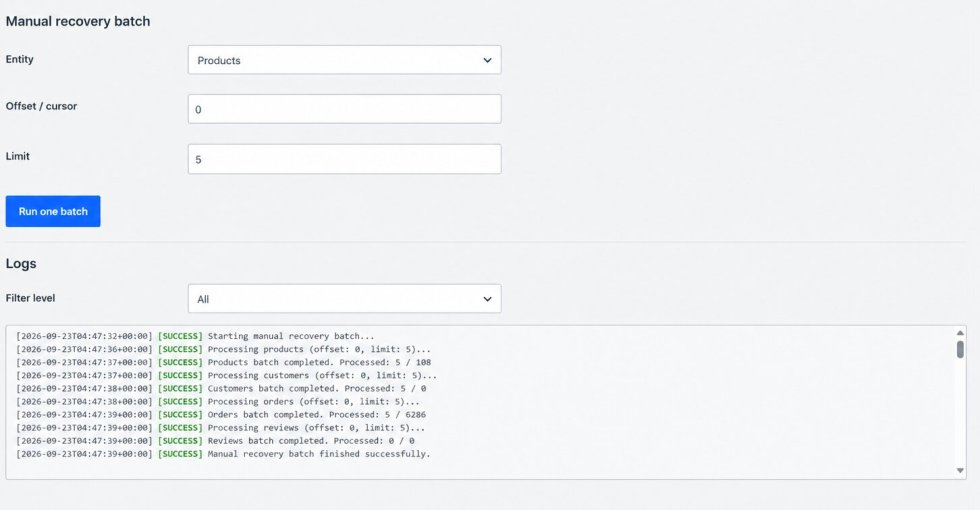
Manual Recovery Batch
↑ Back to topRun a single migration batch for an entity using a custom offset or cursor and limit.
This can be useful when a migration job has stalled and requires manual recovery.
Logs
↑ Back to topMigration logs can be filtered by:
- Error
- Warning
- Info
WP-Cron and Server Checks
↑ Back to topThe Tools tab warns when:
DISABLE_WP_CRONis enabledallow_url_fopenis disabled
Image and file downloads may fail when allow_url_fopen is unavailable unless cURL is available and working.
Wix to WooCommerce Migration Notes and Limitations
↑ Back to topWooCommerce Cart and Checkout
↑ Back to topWix Data Migrator does not modify the WooCommerce cart or checkout process.
The plugin declares compatibility with:
- WooCommerce Cart and Checkout Blocks
- High-Performance Order Storage (HPOS)
Wix Subscription Migration
↑ Back to topWix subscription plans can be mapped to WooCommerce Subscription products when WooCommerce Subscriptions is active.
Active billing contracts and payment tokens cannot be transferred.
Customers must create new subscriptions or configure new billing arrangements on WooCommerce.

Historical Order Migration
↑ Back to topHistorical Wix orders do not reduce current WooCommerce inventory or trigger customer emails.
This prevents importing historical order data from incorrectly changing the current stock level.
WP-Cron Requirement
↑ Back to topBackground migration and Live Sync polling depend on WP-Cron.
If WP-Cron is disabled or not running correctly, migration and synchronization jobs may stop progressing.
Plugin Uninstallation
↑ Back to topUninstalling the plugin removes:
- Plugin options
- Redirect tables
- Webhook transients
- Private CSV import files
FAQs
↑ Back to top
What is Wix Data Migrator?
Wix Data Migrator is a WooCommerce migration plugin that helps you migrate products, customers, orders, and reviews from Wix to WooCommerce directly from the WordPress admin.
Migration jobs run in background batches using WP-Cron.
What data can I migrate from Wix to WooCommerce?
You can migrate:
Products
Product variations
Product images
Categories
Brands when supported by Catalog API v3
Inventory
Digital files
Customers
Billing and shipping addresses
Orders
Order line items
Shipping information
Refund information
Product reviews
Review photos when available
Supported SEO metadata
Wix product and category URL paths
Wix subscription plans
Can I migrate my entire Wix store to WooCommerce?
Yes. Use Start full migration to migrate products, orders, customers, and reviews using the rules configured in the Rules tab.
You can also migrate each data type separately if you want to perform the migration in stages.

