
Complete Renewal Orders allows your WooCommerce store to automatically mark WooCommerce Subscriptions orders as completed when the period they pay for has ended.
WooCommerce keeps paid orders in Processing until someone marks them as completed. For subscriptions that cover a period of service, such as memberships, online courses, or publications, no one marks them as completed, and renewal orders pile up in Processing. This extension completes each order when its period ends, following the schedule WooCommerce Subscriptions already uses.
Installation
↑ Back to topTo start using a product from WooCommerce.com, you can use the “Add to store” functionality on the order confirmation page or the My subscriptions section in your account.
- Navigate to My subscriptions.
- Find the Add to store button next to the product you’re planning to install.
- Follow the instructions on the screen, and the product will be automatically added to your store.
Alternative options and more information at:
Managing WooCommerce.com subscriptions.

Setup and configuration
↑ Back to top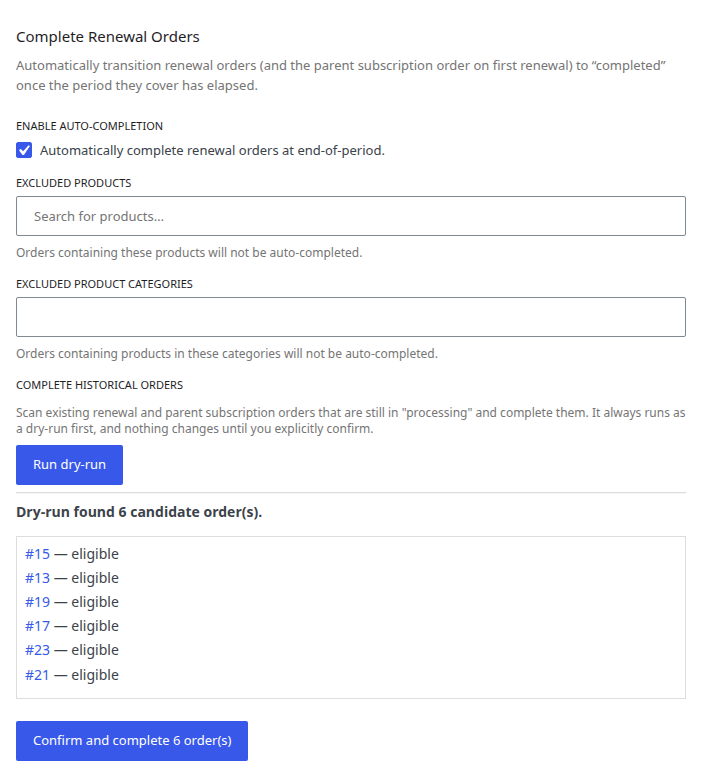
Getting started
↑ Back to topComplete Renewal Orders works as soon as you activate it. To review its settings:
- Go to WooCommerce > Settings > Subscriptions, and scroll to the Complete Renewal Orders section. You can also select the Settings link under the extension’s name on the Plugins screen.
- Make sure “Enable auto-completion” is ticked. It is ticked by default.
- Optionally, choose products or categories to exclude.
- Select “Save changes”.
Exclude products and categories
↑ Back to topUse “Excluded products” and “Excluded product categories” for subscriptions you want to keep completing by hand, for example a subscription box that ships a parcel with each renewal. The extension skips an order if it contains at least one excluded product, or one product from an excluded category.
Complete historical orders
↑ Back to topThe extension does not change existing orders when you install it. To complete orders that were already in Processing before you installed it, use the “Complete historical orders” setting in the same section:
- Select “Run dry-run”. The extension looks for renewal and original subscription orders still in Processing whose period is already over. It does not change anything at this stage.
- Review the list of orders it found. Each one links to the order.
- Select “Confirm and complete N order(s)”.
The extension works through large stores in small batches in the background. While a run is in progress, the section shows how many orders it has processed and completed, and you can stop it with “Cancel backfill”.
Confirming starts a fresh scan with the same rules. If orders change between the dry run and your confirmation, the final count can differ slightly from the one shown.
For developers
↑ Back to topThe crofw_backfill_batch_size filter sets how many orders each background batch handles when completing historical orders.
Usage
↑ Back to topWhen does the extension complete orders?
↑ Back to top- When a subscription reaches its next payment date, the extension completes the order for the period that just ended. On the first renewal, this is the original purchase.
- This happens whether the new payment succeeds or fails, even if the customer hasn’t paid a manual renewal yet. The period that ended was delivered either way.
- When a canceled subscription reaches the end of its prepaid period, or when a subscription expires, the extension completes its last order.
The extension only completes orders in Processing. It never changes orders that are Pending payment, On hold, Failed, Canceled, Refunded, or already Completed.
What customers see
↑ Back to topIn My account > Orders, the order’s status changes from Processing to Completed. If the “Completed order” email is enabled, customers also receive it.
What you see
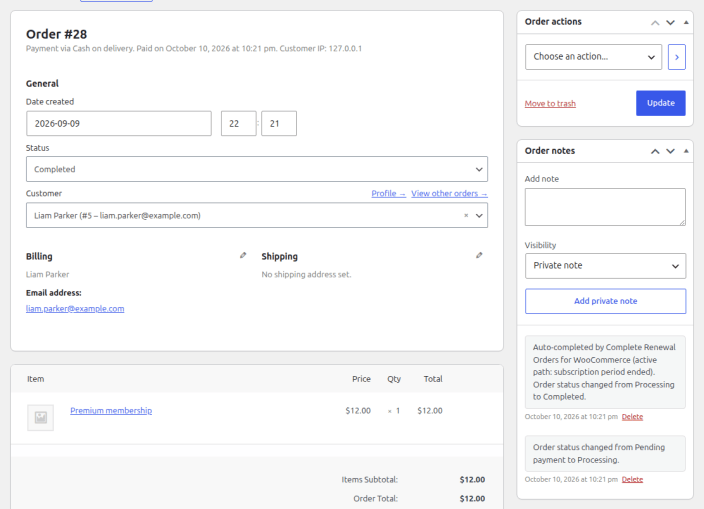
↑ Back to topEvery order the extension completes gets an order note, for example: “Auto-completed by Complete Renewal Orders for WooCommerce (active path: subscription period ended).” This note tells you which orders the extension completed and which ones someone completed by hand.
Troubleshooting
↑ Back to topThe settings section does not appear
↑ Back to topMake sure WooCommerce Subscriptions is installed and active. Without it, the extension shows a notice in WP Admin and stays inactive.
An order stays in Processing after its period ended
↑ Back to topCheck the following:
- “Enable auto-completion” is ticked in the settings.
- The order does not contain an excluded product, or a product from an excluded category.
- The subscription’s next payment date has passed. The extension completes an order when the next period starts, not when the next period is paid.
- Scheduled tasks are running. Go to WooCommerce > Status > Scheduled Actions and search for
woocommerce_scheduled_subscription_payment. If past-due actions pile up there, WP-Cron (the WordPress task scheduler) is not running on your site. This also delays WooCommerce Subscriptions’ own renewals, so ask your host to fix it. - The order is the most recent one before the renewal. The extension only completes older orders that were already in Processing when you installed it if you run “Complete historical orders”.
“Process renewal” did not complete the previous order
↑ Back to topThis is expected. Store managers can use the “Process renewal” action on a subscription at any time, including in the middle of a period, so the extension waits until the period has actually ended.
FAQs
↑ Back to top
Does it change orders that are not part of a subscription?
No. It only acts on original subscription orders and renewal orders.
Will it complete orders that are on hold?
No. On hold means the payment has not cleared or is under review, so the extension leaves the order alone. It only completes orders in Processing.
Does it work with automatic and manual renewals?
Yes. With manual renewals, the extension completes the previous order on the next payment date, even if the customer has not paid the new invoice yet.
Does it add scheduled tasks or slow down my store?
No. It only reacts to events WooCommerce Subscriptions already runs, and it adds no scheduled tasks of its own. It completes historical orders in small background batches.
How can I tell which orders it completed?
Each one has an order note starting with “Auto-completed by Complete Renewal Orders for WooCommerce”.
What happens if I deactivate or delete the extension?
Orders it already completed stay completed. Deleting the extension removes its settings and stops any historical completion still in progress.

