
Daily PDF Sales Report Email allows your WooCommerce store to send you a clear, ready-to-read PDF sales report by email every day, so you can see how your week is going without logging in.
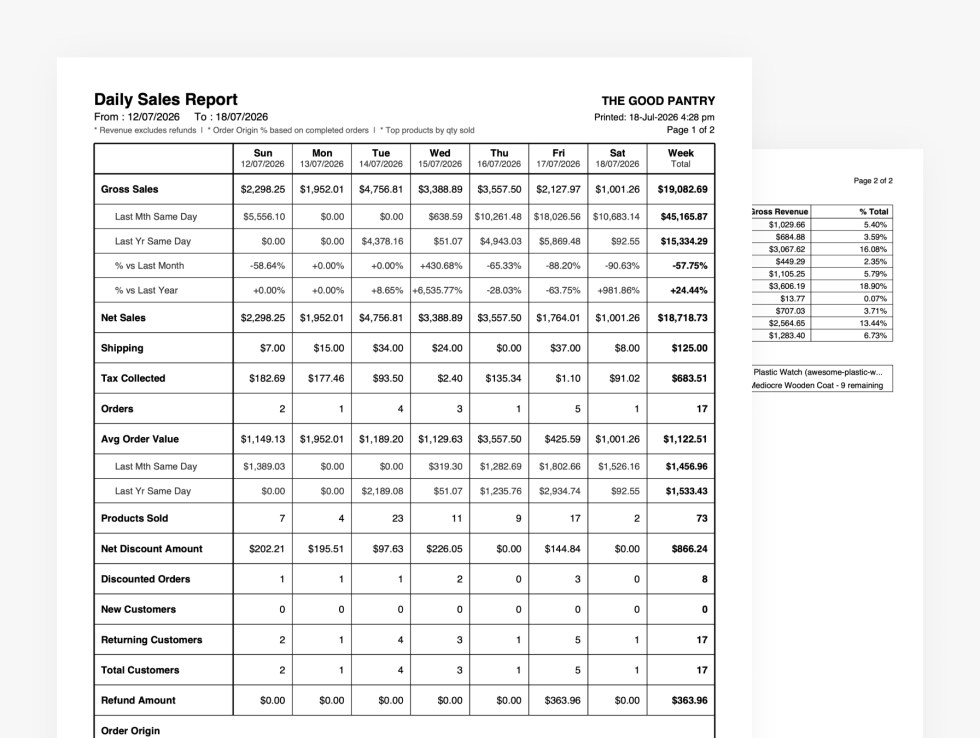
Each report shows the week so far, day by day, up to and including yesterday, with comparisons against the same days last month and last year. You choose who receives it, what time it’s sent and which order statuses count. An optional monthly report arrives on the 1st of each month.
- Automatic daily PDF report of the week to date, sent at a time you choose
- Sales figures calculated the same way as WooCommerce Analytics, with last-month and last-year comparisons
- Top products, stock alerts, new vs returning customers and order origin in every report
- Optional monthly report with weekly breakdown and its own recipient list
- Download any past week’s report as a PDF directly from the admin
Installation
↑ Back to topBefore you begin, make sure WooCommerce is installed and active, because the extension requires it to run.
- Download the extension from your WooCommerce.com account, under My Subscriptions.
- In your WordPress dashboard, go to Plugins > Add New > Upload Plugin and choose the ZIP file you downloaded.
- Select Install Now, and then Activate.
More information is available at Install and Activate Plugins/Extensions.
Quick start
↑ Back to topHere is the path to receiving your first report:
- Go to WooCommerce > Daily Report Email: The settings page opens on the Email tab by default.
- Check the Recipients field: Your store’s admin email address is pre-filled. Add or change it as needed.
- Click Save Settings: Your preferences are saved, and the daily schedule is confirmed.
- Click Send Test Email Now: The report for the current week, up to and including yesterday, is generated and emailed immediately. Check your inbox. The PDF should arrive within a few seconds.
If the test email arrives successfully, everything is working. The next scheduled report will arrive automatically at the time configured in the Schedule tab (default 4:00am).
Settings
↑ Back to top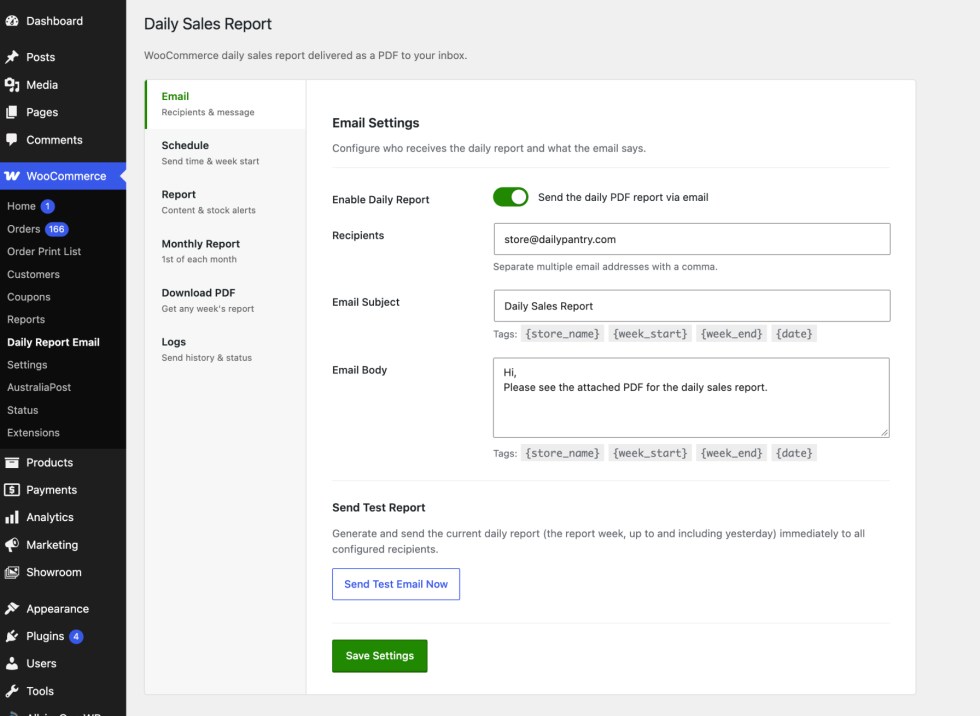
Email tab
↑ Back to topThe Email tab controls whether the daily report is active, who receives it, and what the email says.
| Setting | Description |
|---|---|
| Enable Daily Report | Toggle the daily report on or off. When disabled, no emails will be sent but your settings are preserved. |
| Recipients | One or more email addresses to receive the daily report. Separate multiple addresses with a comma. Example: owner@store.com, manager@store.com |
| Email Subject | The subject line for the daily report email. Supports placeholder tags. Default: Daily Sales Report. |
| Email Body | The body text of the email (sent as plain text). The PDF is attached automatically. Supports placeholder tags. |
| Send Test Email Now | Generates the report for the current week, up to and including yesterday, and sends it immediately to all configured recipients. On the first day of a new week it covers the week that has just ended. |
Schedule tab
↑ Back to topThe Schedule tab controls when the daily report is sent and how the week is structured.
| Setting | Description |
|---|---|
| Daily Send Time | The time the report is sent each day. Default is 04:00. Times are based on your WordPress timezone. This time is used for both the daily and monthly reports. |
| Week Starts On | Choose whether your reporting week starts on Monday or Sunday. |
| Next send | Displays the date and time the next report will be sent, based on your timezone and send time setting. |
Note: WordPress scheduling relies on site traffic to fire cron jobs. On low-traffic sites, the report may arrive a few minutes late. For exact delivery, set up a server cron job or use a free service such as cron-job.org to trigger your site’s WP-Cron URL at the scheduled time.
Report tab
↑ Back to topThe Report tab controls what data is included in the report.
| Setting | Description |
|---|---|
| Order Statuses | Choose which order statuses count toward the report. Default: Completed and Processing. Refunded orders are always included, so refunds are fully reflected, as in WooCommerce Analytics. |
| Top Products to Show | How many top-selling products to include (1 to 25). Default is 10. |
| Low Stock Threshold | Products with stock at or below this number appear in Stock Alerts. Default is 5. |
Monthly Report tab
↑ Back to topThe Monthly Report tab controls the monthly summary report sent on the 1st of each month.
| Setting | Description |
|---|---|
| Enable Monthly Report | Toggle the monthly report on or off independently of the daily report. |
| Monthly Recipients | A separate recipient list for the monthly report. Leave blank to use the same recipients as the daily report. |
| Email Subject | Subject line for the monthly report email. Default: Monthly Sales Report – {month}. |
| Email Body | Body text for the monthly report email. Supports placeholder tags. |
| Send Monthly Test Now | Generates and sends last month’s report immediately to all configured monthly recipients. |
Download PDF tab
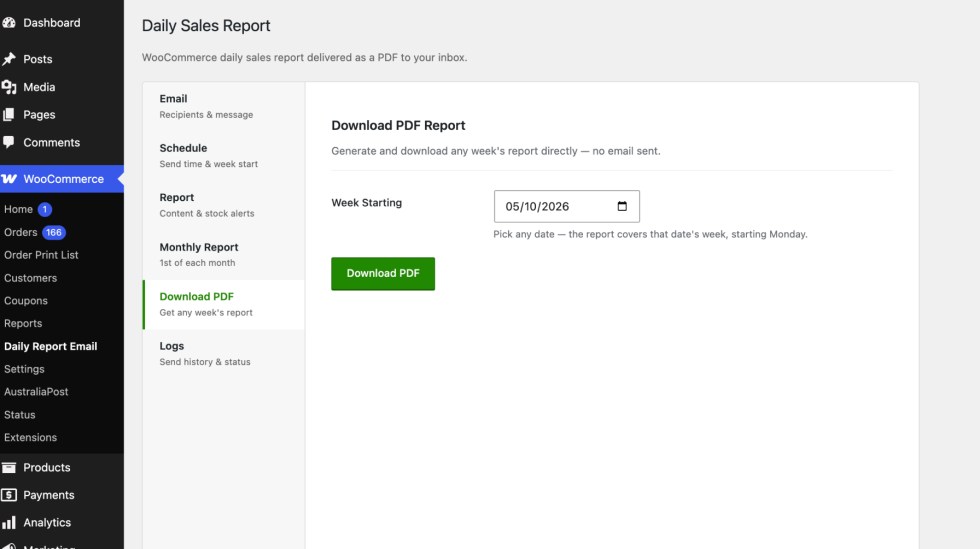
↑ Back to topThe Download PDF tab lets you generate and download any week’s report directly from the admin without sending an email.
| Setting | Description |
|---|---|
| Week Starting | Pick any date. The report covers the week containing that date, starting on your configured week start day. Days that haven’t happened yet show “-“. |
| Download PDF | Generates the PDF for the selected week and downloads it to your browser immediately. No email is sent. |
Logs tab
↑ Back to topThe Logs tab shows whether the daily and monthly reports are scheduled, the next scheduled send for each, and a history of the last 30 send attempts with their status, recipients, and any error message. Use Clear Log to empty the history. If WP-Cron is disabled on your site, a notice here reminds you that reports only send when an external cron job triggers wp-cron.php.
Daily Report
↑ Back to topThe daily report is a two-page A4 portrait PDF emailed to your recipients each day at your chosen send time. It covers the current week, up to and including yesterday. Page one contains the main metrics table. Page two contains the Top Products table and Stock Alerts.
Report structure
↑ Back to top- Header: Store name, report date range, printed date and page number.
- Column headers: One column per day (Mon to Sun or Sun to Sat) plus a Week Total column.
- Metrics table: Each metric in its own row, with values for each day and a bold week total. Days after yesterday show “-“. Customers in the Week Total are counted once each, so the total can be lower than the sum of the days.
- Sub-rows: Key metrics include comparison rows showing the same day last month, the same day last year, and percentage differences.
- Top Products (page two): Your best-selling products by quantity, with SKU, net sales (after discounts, excluding tax) and each product’s share of all product sales in the period.
- Stock Alerts (page two): Out-of-stock and low-stock products listed at the time the report was generated.
Metrics included
↑ Back to top| Metric | Details |
|---|---|
| Gross Sales | Product sales before coupons and refunds, excluding tax and shipping. Includes last month and last year same-day comparisons and percentage differences. |
| Net Sales | Gross sales minus coupons and refunds, excluding tax and shipping |
| Shipping | Shipping collected, minus shipping refunded |
| Tax Collected | Tax collected, minus tax refunded |
| Total Sales | Net sales plus tax and shipping |
| Orders | Number of orders with the selected statuses (plus refunded orders) |
| Avg Order Value | Net sales of the orders divided by the number of orders. Includes last month and last year same-day comparisons. |
| Products Sold | Items sold, minus items refunded (counted on the refund date) |
| Net Discount Amount | Total coupon discounts applied |
| Discounted Orders | Number of orders that used a coupon |
| New Customers | Customers placing their first order (matched by customer account or billing email) |
| Returning Customers | Customers with an earlier order (matched by customer account or billing email) |
| Total Customers | New plus returning customers, each counted once |
| Refund Amount | Refunds issued during the period, counted on the date of the refund |
| Order Origin | Share of orders from Direct, Organic Search, Social, Email, Referral and Paid sources, based on WooCommerce order attribution. Orders without attribution data are not shown in any row, so the percentages may add up to less than 100%. |
How figures are calculated
↑ Back to top- Sales figures follow the WooCommerce Analytics › Revenue definitions.
- Orders are placed on a day using the Date type set in your WooCommerce Analytics settings (date paid by default), the same as WooCommerce Analytics.
- Refunds are counted on the day the refund was issued, not the day of the original order.
- “Same day last month” is the same weekday in the same week of the previous month. “Same day last year” is the same weekday 52 weeks earlier.
- If a figure differs from WooCommerce Analytics, check that the order statuses and Date type match on both.
Monthly Report
↑ Back to topThe monthly report is sent automatically on the 1st of each month and covers the full previous month. It uses the same layout as the daily report but with week columns instead of day columns.
How weeks are calculated
↑ Back to topThe month is split into calendar weeks starting on your configured week start day (Monday or Sunday). Each column is labelled Week one, Week two and so on, with its date range. A month can have up to six columns when it starts or ends partway through a week. The Month Total column on the right shows figures for the full month.
Year-on-year comparisons
↑ Back to topThe Month Total column includes a comparison against the same month last year. For example, the March 2026 report compares against March 2025. Gross Sales shows last year’s figure and the percentage change; Avg Order Value shows last year’s figure.
Separate recipients
↑ Back to topIf you want to send the monthly report to different people than the daily report, for example your accountant or a business partner, enter their addresses in the Monthly Recipients field in the Monthly Report tab. Leave this field blank to use the same recipients as the daily report.
Recipients
↑ Back to top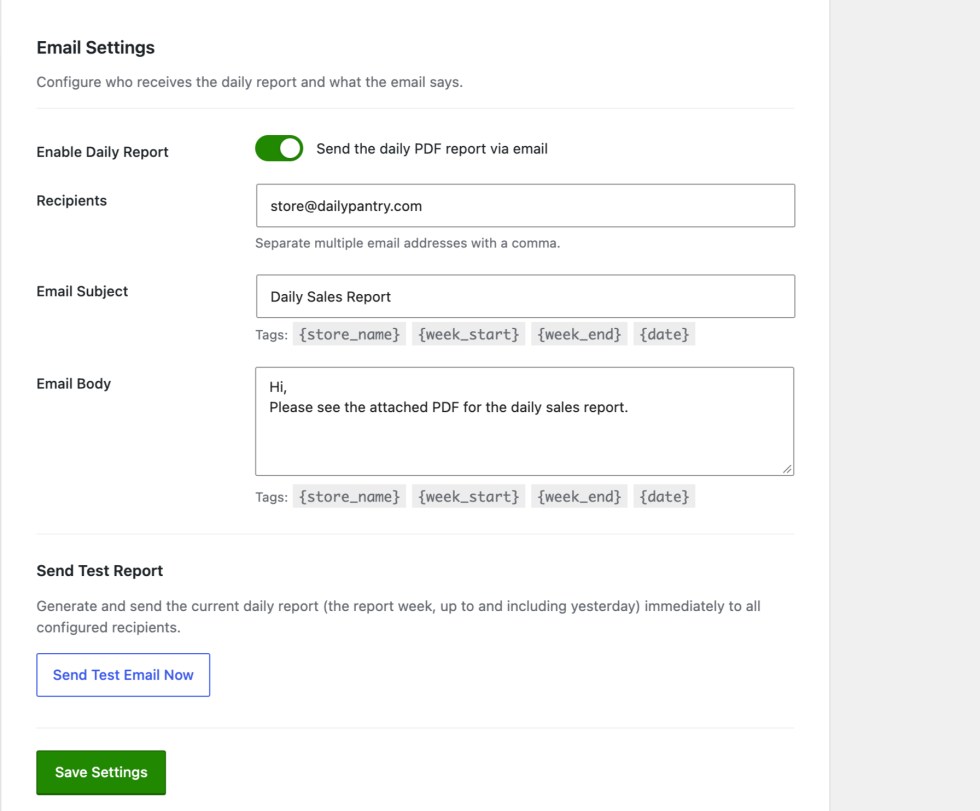
Both the daily and monthly reports support multiple recipients. Enter email addresses separated by commas in the Recipients field.
Example: owner@mystore.com, manager@mystore.com, accounts@myaccountant.com
Spaces before or after the comma are ignored, so both of the following formats work correctly:
owner@mystore.com,manager@mystore.com
owner@mystore.com, manager@mystore.com
Subject and body tags
↑ Back to topYou can use placeholder tags in the email subject and body fields. The plugin replaces these tags automatically when the email is sent.
Daily report tags
↑ Back to top| Tag | Replaced with |
|---|---|
{store_name} | Your WordPress site name |
{week_start} | The first day of the report week, e.g. 30/03/2026 |
{week_end} | The last day included in the report (yesterday, or the end of the week if it has finished), e.g. 01/04/2026 |
{date} | The date the email is sent (UTC) |
Monthly report tags
↑ Back to top| Tag | Replaced with |
|---|---|
{store_name} | Your WordPress site name |
{month} | The month and year being reported, e.g. March 2026 |
{date} | The date the email is sent (UTC) |
Example subject line
↑ Back to top{store_name} -- Sales Report {week_start} to {week_end}Would send as: My Store — Sales Report 30/03/2026 to 01/04/2026
Send time and timezone
↑ Back to topThe send time in the Schedule tab is based on your WordPress timezone setting. To check or change your timezone, go to WordPress Admin > Settings > General > Timezone.
For example, if your WordPress timezone is Sydney and your send time is 04:00, the report is sent at 4:00am Sydney time.
Daylight saving: WordPress repeats daily schedules every 24 hours, so after a daylight saving change the report can arrive an hour earlier or later. Open the settings page and click Save Settings to keep the same local send time.
Getting exact delivery times
↑ Back to topWordPress WP-Cron fires when someone visits your site. On low-traffic nights, the report might arrive a few minutes after your scheduled time. To get exact delivery, set up a real cron job on your server:
0 4 * * * curl -s https://yoursite.com/wp-cron.php?doing_wp_cron > /dev/null 2>&1Server cron jobs run in the server’s timezone, which may differ from your WordPress timezone. Adjust the hour so it matches your send time.
Alternatively, use a free service such as cron-job.org to ping your WP-Cron URL at the exact time you want. This works without any server access.
Troubleshooting
↑ Back to topThe test email is not arriving
↑ Back to top- Check your spam or junk folder first.
- Make sure the recipient address in the Email tab is correct and click Save Settings before sending the test.
- Check that your hosting allows outbound email. Some shared hosts restrict this. Installing an SMTP plugin such as WP Mail SMTP resolves most email delivery issues.
- The Send Test button shows a success or error message. If it shows an error, the message will describe what went wrong. Past attempts are listed in the Logs tab.
The report is arriving late
↑ Back to top- This is expected behaviour on low-traffic sites. WP-Cron fires on site visits, so quiet nights mean slightly late delivery.
- Set up a real cron job or use cron-job.org as described in the Send Time section above.
- If the report is exactly one hour off after a daylight saving change, open the settings page and click Save Settings.
The report shows $0.00 for everything
↑ Back to top- Check that the order statuses in the Report tab match the statuses your orders use.
- Orders are placed on days using the Date type set in your WooCommerce Analytics settings (date paid by default). Orders that haven’t been paid yet, such as On-Hold bank transfers, won’t appear until they are paid.
- The report covers the week up to and including yesterday. Days after yesterday show “-“, not sales.
The plugin is not activating
↑ Back to top- Make sure WooCommerce is installed and activated before activating this plugin.
- Check that your PHP version is 7.4 or higher. Go to WordPress Admin > Tools > Site Health to see your PHP version.
Stock Alerts are not showing
↑ Back to top- Low stock alerts only include products with stock management enabled (WooCommerce > Settings > Products > Inventory, and Manage stock on each product).
- Check the Low Stock Threshold in the Report tab. Only products with stock between one and this number appear, lowest first.
- Up to 20 products are listed in each alert.
Uninstalling
↑ Back to topTo remove the plugin completely, go to WordPress Admin > Plugins, deactivate the plugin, then click Delete.
When the plugin is deleted, the following are removed automatically:
- All plugin settings and the send log stored in the WordPress options table.
- All scheduled cron events for both the daily and monthly reports.
- The temporary reports folder and all files within it.
Note: Deactivating the plugin without deleting it will stop the scheduled emails but preserve your settings. To trigger a full cleanup, you must delete the plugin using the Delete link in the Plugins list.
FAQs
↑ Back to topAnswers to some commonly asked questions.
Can I receive both the daily and monthly reports?
Yes. Enable both in their respective tabs. They can go to the same recipients or different ones.
Can I disable the daily report and only use the monthly report?
Yes. Toggle the daily report off in the Email tab and enable the monthly report in the Monthly Report tab independently.
What currency symbol does the report use?
The report automatically uses the currency configured in WooCommerce > Settings > General. No setup is needed.
Does the plugin store reports on the server?
No. PDFs are generated, emailed and deleted immediately. Nothing is retained on the server after the email is sent.
What is the PDF file named?
The daily report PDF is named automatically using the format:
Monday - 30 March 2026.pdf. The monthly report is named:March 2026.pdf.
Does the plugin work with WooCommerce HPOS?
Yes. The plugin is fully compatible with WooCommerce High Performance Order Storage.
How far back can I download historical reports?
You can generate a report for any week as far back as your WooCommerce order history goes. Use the Download PDF tab and pick any date in the week you want.
Will this plugin slow down my website?
No. The report runs in the background via WP-Cron at your chosen send time. It has no effect on page speed or the visitor experience.
Why don't my figures match WooCommerce Analytics?
The report follows the WooCommerce Analytics Revenue definitions. Differences usually come from the order statuses selected in the Report tab, or the Date type set in your WooCommerce Analytics settings. Make sure both match what you use in Analytics.
Which languages are included?
The settings page, emails and PDF are translated into German, Spanish, French and Brazilian Portuguese.

