
PDF Catalog Builder for WooCommerce creates PDF catalogs, price lists, and single-product sheets from the products in your store. You set up everything on one settings screen in WooCommerce. Your customers download the files from a block, a shortcode, or buttons the extension adds to your shop and product pages. This guide walks through every setting and shows how to set the extension up for common store setups. A developer section covers hooks and template overrides.
Overview
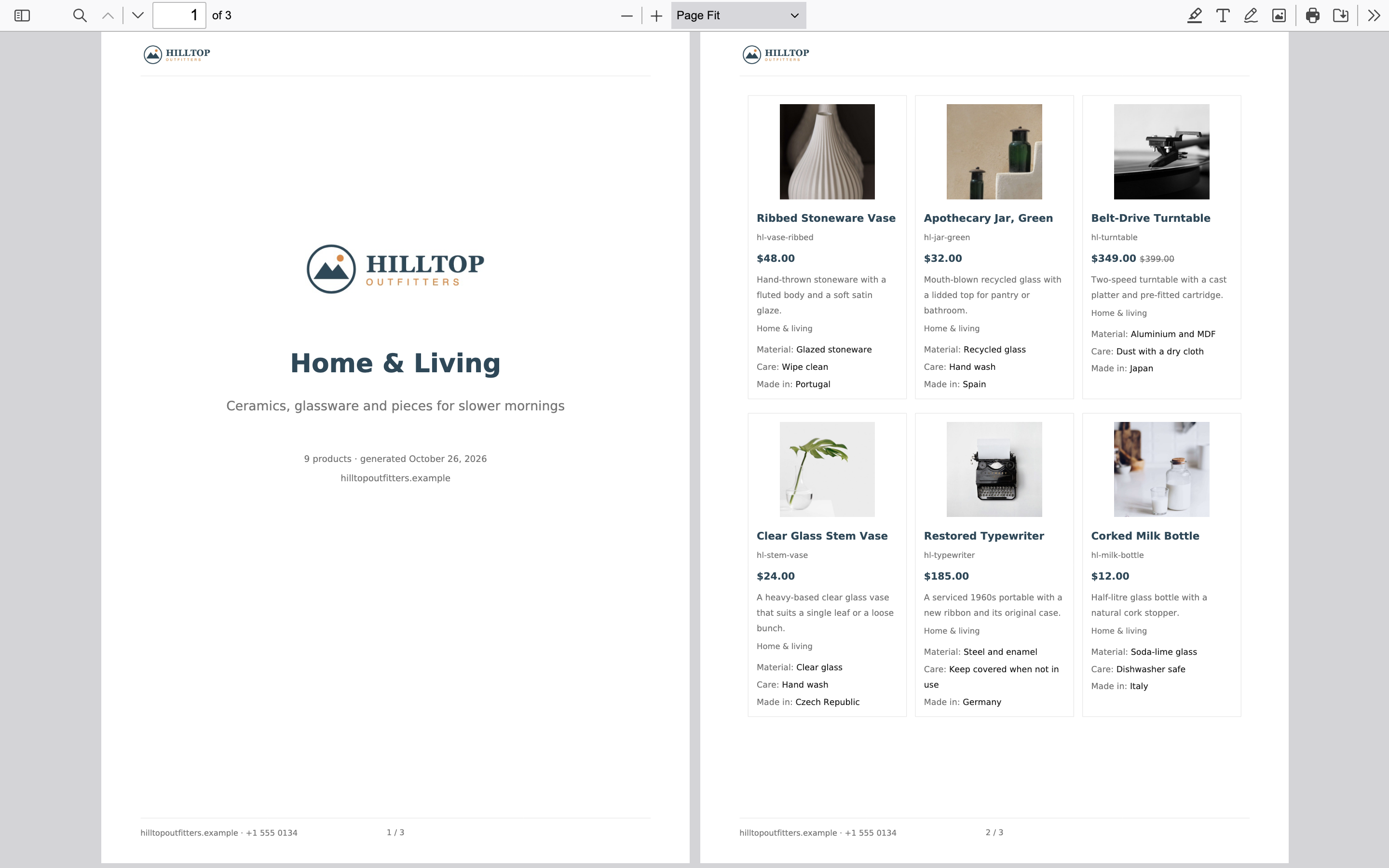
↑ Back to topPDF Catalog Builder for WooCommerce turns your WooCommerce products into PDF documents. You can make as many saved catalogs as you need. Each one is a set of products (the whole store, chosen categories, chosen tags, featured products, or products on sale), with its own sort order and a layout. Each catalog is styled with your logo, colors, fonts, and cover page, and product names in the PDF link back to the product pages in your store.
The PDF is built on your own server by a PDF engine that comes with the extension. Each file is built once and stored. Later downloads get the stored file, and it’s rebuilt automatically when a product or a setting changes. Large catalogs can be built in the background so your customers don’t run into a timeout.
Requirements
↑ Back to top- WordPress 6.4 or later.
- PHP 7.4 or later.
- WooCommerce 9.0 or later, installed and active.
- Product images stored as files on your own server, in
wp-content/uploads/. For speed and security, the PDF engine doesn’t download remote images. - A private temporary directory on your server that the web can’t reach. The extension keeps generated PDFs there instead of in your uploads folder. Most hosts already have one.
The extension does not need an external service, an account, or an API key.
The following are optional:
- Advanced Custom Fields (ACF) or Secure Custom Fields (SCF), if you want to print ACF product fields with their labels and formatting. Plain product meta works without either plugin.
- The WordPress Abilities API and a compatible AI or Model Context Protocol (MCP) client, if you want to use the optional AI catalog tools. WordPress 6.9 and later include the Abilities API.
The extension is compatible with High Performance Order Storage (HPOS) and with the Cart and Checkout blocks.
Installation
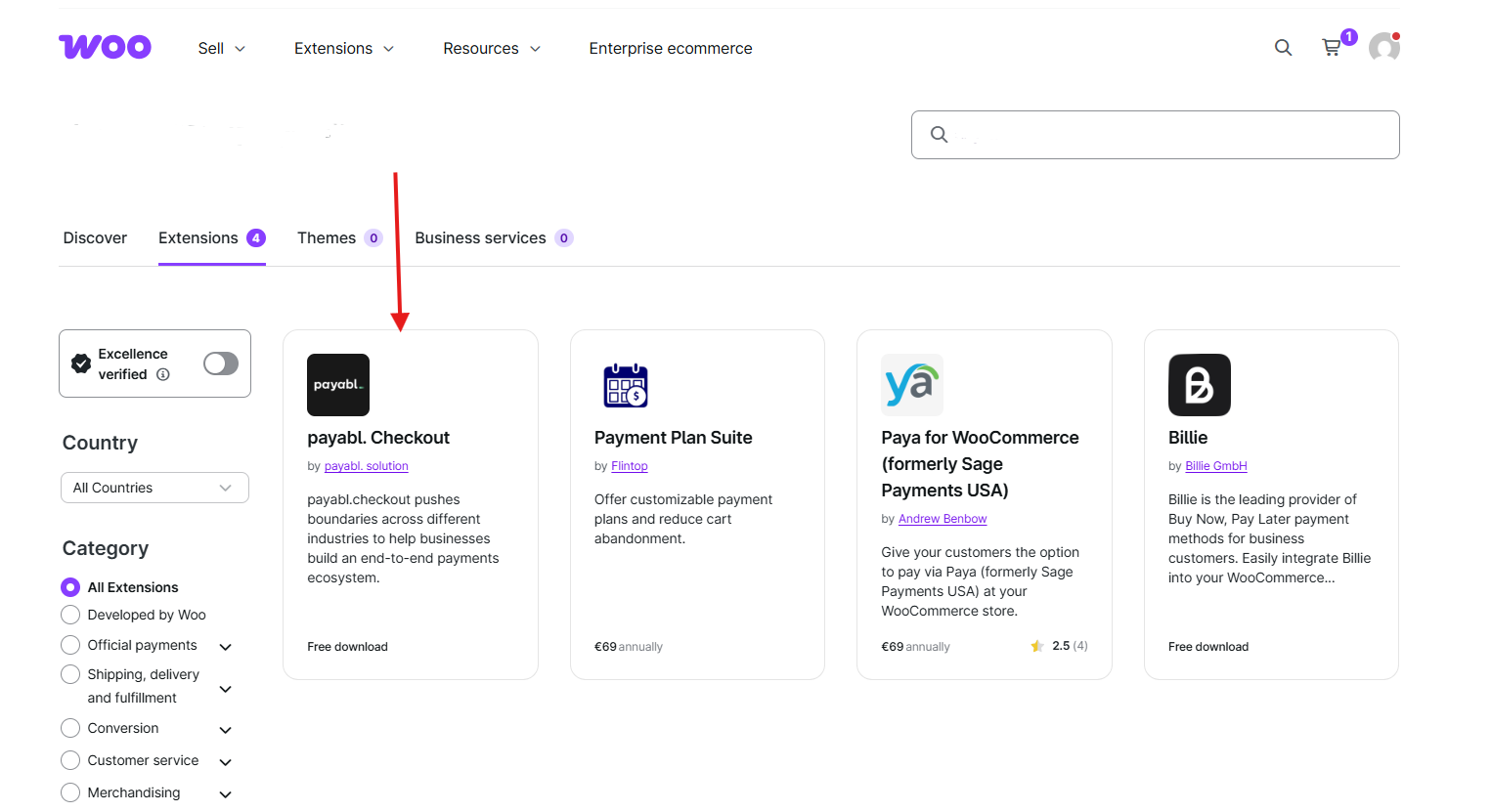
↑ Back to topTo start using a product from WooCommerce.com, you can use the “Add to store” functionality on the order confirmation page or the My subscriptions section in your account.
- Navigate to My subscriptions.
- Find the Add to store button next to the product you’re planning to install.
- Follow the instructions on the screen, and the product will be automatically added to your store.
Alternative options and more information at:
Managing WooCommerce.com subscriptions.
After you install and activate the extension, there is one setup step specific to this extension:
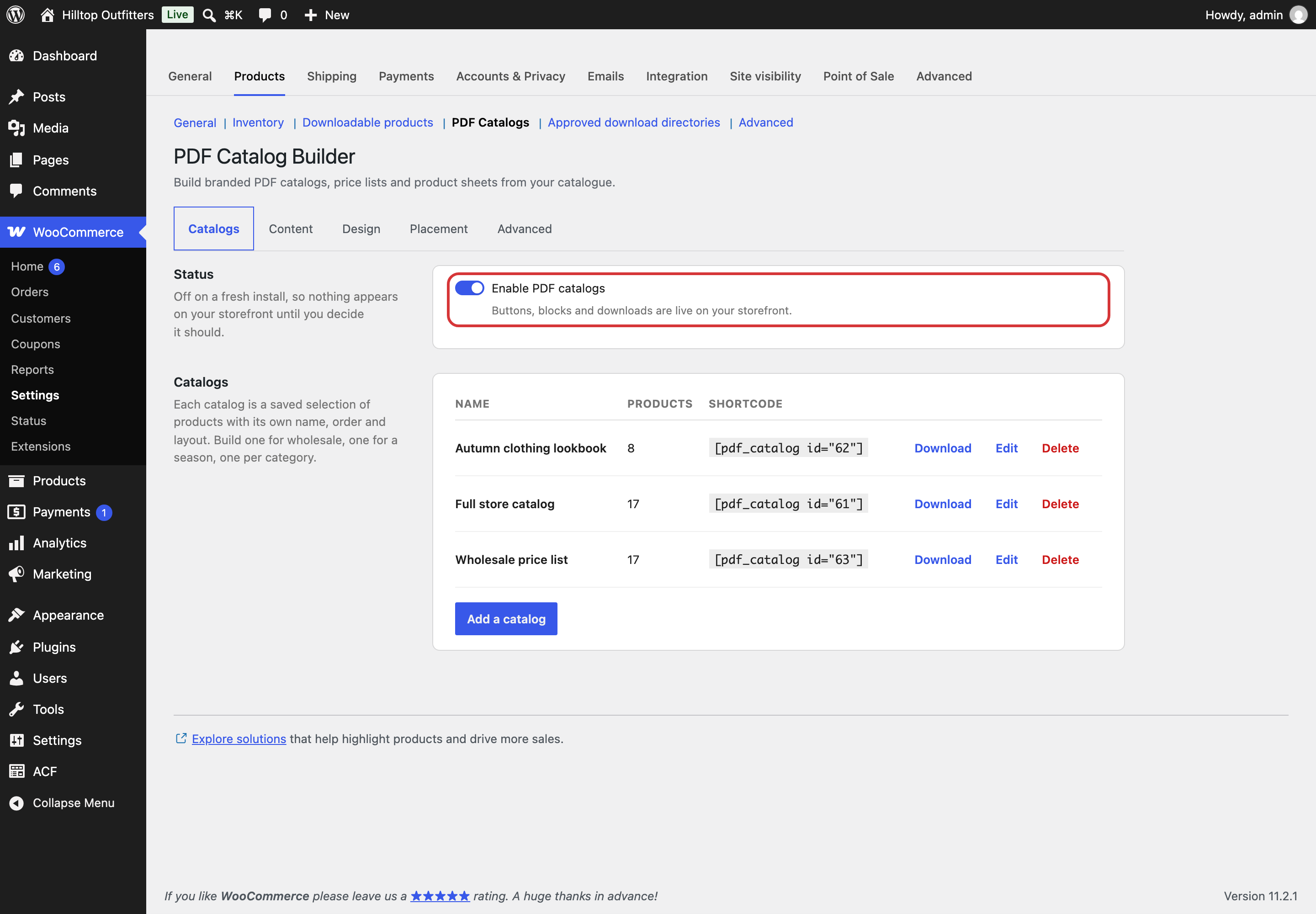
- Go to WooCommerce > Settings > Products > PDF Catalogs. You can also click Settings under the extension name on the Plugins screen.
- On the Catalogs tab, turn on Enable PDF catalogs.
Usage
↑ Back to topAll settings live on one screen at WooCommerce > Settings > Products > PDF Catalogs. The screen has five tabs: Catalogs, Content, Design, Placement, and Advanced. Each tab except Catalogs has its own Save changes button at the bottom. Catalogs save one at a time from the catalog editor.
Settings on the Content, Design, Placement, and Advanced tabs apply to the whole store. Each catalog follows them unless you give it its own design or access rule, as described below.
Catalogs tab
↑ Back to topStatus
Enable PDF catalogs is the main switch for the extension. When it’s on, the download buttons, the block, the shortcode, and the download links work on your storefront. When it’s off, all of them are hidden from customers and download links return nothing. You can still create, edit, and preview catalogs while it’s off. Changing this toggle saves right away.
Your catalogs
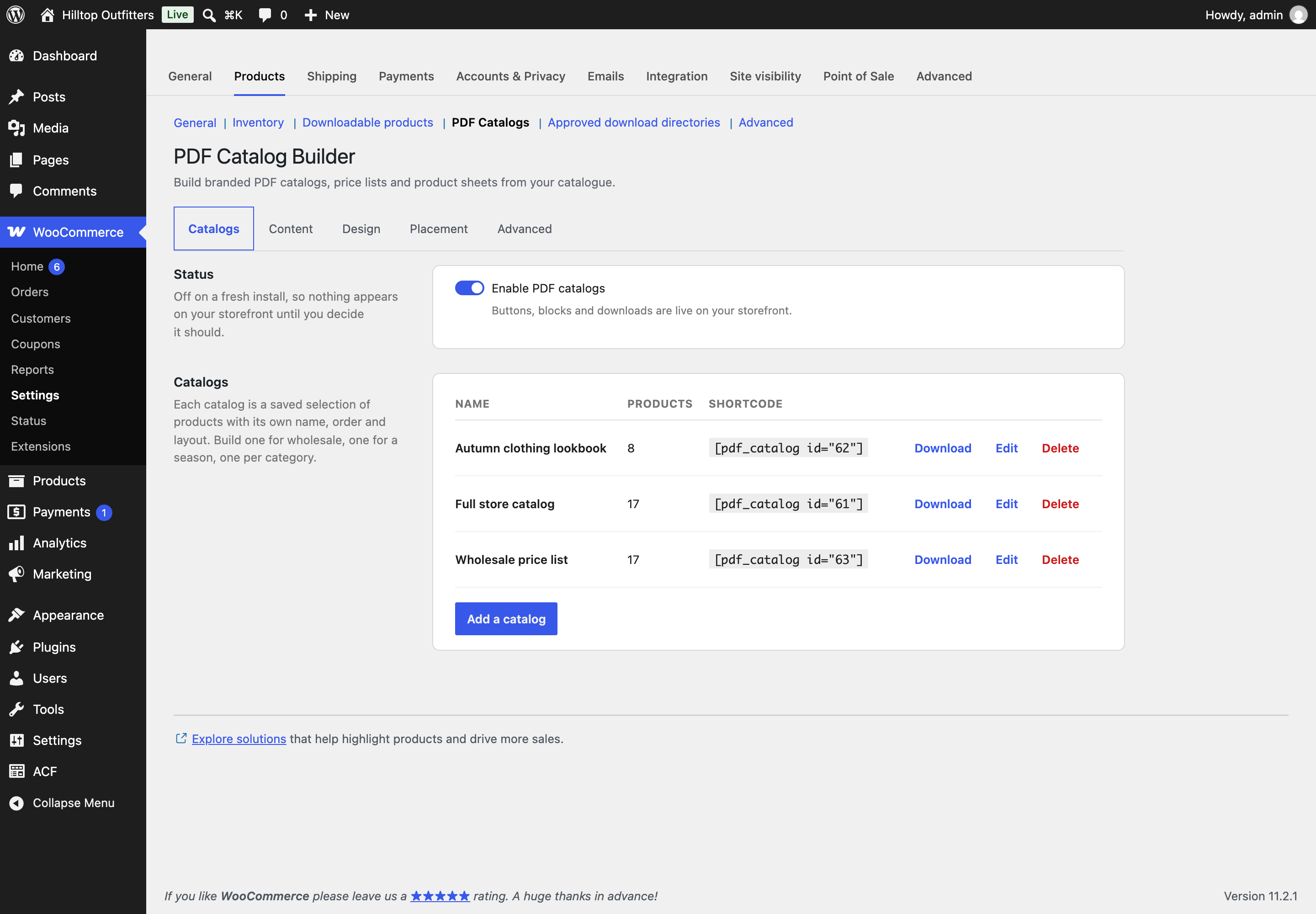
Each catalog is a saved set of products with its own name, order, and layout. The list shows each catalog’s name, how many products it currently contains, and its shortcode, for example [pdf_catalog id="12"]. Each row has three actions:
- Download opens the catalog’s download link in a new tab, so you can check the finished file.
- Edit opens the catalog editor.
- Delete removes the catalog and its stored files after you confirm.
When you have no catalogs yet, the whole store can still be downloaded through the block, the shortcode, or the shop button. Click Add a catalog to create one.
The catalog editor
The editor opens in a window with a Name field and three tabs.
Name is printed on the cover page and used for the downloaded file name. The file name gets the date added, for example wholesale-price-list-2026-10-23.pdf. If you leave it empty, the catalog is saved as “Untitled catalog”.
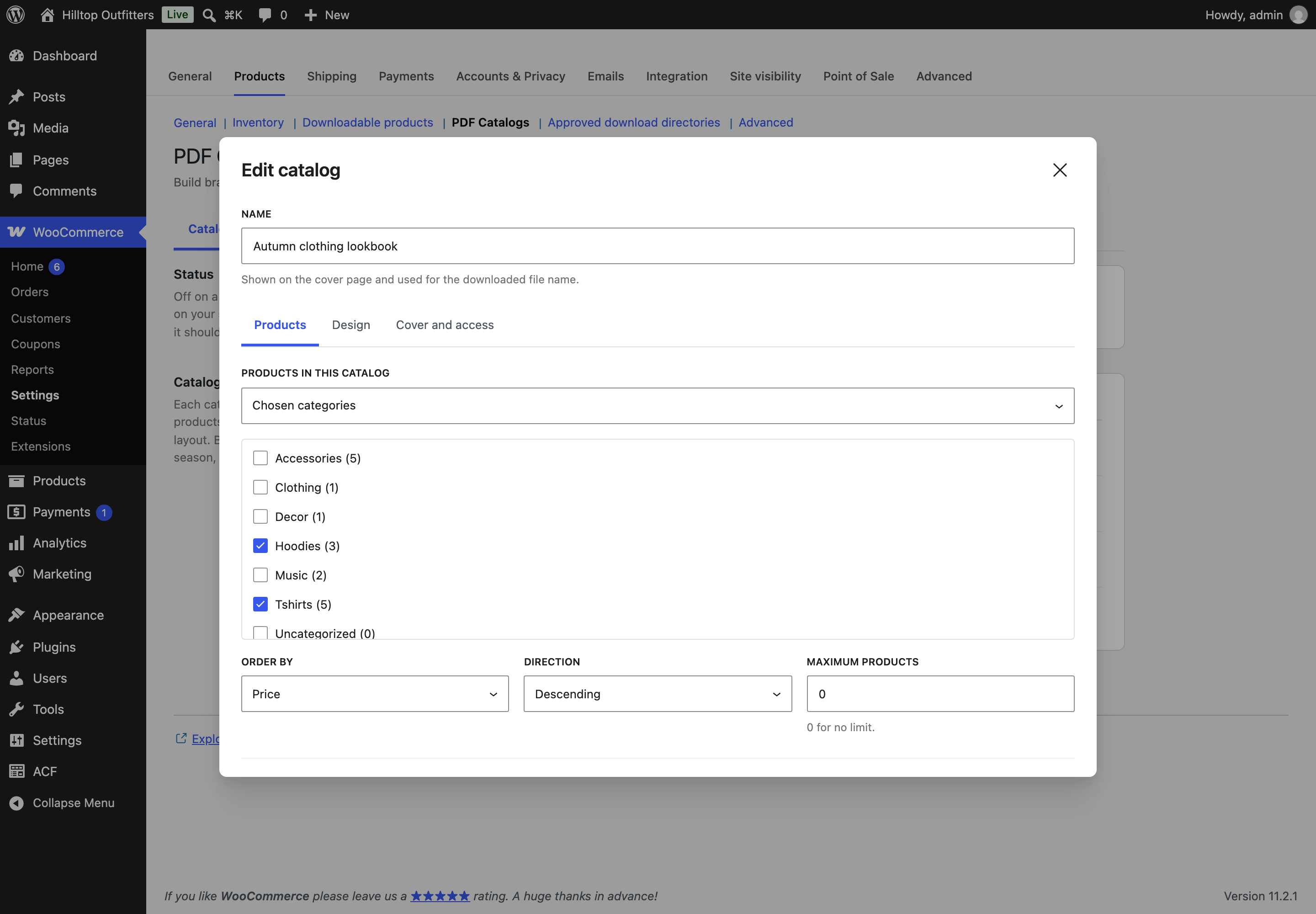
The Products tab decides what goes in the catalog.
- Products in this catalog sets the product source. Choose Every published product, Chosen categories, Chosen tags, Featured products, or Products on sale. When you pick categories or tags, a checklist appears with the number of products in each one. Tick at least one, or the catalog will be empty.
- Order by sets the sort order: Catalog order (the custom order from your Products screen), Name, Price, Newest first, or Best selling.
- Direction sets Ascending or Descending for the chosen order.
- Maximum products caps the number of products. Enter 0 for no limit. The limit only counts products the catalog can actually show, so hidden or excluded products don’t use up places.
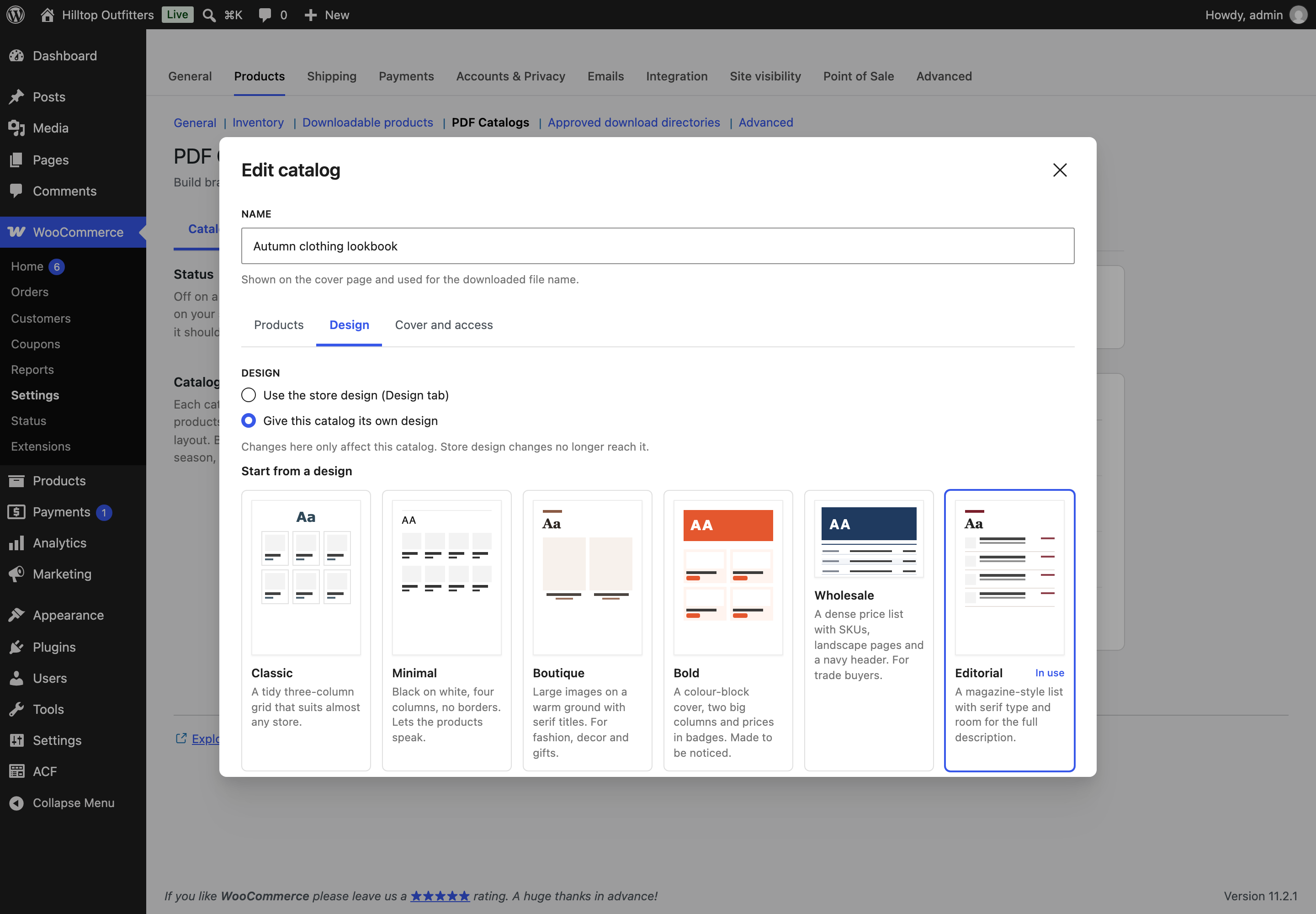
The Design tab decides how the catalog looks.
- Use the store design (Design tab) is the default. The catalog follows the store-wide Design tab, so changing your store design updates every catalog that uses it. With this option, you can still pick a different Layout for this one catalog, or leave it on Use the store default.
- Give this catalog its own design gives the catalog its own copy of every design setting. A gallery of ready-made designs appears, followed by the same Layout, Page, Type, Colours, Style, and Branding controls as the Design tab. Changes here only affect this catalog, and later changes on the store Design tab don’t reach it. If you switch back to the store design, the catalog’s own copy is discarded.
The Cover and access tab covers the rest.
- Cover subtitle is a line printed under the catalog name on the cover page.
- Who can download this one overrides the store-wide download rule for this catalog. Choose Use the store setting, Everyone, Logged in customers, or Chosen roles only. If you choose roles, tick at least one role before saving. Users who can manage WooCommerce, such as administrators and shop managers, can always download.
At the bottom of the editor, Preview builds a PDF from up to eight products of the catalog. It uses your unsaved changes and opens in a new tab. Only logged-in store managers can open preview links. Save catalog saves your changes.
Content tab
↑ Back to topThe Content tab sets what each product shows in the PDF. These choices apply to every catalog and every product sheet. Turning off what your customers don’t need gives you a smaller file and a faster build.
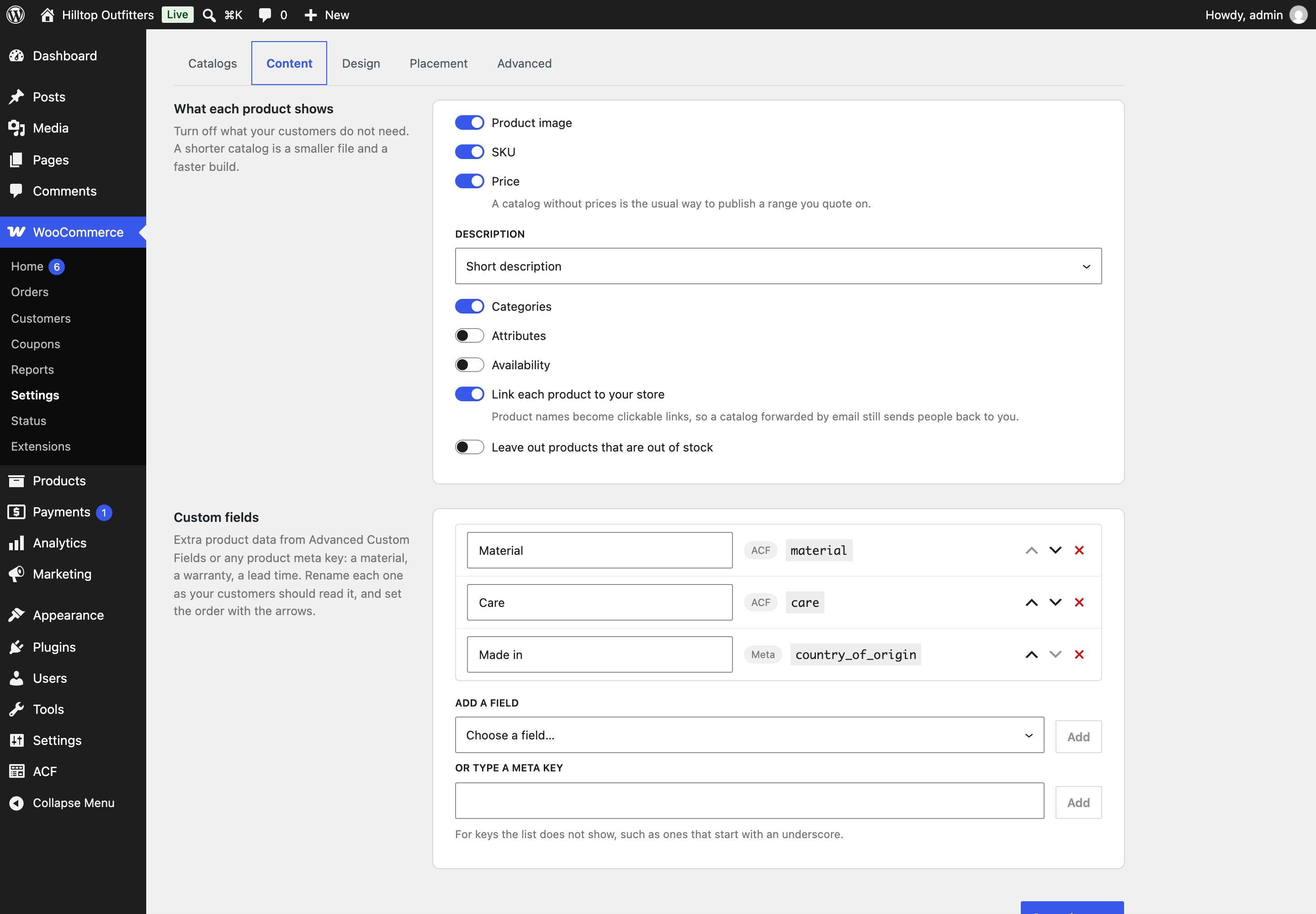
What each product shows
- Product image prints the product’s main image. Products without an image are shown without one.
- SKU prints the product SKU where the product has one.
- Price prints the price the way your store displays it. On-sale products show the sale price with the regular price struck through. Variable products show their price range. A catalog without prices is a common way to publish a range you quote on.
- Description chooses None, Short description, or Full description. Descriptions are printed as plain text without formatting or shortcodes.
- Categories prints the product’s categories.
- Attributes prints the product’s visible attributes, such as size or material. Attributes hidden on the product page are left out.
- Availability prints the stock status, such as “In stock” or “Out of stock”.
- Link each product to your store makes product names clickable links to their product pages. This means a catalog that gets forwarded by email still sends people back to your store. In the one-product-per-page layout, the product URL is also printed.
- Leave out products that are out of stock removes out-of-stock products from every catalog. Products on backorder stay in, because customers can still buy them.
Not every layout uses every field. The price list layout, for example, has no images. The descriptions of the layouts under the Design tab say what each one shows.
Custom fields
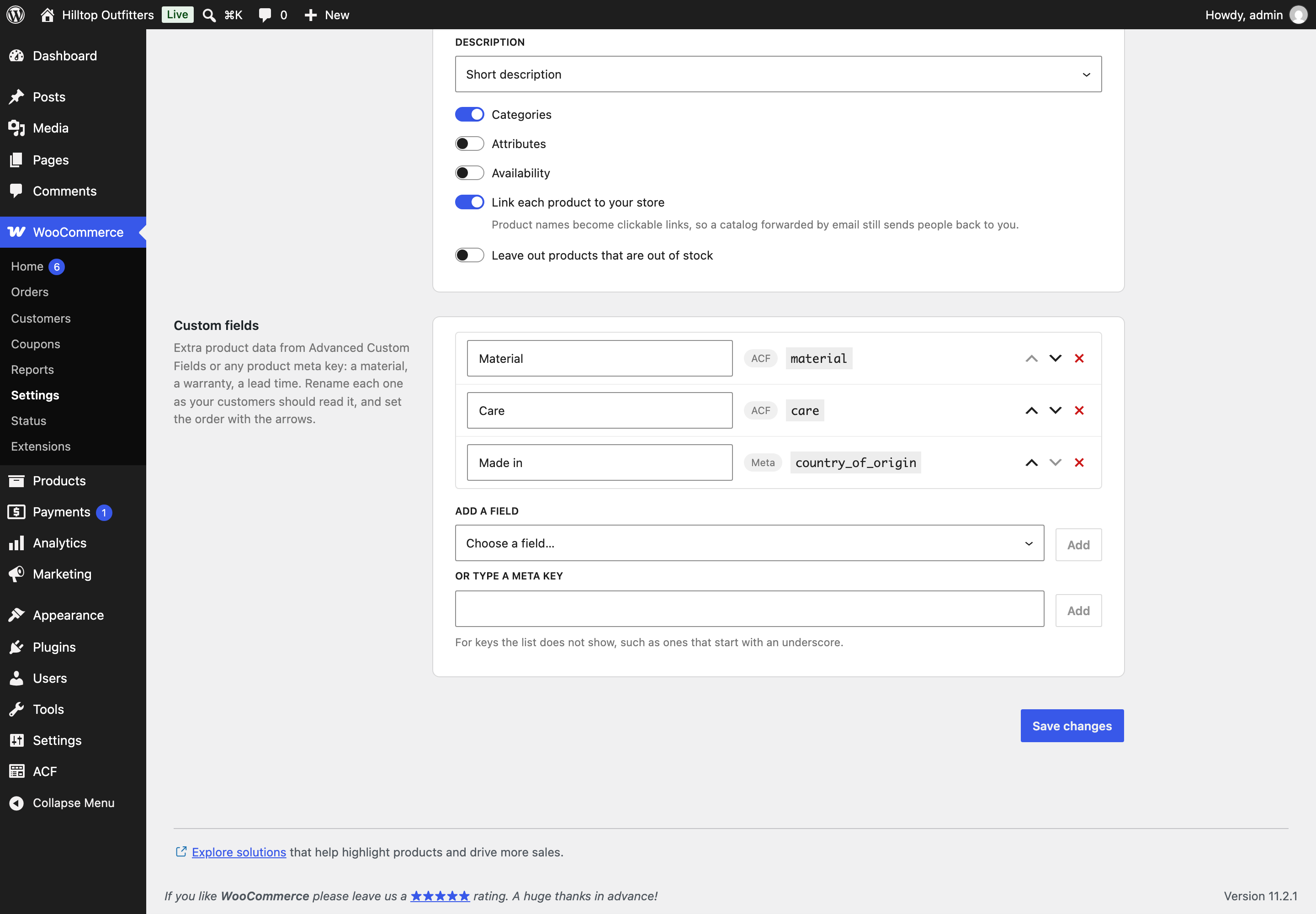
Custom fields let you print extra product data, such as a material, a warranty, or a lead time. You can add up to 20 fields.
- Add a field lists your ACF field groups for products, with each field’s label, followed by any public product meta keys found in your store. Pick a field and click Add.
- Or type a meta key lets you add a key the list doesn’t show, such as one that starts with an underscore. Type the exact key, which is case sensitive, and click Add.
After you add a field, you can type the label your customers should see. If you leave the label empty, the ACF label or the meta key is used. Use the arrows to change the order and the remove button to delete a field.
Fields appear under each product in card layouts, as rows in the specification table on product sheets, and as columns in the price list and table layouts. In card layouts, a field with no value for that product is skipped.
When ACF or SCF is active, values are printed the way ACF formats them. This includes prefix and suffix units, choice labels, true or false as “Yes” or “No”, and group and repeater fields with each sub-field’s label. Image, gallery, file, and oEmbed fields aren’t offered, because they have no text to print.
Design tab
↑ Back to topThe Design tab sets the store-wide look. Every catalog that uses the store design follows it, and so does every single-product sheet.
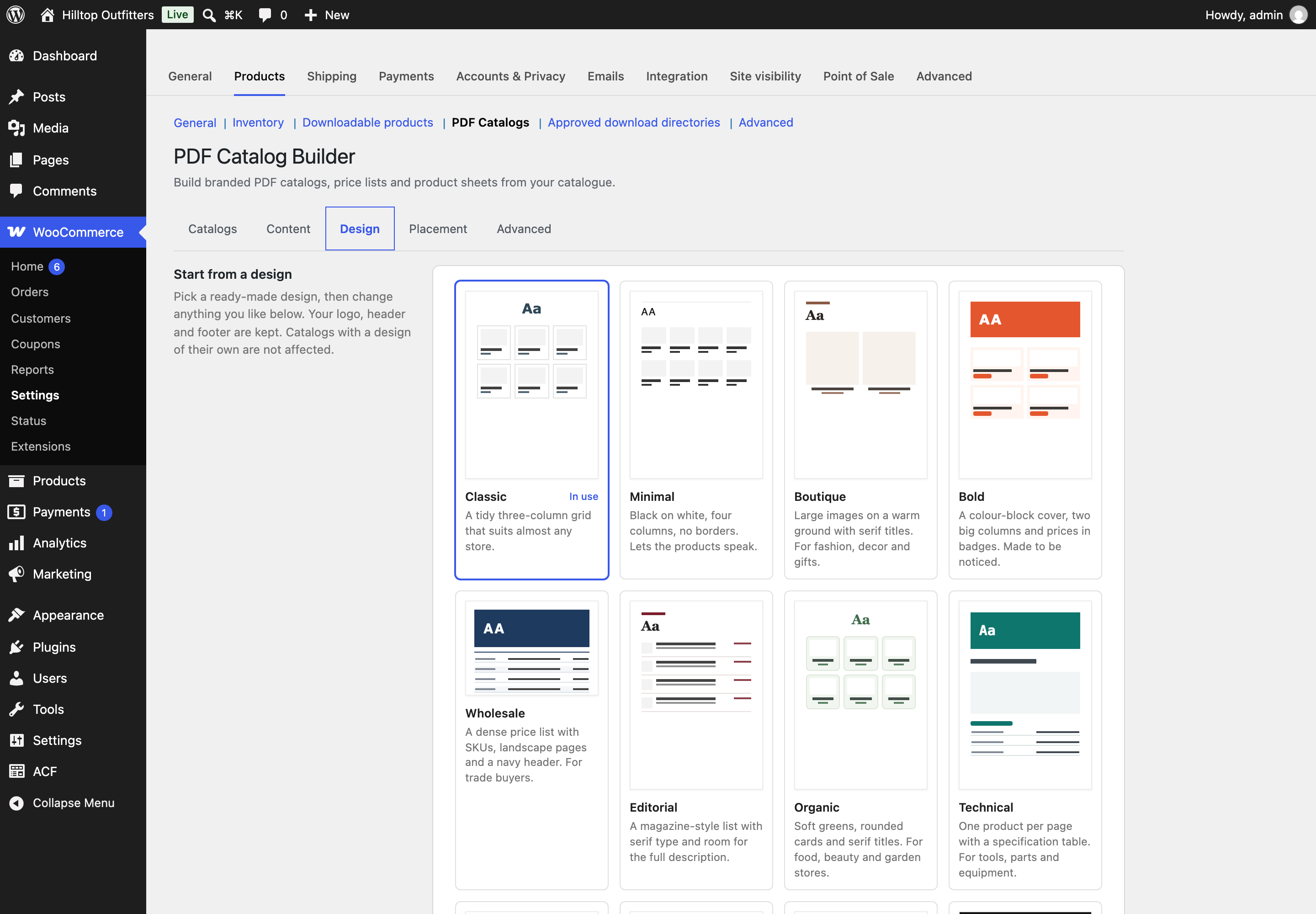
Start from a design
Pick one of fifteen ready-made designs to set the layout, fonts, colors, cover, and card style in one click. Then you can change anything in the sections below. Your logo, header text, and footer text are kept when you switch designs. Catalogs with their own design aren’t affected. A design is only applied when you click Save changes.
| Design | Layout | Suited to |
|---|---|---|
| Classic | Grid, three columns | Almost any store |
| Minimal | Grid, four columns, no borders | Stores that want the products to stand out |
| Boutique | Lookbook | Fashion, decor, and gifts |
| Bold | Grid, two columns, price badges | Promotional catalogs |
| Wholesale | Price list, landscape | Trade buyers |
| Editorial | List with room for the full description | Detailed, text-led ranges |
| Organic | Grid with rounded cards | Food, beauty, and garden stores |
| Technical | One product per page with a specification table | Tools, parts, and equipment |
| Luxe | Lookbook with spaced capitals | Jewelry and premium ranges |
| Playful | Grid with rounded cards and price badges | Toys, stationery, and kids |
| Magazine | A featured product, then a grid, with category headings | A printed-catalog feel |
| Noir | Grid on dark pages with gold accents | Premium ranges, spirits, fragrance |
| Index | Two-column compact list, grouped by category | Large ranges and reference catalogs |
| Trade | Table with images, landscape, grouped by category | B2B and distributors |
| Nordic | Grid, two columns, a new page per category | Furniture, homeware, and design |
Preview with a few products builds a sample PDF with your current, unsaved settings and opens it in a new tab.
Layout
- Layout sets how products are arranged:
- Grid is for browsing.
- List shows one product per row, with room for detail and attributes.
- One product per page gives each product its own page, with a specification table.
- Price list is a table with no images, built for trade buyers.
- Lookbook uses large images for products that sell on how they look.
- Magazine (featured product, then a grid) has a printed feel.
- Compact list (two columns) fits about thirty products a page, for large ranges.
- Table with images is a price list with a picture and short description on each line.
- Columns sets one to four columns. It only appears for the Grid layout.
- Group by category chooses No grouping, A heading before each category, or A new page for each category. Products keep the catalog order inside each category. A product in several categories appears once, under the first category it’s assigned to. A catalog with only one category is printed without headings.
- Image height (mm) sets the height of product images. It only appears for the Grid, Lookbook, and Magazine layouts.
Page
- Page size sets A4, A5, Letter, or Legal.
- Orientation sets Portrait or Landscape. Landscape suits price lists and tables with many columns.
- Page margin (mm) sets the space around the edge of each page, from 0 to 40 mm.
Type
- Text font and Heading font choose from DejaVu Sans, DejaVu Serif, DejaVu Sans Mono, Helvetica, Times, and Courier. The heading font is used for the cover title and product names. The DejaVu fonts cover Latin, Greek, Cyrillic, and most accented alphabets. Helvetica, Times, and Courier make lighter files but only support Western European characters.
- Base text size (pt) sets the body text size, from 7 to 16 points.
- Headings chooses As written or Spaced capitals.
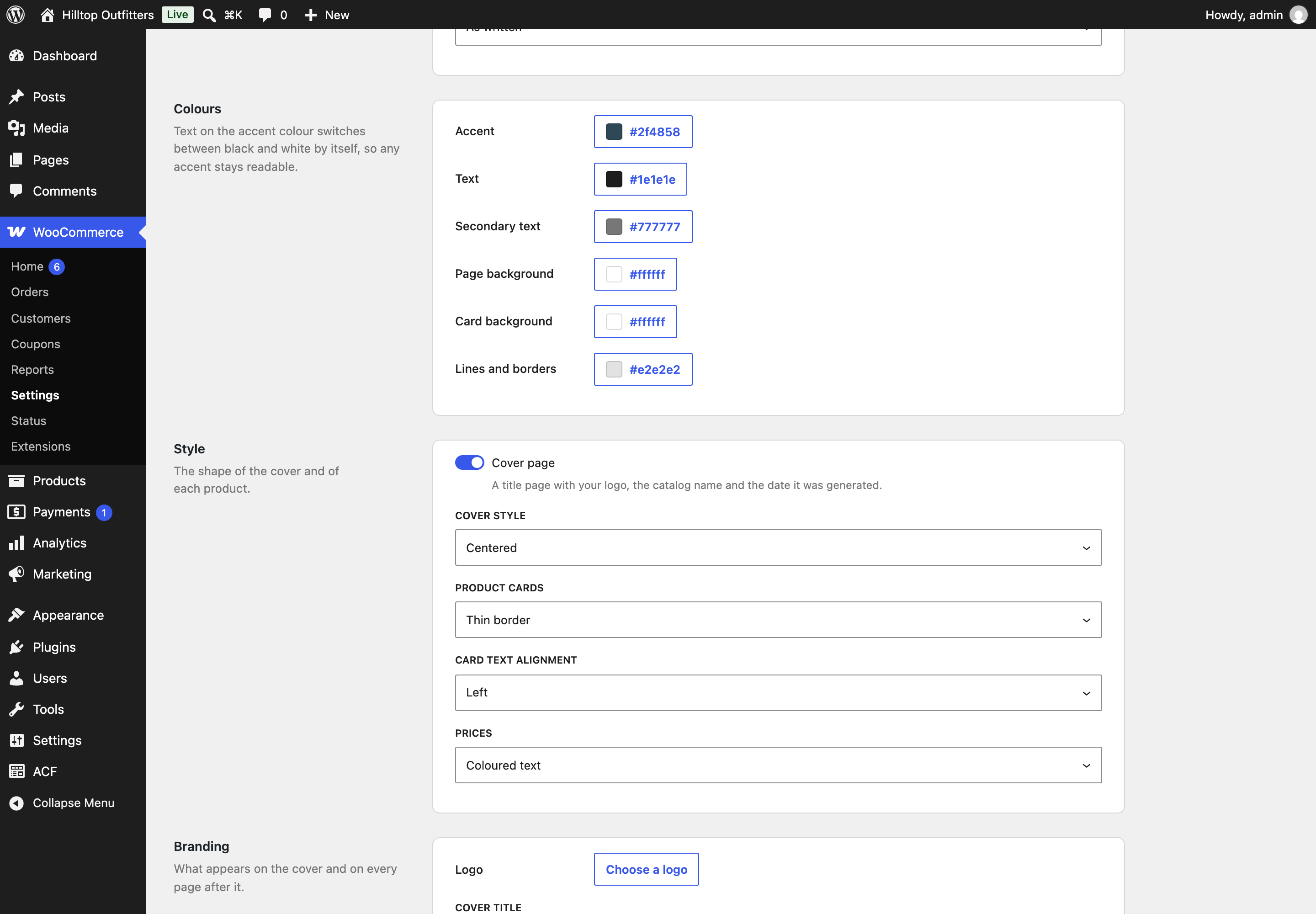
Colours
Set the Accent, Text, Secondary text, Page background, Card background, and Lines and borders colors. Text placed on the accent color switches between black and white by itself, so it stays readable whatever accent you choose.
Style
- Cover page adds a title page with your logo, the catalog name, the number of products, the date it was generated, and your site address. Product sheets never get a cover.
- Cover style appears when the cover is on. Choose Centered, Left aligned, large title, Title on a colour block, or Minimal, title low on the page.
- Product cards chooses Thin border, Filled background, Rounded, or No frame.
- Card text alignment chooses Left or Centered.
- Prices chooses Coloured text or Badge.
Branding
- Logo uses an image from your Media Library on the cover and in the running header of every page.
- Cover title replaces the title on the store-wide catalog’s cover. Leave it empty to use your store name. Saved catalogs use their own name instead.
- Cover subtitle is a line under the cover title.
- Header text and Footer text are printed on every page.
- Page numbers prints “page / total” at the foot of every page.
- Watermark prints text faintly across every page. This is handy for a draft price list or a confidential wholesale catalog.
Placement tab
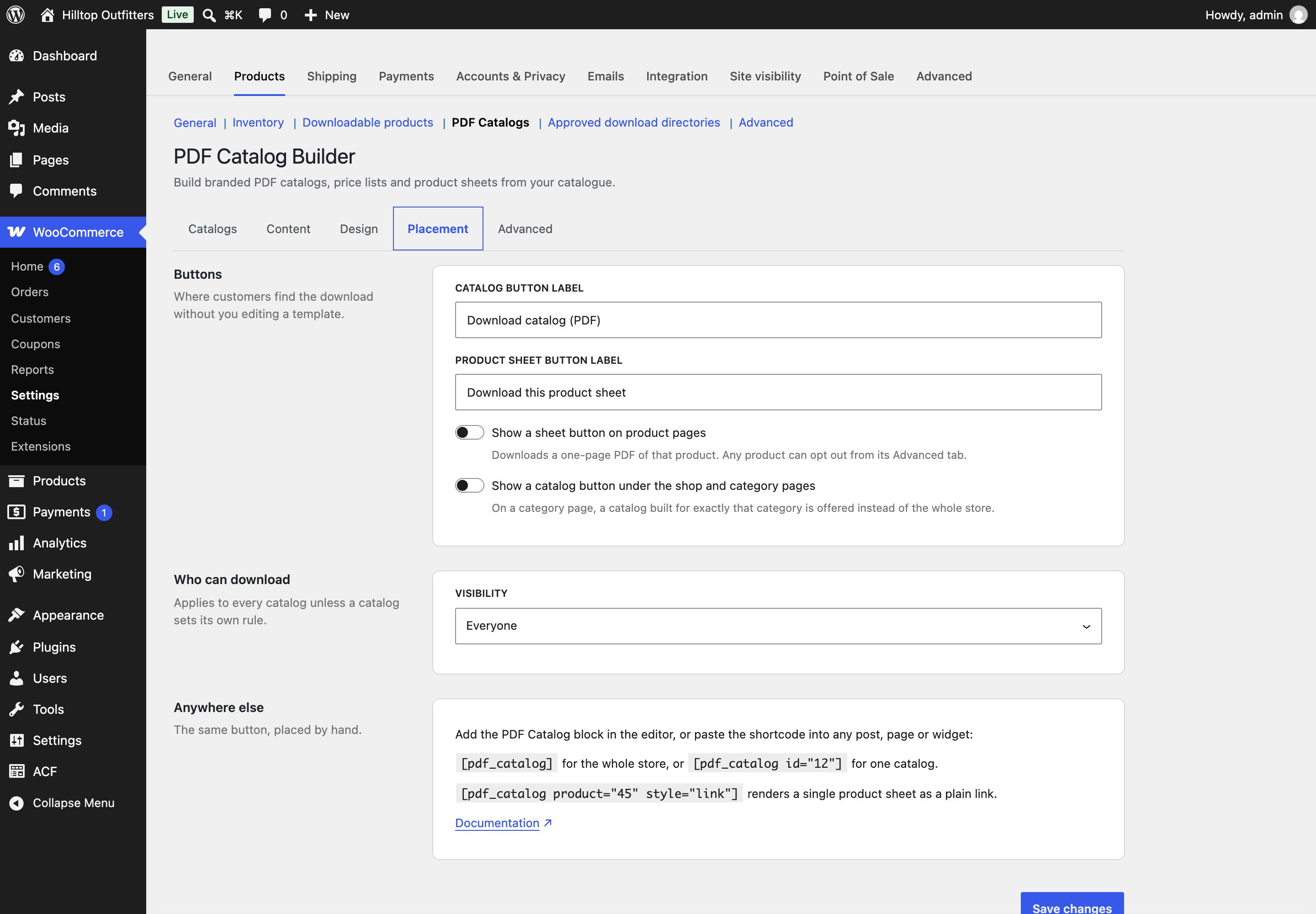
↑ Back to topThe Placement tab decides where customers find the download and who can use it.
Buttons
- Catalog button label is the text on catalog buttons. The default is “Download catalog (PDF)”.
- Product sheet button label is the text on product sheet buttons. The default is “Download this product sheet”.
- Show a sheet button on product pages adds a button to each product page that downloads a one-page PDF of that product. A product can opt out from its Advanced tab, as described under Per-product settings below.
- Where on the product page appears when the sheet button is on. Choose After the add to cart button, Before the add to cart button, After the product meta, or Below the product summary. These positions use classic WooCommerce product templates.
- Show a catalog button under the shop and category pages adds a catalog button below the product list on your shop page. On a category page, if a published catalog was built for exactly that one category, that catalog is offered instead of the whole store.
Who can download
Visibility sets the store-wide download rule: Everyone, Logged in customers, or Chosen roles only. If you choose roles, tick at least one before saving. Any catalog can set its own rule in its Cover and access tab. Users who can manage WooCommerce can always download. Visitors who aren’t allowed to download don’t see the button at all.
Anywhere else
This section is a reminder of the block and shortcode, covered in full below.
Advanced tab
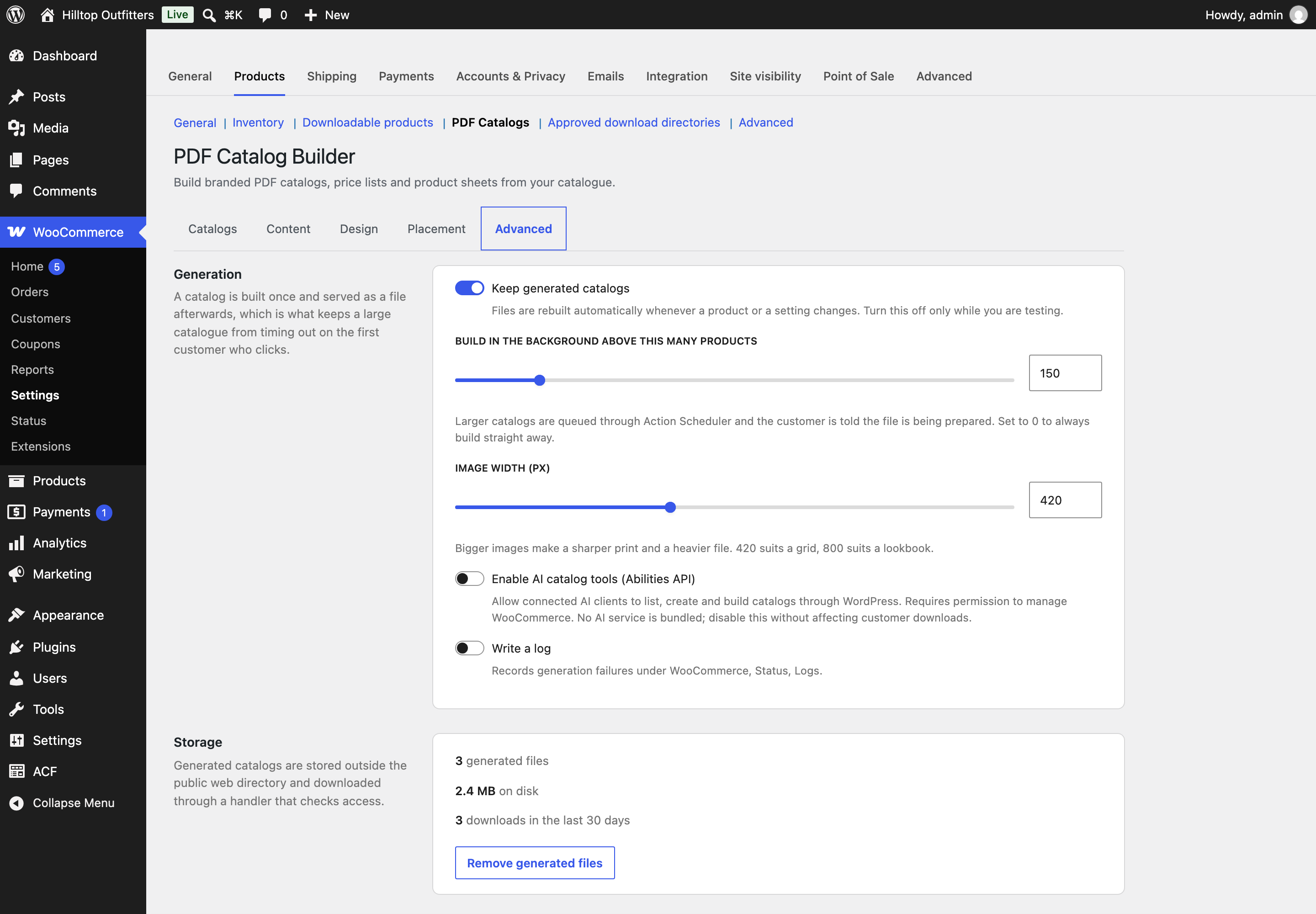
↑ Back to topGeneration
- Keep generated catalogs stores each built PDF and serves it to later visitors. Files are rebuilt automatically whenever a product or a setting changes. Only turn this off while you’re testing, because every download would then rebuild the file.
- Build in the background above this many products sets the size at which a catalog is built in the background through Action Scheduler instead of during the download request. The default is 150 products. When a customer asks for a catalog that’s still being built, they see a “Preparing your catalog” page. It checks every five seconds and starts the download when the file is ready. Set this to 0 to always build straight away. A warning appears if Action Scheduler isn’t available. In that case, every catalog is built straight away.
- Image width (px) decides which image size goes into the PDF. At 300 px or less, the extension uses your store’s thumbnail image size. Above 300 px, it uses the large image size. Larger images print sharper but make a heavier file.
- Enable AI catalog tools (Abilities API) lets connected AI clients list, create, and build catalogs. It’s off by default. See the FAQ for details.
- Write a log records generation failures in the WooCommerce logs, under WooCommerce > Status > Logs. Turn it on when you need to troubleshoot.
Storage
This section shows how many generated files are stored, how much disk space they use, and how many downloads were served in the last 30 days. Remove generated files deletes every stored PDF. Each one is rebuilt the next time someone downloads it. An error appears here if the bundled PDF engine is missing. If you see it, reinstall the extension.
Per-product settings
↑ Back to topWhen the extension is enabled, two extra controls appear in your product admin:
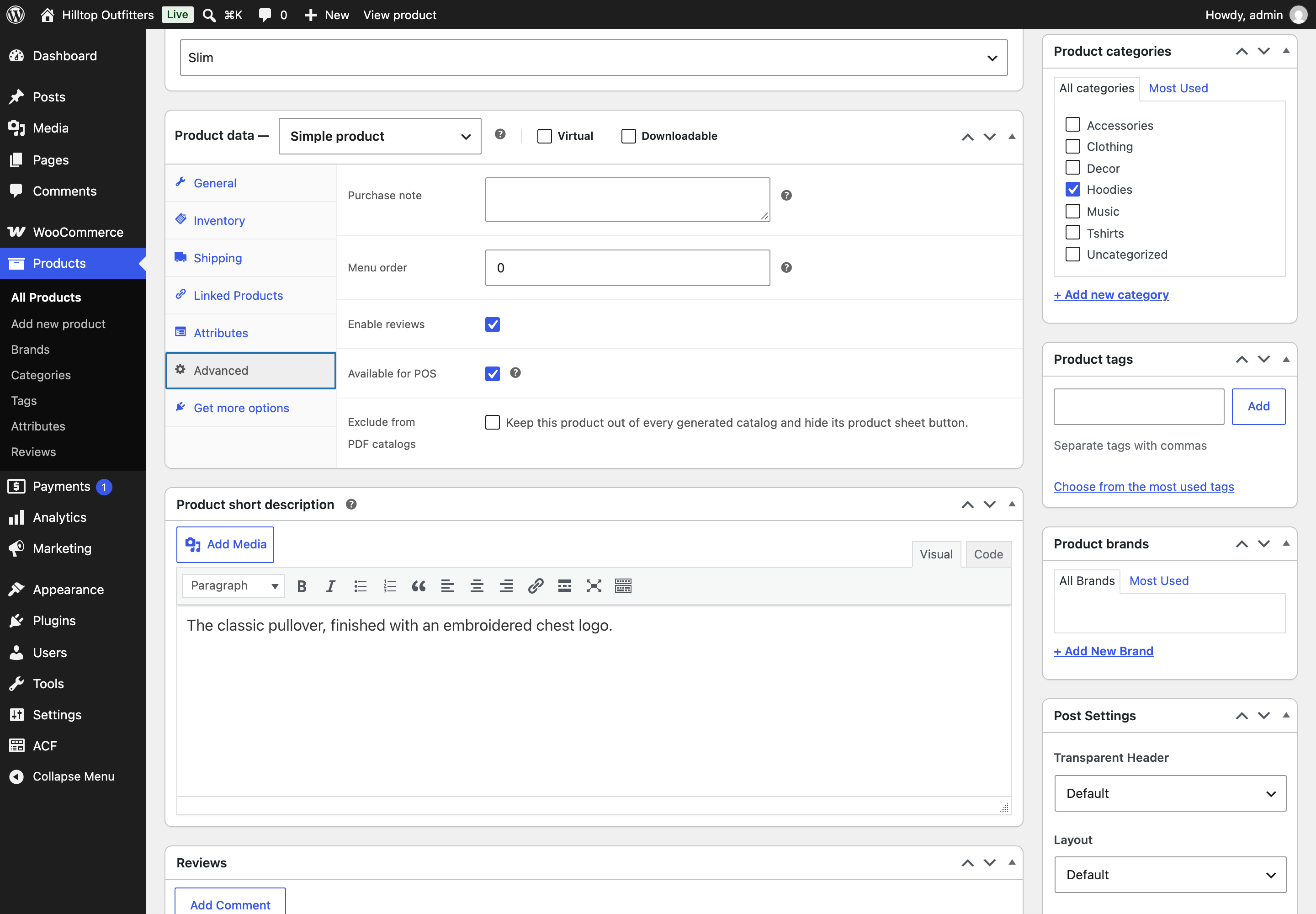
- Exclude from PDF catalogs is a checkbox on the Advanced tab of the product data box when you edit a product. It keeps that product out of every catalog and hides its product sheet button.
- A filter on the Products list lets you show In PDF catalogs or Excluded from PDF catalogs, so you can quickly see which products are left out.
Some products are never included, whatever your settings: drafts, private or password-protected products, and products with their catalog visibility set to hidden.
The PDF Catalog block
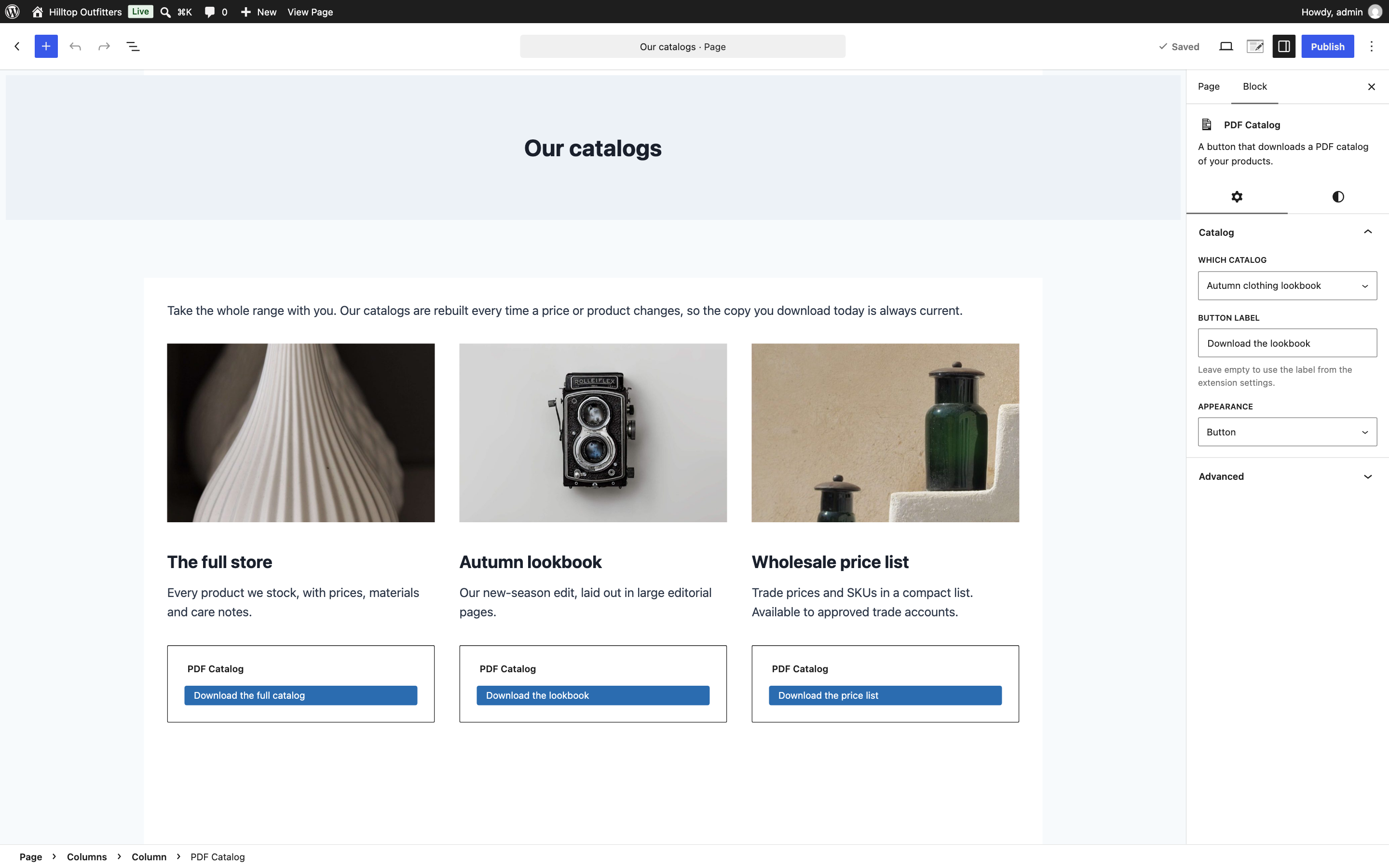
↑ Back to topIn the block editor, add the PDF Catalog block from the WooCommerce category. Its settings panel has three options:
- Which catalog picks Whole store or one of your saved catalogs.
- Button label overrides the label. Leave it empty to use the label from the Placement tab.
- Appearance chooses Button or Text link.
The block also supports left, center, or right alignment, plus margin and padding.
The shortcode
↑ Back to topUse [pdf_catalog] in any post, page, or widget that runs shortcodes.
[pdf_catalog]gives a button for the whole store.[pdf_catalog id="12"]gives a button for one saved catalog. The Catalogs tab shows each catalog’s ID in its shortcode.[pdf_catalog product="45"]gives a button for one product’s sheet.label="..."changes the button text.style="link"shows a plain text link instead of a button.class="..."adds your own CSS classes.
For example, [pdf_catalog product="45" style="link" label="Spec sheet"] shows a text link to one product’s sheet.
If the extension is switched off, or the visitor isn’t allowed to download, the shortcode and the block show nothing.
What your customers get
↑ Back to topA download button links to your site with a short query string, for example ?pcat_catalog=12 for a catalog or ?pcat_sheet=45 for a product sheet. The extension checks who’s asking, then sends the stored PDF, or builds it first if needed. Generated files are kept outside your public web folder, so a catalog you’ve limited to a role can’t be reached by guessing its file address.
Use cases
↑ Back to topA public catalog for your whole store
↑ Back to topYou want any visitor to be able to download your full range from the shop page.
- On the Design tab, pick Classic (or the design closest to your brand), add your Logo, and set the Accent color to your brand color. Click Save changes.
- On the Content tab, keep Product image, Price, and Short description on. Turn on Leave out products that are out of stock.
- On the Placement tab, turn on Show a catalog button under the shop and category pages and keep Visibility on Everyone.
- Turn on Enable PDF catalogs on the Catalogs tab.
You don’t need to create a saved catalog. The shop button serves the whole store.
A wholesale price list for trade customers only
↑ Back to topYou sell to the public and to trade buyers, who have a “Wholesale” user role, and you want a dense price list that only they can download.
- On the Catalogs tab, click Add a catalog and name it “Trade price list”.
- On the Products tab, choose Every published product (or the categories you sell to the trade), with Order by set to Name.
- On the Design tab, choose Give this catalog its own design and pick Wholesale or Trade. In Branding, set the Watermark to “Confidential”.
- On the Cover and access tab, set Who can download this one to Chosen roles only and tick your wholesale role.
- Save the catalog, then put its shortcode, such as
[pdf_catalog id="12"], on your wholesale account page.
Content settings apply to every catalog, so the price list shows the same fields as your public catalog. To keep SKUs and prices in the trade list only, a developer can change the content per catalog with the pcat_settings filter. See Developer documentation below.
Specification sheets for technical products
↑ Back to topYou sell tools or equipment, and customers want a printable spec sheet for each product. You keep extra specs in ACF fields.
- On the Content tab, turn on SKU and Attributes. Under Custom fields, add your ACF fields, such as power, weight, and warranty, and rename them as you want them printed.
- On the Placement tab, turn on Show a sheet button on product pages and choose where it appears.
- For any product without a meaningful sheet, such as a gift card, tick Exclude from PDF catalogs on its Advanced tab.
Each sheet uses the one-product-per-page layout, with attributes and custom fields together in one specification table. For a bound catalog of every sheet, create a catalog with its own design set to Technical.
A catalog per category
↑ Back to topYou have a few main categories and want each category page to offer its own catalog.
- Create one catalog per category. In each one, set Products in this catalog to Chosen categories and tick exactly one category.
- On the Placement tab, turn on Show a catalog button under the shop and category pages.
On each category page, the button now downloads the matching catalog. The main shop page still offers the whole store. Setting Group by category to A new page for each category on the Design tab makes the whole-store catalog read like chapters.
A very large catalog
↑ Back to topYou have several thousand products and want a reference catalog that doesn’t time out.
- Create a catalog with its own design set to Index, which fits about thirty products a page, grouped by category.
- On the Advanced tab, keep Keep generated catalogs on and leave Build in the background above this many products at 150 or lower.
- Set Image width (px) to 300 or less, so the catalog uses thumbnail-size images and stays a manageable file size.
- Open the catalog’s Download link yourself after saving. This starts the first build, so your customers get the stored file.
FAQ
↑ Back to topDo I need an external service or an API key?
↑ Back to topNo. Catalogs are built on your own server by a PDF engine that comes with the extension. No product data leaves your store unless you turn on the optional AI tools and connect a client yourself.
How do I turn everything off without losing my catalogs?
↑ Back to topTurn off Enable PDF catalogs on the Catalogs tab. Buttons, blocks, shortcodes, and download links stop working for customers, but your catalogs and settings are kept. Deactivating the extension also keeps your catalogs and stored files. Deleting the extension from the Plugins screen removes everything: settings, catalogs, the download log, product exclusions, and generated files.
Why does my catalog still show an old price or product?
↑ Back to topIt shouldn’t, because files are rebuilt automatically when products, variations, categories, tags, scheduled sales, ACF fields, or settings change. If something was changed directly in the database, bypassing WordPress, go to the Advanced tab and click Remove generated files. The next download builds a fresh file.
How are prices shown, and do they change per customer?
↑ Back to topPrices are printed the way your store displays them when the file is built, including your tax display setting. The same stored file is then served to every visitor allowed to download it. If you use a plugin that shows different prices to different customers or roles, the catalog doesn’t change per visitor.
My product images are missing from the PDF. Why?
↑ Back to topThe PDF engine only reads images stored as files on your server, in wp-content/uploads/. Images served only from a CDN or an offload service, with no local copy, can’t be included. Check that Product image is on in the Content tab and that the product has a main image set.
Customers see “Preparing your catalog”. Is something wrong?
↑ Back to topNo. That page appears when a catalog is larger than your background threshold and is still being built. It checks every five seconds and starts the download when the file is ready. If a build stops partway, the page shows an error instead of waiting forever. If builds keep failing, turn on Write a log and check WooCommerce > Status > Logs. You can also see the queued builds under WooCommerce > Status > Scheduled Actions, in the pdf-catalog-builder group.
I get “Private PDF storage is unavailable”. What does it mean?
↑ Back to topThe extension stores PDFs in your server’s private temporary directory. It refuses to use that directory if it sits inside your public web folder, because the files could then be reached directly. Ask your host to move PHP’s temporary directory outside the public web root. Some hosts also clear the temporary directory regularly. If that happens, the extension simply rebuilds the files when they’re next requested.
Can each catalog look different?
↑ Back to topYes. In a catalog’s Design tab, choose Give this catalog its own design and start from any of the fifteen designs. That catalog then keeps its own colors, fonts, layout, and branding. What each product shows (the Content tab) is the same for all catalogs.
Can I keep prices out of a catalog?
↑ Back to topYes. Turn off Price on the Content tab. This affects every catalog and product sheet. If you want prices in some catalogs only, keep prices on and limit those catalogs to a role, or ask a developer to use the pcat_settings filter.
Does it work with other alphabets and languages?
↑ Back to topYes. The default DejaVu fonts cover Latin, Greek, Cyrillic, and most accented alphabets. The PDF is generated in your site language, and the extension is translation ready. A separate file is stored for each site language. Helvetica, Times, and Courier only support Western European characters.
Does it work with Advanced Custom Fields?
↑ Back to topYes. With ACF or Secure Custom Fields active, their product fields are listed on the Content tab with their labels, ready to add. Any product meta key works too, with or without ACF.
What are the AI catalog tools?
↑ Back to topWhen you turn on Enable AI catalog tools (Abilities API) on the Advanced tab, compatible AI and MCP clients connected to your site can list your catalogs, create new ones, and build them. Only users with permission to manage WooCommerce can use them, and Enable PDF catalogs must also be on. The extension doesn’t come with an AI model or connector and doesn’t send data to an AI provider itself. When you use the tools, your chosen client receives catalog names, product selections, product counts, and download links, under that client’s own data policies. Download rules still apply to anyone who opens the links.
Who can see preview links?
↑ Back to topOnly logged-in users who can manage WooCommerce. Previews include up to eight products and are meant for checking the design.
Can I change the PDF layout itself?
↑ Back to topYes, with a theme override. See Template overrides in the Developer documentation below.
Developer documentation
↑ Back to topThis section describes the extensibility surface of PDF Catalog Builder for WooCommerce. All hooks have been available since 1.0.0. The plugin prefix is pcat_, and the text domain is pdf-catalog-builder.
Architecture notes
↑ Back to top- Settings are stored as one array in the
pcat_settingsoption and read throughPCAT_Main::get_settings(). - Catalogs are a private custom post type,
pcat_catalog, with no admin UI of its own. Each catalog’s configuration is stored in the post meta key_pcat_config. Catalogs are managed over REST by the React settings screen. - The settings screen is a section on the WooCommerce Products settings tab (
section=pcat_catalogs), filled in by a React app that saves over REST. - Per-catalog resolution happens in
PCAT_Catalog::resolve_settings(). It starts from the store settings, merges the catalog’s own design (whendesign_modeiscustom), then applies the catalog’stemplate,columns,visibility,allowed_roles,cover_title, andcover_subtitleoverrides. - Rendering works in three steps:
PCAT_Queryreturns product IDs,PCAT_Rendererbuilds HTML from PHP templates, and the bundled Dompdf (namespaced underW7SPdfCatalogVendor\) converts HTML to PDF. Catalogs over 42 products are rendered in 42-product sections and merged with the bundled FPDI. - Files are cached by a key built from the catalog ID, product ID, plugin version, locale, resolved settings, and a content stamp (the
pcat_content_stampoption). Invalidation bumps the stamp, which retires every file at once. A daily WP-Cron event,pcat_daily_sweep, deletes stale files older than seven days. - Large builds run through Action Scheduler with the hook
pcat_generate_catalogin the grouppdf-catalog-builder. Each action renders one 42-product section. Job state is stored as JSON next to the files, and a job that doesn’t progress for an hour is marked failed.
Action hooks
↑ Back to toppcat_catalog_generated
Fires after a complete PDF has been written, for both direct and background builds, and for previews.
$path(string): Absolute path to the generated file.$catalog(array|null): The normalized catalog, ornullfor the store-wide catalog or a product sheet.
add_action( 'pcat_catalog_generated', function ( $path, $catalog ) {
	if ( $catalog && 12 === $catalog['id'] ) {
		// Copy the trade price list somewhere else, or notify a team.
	}
}, 10, 2 );
pcat_cache_invalidated
Fires when generated files are retired.
$catalog_id(int): The catalog that changed, or0for a store-wide change. Invalidation is always global, so every file is retired whatever ID is passed.
Filter hooks
↑ Back to toppcat_settings
Filters the resolved store settings every time they’re read.
$settings(array): Settings keyed as inPCAT_Main::get_default_settings().
Because the cache key includes the resolved settings, changing a value here produces a separate cached file. This is the supported way to vary content settings per catalog, which the UI doesn’t offer. The current catalog isn’t passed, so read it from the request:
// Hide prices and SKUs in every catalog except the trade price list (ID 12).
add_filter( 'pcat_settings', function ( $settings ) {
	$catalog_id = isset( $_GET['pcat_catalog'] ) ? absint( $_GET['pcat_catalog'] ) : 0;

	if ( 12 !== $catalog_id ) {
		$settings['show_price'] = 'no';
		$settings['show_sku']   = 'no';
	}

	return $settings;
} );
This pattern only works for catalogs built during the download request. Background builds run in Action Scheduler, where $_GET is empty. The background worker recomputes the cache key from the settings, so the key won’t match the queued job and the build fails. For a catalog above the background threshold, either raise the threshold above that catalog’s size, or work in pcat_catalog_html, which receives the catalog. pcat_product_row doesn’t receive the catalog, so it can’t tell catalogs apart either.
pcat_can_download
Filters whether the current visitor may download, and whether the button is shown at all.
$visible(bool): The result of the visibility rule.$settings(array): The resolved settings for the catalog.
Users with manage_woocommerce are allowed before this filter runs, so it can’t block them.
pcat_catalog_product_ids
Filters the product IDs in a catalog, in render order, before visibility filtering and the limit are applied.
$ids(int[]): Product IDs.$config(array): The catalog configuration.
Products that are unpublished, password protected, hidden from the catalog, or excluded are removed after this filter, so it can’t add them back. The Maximum products limit is applied after this filter.
pcat_product_row
Filters one normalized product row before it reaches a template.
$row(array): Includesid,name,sku,url,price,regular,on_sale,image(absolute file path),description,categories,attributes(label to value),stock,fields, andcategory(the primary category used for grouping).$product(WC_Product): The product.$settings(array): The resolved settings.
// Add a note to every product's description.
add_filter( 'pcat_product_row', function ( $row, $product, $settings ) {
	$row['description'] = trim( $row['description'] . ' Ask about volume pricing.' );
	return $row;
}, 10, 3 );
pcat_custom_field_value
Filters one custom field value, as plain text, before it’s printed.
$value(string): The plain-text value.$field(array):source(acformeta),name, andlabel.$product(WC_Product): The product.
pcat_catalog_html
Filters the complete HTML document passed to the PDF engine. For catalogs over 42 products, it runs once per section.
$html(string): The HTML document.$catalog(array|null): The normalized catalog.$settings(array): The resolved settings.
pcat_catalog_css
Filters the stylesheet embedded in the document.
$css(string): The stylesheet built fromtemplates/pdf/partials/style.php.$settings(array): The resolved settings.
pcat_templates
Filters the layouts offered in the settings, as a template key to label. A layout added here needs a matching file in the plugin’s templates/pdf/ folder or in the theme override folder.
pcat_template_path
Filters the resolved absolute path of a template.
$found(string): The absolute path.$known(string): The template name, for examplegridorpartials/cover.
pcat_designs
Filters the ready-made designs. Each entry needs a label, a description, and a values array. Keys in values must come from PCAT_Designs::get_keys(). Unknown keys are ignored.
add_filter( 'pcat_designs', function ( $designs ) {
	$designs['house'] = array(
		'label'       => 'House style',
		'description' => 'Our brand colors on a two-column grid.',
		'values'      => array(
			'template'     => 'grid',
			'columns'      => 2,
			'accent_color' => '#0a5c36',
			'heading_font' => 'dejavu serif',
		),
	);
	return $designs;
} );
pcat_filename
Filters the file name the browser saves the download under.
$name(string): The default, the sanitized catalog name, product name, or site name plus-Y-m-d.pdf.$catalog(array|null): The normalized catalog.$settings(array): The resolved settings.
pcat_download_button
Filters the rendered button or link markup used by the shortcode, the block, and the automatic buttons.
$html(string): The anchor markup.$catalog_id(int): The catalog ID,0for the whole store.$product_id(int): The product ID for a sheet, otherwise0.
pcat_pdf_options
Filters the Dompdf options.
$options(array): The defaults setisRemoteEnabledtofalse,isPhpEnabledtofalse,chrootto the uploads base directory and the plugin directory, andfontDirandfontCacheto afontsfolder inside private storage.$settings(array): The resolved settings.
Turning on remote resources or PHP in templates isn’t recommended.
Template overrides
↑ Back to topEvery layout and partial can be overridden from a theme. Copy the file from the plugin’s templates/pdf/ folder into yourtheme/pdf-catalog-builder/pdf/, keeping the same relative path.
- Layouts:
grid.php,list.php,sheet.php,price-list.php,lookbook.php,magazine.php,compact.php, andtable.php. - Partials:
partials/document.php,partials/style.php,partials/cover.php,partials/chapter.php, andpartials/fields.php.
Layout templates receive $catalog, $settings, and $products, an array of normalized rows as described under pcat_product_row. Images in rows are absolute file paths, not URLs, because the engine runs with remote resources off and is limited to the uploads and plugin directories. Use PCAT_Renderer::price_markup() and PCAT_Renderer::render_fields() to match the built-in output.
Shortcode and block
↑ Back to topThe shortcode pdf_catalog takes these attributes: id (catalog ID, default 0 for the whole store), product (product ID for a sheet), label, style (button or link), and class.
The block w7s/pdf-catalog is rendered dynamically. Its attributes are catalogId (number), label (string), and style (button or link). The output is wrapped in div.pcat-block.
The button markup is a.pcat-download.pcat-download--button.button.wp-element-button, or a.pcat-download.pcat-download--link for links. The front-end stylesheet handle is pcat-frontend. It’s only enqueued on pages that show a button.
Download URLs are home_url( '/' ) with ?pcat_catalog={id} (use 0 for the whole store) or ?pcat_sheet={product_id}. They’re handled on template_redirect at priority 5. You can build them with PCAT_Download::catalog_url( $catalog_id ) and PCAT_Download::sheet_url( $product_id ).
The automatic product button is added at priority 25 to one of these hooks: woocommerce_after_add_to_cart_form, woocommerce_before_add_to_cart_form, woocommerce_product_meta_end, or woocommerce_after_single_product_summary. The shop button is added to woocommerce_after_shop_loop at priority 25.
REST API
↑ Back to topAll routes are in the pcat/v1 namespace and require the manage_woocommerce capability.
| Method | Route | Purpose |
|---|---|---|
GET, POST | /pcat/v1/settings | Read or replace the store settings. POST takes the full settings object and returns { success, settings }. |
GET | /pcat/v1/catalogs | List catalogs, each with count and download url. |
POST | /pcat/v1/catalogs | Create or update a catalog: { id?, title, status?, config }. status is publish or draft. |
DELETE | /pcat/v1/catalogs/{id} | Delete a catalog and retire its files. |
POST | /pcat/v1/preview | Build a preview of up to eight products. Pass { id?, title?, config? } for a catalog, or { settings } for the Design tab. Returns { url, products }. |
GET | /pcat/v1/terms | Product categories and tags (up to 300 each) with counts. |
GET | /pcat/v1/products | Search products by search, or fetch by a comma-separated include. |
GET | /pcat/v1/fields | Available ACF fields and public product meta keys. |
GET | /pcat/v1/status | Stored file count, bytes, downloads in the last 30 days, Action Scheduler availability, and whether the engine is present. |
DELETE | /pcat/v1/cache | Retire and delete every generated file. Returns { removed }. |
A catalog config has these keys: source (all, categories, tags, featured, on_sale, or manual), category_ids, tag_ids, product_ids (used when source is manual), orderby (menu_order, title, date, price, or popularity), order (ASC or DESC), limit, template, columns, cover_title, cover_subtitle, visibility, allowed_roles, design_mode (store or custom), design_name, and design. A null value for template, columns, or visibility means the catalog uses the store setting. The manual source and draft status are only available over REST.
Abilities API
↑ Back to topWhen Enable PDF catalogs and Enable AI catalog tools (Abilities API) are both on, the extension registers the ability category pdf-catalogs and three abilities. They all require manage_woocommerce.
pdf-catalogs/list-catalogsis read-only. It returns{ count, catalogs }, and each catalog hasid,title,status,source,products, andurl.pdf-catalogs/create-catalogtakestitle(required),source,categories,tags, andtemplate. It creates a published catalog and returns its description.pdf-catalogs/build-catalogtakescatalog_id(0for the whole store). It builds the file, or queues it past the background threshold, and returns{ state, url }, wherestateisreadyorpending.
Logging
↑ Back to topWhen Write a log is on, generation errors are written at the error level with the source pdf-catalog-builder. Find them under WooCommerce > Status > Logs. Nothing is logged while the setting is off.
Data stored
↑ Back to top- Options:
pcat_settings,pcat_content_stamp,pcat_private_storage,pcat_db_version, andpcat_missing_core_file. The last one is only set when activation couldn’t readwp-admin/includes/upgrade.php. - Post type:
pcat_catalog, with meta_pcat_config. - Product meta:
_pcat_exclude(yesorno). - Database table:
{$wpdb->prefix}pcat_downloads, a download log withcatalog_id,product_id,user_id,context(catalogorsheet), andcreated_atin UTC. - Files: a private folder named
pcat-private-{hash}/insidesys_get_temp_dir(), holdingcatalog-{key}.pdf,job-{key}.jsonand.lockfiles, and afonts/cache. The folder is created with0700permissions. If the temporary directory resolves insideABSPATHor the document root, the extension refuses to store files.
Uninstalling removes all of the above, along with scheduled actions and any files left in the legacy wp-content/uploads/pdf-catalogs/ folder from earlier versions.
Capabilities
↑ Back to topEverything administrative, including the settings screen, REST routes, abilities, previews, and downloading draft or restricted catalogs, checks manage_woocommerce.

